

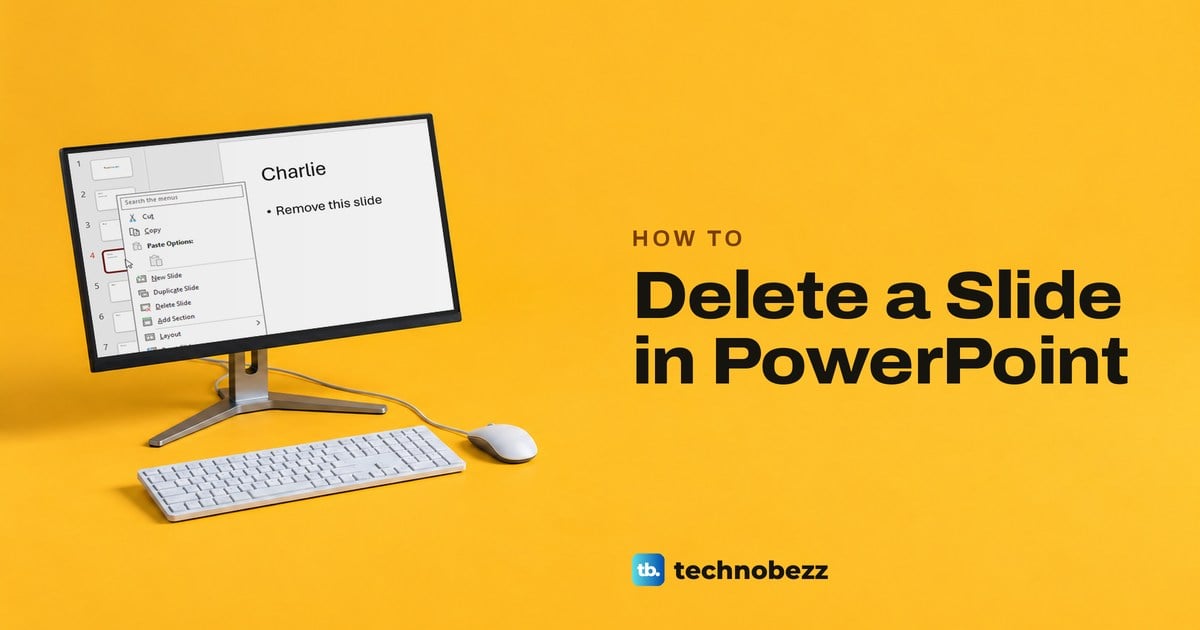
To delete a slide in PowerPoint, right-click its thumbnail in the pane on the left and choose Delete Slide. The slide disappears straight away, with no prompt, and Ctrl + Z puts it back in the same place if you removed the wrong one. You can also click the thumbnail and press Delete, as long as the thumbnail, and not text on the slide, is what you selected.
To remove several slides at once, hold Ctrl to pick separate slides or Shift to pick a run, then use the same command. Hide Slide is a different thing, because it keeps the slide in the file and only skips it in the slide show. The steps below work in PowerPoint for Microsoft 365 on Windows and in PowerPoint for the web, which uses the same Delete Slide label.
The short version
- One slide: right-click its thumbnail and choose Delete Slide.
- Keyboard: click the thumbnail, then press Delete.
- Several slides: hold Ctrl for separate slides or Shift for a run, then choose Delete Slide.
- Undo: press Ctrl + Z straight away to bring the slides back.
- Greyed out: look for Protected View, Mark as Final or Viewing mode.
- Hide Slide keeps the slide in the file, so it is not a delete.
Delete a slide from the thumbnail pane
Work in Normal view, the view a new presentation opens in, where every slide sits as a small numbered thumbnail down the left side. On our PC the pane had no label, only the thumbnails. If they are missing, select View > Normal, and if they are still hidden, Microsoft says to click the collapsed Thumbnails bar. If the pane is only narrow, drag its right edge to the right.
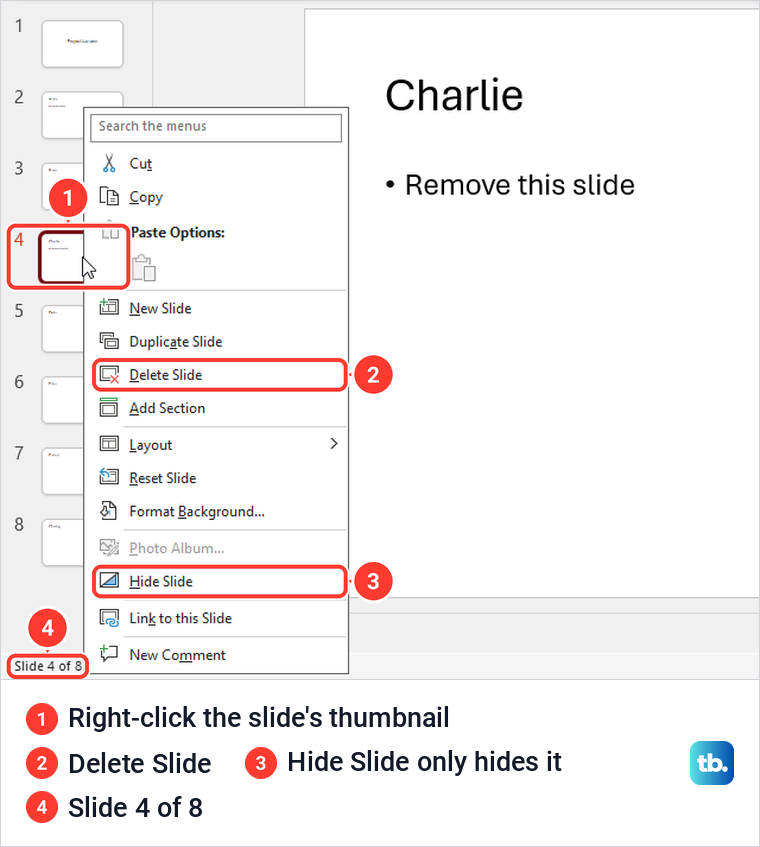
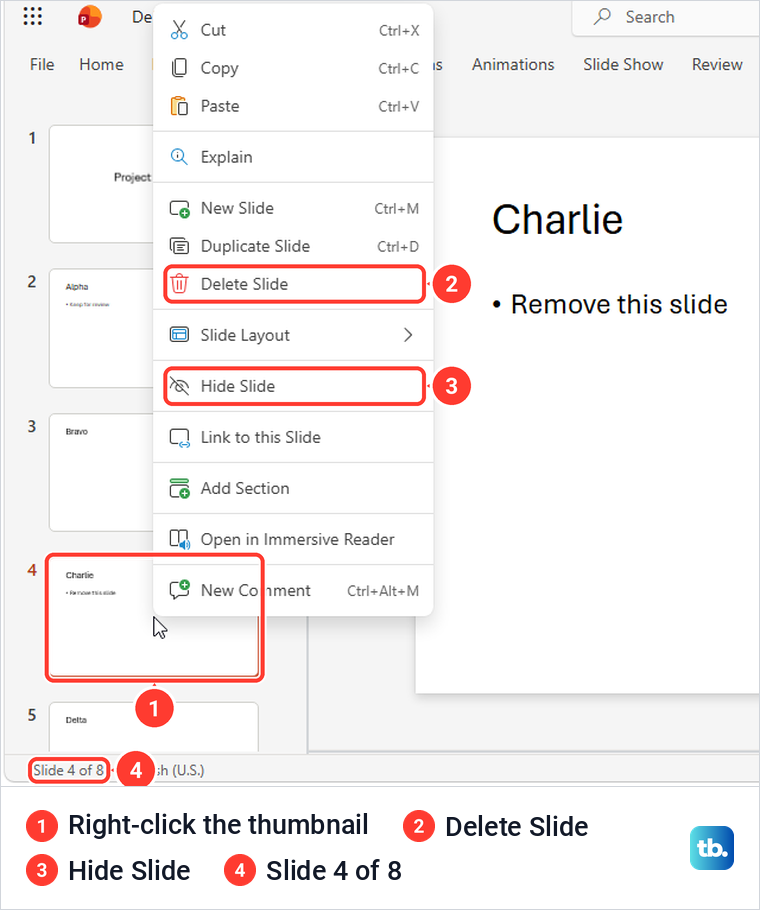
Right-click the thumbnail of the slide you want to remove and choose Delete Slide. In our eight-slide sample deck, Delete Slide sat just under Duplicate Slide, with Hide Slide further down the same menu. Pick carefully, because those two commands do very different things.
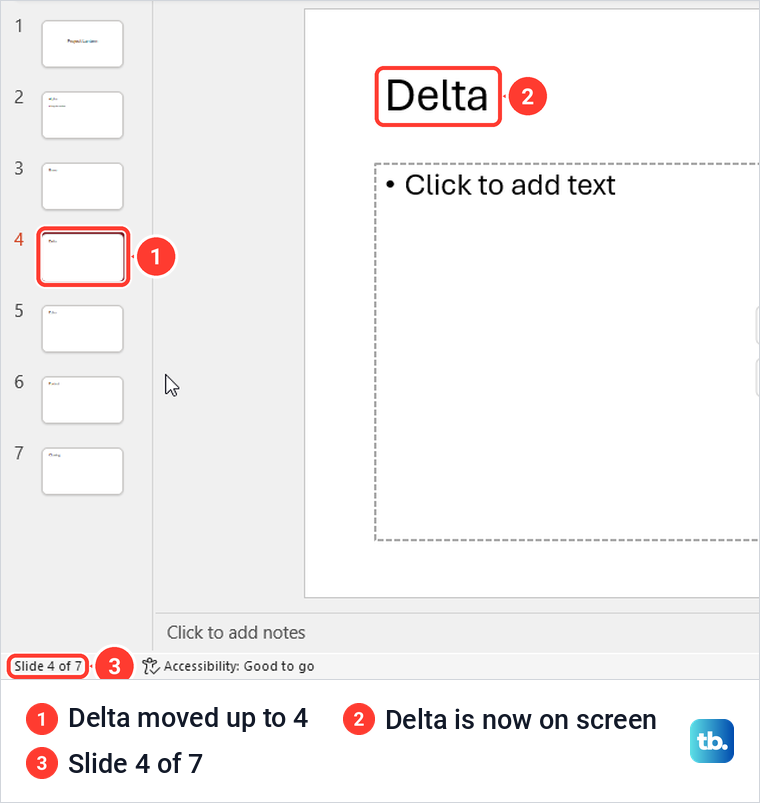
PowerPoint removed the slide at once, without asking us to confirm. The next slide, Delta, moved up into position 4 and was selected, and the status bar at the bottom left changed from Slide 4 of 8 to Slide 4 of 7. That count is the quickest way to check that the slide really went.
There was no Delete Slide button on the Home tab for us, in the desktop app or in PowerPoint for the web. The Slides group on the desktop Home tab held New Slide and three small icons, so the thumbnail menu is the place to start. If you are still putting the deck together, our guide on how to build your first PowerPoint presentation covers adding and arranging slides.
Ways to delete slides in PowerPoint
The first six methods below remove slides from the file, and each suits a different job. The last row shows how to undo a deletion, and each method is covered in its own section.
| Method | Where | What to select | Result |
|---|---|---|---|
| Right-click, Delete Slide | Normal view, thumbnail pane | One thumbnail | The slide goes at once and the next one moves up |
| Delete | Normal view, thumbnail pane | The thumbnail, not text on the slide | The slide goes, but with text selected only the text goes |
| Ctrl + click | Thumbnail pane or Slide Sorter | Each separate slide in turn | Delete Slide removes only the slides you picked |
| Shift + click | Thumbnail pane | The first and last slide of a run | Every slide in between goes too |
| Slide Sorter | View > Slide Sorter | Any slide, with every title in view | Delete Slide works there, then View > Normal returns you |
| PowerPoint for the web | Editing mode, thumbnail pane | One or more thumbnails | The same Delete Slide command, and the file shows Saved |
| Ctrl + Z | Straight after a delete | Nothing, just press it | The slides come back in their old places |
Use the Delete key without losing text
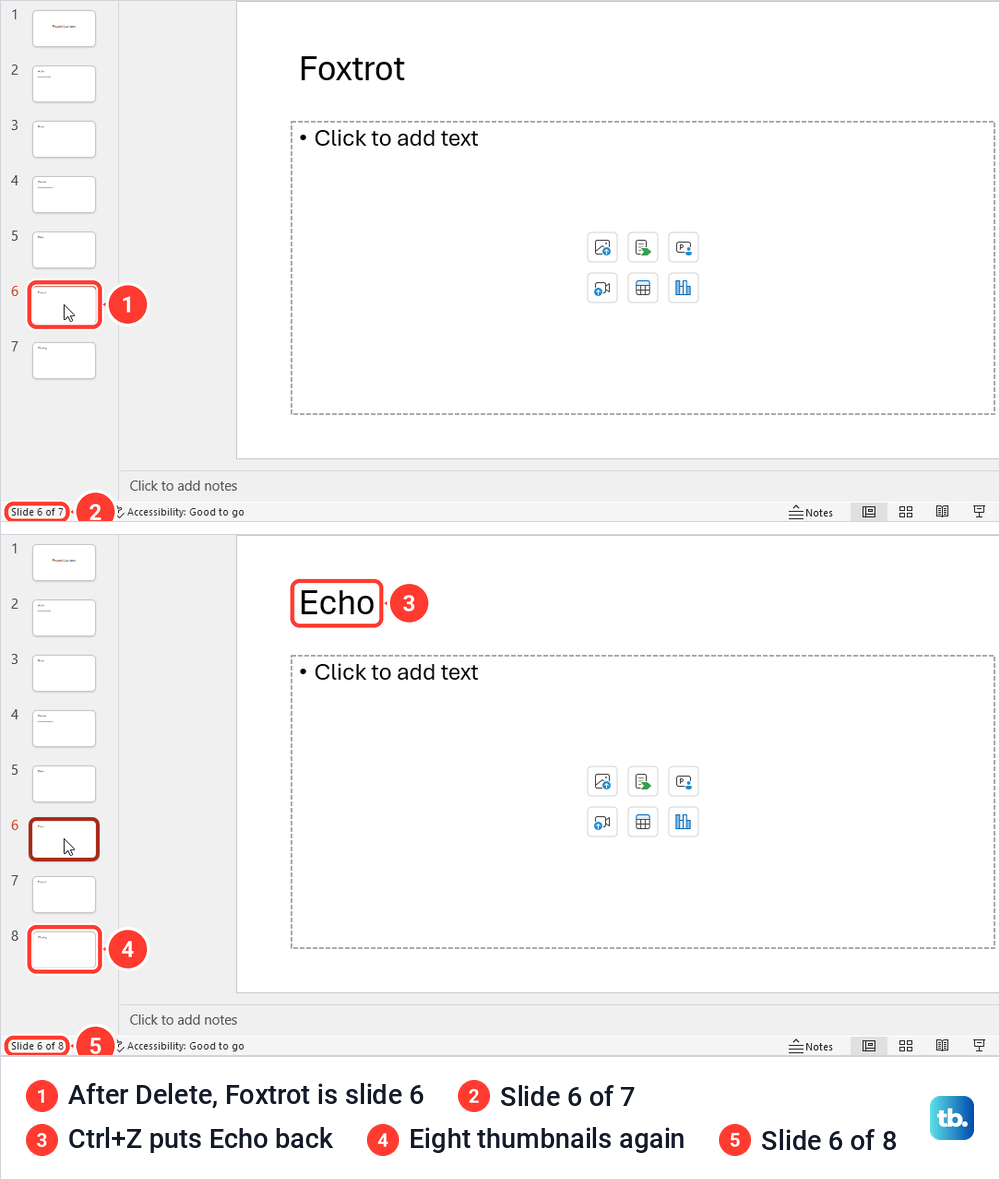
The keyboard route is faster once the right thing is selected. Click the slide's thumbnail so it gets a coloured outline, then press Delete. When we did that on Echo, slide 6 of 8, it disappeared without a prompt and Foxtrot took its place.
Pressing Ctrl + Z straight afterwards brought Echo back in position 6, with the count back at 8. Microsoft's shortcut list gives Ctrl+Z as the way to undo the last action on Windows, and Command + Z does the same on a Mac.
The catch is what has focus. Microsoft's shortcut list describes the Delete key as deleting the selected text, object, or slide, so it removes whatever is selected at that moment. With the words Keep for review highlighted on the Alpha slide, Delete erased only those words, and the deck still had eight slides.
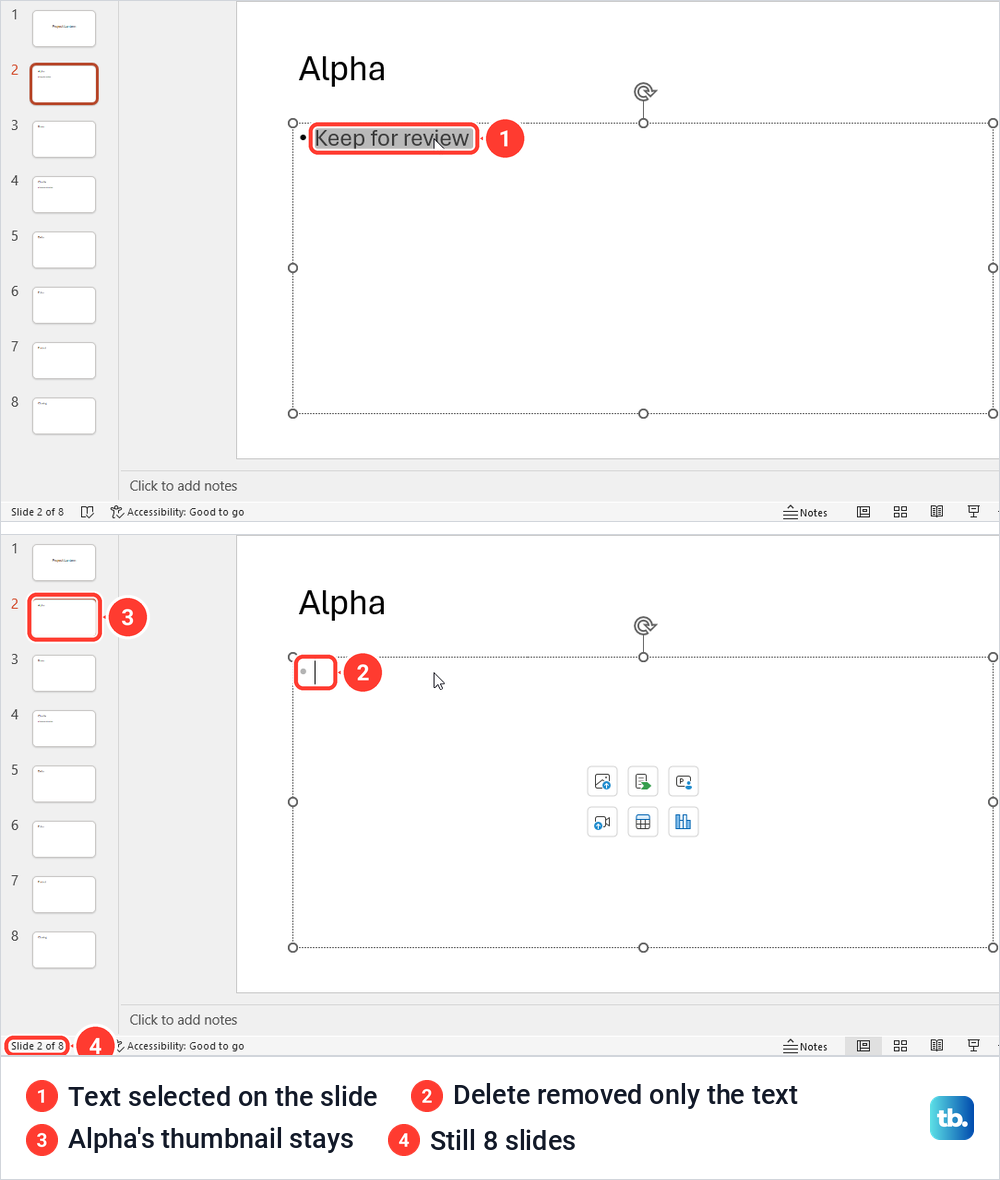
Once the text was back, we clicked Alpha's thumbnail in the pane and pressed Delete again, and this time the whole slide went. If you want to clear something off a slide rather than lose the slide, see how to remove a text box in PowerPoint instead.
Screen reader users can do the same from the keyboard. Microsoft's steps are to move to the thumbnail pane and press the Up or Down arrow key until you hear the number of the slide you want to delete. Then press Delete with Narrator or JAWS. With NVDA, press Shift+F10 to open the menu, press the Down arrow key until you hear Delete slide, and press Enter.
Delete multiple slides in PowerPoint
To remove slides that are not next to each other, click the first thumbnail, then hold Ctrl and click each of the others. Right-click any of the selected thumbnails and choose Delete Slide. We picked Alpha and Echo this way in the desktop app, and only those two went, leaving six slides.
One Ctrl + Z brought both back at their old places, not just the last one. Ctrl-click is easier to follow in Slide Sorter, where every slide shows its title. In the Slide Sorter of PowerPoint for the web, the same two picks and Delete Slide left six slides with Foxtrot moved up to 5.

For a run of slides in a row, click the first thumbnail, hold Shift and click the last. Clicking Bravo and then Shift-clicking Delta selected Bravo, Charlie and Delta, and Delete Slide removed all three, so Alpha was followed directly by Echo.

A long run works the same way, which matters if you need to clear hundreds of slides added by mistake. Click the first one, scroll down the pane, and Shift-click the last. Before you choose Delete Slide, look over the highlighted thumbnails to confirm the run starts and ends where you meant, and check the count afterwards.
Delete slides in Slide Sorter view
Slide Sorter lays the whole deck out as a grid, which is the easiest place to spot slides you no longer need. Microsoft describes it as another way to see all your slides at once. Select View > Slide Sorter, right-click a slide and choose Delete Slide.
The Slide Sorter menu was shorter than the Normal one for us but still had Delete Slide, Duplicate Slide and Hide Slide. After Delete Slide on Foxtrot, Closing moved up to slide 7 and the status bar read Slide 7 of 7. Foxtrot was also gone when we went back with View > Normal.
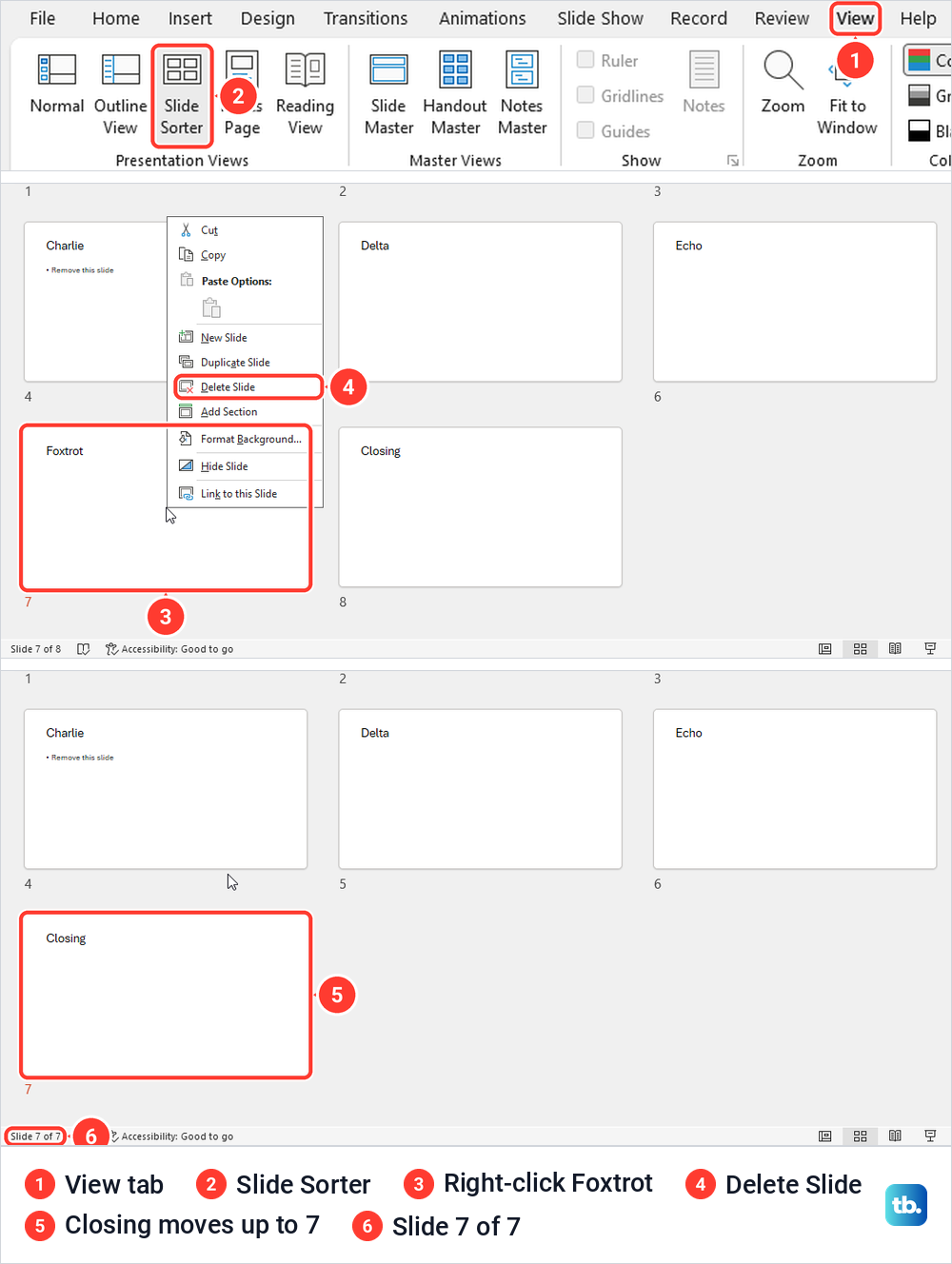
Undo has a side effect here. Ctrl+Z restored Foxtrot, but it also switched PowerPoint back to Slide Sorter, the view where the deletion happened, so a click we meant for a Normal view thumbnail landed on a different slide. Check which view you are in before you click after an undo.
Delete a slide in PowerPoint for the web
PowerPoint for the web uses the same command. Open the presentation from OneDrive, and if it is only on your PC, choose Upload a file in PowerPoint for the web to bring it in, which opened ours in Editing mode. To reach a presentation through OneDrive later, save it in your OneDrive folder, and our guide on how to set up OneDrive on Windows shows where that folder is.
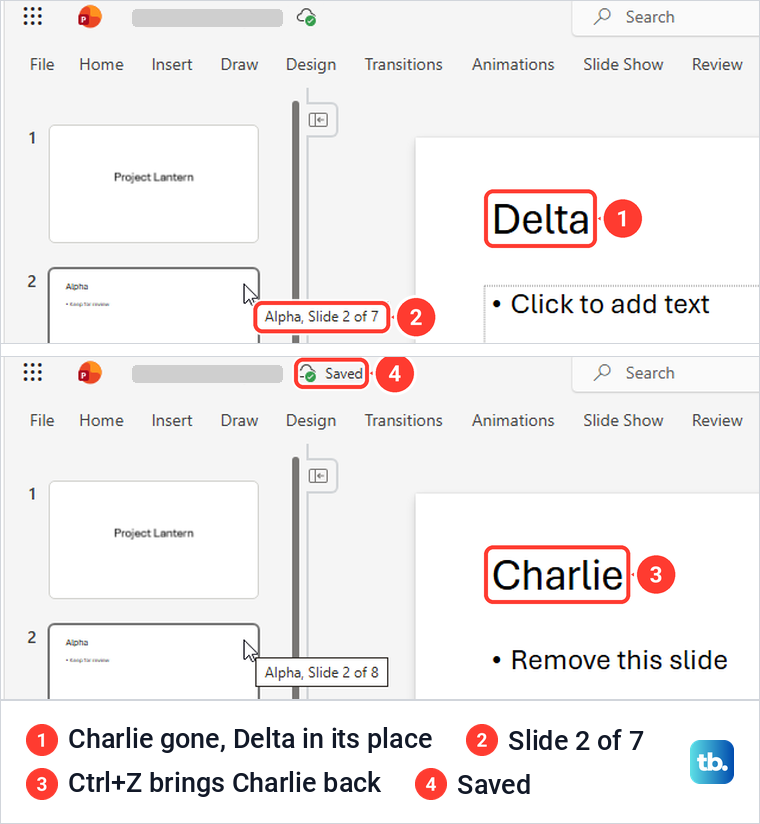
Right-click the slide's thumbnail and choose Delete Slide. The web menu lists it under New Slide and Duplicate Slide, which show their Ctrl+M and Ctrl+D shortcuts, with Hide Slide further down. Charlie disappeared without a prompt and the count dropped to 7.
Pressing Ctrl + Z restored Charlie with its text, and the indicator next to the file name read Saved. When we reloaded the page after several deletes and undos, all eight slides were there in their original order.
Several slides work as they do on the desktop. Shift-click selected a run of thumbnails, Delete Slide removed them and Ctrl+Z restored them. The web Slide Sorter sits behind a button in the status bar and handled Ctrl-click for separate slides.
Without a mouse, Microsoft says to press Ctrl+F6 until you hear Thumbnail panel, then use the arrow keys and press Delete. In Edge, Ctrl+F6 moved focus through several parts of the page before it landed on a slide, named by its title rather than as a panel, so keep pressing until a slide has focus. The arrow keys then moved between slides, Delete removed Echo, and Ctrl+Z put it back.
Undo a deleted slide
Undo is the safety net when the wrong slide goes. In the steps above, Ctrl + Z restored one slide and a pair of separate slides in the desktop app, and one slide, a separate pair and a run of slides in PowerPoint for the web, each back in its old position.
Press it straight away, before you make other changes, because Microsoft describes it as undoing the last action. Then check the count in the status bar, since that is where a slide that did not come back shows up first.
Hide a slide instead of deleting it
If a slide might be needed later, hide it rather than delete it. Right-click its thumbnail and choose Hide Slide. Microsoft says a hidden slide remains in the file and is merely hidden when you run Slide Show view.
On the Charlie slide, Hide Slide put a slash through the number 4 beside the thumbnail, and the status bar still read Slide 4 of 8. The menu item then changed to Unhide Slide, the command that brings the slide back into the show.
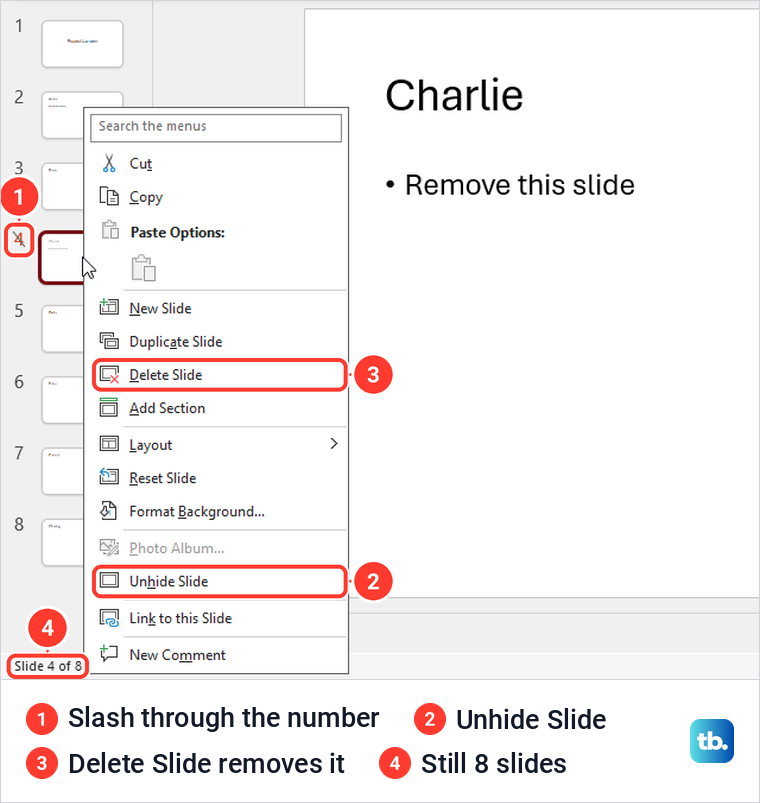
Because a hidden slide stays in the file, it still goes to anyone you send the presentation to. Under File > Info, the Properties list showed Slides 8 and Hidden slides 0 for our deck, a quick way to see whether anything is hidden before you share. If a slide must not reach anyone, delete it rather than hide it, and check the count before you share.
Why Delete Slide is greyed out
When the command will not work, the presentation is usually open in a mode that blocks editing. Three of them showed up for us, and each looks different on screen.
Protected View
Microsoft describes Protected View as a read-only mode where most editing functions are disabled, and it shows a yellow bar that says This file was opened in Protected View. We opened a copy with Open in Protected View from the Open button's menu, and its thumbnail menu showed Delete Slide greyed out, while the Delete key did nothing.
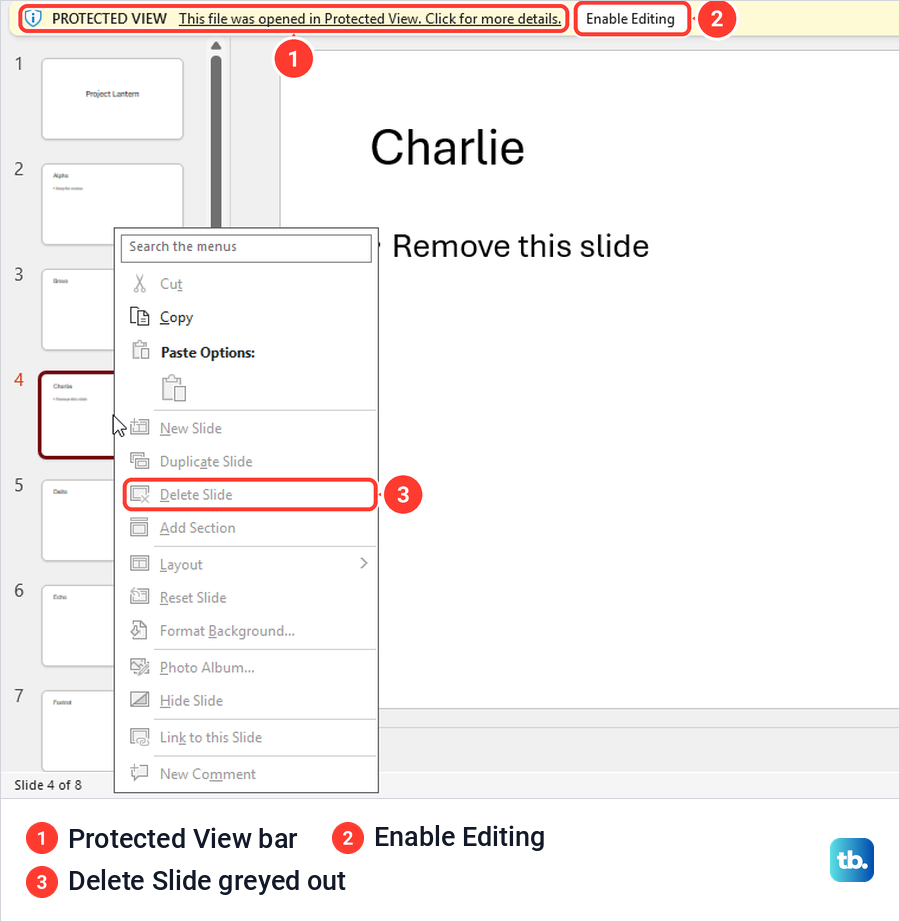
After Enable Editing on the yellow bar, Delete Slide worked again for us. Do this only for a file you trust, because Microsoft recommends editing a file only if you trust the person who sent it and the file does not look suspicious. If you cannot leave Protected View, Microsoft says your administrator may have rules that prevent it, so ask the file's owner or your IT team.
Marked as Final
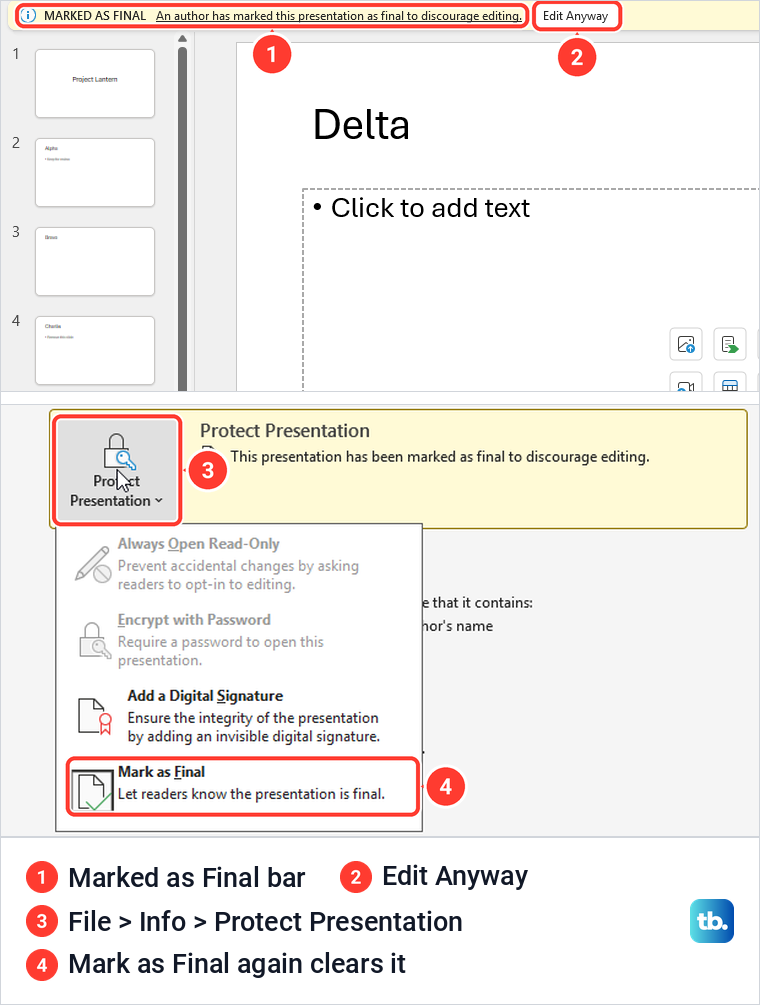
A presentation marked as final shows a bar that reads MARKED AS FINAL, An author has marked this presentation as final to discourage editing, with an Edit Anyway button. In that state, right-clicking a thumbnail opened no menu at all for us, and the Delete key did nothing. The way Microsoft documents to switch it off is to choose Mark as Final again, not that button.
Open File > Info > Protect Presentation and choose Mark as Final. Choosing it again cleared the final state without a prompt for us, and the slide could then be removed. Microsoft also says Mark as Final is not a security feature and anyone who receives a copy can remove it, so use sharing permissions if you need to control who can edit.
Viewing mode in PowerPoint for the web
PowerPoint for the web has a mode button near the top right that reads Editing or Viewing. In Viewing, described in its menu as View the file, but make no changes, Delete Slide was greyed out and the Delete key did nothing. Open the button and choose Editing to get the command back.
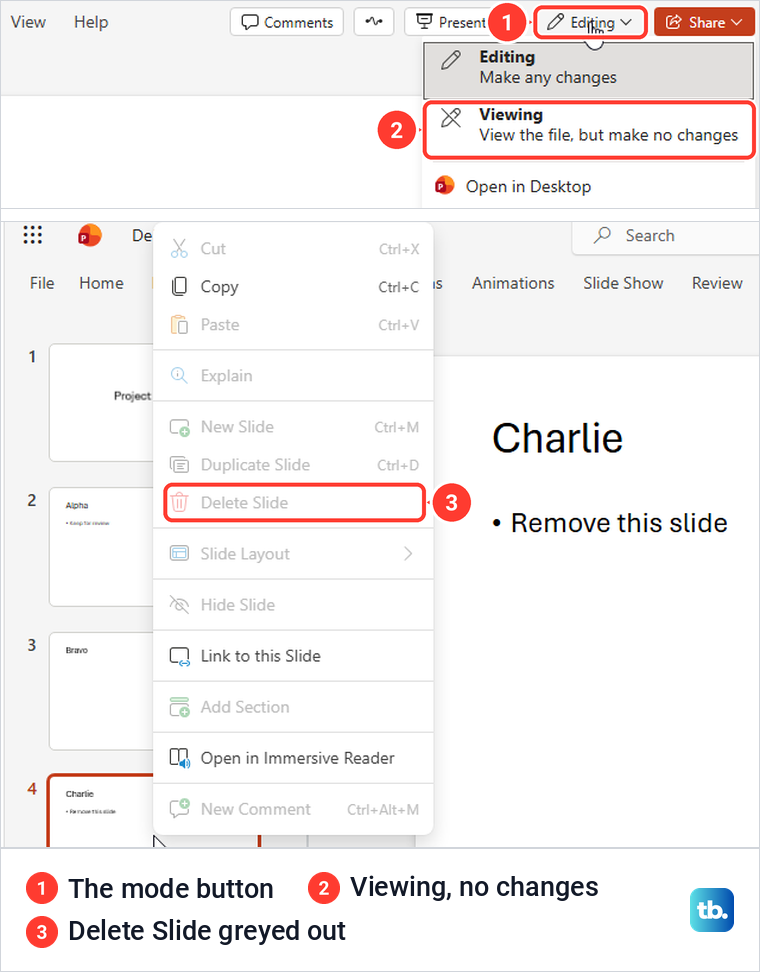
If the menu has no Editing choice, ask the file's owner for permission to edit. Microsoft's help also describes a Reading view for some files opened from a personal Microsoft account, where Edit Presentation > Edit in PowerPoint for the web switches to editing.
No thumbnails on screen
Two simpler causes look the same. A running slide show has no thumbnail pane at all, and when we started one with Shift+F5, Esc took us back to Normal view. If the pane itself has gone, the View > Normal fix near the top of this page brings it back.
Delete a slide on a Mac, iPhone or Android
In PowerPoint for Mac, Microsoft's steps are to Ctrl-click or right-click the slide's thumbnail in the left pane and choose Delete Slide, or to select the slide and press Delete. Undo on a Mac is Command + Z.
On an Android phone or tablet, Microsoft says to tap the slide's thumbnail in the pane at the bottom or left side of the screen, then tap Delete in the pop-up menu. On an iPhone or iPad the steps are the same, and if Delete is not visible, Microsoft says to use the right arrow on the menu to scroll to it.
Check the presentation after deleting slides
Look at the count in the status bar first, then scroll through the thumbnails once to confirm the order. PowerPoint renumbered the remaining thumbnails for us straight away, so the slide that had been 5 became 4.
A note or a slide that says see slide 6 is text you wrote yourself, so read those again by eye. You can add and use speaker notes on the slides you keep, and if the deck shows numbers on the slides, the guide on how to add slide numbers in PowerPoint explains the setting.
Before you delete a slide that holds sound or a clip you still need, cut it and paste it on a slide you keep. If you would rather start fresh on that slide, see how to add audio to PowerPoint and make it play.
In PowerPoint for Microsoft 365 on Windows, even the last remaining slide can go. After Delete Slide on the only slide of a one-slide presentation, there was no prompt, and the window showed an empty deck with Click to add first slide. Once the slide list is final, you can save PowerPoint as a PDF for a fixed copy or print PowerPoint with notes for the presenter.
How we tested this guide
We tested this in PowerPoint for Microsoft 365 on Windows 11, version 25H2, and PowerPoint for the web in Microsoft Edge, deleting and restoring slides in an eight-slide sample deck.
Frequently Asked Questions
How do I delete one slide in PowerPoint?
Right-click its thumbnail in the pane on the left and choose Delete Slide. The slide goes at once, without a confirmation prompt.
What is the keyboard shortcut to delete a slide?
Click the slide's thumbnail, then press Delete. If text on the slide is selected instead, Delete removes only that text.
How do I delete multiple slides at once?
Hold Ctrl and click each thumbnail for separate slides, or click the first and Shift-click the last for a run. Then right-click the selection and choose Delete Slide.
Can I get a deleted slide back?
Press Ctrl+Z straight away. For us it restored single slides and separate pairs in the desktop app and in PowerPoint for the web, and a whole run in the web app, each in its old place.
Why is Delete Slide greyed out?
The file is probably in Protected View, or in Viewing mode in PowerPoint for the web. A presentation marked as final shows no thumbnail menu at all, so clear Mark as Final first on a file you are allowed to edit.
Is hiding a slide the same as deleting it?
No. A hidden slide stays in the file with a slash through its number and is only skipped in the slide show, and Unhide Slide brings it back.
Can I delete the only slide in a presentation?
In PowerPoint for Microsoft 365 on Windows, yes. The deck became empty and showed Click to add first slide.