You want to keep certain Netflix profiles locked behind a PIN, limit what shows up based on maturity level, or block specific titles so younger viewers cannot reach them. Netflix splits these controls into two groups: per-profile controls (a Profile Lock PIN, a maturity rating, and blocked titles) and account-level controls (requiring a PIN before anyone adds a new profile).
Before you start, know two things. First, you need to be on the account owner's profile or have the account password, because every change requires identity verification. Second, the profile you want to lock has to already exist, since a Profile Lock is applied to one specific profile at a time.
The steps below are ordered quickest and most common first: setting a Profile Lock PIN, then setting maturity ratings and blocking titles, then creating a dedicated Kids profile. Web and mobile paths are both covered, along with the spots where Netflix forces you to use a browser.
Set a Profile Lock PIN in a Web Browser
This is the fastest way to put a 4-digit PIN on a profile. The PIN protects opening the profile and playing any titles downloaded from it.
- 1.Go to your Account page at netflix.com/account.
- 2.Select "Profiles".
- 3.Choose a profile.
- 4.Select "Profile Lock".
- 5.Click "Create a Profile Lock", enter 4 numbers to create your PIN, then click "Save PIN".
If this is the main (first) profile on the account, you can also check the box to "Require PIN to add new profiles". That option only appears on the main profile.
To change the PIN later, click "Edit PIN", verify your identity with a code sent to your email or phone (or your account password), enter the new PIN, and click "Save PIN". To remove it, click "Delete Profile Lock" and verify the same way.
Set a Profile Lock PIN in the Mobile App
You can do the same thing on iOS or Android, as long as you have the account password to verify. Open the Netflix app, then in the lower right, tap "My Netflix". At the top, tap the profile name, then tap "Manage Profiles" (the pencil icon).
Choose the profile you want to edit, tap "Profile Lock" (the lock icon), then tap "Create a Profile Lock". Enter your Netflix account password to verify, then enter 4 numbers for your PIN.
To change it, tap "Edit PIN", enter the current PIN, then the new one. To remove it, tap "Delete Profile Lock", enter the current PIN, and tap "Yes" to confirm. If you do not have the account password, you cannot manage the PIN in the app; use a web browser instead.
Set the Maturity Rating in a Web Browser
A maturity rating limits a profile to shows, movies, and games at or below the level you pick. Game ratings follow whatever you set here. Using the browser is required for any Kids profile.
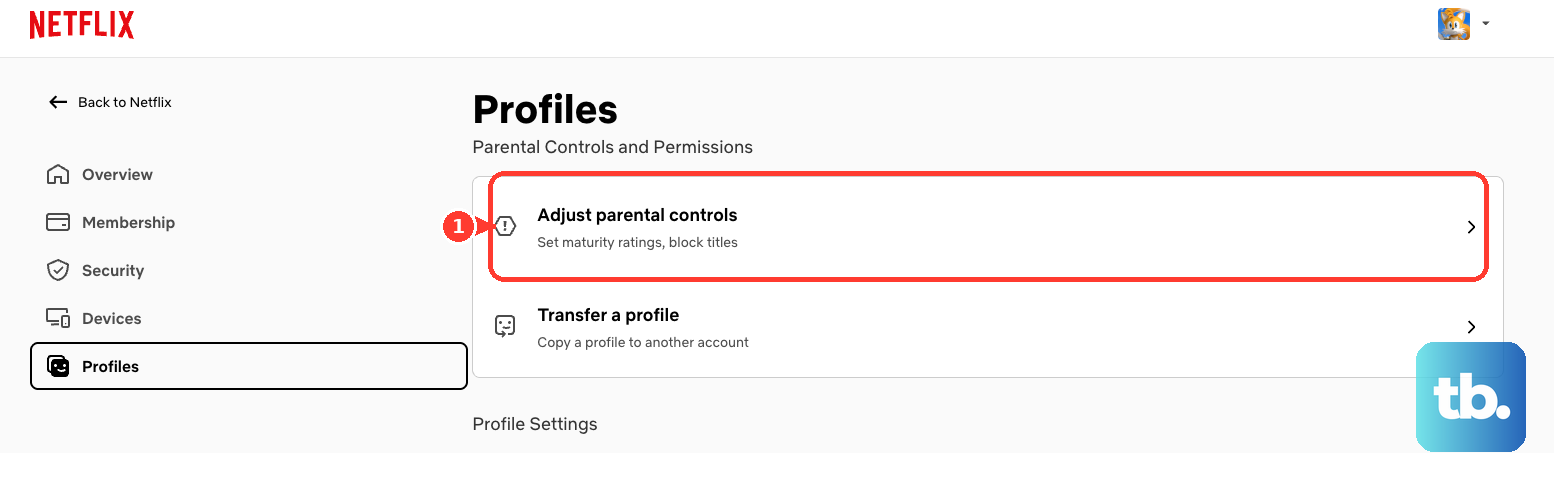
Go to your Account page, then select "Profiles". Select "Adjust parental controls", then choose a profile. Verify your identity with a code sent to your email or phone, or by entering your Netflix account password.
Set the Maturity Rating level you want, then choose "Save". A profile set to a given rating will only see titles at or below that level. As a reference, US ratings recommended for kids include TV-Y, TV-Y7, G, TV-G, PG, and TV-PG; for teens, PG-13 and TV-14; for adults, R, TV-MA, and NC-17. Rating systems differ by country, so the available values vary by region.
Set the Maturity Rating in the Mobile App
This works for regular (non-Kids) profiles. Kids profiles must use a browser.
Open the Netflix app, then tap "My Netflix" in the lower right. At the top, tap the profile name, then tap "Manage Profiles". Choose the profile you want to edit.
Tap "Viewing Restrictions", then tap "Maturity Rating". Enter your Netflix account password to verify, then select the maturity level you want.
Block Specific Titles
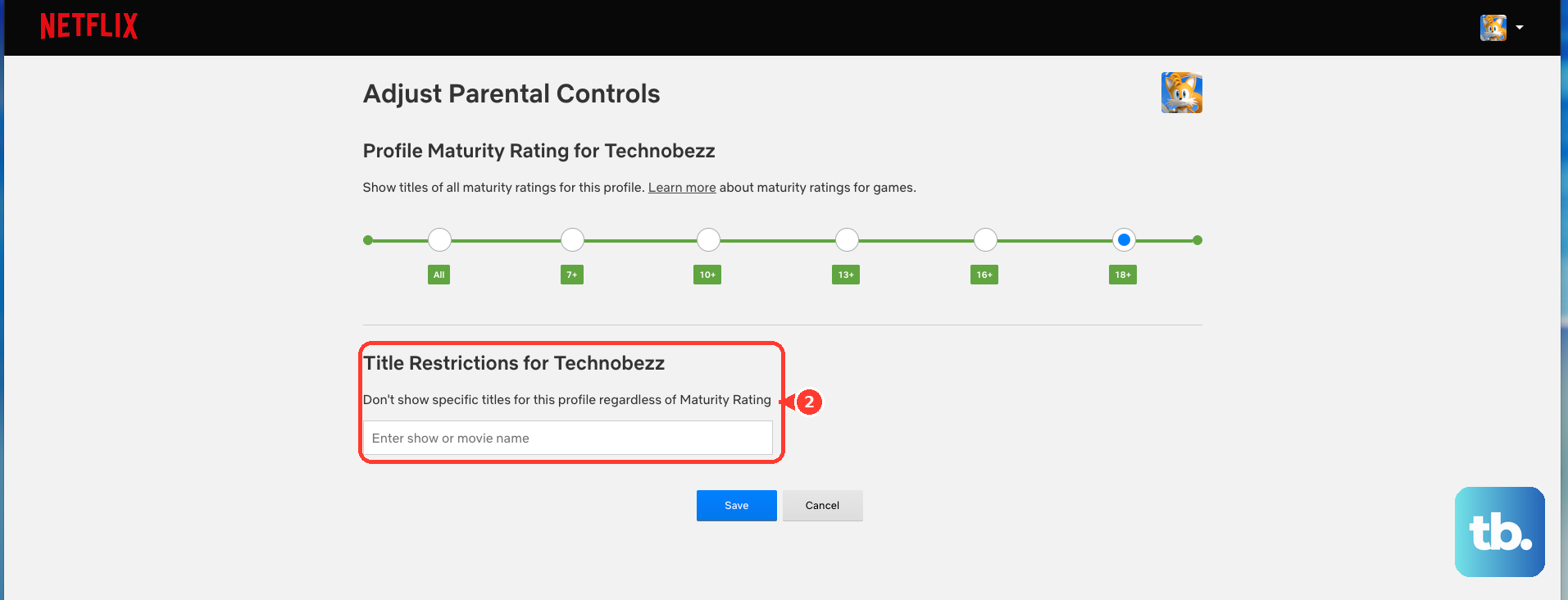
If you want to hide individual shows or movies regardless of their rating, block them by name. In a web browser, open "Adjust parental controls" for the profile and verify your identity, then under "Title Restrictions" type the title name and select it; to unblock one, select the X next to it; then select "Save". Only the first 100 blocked titles are displayed, so to remove a title beyond that you have to search for it by name.
In the mobile app, go to "Manage Profiles", choose the profile, tap "Viewing Restrictions", then tap "Block Titles" and verify with your password. Type the show or movie name and tap it to add. To remove one, tap "Edit", then tap the X next to the title. Blocking titles for a Kids profile cannot be done here; use a web browser.
Create a Dedicated Kids Profile
A Kids profile gives a simplified experience that plays only titles selected for kids and removes direct access to account settings. The main (first) account profile cannot be made a Kids profile, and the Kids experience requires a device made after 2013.
In a web browser, go to the Manage Profiles page at netflix.com/profiles/manage, select "Add Profile", enter a name and select the "For Kids" option, then choose "Continue". To convert an existing profile, select it on Manage Profiles, choose "Edit" under "Maturity Settings", enter your Netflix password, check "Display the Netflix Kids experience with titles just for kids", then save.
In the mobile app, tap "My Netflix", tap your profile name, then "Manage Profiles", then "Add Profile". Name the profile and select the Kids option (the exact label varies by device), then confirm.
Require a PIN Before New Profiles Can Be Added
This is an account-level control that stops anyone from quietly creating an unrestricted profile. It can only be turned on while adding a Profile Lock to the main (first) profile of the account. When you set the main profile's Profile Lock in a web browser, check the box to "Require PIN to add new profiles" during that flow.
Understand the Older Account-Level PIN
Before per-profile controls, Netflix used a single account-level PIN that restricted viewing across the whole account with one PIN and one maturity restriction. If you have not updated to per-profile controls, you reach that PIN prompt at netflix.com/pin, where you are prompted based on your maturity-level restrictions. Without updating, you cannot edit that PIN or its restricted maturity levels.
Moving to per-profile controls is one-way. Once you update to customize controls for each profile, there is no option to go back to a single account PIN, and your existing account-level PIN is removed.
Tips and Gotchas Worth Knowing
Changes are not instant on devices that are already open. After editing a PIN, rating, or blocked title, switch profiles or sign out and back in to make a device reflect the update.
A Profile Lock PIN is exactly 4 numbers, and it also gates playback of titles downloaded from that profile. Extra member accounts include one profile that cannot have a Profile Lock applied to it.
A Kids profile that was auto-created when the account started may show "Since this is a default Netflix Kids profile, content above a certain maturity level is restricted." The only fix is to delete that profile and create a new one whose maturity you can customize.
If you forget a Profile Lock PIN, use "Forgot PIN?" or go to netflix.com/account and follow the edit or remove steps; resetting still requires identity verification by password or an emailed/texted code.
Frequently Asked Questions
Do I need the account password to set a profile PIN?
Yes. Setting or editing a profile PIN, maturity rating, or blocked titles requires verification. On mobile that means the Netflix account password; on web you can use either the account password or a verification code sent to your email or phone. If you lack the password, manage controls through a web browser.
Why can't I change a Kids profile's maturity rating in the app?
Netflix requires a web browser to edit the maturity rating for a Kids profile, and the same applies to blocking titles for a Kids profile. Regular (non-Kids) profiles can be edited in the mobile app.
What's the difference between a profile PIN and an account PIN?
A profile PIN (Profile Lock) is an individual PIN that locks one specific profile. An account-level PIN is the older single-PIN system that restricts the entire account with one PIN and one maturity restriction. Profile-level controls are the current system.
Can I undo switching to per-profile controls?
No. Once you update to customize parental controls for each profile, there is no option to return to a single account-wide PIN, and your existing account-level PIN is removed.
How do maturity ratings affect games?
Game ratings correspond to the show and movie maturity settings on that profile. There is no separate game control; setting the profile's maturity level also governs which games appear.
Why don't my changes show up right away?
Devices that are already signed in need a refresh. Switch profiles, or sign out and back in, and the new PIN, maturity rating, or blocked titles will take effect.