


To turn off autoplay on Netflix, open your Account page in a web browser, select Profiles, choose a profile, open Playback settings and switch off Autoplay previews, Autoplay next episode or both. Autoplay previews stops the trailers that start while you browse, and Autoplay next episode stops a series from rolling straight into the next episode. In the phone app, Netflix's route is My Netflix, the profile name, then Manage Profiles.
Each profile keeps its own switches, so repeat the change for every profile that should stop autoplaying. The switches are labeled Applies to all devices, but Netflix says a device may need a refresh before it picks up the change: switch to another profile and back, or sign out and sign back in.
The short version
- Trailers while you browse: turn off Autoplay previews.
- The next episode starting by itself: turn off Autoplay next episode.
- Where: Account > Profiles > a profile > Playback settings, or My Netflix > profile name > Manage Profiles in the phone app.
- One profile at a time: repeat it for every profile that should stop autoplaying.
- TV still autoplays: switch to another profile and back, or sign out and back in.
Choose the autoplay switch that matches the problem
Netflix has two autoplay switches, and they stop different things. Find what is starting on its own in the left column, and the row tells you what to change and where.
| What starts on its own | What to change | Where it is |
|---|---|---|
| Trailers or clips while you browse the rows | Turn off Autoplay previews | Playback settings of the profile you watch on |
| The next episode of a series after one ends | Turn off Autoplay next episode | The same Playback settings page |
| The Are you still watching? question after a few episodes | Turn off Autoplay next episode, or dismiss the question when it appears | The switch is on the same Playback settings page; the question is dismissed on screen |
| The same title every time you open Netflix.com | No switch: a bookmark or favorite may be opening that title | Clear the Netflix cookie, then update the bookmark |
| Soft picture or too much data used | Nothing to do with autoplay: Data usage per screen | Below the two autoplay switches |
The first three rows are true autoplay and are fixed on one page. The last two are handled elsewhere: the fourth may come from a bookmark rather than a setting, and the fifth is a quality setting. Each has its own section further down.
About the third row: Netflix says the Are you still watching? question appears on TVs after three episodes and 90 minutes of uninterrupted viewing, and on other devices after three episodes in a row without using the player controls. To keep watching, Netflix says you can dismiss the message or turn off autoplay of the next episode.
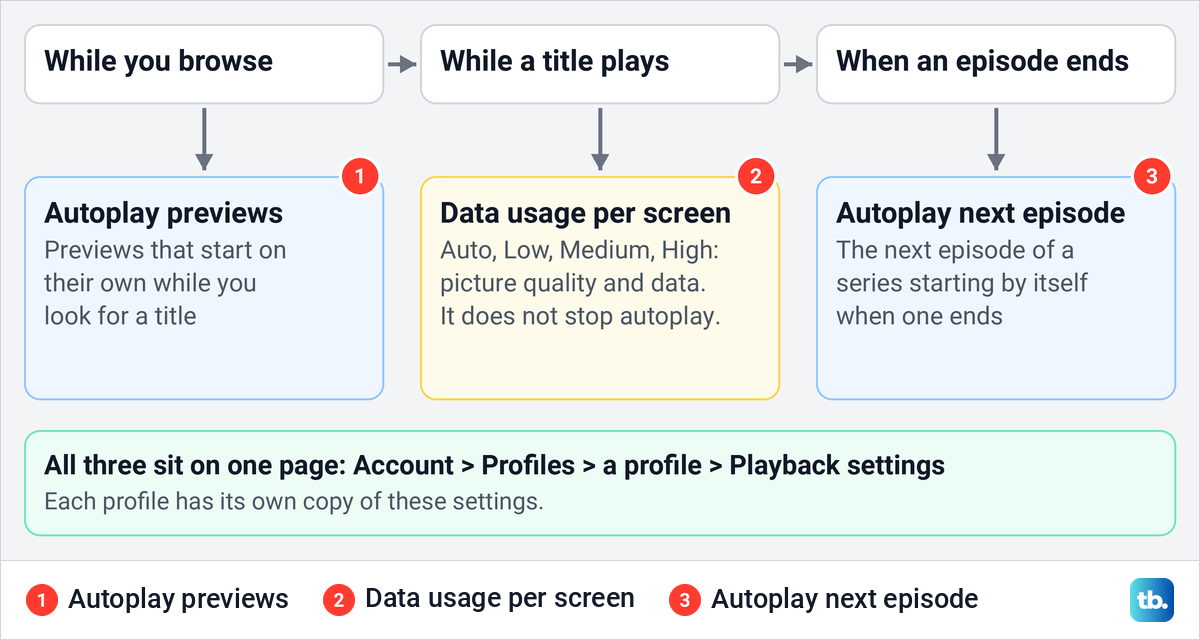
Turn off autoplay in a web browser
A browser shows both switches together, which makes it the clearest place to make the change. Netflix's help gives the same route for previews and for the next episode: go to your Account page, select Profiles, choose a profile, then select Playback settings.
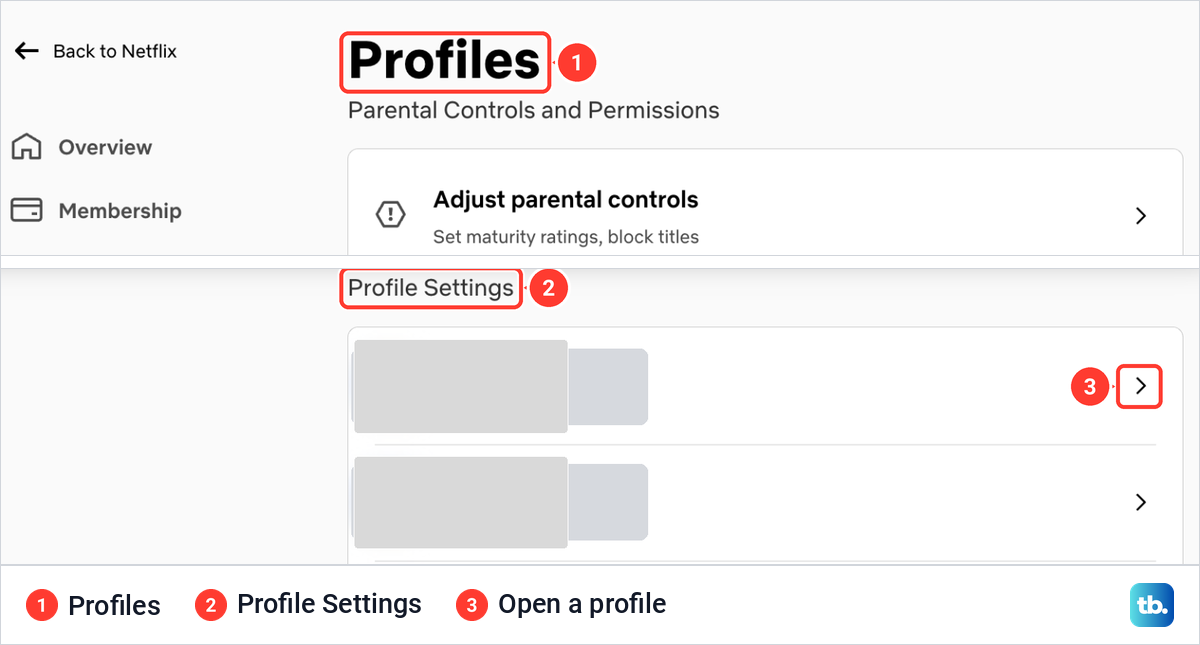
Open netflix.com/account and select Profiles. On the Profiles page we opened in Chrome, a Parental Controls and Permissions card came first, with an Adjust parental controls row for maturity ratings and blocked titles. That row is not where autoplay lives. Below it, a Profile Settings list showed one row per profile, each with an arrow on the right.
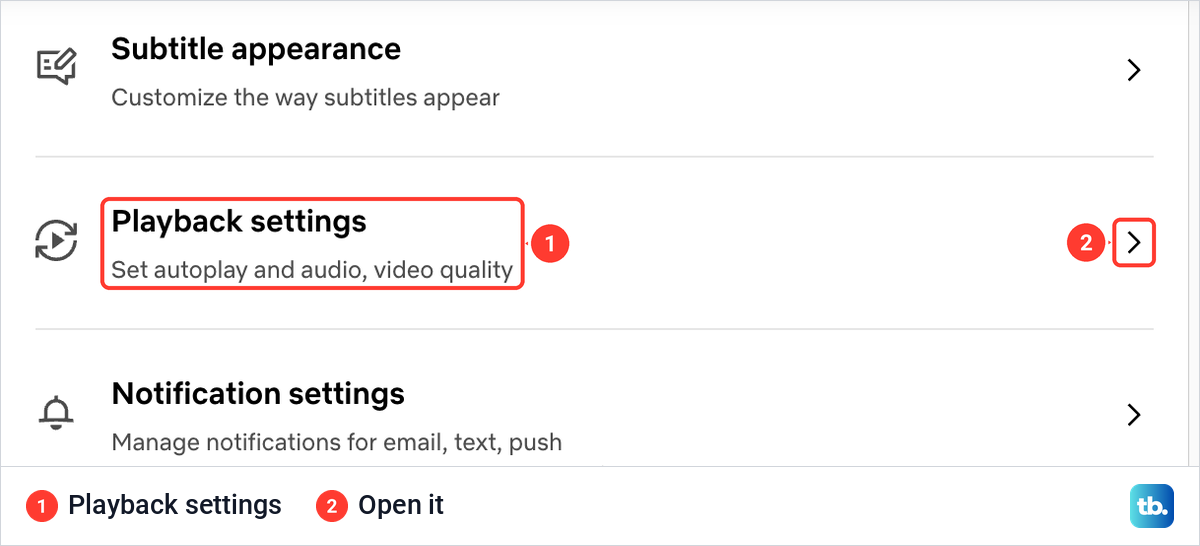
Select the arrow beside the profile you want to change. Its settings page has a list of preferences, and we found Playback settings between Subtitle appearance and Notification settings, with the line Set autoplay and audio, video quality under it.
Select Playback settings. The page opened to a section called Autoplay and transitions, and we saw two separate switches in one card: Autoplay next episode first and Autoplay previews below it. Each carries the line Applies to all devices. Both were on when we opened the page.
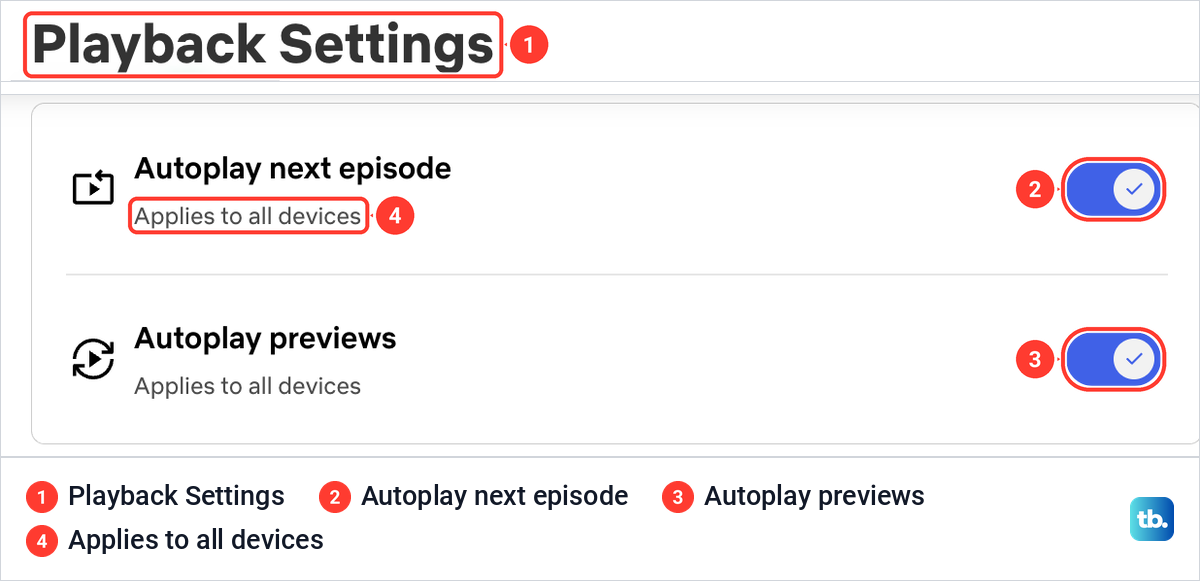
Toggle the switch next to Autoplay previews to stop trailers while you browse, and the switch next to Autoplay next episode to stop the next episode starting by itself. Turn off both if you want neither. Netflix's help says your preference updates automatically, and the card we saw holds the two switches with no Save button beside them.
That is where some older instructions go wrong. Steps that open with Manage Profiles from the profile icon and end with a Save button do not match the page we saw, where the route runs through Account and Profiles and the card holding the two switches has no Save button. In Netflix's own steps, toggling the switch is the last step.
Turn off autoplay in the Netflix phone app
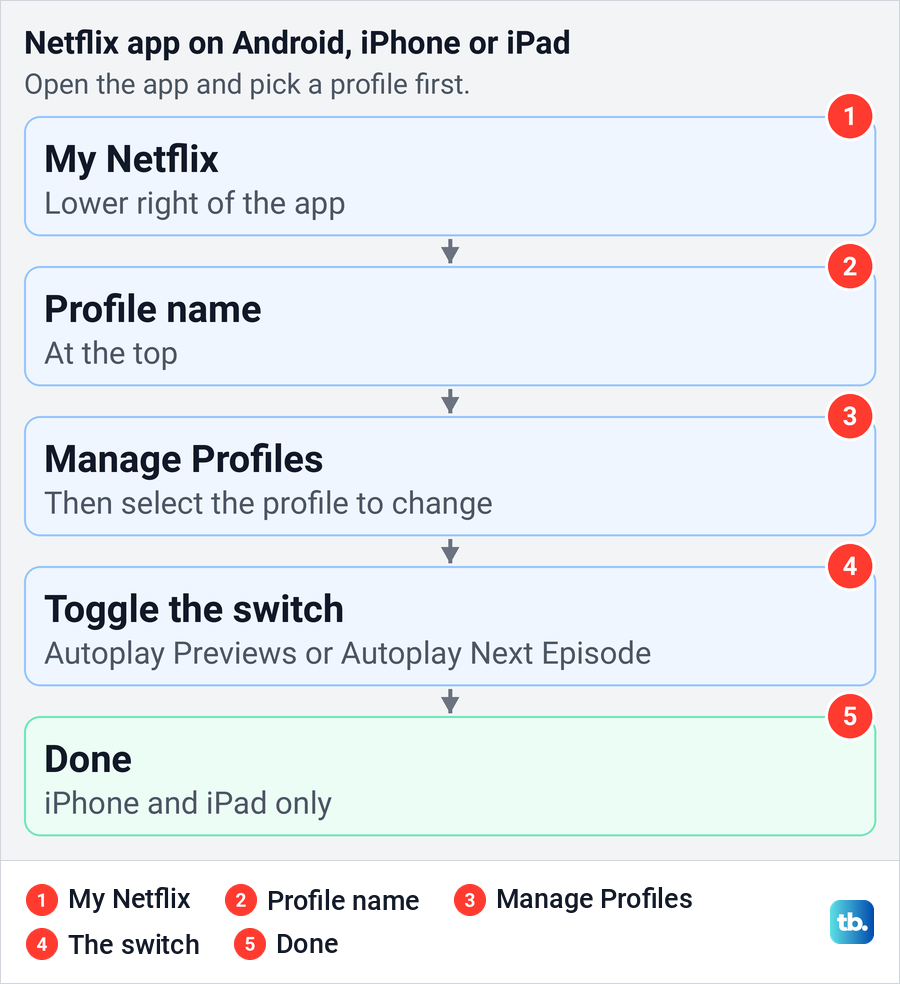
You do not need a computer for this. Netflix's help gives one route in the Android app and the iPhone and iPad app for both switches. Open the Netflix app and pick a profile, tap My Netflix in the lower right, tap the profile name at the top, then tap Manage Profiles.
Select the profile you want to change, then toggle the switch next to Autoplay Previews or Autoplay Next Episode. On an iPhone or iPad, Netflix adds one last step: tap Done. Android has no Done step, so the switch is the last thing you touch there.
The profile you edit does not have to be the one you are using. Manage Profiles lets you pick any profile on the account, so a parent can change a child's profile from their own phone. The setting belongs to the profile, not to the phone, so the phone app is just another way to reach the same two switches.
Make the change show up on your TV
Netflix's two autoplay articles give the phone app and a web browser as the places to change these switches. They add that a device may need a refresh to pick up the new setting, and they give no time for it. If your TV keeps playing previews after you switched them off, refresh it instead of waiting.
The first refresh Netflix gives is to switch to another profile and back. On a TV or streaming player, Netflix's route is to press Back on the remote to reach the menu, select the profile icon at the top and choose another profile. Then open the profile icon again and pick your own profile.
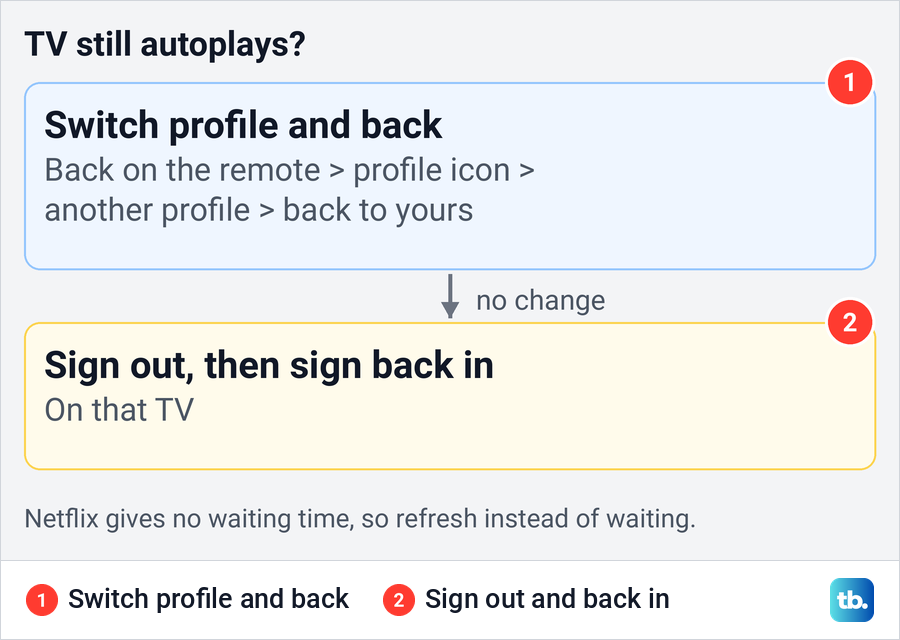
If that changes nothing, Netflix's second option is to sign out of Netflix on that device and sign back in. The sign-out option sits in a different place on different TVs, and our guide to log out of Netflix on a TV covers Samsung, LG, Roku and other TVs. Have your password ready before you sign out.
Change autoplay for another profile or a child
Applies to all devices describes devices, not profiles. Turning off Autoplay previews on your profile is meant to reach the devices you use it on that support previews, but a partner's or child's profile keeps its own switches. Netflix's procedure always starts by choosing one profile, and an account can have up to five, so repeat the steps for each one you want changed.
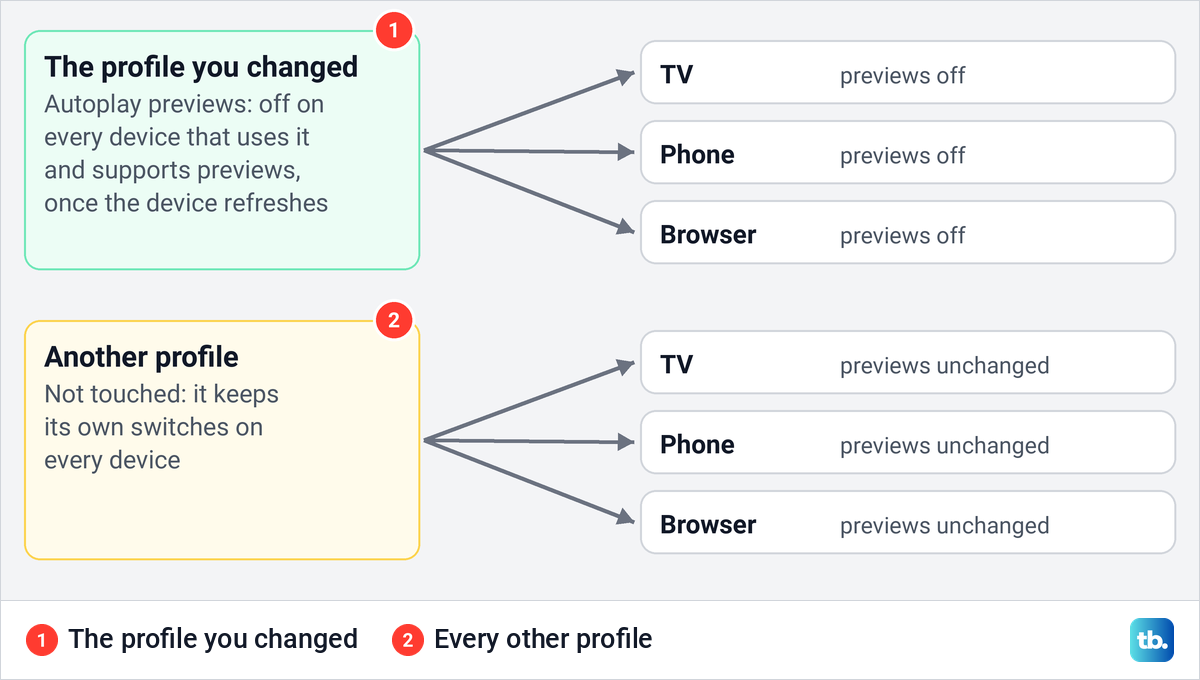
A child's profile is changed from another profile. Netflix lists both autoplay switches among its parental controls, and its help says anyone using a profile other than a Kids profile can edit the settings for individual profiles. Select the child's profile on the Profiles page, open its Playback settings and switch off what you need.
Autoplay is only one part of keeping a child's viewing in check. If you also want a PIN on your own profile or a maturity limit on theirs, set up Netflix parental controls separately. The Adjust parental controls row we saw at the top of the Profiles page carries the line Set maturity ratings, block titles.
If previews or episodes still start
First check the obvious two. Make sure you changed the profile that is open on the device, and that you turned off the switch for the right behavior: previews while you browse, or the next episode after one ends. Mixing them up is easy, because the two switches sit one above the other with the same Applies to all devices line.
Then use the refresh steps in the TV section above. Netflix also notes that iPads and some older TVs and TV streaming devices do not support preview autoplay at all, so the previews switch changes nothing on them.
Netflix describes Autoplay previews as the previews that play to help you find your next show or movie. Its help does not say whether the switch also stops a clip that plays after you open a title's own page on a TV, and readers report both outcomes. Treat the switch as the control for browsing, and do not expect it to silence every trailer on every screen.
If the same movie or episode plays every time you go to Netflix.com on a computer, the cause may be different. Netflix says it may be a bookmark or favorite that links to a page that plays a title. Its fix is to go to netflix.com/clearcookies, which signs you out, then sign in again, and you should update the bookmark so it points to the Netflix home page.
If the TV app will not start or play at all, the autoplay switches are not the place to look. Our fixes for when Netflix works on your phone but not your TV cover a TV app that will not start or play while the phone is fine. If the app's menus freeze instead, you can reset Netflix on a smart TV.
Autoplay is not the same as video quality
On the Playback Settings page, a section called Data usage per screen appeared below the two autoplay switches. It listed Auto, Low and Medium, each with a line about quality and data use, and High further down. None of these options stops anything playing: they set how sharp the picture is and how much data each screen uses.
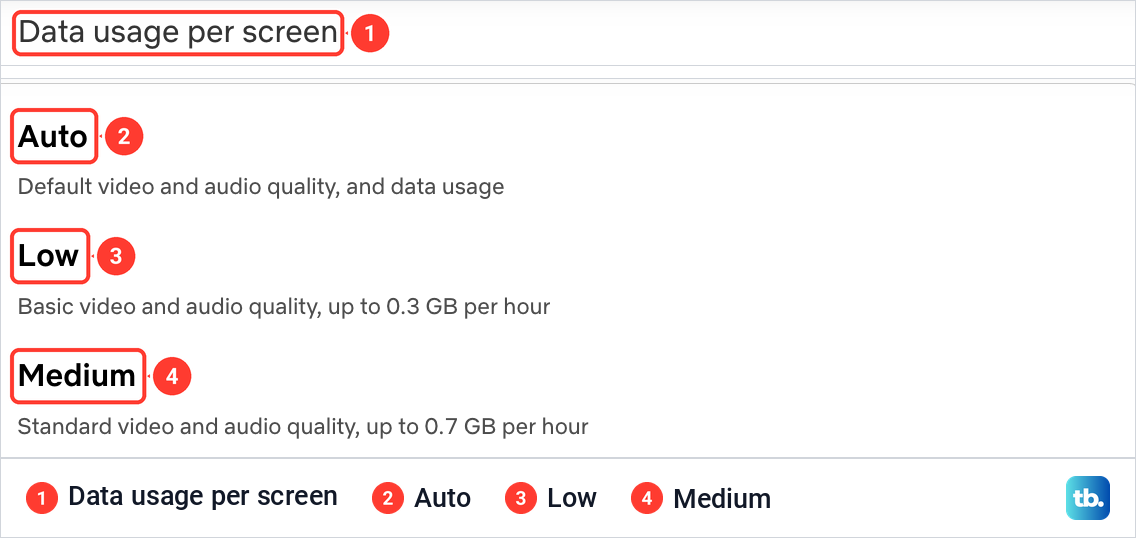
Netflix's figures are up to 0.3 GB an hour for Low and up to 0.7 GB for Medium. High gives the best quality, at up to 1 GB an hour in standard definition, 3 GB in HD and 7 GB in 4K, and Auto adjusts to your connection speed. Like the autoplay switches, the choice is made per profile, and Netflix says it is saved automatically.
Lowering it is worth doing if you watch on a capped connection, but it does not stop previews or episodes. If the real problem is a video that stops to load, the autoplay switches will not cure it either. Use the steps to fix Netflix that keeps buffering for that.
What the autoplay switches leave alone
The switches change playback and nothing else. They do not stop the membership or its charges, so if you mean to leave the service, cancel your Netflix subscription instead.
Episodes you have already watched stay in the profile's viewing activity after you turn off next-episode autoplay. If you want them gone, delete your Netflix viewing history from the same profile's settings, which is a separate page from Playback settings.
How to check the change worked
Go back to the profile's Playback Settings page in a browser and look at the switch you changed. It should show as off, and since Netflix updates the preference automatically, there is nothing more to confirm. Check the profile name at the top of the page too, so you know you changed the right one.
Then check on the device that bothered you. For previews, open Netflix on that profile and browse the rows for a minute. For the next episode, wait for the end of an episode to come up naturally and see whether the next one starts by itself. If the old behavior is still there, use the refresh steps in the TV section.
How we tested this guide
We tested this on Netflix on the web in Chrome, going through Account, Profiles and a profile's Playback settings up to the two autoplay switches and Data usage per screen.
Frequently Asked Questions
How do I stop Netflix playing trailers while I browse?
Turn off Autoplay previews for the profile you watch on. In a browser it is under Account, Profiles, the profile, then Playback settings, and in the phone app under My Netflix, the profile name, then Manage Profiles.
How do I stop Netflix from playing the next episode?
Turn off Autoplay next episode on the same Playback settings page, or in the same Manage Profiles route in the app. The next episode then waits for you to start it.
Does one switch change every Netflix profile?
No. Netflix asks you to choose a profile before you change either switch, and Applies to all devices covers that profile on the devices that support the feature; Netflix notes that iPads and some older TVs do not support preview autoplay at all. Repeat the change for each profile.
Why does my TV still play previews after I changed the setting?
Check that you changed the profile open on the TV and the previews switch rather than the next-episode one. Then switch to another profile and back, or sign out and back in, which is how Netflix says to refresh a device; it gives no fixed waiting time.
Can I turn off Netflix autoplay on the TV itself?
Netflix's autoplay help gives only the phone app and a web browser as the places to change both switches. Its profile help says profiles can be edited on most devices, on a TV from the profile selection screen, and to use Netflix.com when a device cannot edit a profile. The sure route is your phone or a browser, then switch profiles on the TV.
Is Data usage per screen the same as autoplay?
No. It sets picture quality and data use, with Auto, Low, Medium and High, and it sits below the autoplay switches on the same page. It does not stop previews or the next episode.
Will turning off autoplay cancel Netflix or clear my history?
No. The switches only change what starts by itself. Cancelling your membership and deleting viewing history are separate steps on other pages.