Windows 11 power settings control when your screen turns off, when your PC sleeps, and how much energy the device uses while it is awake. If your laptop dies too quickly, sleeps at the wrong time, or stays on longer than you want, start in Settings. The main fixes are quick, and the physical button and lid options are still easy to reach through Control Panel.
1. Set Screen And Sleep Timers First
Start here when the display stays on too long, the PC sleeps too soon, or the laptop behaves differently on battery power. Select Start, open Settings, then select System. Select Power & battery, then select Screen, sleep, & hibernate timeouts.
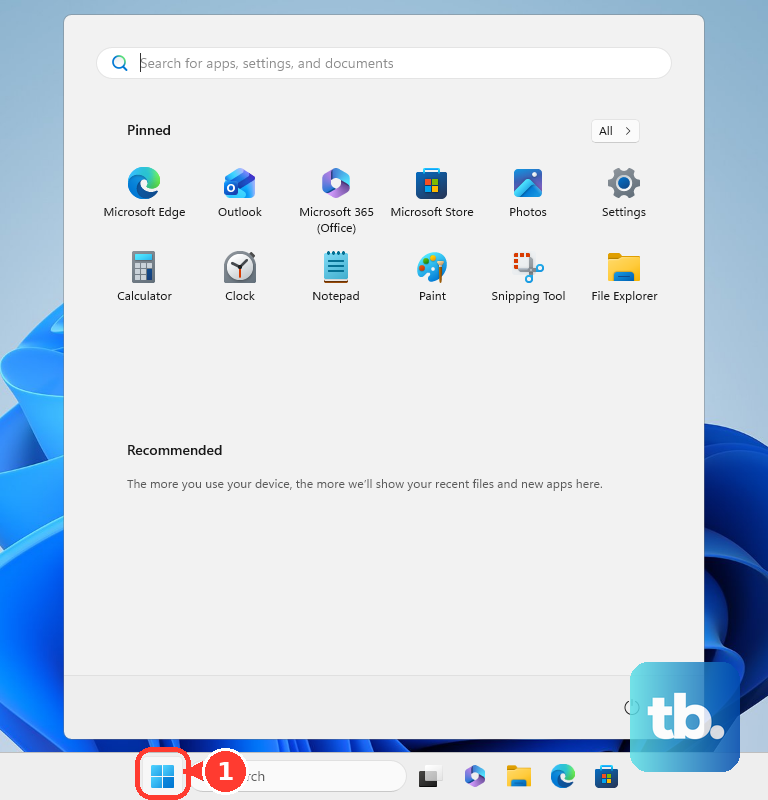
Open the dropdown for Turn my screen off after. Choose the time you want for On battery and Plugged in if both are shown. Next, open the dropdown for Make my device sleep after. Choose the sleep time you want for On battery and Plugged in if both are shown.
Battery-specific options appear on PCs with batteries. Hibernate timeout options appear on PCs that support hibernate.
2. Choose A Power Mode That Fits The Job
Select Best power efficiency for lower energy use. Select Balanced for everyday use. Select Best performance when speed matters more than power use.
To find those choices, go to Start > Settings > System > Power & battery, then open Power mode. Power mode changes the balance between battery life, energy use, and performance. The choices shown are set by your PC hardware and manufacturer. Power mode is hidden when a custom power plan is selected.
3. Switch On Energy Saver
Energy saver is the faster battery-life fix. On Windows 11 24H2 and later this feature is called Energy saver; on Windows 11 23H2 and earlier it is called Battery saver, reached the same way under Power & battery. It can reduce power use and lower screen brightness when that option is available on your PC.
Select Start, open Settings, then select System. Select Power & battery, then select Energy saver. Set Turn energy saver on when battery level is at.
After that, turn on Always use energy saver when you want Windows to conserve power now. Turn on Lower screen brightness when using energy saver to reduce display power use.
For a quicker toggle, select the Battery icon in the notification area, then select Energy saver. You can also press Windows key + A to open Quick Settings and select Energy saver.
4. Apply Energy Recommendations
Select Start, open Settings, then select System. Select Power & battery, then select Energy recommendations. Select Apply next to the recommendations you want.
Windows 11 also groups recommended power changes in one place. Recommendations include turning off the screen after 3 or 10 minutes, putting the device to sleep after 3 or 10 minutes, automatically sleeping when you leave, and dimming the screen when you look away. The leave-and-look-away options appear on Windows 11 devices with supported presence sensors.
5. Change What The Power Button And Lid Do
Use Control Panel if closing your laptop lid does the wrong thing, or the power button shuts down when you want sleep. Select Search on the taskbar, type control panel, then select Control Panel. Select System and Security. Under Power Options, select Change what the power buttons do.
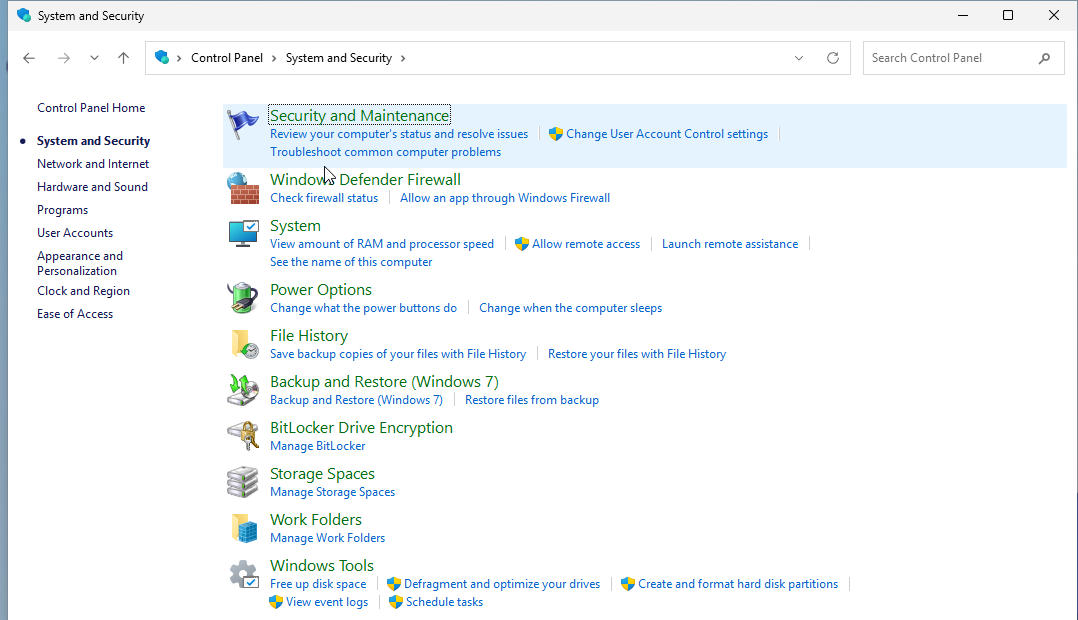
Select Change settings that are currently unavailable. Choose an action for When I press the power button. Choose an action for When I press the sleep button if that option is shown. Then choose an action for When I close the lid on a laptop or mobile PC.
Select Save changes. The action list is based on your hardware and enabled sleep or hibernate states. After you save the setting, pressing the power button or closing the lid triggers the action you selected.
6. Use Sleep Or Hibernate Manually
Use the power menu when the PC needs to sleep right now: Start > Power > Sleep. To use hibernate, select Start > Power > Hibernate when Hibernate is shown.
There is also a keyboard route. Press Windows logo key + X, select Shut down or sign out, then select Hibernate when it appears.
7. Let Presence Sensing Handle It
Select Start, enter settings, then select Settings. Select System, select Power & battery, then select Screen and sleep. Turn on the supported presence options, such as Automatically turn off my screen when I leave, Automatically wake up my device when I approach, and dimming the screen when you look away where Adaptive Dimming is available.
On supported Windows 11 PCs, presence sensing can turn off the screen when you leave, wake the device when you approach, and, on hardware that supports it, dim the screen when you look away. These controls appear on Windows 11 devices with supported presence sensors, hardware, and firmware.
8. Skip The Old Windows 10 Path
Start > Settings > System > Power & sleep > Additional power settings is the Windows 10 route often found in outdated instructions. For Windows 11 screen and sleep timers, use Start > Settings > System > Power & battery > Screen, sleep, & hibernate timeouts.
9. Check Admin Policies On Work Or School PCs
Work, school, shared, and kiosk-style PCs use admin-managed power settings. Your organization can control display timeouts, sleep timeouts, hibernate timeouts, lid actions, power button actions, and sign-in behavior after sleep. Use the visible Settings and Control Panel options first. If the PC changes the setting back, contact your organization’s IT support.
Frequently Asked Questions
Why are battery and plugged-in options different on my Windows 11 PC?
Windows shows separate On battery and Plugged in choices on devices with batteries. Desktop PCs do not use battery-specific controls.
Why is Hibernate missing from the Power menu?
Hibernate appears only when the PC supports it and hibernate has been enabled. Hardware and enabled power states control the sleep and hibernate choices shown in Windows.
Do Microsoft Edge sleeping tabs change Windows 11 sleep settings?
No. Edge sleeping tabs reduce resource use inside Microsoft Edge. They do not control when Windows 11 turns off the display or puts the device to sleep.
Can I change Windows 11 power settings by voice?
Yes. On Windows 11 version 22H2 and later, start voice access from Settings > Accessibility > Speech, then use commands such as Open Settings, Click System, Click Power & battery, and Click Screen and sleep.