Your Windows 11 screen turns off while you’re still reading, and you have to wake it to continue. Change the screen timeout in Settings to give yourself more time, with separate durations for battery and plugged-in use and no extra app required. If the display still goes dark too soon, check the separate sleep, screen saver, and presence controls below.
Change the screen timeout in Settings
This sets how long your display stays on during inactivity.
Open Start.
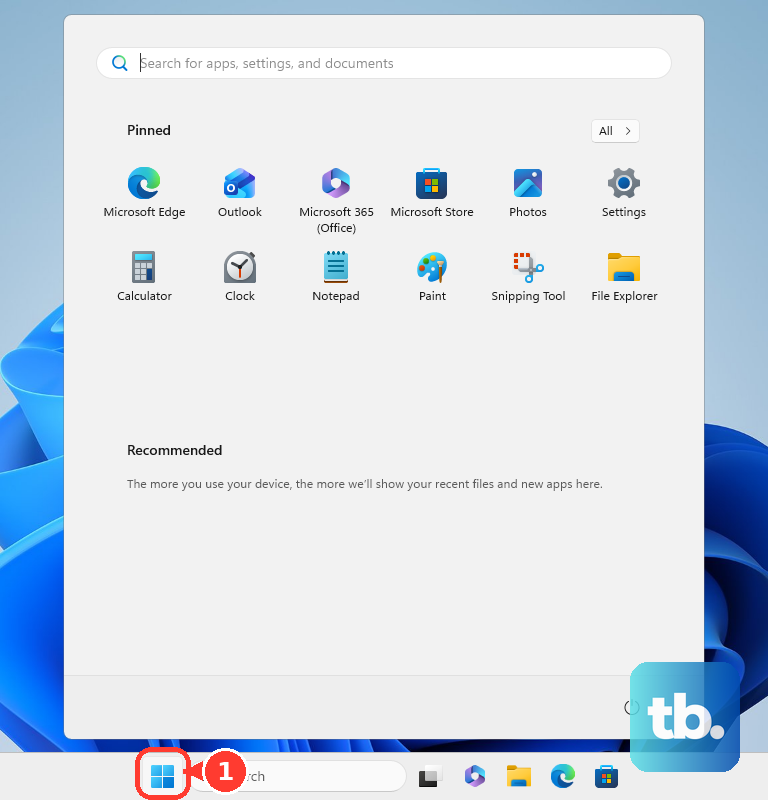
Select Settings.
Select System.
Open Power & battery. If you can’t find it, use the Run shortcut in the next section to open the same page directly.
Expand Screen, sleep, & hibernate timeouts. The alternative label is Screen and sleep.
Set Turn my screen off after to your preferred duration for plugged-in use.
On a battery-equipped device, set the battery duration under Turn my screen off after separately.
To disable automatic display shutoff for either power source, choose Never for that source.
Jump straight to the same controls
The Run shortcut opens the same power-settings page without navigating through Settings.
- 1.Press Windows+R to open Run.
- 2.Enter
ms-settings:powersleepand press Enter. - 3.Expand Screen, sleep, & hibernate timeouts, also labeled Screen and sleep.
- 4.Change Turn my screen off after for the power source you use.
Check the separate sleep and screen saver timers
Turn my screen off after controls the display. Make my device sleep after controls when the computer sleeps. Selecting Never for the screen does not prevent sleep or automatic locking.
If sleep interrupts what you’re doing, open Settings > System > Power & battery > Screen, sleep, & hibernate timeouts.
Adjust Make my device sleep after for the relevant power source. Changing the display timer alone leaves this sleep setting unchanged.
A screen saver has its own timer: Wait, under Settings > Personalization > Lock screen > Screen saver. A blank screen saver makes the display look black, but it does not set the monitor’s power-off timeout.
Use Control Panel to edit your power plan
This changes the display timeout for the selected power plan through the classic Windows interface.
Search Start for Choose a power plan.
Open Choose a power plan from the results.
Select Change plan settings beside the active plan.
Change Turn off the display in the plugged-in column.
On a battery-equipped PC, adjust Turn off the display in the battery column as well.
Select Save changes.
Adjust Presence Sensing when the screen turns off as you leave
On compatible PCs, Presence Sensing turns off the screen when you walk away using a separate delay from ordinary inactivity.
Open Settings > System > Power & battery.
Open Screen, sleep, & hibernate timeouts, also called Screen and sleep.
Select More options beside Automatically turn off my screen when I leave.
Adjust Then, turn off my screen after this amount of time to change the delay after you leave.
To stop presence-triggered screen shutoff entirely, turn off Automatically turn off my screen when I leave instead.
Frequently Asked Questions
Why does my screen turn off sooner after I lock Windows?
Windows uses a separate display timeout while the computer is locked. Microsoft documents its default as 60 seconds. Changing the normal screen-off timeout does not change this locked-screen timer or how long Windows waits before locking.
Can I temporarily keep the screen on without changing my timeout?
Yes. With PowerToys installed, open Awake in PowerToys Settings. Turn on Enable Awake. Select Keep awake for a time interval. Set the duration. Enable Keep screen on. Disable or exit Awake when finished to resume normal power-plan behavior. Awake does not work while the lock screen is displayed.
Can my workplace control the screen timeout?
Yes. Your organization can enforce battery and plugged-in display-off timeouts on managed Windows 11 devices through Group Policy or device management. An enforced timeout requires an administrator to change the policy.
Does Windows offer an energy-saving screen timeout?
Yes, on devices with the relevant energy recommendation. Open Start > Settings > System > Power & battery > Energy recommendations. Apply Turn off my screen after 3 minutes or Turn off my screen after 10 minutes, whichever is offered. The duration depends on the device; this applies a preset rather than a custom timeout.