

To change work hours in Teams, select Calendar, then More options (the three dots) > Calendar settings > Work hours and location. Tick the days you work, set a start time, an end time and a location for each day, and select Save. Teams and Outlook share this plan, so the new hours show up in Outlook as well.
The same editor lets you set work hours in Teams with different times on different days, and a plus beside each day adds a second range for a split day. When you change working hours in Microsoft Teams, two other controls look like the answer but leave your hours alone. Work week only changes what the calendar shows, and the location menu under your profile picture only changes where you work that day.
The short version
- Open Calendar > More options > Calendar settings > Work hours and location.
- Tick the days you work, set each day's start time, end time and location, then select Save.
- Select the plus beside a day to add a second time range, such as a long lunch break.
- The plan is shared with Outlook, and our change in Teams reached Outlook on the web in about 35 seconds.
- Work week only changes the calendar view, and the profile location menu only changes one day's location.
Find the right setting for your hours
| What you want | Where to go | What changes |
|---|---|---|
| Set your normal weekly hours | Teams Calendar > More options > Calendar settings > Work hours and location | The days and times in your repeating plan |
| Shorter or longer hours on one weekday | That day's row in the same editor | Only that weekday's start and end time |
| Two work periods in one day | The plus at the end of that day's row | A second time range on that weekday |
| Edit the plan in Outlook on the web | Settings > Calendar > Work hours and location | The same plan Teams uses |
| Edit the plan in classic Outlook | File > Options > Calendar > Work hours and location | The same plan, where your Outlook shows that button |
| Work from the office for one day | Your profile picture, or the location icon on that day | That day's location, not your hours |
| See fewer days on screen | The view button in Calendar > Work week | The calendar layout only |
Everything in the first five rows edits one weekly plan that belongs to your work account. The last two rows are the ones people reach for by mistake, because they sit on the calendar itself and look like they should move your hours.
Open work hours and location in Teams
Select Calendar on the bar at the left of Teams. Along the top of the calendar are Today, the date, the view button, a Filter button, three dots that Microsoft calls More options, Meet now and New. In Teams for the web, More options held Share, Print and Calendar settings.
Choose Calendar settings. A Calendar Settings window opens on View, with a list down the left that ends in Bookings with me and Work hours and location, so select that last entry. Microsoft's own instructions for Teams use this same route, and if Calendar is new to you, our guide on how to use Microsoft Teams shows where everything sits.
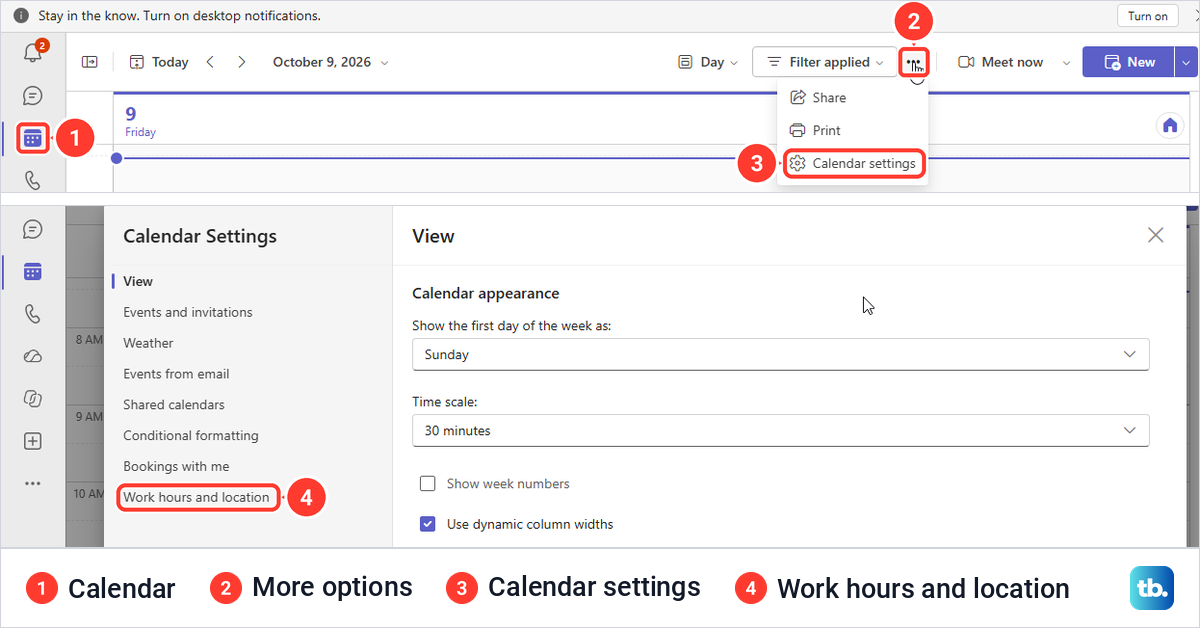
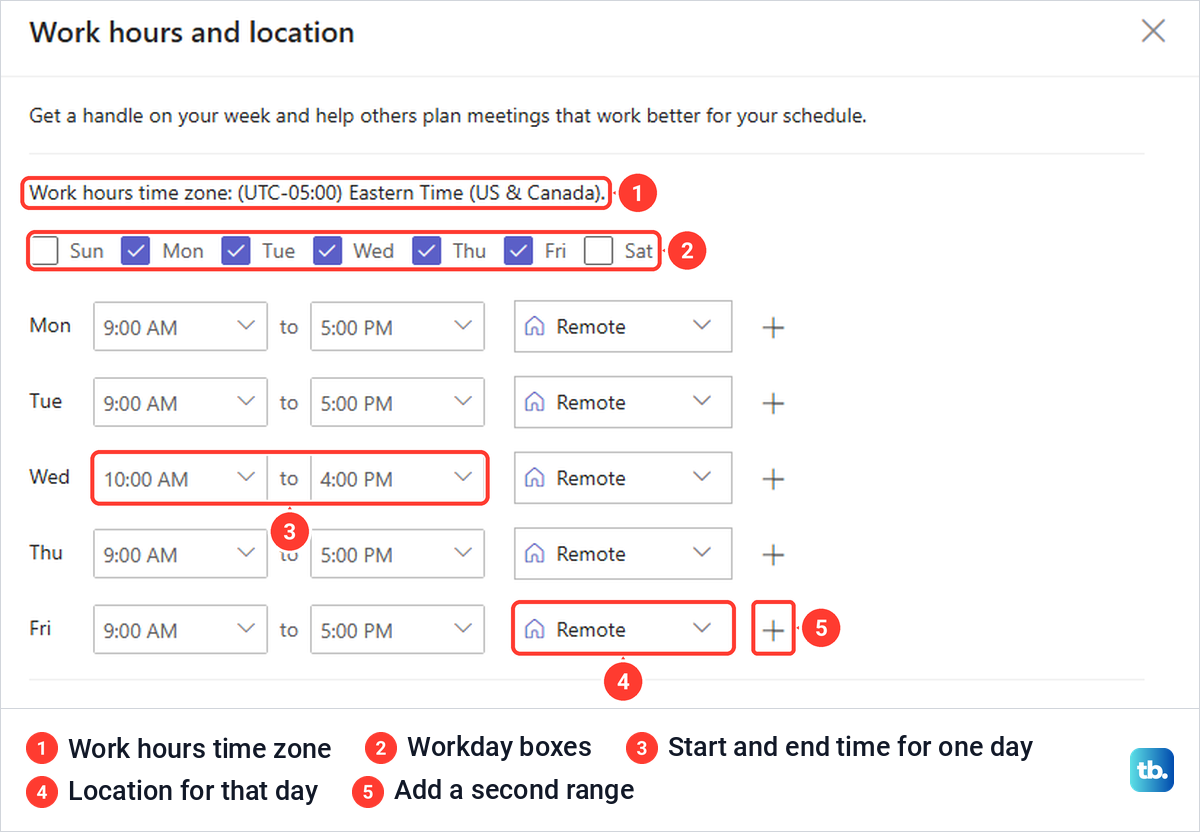
The View page you land on first is worth a glance. For us it listed the current time zone, (UTC-05:00) Eastern Time (US & Canada), with a Change link. The work hours editor shows its own Work hours time zone line at the top, so check that the two agree with where you actually work.
Set your workdays and the hours for each day
The editor starts with the line "Get a handle on your week and help others plan meetings that work better for your schedule." Below it are the work hours time zone and a box for each day from Sun to Sat. Each ticked day gets a row with a start time, an end time, a location and a plus.
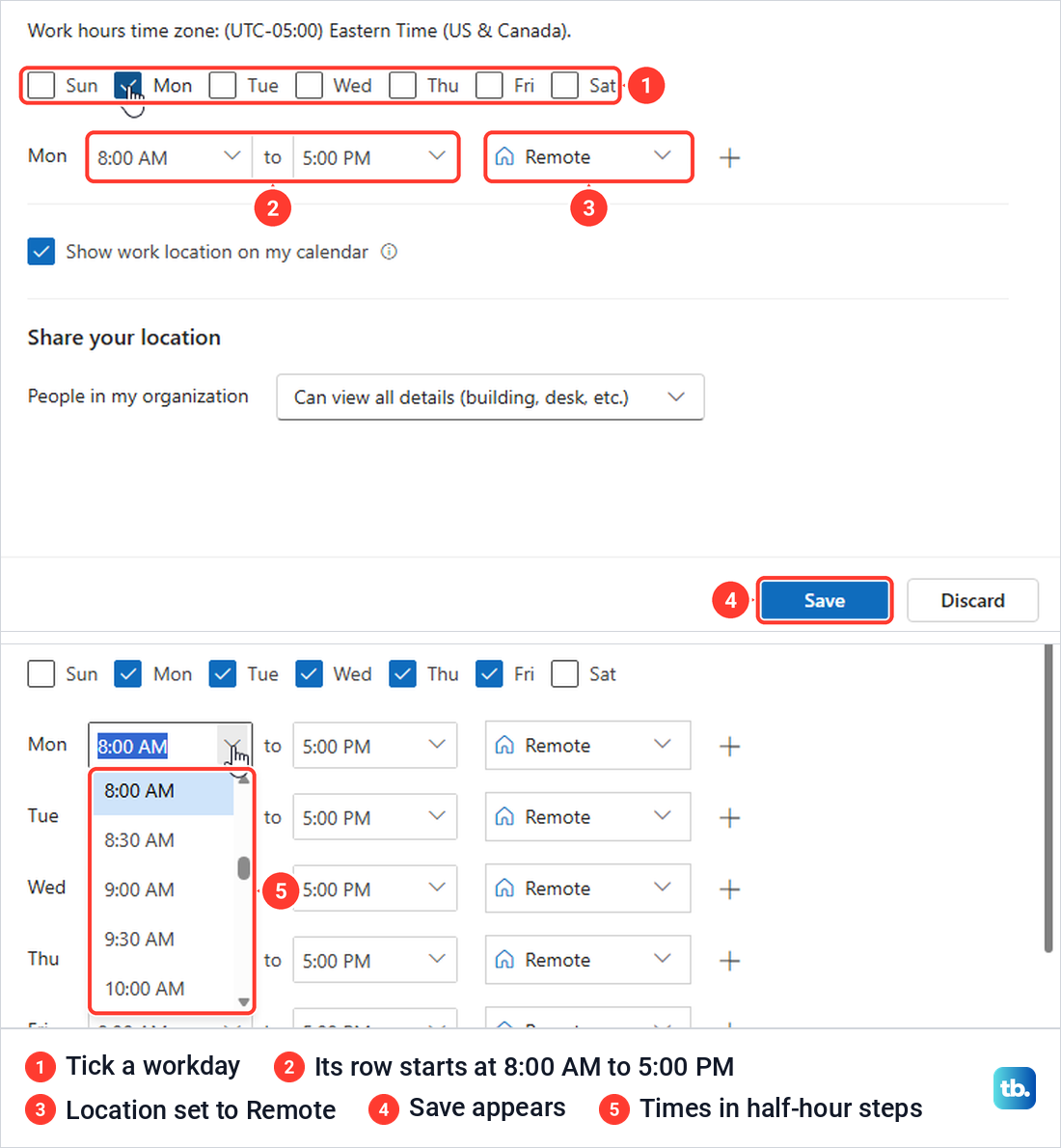
The editor is the same in Outlook on the web, where we first set up the plan. When we ticked Monday there on an account with no plan yet, its row came in at 8:00 AM to 5:00 PM with Remote as the location, and Save and Discard appeared at the bottom. Those were the values on that account, so read each row rather than assuming it already matches your day.
Open a time box and pick from the list, which runs in half-hour steps, 8:00 AM, 8:30 AM, 9:00 AM and on. You can also type a time, and Outlook on the web accepted one we typed in. There we saved Monday, Tuesday, Thursday and Friday at 9:00 AM to 5:00 PM with a shorter Wednesday at 10:00 AM to 4:00 PM, and all five rows were still there when we reopened the plan.
The location box beside each day offered only Office and Remote for us in Outlook on the web. Microsoft says choosing a specific building is only available if your organization has set up a directory of buildings, and that an admin must add those buildings to Microsoft Places first.
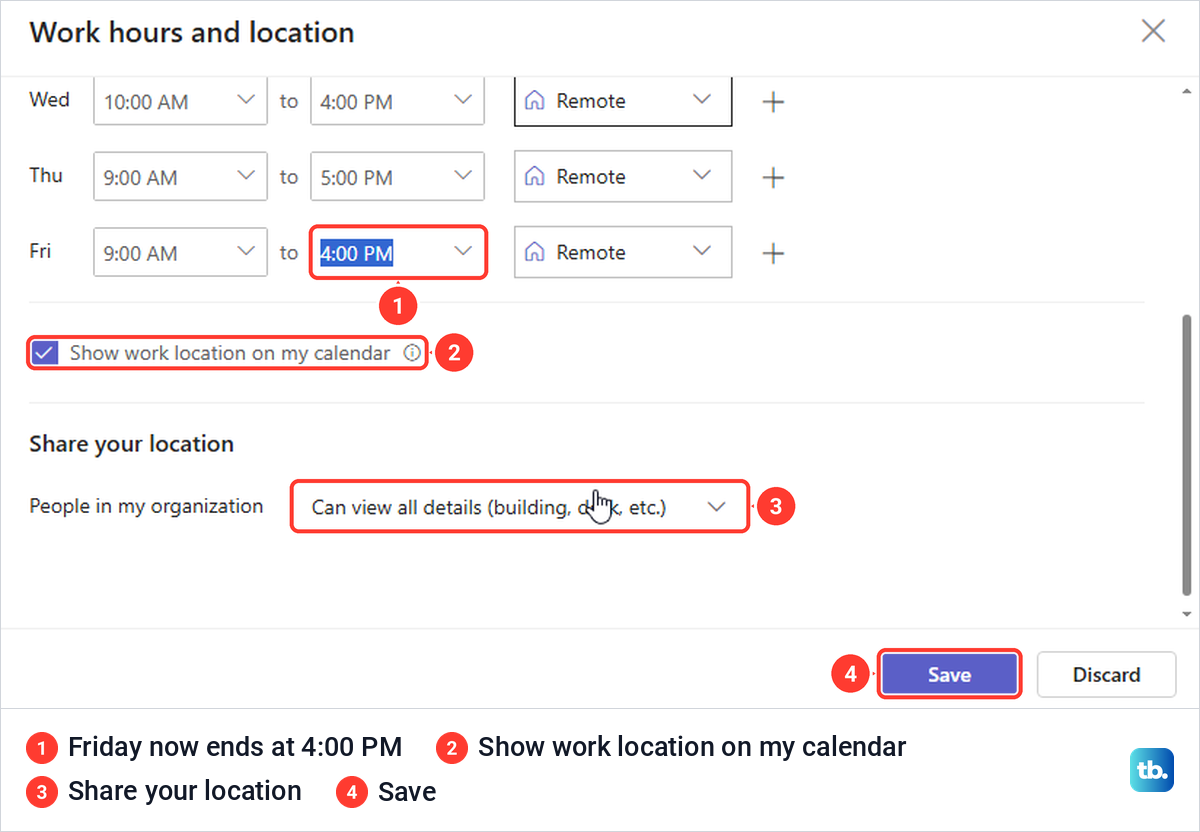
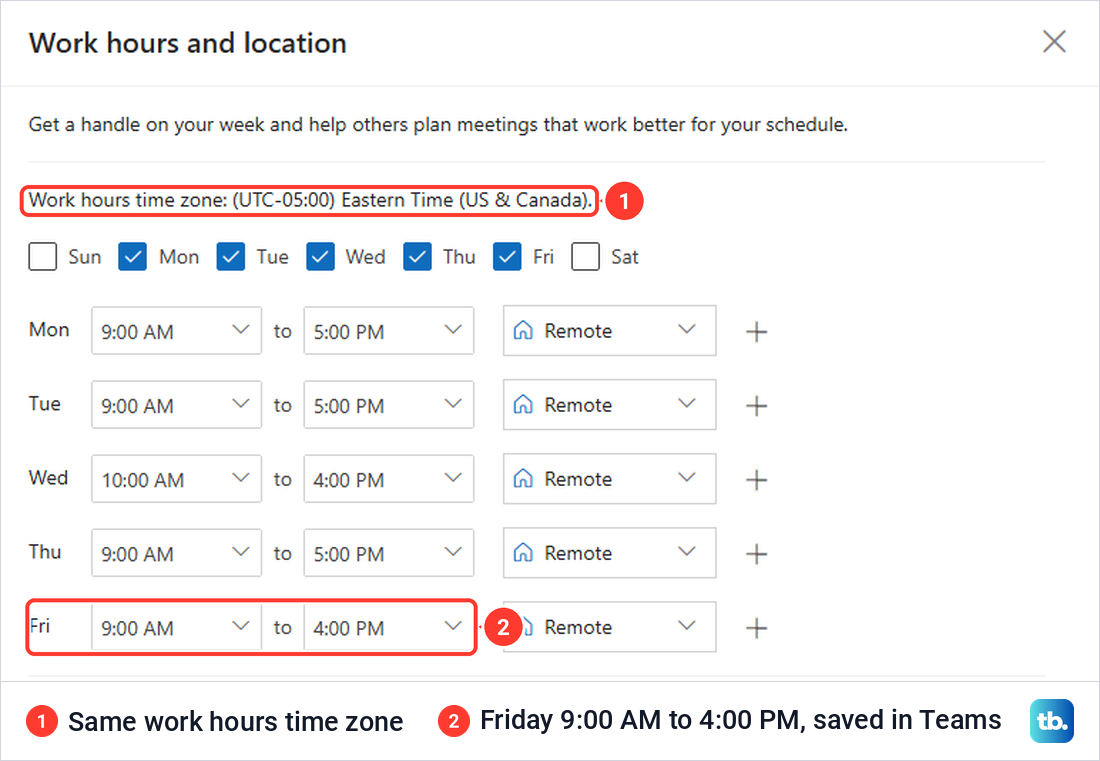
To change a day later, pick a new time in its row. We moved Friday's end from 5:00 PM to 4:00 PM in Teams, and Save and Discard appeared at the bottom of the pane. After Save, the bar went away without any message and the pane stayed open with the new time, so close it with the X once you have read the rows.
Add a second work period on the same day
If your day has a gap, such as a long lunch or a school run, select the plus at the end of that day's row. In Outlook on the web, its tooltip read Add Wednesday work hours, and a second row appeared under Wednesday with its own times, its own location and a bin icon to remove it.
That new row started at 4:30 PM to 5:00 PM, half an hour after the first range ended, so set both rows before you save. We set Wednesday there to 9:00 AM to 12:00 PM and 1:00 PM to 5:00 PM, selected Save, and reopened the editor to find both ranges still there.
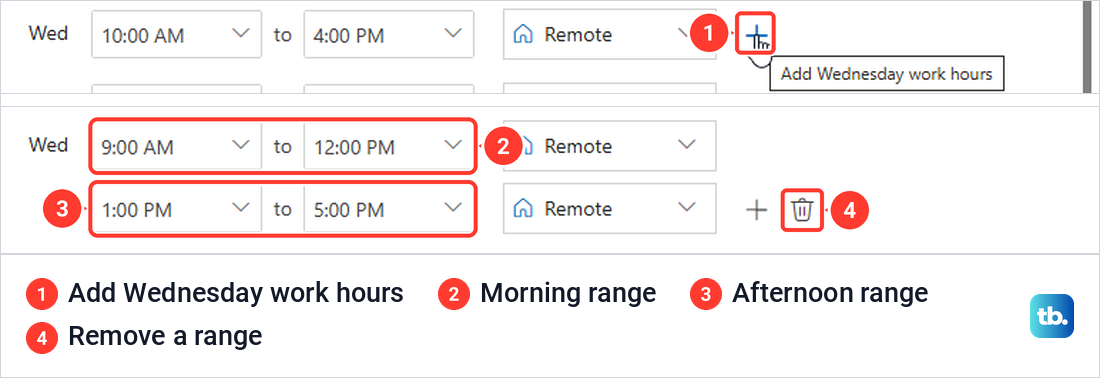
The editor has no dates, so a split Wednesday applies to every Wednesday. The day cards on the calendar change only that day's location, not its hours, so for one unusual day, block the time on your calendar with an event instead.
Check the same plan in Outlook on the web
Teams and Outlook keep one work plan, and Microsoft says changes to a recurring work plan are reflected in both apps. When we opened the Teams editor, it already showed the plan we had saved in Outlook on the web. After we saved Friday's new end time in Teams, Outlook on the web showed Friday as 9:00 AM to 4:00 PM about 35 seconds later.
In Outlook on the web, select the gear for Settings, then Calendar and Work hours and location. Work hours and location is the last entry in that list. The editor is the one Teams opens, with the time zone line, the day boxes, Show work location on my calendar and Share your location.
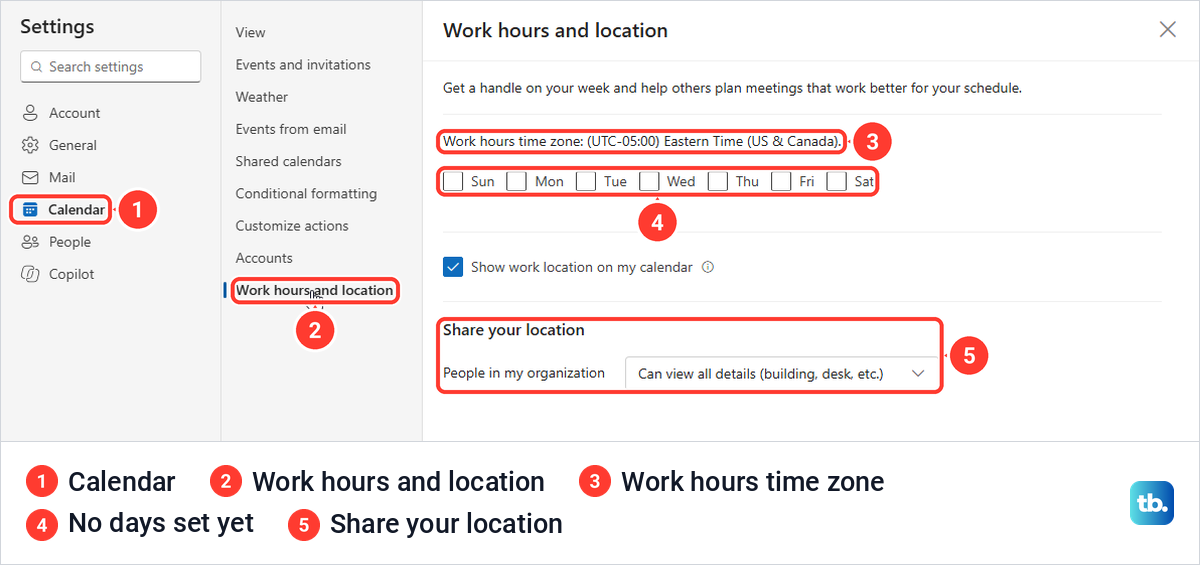
Microsoft's Outlook help still says setup works only in new Outlook for Windows and Outlook on the web, with Teams to follow later, but the editor is already in Teams for the web. Microsoft gives the same Settings > Calendar > Work hours and location route for new Outlook for Windows.
A work plan belongs to your account and tells people when you are around. If your team wants one calendar everyone adds to, create a shared calendar in Outlook instead, and to compare a coworker's week with yours, view someone else's calendar in Outlook.
Change work hours in classic Outlook
Microsoft's Outlook help says classic Outlook can only show the plan and that you set it up in new Outlook or on the web. Classic Outlook for Microsoft 365 on our Windows 11, version 25H2 PC could do more than that. Under File > Options > Calendar, the first section was Work hours and location, reading "Set up your weekly schedule to let colleagues know when you're available and in the office." It has a Work hours and location button.
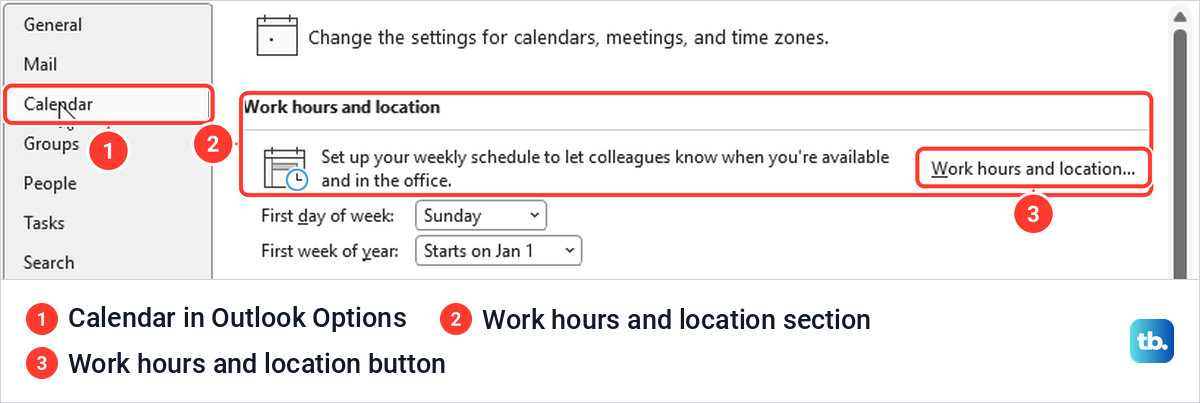
That button opened the same editor in a window of its own, with the time zone line, the day boxes, one row per workday, the plus and Share your location. There was no Work Time section with a single start and end time, which older instructions still describe. Save and Discard appeared only after we changed a time, and the window stayed open after Save.
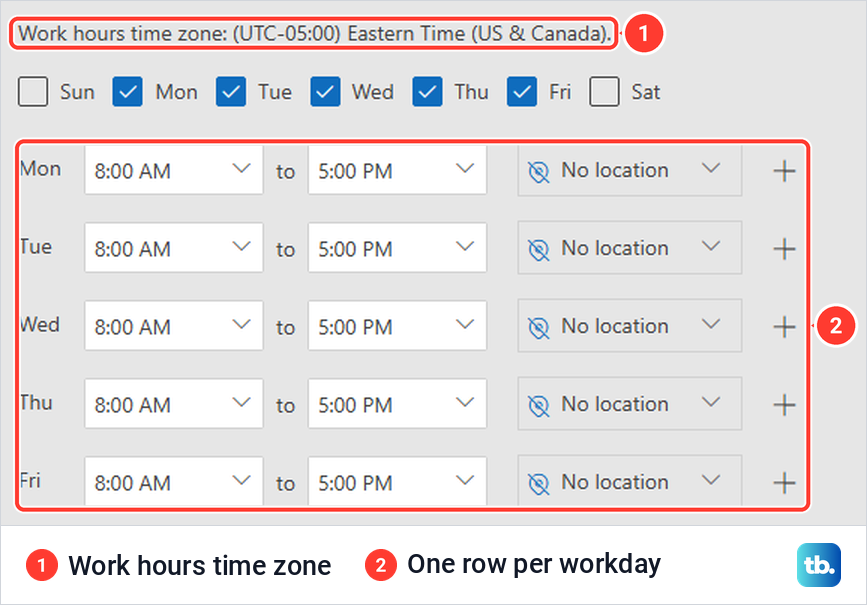
If your classic Outlook still shows the old Work Time boxes, they hold one start and end time for the whole week. Microsoft says that once you have set up the new work hours, later changes to those older boxes will not overwrite them, so make your changes in Teams or Outlook on the web. The same goes for a classic Outlook that has no Work hours and location button at all.
Change one day's location without touching your hours
Work hours and the location for a single day are separate settings. Select your profile picture at the top right of Teams, and once a plan exists, the location row shows it (for us it read Working remotely) with the tooltip "Updated from your Calendar work plan". Point at that row and a For today list offers Office, Remote and Clear work location.
We chose Office, and the row changed to In the office while the location icon on that day's column changed in Teams and in Outlook on the web. Microsoft says the new location applies to your work hours for the remainder of the day and is reflected in both Teams and Outlook, so it does not rewrite your week.
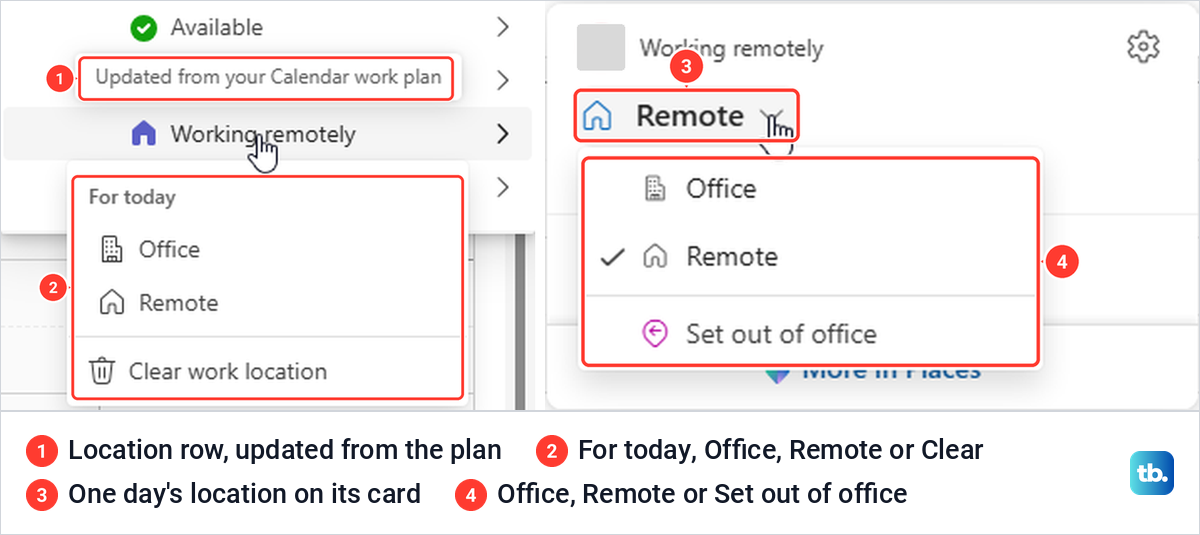
For a day further ahead, select the location icon at the top of that day in the calendar. In Outlook on the web, the card for a coming Tuesday showed Working remotely, Remote with that day's hours, No colleagues planned in office and More in Places. Its list offered Office, Remote and Set out of office, and Office applied at once, with no Set button to press.
The card shows the day's hours but has no way to change them. In Teams, today's location icon opened a card with In office, Office, the day's hours, a Checked-in here tag and More in Places. Microsoft also describes an Add work location button beside the date with a Set plan step, which did not appear for us once a plan existed.
On a phone, Microsoft's Teams instructions cover the day's location only: tap your profile picture at the top left and choose Set your work location. If you are taking time off rather than working somewhere else, set up out of office in Outlook, which lets people know you are away.
Choose what location details coworkers can see
At the bottom of the editor, Share your location has one setting, People in my organization, which read Can view all details (building, desk, etc.) for us in Teams, Outlook on the web and classic Outlook. Above it, Show work location on my calendar was ticked. Microsoft says that by default anyone in the organization using Teams can see the locations others share, and that profile cards show work hours, local time and work location.
To share less, Microsoft's Teams instructions say to open the list beside People in my organization under Share your location, choose the work plan details you want to share, and select Save. Microsoft's Outlook help also describes deselecting a day's work location so it reads No location. Neither page describes this as hiding your hours. Microsoft adds that admins can control how much location detail is visible across the organization.
What work hours do not change
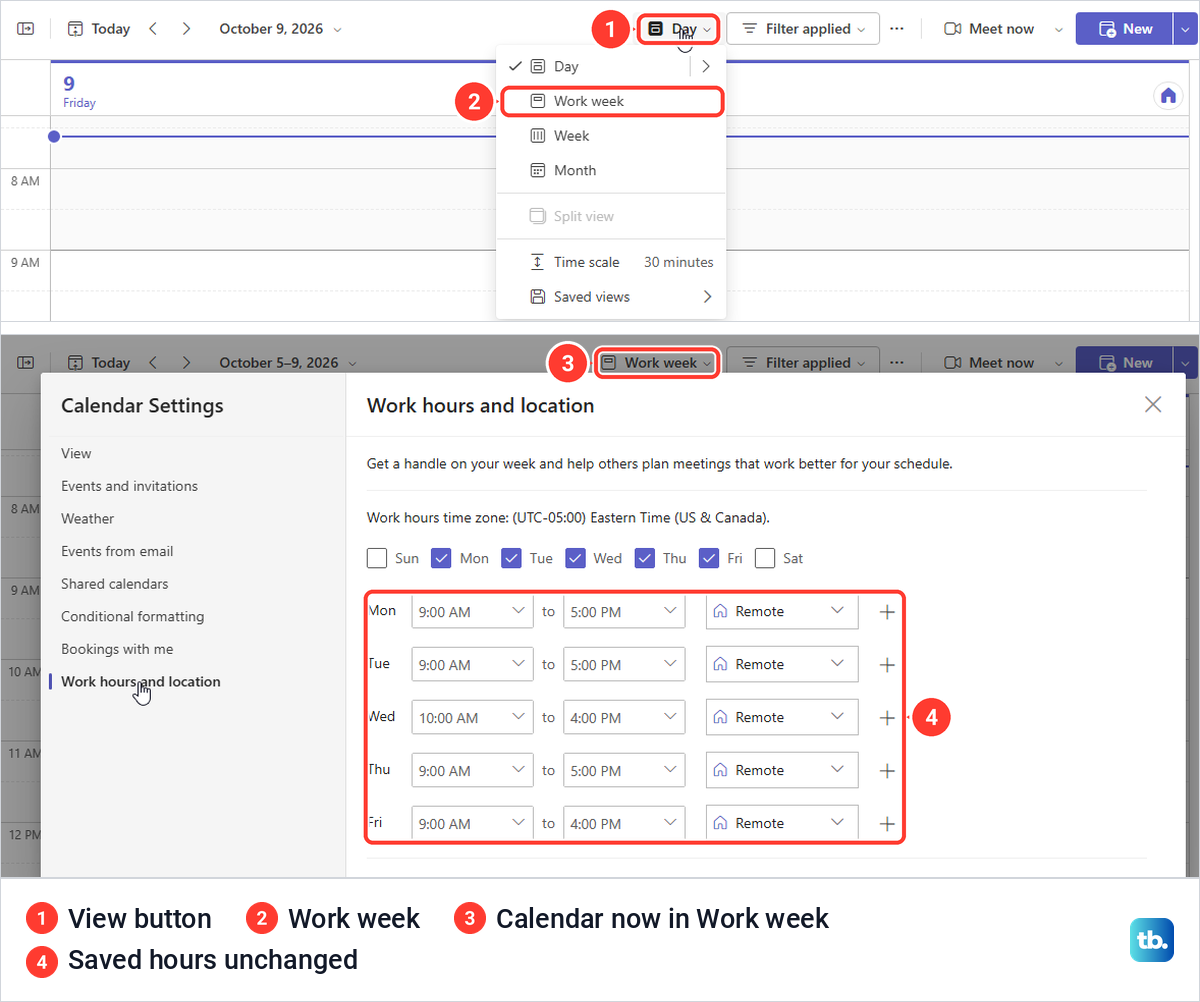
Work week is a calendar view, not a setting for your hours. The view button in Teams Calendar offered Day, Work week, Week, Month, Split view, Time scale and Saved views. We switched from Day to Work week, and the calendar showed Monday to Friday while the saved rows in Work hours and location stayed exactly as they were.
Work hours do not set your status either. Microsoft says your Teams status comes from your activity, the state of the Teams app and your Outlook calendar, and on a computer it turns Away after a few minutes of inactivity or when the PC is locked. Work hours are not on that list, so to see what does move your dot, read how to keep your Teams status green.
Notifications have their own schedule. On a phone, Microsoft's Quiet time silences Teams notifications during the times or days you choose: tap your profile picture, select Notifications, and under Block notifications choose Block during quiet hours. Quiet time keeps its own times and days, separate from your work hours.
Work hours also do not turn invitations away. The editor's own line says the plan is there to help others plan meetings that work better for your schedule, and Microsoft's pages do not say Teams declines invitations outside your hours. When you set up a Microsoft Teams meeting, pick a time inside everyone's hours yourself.
Check work hours that will not save or look wrong
If Work hours and location is missing, check which account you are signed in with. Microsoft's Outlook help says setting work hours in Outlook needs a work or school account with a qualifying Microsoft 365 subscription, and Microsoft says people whose mailbox is on premises in a hybrid Exchange setup can't use work plans. If you cannot get into the work account at all, fix the Microsoft 365 sign in problem before anything else.
If there is no Save button, change something first. In Outlook on the web and in classic Outlook, Save and Discard only appeared once we had ticked a day or changed a time. If it still does not appear after a real change, make the same edit in Outlook on the web.
In classic Outlook, read the time zone line after every save. After one save there, the line changed to a different time zone with the same UTC-05:00 label, while the calendar time zone in Outlook Options still read the one we had set. Reopening the window also showed the message "Something went wrong while updating your schedule. Please try again later."
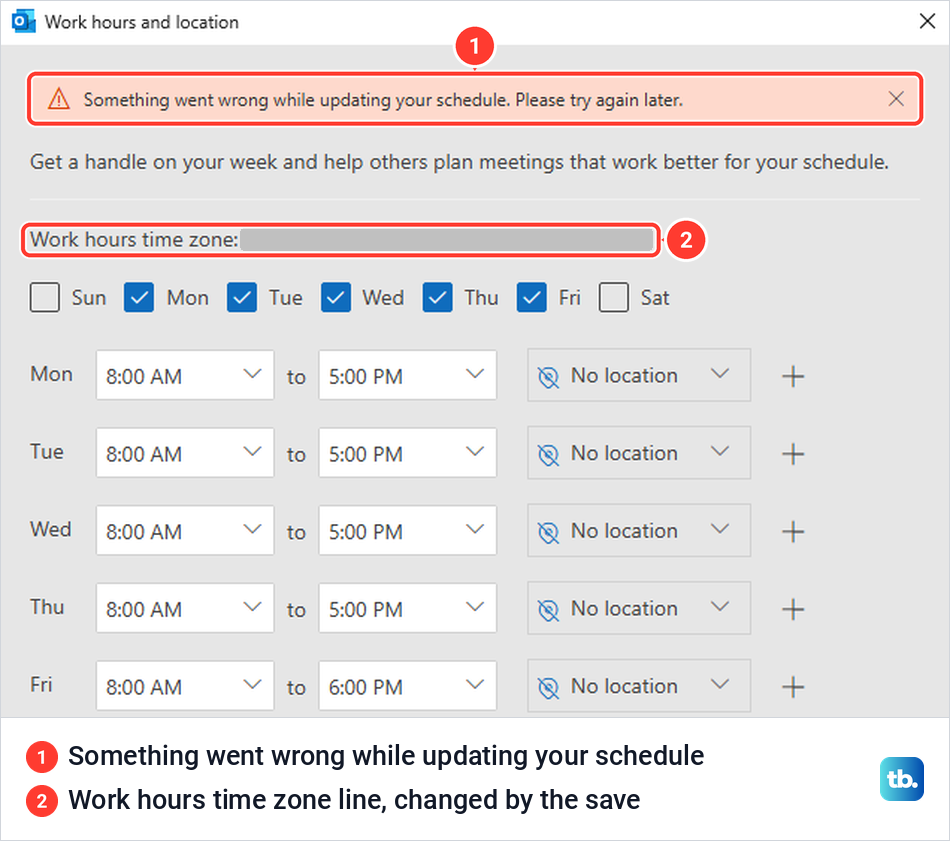
When we reopened the window, it showed the new hours, and a second save went through without the message, but the new time zone line stayed and the window has no control for it. Two zones can carry the same UTC label and still differ, because one moves its clocks for daylight saving and the other does not, so hours kept in the wrong zone can sit an hour off for much of the year.
Microsoft notes that a change to the older work hours time zone carries into the new plan, which may be what happened here. If your line looks wrong, compare it with the time zone under Calendar settings > View in Teams, and if it still looks wrong, ask your Microsoft 365 admin to check it.
If the hours look wrong to others, open the editor in Teams and in Outlook on the web with the same account and compare the days, times and time zone line. Our Teams change reached Outlook on the web in about 35 seconds. After we changed Friday's hours in classic Outlook, the profile card another person sees in Teams still showed the old hours nearly three minutes later.
If both editors show the right days, times and time zone but others still see old hours on your profile card, ask your Microsoft 365 admin to look into it. If other calendar changes are missing in classic Outlook too, fix Outlook when it is not syncing.
How we tested this guide
We tested this in Teams for the web and Outlook on the web in Microsoft Edge, and in classic Outlook, on Windows 11, version 25H2, changing Friday's hours in Teams.
Frequently Asked Questions
How do I change my work hours directly in Teams?
Select Calendar, then More options > Calendar settings > Work hours and location. Change the times in each day's row and select Save.
Can I set different work hours on different days in Teams?
Yes. Every ticked day has its own start and end time, and the shorter Wednesday we saved in Outlook on the web showed in the Teams editor beside four longer days.
Can I add a lunch break to my Teams work hours?
Yes, by splitting the day. Select the plus at the end of that day's row, set the morning and afternoon ranges, and select Save.
Why is there no Save button in Work hours and location?
Save and Discard only appear after you change something. Tick a day or change a time, and if the button still does not show, make the same change in Outlook on the web under Settings > Calendar > Work hours and location.
Does Work week change my working hours?
No. It only changes the calendar view, and the saved hours in Work hours and location stayed the same when we switched to it.
Will my Teams status turn Away when my work hours end?
Not because of your work hours. Microsoft says your status comes from your activity, the Teams app and your Outlook calendar, and work hours are not part of that list.
Can I change work hours in the Teams mobile app?
Microsoft's Teams mobile instructions cover only the day's work location, from your profile picture at the top left. Set your weekly hours in Teams on a computer or in Outlook on the web.