Your microphone can be blocked at the device level, inside a browser, inside an app, or by a mute control in the app you are using. The right fix depends on where you are trying to use the mic. Start with your device settings, then check browser and app controls if the microphone still stays blocked.
1. Allow microphone access on iPhone or iPad
On iPhone, open Settings > Privacy & Security > Microphone, then turn on access for the app that needs the mic. On iPad, use the same path and enable the app in the list. If the app is missing, open the app and use its calling, recording, voice, or meeting feature so it can request microphone access.
2. Turn on microphone permission on Android
- 1.Open Settings.
- 2.Go to Apps.
- 3.Select the app that needs your microphone.
- 4.Tap Permissions.
- 5.Tap Microphone.
- 6.Choose the available allow option, such as Allow, Allow only while using the app, or Ask every time.
3. Check Android system mic controls
Open Settings and go to Security & privacy > Privacy > Privacy controls. Turn on Microphone access.
To use Quick Settings, swipe down twice from the top of the screen and tap the Microphone tile. If the tile is missing, tap Edit or Add, then drag the Microphone tile into Quick Settings. When the green microphone indicator appears, swipe down and tap it to see which app is using the mic, then tap again to manage permissions.
4. Enable the microphone in Windows 11
This fixes apps that cannot use the mic because Windows permission is off. Open Start.
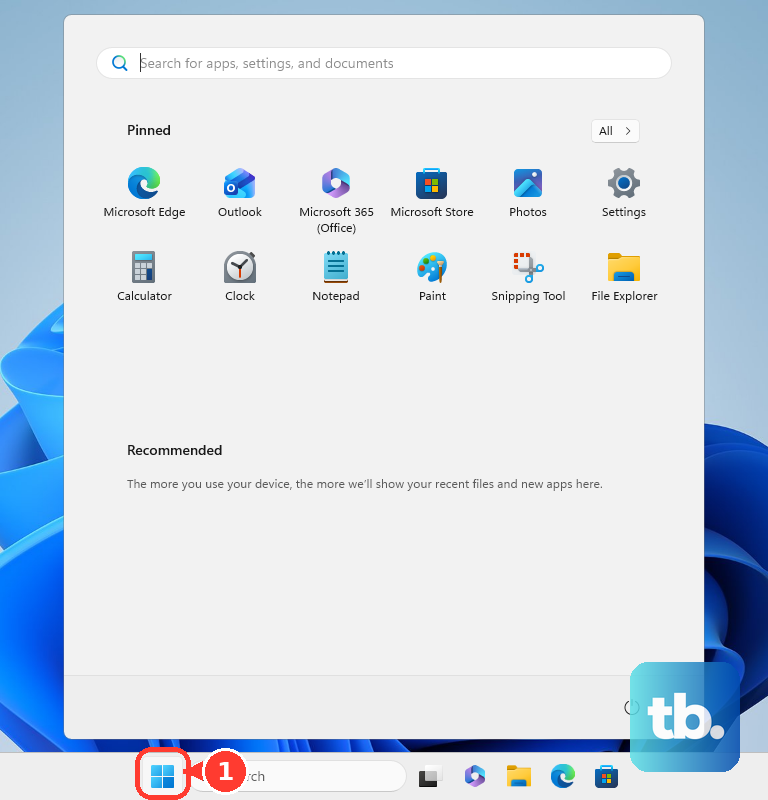
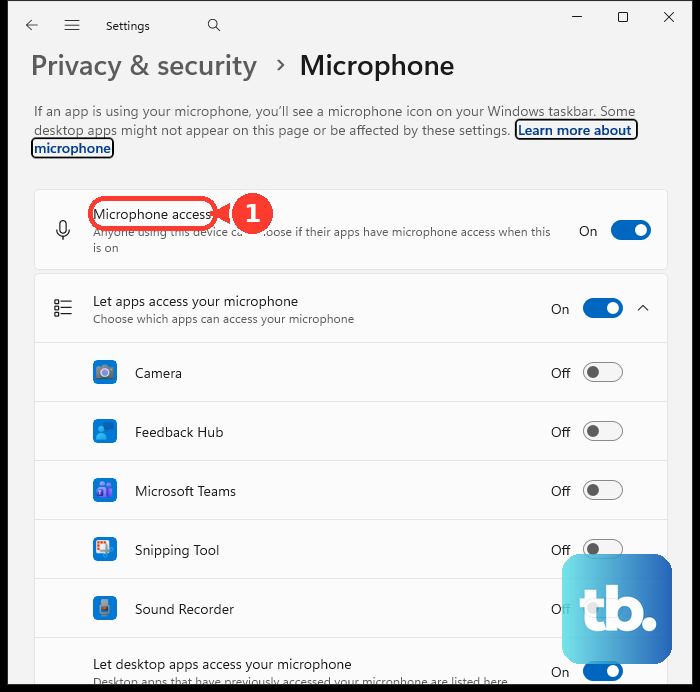
Select Settings and go to Privacy & security > Microphone. Turn on Microphone access.
Turn on Let apps access your microphone.
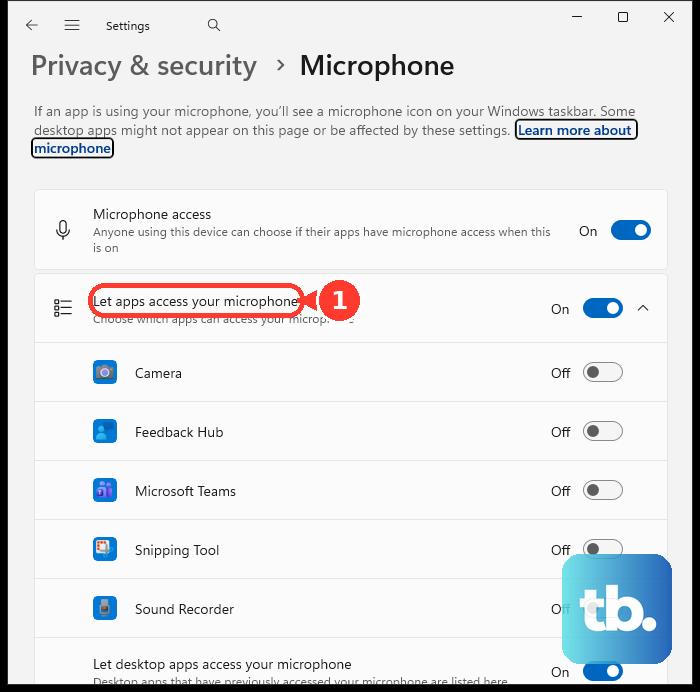
Under Choose which apps can access your microphone, turn on the app you want to use. For desktop apps, turn on Let desktop apps access your microphone.
5. Set up microphone access on Mac
Open the Apple menu and select System Settings. Go to Privacy & Security > Microphone.
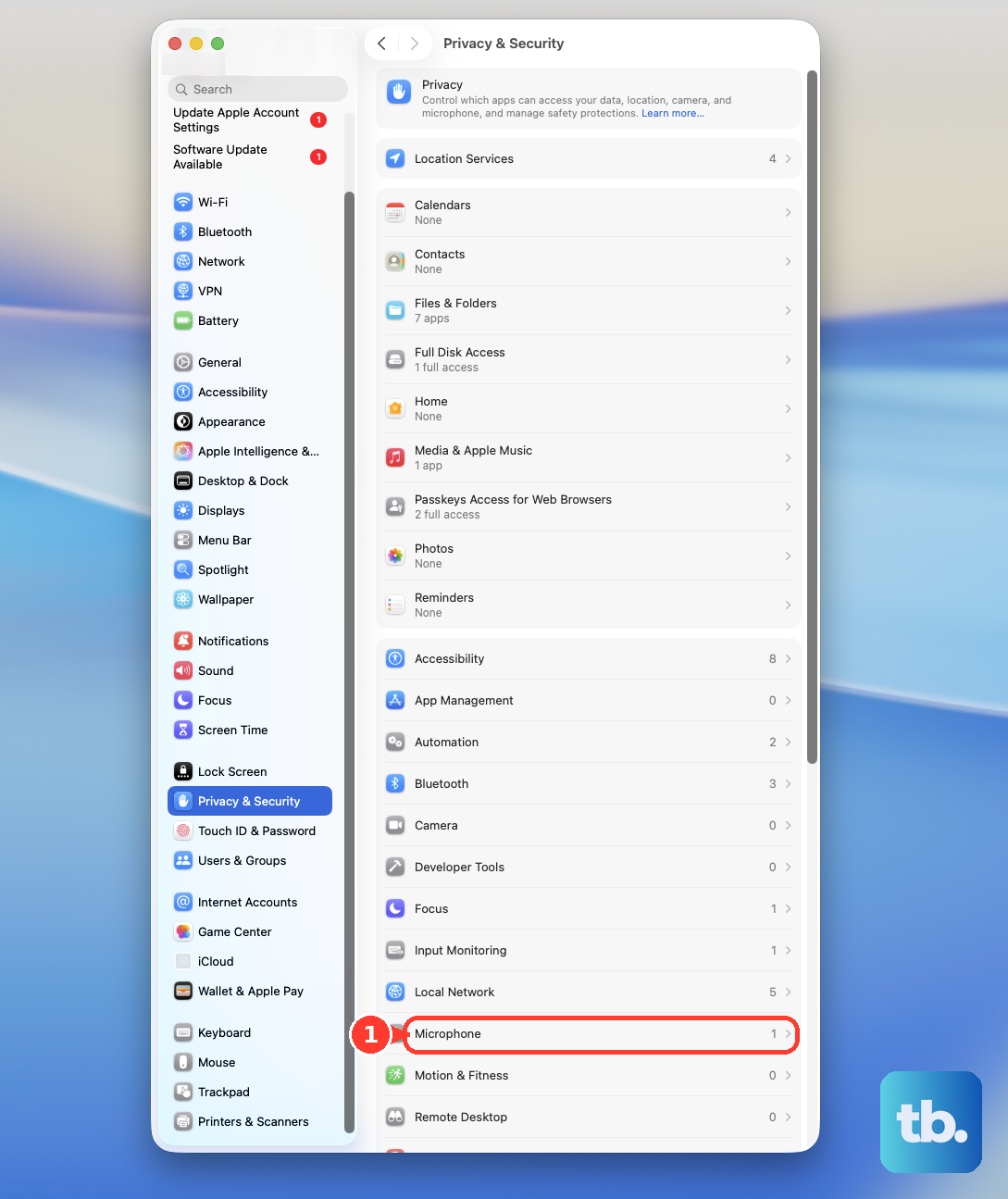
Turn on microphone access for the app you want to use. To choose the input device, go to System Settings > Sound > Input, then select your microphone.
For Dictation, place the cursor where you want text, then press the Microphone key, use your Dictation keyboard shortcut, or choose Edit > Start Dictation.
6. Allow microphone access in your browser
This fixes websites that need your mic for calls, recordings, meetings, voice search, or web apps. In Chrome, open the site and choose Allow while visiting the site or Allow this time when prompted. To change Chrome later, go to More > Settings > Privacy and security > Site settings > Microphone, then allow the site or remove an old block.
In Safari on Mac, go to Safari > Settings > Websites > Microphone, then choose Allow next to the website. In Safari on iPhone, go to Settings > Apps > Safari > Microphone, then choose Ask, Deny, or Allow.
In Edge, open the website and select Allow when the permission dialog appears. To change Edge later, go to Settings and more > Settings > Privacy, search, and services > Site Permissions > All sites, select the website, then set Microphone to Allow. In Firefox, open the site and choose Allow in the pop-up, or go to Settings > Privacy & Security > Permissions > Microphone > Settings to change a saved permission.
7. Fix microphone access on a Chromebook
Select the time in the bottom-right corner and open Settings. Go to Privacy and security > Privacy controls, then turn on Microphone access. Select the apps you want to grant microphone permission to.
For websites, open Chrome and go to More > Settings > Privacy and security > Site settings > Microphone, then allow the site or remove a block. To adjust input level or mute, select the time, choose Audio settings next to the volume slider, then use the microphone controls under Input.
8. Check the app mute and voice feature settings
In a Microsoft Teams meeting, select the Microphone icon in the meeting toolbar to unmute. On Windows, select the mic icon in the Teams meeting toolbar in the taskbar, or press Windows + Alt + K. In Teams on Windows, go to Settings and more > Settings > Devices > Audio settings, then choose your microphone from the Microphone dropdown.
On Windows, make sure the headset Mute button is not active. For Windows voice activation, go to Settings > Privacy & security > Voice activation, then turn on Let apps access voice activation services. For Windows Voice Access, go to Settings > Accessibility > Speech, turn on Voice access, then use Select default microphone in Voice access settings to switch microphones.
For Siri on iPhone or iPad, go to Settings > Apple Intelligence & Siri or Settings > Siri, then use Talk & Type to Siri to turn on Siri or Hey Siri. For Google speakers and displays, turn on the rear microphone switch or press the microphone mute button on the back of Google Home.
9. Know when access is blocked by work or old advice
This fixes locked settings and outdated microphone instructions. On a work or school Windows PC, Mac, Chromebook, Chrome browser, or Edge browser, contact your organization when microphone settings are locked or controlled.
On a PC still running Windows 10, the Windows 11 path does not exist, so use the Windows 10 route instead. Go to Start > Settings > Privacy and select Microphone under App permissions.
Turn on Microphone access for this device and Allow apps to access your microphone, then turn on the app under Choose which Microsoft Store apps can access your microphone or Allow desktop apps to access your microphone. Windows 10 support ended on October 14, 2025, and Microsoft recommends moving to Windows 11, but this path still works while you are on Windows 10.
Ignore older Chrome tutorials that tell you to use insecure-origin flag workarounds for microphone access on HTTP sites. Use Chrome prompts, Chrome site settings, operating system microphone permission, or your organization's browser policy.
Frequently Asked Questions
Why is my app missing from the microphone list?
Apps appear in the microphone permission list after they request access. Open the app and use its calling, recording, voice, or meeting feature first, then return to the microphone settings.
Why does a website still say my microphone is blocked?
Check both layers: the browser site permission and the device-level permission for the browser itself. A site can be allowed in Chrome, Safari, Edge, or Firefox while the operating system still blocks the browser.
Can I allow microphone access only while using an app?
On Android, the available choices can include Allow only while using the app or Ask every time. On iPhone, iPad, Mac, Windows, and browsers, use the permission options shown on that device or browser settings page.
What should I do when the microphone works in one app but not another?
Open the permission settings for the app that fails, then check that app's own microphone selector or mute button. Meeting apps such as Teams can be muted inside the app even when device permission is already allowed.