

To update Teams on Windows, open the Microsoft Teams app and, when an update is ready, select Update at the top of the window, then Update and restart Teams. Teams closes, updates and opens again. With no notice showing, open Settings and more > Settings > About Teams to see your Version and an Update now button if one is offered.
That is the manual route. Microsoft says Teams also updates itself when an update is available and the app is idle, so most people rarely need to update Microsoft Teams by hand. On a Mac the Teams update comes through Microsoft AutoUpdate, phones update the Teams app from the App Store or Google Play, and Teams on the web needs no update at all. The steps below cover each one, and what to do when no Update button appears.
The short version
- Windows: when the notice appears at the top of Teams, select Update > Update and restart Teams.
- No notice: Teams checks when it starts and every few hours, and Microsoft releases updates in stages, so nothing may be waiting for you yet.
- Your version: About Teams in the app, or Windows Settings > Apps > Installed apps > Microsoft Teams > Advanced options without opening Teams.
- Mac and phones: Help > Check for updates opens Microsoft AutoUpdate on a Mac, and phones use the App Store or Google Play.
- Web: Microsoft keeps Teams on the web updated, and its About page shows no version number.
Where to update Teams on each device
Where the update happens depends on which Teams you use. The desktop apps update themselves, the phone apps update through their stores, and Microsoft keeps the browser version current. Find your row, then read its section below.
| Where you use Teams | Where the update is | What happens next |
|---|---|---|
| Windows, press Windows and open Microsoft Teams | Update at the top of the Teams window, then Update and restart Teams | Teams closes, updates and reopens; open it from Start if it does not |
| Windows, checking the version | Settings and more > Settings > About Teams, or Windows Settings > Installed apps | Version shows, and About Teams offers Update now when an update is ready |
| Mac | Help > Check for updates in the menu bar | Microsoft AutoUpdate checks, and you quit Teams to finish |
| iPhone or iPad | App Store > your photo > App Updates | Tap Update next to Microsoft Teams |
| Android | Google Play > profile icon > Manage apps & device | Tap Update next to Microsoft Teams |
| Teams on the web | Nothing to do | Microsoft keeps the web app updated |
How Teams updates itself on Windows
Microsoft's documentation for administrators describes the process. Teams on Windows checks for updates when it starts and every few hours in the background, downloads what is new and waits. The update installs when the app is idle, and Teams has to restart before the new version takes effect.
One more detail explains most of the confusion. Microsoft updates the Teams app twice a month and staggers each release worldwide, so some people in your organization can get a new version before you do. A colleague with a newer version number does not mean yours is broken.
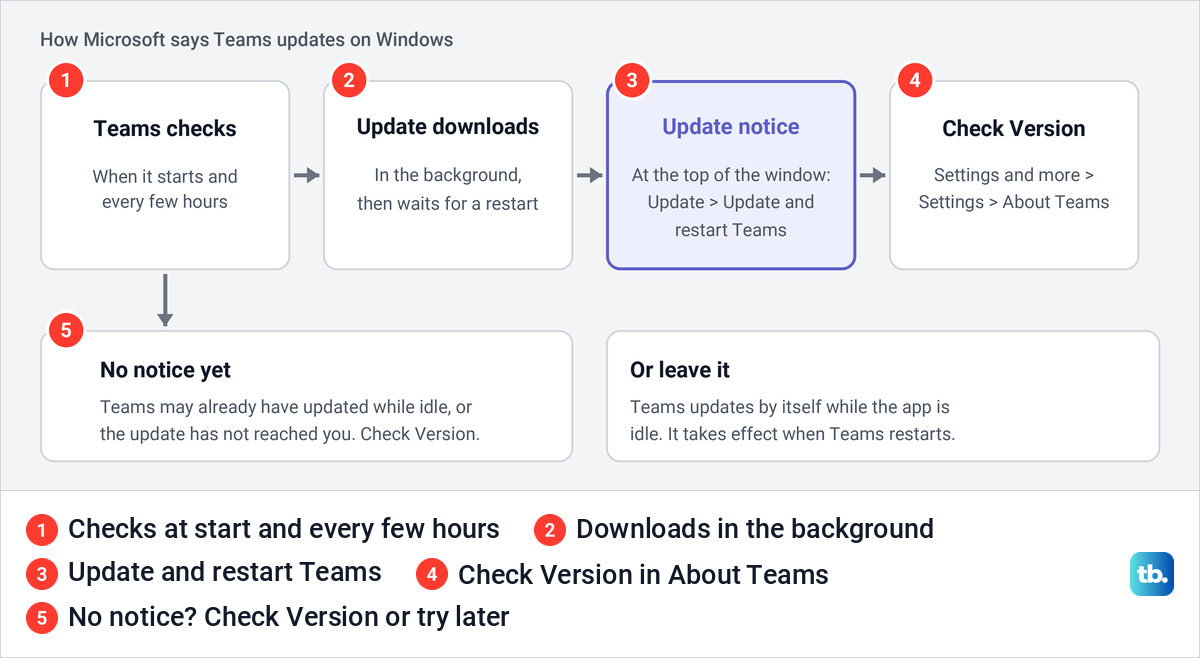
Microsoft also says someone has to be signed in to the PC for updates to happen. And because Teams checks every time it starts, quitting it and opening it again prompts a fresh check, which helps when you suspect you are behind.
Update Teams on Windows when an update is offered
Start with the right app. On our PC, typing Microsoft Teams into Start search showed one Best match, Microsoft Teams, labelled App, with Open, Run as administrator, Pin to Start, Pin to taskbar, App settings and Uninstall beside it. It is a separate app from Word, Excel and the rest of Microsoft 365, and while Microsoft's pages call it Microsoft Teams (work or school), Start showed only Microsoft Teams.
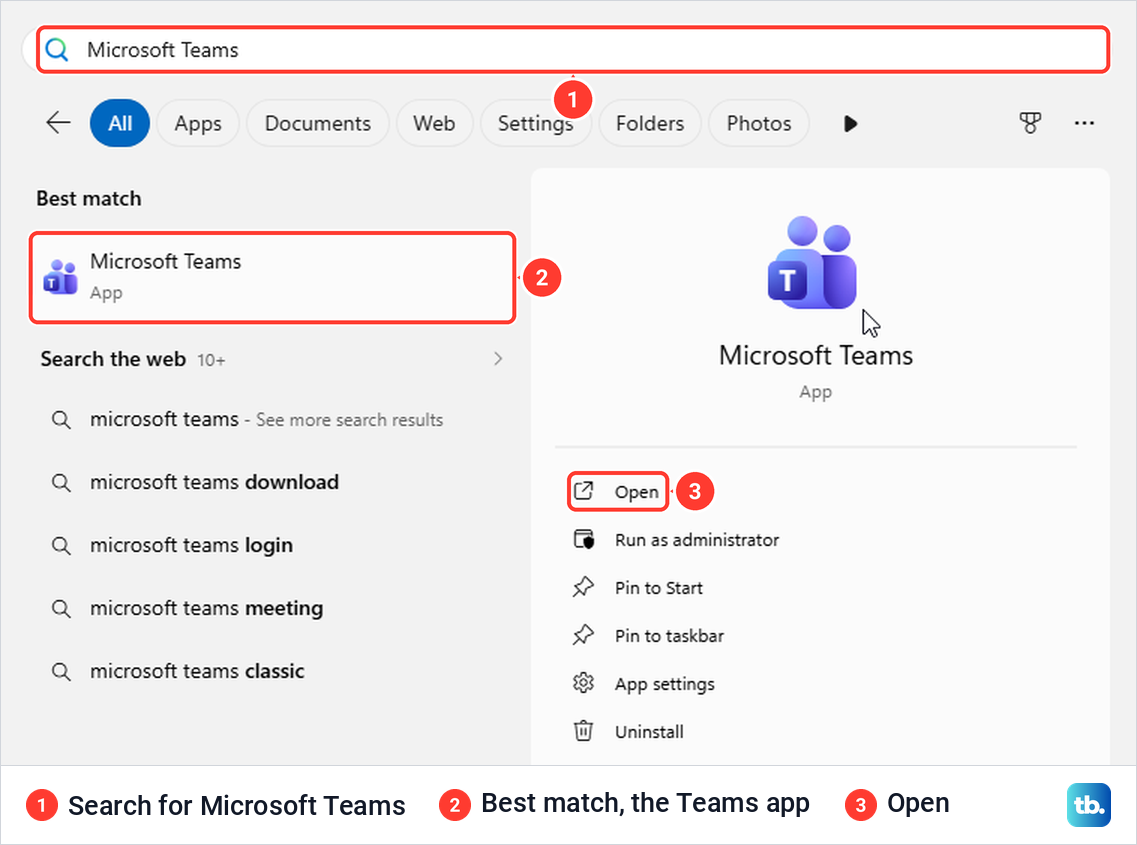
Press the Windows key, type Microsoft Teams and select Open. When an update is ready, Microsoft says a notice appears at the top of the Teams window. Select Update, then Update and restart Teams.
Teams closes, installs the update and normally opens again by itself. If it does not reopen, open Microsoft Teams from Start yourself. Microsoft's admin pages also mention a Restart button next to the three dots button in the Teams window, which lets you restart sooner to apply a waiting update.
Because the update closes Teams, pick a moment between calls and meetings. An update you put off is not lost, since Teams installs it on its own the next time the app is idle.
Microsoft adds a warning stage for copies that fall far behind. When your version is between one and three months old and a newer one exists, Teams shows an in-app alert asking you to update or contact your IT admin. After three months it shows a blocking page with three choices: update now, reach out to IT, or continue to Teams on the web.
Check which version of Teams you have
Inside Teams, Microsoft's steps are Settings and more (the three dots at the top) > Settings > About Teams. Look under Version to see whether you are current or whether an Update now button is offered.
Windows can show the installed Teams version without opening Teams, which helps when the app will not start or stops at its sign-in screen. Open Settings, go to Apps > Installed apps and type Microsoft Teams in the search box. Select the three-dot More options button on the Microsoft Teams row and choose Advanced options.
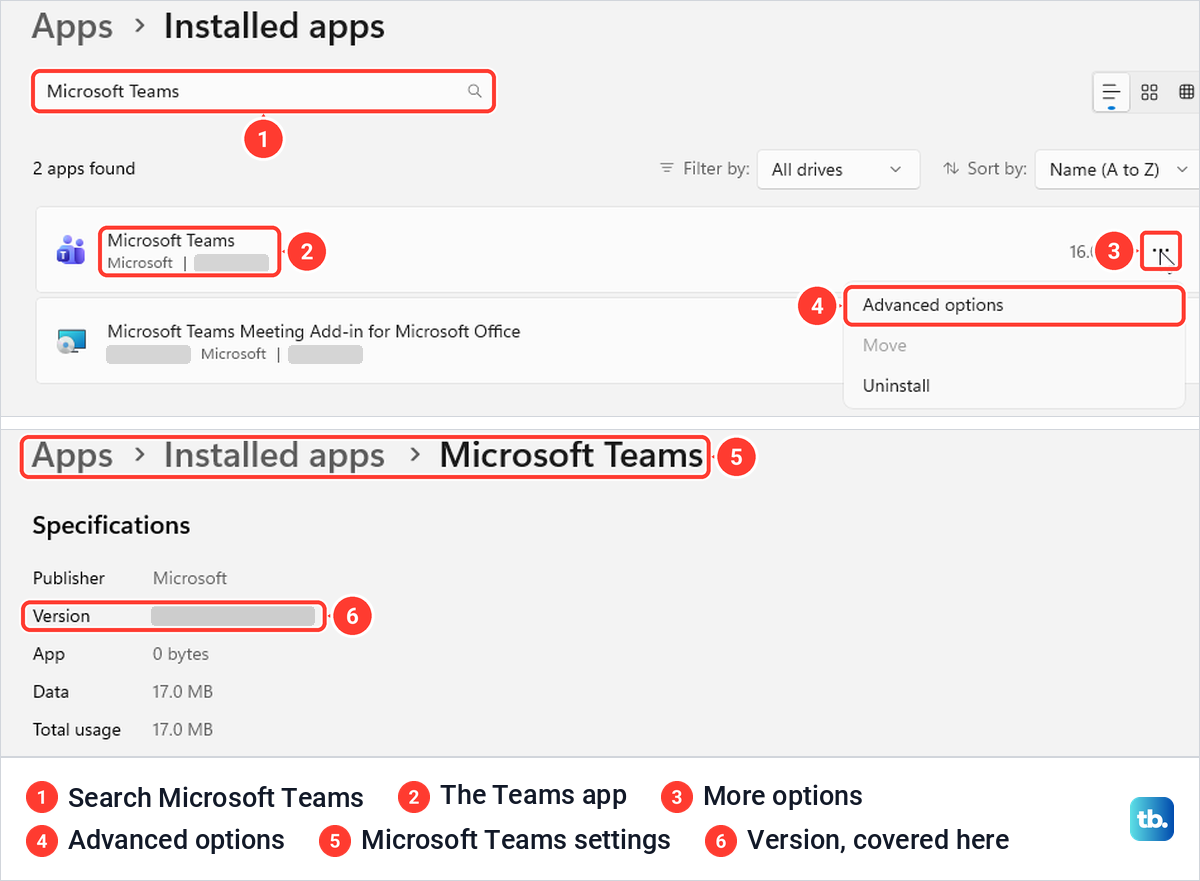
On our PC that page opened on Specifications, with the Version line second, under Publisher. Compare the number with what IT asks for, not with a colleague's PC, because staggered releases mean two working PCs can show different versions for a while.
Teams on a phone shows its version too. Microsoft's steps are to tap your profile picture, then Settings > About.
What to do when there is no Update button
The Update notice only appears when an update is available for your copy of Teams, and Microsoft releases each update in stages. A missing button is therefore normal, and the first step is to wait and check About Teams again later.
You can also prompt a check sooner. Teams looks for updates every time it starts, so quit it completely and open it again. Right-click the Teams icon on the taskbar and choose Quit Teams, not Close window, then open Teams from Start.
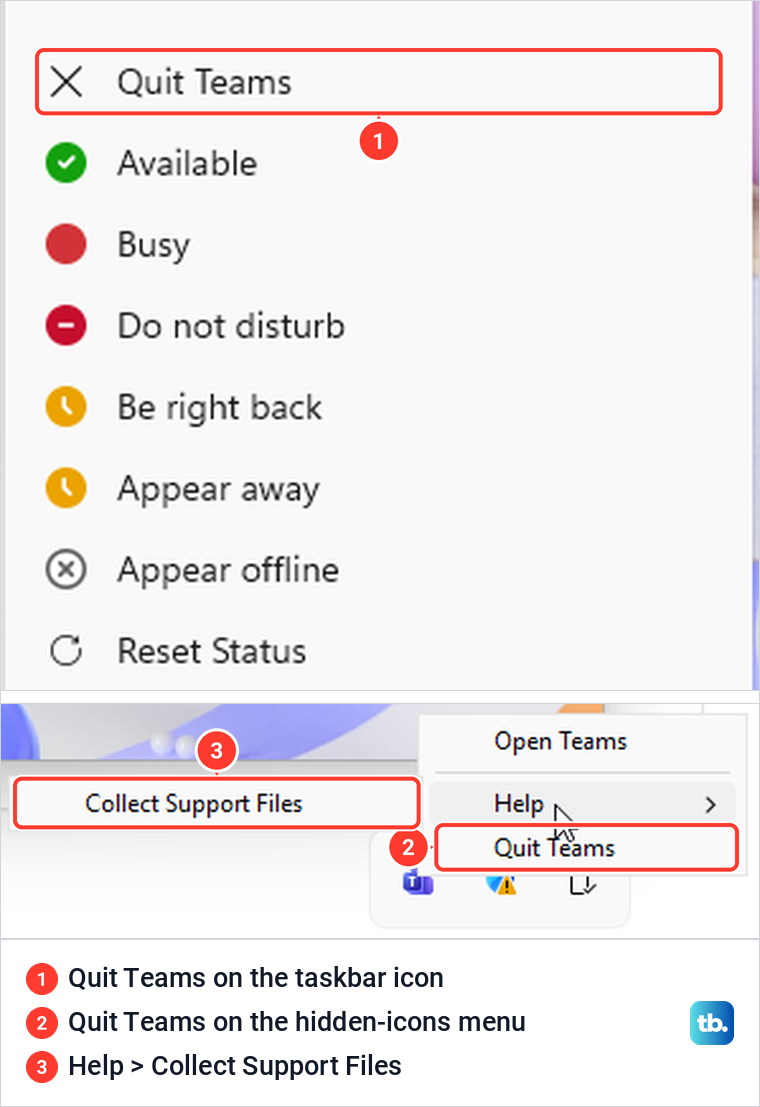
On our PC, Quit Teams sat at the top of the taskbar icon's menu and at the bottom of the menu for the Teams icon under Show hidden icons in the notification area. Neither menu had an update or Check for updates item, so there is no point looking for one there.
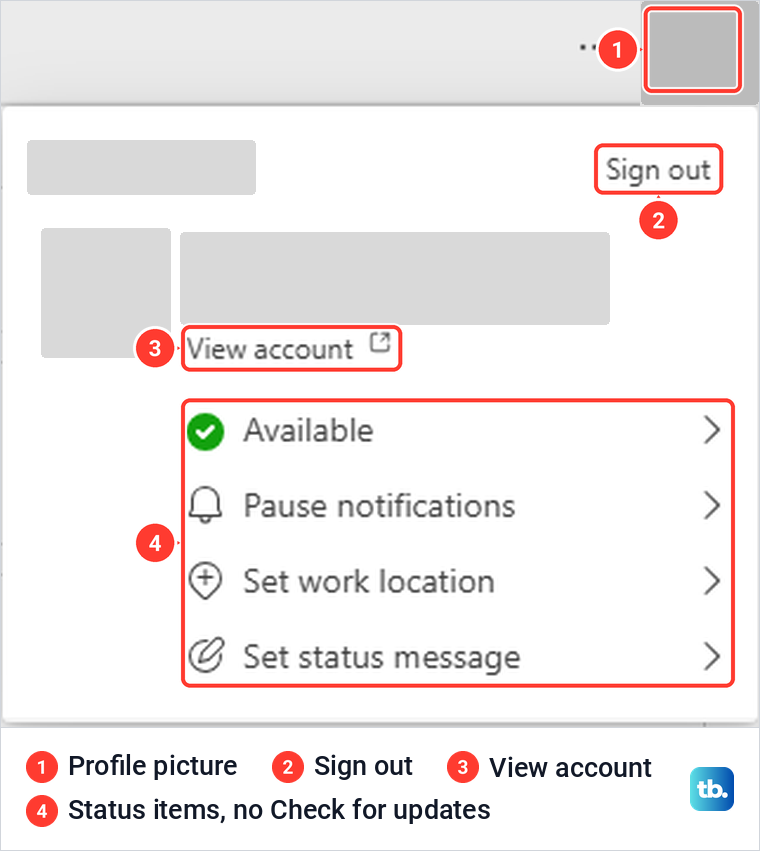
Older instructions, including one of Microsoft's own troubleshooting pages, say to select your profile picture and choose Check for updates. Microsoft's current update and version pages do not mention it and point to the Update notice and About Teams instead. The picture below is from Teams on the web, not the desktop app: its account menu had Sign out, View account, status choices and Set status message, with no Check for updates either.
If the Teams update will not install
When Teams keeps asking for an update that never seems to finish, work from the small checks to the bigger ones. First quit Teams from its taskbar icon and open it again, because a restart is what makes a staged update take effect. Then check About Teams or the Version line in Windows Settings to see whether the number changed.
Next, check Windows itself. Microsoft says a Windows version without the latest updates and patches can lower the success of Teams updates, so install any that are waiting. The steps to check for and install Windows updates cover that.
On a work or school PC, some causes are outside your control. Microsoft lists a disabled Windows Delivery Optimization service and network settings that block Teams' download servers as reasons an update fails, and both are set by IT. Changed files in the Teams installation folder can also break updates, so leave that folder alone and ask your IT team.
If IT asks you for support files, the menu on the Teams icon under Show hidden icons has Help > Collect Support Files, shown in the Quit Teams picture earlier. If Teams opens but shows stale content after an update, the steps to clear the Teams cache are a separate repair worth trying.
Removing and reinstalling Teams is the last resort, not the first. Start search lists Uninstall for Microsoft Teams, and Teams on the web has a Get the desktop app item in its Settings and more menu. On a PC your organization manages, ask IT before you remove anything.
Use Teams on the web while the desktop app catches up
If the desktop app is stuck, Teams in a browser is the quickest way back to your chats and meetings. Microsoft says the web app is always updated, and it names Teams on the web as the option for anyone who cannot move to the current desktop app.
For a work or school account, go to teams.microsoft.com in Microsoft Edge or another supported browser and sign in. For Teams for personal use, Microsoft's sign-in page points to teams.live.com instead, where you sign in with your Microsoft account.
There is nothing to update in the browser version. When we opened Settings and more in Teams on the web, it listed Settings, Help, Feedback, Keyboard shortcuts, Get the desktop app and Get the mobile app, with no Update or Restart item.
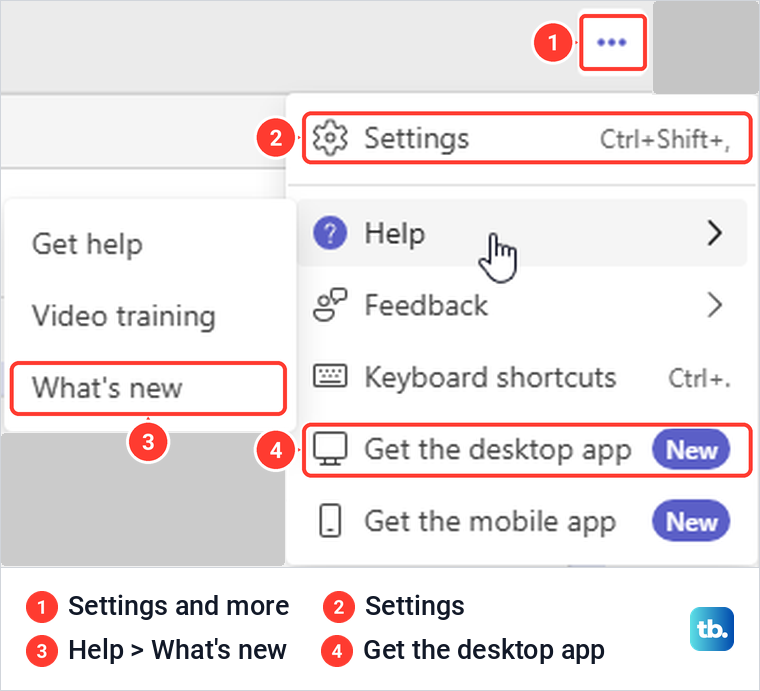
The Help submenu held Get help, Video training and What's new. Microsoft points to What's new for information on new releases, so it tells you what changed rather than installing anything. Under Settings > About Teams, the web app showed only Legal information, Privacy and cookies and a Third party notice labelled Web, with no version number and no Update now button.
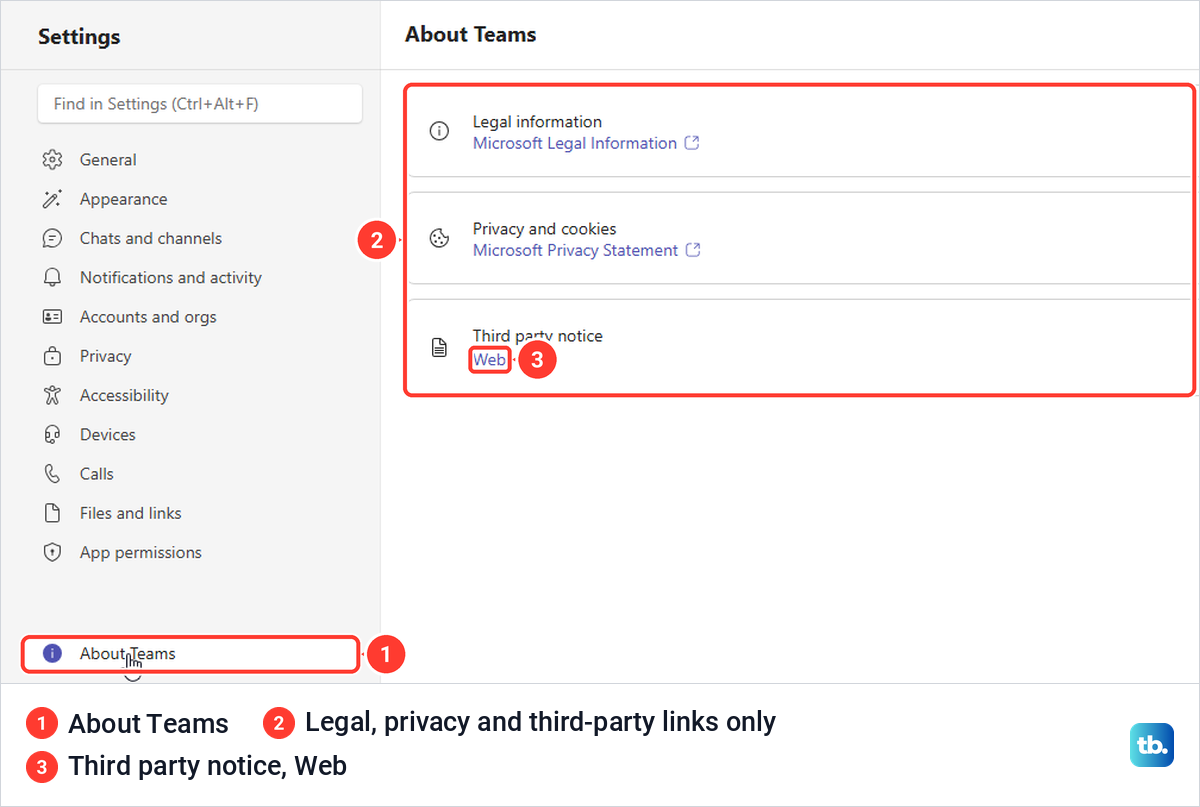
That is the difference from the desktop app, where About Teams is the place to read your Version. If you only need to get into a call while the desktop app sorts itself out, see how to join a Teams meeting by link or ID.
If the web page itself looks stale or will not load, our guide to clear cache and cookies in Microsoft Edge has the browser steps. And if the browser version is new to you, the overview of how to use Microsoft Teams for chats and meetings shows the main parts of the app.
Update Teams on a Mac
On a Mac, Teams updates itself through Microsoft AutoUpdate, the updater other Microsoft apps use. Microsoft says the Mac app also checks when it starts and every few hours, and it can download an update while Teams is running.
To check by hand, open Teams and choose Help > Check for updates in the menu bar at the top of the screen. That opens Microsoft AutoUpdate, where Update downloads and installs what is available. Select Automatically keep Microsoft apps up to date there if you want fixes as soon as they are released.
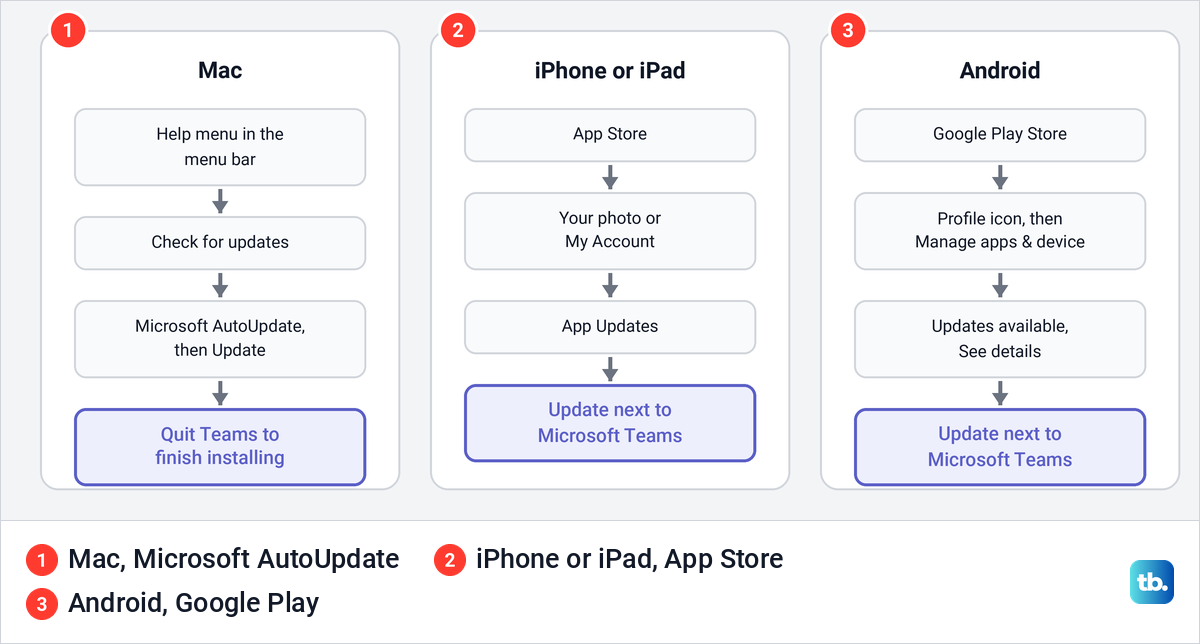
The update does not finish until you quit. Microsoft says Teams for Mac does not restart itself to apply an update and always waits for you, so quit Teams with Command + Q and open it again. If it will not start afterwards, follow the steps to fix Teams not opening on a Mac.
Update Teams on iPhone or iPad
Apple says apps from the App Store update automatically by default, so Teams on an iPhone or iPad usually keeps itself current. To update it now, open the App Store, tap your photo or the My Account button at the top, tap App Updates and tap Update next to Microsoft Teams.
If Teams is not listed under App Updates, there is nothing to install yet. Automatic updates are switched on or off in Settings > Apps > App Store > App Updates, and Teams shows its own version under your profile picture > Settings > About.
Update Teams on Android
On Android, Teams updates through the Google Play Store. Open Google Play, tap the profile icon at the top right and tap Manage apps & device. Under Updates available, tap See details, then tap Update next to Microsoft Teams.
To let it happen by itself, Google's steps are profile picture > Settings > Network preferences > Auto-update apps, where you choose Update over Wi-Fi only or Update all apps over Wi-Fi or mobile data. Google notes that a sign-in error on any account on the phone can stop apps updating automatically.
Microsoft's shortest update page tells phone users to download and install Teams again from the store. Its version page and the store steps above both use the Update button instead, so there is no need to delete Teams first.
Problems an update will not fix
Keeping Teams current brings Microsoft's latest fixes, but a device or setting problem usually needs its own steps. If people still cannot hear you, use the steps to fix a Teams microphone that is not working. If the wrong camera is picked, change the Teams camera settings rather than updating again.
For a Share button that still fails in meetings, work through how to fix Teams screen sharing that is not working. If alerts stay silent after the update, see how to fix Teams notification sounds that are not working.
How we tested this guide
We tested this with Microsoft Teams on Windows 11, version 25H2, and Teams for the web in Microsoft Edge, reading the installed Teams version in Windows Settings.
Frequently Asked Questions
How do I update Teams on Windows 11?
Leave Teams running and it updates itself when the app is idle. When the notice appears at the top of the window, select Update, then Update and restart Teams, or open Settings and more > Settings > About Teams for an Update now button.
Why can't I find Check for updates in Teams?
Microsoft's current update and version pages do not use it. Look for the Update notice at the top of Teams, or open About Teams to see your Version and any Update now button. On our PC, neither the taskbar menu nor the hidden-icons menu for Teams had an update item.
How do I know which Teams version I have?
Open Settings and more > Settings > About Teams and look under Version. On Windows you can also open Settings > Apps > Installed apps, select More options on Microsoft Teams, choose Advanced options and read Version under Specifications.
Why does my coworker have a newer Teams version?
Microsoft releases Teams updates in stages, so some people in an organization get a new version before others. A different number alone does not mean your Teams is broken.
Do I need to update Teams on the web?
No. Microsoft says the web app is always updated, and its About Teams page shows legal and privacy links only, with no version number.
What happens if I never update Teams?
Microsoft shows an in-app alert once your version is one to three months old and a newer one exists. After three months, Teams shows a blocking page that offers to update now, contact IT or continue in Teams on the web.
Why does Teams keep asking me to update?
Quit Teams completely and open it again so a waiting update can take effect, then check the version. On a work PC, an update that never completes can come from Delivery Optimization or network settings that only IT can change, and Teams on the web works in the meantime.