

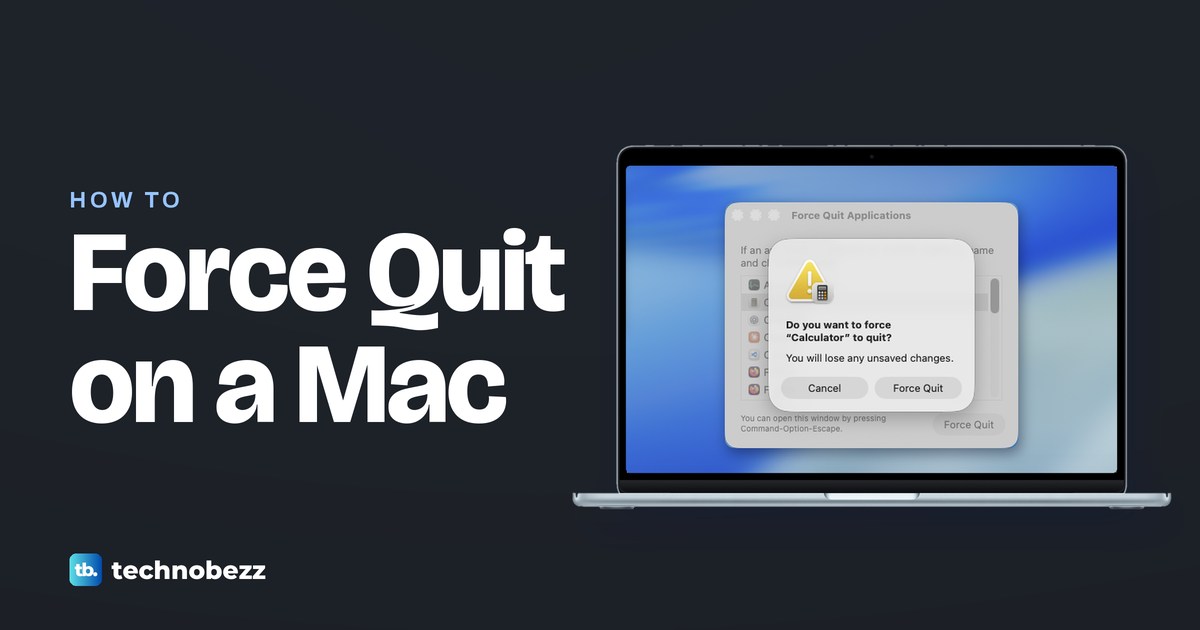
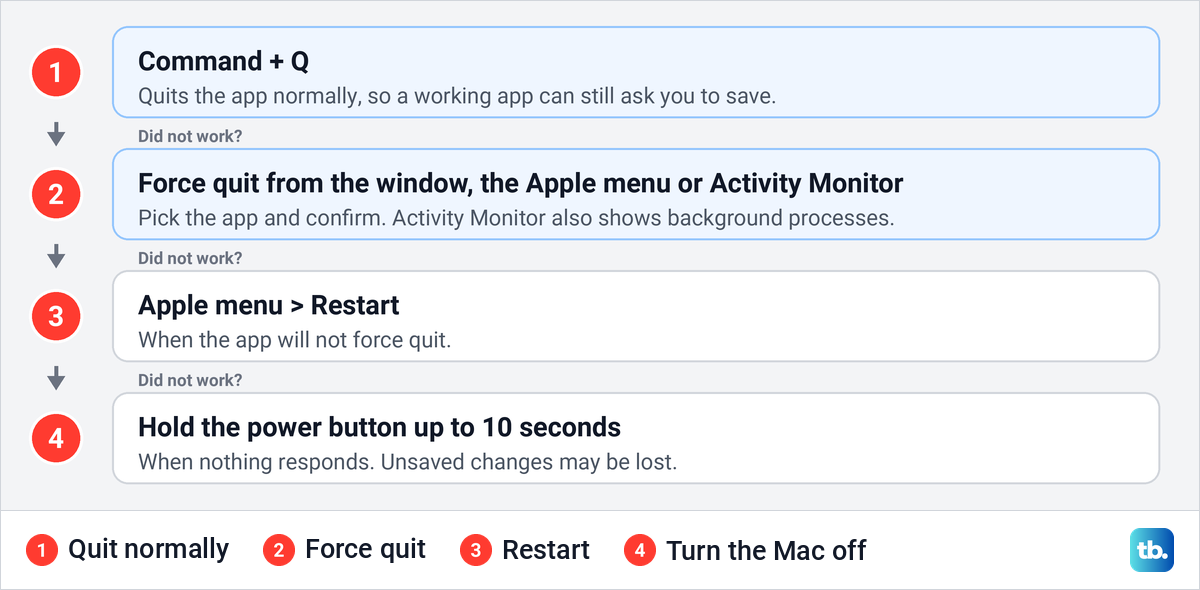
To force quit an app on a Mac, press Option + Command + Esc, select the frozen app in the Force Quit Applications window, click Force Quit, then click Force Quit again to confirm. If the keys do nothing, the Apple menu's Force Quit item opens the same window. When the app still responds, press Command + Q first, because a normal quit lets it save your work.
If an app will not force quit at all, restart the Mac. Activity Monitor is the other place to force quit, and it also lists background processes and marks a stuck app in red.
The short version
- Fastest: press Option + Command + Esc, select the app, click Force Quit and confirm.
- Keys not working: choose Force Quit from the Apple menu for the same window.
- Try first: Command + Q quits normally and lets the app save.
- From Activity Monitor: select the app, click the Stop button and choose Force Quit. Plain Quit did not end our frozen app.
- Whole Mac stuck: restart from the Apple menu, or hold the power or Touch ID button for up to 10 seconds.
Ways to force quit on a Mac at a glance
| Press or open | What it does | Best when |
|---|---|---|
| Command + Q | Quits the app normally, so it can ask you to save | The app still responds |
| Option + Command + Esc, then Force Quit | Opens Force Quit Applications; macOS asks you to confirm, then ends the app | One app is frozen |
| Apple menu, then Force Quit | Opens the same Force Quit Applications window | The keys do nothing |
| Control-click the app in the Dock, then Force Quit | Force quits the app from its Dock menu, as Apple describes for an app that stops responding | The app's Dock icon is easy to reach |
| Activity Monitor, Stop button, then Force Quit | Ends the app or process immediately | Quit did not work, or you need a background process |
| Force Quit window, Finder, then Relaunch | Makes Finder quit and open again | Finder stops responding |
killall Calculator in Terminal, as in our example | Ended Calculator by name on our Mac, with no window or question | You use the command line and know the process name |
| Apple menu, then Restart, or hold the power button | Restarts the Mac, or turns it off | Nothing else works, or the whole Mac is stuck |
Choose the row that matches your situation. Try a normal quit first, and restart only if the app will not force quit, which is the order Apple's own advice follows.
Try Command + Q first
A normal quit gives the app the chance to finish what it is doing, such as saving changes, which is why Apple suggests it before a force quit. Click the app's window, then press Command + Q, or open the menu named after the app, next to the Apple menu, and choose Quit.
Closing the window is not the same thing. Apple notes that the red Close button at the top left of a window closes the window but leaves the app open, with a small dot under its icon in the Dock to show it is still running. If Command + Q does nothing after a few seconds, move on to a force quit.
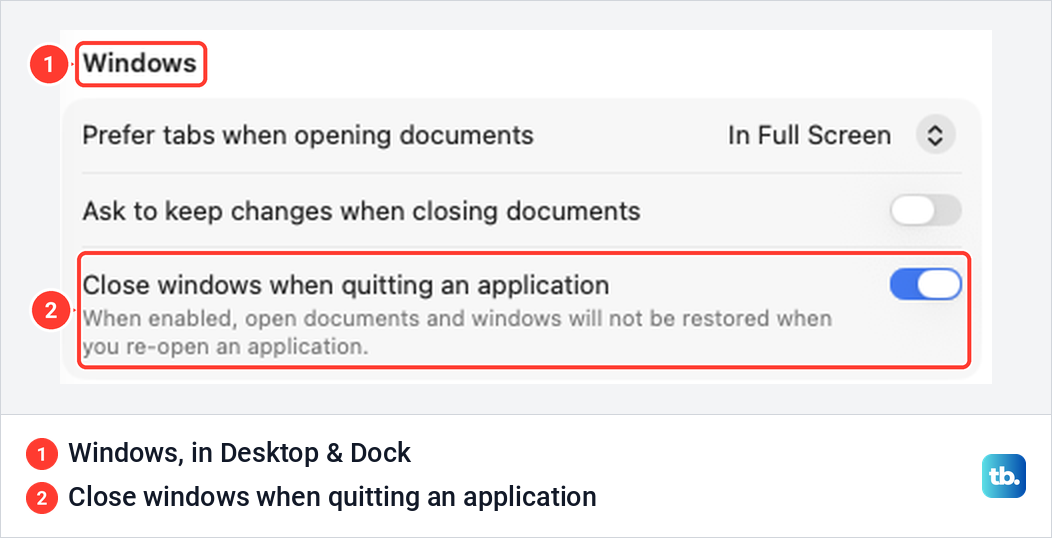
Whether an app's windows come back after a normal quit is a setting. Apple says the windows that were open are shown again the next time you open the app, unless Close windows when quitting an application is on in System Settings > Desktop & Dock, under Windows. Ours had it switched on, and its note reads "When enabled, open documents and windows will not be restored when you re-open an application."
Force quit with Option + Command + Esc
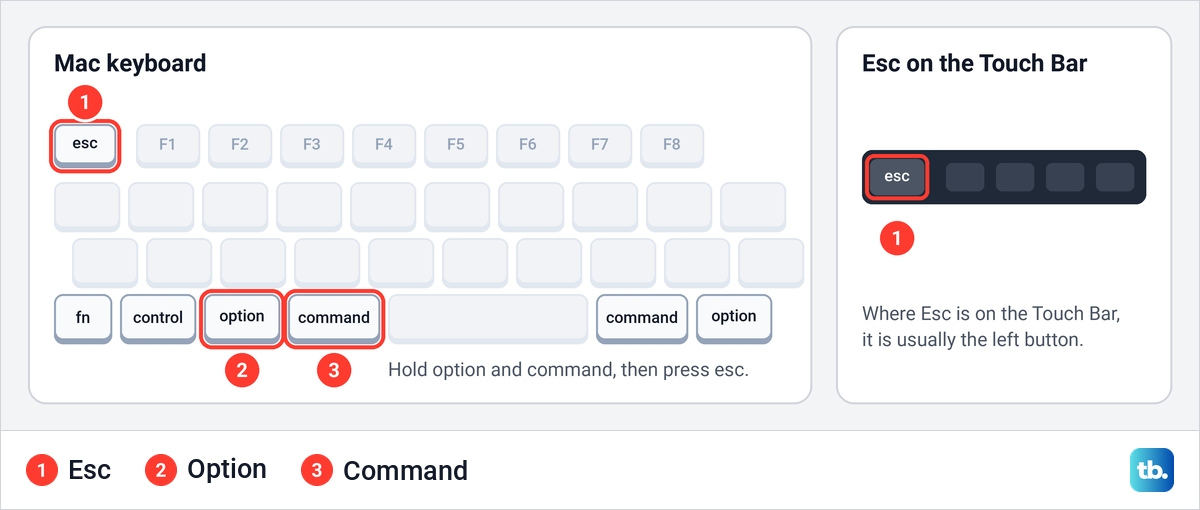
Apple's instruction is to press Option, Command and Esc together, so hold the first two and tap Esc. Apple writes the first key as Option (or Alt), and Esc sits at the far left of the top row. On a Mac with a Touch Bar, Apple says the Esc button usually appears at the left end of the Touch Bar.
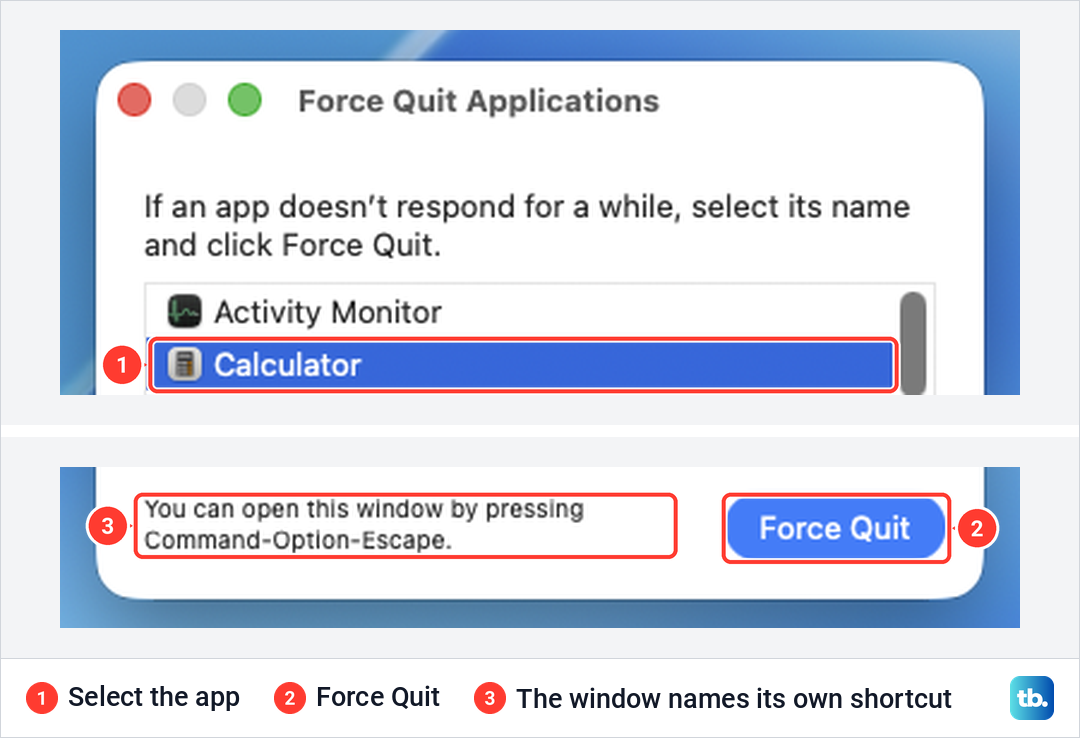
The Force Quit Applications window opens with a list of your open apps, under the line "If an app doesn't respond for a while, select its name and click Force Quit". Select the app, then click Force Quit at the bottom right. We opened the window from the Apple menu, and its footer, "You can open this window by pressing Command-Option-Escape", gives the same shortcut.
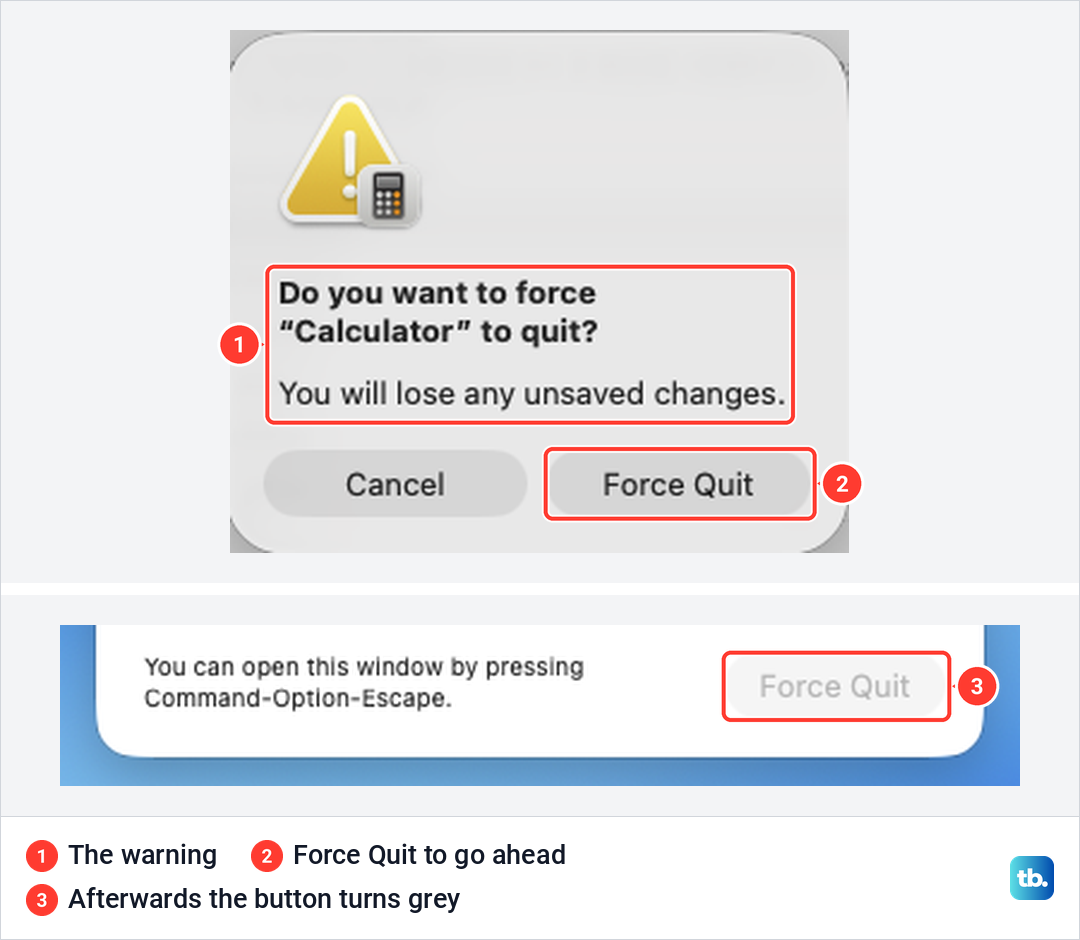
macOS then asks once more. With Calculator selected, we pressed Return, which works the blue Force Quit button, and a box asked whether we wanted to force Calculator to quit, warning "You will lose any unsaved changes." Click Force Quit in that box to go ahead, or Cancel to leave the app running.
Calculator closed after we confirmed. It vanished from the list, and the Force Quit button turned grey because nothing was selected any more. Open the app again as usual when you need it.
Use the Apple menu when the keys do nothing
The Apple menu is the Apple logo in the top left corner of the screen, and it needs only the pointer. Click it and choose Force Quit, and the same Force Quit Applications window opens. On our Mac the item read Force Quit... with the Option, Command and Esc symbols beside it, a reminder of the shortcut for next time.
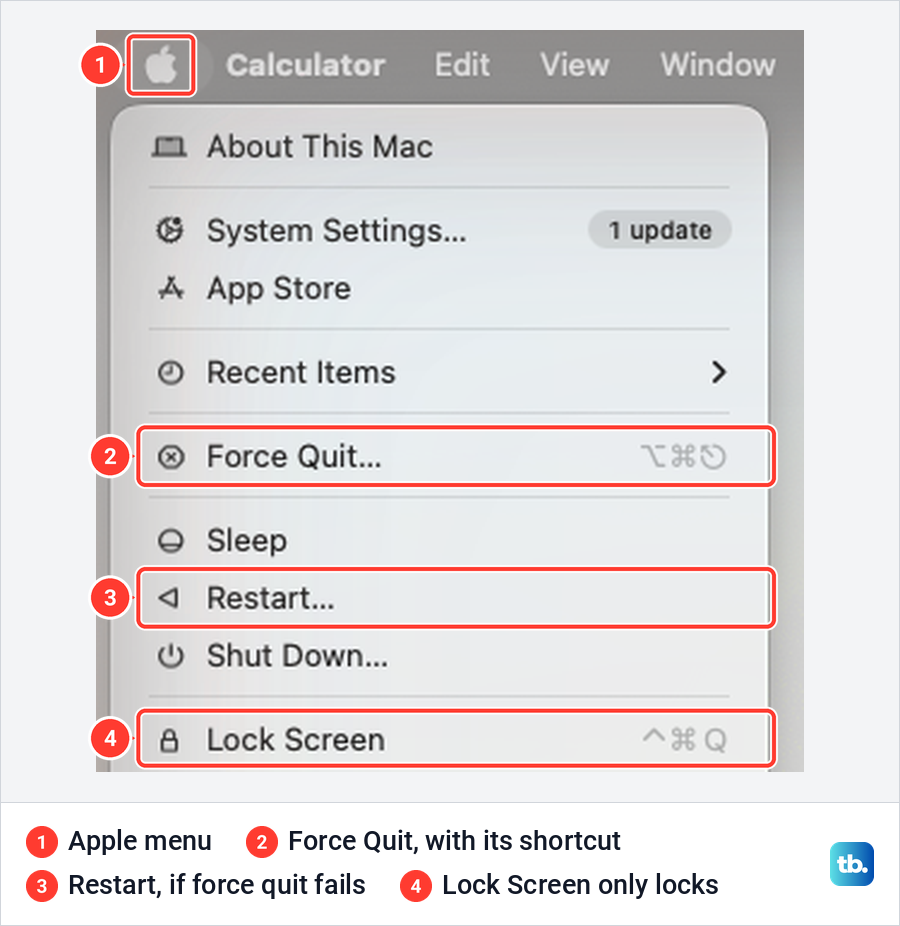
Two items lower in the same menu are easy to mix up with a quit. Lock Screen, with Control + Command + Q beside it on our Mac, locks the screen, and the Log Out item below it, Shift + Command + Q, logs you out of your account after asking you to confirm, Apple says. Neither one quits a frozen app.
Force quit from the Dock
Apple gives a route from the Dock as well. For an app that stops responding, Apple's steps are to Control-click the app's icon in the Dock and choose Force Quit. Control-click means holding Control while you click, and our guide on how to right-click on a Mac covers the other ways to open the same menu.
How to tell an app is frozen and not just busy
The spinning wait cursor is not proof that an app has frozen. Apple uses it for items that are still loading and for any delay of more than a few seconds, so give the app a little time first, especially if it was saving or opening a file.
macOS also labels a stuck app for you. We froze Calculator on purpose and clicked inside it, and the Force Quit window then listed it as Calculator (not responding). The label was grey on our Mac, not red, and the Force Quit button stayed grey because nothing was selected yet.
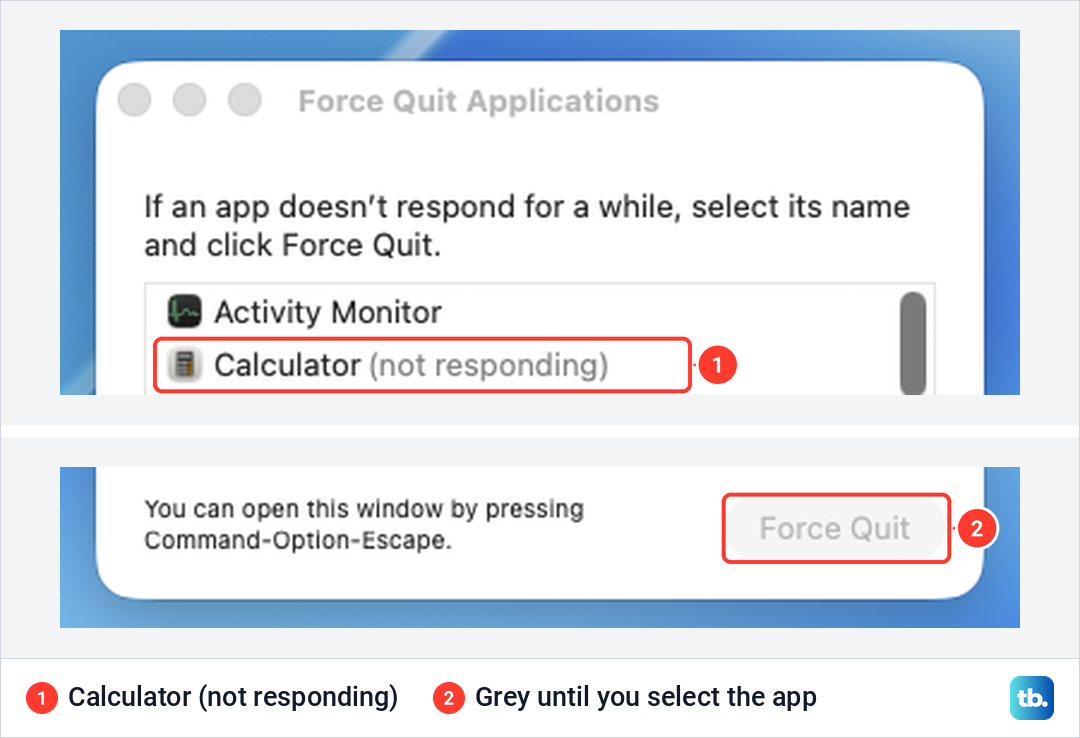
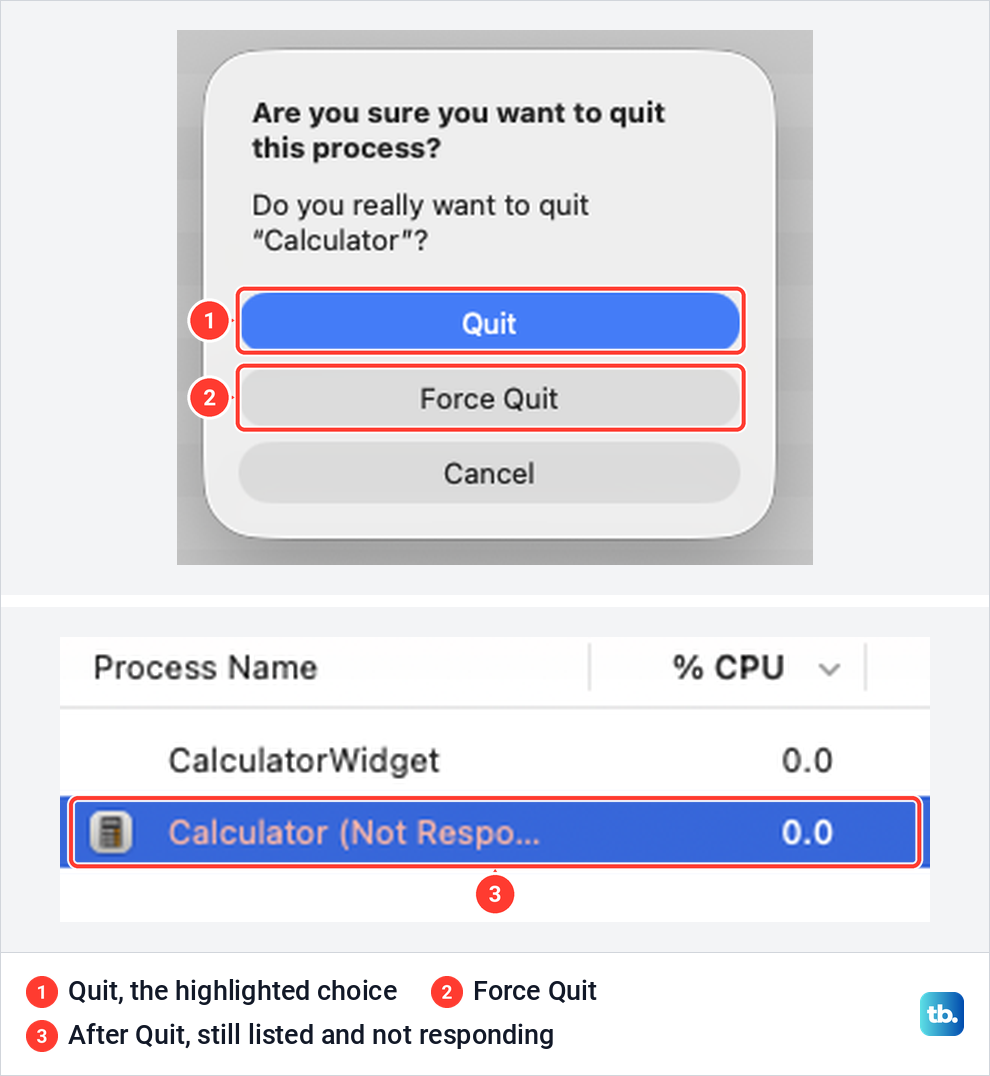
Activity Monitor is clearer. Its row for the same app was marked Not Responding in red (the column cuts the label short), which matches Apple's description of an unresponsive process. If the label stays after you have waited, force quit the app.
Force quit with Activity Monitor
Apple says Activity Monitor can quit a process "even if it's in a loop or not responding", and it lists background processes as well as apps. Press Command + Space, type Activity Monitor and open it from the results. If that shortcut does nothing, there are other ways to open Spotlight.
Type the app's name in the search field at the top right to find it fast. Select its row under Process Name, then click the Stop button, the button with an X near the top of the window. Apple notes that quitting a process you do not own may ask you to authenticate as an administrator.
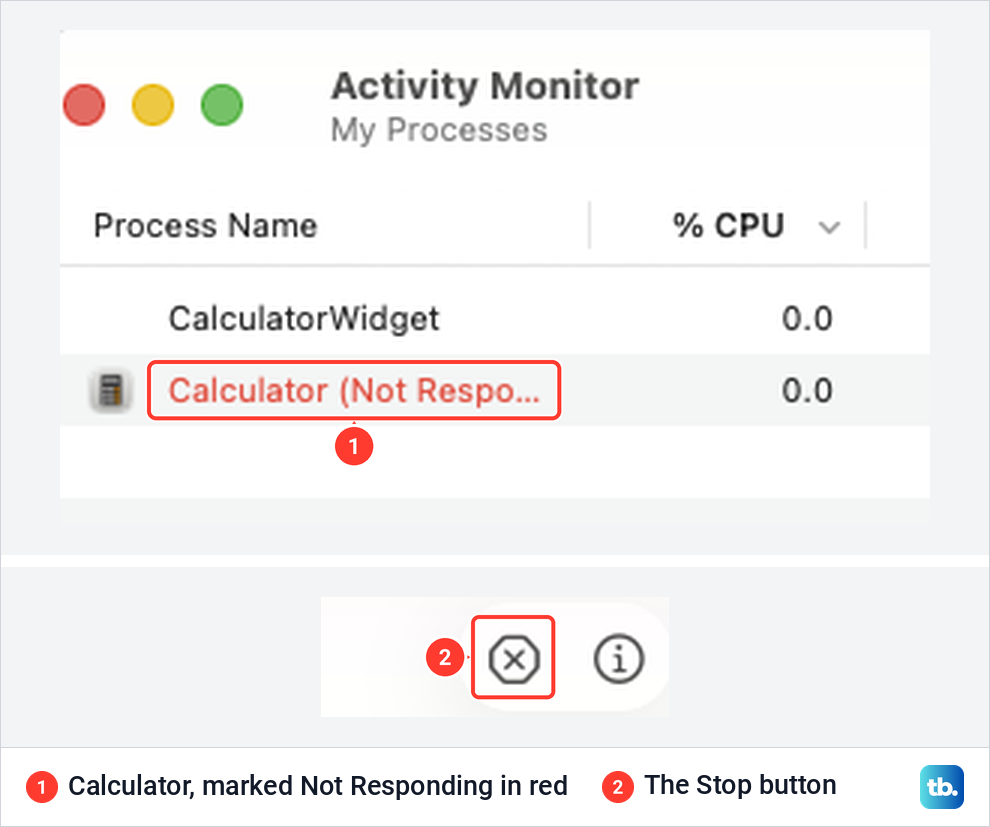
Activity Monitor then asks "Are you sure you want to quit this process?" and offers three buttons. Apple describes Quit as the same as choosing File > Quit in the app, which quits when it is safe to and not at all if quitting could lose data or interfere with another app. Force Quit ends the process immediately, and Apple warns that open files may lose data and that other apps using the process could have problems.
We tried both on the frozen Calculator. Quit was the highlighted button, yet ten seconds after we clicked it the app was still listed as not responding. Clicking the Stop button again and choosing Force Quit ended it, and it disappeared from the Force Quit window's list as well.
Before you end a process you do not recognise, check what uses it. Apple's way is View > All Processes, Hierarchically, which shows whether a process is used by another one.
What a force quit does to unsaved work
The risk is to work you have not saved. The box macOS showed on our Mac said plainly "You will lose any unsaved changes", while Apple's help pages say you may lose them, and that a process with files open may lose data. Treat anything typed since the last save as gone unless the app saved it for you.
Many apps do exactly that. Apple says many Mac apps save documents automatically while you work, and that apps which keep versions save one every hour, or more often when you make many changes. Open the document again and choose File > Revert To > Browse All Versions to see what the app kept, then click Restore on the version you want.
If a document did not come back, there are still places to look. Our guide shows how to recover lost or unsaved documents from the app itself, from cloud storage and from older versions.
Relaunch Finder when it stops responding
Finder works differently from other apps, because Apple says it is always open. If it stops responding, open the Force Quit window, select Finder and click Relaunch. Apple describes this as forcing Finder to quit and open again.
Force quit from Terminal with killall
If you already use the command line, killall ends processes by name, with no window and no question. First open Terminal on a Mac from Spotlight or from the Utilities folder inside Applications. This is the line we ran for Calculator.
killall CalculatorThe name has to match exactly, capital letters included. When we ran killall calculator in lower case on our Mac, it failed with "No matching processes belonging to you were found", while killall Calculator ended the app. For a Calculator we had frozen on purpose, plain killall was enough too, and the app was gone within five seconds. For apps other than our Calculator example, Activity Monitor is the safer route, since it shows you the process before you end it.
When the force quit shortcut does nothing
Check how you are pressing it first. Hold Option and Command, then tap Esc while both are down. If your Mac's Esc is on the Touch Bar, it is usually the button at the left end, and if the Touch Bar is blank or frozen, that Esc is gone too, so use the Apple menu instead.
Apple's checks for keys that do nothing are worth a minute. A low battery alert you cannot see can be the cause, so connect the charger. In System Settings > Accessibility, make sure Slow Keys is off under Keyboard and Mouse Keys is off under Pointer Control.
Then check the keyboard layout. In System Settings > Keyboard, go to Text Input, click Edit and turn on Show Input menu in menu bar, then make sure the right layout is selected in that menu. If several keys fail, not just this shortcut, work through our fixes for a Mac keyboard and trackpad that stop working.
If one key is broken, Apple's on-screen Accessibility Keyboard lets you click keys with the pointer instead. Turn it on in System Settings > Accessibility > Keyboard. For Force Quit itself, the Apple menu is still the quicker route.
When an app will not force quit or the whole Mac is frozen
If an app will not force quit, Apple's next step is to restart your Mac from the Apple menu by choosing Restart. When we chose Restart on our Mac, macOS asked first, "Are you sure you want to restart your computer now?", and warned that it would restart by itself in under a minute if we did nothing.
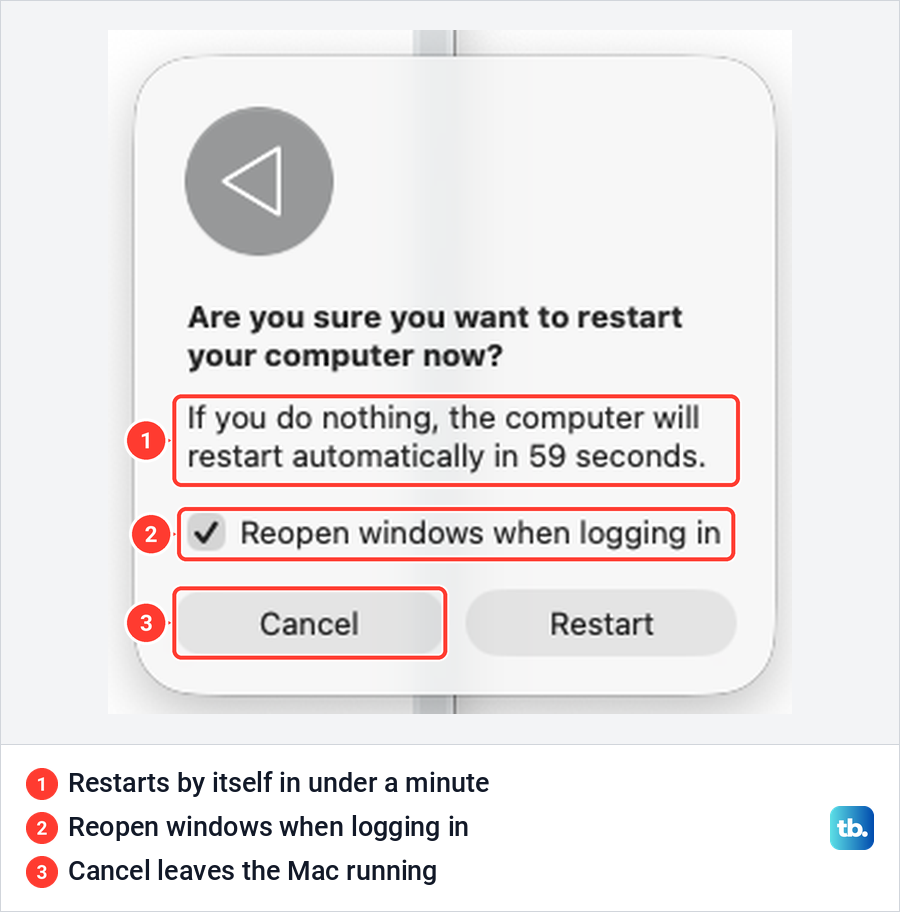
The same box has Reopen windows when logging in, which was ticked on ours. Apple says windows that were open come back after the restart while it is ticked, so untick it if you would rather start clean, then click Restart.
If the Mac will not restart, press and hold the power button for up to 10 seconds until it turns off, then press it again to turn the Mac back on. Apple says laptops with Touch ID use the Touch ID button, and that you may lose unsaved changes in open documents. Our guide to force restart an unresponsive Mac walks through it.
Avoid one shortcut while unsaved work is open. Apple says Control + Command + the power button forces a restart on built-in keyboards without Touch ID, without asking you to save open documents.
If the same app keeps freezing
When the same app freezes again and again, work through Apple's checklist. The first steps are to update macOS and your apps, check that the app is compatible with your version of macOS, and open a different file in it, since the problem may be the original file.
Next, disconnect anything you plugged in recently, such as a printer, and remove plug-ins or add-ons from other developers. If you added hardware such as memory, run Apple Diagnostics to learn whether it is incompatible or faulty. As a last step, Apple suggests you delete the app from your Mac and download it again, warning that data stored in the app can be lost.
Safe mode shows whether software that loads at startup is involved, and Apple's steps differ for Apple silicon and Intel Macs. About This Mac in the Apple menu tells you which one you have, and ours listed a Chip line with an Apple chip, the mark of an Apple silicon Mac.
On those Macs, Apple says to shut down, hold the power button until "Loading startup options" appears, select a volume, then hold Shift and click Continue in Safe Mode. On an Intel Mac, Apple says to hold Shift as soon as the Mac starts up, until the login window appears.
If every app is slow, not just one, Apple points to memory. Activity Monitor shows how much memory your apps are using, and quitting the apps you are not using helps. Our guide to fix a Mac that keeps slowing down goes further.
How we tested this guide
We tested this on a MacBook Air with macOS Tahoe 26.5, force quitting Calculator with the Force Quit window and Activity Monitor.
Frequently Asked Questions
What is the Mac version of Control Alt Delete?
Press Option + Command + Esc. It opens the Force Quit Applications window, where you select the frozen app, click Force Quit and then click Force Quit again to confirm. For the bigger picture, Activity Monitor plays the part of Task Manager, and Apple describes it as the place to find and force quit troublesome apps or processes.
Will force quitting an app delete my files?
Apple's warnings are about unsaved changes and files the app has open. macOS told us "You will lose any unsaved changes" before it ended Calculator, so save what you can first. Afterwards, check File > Revert To > Browse All Versions, since many Mac apps save versions automatically.
What is the difference between Quit and Force Quit?
Quit asks the app to close, so it can finish and save. In Activity Monitor, Apple says Quit does nothing if quitting could lose data, while Force Quit ends the app immediately. On our Mac, Activity Monitor's Quit left a frozen Calculator running, and Force Quit ended it.
Why does Option + Command + Esc do nothing?
Hold Option and Command, then tap Esc, and if your Esc is on the Touch Bar, use the button at its left end. If the window still does not appear, choose Force Quit from the Apple menu, and check Apple's list for keys that do nothing, starting with Slow Keys and Mouse Keys.
How do I force quit when the whole Mac is frozen?
Restart from the Apple menu if it still opens. If it does not, press and hold the power button, or the Touch ID button on laptops that have one, for up to 10 seconds until the Mac turns off, then press it again to turn it on.
Why does Finder show Relaunch instead of Force Quit?
Apple says Finder is always open, so the Force Quit window offers Relaunch for it. Relaunch makes Finder quit and open again, which is what you want when Finder itself stops responding.
What does the spinning wheel mean on a Mac?
It is the wait cursor. Apple says it appears while items load and when a delay of more than a few seconds occurs, so wait a little before you force quit. If the app is marked not responding in the Force Quit window or in Activity Monitor, force quit it.