

To remove a program from a Mac, run its own uninstaller if it has one, or quit the app, select it in Applications in Finder, choose File > Move to Trash and then Finder > Empty Trash. Apple calls an uninstaller the best way to also remove an app's login items and extensions. Dragging the app onto the Trash in the Dock works in place of the menu.
Deleting an app does not delete the documents you made with it, and it does not cancel a subscription you pay for through it. Emptying the Trash also removes everything else in the Trash, so if you only want the app gone, Control-click it in the Trash and choose Delete Immediately instead.
We tried the Finder and Trash steps on our MacBook Air with macOS Tahoe 26.5, using a small test app we made. macOS did not ask us for a password when we moved that app. For a built-in app, Command + Delete did nothing and Move to Trash was greyed out, with no message.
The short version
- Apps with an uninstaller: use it first. Apple says it also removes login items, extensions and data stored elsewhere.
- Everything else: quit the app, click the desktop or a Finder window, press Shift + Command + A to open Applications, select the app, press Command + Delete, then empty the Trash.
- App Store apps: remove them in Finder like any other app, and download them again free from your name in the App Store.
- "Can't be moved to the Trash because it's open": quit the app, or quit it in Activity Monitor, then try again.
- Your files stay: documents are kept, and subscriptions keep billing until you cancel them.
Remove a program from a Mac with Finder
Quit the app first. Apple's steps start there, and on our Mac an app that was still open could not be moved to the Trash at all. Choose Quit from the app's own menu, the one named after the app next to the Apple menu.
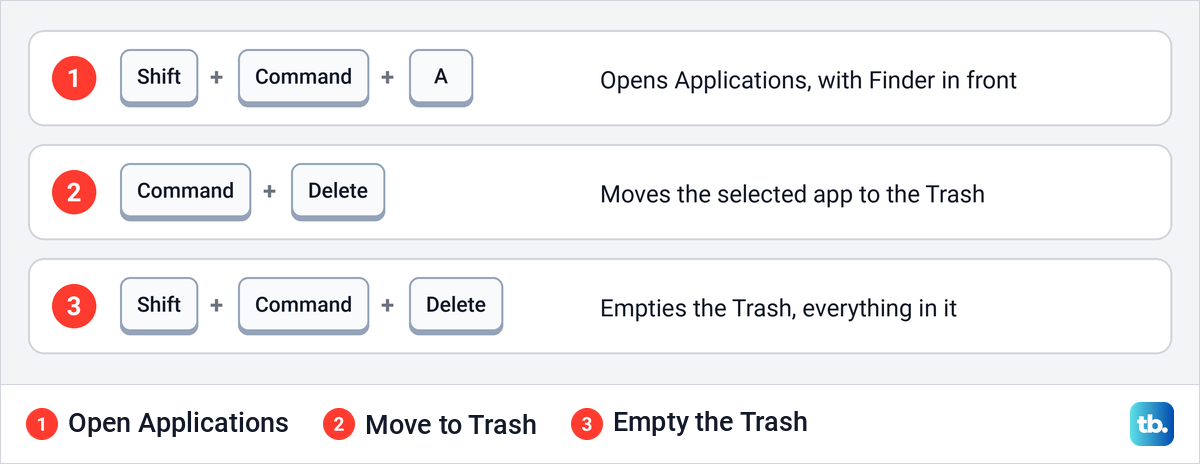
Next, open the Applications folder. Click Applications in the sidebar of any Finder window, or choose Go > Applications from the menu bar. With Finder in front, Shift + Command + A opened the same folder on our Mac.
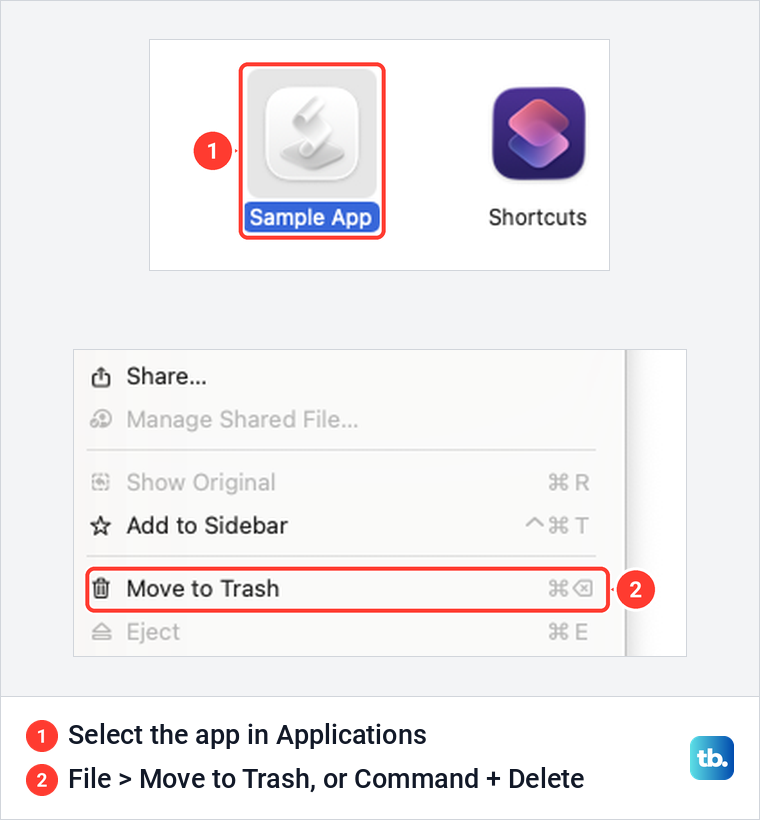
Drag the app onto the Trash at the end of the Dock. If dragging is awkward on a trackpad, select the app once and choose File > Move to Trash, or press Command + Delete.
Apple says that if you are asked for a user name and password, you enter the details of an administrator account on the Mac, which is usually the one you log in with. When we moved our test app out of the Applications folder, macOS asked for nothing. The app went straight into the Trash.
The app is still on your Mac at this point, and it still takes up space. To remove it for good, choose Finder > Empty Trash. Apple's warning applies here: once the Trash is emptied, files you made with the app may not open again, so put the app back first if you change your mind.
Three keyboard shortcuts cover the whole job. The third one empties the Trash, including everything else that is in it.
Choose a method to remove an app
Finder works for almost every app, but it is not the only route. The table below shows where each method fits and what to expect.
| Method | Use it for | What happens |
|---|---|---|
| Finder and the Trash, Command + Delete | Removable apps without their own uninstaller | The app waits in the Trash until you empty it, and your documents stay |
| The app's own uninstaller | Apps that come with one, often security, VPN and work apps | Apple calls it the best way to also remove login items, extensions and other data |
| The Apps icon in the Dock | App Store apps on macOS Tahoe 26 and later, in Apple's App Store guide | Apple's guide says to click and hold until the icons jiggle, then click the Close button. If they don't, use Finder |
| Launchpad | App Store apps on macOS Sequoia 15 and earlier | No Delete button means the app can't be removed there |
| System Settings > General > Storage | Finding the apps that use the most space | On our Mac, Delete was available for a downloaded app and greyed out for system apps |
| Home folder > Applications | Safari web apps and some other apps | Drag the item to the Trash like any other app |
| Control-click in the Trash > Delete Immediately | Removing only the app from the Trash | That item is deleted at once, and the rest of the Trash stays |
| Activity Monitor > Stop > Quit | An app that "can't be moved to the Trash because it's open" | Once the app has quit, Finder moves it to the Trash |
Use the uninstaller that comes with some apps
Before you drag anything to the Trash, check whether the app has its own remover. Apple's advice is to open the app's folder in Applications and look for an item called Uninstall [App] or [App] Uninstaller. Double-click it and follow the steps on screen.
Some apps keep the option inside the app instead, as an uninstall, remove or reset item in a menu or in their settings. Zoom's own steps are to open the Zoom Workplace app, click the Zoom Workplace menu, choose Uninstall Zoom Workplace and confirm with OK, which removes the app and its components.
Adobe apps are removed from inside the Creative Cloud desktop app. Adobe's steps are Apps > All Apps, then More actions > Uninstall for the app, and a choice between Remove and Keep for its preferences and plugins. Our separate guide shows how to remove Adobe Creative Cloud itself once the apps are gone.
Security software is the clearest case for the maker's own tool, because it adds extensions to macOS and Apple names extensions among the things an uninstaller removes. Follow our steps to uninstall Norton on a Mac rather than dragging it to the Trash. The same goes for McAfee antivirus, and our guide shows how to uninstall McAfee from your computer, with a section for the Mac.
Work apps tend to be the same. Our guide shows how to uninstall Citrix Workspace on a Mac step by step. If an app has no uninstaller anywhere, the Finder method above is the right one.
Delete App Store apps on a Mac
Apps from the App Store come off a Mac the same way as any other app. Apple's App Store guide says to click Applications in the Finder sidebar, Control-click the app icon and choose Move to Trash. You can also right click on a Mac trackpad or mouse if you have set that up.
Apple's App Store guide for macOS Tahoe 26 and macOS 27 also gives a second route. Click the Apps icon in the Dock, then click and hold the icon of the app you want to delete until it begins to jiggle, and click the Close button. If the icons do not jiggle on your Mac, use Finder instead.
Advice that sends you to Launchpad is for macOS Sequoia 15 and earlier. There, Apple's steps are to click and hold an app in Launchpad until it jiggles, then click its delete button. Apple adds that if no Delete button is shown, the app can't be removed from Launchpad.
Anything you bought with your Apple Account can be installed again for free. Open the App Store, click your name in the bottom-left corner, find the app and click the Download button. Apple's GarageBand, iMovie, Pages, Numbers and Keynote come from the App Store too.
Delete apps from Storage settings
System Settings has its own list of apps, with the size of each one. Choose Apple menu > System Settings, click General in the sidebar, then Storage, and click the Info button next to Applications. Apple gives the same path for macOS Ventura 13 and later.
On our Mac the list opened under the line Remove applications you can download again from the App Store to free storage space. It has columns for Name, Kind, Last Accessed and Size, so you can see which apps take the most space. Select an app and click Delete, or click Show in Finder and remove it there with the Finder steps above.
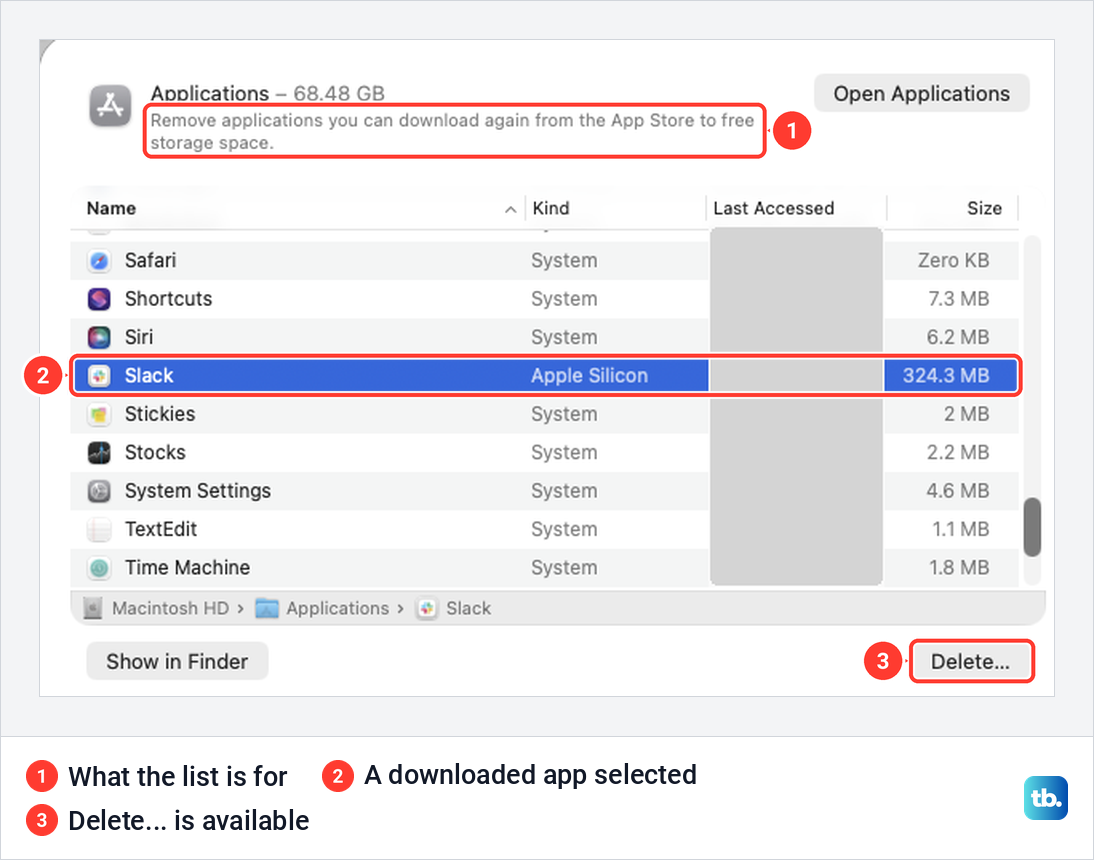
Apple describes this list as every installed app except system applications, yet ours also showed Safari, Stocks, TextEdit and other built-in apps, marked System in the Kind column. With one of those selected, the Delete button stayed greyed out. A downloaded app, Slack in our list, made the button available.
One app was missing altogether. The small test app we made was in the Applications folder but did not appear in this list, so if you cannot find an app here, go back to Finder. Finder is also the route to use if you want the app to wait in the Trash, where you can still put it back.
Get an app back or delete only that app from the Trash
Until you empty the Trash, a deleted app has only been moved. Click the Trash in the Dock, Control-click the app and choose Put Back. Our test app went straight back into Applications. You can also select it and choose File > Put Back, or drag it from the Trash into Applications yourself.
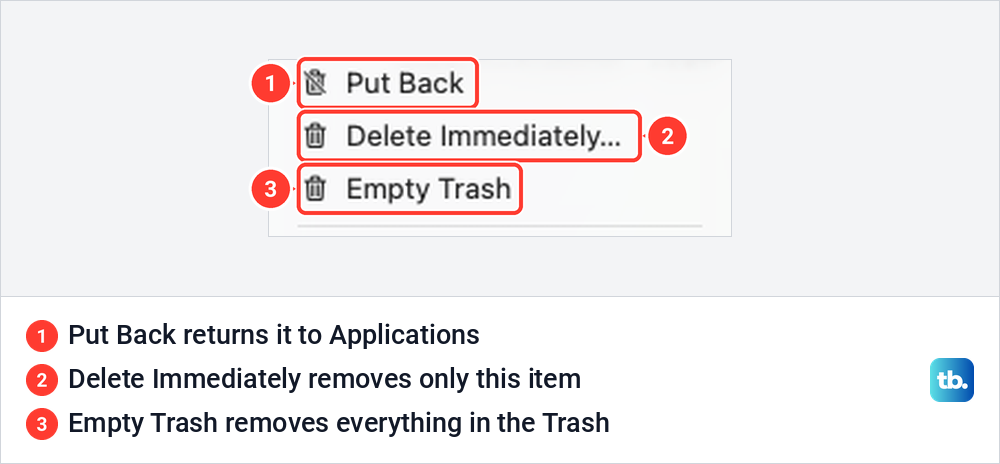
Empty Trash is the blunt option. It permanently deletes everything in the Trash at once, including files you threw away weeks ago.
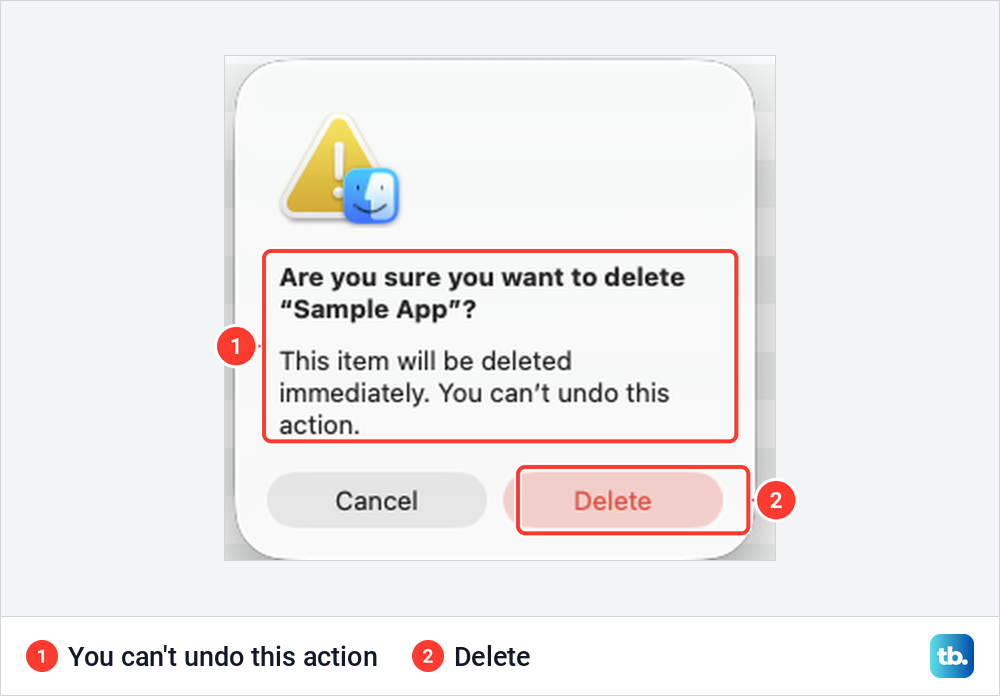
To remove only the app, Control-click it in the Trash and choose Delete Immediately. macOS then warned us that the item would be deleted immediately and that we could not undo it. We clicked Delete, the app was gone, and nothing else in the Trash was touched.
If you would rather not empty the Trash by hand, Apple offers a timer. In Finder, choose Finder > Settings, click Advanced and select Remove items from the Trash after 30 days. Apple's storage recommendations call the same idea Empty Trash automatically.
Find apps that are not in the Applications folder
Most apps live in the main Applications folder, but not all of them. Apple says some apps are installed in a second Applications folder inside your home folder. Choose Go > Home in Finder, open Applications there, and drag the app to the Trash in the usual way.
If you are not sure where an app lives, open Spotlight on your Mac and type its name. Apple's tip is to hold Command while you double-click the result, which shows the app in a Finder window instead of opening it.
The Dock is another way in. Command-click an app's icon in the Dock to show the app itself in Finder. Dragging an icon out of the Dock does not uninstall anything, because Apple says only the shortcut is removed and the app stays on your Mac.
Web apps you saved from Safari, which macOS Sonoma 14 and later can do, are kept in that same home folder Applications folder. Delete one by dragging it to the Trash. Apple says a web app shares no browsing history, cookies, website data or settings with Safari, so removing it leaves Safari as it was.
Chrome handles its own web apps. Google's steps are to open the web app, click More at the top right, choose Uninstall and then Remove. Tick Also delete data from Chrome if you want its data gone too.
What happens to an app's files in the Library folder
Dragging an app to the Trash removes the app. Its settings, caches and support files are kept elsewhere, mostly in the Library folder inside your home folder. Apple's answer for those is the app's own uninstaller.
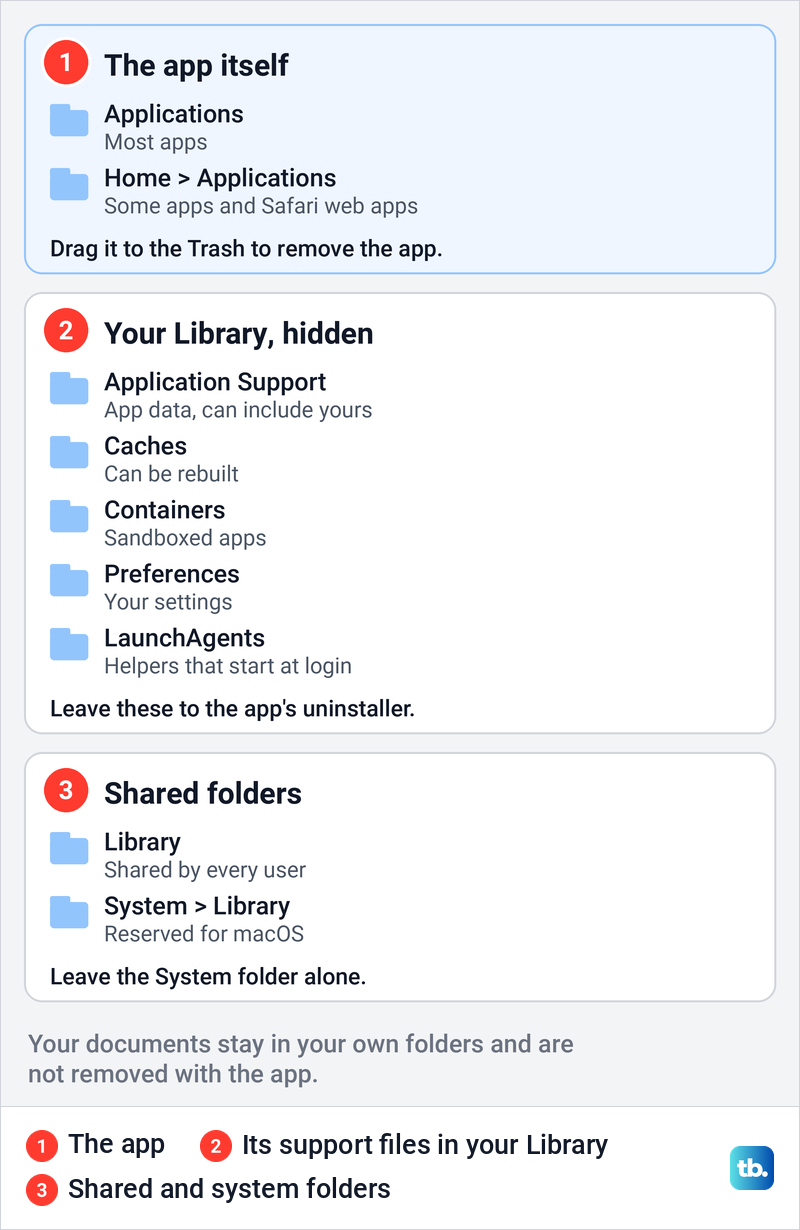
To look inside, open the Go menu in Finder, hold the Option key and choose Library. The folder is hidden by default, and our guide to show hidden folders on a Mac covers the shortcut that toggles hidden items on and off. You can also choose Go > Go to Folder, enter ~/Library and press Return, since a tilde (~) stands for your home folder.
Apple's developer documentation describes what each folder is for. Application Support holds the files an app manages for you and can include files that contain your own data. Caches holds data that can be rebuilt, Containers holds sandboxed apps' home folders, Preferences holds your settings, and LaunchAgents lists helper apps that start for your account.
That is why sweeping these folders by app name is risky. Microsoft's own steps for removing Office from a Mac move named folders out of Containers and Group Containers, and Microsoft warns that Outlook data will be removed when you do it. So back up your MacBook first if you plan to move anything out of Library.
The shared Library folder at the top of the disk serves every user on the Mac. The Library inside the System folder is reserved by Apple, so leave that one alone.
Turn off login items and background helpers an app leaves
Some apps start helpers when you log in or keep working in the background. Choose Apple menu > System Settings, click General, then Login Items & Extensions, which collects those settings on one page.
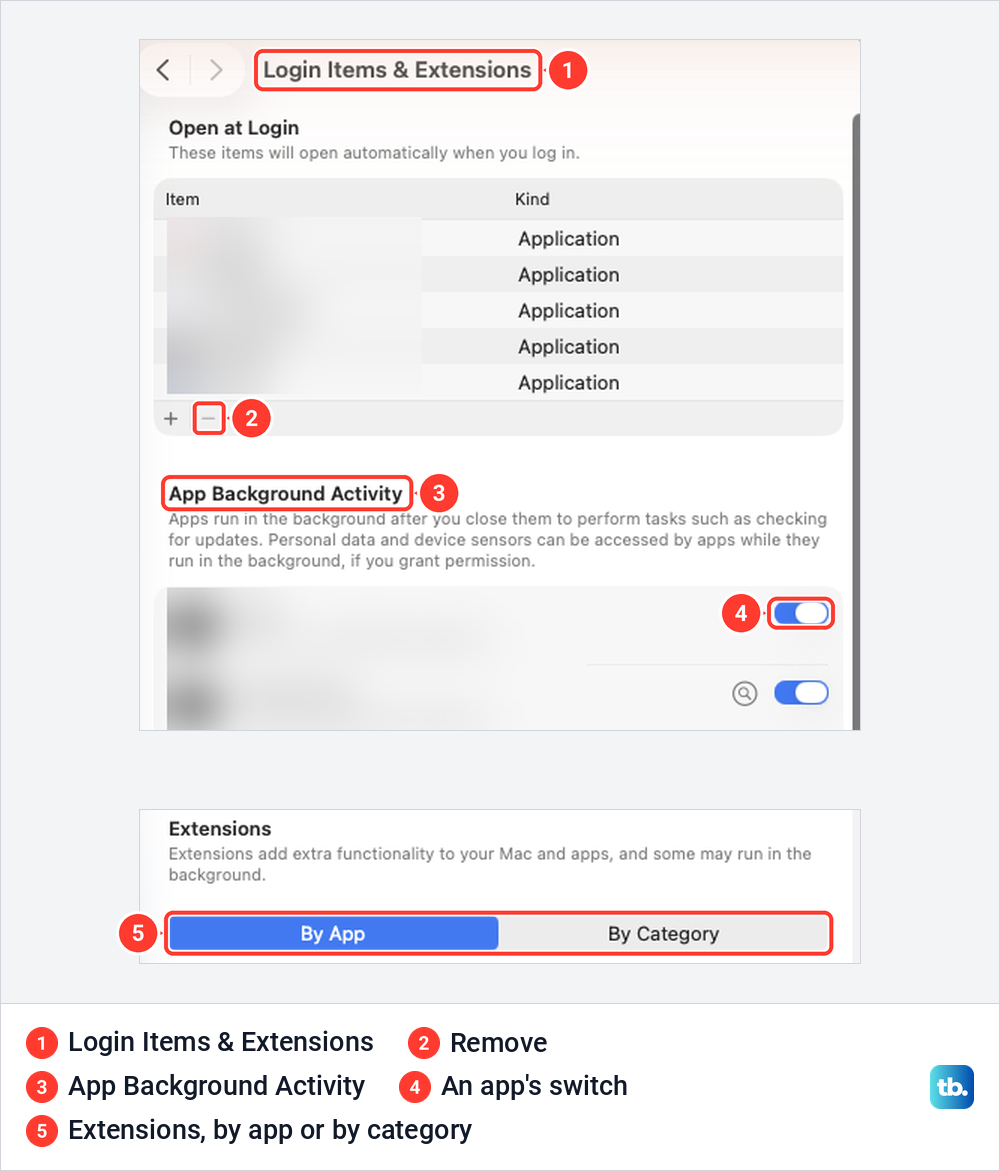
On our Mac the page had three parts. Open at Login lists the apps that open when you log in, App Background Activity has a switch for each app, and Extensions can be listed by app or by category. Apple's steps to remove a login item are to select it and click the Remove button, the minus sign under the list.
Apple adds that a yellow triangle next to an item means it won't open automatically, because the item was moved or deleted. If you have just deleted the app it belonged to, select the item and click Remove. On macOS Sequoia 15 the background switches sit under the name Allow in the Background instead.
The Extensions part matters most for security and VPN apps. Apple lists third-party extensions here under categories such as Endpoint Security Extensions and Network Extensions, the second used for a VPN or content filter. That is why you should remove the GlobalProtect VPN and similar apps with their uninstaller rather than by hand.
Fix an app that says it is open
An app that is still running cannot go to the Trash. With our test app open, pressing Command + Delete in Applications showed the message The item "Sample App" can't be moved to the Trash because it's open. Nothing moved until the app had quit.
Quit the app from its own menu first. If it has no window or will not respond, open Activity Monitor from Applications > Utilities, type the app's name in the search field, select it and click the Stop button, the x in the toolbar. Choose Quit in the box that appears.
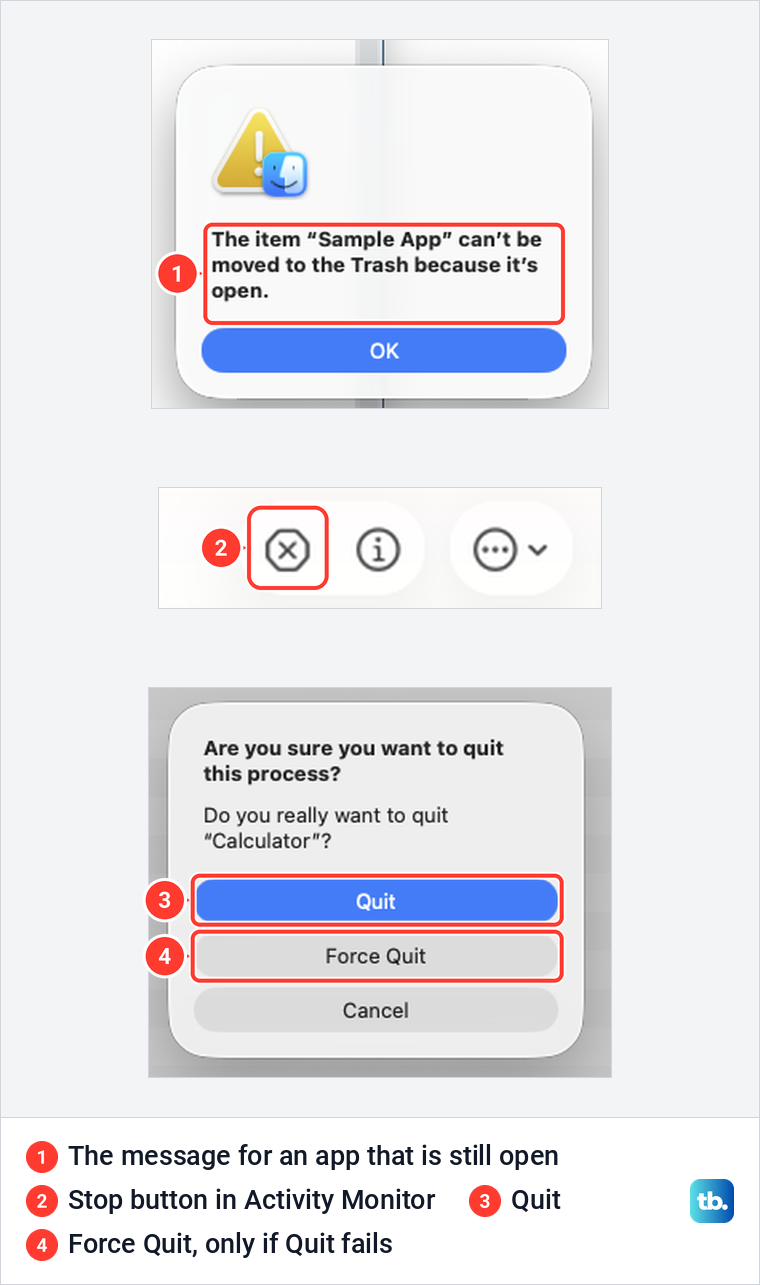
We quit our test app that way, and Finder then moved it to the Trash without complaint. Apple says Force Quit in the same box ends the process immediately and can lose data if it has files open, so use it only when Quit does nothing. Our guide shows other ways to force quit the app when it is frozen.
Some apps run helpers under a different name. In Activity Monitor, choose View > All Processes, Hierarchically to see whether a process is used by another one. If you cannot tell what is keeping the app busy, or the message still appears, Apple's next step is to restart your Mac and try again.
Safe Mode is Apple's last step for this, and the steps depend on your Mac. Choose Apple menu > About This Mac: an item labelled Chip means Apple silicon, and an item labelled Processor with an Intel name means an Intel-based Mac. Ours showed Chip.
On a Mac with Apple silicon, choose Apple menu > Shut Down and wait until the screen is black and any lights are off. Press and hold the power button until Loading startup options appears, select a volume, hold Shift and click Continue in Safe Mode.
On an Intel-based Mac, Apple's steps are to turn it on or restart it and immediately hold Shift until the login window appears. Delete the app while in Safe Mode, then restart normally to leave it.
Apps a Mac will not let you delete
Apps that macOS needs cannot be removed. Apple names Mail, Music, Books, Notes, Podcasts, Maps, News, Stocks and Safari, along with anything in the System folder, which is reserved by macOS.
With TextEdit selected in Applications on our Mac, Command + Delete did nothing, and File > Move to Trash was greyed out, along with Rename and Duplicate. No message explained why.
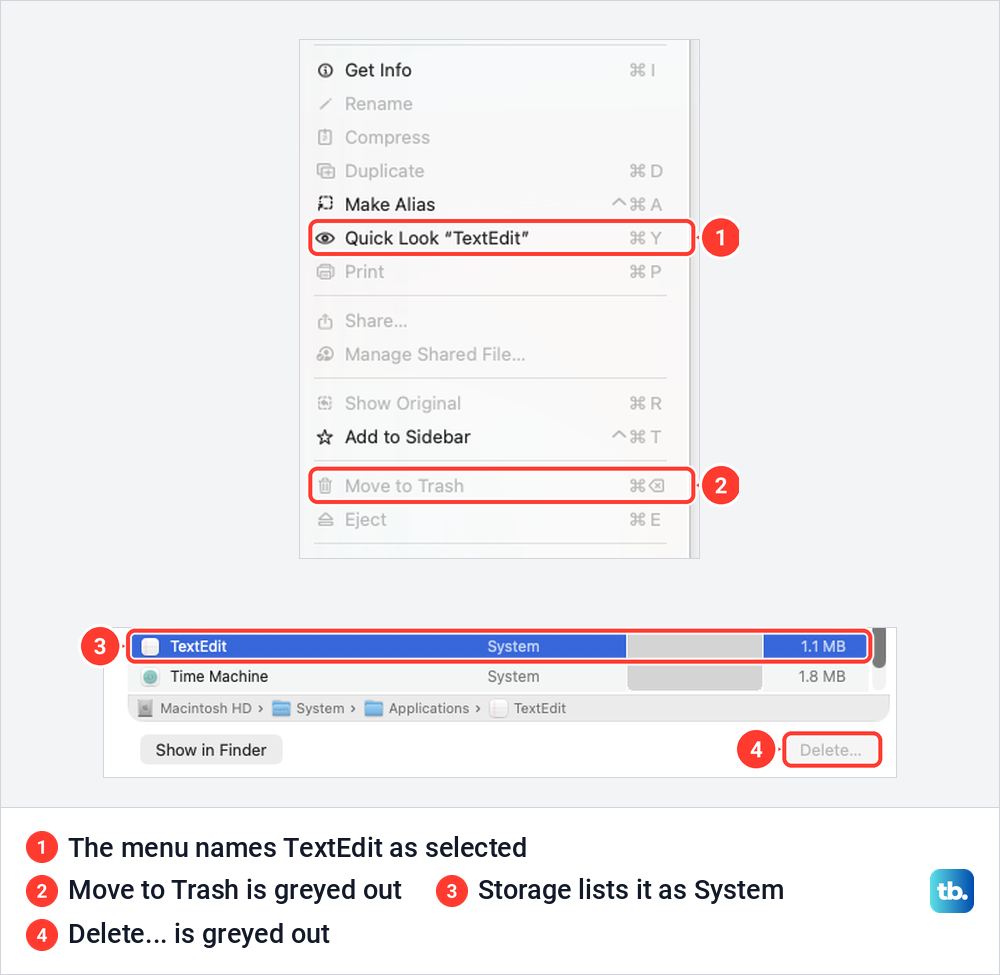
Storage settings told the same story. TextEdit appeared there as a System app whose path ran through the System folder, and its Delete button stayed greyed out. For TextEdit, the System label and its place in the System folder showed that it is part of macOS. A greyed-out option on its own does not tell you the reason, so check the app's Kind in that list.
A locked app is different. Apple says you either confirm that you want to move a locked item to the Trash, or unlock it first: select it, choose File > Get Info or press Command + I, and deselect the Locked checkbox.
Work and school Macs follow their own rules. Apple's deployment guide says that on macOS 26 and later, required apps installed through declarative app management, a way organisations manage Macs, are marked nonremovable. Ask your organisation's administrator to arrange removal.
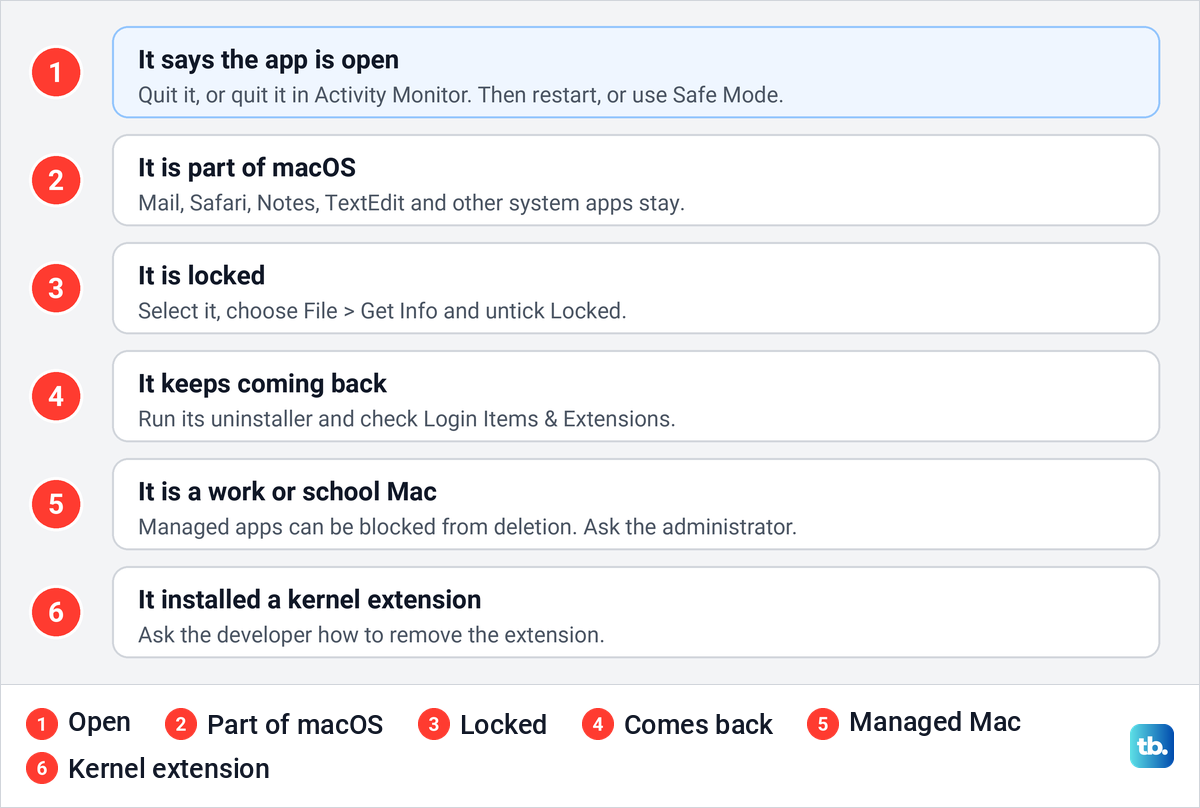
Apps that installed a kernel extension are a special case. Apple's advice is to contact the developer to learn how to remove or disable the extension and what happens when you do. If an app you never installed keeps coming back after you delete it, check your Mac for malware before anything else.
What deleting an app does not do
Your documents stay where they are. Apple says deleting an app does not remove the files you created with it, though you may need the app to open them again.
Subscriptions keep running too. Deleting the app does not stop the billing, so cancel an Apple subscription separately. For a subscription billed through Apple, click your name in the App Store, then Account Settings, then Manage next to Subscriptions. Click Edit if you have more than one subscription, choose Cancel Subscription and confirm.
An app you moved to the Trash still takes up space until the Trash is emptied, because Apple says storage used by an item in the Trash is not available until then. Once the Trash is empty the space is yours again, and our guide has other ways to clear disk space on a Mac if you still need more.
How we tested this guide
We tested this on a MacBook Air with macOS Tahoe 26.5, deleting a small test app with Finder and the Trash.
Frequently Asked Questions
Does dragging an app to the Trash uninstall it completely?
It removes the app once you empty the Trash. If the app came with an uninstaller, Apple calls that the best way to also remove its login items, extensions and data stored in other places.
Why can't I delete an app because it says it's open?
The app, or a helper it runs, is still open. Quit it, or select it in Activity Monitor, click the Stop button and choose Quit, then try again. If that fails, restart your Mac or start it in Safe Mode first.
How do I delete App Store apps without Launchpad?
Use Finder. Click Applications in the sidebar, Control-click the app and choose Move to Trash. Apple's App Store guide for macOS Tahoe 26 and later also describes clicking and holding the app in the Apps view until it jiggles, then clicking the Close button.
Do I need an administrator password to delete an app?
Only if macOS asks for one, and then Apple says to enter an administrator's name and password. When we moved a test app out of our Applications folder, no password was requested.
Does deleting an app cancel my subscription?
No. For a subscription billed through Apple, click your name in the App Store, then Account Settings, then Manage next to Subscriptions. Click Edit if you have more than one, choose Cancel Subscription and confirm.
Can I delete Safari, Mail or other apps that came with my Mac?
No. Apps that macOS needs can't be deleted, and on our Mac Move to Trash was greyed out for TextEdit, another built-in app. GarageBand, iMovie, Pages, Numbers and Keynote are different, because Apple offers them in the App Store.