Your Mac keyboard and touchpad can stop responding for a few different reasons: a frozen Mac, low power, a wireless accessory that lost its connection, an accessibility setting, or hardware trouble. Apple calls the touchpad a trackpad, so these fixes cover built-in MacBook trackpads and external Magic Trackpads. Start with the quick checks, then move into settings, software isolation, and hardware testing.
1. Restart the Mac
Start here when the keyboard and trackpad both stop responding. A restart clears a stuck macOS session and gets the input system loaded fresh. Open the Apple menu, then choose Restart.
If the Mac is unresponsive, press and hold the power button until it shuts down. Press the power button again to turn it back on. On Mac laptops with Touch ID, Touch ID is the power button.
2. Check power and trackpad input
Use only one finger on the trackpad to move the pointer. Connect the Mac laptop to an electrical outlet, and connect an external keyboard when available. Then check for a low-battery alert.
When the built-in trackpad will not move the pointer, Apple gives these simple checks before you dig into settings. If the pointer works after power is connected, charge the Mac and test the keyboard and trackpad again before changing anything else.
3. Wake Magic Keyboard or Magic Trackpad
For Apple’s rechargeable accessories, power cycling and cable pairing handle the fastest failures. Slide the switch on the back edge of the Magic Keyboard or Magic Trackpad so no green is visible, then slide it back on so green is visible. Connect the accessory to the Mac with a Lightning to USB Cable, USB-C to Lightning Cable, or USB-C to USB-C Cable.
Wait 1 minute, then disconnect the cable. Click Control Center in the menu bar, then click Bluetooth to check the charge level. Earlier Apple Wireless Keyboard and Magic Trackpad models use replaceable batteries. Replace the batteries on those models, then turn the accessory back on.
4. Reconnect Bluetooth devices
With a pointer, open Apple menu > System Settings > Bluetooth and turn Bluetooth on. From the menu bar, open Control Center, click the Bluetooth status menu, and click the switch.
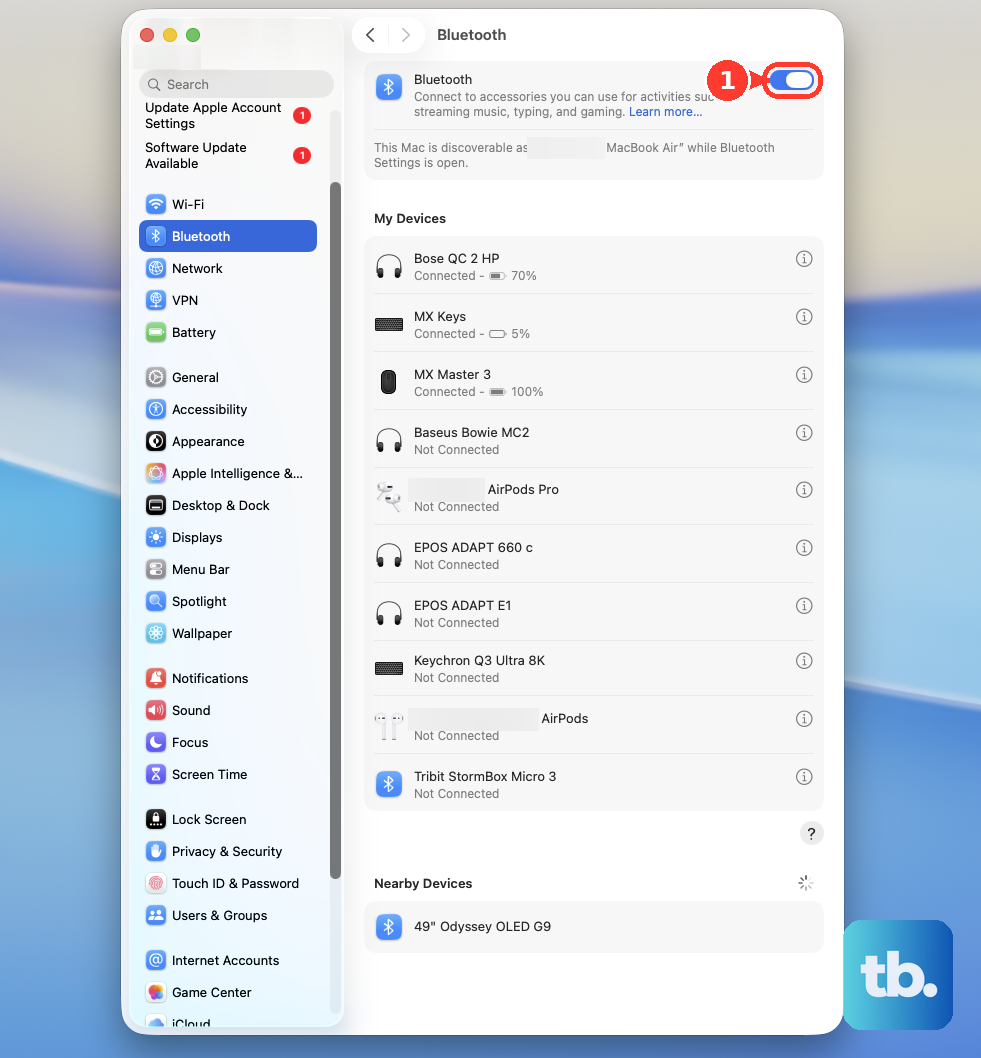
With keyboard-only input, press Command-Space bar and enter Bluetooth File Exchange. Press Return or Enter, then press Return or Enter again to turn Bluetooth on. Bluetooth has to be on before a wireless keyboard or trackpad can reconnect, so use whichever input path still works.
Now pair the accessory again by going to Apple menu > System Settings > Bluetooth. Make sure the device is on and discoverable, then hold the pointer over the device. Click Connect.
For a saved device that keeps failing, Control-click its name. Click Forget, then pair it again.
5. Turn off accessibility blockers
A few accessibility settings make a working keyboard or trackpad look broken. Check these directly. Slow Keys changes how key presses register. Open Apple menu > System Settings > Accessibility > Keyboard, then turn Slow Keys off.
Next, Mouse Keys stops the keyboard or numeric keypad from entering text. Open Apple menu > System Settings > Accessibility > Pointer Control, then turn Mouse Keys off. You can also press Option-Command-F5, then deselect Mouse Keys.
For a MacBook trackpad that gets ignored when another pointing device is connected, open Apple menu > System Settings > Accessibility > Pointer Control. Turn off Ignore built-in trackpad when mouse or wireless trackpad is present. Then click the Info button next to Mouse Keys, and turn off Ignore built-in trackpad when Mouse Keys is on.
On a work or school Mac, an administrator controls settings like Sticky Keys, Slow Keys, and Mouse Keys through device management. Contact IT when those controls are locked or keep coming back.
6. Fix typing layout or use on-screen input
Open Apple menu > System Settings > Keyboard > Text Input > Edit and turn on Show Input menu in menu bar. Open the Input menu in the menu bar, then select the correct keyboard layout. If keys type the wrong characters or act wrong, check the selected keyboard layout before treating the keyboard as failed.
Need to type while the physical keyboard is partly unusable? Open the Input menu and choose Show Keyboard Viewer. You can also open Apple menu > System Settings > Accessibility > Keyboard, then turn on Accessibility Keyboard.
For hands-free control, go to Apple menu > System Settings > Accessibility > Voice Control and turn Voice Control on. You can also ask Siri, Turn on Voice Control. The first setup requires internet for a one-time file download.
7. Clean stuck MacBook keys
Use compressed air when specific keys do not respond or feel different on a MacBook 2015 and later or MacBook Pro 2016 and later. Hold the Mac notebook at a 75-degree angle. Spray the keyboard, or the affected keys, from left to right with compressed air.
Rotate the notebook to its right side and spray left to right again. Rotate the notebook to its left side and repeat the same left-to-right spray. After cleaning, restart the Mac. After that, test the affected keys in a text field.
8. Isolate software and accessory conflicts
Connected hardware can interfere with input. Shut down the Mac, disconnect drives, printers, USB hubs, and mobile devices, then turn it on. Test again. On a desktop Mac, leave only a display, keyboard, and mouse or trackpad connected, then reconnect devices one at a time until the issue returns.
Next, start in safe mode. On Apple silicon, choose Apple menu > Shut Down, then press and hold the power button until Loading startup options appears. Select a volume, press and hold Shift, and click Continue in Safe Mode.
On Intel, turn on or restart the Mac. Immediately press and hold Shift until the login window appears. Log in, then check for Safe Boot in the menu bar.
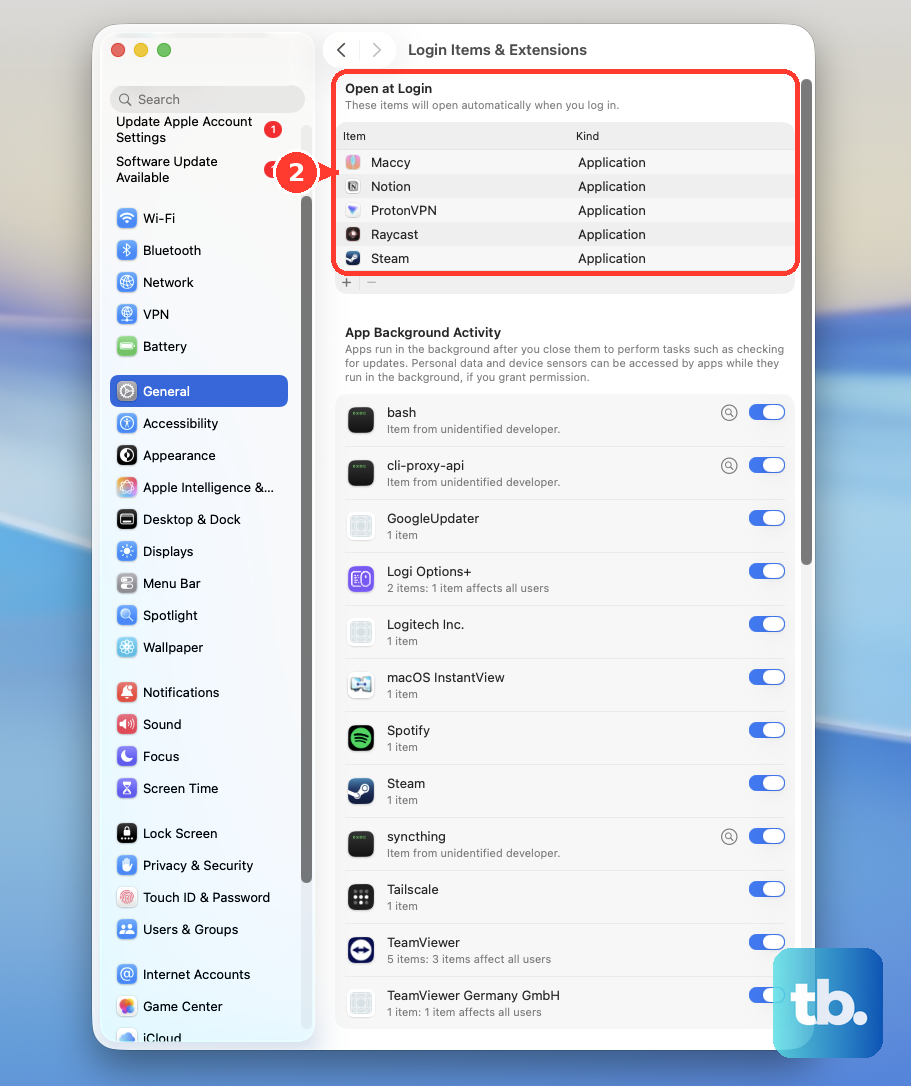
If input works in safe mode, remove startup software that interferes with the keyboard or trackpad. Go to Apple menu > System Settings > General > Login Items & Extensions and make a list of items in Open at Login. Select login items, click the Remove button, and restart. Add items back one at a time, restarting after each addition.
For third-party keyboard, mouse, trackpad, or remapping apps, open Finder > Applications. If the app is in a folder, open it, then double-click Uninstall [App] or [App] Uninstaller. Otherwise, drag the app to the Trash. Follow the vendor’s uninstaller steps for driver-style companion apps.
9. Update macOS and run diagnostics
Software Update installs fixes compatible with your Mac model. Open Software Update with Spotlight, or go to Apple menu > System Settings > General > Software Update. Click Update, Upgrade, or Restart Now when one appears.
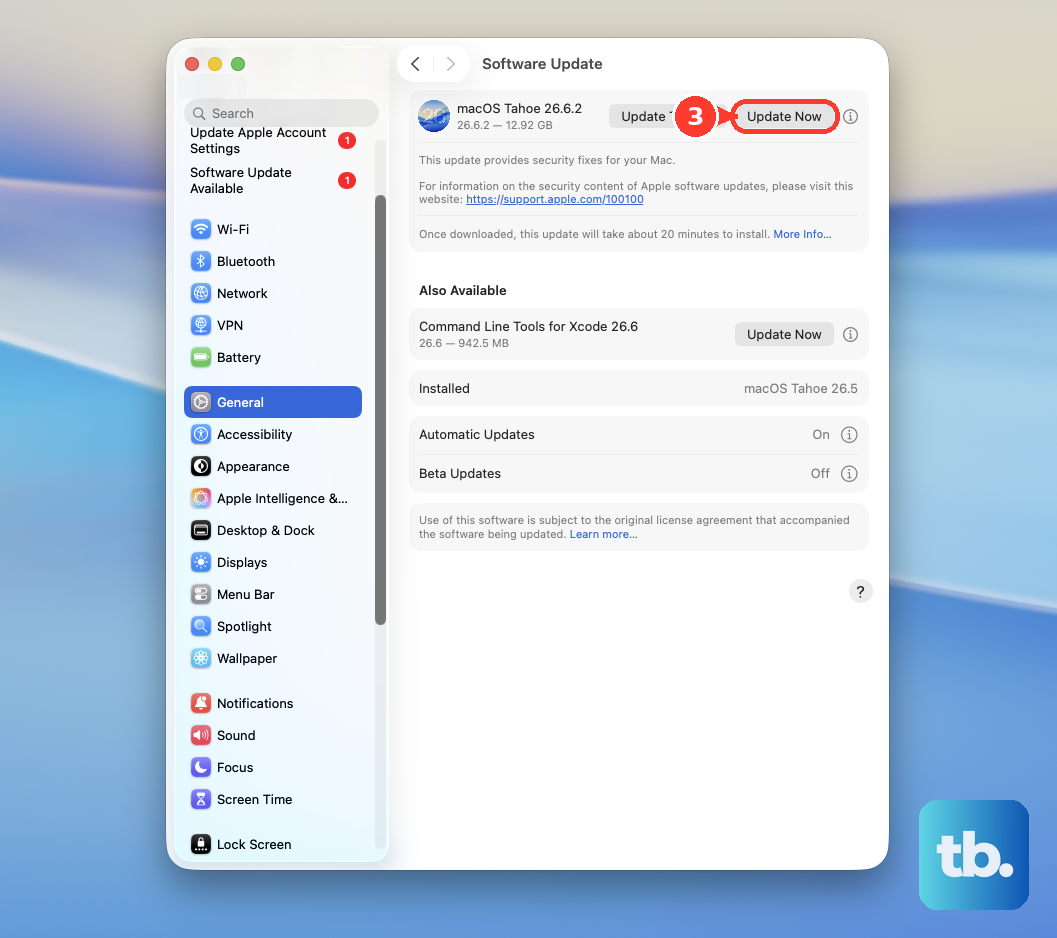
If no update appears, click Check for Update. Press Command-R, or reopen Software Update.
- 1.Install the latest macOS updates first when Software Update offers them.
- 2.Shut down the Mac.
- 3.Disconnect external devices except the keyboard, mouse, display, Ethernet connection, and power.
- 4.On Apple silicon, press and hold the power button until Options appears, release it, then press and hold Command-D until the Mac restarts.
- 5.On Intel, turn on the Mac and immediately press and hold D. Use Option-D if D does not start diagnostics.
Run Apple Diagnostics when the problem continues after the checks above. Use Intel-only resets only where they apply.
For NVRAM, shut down, then turn on the Intel Mac. Immediately press and hold Option-Command-P-R. Release after about 20 seconds. Apple says this NVRAM reset does not apply to Apple silicon Macs.
For SMC behavior, Apple silicon needs power and a normal restart or shutdown. Plug the Mac into power, then choose Apple menu > Restart. Or choose Apple menu > Shut Down. After a shutdown, press the power button.
On Intel Macs, follow Apple’s SMC reset steps for your exact model only for uncommon power, thermal, or hardware behavior. If the keyboard or trackpad still fails, arrange Apple service or an Apple Authorized Service Provider repair.
Before service, back up your Mac, arrange service, and turn off Find My Mac when you have access to that setting. Bring needed accessories, and bring the power cable when carrying the Mac to a service location.
Frequently Asked Questions
Why did my Mac keyboard and touchpad stop working at the same time?
Start with a restart, power check, Bluetooth reconnect, accessibility settings, connected devices, macOS updates, and Apple Diagnostics. Those cover the Apple-documented causes and tests for built-in and external input problems.
What is the difference between touchpad and trackpad on a Mac?
Apple uses the word trackpad. People often search for touchpad, but the MacBook built-in pointing surface and Apple’s external Magic Trackpad are both trackpads.
How do I control a Mac when the keyboard is not working?
Turn on Keyboard Viewer from the Input menu, enable Accessibility Keyboard in System Settings > Accessibility > Keyboard, or turn on Voice Control in System Settings > Accessibility > Voice Control.
Should I reset the Bluetooth module on macOS?
No. Apple does not document the old Bluetooth Debug menu reset as a current macOS fix, and Apple Community material says that option is no longer part of macOS Monterey and later.
When should I get Apple service for a Mac keyboard or trackpad problem?
Get service after restarting, checking power, reconnecting wireless accessories, reviewing accessibility settings, removing conflicts, updating macOS, and running Apple Diagnostics.