You need Terminal when an app asks you to run a command, check a file path, or use a developer tool. On Windows, that means Windows Terminal; on Mac, it means the built-in Terminal app. Start with the fastest launch method for your device, then use the folder, admin, tab, and settings options when the job calls for them.
Start with Windows Search
Select Search on the taskbar, or press Windows key or Windows key + S. Type Terminal or Windows Terminal, then select Windows Terminal from the results. On Windows 11 22H2 and later, Windows Terminal is the default host for Command Prompt, Windows PowerShell, and other console apps.
Use Spotlight on Mac
For the fastest everyday way to open Terminal on a Mac, press Command-Space bar, click Spotlight in the menu bar, or press the Search button in the function-key row. Type Terminal, then double-click Terminal, or select Terminal and press Return.
Find Terminal in Utilities
Finder gives you Terminal's standard app location at Finder > Applications > Utilities. Open Utilities, then double-click Terminal. Use this route when you want to see where the Mac app lives instead of launching it from search.
Launch from Start or Run
Select Start.
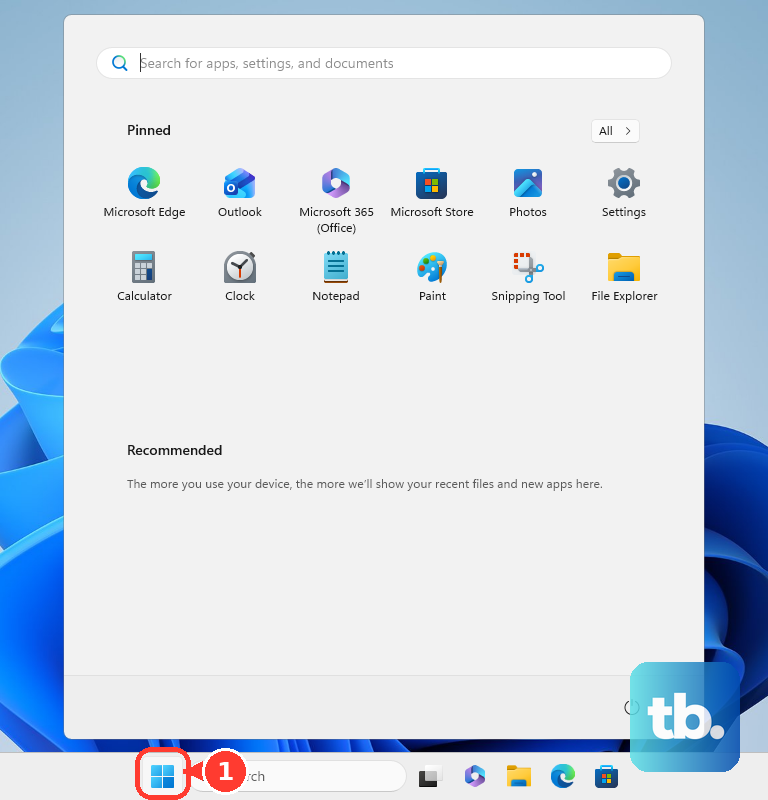
Select All apps, labeled All on the redesigned Windows 11 Start menu. Find Windows Terminal or Terminal in the app list, then select Windows Terminal or Terminal to open it.
For the Run method, press Windows key + R. Type wt, then select OK or press Enter.
Open Terminal at a folder
On Windows, open File Explorer.
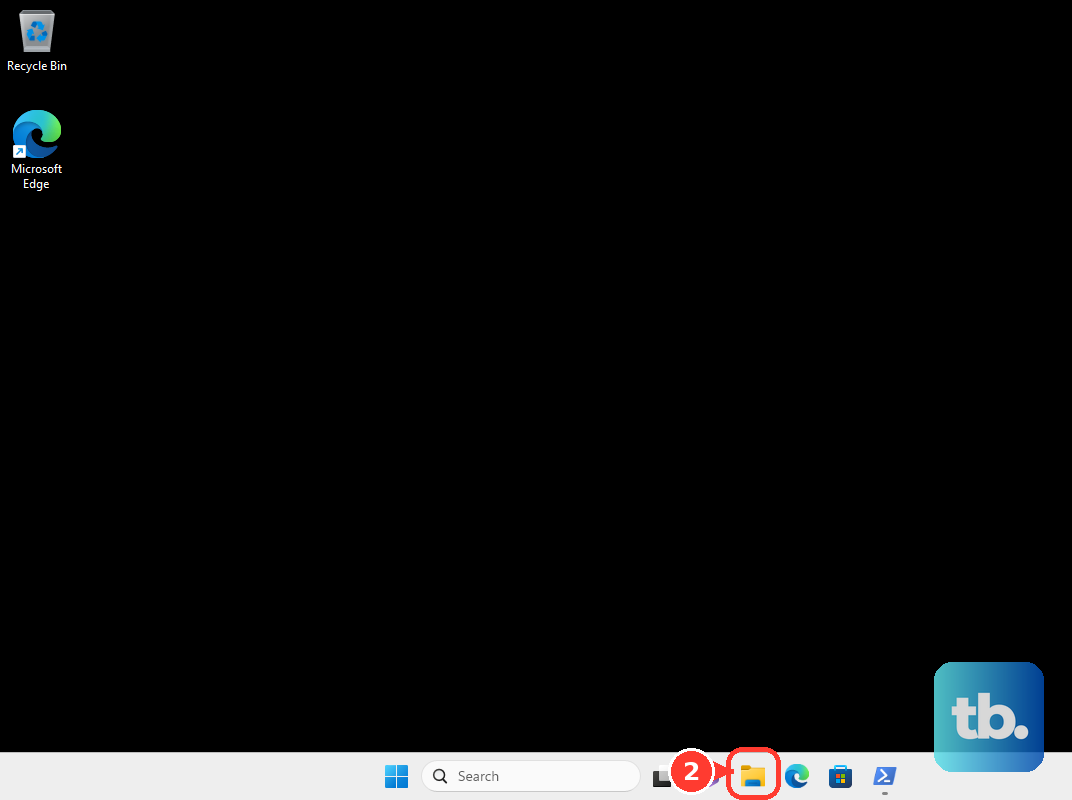
Right-click a folder or the folder background, then select Open in Terminal.
On Mac, open Finder and navigate to the folder. Choose View > Show Path Bar when the path bar is hidden. Control-click the folder in the path bar, then choose Open in Terminal.
The Open in Terminal right-click entry ships with the packaged Microsoft Store or preinstallation-kit build of Windows Terminal. The unpackaged ZIP and portable builds don't add it, so on those installs use Search or Windows key + R with wt instead.
On Mac, choose Services > New Terminal Tab at Folder from the same folder menu when you want a tab instead of a new window.
Open as administrator on Windows
For Windows commands that need elevated permission, press Windows key + X. Select Windows Terminal (Admin).
For the icon method, right-click the Windows Terminal icon. Right-click the Windows Terminal title that displays, then select Run as administrator.
Add another tab or profile
In Windows Terminal, press Ctrl+Shift+T or select the + button to open a new tab with the default profile. To open another Windows Terminal profile, select the down-arrow next to +, then select the profile.
On Mac, open the Terminal app. Choose Shell > New Tab, then choose a profile from the list at the end of the menu. To open a new Mac Terminal window with a profile, choose Shell > New Window, then choose the profile.
In Windows Terminal, drag a file or folder over the New Tab button; hold Alt for a new pane or Shift for a new window.
Keep Terminal one click away
On Windows, pin Windows Terminal to the taskbar. Click the Windows Terminal taskbar icon whenever you need it. Press Windows key + number to open the pinned app in that taskbar position. Press Windows key + Shift + number to start a new instance from that taskbar position.
On Mac, find Terminal in Spotlight or Apps. Drag Terminal to the Dock, then click the Terminal icon in the Dock the next time you need it.
Repair missing or blocked access
This fixes Windows Terminal installs, default app behavior, and Mac restrictions. On Windows 10 or Windows 11, open the official Microsoft Store product page for Windows Terminal. Select Get or Install in Microsoft Store.
To make command-line apps open with Windows Terminal, open Windows Terminal > Settings UI window > Startup > Default terminal application > Windows Terminal. Microsoft lists this setting on all versions of Windows 11 and on Windows 10 22H2 after the May 23, 2023 update (KB5026435) is installed, and only the packaged or preinstallation-kit build can be set as your default terminal.
To choose what opens inside Windows Terminal, go to Windows Terminal > Settings UI window > Startup > Default profile, then choose the profile you prefer.
On a Mac, check Screen Time downtime or app limits when Terminal is dimmed in Spotlight or shows an hourglass. On a work, school, or managed Mac, contact the administrator when Terminal is blocked.
Frequently Asked Questions
Is Terminal the same thing on Windows and Mac?
No. On Mac, Terminal is the built-in app for command-line work. On Windows, Windows Terminal hosts Command Prompt, Windows PowerShell, and other console apps.
What should I type in Run to open Windows Terminal?
Press Windows key + R, type wt, then select OK or press Enter. This works on Windows 11 and on Windows 10 when Windows Terminal is installed and the wt execution alias is enabled.
How do I open Terminal in a specific folder?
On Windows, right-click a folder or folder background in File Explorer and select Open in Terminal. On Mac, show the Finder path bar, Control-click the folder in the path bar, then choose Open in Terminal.
Can I open Terminal by voice?
Yes. With voice access enabled on Windows 11 version 22H2 and later, say Open Windows Terminal, Open Terminal, or Start Windows Terminal. On Mac, enable Siri, activate Siri, then say or type Open Terminal.