Your MacBook Pro Touch Bar can go black, freeze, lose the Control Strip, or show the wrong buttons just when you need brightness, volume, or app controls. Start with the quick fixes that refresh the Mac, then move into Touch Bar settings, app fixes, startup checks, and hardware-level options when the bar still will not respond.
1. Restart the MacBook Pro first
A restart is the fastest clean reset for a frozen or unresponsive Touch Bar.
Open the Apple menu.
Choose Restart.
After the Mac starts again, open an app and test the Touch Bar.
If the Mac is locked up, press and hold the power button or Touch ID button until it shuts off. Wait a moment, then press the power button again.
2. Reset the Touch Bar display options
Open Apple menu > System Settings > Keyboard > Touch Bar Settings. Set Touch Bar shows to App Controls, Expanded Control Strip, or another option you want to use.
Next, turn on Show Control Strip when it appears. Use Press and hold fn key to or Press and hold Globe key to to choose what shows while holding that key.
Then turn on Show typing suggestions if the missing part is predictive text.
When the Touch Bar works but shows the wrong controls, these settings put it back where you expect it. If the Touch Bar content is present but hard to see, open Apple menu > System Settings > Accessibility > Zoom, then turn on Touch Bar zoom.
3. Restore missing Control Strip buttons
Use this when the Touch Bar lights up, but brightness, volume, mute, media, Siri, or other Control Strip buttons are gone.
Open Apple menu > System Settings > Keyboard > Touch Bar Settings.
Click Customize Control Strip.
Expand the Control Strip if needed.
Drag buttons from the screen to the Control Strip.
Rearrange buttons by dragging them on the Touch Bar.
Remove buttons by dragging them from the Control Strip back to the screen.
Click Done, or tap Done in the Touch Bar.
4. Fix one app that breaks the Touch Bar
If the Touch Bar fails only inside one app, close that app hard and reopen it before changing system-wide settings. Press Option-Command-Esc, or open Apple menu > Force Quit. Select the app, click Force Quit, then open the app again.
For apps that support Touch Bar customization, open the app and choose View > Customize Touch Bar. Add, move, or remove buttons, then click Done or tap Done in the Touch Bar.
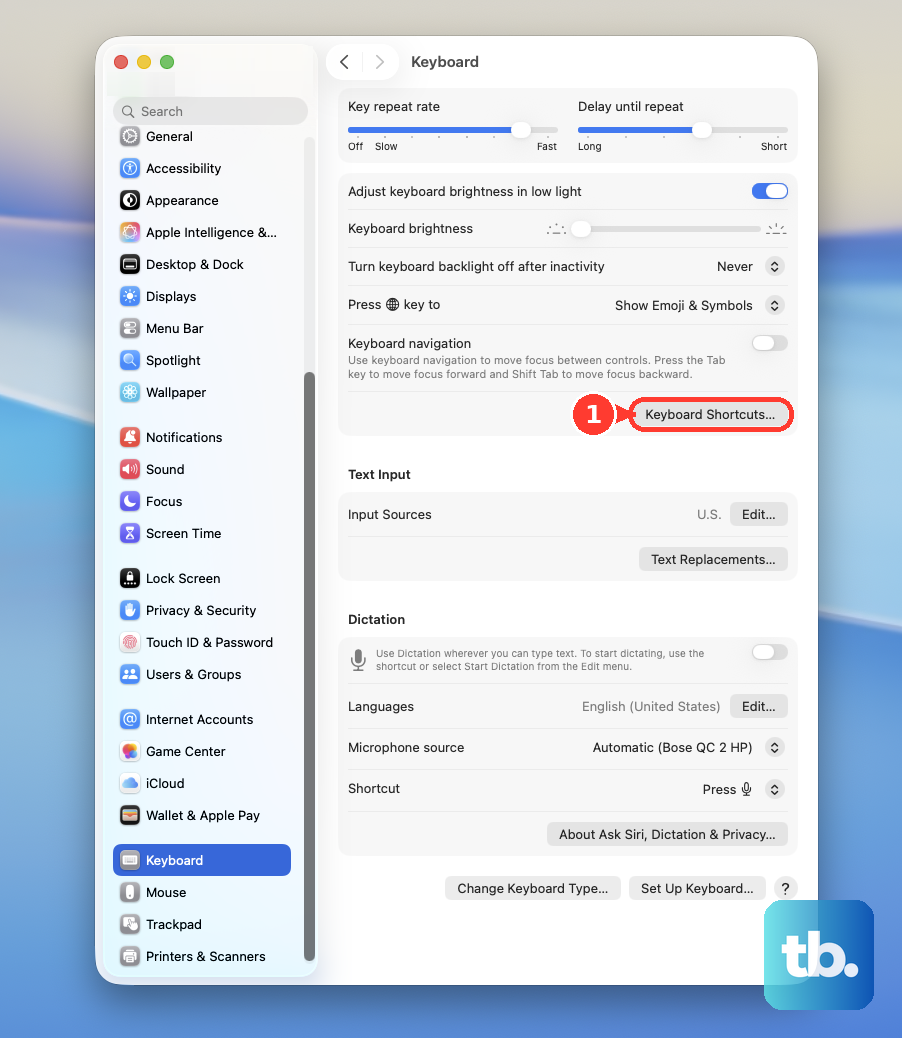
Need function keys instead of app buttons? Open Apple menu > System Settings > Keyboard > Keyboard Shortcuts > Function Keys, then add the app. To make function keys the default Touch Bar view, go to Touch Bar Settings and set Touch Bar shows to F1, F2, etc. Keys.
5. Update macOS and Touch Bar apps
Updates belong early in the fix list because Touch Bar behavior depends on macOS and on the apps that place controls there.
Update macOS: Open Apple menu > System Settings > General > Software Update. Click Update, Upgrade, or Restart Now when offered.
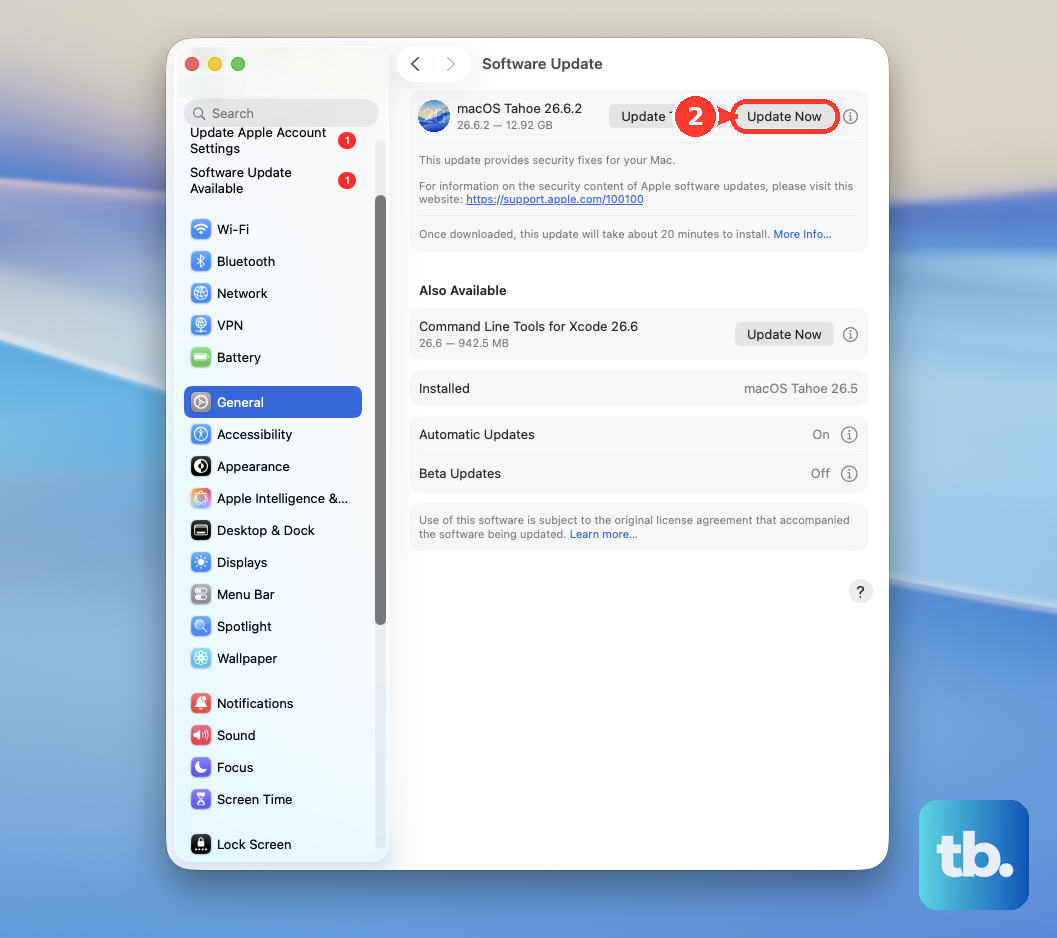
Refresh Software Update: If no update appears, click Check for Update, press Command-R, or close and reopen Software Update.
Update App Store apps: Open the App Store, choose Updates, then click Update beside each app or Update All.
Update non-App Store apps: Open the app and use its developer-provided updater when it has one.
6. Remove login items that interfere
Touch Bar trouble that starts after you sign in points to software loading in the background. Keyboard tools, Touch Bar utilities, automation apps, and system utilities are the first places to look.
Open Apple menu > System Settings > General > Login Items & Extensions.
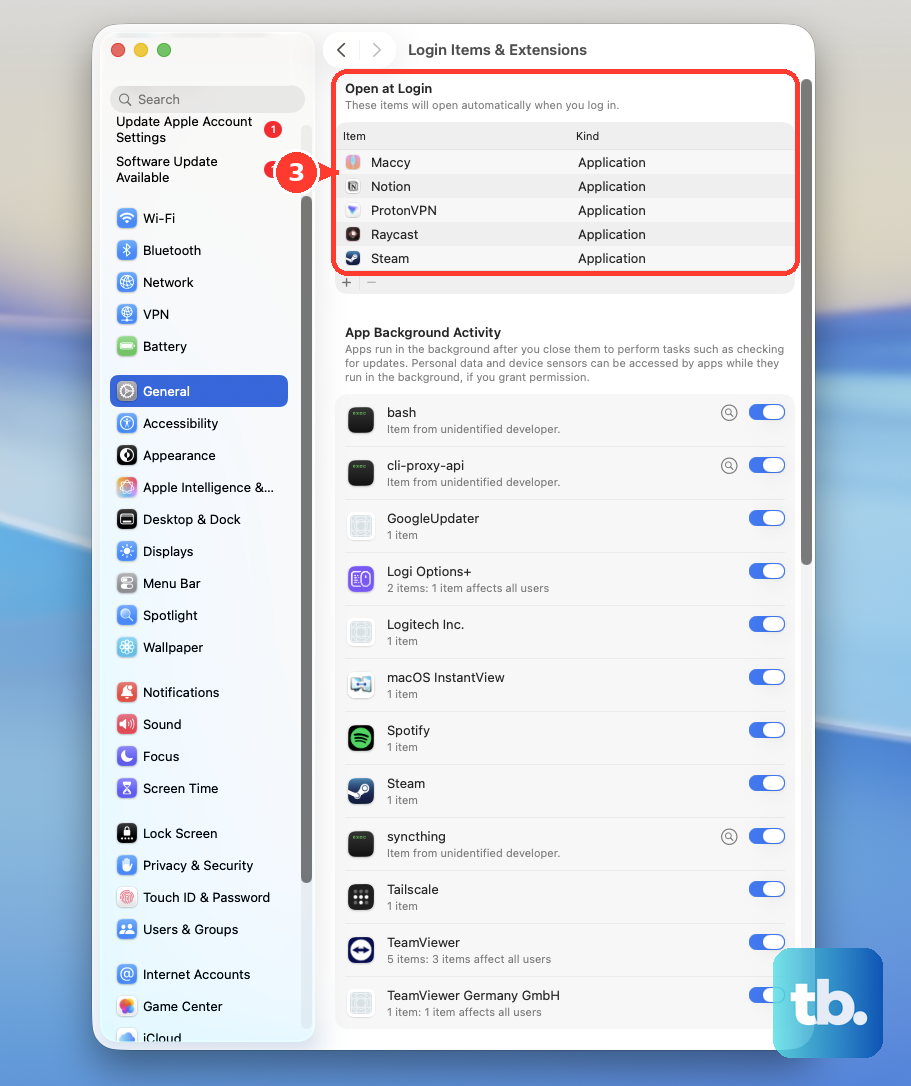
Write down the items under Open at Login.
Select login items, then click the Remove button.
Restart the Mac.
If the Touch Bar works, add the login items back one at a time and restart after each one.
To uninstall a recently added app, open Finder > Applications. If the app folder includes Uninstall [App] or [App] Uninstaller, use it. If there is no uninstaller, drag the app from Applications to the Trash.
7. Start in Safe Mode
Safe Mode gives you a clean way to confirm whether startup software is behind the Mac Touch Bar not working problem. On Apple silicon, open Apple menu > Shut Down. After the Mac fully shuts down, press and hold the power button until Loading startup options appears.
Select a volume, press and hold Shift, then click Continue in Safe Mode.
On Intel, turn on or restart the Mac, then immediately press and hold Shift until the login window appears. Log in. You might be asked to log in again; look for Safe Boot in the menu bar on the first or second login window.
If the Touch Bar works in Safe Mode, go back to Login Items & Extensions and recently installed utilities.
8. Reset Intel hardware settings
Apple silicon Macs reset the SMC automatically. Make sure the Mac is plugged into power, then restart it, or shut it down and turn it back on.
Intel MacBook Pro models use manual reset steps.
Intel MacBook Pro with the T2 chip: Shut down. Press and hold the power or Touch ID button for 10 seconds, release it, wait a few seconds, then turn the Mac back on.
If the Touch Bar still fails, shut down again. Hold left Control + left Option + right Shift for 7 seconds, keep holding those keys, then also hold the power button for another 7 seconds. Release all keys, wait a few seconds, then press the power button.
Older Intel MacBook Pro without the T2 chip: Shut down. Hold left Shift + left Control + left Option, then press and hold the power button too. Keep holding all four keys for 10 seconds, release them, then press the power button.
NVRAM on Intel Macs: Shut down, turn the Mac on, then immediately press and hold Option-Command-P-R. Release after about 20 seconds. Apple says NVRAM reset steps do not apply to Apple silicon Macs.
9. Run diagnostics and service checks
Use Apple Diagnostics when the Touch Bar stays black, flickers, shows unusual colors, has physical or liquid damage, or remains unresponsive after the software fixes above.
- 1.Before the test, install macOS updates when possible.
- 2.Shut down the Mac and disconnect external devices except a keyboard, mouse, display, Ethernet connection when used, and AC power.
- 3.On Apple silicon: Press and hold power or Touch ID until Options appears, release it, then press and hold Command-D.
- 4.On Intel: Turn on the Mac and immediately hold D. If that does not work, hold Option-D.
- 5.Follow the onscreen instructions and record any reference codes.
Apple Diagnostics always ends with a reference code, and ADP000 means no issues were found. If it returns a Touch Bar service code such as DFR001, or another code that recommends service, or the Touch Bar still fails after these steps, use Apple’s service and repair flow or contact an Apple Authorized Service Provider, Apple Store, or Independent Repair Provider.
For a deeper software repair before service, back up if possible, start from macOS Recovery, select the option to install or reinstall macOS, click Continue, and follow the onscreen instructions. If asked to choose between Macintosh HD and Macintosh HD - Data, choose Macintosh HD. Let the installation finish without closing the lid or letting the Mac sleep.
Frequently Asked Questions
Should I use Terminal commands to restart the Touch Bar?
Use Apple-supported steps first: restart the Mac, check Touch Bar Settings, update macOS, remove login items, use Safe Mode, reset Intel SMC or NVRAM when applicable, and run Apple Diagnostics. Terminal commands for Touch Bar processes are not an Apple-documented Touch Bar fix.
Why did my Touch Bar controls disappear after changing apps?
The Touch Bar changes by app. Set the default view in Apple menu > System Settings > Keyboard > Touch Bar Settings, and customize supported apps from View > Customize Touch Bar inside the app.
Can a work or school Mac block Touch Bar fixes?
A managed Mac can limit what software runs at login and what settings you can change. Contact the organization that manages the Mac when the problem began after a managed change or the settings above are unavailable.
What should I write down before getting service?
Record the Mac model, what the Touch Bar shows, whether it fails in Safe Mode, and any Apple Diagnostics reference codes. Bring those details to an Apple Authorized Service Provider, Apple Store, or Independent Repair Provider.