Your Mac is acting up, and you want to check its hardware. Apple Diagnostics runs at startup, with different shortcuts for Apple silicon and Intel Macs. Start with the preparation below, follow the shortcut for your Mac, and keep the results for troubleshooting.
Get your Mac ready for testing
Start with Apple Diagnostics when you suspect a problem with your Mac’s internal hardware. It does not diagnose general software conflicts or comprehensively test external or third-party hardware.
Disconnect unnecessary peripherals.
Keep power and any necessary keyboard, mouse, display, or network connections attached.
Place your Mac on a stable surface with good ventilation.
Shut down your Mac. Follow only the startup procedure below that matches its processor.
Run Apple Diagnostics on an Apple silicon Mac
On Apple silicon, use the power button, including the Touch ID button on models that have one.
- 1.With your Mac shut down, press and hold the power button until Options appears, then release it.
- 2.Hold Command-D until your Mac restarts.
- 3.Follow the diagnostic prompts.
- 4.Record any reference codes shown in the results.
Start the test on an Intel Mac
Turn on your Mac and immediately hold D.
Release the key when a progress indicator or language selector appears.
Complete the onscreen diagnostic prompts.
Record any reference codes in the results.
If D does not launch diagnostics, try Apple’s internet-based alternative for compatible Intel Macs, following the Option-D procedure below.
Finish the test and keep the results
These steps handle an alternative startup route and test completion; diagnostics identifies hardware issues without repairing them.
For the Intel internet alternative, shut down your Mac.
Turn it on and immediately hold Option-D.
Connect to the internet.
Follow the diagnostic prompts.
For a standard test, select Run Offline if your diagnostic interface offers it, unless Apple Support or a repair technician has arranged an online session. This option is not available on every Mac.
For a technician-initiated session, connect to the internet.
Follow the technician’s session instructions.
Record any reference codes exactly as displayed when testing finishes. Keep them for troubleshooting or a conversation with Apple Support.
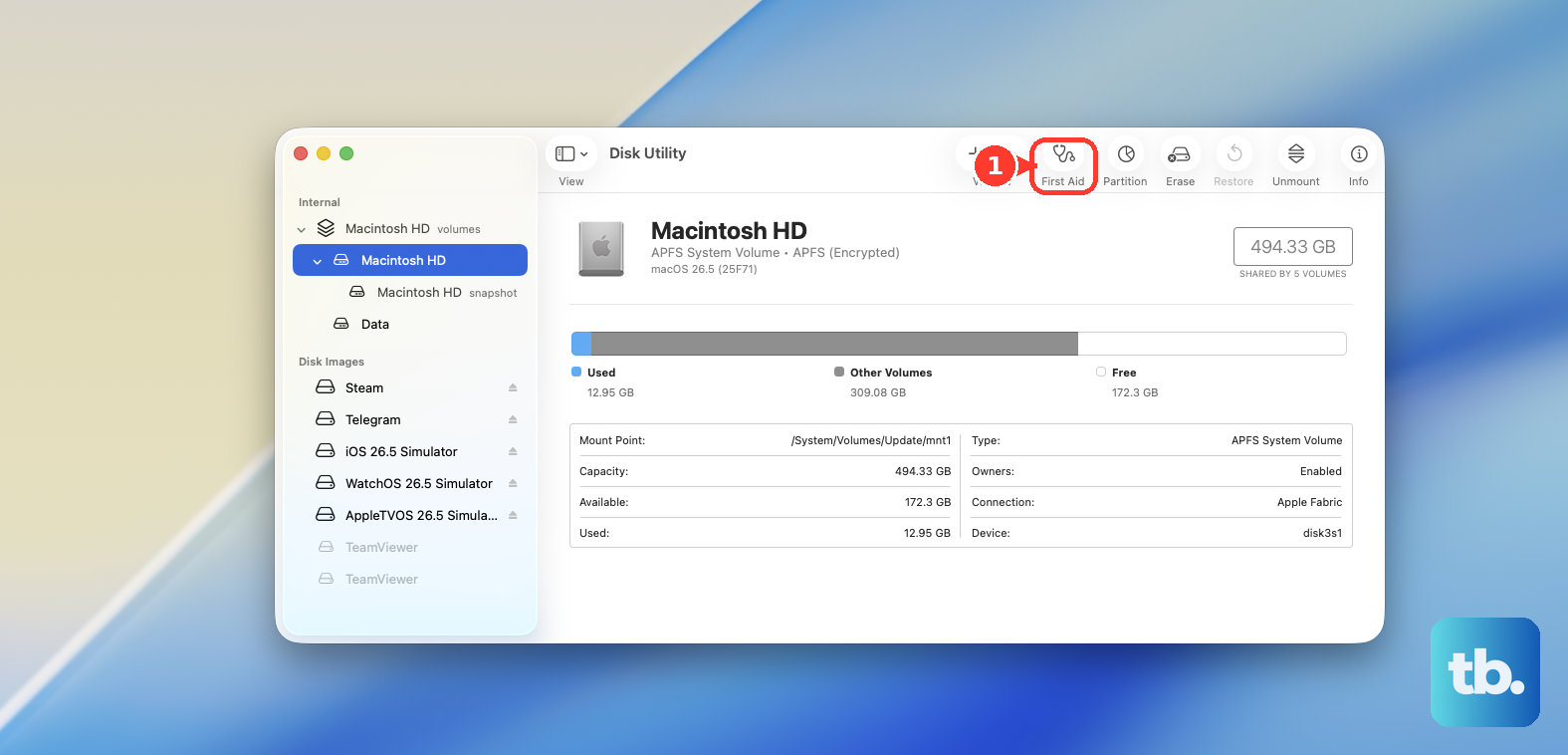
If the hardware test leaves your problem unresolved, choose a tool that matches the symptom: Activity Monitor collects troubleshooting logs, Disk Utility offers First Aid to check file-system structures, and Wireless Diagnostics investigates Wi-Fi connectivity.
Choose a more detailed repair diagnostic test
Apple Diagnostics for Repair runs on-device on Apple silicon Macs with non-beta macOS Tahoe 26.0 or later, internet access, and the ability to power on and boot macOS.
Shut down, then hold the power button until Options appears and release it.
Hold Command-D until the Mac restarts into diagnostics.
At Diagnostics & Repair, choose Continue.
Connect to the internet.
Accept the terms.
At Diagnose or Repair, choose Run Diagnostics.
Select a suite available for your hardware and follow its prompts.
Mac Resource Inspector (MRI) and Audio cover laptops, desktops, and iMac; Display Anomalies covers laptops and iMac; Keyboard and Trackpad are laptop tests.
The Battery Drain Tool is intended for MacBook Pro (14-inch, M5), MacBook Pro (M5 Pro or M5 Max), and MacBook Air (M5). It drains the battery to a specified level and plays a tone when the drain finishes, so use Battery Health in System Settings when you want a battery-health reading instead.
Frequently Asked Questions
Can I collect diagnostics without restarting my Mac?
Yes. Open Activity Monitor. Click More > System Diagnostics. Save the generated report. For a three-second sample of a specific process, select that process and choose More > Sample Process.
What can block diagnostic startup shortcuts on an Intel Mac?
An Intel firmware password can block startup shortcuts, including access to startup troubleshooting options.
How do I check my MacBook’s battery health?
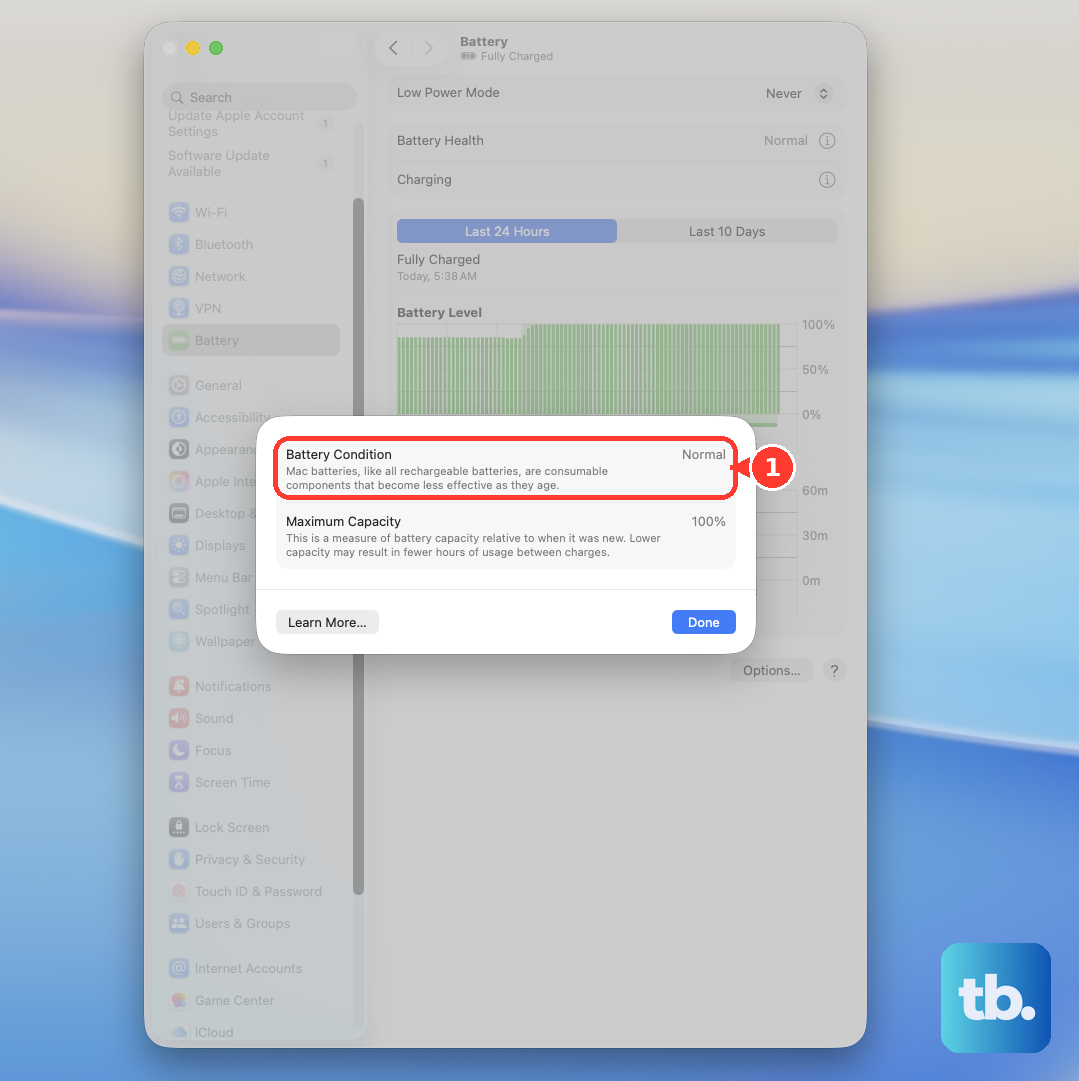
On supported Mac laptops, open Apple menu > System Settings > Battery. Read Battery Health, which shows Normal or Service Recommended. This displays battery health without starting a full diagnostic run.
Can I run Mac diagnostics from another device’s browser?
Yes. Apple’s browser-controlled Self Service Repair diagnostics supports Apple silicon Macs running non-beta macOS Sonoma 14.1 or later. The target Mac must enter diagnostics, and both devices need internet access. On the other device, open https://getsupport.apple.com/self-service-diagnostics and choose Continue > Mac. Enter diagnostics on the target Mac. Connect it to the internet. Choose its language and select OK. Enter the Mac’s serial number in the browser. Choose Start Session. On the Mac, choose I agree. Select the tests in the browser.