

To restart a MacBook or any Mac, click the Apple menu in the top left corner, choose Restart, then click Restart in the box that appears. If the Mac is frozen, press and hold the power button, which is the Touch ID button on a MacBook Air or MacBook Pro that has Touch ID, for up to 10 seconds until the screen goes black, then press it again. Anything you had not saved may be lost that way.
Apple lists no key combination that restarts a Mac with Touch ID. When we chose Restart on our MacBook Air with macOS Tahoe 26.5, macOS asked first, and the box said the computer would restart automatically if we did nothing.
The short version
- Normal restart: choose Apple menu > Restart, then click Restart in the box.
- Frozen MacBook: hold the power button, or Touch ID on models with it, until the Mac turns off, up to 10 seconds. Release it, wait a moment, then press it again.
- No restart shortcut on Apple's list for Touch ID: Control + Command + Power is only for built-in keyboards without Touch ID.
- No trackpad: press Fn + Control + F2, arrow to Restart in the Apple menu and press Return. In the box, press Tab until Restart, not Cancel, is selected and press Space, using Fn + Control + F7 first only if Tab skips the buttons. The box also says it restarts by itself if you do nothing.
- Apps keep coming back: untick Reopen windows when logging in. To keep login items and Finder windows closed once, hold Shift after you click Log In.
Every way to restart a Mac at a glance
| Press or choose | When to use it | What happens |
|---|---|---|
| Apple menu > Restart | The Mac works normally | A box asks first, then the Mac restarts and can reopen your windows |
| Hold Option while you choose Apple menu > Restart | You want to skip the box | Restarts without asking, using your last reopen choice |
| Fn + Control + F2, arrow keys, Return | The trackpad or mouse is not working | Opens the Apple menu from the keyboard, then the same box |
| Hold Touch ID for up to 10 seconds, then press it again | A MacBook Air or MacBook Pro with Touch ID is frozen | The Mac turns off and starts again. Unsaved changes may be lost |
| Hold the Lock Key or Touch ID for 10 seconds | A MacBook Neo is frozen | Turns it off. Press the button again or plug it in to start it |
| Hold the Power button on the computer for up to 10 seconds | An iMac, Mac mini, Mac Studio or a MacBook without Touch ID is frozen | The Mac turns off. Press the button again to start it |
| Control + Command + Power | Built-in keyboard without Touch ID | Forces a restart without asking to save |
| Control + Power | Built-in keyboard without Touch ID | A box offers Restart, Sleep or Shut Down |
sudo shutdown -r now in Terminal | You are already working in Terminal | The Mac restarts right away. Only administrator users can use sudo |
Pick the row that matches your Mac and what still works. The Apple menu row matches what we saw on our MacBook Air, and the other rows follow Apple's instructions.
Restart a MacBook from the Apple menu
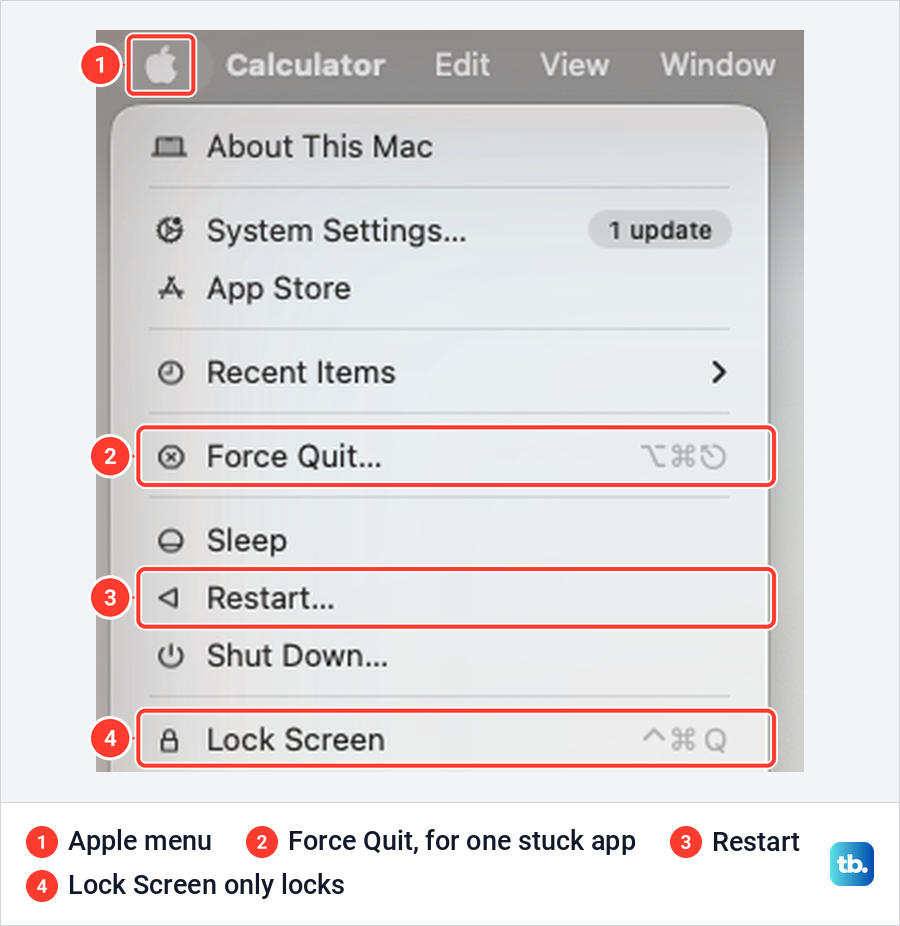
Click the Apple logo at the top left of the screen to open the Apple menu, then choose Restart. On our Mac it sat between Sleep and Shut Down, with Lock Screen and Log Out below them, and Force Quit a little higher up for when only one app is stuck.
macOS asked first. The box read "Are you sure you want to restart your computer now?" and, under that, "If you do nothing, the computer will restart automatically in 59 seconds." So do not open the box and walk away unless you mean it, and save your work before you choose Restart.
The same box has a tick box named Reopen windows when logging in, which was ticked on ours. Untick it if you do not want the apps and windows that are open now to come back, then click Restart. Apple's guide calls it Reopen windows when logging back in.
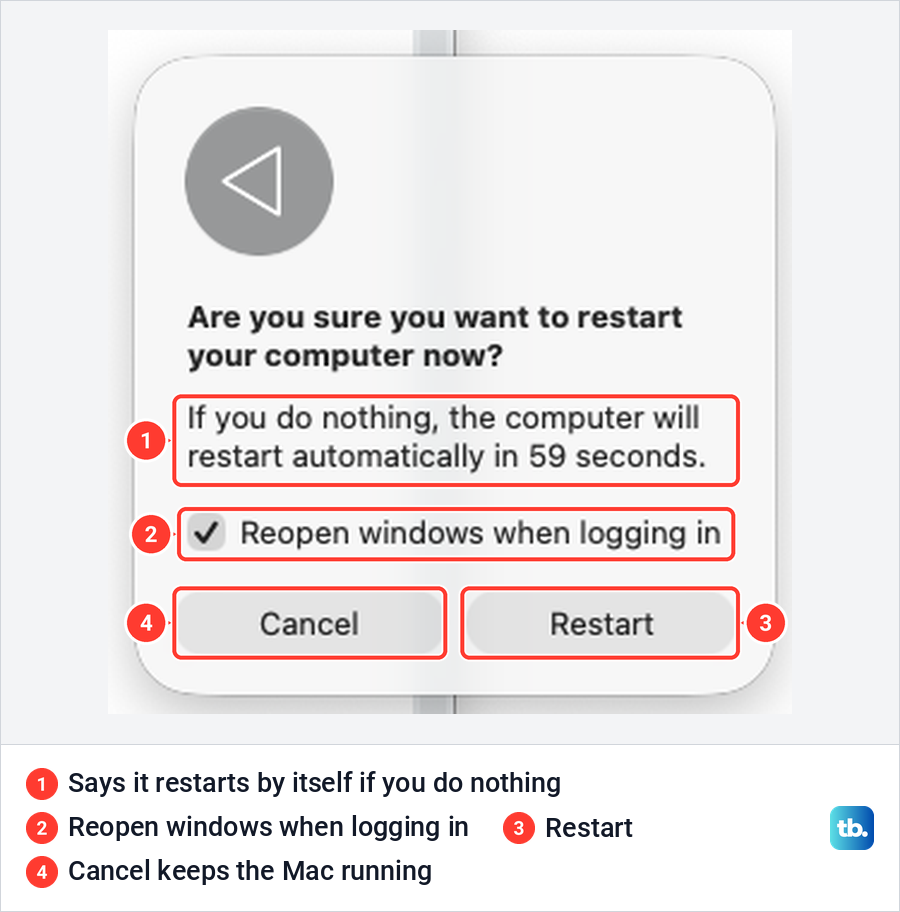
Click Cancel if you change your mind, and the Mac keeps running. To skip the box instead, Apple's shortcut list says to hold Option while you choose Restart from the Apple menu. The Mac then restarts straight away, using whatever Reopen windows choice you made last time.
Find the power button on your Mac
Every Mac has a power button, Apple says, but on a current MacBook Air or MacBook Pro it does not look like one. Apple's guides for those models say it is the Touch ID button at the top right of the keyboard, the same sensor you touch to unlock with your fingerprint. To use it as a power button, Apple says to press it down rather than lightly touch it, and on a laptop without Touch ID you hold the power button instead.
A quick press does not restart anything. On keyboards with Touch ID, Apple says a press locks the screen, so the button has to be held to turn the Mac off.
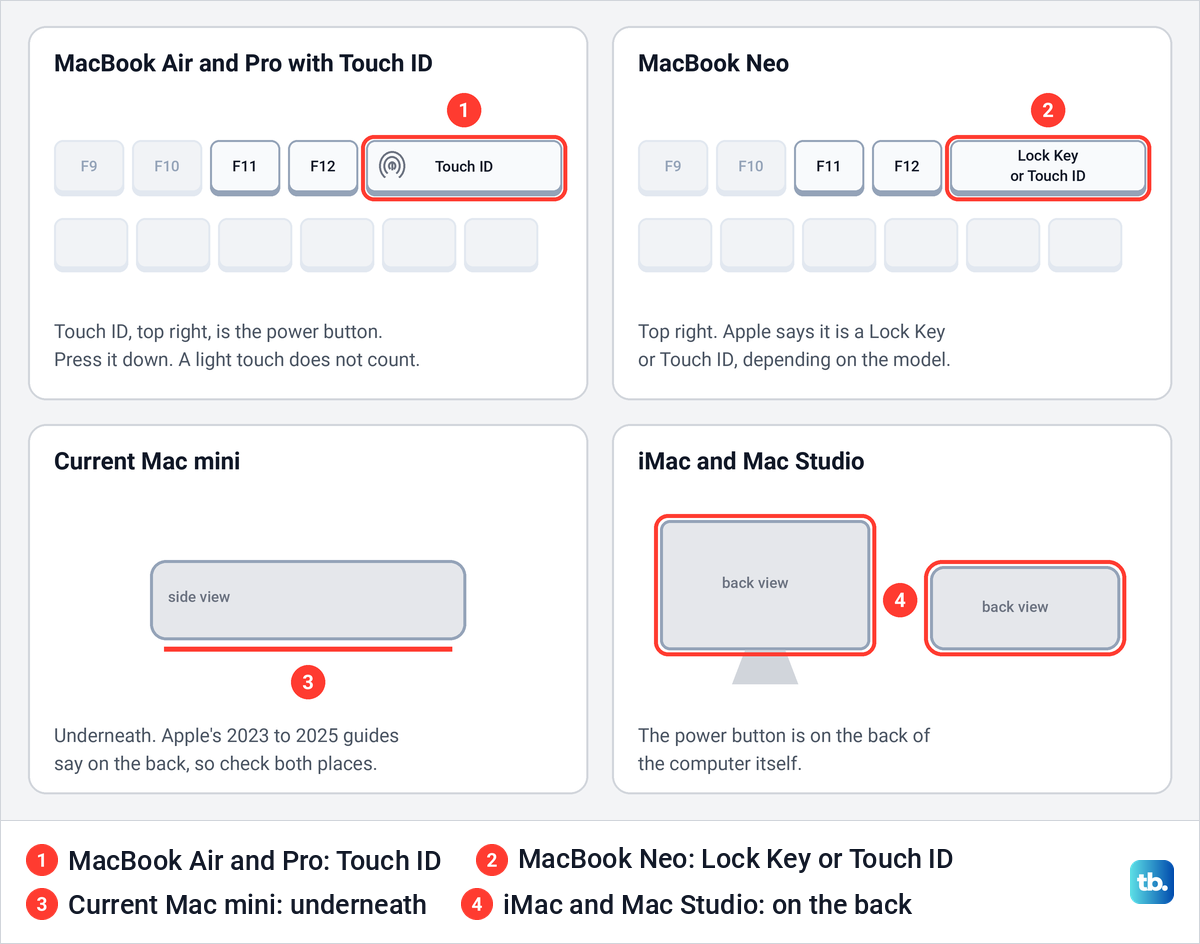
The MacBook Neo is different. Apple's guide for it says the power button at the top right is either a Lock Key or Touch ID, depending on the model, and that both lock the screen and turn the Mac on or off.
Desktop Macs keep the button on the computer itself, and Apple's steps for a forced restart use that button. Apple's setup guides put it on the back of an iMac or Mac Studio. For the Mac mini, Apple's current guide says the bottom while its 2023 to 2025 editions say the back, so check both places on yours.
Force restart a frozen MacBook
Before you force anything, check what is actually stuck. If the pointer still moves, choose Apple menu > Restart as normal. If only one app has stopped responding, force quit the stuck app with Option + Command + Esc first, which is the order Apple suggests.
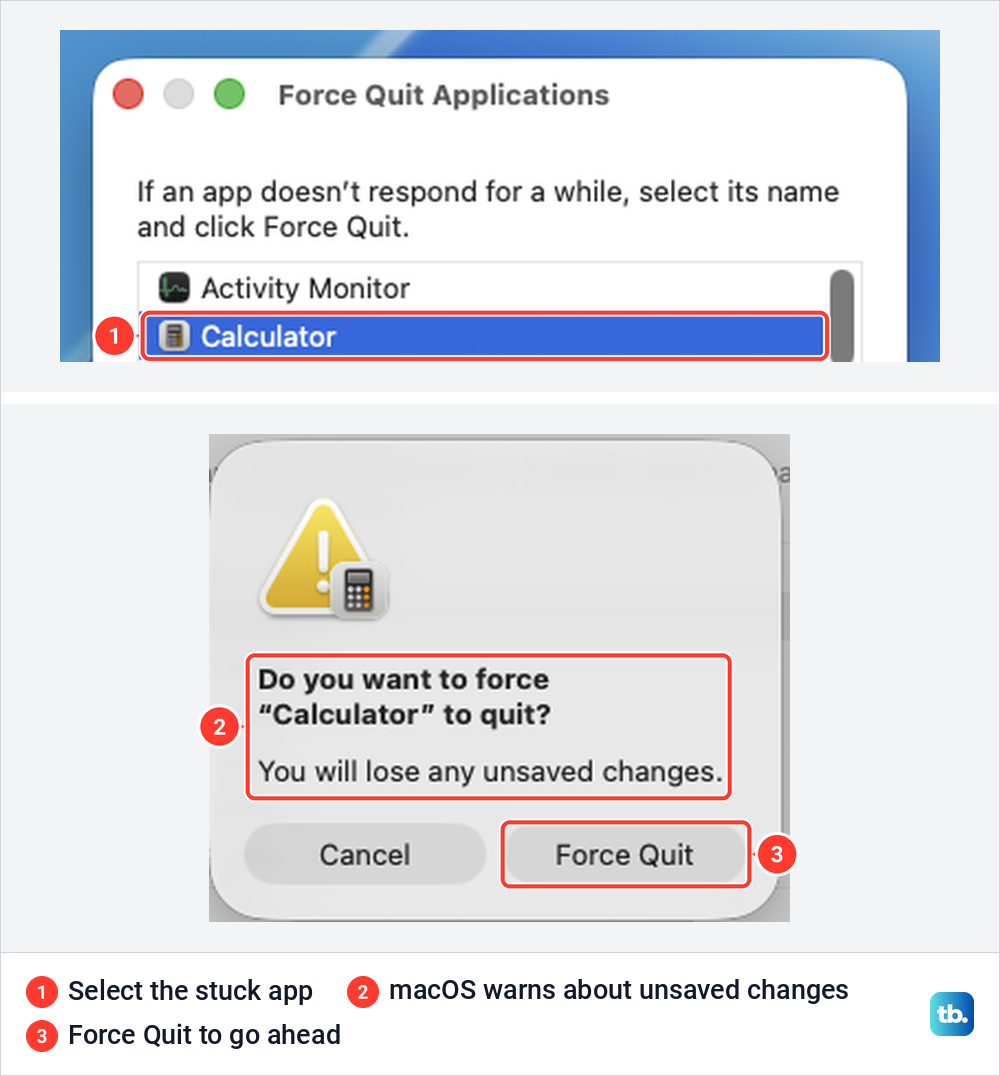
macOS checks with you there too. When we chose Force Quit for Calculator on our Mac, a box asked "Do you want to force "Calculator" to quit?" and warned "You will lose any unsaved changes." Click Force Quit in that box to go ahead, or Cancel to leave the app running.
If nothing responds at all, press and hold the power button until the Mac turns off. Apple's support pages put that at up to 10 seconds, and on a MacBook with Touch ID the button is Touch ID itself, pressed down firmly. Wait a moment after the screen goes black, then press the button again to start the Mac.
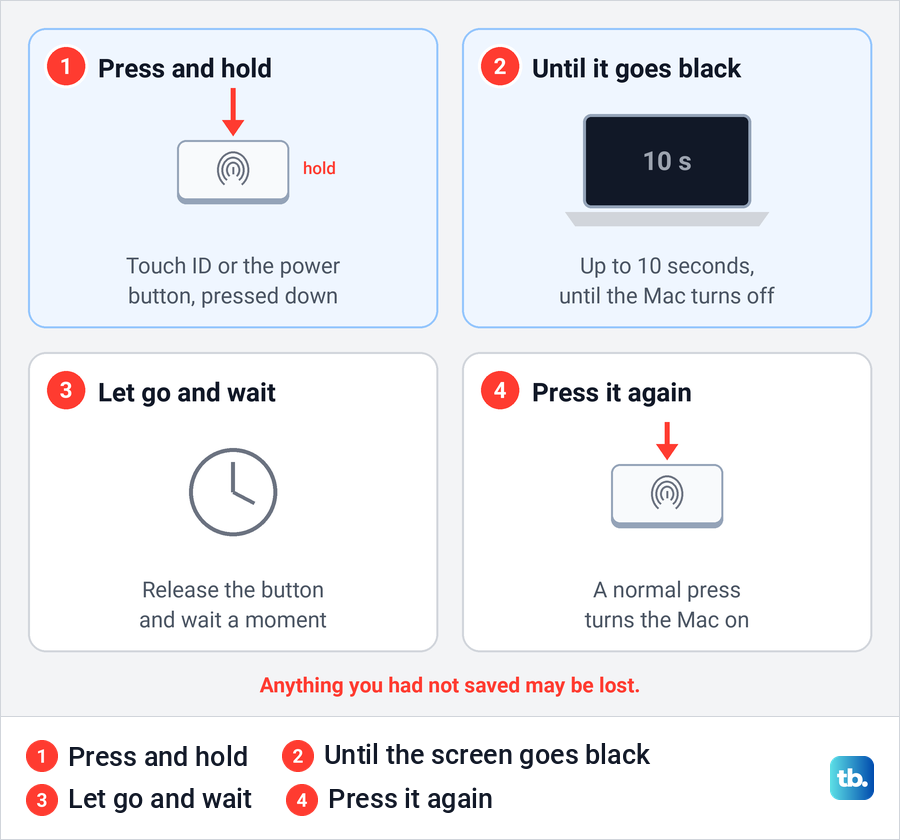
Apple warns that you may lose unsaved changes in open documents, so this is the last resort and not a quicker way to restart. On a MacBook Neo, Apple adds that after a 10 second hold you can turn it on again with the power button or by plugging it in to a power outlet.
If the Mac freezes again, or you want gentler fixes first, our guide has more ways to recover an unresponsive Mac. It covers relaunching Finder and stopping a stuck process in Activity Monitor.
Keyboard shortcuts for restart and why Touch ID changes them
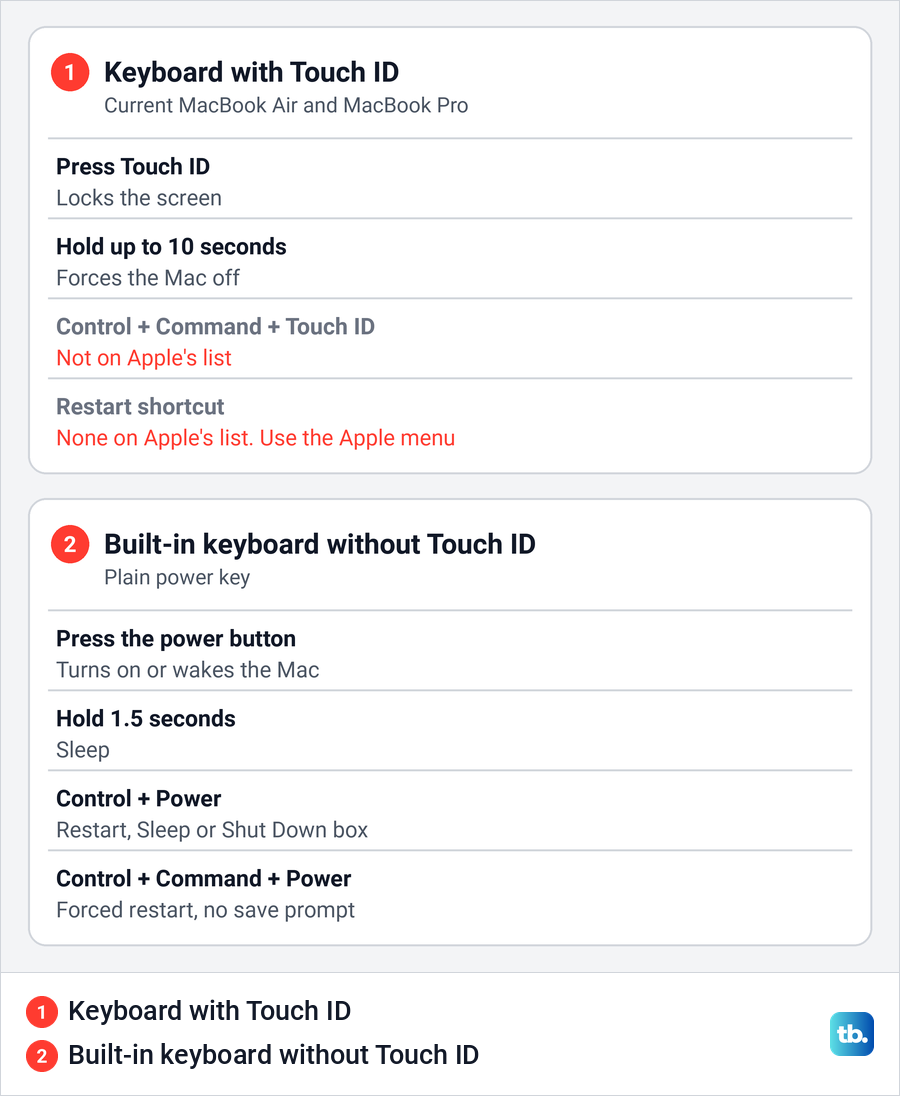
Many guides tell you to press Control + Command + Power, or Control + Command + Touch ID, to restart. Apple lists Control + Command + Power, which forces a restart "without prompting to save any open and unsaved documents", only for built-in keyboards without Touch ID. Control + Power and the 1.5 second sleep hold carry the same limit, so on a Mac with Touch ID, use the Apple menu, from the keyboard if you have to.
If you are coming from Windows, the Mac version of Control Alt Delete is Option + Command + Esc. It opens the Force Quit window rather than a restart menu.
Restart a MacBook using only the keyboard
When the trackpad or mouse stops working, you can still reach the Apple menu. Apple's shortcut is Control + F2, or Fn + Control + F2 where the top-row keys need Fn to act as F1, F2 and so on, and it moves focus to the menu bar. Use the arrow keys to open the Apple menu, move down to Restart and press Return.
Apple says some of these shortcuts have to be switched on first. On our Mac this one already was. In System Settings > Keyboard, the Keyboard Shortcuts button opens a sheet, and under Keyboard, Move focus to the menu bar was ticked with Control F2 beside it.
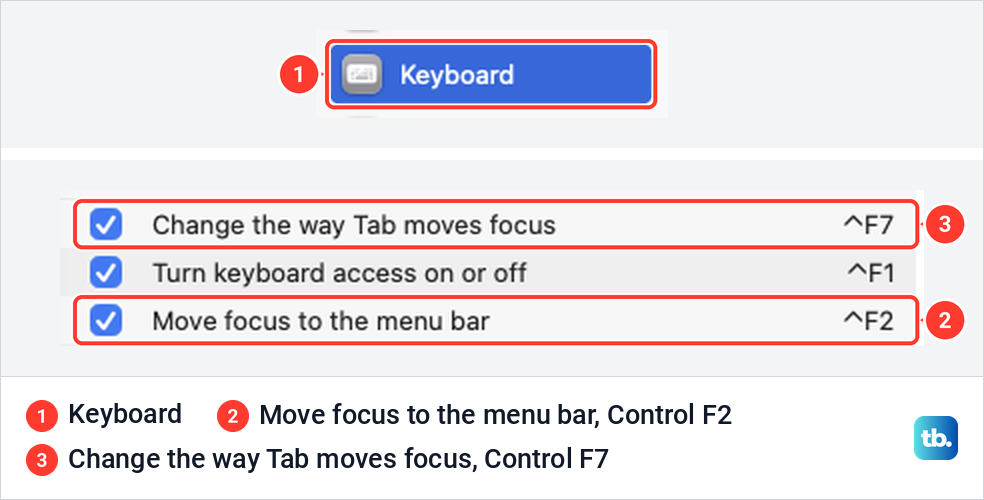
The restart box needs one more step without a pointer. Apple's setting for it is Keyboard navigation in Keyboard settings, which lets Tab move to the next button and Shift + Tab move back. It was off on our Mac.
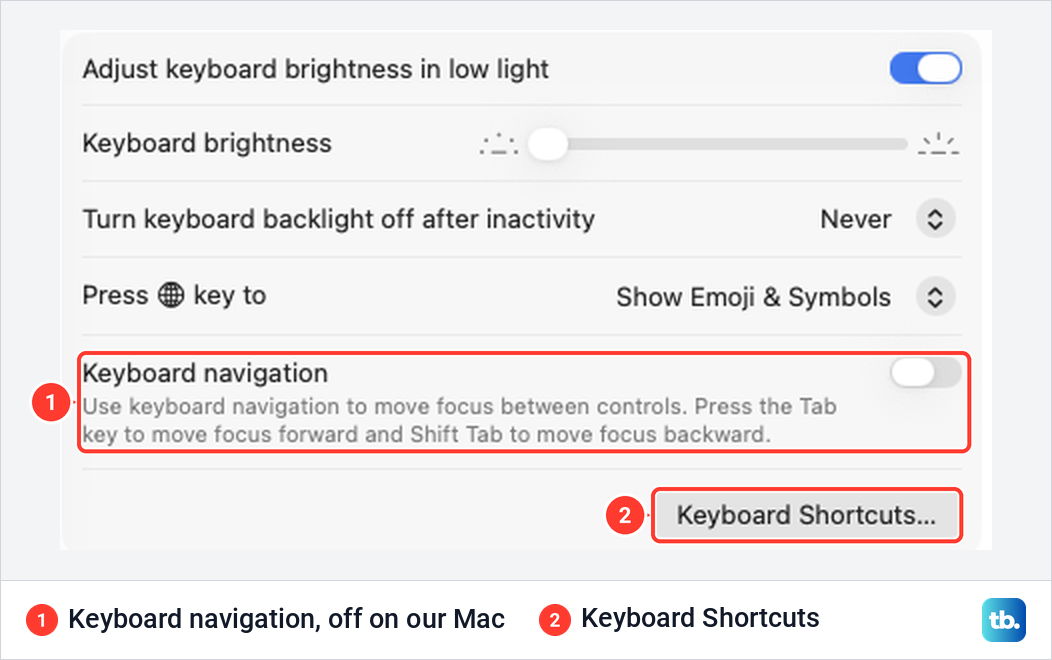
You cannot click that switch without a pointer, so try the keys first. In the box, press Tab until Restart is selected, not Cancel or the tick box, then press Space, which Apple's keyboard access guide gives as the key for selecting an item.
If Tab skips the buttons, press Control + F7, or Fn + Control + F7, then try Tab again. Apple says that shortcut switches Tab between all controls on the screen and only text boxes and lists, so press it only when Tab misses the buttons. Or leave the box alone, since its own text says the computer will restart automatically if you do nothing.
If both the keyboard and the trackpad stop responding, the power button is the only way left. After the restart, work through our fixes for when the keyboard and trackpad stop working.
Restart an iMac, Mac mini or Mac Studio
Desktop Macs restart the same way from the Apple menu. When one freezes, press and hold the power button on the computer for up to 10 seconds until it turns off, then press it again to start it.
Newer desktops add a setting for when the button is hard to reach. In Energy settings, Apple's Start up when power is connected menu offers Never, After power failure and Always, and Always turns the Mac on whenever it is reconnected to power. Always needs macOS 26.5 or later and a Mac mini or iMac introduced in 2024 or later, or a Mac Studio introduced in 2025 or later.
To turn the Mac on this way after it has stayed plugged in since it was shut down, Apple says to wait about 30 seconds between unplugging it and plugging it back in. The wait gives the power supply time to discharge, Apple explains.
Stop apps and windows reopening after a restart
Three different things can bring apps back after a restart, and each has its own fix. The first is the Reopen windows tick box in the restart box. Untick it before you click Restart, and Apple says the app windows that are open will not reopen.
Apple notes a catch. When the Mac is forced off, or when you hold Option to skip the box, it uses the most recent Reopen windows choice when it starts up again. So a forced restart can bring everything back if the box was ticked the last time you restarted normally.
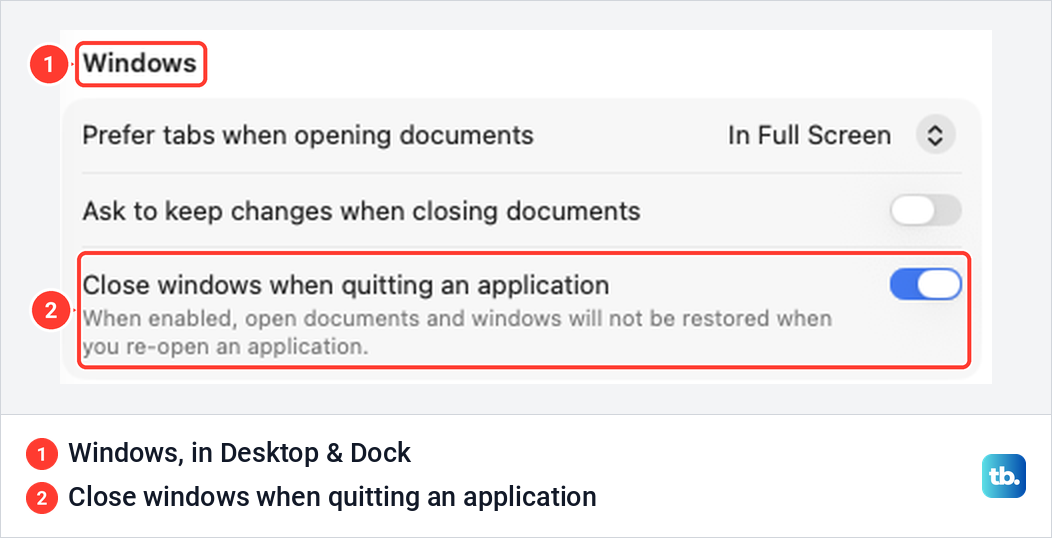
The second is inside each app. Apple says an app shows the windows that were open when you quit it, unless Close windows when quitting an application is on in System Settings > Desktop & Dock, under Windows. Ours had it switched on, with the note "When enabled, open documents and windows will not be restored when you re-open an application."
The third is login items, which Apple says open every time you log in. On our Mac they are listed in System Settings > General > Login Items & Extensions, under Open at Login, with the note "These items will open automatically when you log in." Remove an app from that list if it should not start with the Mac.
To keep login items and Finder windows closed for just one session instead, Apple's tip is to hold Shift right after you click Log In at the login window. That stops both from opening that time.
Restart, shut down, sleep or log out
All four sit together in the Apple menu, and they do different jobs. Restart closes everything and starts macOS again in one go. Shut down turns the Mac off and leaves it off until you turn it on again, and Apple says it is completely off when the screen is black.
On a laptop, Apple says to wait for the shutdown to finish before you close the display, or it may not shut down properly. If you mean to turn it off for the night, here is how to shut down a MacBook properly.
Sleep keeps the Mac on while it uses much less power, and Apple says it wakes faster than it starts up. Log out ends your session without turning the Mac off, and Apple says other users can then log in. Lock Screen only locks it, and you can also lock a MacBook instantly with Control + Command + Q.
After any restart, Apple says you type your password once before Touch ID works again. It helps to know what to do if your Mac login password is not accepted, and if your fingerprint still fails after that first login, see our fixes for Touch ID not working on a Mac.
What is different on Apple silicon and Intel Macs
Restarting works the same on both. Apple gives one set of steps for the Apple menu restart and for the forced restart with the power button, and the differences only appear when you start the Mac in a special way.
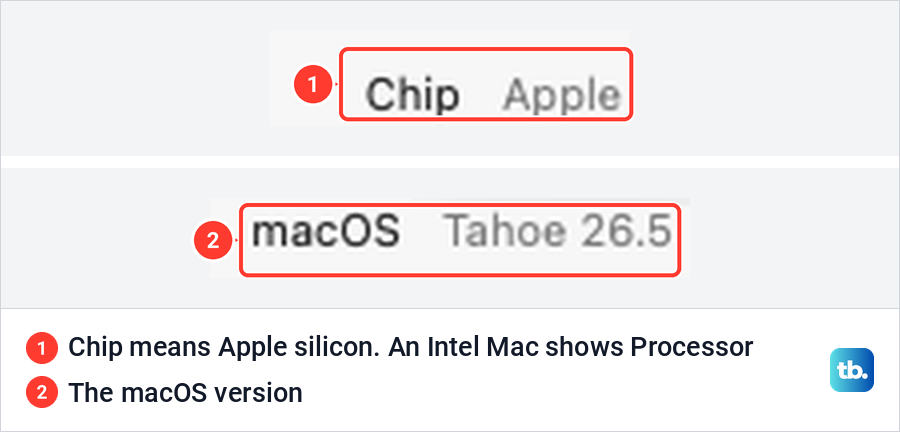
To see which you have, choose About This Mac from the Apple menu. Apple says a Mac with Apple silicon shows an item labelled Chip, and an Intel-based Mac shows Processor. Ours showed Chip with an Apple chip, so it is an Apple silicon Mac.
For macOS Recovery on Apple silicon, Apple's steps are to shut down, press and hold the power button until you see Loading startup options, release it, then click Options and Continue. On an Intel Mac, Apple says to press the power button and immediately hold Command + R until you see an Apple logo or a spinning globe. If neither works, see what to do when macOS Recovery will not open.
Safe mode follows the same split. On Apple silicon, Apple says to shut down and wait until the screen is black, hold the power button until Loading startup options appears, select a volume, then hold Shift and click Continue in Safe Mode. On an Intel Mac, hold Shift as the Mac starts until the login window appears.
Two old fixes no longer apply to Apple silicon. Apple describes the SMC as the part that manages power on your Mac, and says it resets automatically on Apple silicon when you restart with the Mac plugged into power.
NVRAM is a small amount of memory that keeps settings such as sound volume, display resolution and the startup disk, Apple says, and its reset steps do not apply to Apple silicon. The press of Option, Command, P and R for about 20 seconds is the way to reset NVRAM on an Intel Mac.
When the Mac restarts by itself or will not start again
If a message says your computer restarted because of a problem, Apple calls that a kernel panic and says the most likely cause is faulty software. Our guide for when your computer restarted because of a problem walks through Apple's fixes, starting with the software the message names.
Several restarts in a row during a macOS update are normal. Apple says the Mac might restart and show a progress bar or blank screen several times, and asks you not to put it to sleep or close the lid. If a macOS update seems stuck for a long time, that has its own fixes.
A blank screen once or more during start-up is expected too, Apple says. If the Mac does not come back at all, Apple's first steps are to check the power connection, hold the power button for about 10 seconds, press it again normally and unplug accessories. After that, follow our steps for a Mac that will not turn on.
Show the Restart button on the login window
The login window can show Sleep, Restart and Shut Down buttons, which lets you restart without logging in. Apple's switch for them is Show the Sleep, Restart, and Shut Down buttons in System Settings > Lock Screen. On our Mac it sat under When Switching User and was switched on.
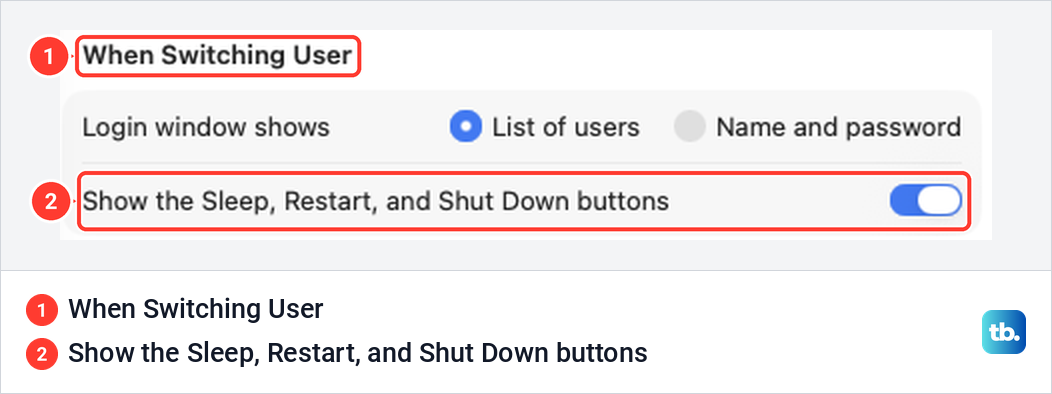
Turn the switch on if the buttons are missing from your login window. Apple notes that you may need to scroll down the Settings sidebar to find Lock Screen.
Restart a Mac from Terminal
Apple's Terminal guide gives a command for a restart. Save your work first, because the word now at the end of the command restarts the Mac right away. Then open Terminal on a Mac from Spotlight or the Utilities folder, type the line below and press Return.
sudo shutdown -r nowApple says you are asked for the password of the current user, and that only administrator users can use sudo. Type your administrator password at the prompt and press Return, even though Apple warns that no characters appear as you type. Its own tip is that it is easier to choose Apple menu > Restart, so keep the command for when you are already working in Terminal.
How we tested this guide
We tested this on a MacBook Air with macOS Tahoe 26.5, choosing Restart from the Apple menu and cancelling the box that followed.
Frequently Asked Questions
How do I restart my MacBook with the keyboard?
Press Fn + Control + F2 to reach the menu bar, arrow to Restart in the Apple menu and press Return. For the restart box itself, the keyboard section above gives Apple's Tab and Space route, and the box says the computer restarts automatically if you do nothing.
Why doesn't Control + Command + Touch ID restart my Mac?
Apple lists Control + Command + Power only for built-in keyboards without Touch ID. On a keyboard with Touch ID, Apple says a press of the button locks the screen, and no restart combination appears on its list for those keyboards.
How do I force restart a frozen MacBook Air or MacBook Pro?
Press the Touch ID button down, or the power button on a model without Touch ID, and hold it for up to 10 seconds, until the screen goes black. Wait a moment, then press it again to turn the Mac on, and expect to lose anything you had not saved.
Will my Mac restart by itself if I leave the restart box open?
The box says it will. On our MacBook Air with macOS Tahoe 26.5, it read that the computer would restart automatically in 59 seconds if we did nothing, so click Cancel if you change your mind.
Where is the power button on a Mac mini, iMac or Mac Studio?
Apple's guides put it on the back of an iMac and a Mac Studio. For a Mac mini, the current guide says underneath and the 2023 to 2025 editions say the back, so check both, then hold it for up to 10 seconds to force a frozen Mac off and press it again.
How do I stop apps from opening again after a restart?
Untick Reopen windows when logging in before you click Restart. To keep login items and Finder windows from opening once, hold Shift right after you click Log In, and remove any app that always opens from Login Items in System Settings.
Why does my Mac restart several times during an update?
Apple says the Mac might restart and show a progress bar or blank screen several times while an update installs. Let it finish, and do not close the lid or put it to sleep.