Need to search your Mac but can't find Spotlight? Press Command-Space bar to open it immediately. If you prefer clicking an icon or your shortcut doesn't work, use the opening methods and settings below.
Press Command-Space to open Spotlight
A hidden menu bar icon leaves you without a visible Spotlight button, but the keyboard shortcut still opens it.
Press Command-Space bar to open Spotlight on macOS Tahoe 26 or macOS Sequoia 15. No dedicated Search key is required.
Type what you want to find in the search field.
Press Command-Space bar again to close Spotlight.
Use the magnifying glass in the menu bar
Move your pointer to the top of the screen if the entire menu bar is hidden.
Click the Spotlight magnifying-glass icon in the menu bar.
Enter your search in the window that opens.
If the icon is missing, restore it using the settings for your macOS version below.
Restore a missing Spotlight icon
On macOS Tahoe 26, open Apple menu > System Settings > Menu Bar. Under Menu Bar Controls, select Spotlight.
On macOS Sequoia 15, open Apple menu > System Settings > Control Centre, using the UK English label. Under Menu Bar Only, open the pop-up menu beside Spotlight and choose Show in Menu Bar.
Click the Spotlight icon to open your search. Tahoe uses Menu Bar settings for this control, so follow the path for your version.
Get a disabled or conflicting shortcut working
This enables a disabled Spotlight shortcut or replaces a conflicting combination on macOS Tahoe 26.
Open Apple menu > System Settings > Keyboard > Keyboard Shortcuts > Spotlight.
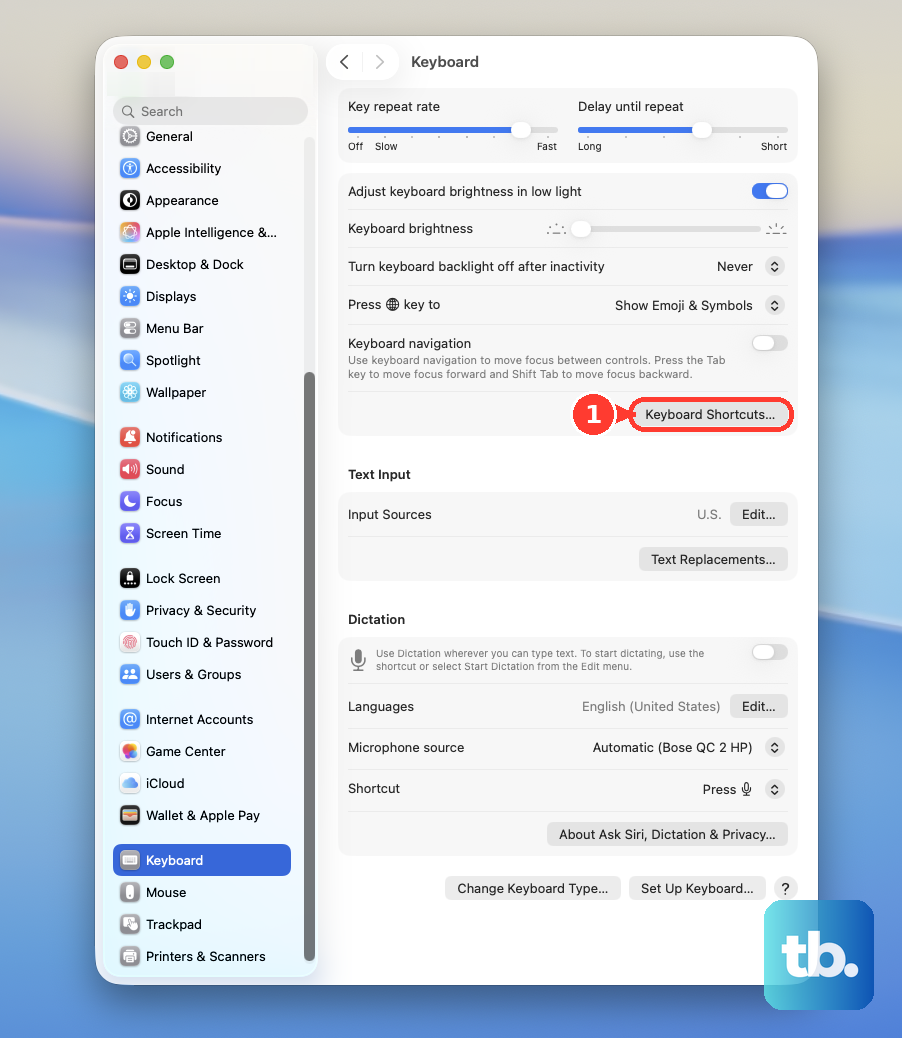
Select the checkbox beside the Spotlight shortcut you want to enable.
To change its keys, double-click the existing combination.
Press the new key combination you want to use.
Quit any apps affected by the shortcut change.
Reopen those apps.
Press your enabled or newly assigned Spotlight shortcut.
Try the dedicated Search key
Press the key with the magnifying-glass Search symbol in your keyboard's function-key row. This opens Spotlight on Tahoe 26 and Sequoia 15 on keyboards with that dedicated key.
If a compatible Apple keyboard uses standard function keys, open Apple menu > System Settings > Keyboard > Keyboard Shortcuts > Function Keys.
Turn off Use F1, F2, etc. keys as standard function keys.
Press the key bearing the Spotlight symbol again.
Look for the magnifying glass instead of assuming F4 opens Spotlight; for third-party function-key controls, check the keyboard manufacturer's utility.
Open Spotlight using Voice Control
Voice Control lets you click Spotlight by voice and requires a microphone, plus an internet connection for its initial automatic download.
- 1.Open Apple menu > System Settings > Accessibility > Voice Control.
- 2.Turn on Voice Control.
- 3.With the Spotlight icon visible in the menu bar, say Show numbers.
- 4.Say Click followed by the number beside the Spotlight icon.
Browse apps directly on macOS Tahoe
When you want to find an app, macOS Tahoe 26 offers ways to open Spotlight's app-browsing window directly. These open its Applications surface.
Click Apps in the Dock.
Enter an app name in its search field.
As an alternative, pinch closed with four or five fingers on a Magic Trackpad or a MacBook Neo's built-in trackpad to open apps in Spotlight.
To use the keyboard instead, press Command-Space bar to open Spotlight.
Press Command-1 to switch to Applications.
For a file search, press Command-2 within Spotlight to select Files.
For actions, press Command-3 within Spotlight to select Actions.
For clipboard searches, press Command-4 within Spotlight to select Clipboard.
Frequently Asked Questions
Why does Option-Command-Space open a Finder window?
On macOS Tahoe 26, Option-Command-Space bar opens a Finder window with its search field selected. Command-Space bar opens the floating Spotlight window.
Do I need to download Spotlight?
No separate Spotlight download is needed. Press Command-Space bar to open it.
What do Spotlight settings control?
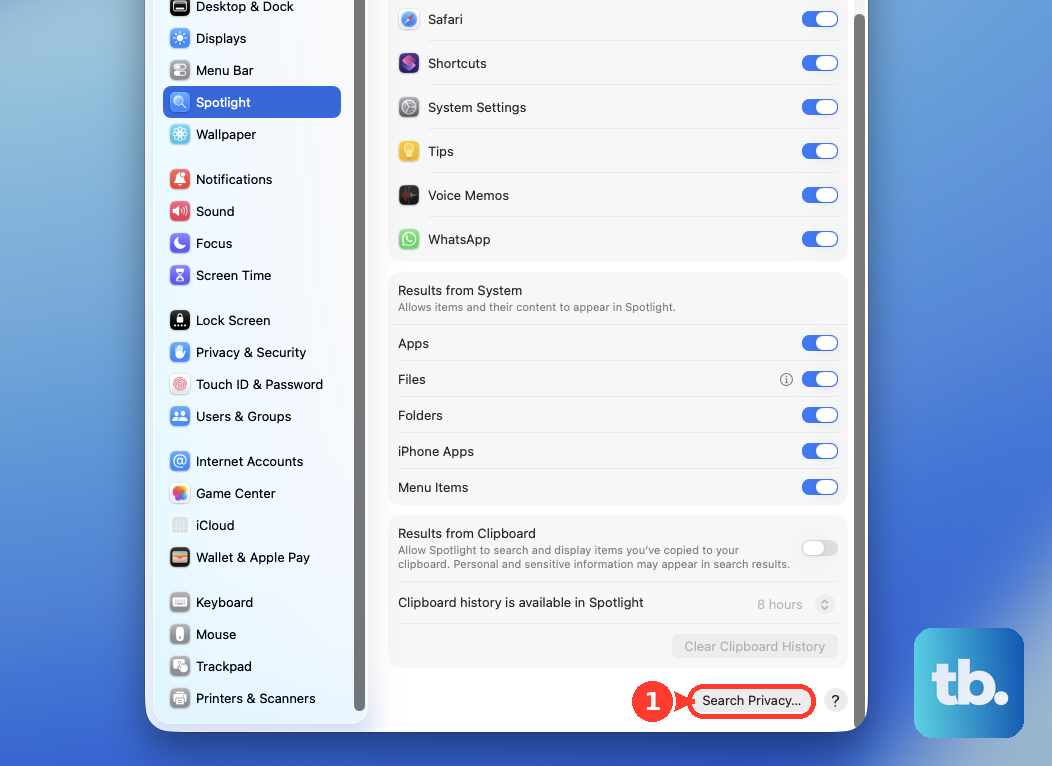
Apple menu > System Settings > Spotlight controls searchable content through Results from Apps, Results from System, and Search Privacy. The opening shortcut is managed separately under Keyboard > Keyboard Shortcuts > Spotlight on Tahoe 26.
How do I open Spotlight while using VoiceOver?
With VoiceOver running on macOS Tahoe 26, press Command-Space bar to open Spotlight.