A slow Mac usually starts with tiny delays: apps bounce longer, Safari hesitates, and clicks land a beat late. Start with the fixes that clear everyday bottlenecks, then move into storage, startup items, Safari, and repair tools only if the slowdown sticks around.
Restart cleanly and quit unused apps
The most common everyday cause is too much staying open at once, especially apps and windows that reopen every time you log in. Choose Apple menu > Restart, then deselect Reopen windows when logging back in before the Mac restarts.
If you are shutting down instead, choose Apple menu > Shut Down and deselect Reopen windows when logging back in there too. Quit apps you are not using from App Name > Quit App, or press Command-Q while the app is active. Open Apple menu > System Settings > Desktop & Dock > Windows and turn on Close windows when quitting an application to stop old windows from coming back after every quit.
When the Mac is frozen, hold the power button until it shuts down. On a Mac laptop with Touch ID, hold the Touch ID button instead; use this only when the Mac is unresponsive because unsaved changes can be lost.
Find the app eating CPU or memory
This fixes slowdowns caused by one app or process using too much processor power or memory. Open Activity Monitor, then click CPU. Click a column heading to sort the processes, and use View > Columns to add more detail.
Open Window > CPU Usage or Window > CPU History for a live processor view. Next, click Memory. Read the Memory Pressure graph along with Memory Used, App Memory, Compressed, Cached Files, and Swap Used.
Quit the problem app with App Name > Quit App. When the culprit is a background process rather than a normal app, select it in the Process Name list, click the Stop button in the upper-left corner, then choose Quit; use Force Quit only when the process will not quit on its own, because open files can lose data.
Compare the app's requirements with your Mac in Apple menu > System Settings > General > About. Open System Report > Graphics/Displays for graphics details when the app depends heavily on graphics performance.
Install updates your Mac can use
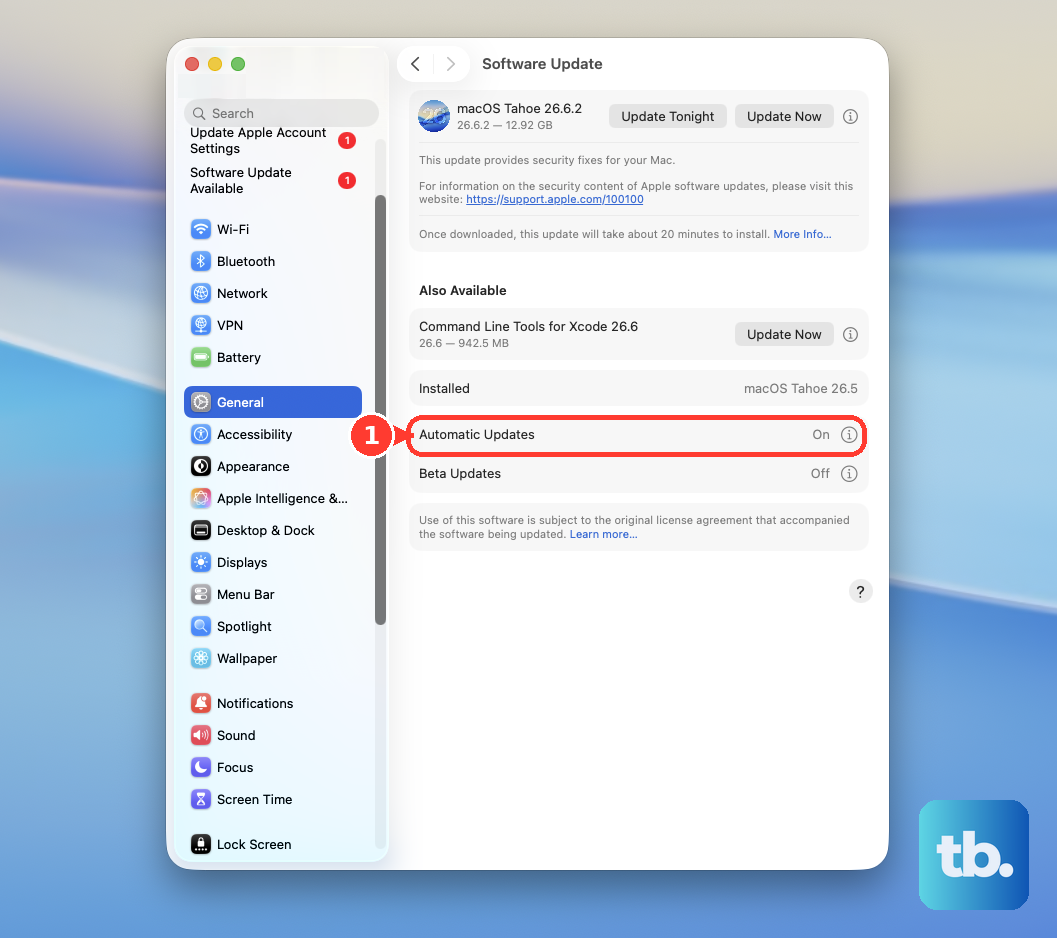
Open Apple menu > System Settings > General > Software Update. Software Update shows only updates or upgrades compatible with your Mac.
When macOS offers one, click Update, Upgrade, or Restart Now. If nothing appears, click Check for Update, press Command-R, or close and reopen Software Update.
Update App Store apps from App Store > Updates, then click Update beside each app or Update All. To automate App Store updates, open App Store > Settings and select Automatic Updates.
On macOS Tahoe 26 or later, open Apple menu > System Settings > General > Software Update, click the More Info button next to Automatic Updates, and turn on Install system data files and security updates. You can also open Apple menu > System Settings > Privacy & Security > Background Security Improvements and turn on Automatically Install.
Free space on the drive
Use macOS Storage first, then remove apps and files that no longer need to live on the Mac.
- 1.Open Apple menu > System Settings > General > Storage and review the recommendations for your Mac.
- 2.Choose Store in iCloud to keep Desktop and Documents in iCloud Drive, photos and videos in iCloud Photos, messages and attachments in iCloud, and only recently opened files on the Mac when space is needed.
- 3.Choose Optimize Storage to remove watched Apple TV movies and shows and adjust recent Mail attachment storage when space is needed.
- 4.Turn on Empty Trash automatically to remove trashed items after 30 days.
- 5.Open a category with its Info button, select unneeded large files, then use Delete or Show in Finder.
- 6.Remove unused apps with their own Uninstall or Uninstaller tool first; when there is no uninstaller, use File > Move to Trash and then Finder > Empty Trash.
Remove startup items that slow login
Startup slowdown commonly comes from helper apps and background tasks launching before you need them. Open Apple menu > System Settings > General > Login Items & Extensions.
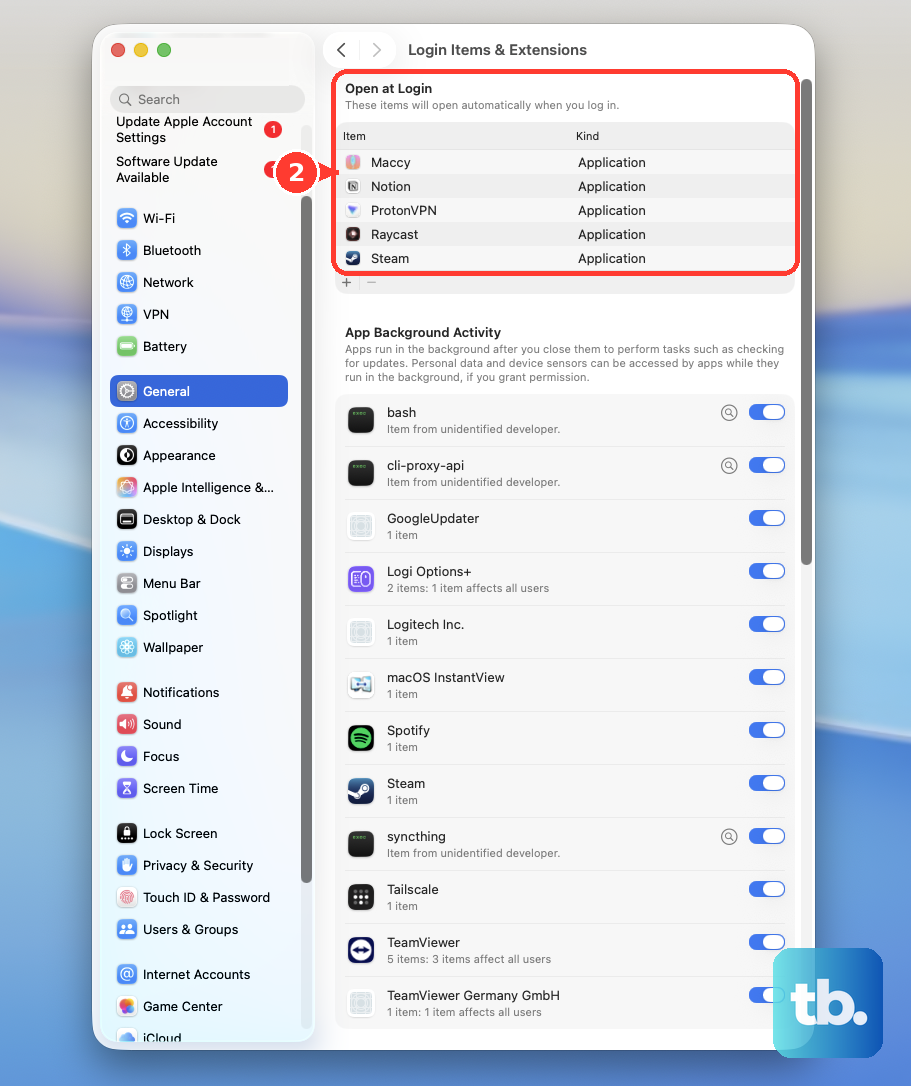
Under Open at Login, select an item and click the Remove button. Under background activity, turn off an app to stop it from performing tasks when the app is not open. For a clean test, make a list of your login items, remove them all, restart from Apple menu > Restart, then add them back one at a time until the slowdown returns.
To prevent login items from opening just once, hold Shift while clicking the Log In button, then release Shift when the Dock opens. Without a login window, restart the Mac, hold Shift when the progress bar appears, and release it after the desktop appears.
Fix Safari when it is the slow part
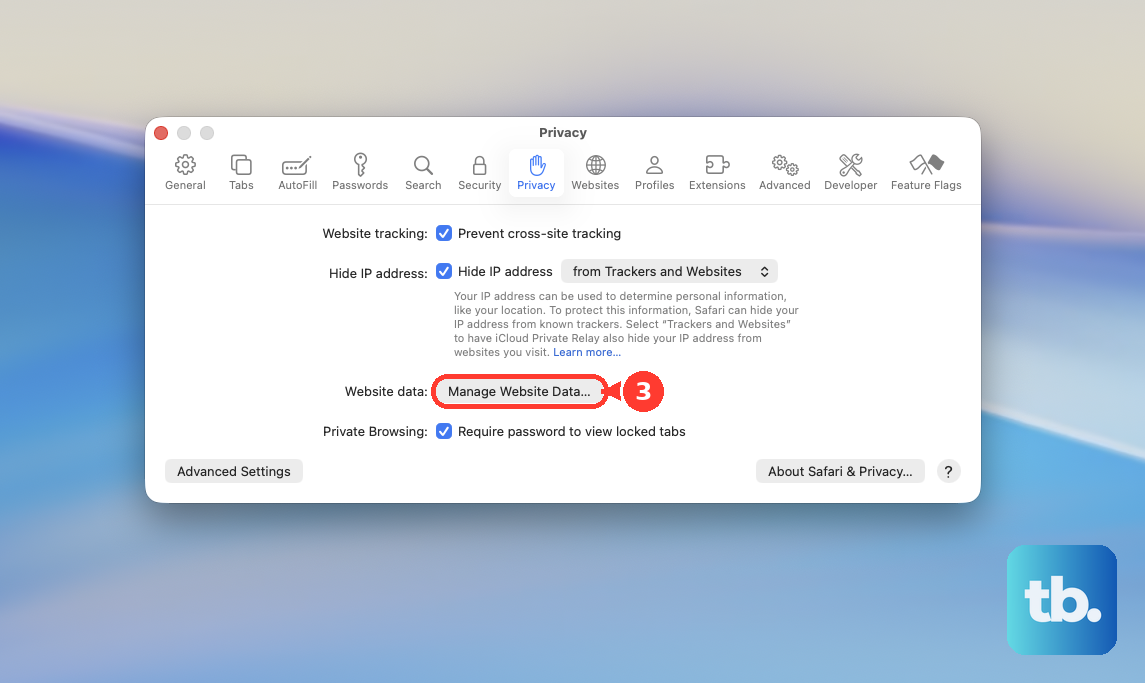
If the slowdown mostly happens in Safari, clear stored website data from Safari > Settings > Privacy > Manage Website Data. Select sites and click Remove, or use Remove All for a clean reset of website data.
Clear browsing history from History > Clear History, then choose how far back to clear from the pop-up menu. When iCloud is set up for Safari, Safari history is removed from other Apple devices using the same iCloud setup.
Open Safari > Settings > Extensions and turn extensions off by clearing their checkboxes. To remove one, select it and click Uninstall, or delete the app that contains the extension; use Clear Storage for extensions that offer it.
On macOS Sonoma 14 or later, remove Safari web apps you no longer need from Finder > Go > Home > Applications by dragging the web app to the Trash.
Repair disk errors with First Aid
This fixes disk-related symptoms such as apps quitting unexpectedly, corrupt files, external drive problems, or startup trouble. Open Disk Utility, then choose View > Show All Devices.
Select a volume in the sidebar, then click First Aid. Click Run and follow the onscreen instructions. When the check finishes, click Done, then repeat First Aid for each volume, then each container, then the storage device itself.
Use Safe Mode for stubborn slowdowns
Safe Mode is the next stop after the everyday fixes.
- 1.Open Apple menu > About This Mac and check whether the Mac lists Chip or Processor.
- 2.On Apple silicon, choose Apple menu > Shut Down, wait until the Mac is off, hold the power button until Loading startup options appears, select a volume, hold Shift, and click Continue in Safe Mode.
- 3.On an Intel Mac, turn on or restart the Mac, immediately hold Shift until the login window appears, then log in.
- 4.Test the Mac in Safe Mode; it clears certain system caches that are recreated as needed and can temporarily free enough space for tasks such as installing an update.
- 5.Restart normally to leave Safe Mode.
Run final checks when the Mac is still slow
Shut down the Mac and disconnect external devices such as hard drives or printers, leaving only the display, keyboard, mouse or trackpad, Ethernet, and AC power. Turn the Mac back on and test it for the amount of time it normally takes the slowdown to appear. Install available macOS updates before running diagnostics when the Mac can update.
Place the Mac on a hard, flat, stable surface with ventilation. On Apple silicon, hold the power button until Options appears, release it, then hold Command-D until the Mac restarts. On an Intel Mac, turn it on and immediately hold D; use Option-D when D does not start Apple Diagnostics.
For a last-resort software repair, start from macOS Recovery and choose Reinstall macOS, then click Continue and follow the onscreen instructions. Erase and reinstall only after a backup, because erasing permanently deletes files. For a work or school Mac, contact your administrator when updates, background items, or upgrade options are blocked by management.
When the same slowdown returns after a clean restart, updated apps, storage cleanup, Safe Mode, and First Aid, treat it as a repair or support problem.
Frequently Asked Questions
Why is my Mac still slow after restarting?
A restart only clears the current session. Check Activity Monitor for CPU or memory pressure, remove login items and background activity, free storage, test Safari extensions, then use First Aid or Safe Mode if the slowdown continues.
Will updating macOS fix a slow Mac?
It can fix slowdowns tied to system or app software. Software Update shows only updates and upgrades compatible with your Mac, and App Store apps update from the App Store Updates screen.
Can I delete Apple apps to make my Mac faster?
No. Finder cannot delete apps required by macOS, including many Apple apps and apps in the System folder. System apps such as Safari and Mail cannot be uninstalled.
Should I reset SMC or NVRAM to speed up my Mac?
Not on Apple silicon. Restart the Mac instead. SMC and NVRAM shortcuts apply to Intel-based Mac guidance, not current Apple silicon troubleshooting.