A lost document can be an unsaved Office file, a deleted cloud file, an overwritten version, or a local file removed from your computer. Start where the file disappeared, then move through trash, version history, and backups in that order. Use the current recovery paths below and skip unsupported temp-folder digging after a normal Acrobat close.
Start with the app that lost the file
Reopen the Office, LibreOffice, Acrobat, or document app you were using when the file disappeared.
In Microsoft 365 after a crash, use the Document Recovery pane, choose the recovered file, then select Open or View.
Save the recovered Microsoft 365 file right away with Save As.
In Adobe Acrobat or Acrobat Reader after an unexpected shutdown, start Acrobat or open the last PDF you were working on, click Yes when prompted, then save the file with the original name.
In LibreOffice after a crash, restart LibreOffice and let the automatic recovery process restore open documents from AutoRecovery data.
Tip: once a recovery copy opens, use Save As with a clear new name before you edit again.
Recover an unsaved Office file
Use this Office screen when Excel or PowerPoint closed before you saved the latest work.
- 1.Open Excel or PowerPoint, choose File, then Info.
- 2.Select Manage Document, Manage Workbook, or Manage Presentation.
- 3.Choose Recover Unsaved Workbooks in Excel or Recover Unsaved Presentations in PowerPoint.
- 4.Select the recovered file, then choose Open.
- 5.Choose Save As and save the recovered version in a known folder.
Bring back a recent Office version
This fixes an Excel or PowerPoint file that was saved before, then closed without saving the version you need.
Open the file you were working on.
Choose File, then Info.
Under Manage Workbook or Manage Presentation, select the file labeled (when I closed without saving).
Choose Restore.
For Microsoft 365 files with version history, open the file, click the file title, choose Version history, select a version, then choose Restore.
In Office for the web, choose File, then Version History, select a version, then choose Restore. In Office 2016, 2019, or 2021 on the desktop, the path is File, then History instead.
Check the trash in your cloud storage
Deleted cloud documents go to the service's recovery area before the deletion window expires. In OneDrive, go to the OneDrive website, sign in, open Recycle bin, select the files or folders, then choose Restore; personal OneDrive items stay there for 30 days, and work or school accounts use the retention window set for the organization.
In Google Drive on a computer, open drive.google.com, choose Trash, right-click the file, then choose Restore. On Android, open the Google Drive app, tap More next to the file, then tap Restore; Drive files stay in Trash for 30 days.
For iCloud Drive, Pages, Numbers, and Keynote files deleted within the last 30 days, sign in at iCloud.com, open iCloud Drive, choose Recently Deleted, select each file, then choose Recover. You can also open Data Recovery, choose Restore Files, select each file or Select All, then choose Restore Files.
In Dropbox, sign in at dropbox.com, open Deleted files, click the deleted file or folder name, then choose Restore. Dropbox keeps deleted files for 30 days on Basic, Plus, and Family plans, with longer windows on Professional and team plans.
Use version history for overwritten files
Version history is the right place when the file still exists but the contents changed.
- 1.In Google Docs, Sheets, Slides, or Vids, open the file, click Last edit or the Version history icon, choose an earlier version, then select Restore this version and Restore.
- 2.To keep the current Google file, choose More next to the earlier version, select Make a copy, enter a name, choose a location, then click OK.
- 3.In OneDrive on the web, right-click the file, choose Version history, select the ellipsis next to the version, then choose Restore.
- 4.In a synced OneDrive folder on Windows, right-click the file in File Explorer, choose Version history, select the ellipsis next to the version, then choose Restore.
- 5.In Dropbox, hover over the file at dropbox.com, choose Activity, then Version history, select a version, choose Roll back to this version, then confirm with Roll back to this version.
Restore deleted local files on Windows or Mac
For a file deleted from a Windows PC, open Recycle Bin, select the document, right-click it, then choose Restore. For a file deleted on a Mac, open Trash, select the document, right-click it, then choose Put back.
When Windows File History was already configured, open File Explorer, go to the folder that used to contain the file, right-click the folder name, choose Restore previous versions, then use the Previous Versions tab. Select a version and choose Open to preview it, Restore to bring it back, or Restore to to save it somewhere else.

On a Mac with Time Machine already set up, open a window for the item's location, open Time Machine, use the arrows next to Finder windows to browse backups, select the item, then choose Restore.
Skip old Windows 10 instructions that send you to Settings, Update & Security, then Backup as the main File History path. Current Microsoft guidance points to File Explorer, Restore previous versions, and File History surfaces, and Windows 10 support ended on October 14, 2025.
Try platform document versions on Mac
Some Mac apps use the macOS document version browser, including TextEdit, Preview, Pages, Numbers, Keynote, and other document-based apps. Open the document, choose File, then Revert To, then choose Browse All Versions.
Use the timeline tick marks or arrows to move through older versions, then choose Restore. To preserve the current copy, hold Option and choose Restore a Copy.
For a faster rollback in supported apps, choose File, then Revert To, and pick Last Opened, Last Saved, or Previous Save. If this method fails, try Time Machine or iCloud Drive recovery next.
Use Windows File Recovery for local storage
This fixes deleted files on local Windows storage when Recycle Bin does not have them.
Install Windows File Recovery from the Microsoft Store. Microsoft supports the tool on Windows 11 and Windows 10 only.
Press the Windows key, type Windows File Recovery, select Windows File Recovery, then choose Yes.
Run a command with a source drive, a different destination drive, a mode, and file filters, such as Winfr C: E: /regular /n *.pdf /n *.docx.
Press Y to start recovery.
Use this tool for local-storage files only; it does not recover cloud storage or network file shares.
Prevent the next lost document
The most common cause of an unrecoverable unsaved document is automatic recovery or cloud saving being off before the file disappears.
In Microsoft 365 on Windows, open File, then Options, then Save, turn on Save AutoRecover information every x minutes, and turn on Keep the last autorecovered version if I close without saving.
For Microsoft 365 subscribers, store files in OneDrive or SharePoint and turn on AutoSave. When AutoSave is not available, use Save or Ctrl+S regularly.
In LibreOffice, open LibreOffice, then Preferences, or open Tools, then Options. Go to Load/Save, then General, turn on Save AutoRecovery information every, turn on Always create a backup copy, then check the backup location under LibreOffice, Paths, and Backups.
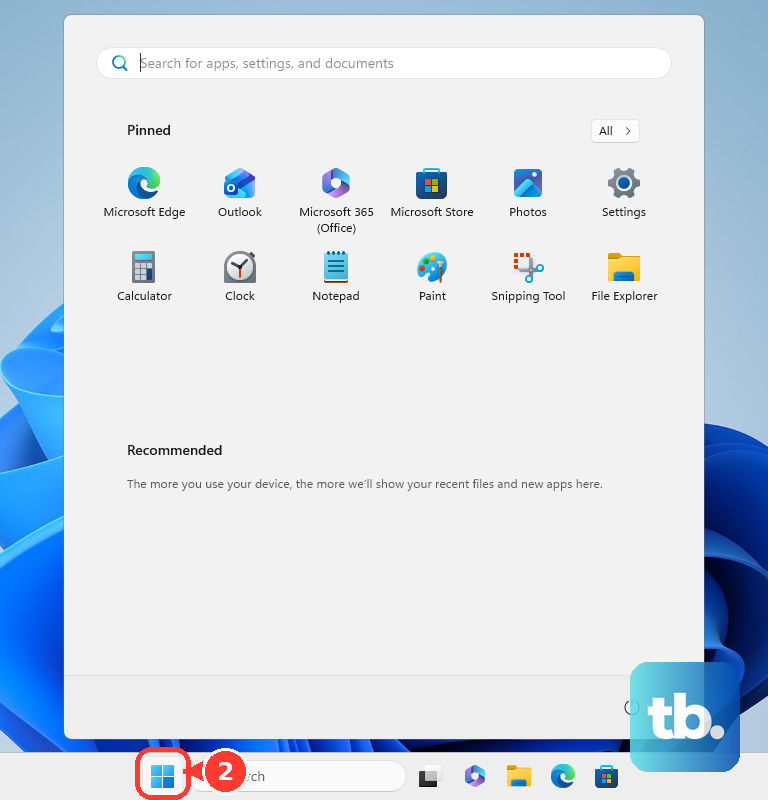
The Windows Backup app covers consumer devices signed in with a personal Microsoft account, such as an outlook.com or live.com address; work or school Microsoft accounts will not work with it, so follow your organization's backup policy instead. On a personal account, open Start, type backup, open Windows Backup, expand Folders, toggle Desktop, Documents, Pictures, Videos, or Music to On, then choose Back up.
Frequently Asked Questions
Can I recover a document after emptying the trash?
For Google Workspace, an admin with the User management privilege can restore Drive data within 25 days after a user empties Trash. Personal recovery depends on the service's own trash, deleted-files, or backup recovery window.
Does AutoRecover work after I normally close a file without saving?
In Excel and PowerPoint, the closed-without-saving recovery path works when AutoRecover was on. In Acrobat and Acrobat Reader, Adobe's AutoSave recovery applies after unexpected shutdowns; the temporary autosave file is deleted after a normal close, manual save, or revert.
What should I use after overwriting the wrong version?
Use version history, not deleted-file recovery. Google Docs, OneDrive, Dropbox, Microsoft 365, SharePoint, and supported Mac apps all provide restore paths for earlier versions.
Can Windows File Recovery restore files from OneDrive or a network drive?
No. Windows File Recovery is for deleted files on local storage. It does not recover cloud storage or network file shares.