Right-clicking on a Mac opens the shortcut menu you need for actions like copying, renaming, saving, and changing item-specific settings. Apple calls it a secondary click, and the right setup depends on whether you use a trackpad, Magic Mouse, keyboard, or accessibility controls. Start with the fastest method, then set the gesture that fits the device in front of you.
Try Control click first
The fastest way to right click on a Mac is to hold Control and click the item with your mouse or trackpad.
That opens the same shortcut menu you expect from a right-click on Windows. It works on current Mac User Guide versions, including macOS Tahoe 26, macOS Sequoia 15, macOS Sonoma 14, and macOS Ventura 13.
If Control-click feels awkward for everyday use, turn on two-finger secondary click for a trackpad or choose a secondary-click side for Magic Mouse.
Turn on two finger right click for a trackpad
Use this when your MacBook trackpad or Magic Trackpad does not open shortcut menus with two fingers.
- 1.Open the Apple menu and choose System Settings.
- 2.Click Trackpad.
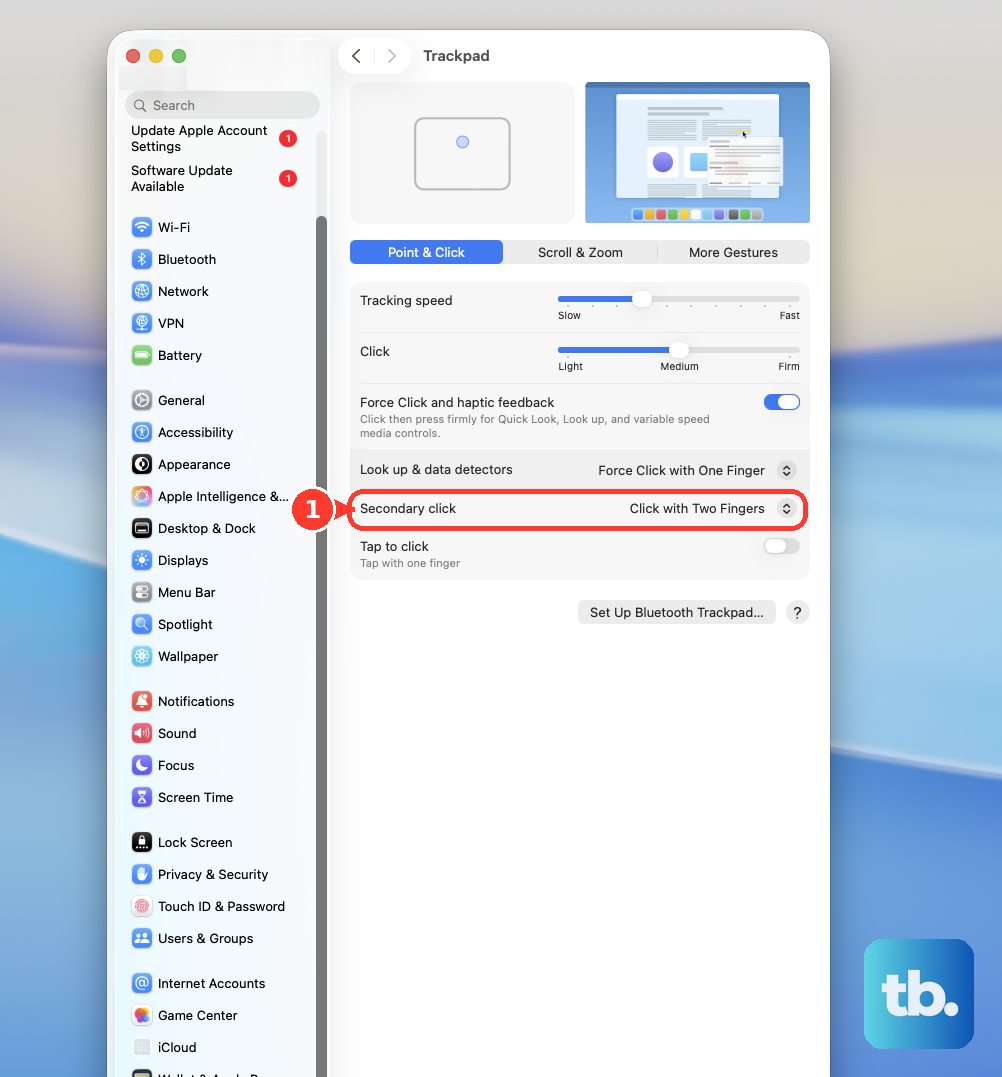
- 3.In Point & Click, open Secondary click.
- 4.Choose Click with Two Fingers.
- 5.Click or tap the trackpad with two fingers to open the shortcut menu.
When two finger click still does nothing
The most common cause is that Secondary click is off or set to a different trackpad gesture.
Open the Apple menu, choose System Settings, then click Trackpad.
In Point & Click, open Secondary click and choose the gesture you want to use.
Apple says the available options vary by Mac or trackpad. For the most familiar setup, choose Click with Two Fingers, then test it on a file, folder, link, or desktop item.
Set up right click on a Magic Mouse
This fixes a Magic Mouse that only acts like a normal one-button mouse.
Open the Apple menu and choose System Settings.
Click Mouse.
In Point & Click, open Secondary click.
Choose the right-side option.
Click the right side of the mouse surface to open shortcut menus.
For left-handed use, choose the left-side option instead.
Click the left side of the mouse surface to open shortcut menus.
Use a Magic Mouse fallback
This method applies when you do not want to change mouse settings or Secondary click is not enabled. It also helps when you need a quick right-click before adjusting the mouse setup.
Hold Control on the keyboard as you click the Magic Mouse.
Your Mac treats that click as a right-click and opens the shortcut menu.
Magic Mouse models with a USB-C port require macOS Sequoia 15.1 or later for Magic Mouse gestures. Control-click remains the simple fallback when the gesture setup is not the one you want.
When a Magic Trackpad tap will not right click
The most common cause is that two-finger tapping requires the right trackpad click and tap setup.
On a Magic Trackpad, click with two fingers to open shortcut menus.
If Tap to click is enabled, tap or click with two fingers.
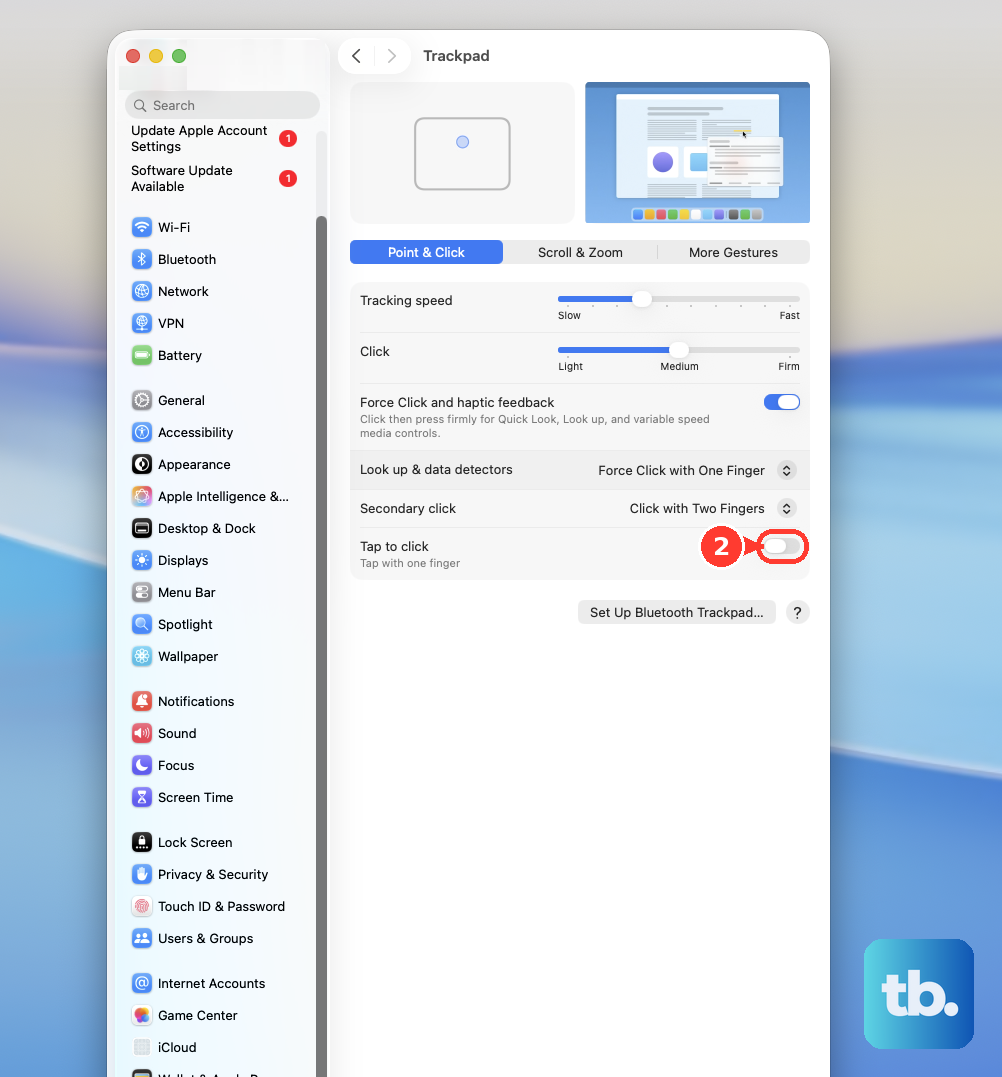
When two-finger secondary click is not enabled or not preferred, hold Control and click the Magic Trackpad.
Use keyboard and accessibility right click options
Apple's Magic Keyboard with Touch ID and Numeric Keypad (USB-C) has a Contextual Menu key below F13. That keyboard needs a Mac with Apple silicon running macOS Sequoia 15.1 or later. Select the item first, then press Contextual Menu to open its shortcut menu.
For alternate control methods, open Apple menu, go to System Settings, choose Accessibility, then open Pointer Control and turn on Alternate pointer actions. Click Info to customize a right-click action with a keyboard key, assistive switch, or facial expression.
If you use the Accessibility Keyboard with Dwell, open Apple menu, go to System Settings, choose Accessibility, then select Keyboard and turn on Accessibility Keyboard. Open Info, go to Dwell, turn on Allow dwell actions toolbar in panels or Show dwell actions in menu bar, choose Right Click, then dwell on the spot where you want the action performed.
Handle older System Preferences advice
This method applies only to older macOS releases before the Ventura-style System Settings app, such as macOS Monterey 12 and earlier. Do not use it as the current path on newer macOS versions.
On older macOS, the path is Apple menu, then System Preferences, then Trackpad or Mouse, then Point & Click, then Secondary click.
On current macOS, use System Settings instead. The setting name is still Secondary click, Apple's term for Control-click on Mac or right-click on Windows.
Frequently Asked Questions
What is the easiest way to right click on a Mac?
Hold Control and click the item with your mouse or trackpad. That opens the shortcut menu without changing any settings.
Can I right click on a MacBook without a mouse?
Yes. Open System Settings > Trackpad > Point & Click > Secondary click, choose Click with Two Fingers, then click or tap the trackpad with two fingers.
Why does my Magic Mouse not right click?
Secondary click is likely off or set to the other side. Open System Settings > Mouse > Secondary click and choose the right-side or left-side option.
What does Apple call right-click on a Mac?
Apple calls it Secondary click or Control-click. It opens the same kind of shortcut menu as right-click on Windows.