
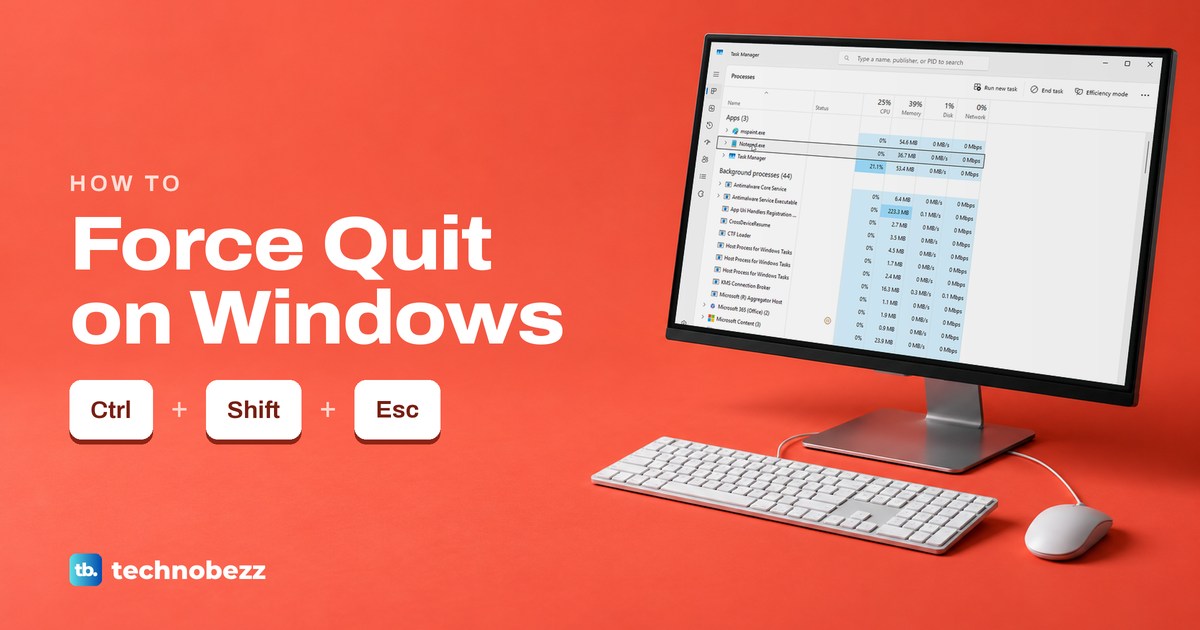
To force quit a frozen app on Windows, press Ctrl + Shift + Esc to open Task Manager, select the app and choose End task to force close it. If the app still reacts, try Alt + F4 first, which only asks it to close and lets it offer to save. On our frozen test app, Alt + F4 brought up Windows' not responding box instead. Microsoft lists both shortcuts for Windows 11 and Windows 10 PCs.
Windows 11 can also put End task on the app's right-click menu in the taskbar, once you turn on one switch in Settings. Expect to lose anything you had not saved, because End task, the taskbar's End task and Terminate closed our apps without asking about saving. The exception on our PC was Notepad, which brought back every unsaved line by default.
We tried these methods on Windows 11, version 25H2, with Notepad, Paint and a small app we made freeze on purpose. Without its /f switch, taskkill only asked our frozen app to close, and the app kept running.
The short version
- Try the gentle way first: click the app and press Alt + F4. A working app can still ask you to save.
- Frozen app: press Ctrl + Shift + Esc, select the app and choose End task.
- Windows 11 shortcut: turn on End Task in Settings, then right-click the app on the taskbar and choose End task.
- No Task Manager: run taskkill /f /im with the app's file name in Command Prompt. Without /f, a frozen app keeps running.
- Unsaved work: a forced close loses it, unless the app restores it the way Notepad did for us.
Ways to force quit on Windows at a glance
| Press or open | What it does | Best when | What happened to open work on our PC |
|---|---|---|---|
| Alt + F4 | Asks the active app to close | The app still reacts | Paint asked to save, Notepad closed and kept its text |
| Ctrl + Shift + Esc, then End task | Ends the app from Task Manager | The app is frozen | Paint lost its drawing, Notepad restored its text |
| Right-click the taskbar button, then End task | Ends the app without opening Task Manager | Windows 11, after turning on one switch | No question asked, Notepad restored its text |
| Ctrl + Alt + Delete, then Task Manager | Reaches Task Manager from the security screen | The desktop or taskbar seems stuck | The same as Task Manager |
| Settings, Installed apps, Advanced options, Terminate | Ends the app and its related processes | Built-in apps such as Notepad and Paint | No message, Notepad restored its text |
| taskkill /f /im with the file name, in Command Prompt | Forces the app to end | Task Manager will not open or will not end it | Our frozen app ended, plain taskkill left it running |
| taskkill /f /fi "status eq not responding" | Ends every app Windows marks as not responding | Several apps hang together | Both frozen apps ended, Notepad and Paint kept running |
| Task Manager, Windows Explorer, Restart task | Restarts the taskbar and desktop | The taskbar or desktop is frozen | The taskbar was back in seconds, open apps kept running |
Each step is more forceful than the one before, and Alt + F4 is the gentle one that lets a working app ask about saving. The ladder below shows the order we suggest.
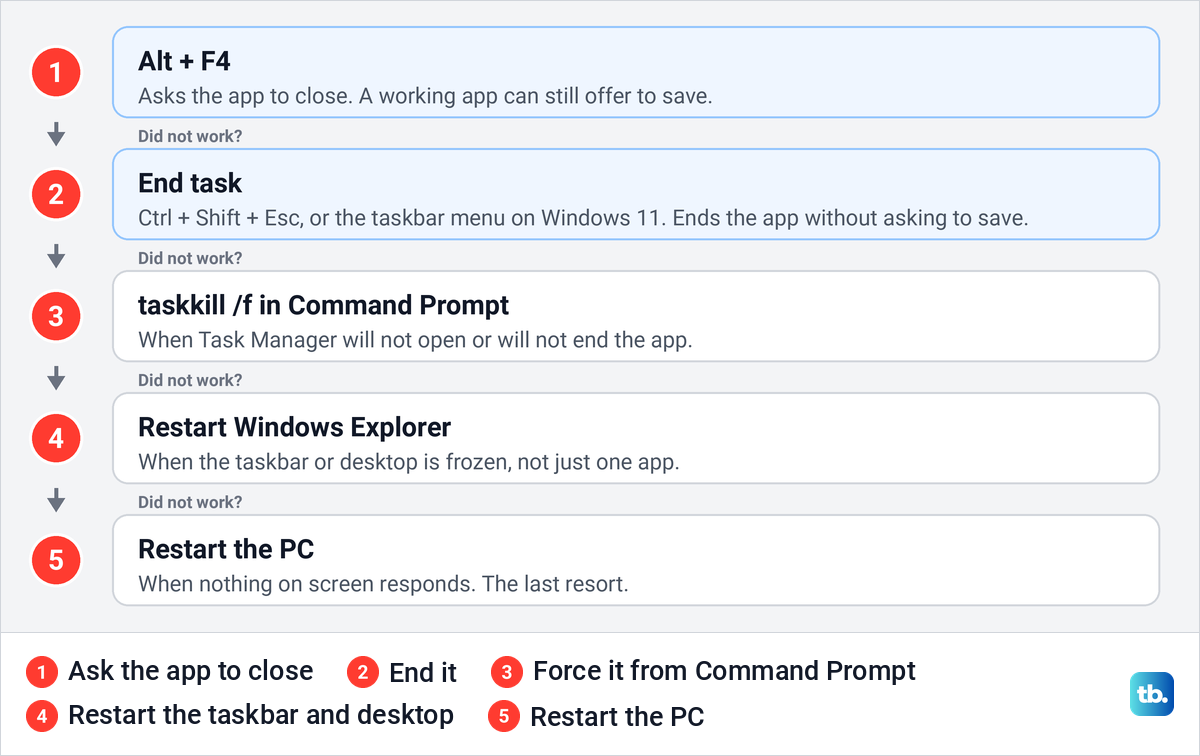
Try Alt + F4 first
Click the app's window so it is the active one, then hold Alt and press F4. Microsoft lists it as the shortcut to close the active window. It asks the app to close rather than ending it, so a working app still gets its say.
When we pressed Alt + F4 in Paint with one unsaved stroke on the canvas, Paint asked "Do you want to save your work?" with Save, Don't save and Cancel. Notepad behaved differently. It closed at once with two unsaved lines and no question, and when we opened it again, the same tab with both lines was back.
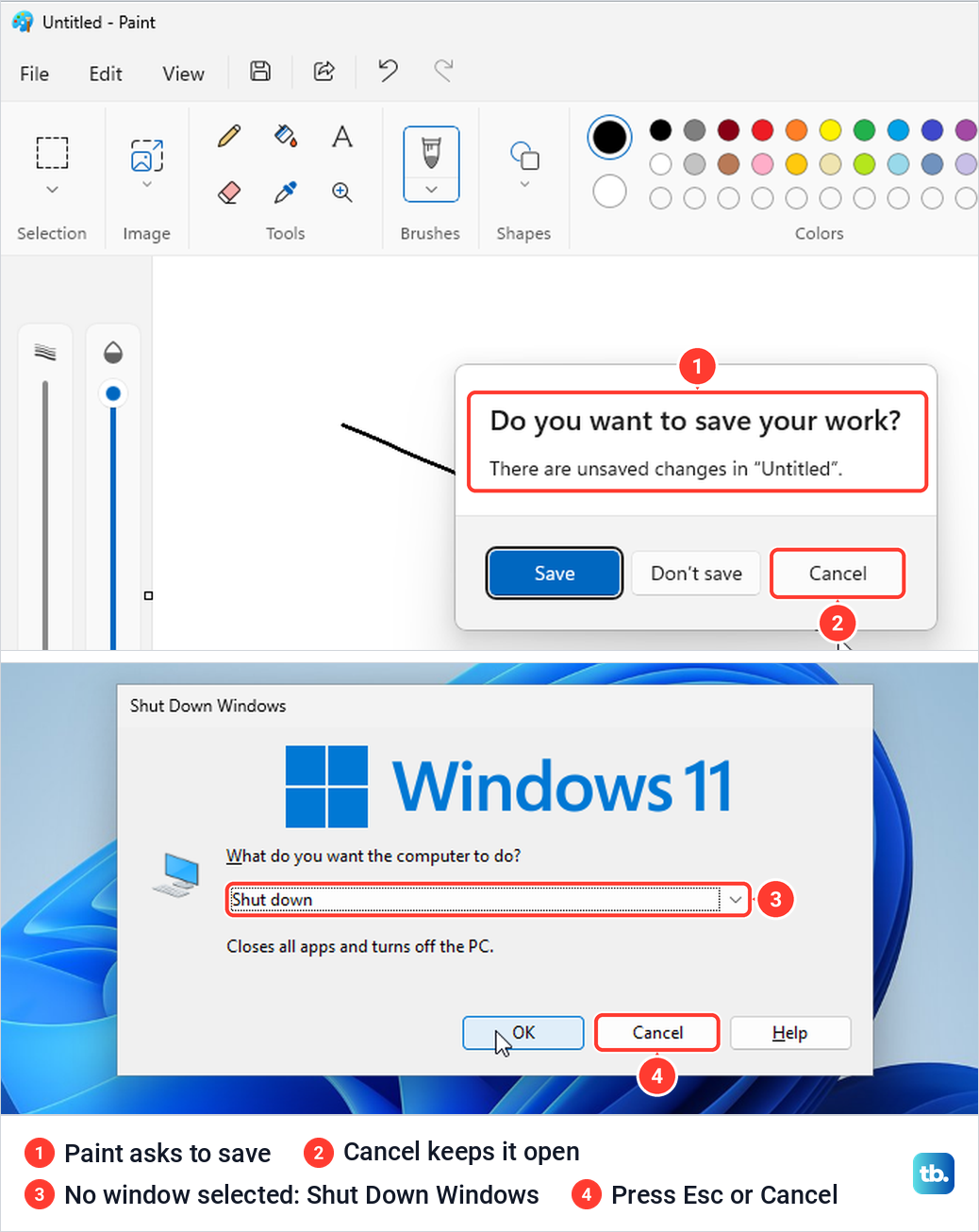
Watch where the focus is before you press the keys. With no window selected, Alt + F4 opened the Shut Down Windows box on our PC, with Shut down already chosen and the line "Closes all apps and turns off the PC" under it. Press Esc or select Cancel if that box appears.
Closing a window does not always end the app behind it. Microsoft notes that some apps can run in the background even when you are not using them, and you can stop apps running in the background in Settings. If Alt + F4 never does anything, even in an app that works, see our fixes for keyboard shortcuts that stop working.
Force quit with Task Manager
Task Manager is the tool for an app that no longer reacts. Press Ctrl + Shift + Esc and it opens on the Processes page, with your open apps listed under Apps at the top. Select the frozen app, then select End task in the bar along the top of the window.
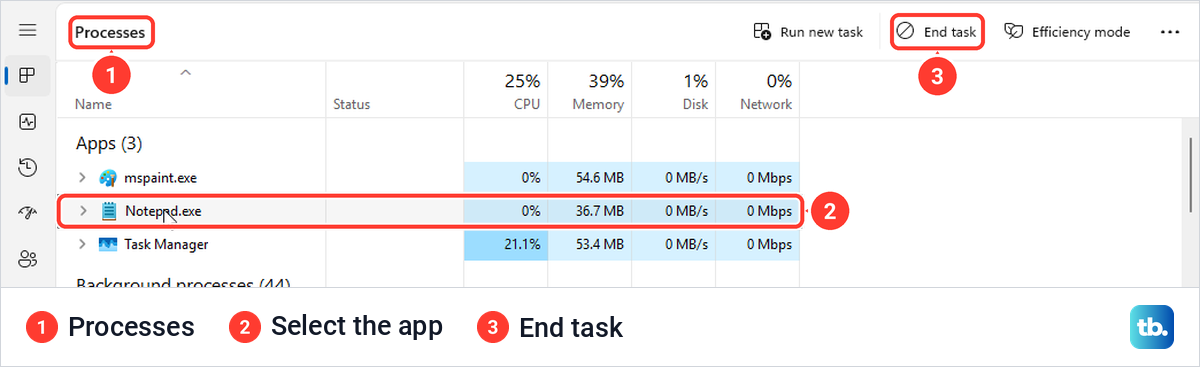
End task stays grey until a row is selected, and hovering over it shows "Terminate the selected process". You can also right-click the app and choose End task, or press Alt and then E, the key tip Task Manager showed on our PC. On Windows 11 the button sits at the top right, in the command bar Microsoft added to every Task Manager page.
The app may be listed by its file name. On our PC, Task Manager listed Paint as mspaint.exe and Notepad as Notepad.exe. If the shortcut does nothing, here is every other way to open Task Manager in Windows.
Use Ctrl + Alt + Delete when the desktop is stuck
If the taskbar and the shortcut both seem dead, press Ctrl + Alt + Delete. Windows switches to its security screen, which Microsoft describes as the place to lock the desktop, switch user, sign out, change a password or open Task Manager.
On our PC the screen listed Lock, Switch user, Sign out, Change a password and Task Manager, with a Cancel button underneath. Select Task Manager, or press the Down arrow until it is highlighted and then Enter, and Task Manager opens on the desktop.
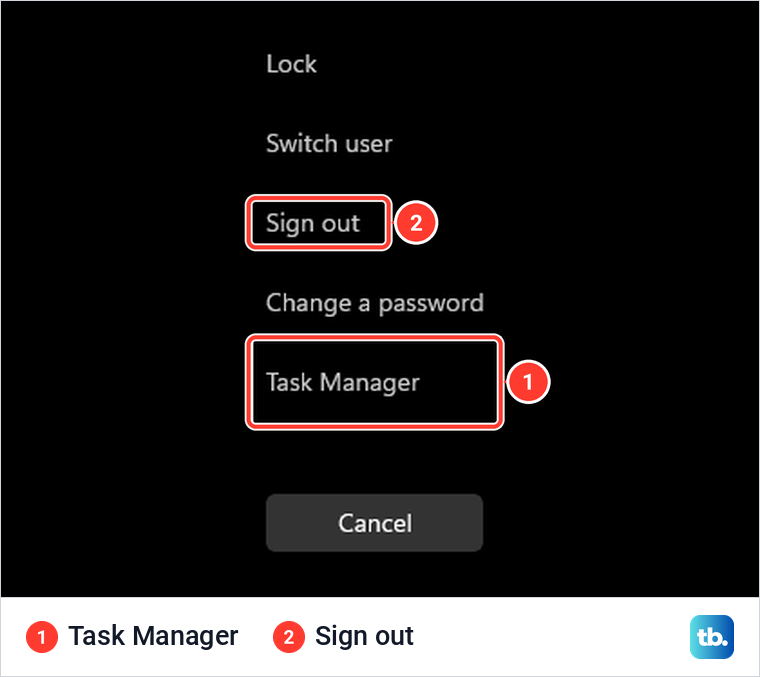
You can also skip the keys. Right-click an empty part of the taskbar and choose Task Manager, above Taskbar settings.
End a frozen app from the taskbar
Windows 11 can add End task to the menu you get when you right-click an app's taskbar button, so you do not need Task Manager at all. The switch is named End Task, with the line "Enable end task in taskbar by right click", and it was off on our PC until we turned it on.
The quickest way to it is the search box. Open Settings on your computer with Windows + I, type end task at the top, and select Enable end task in taskbar when it is suggested, as it was on our PC. Microsoft says that on Windows 11, version 25H2 the switch is under System > Advanced, in the Taskbar group. On our PC it was still under System > For developers, so look there if your System page has no Advanced entry.
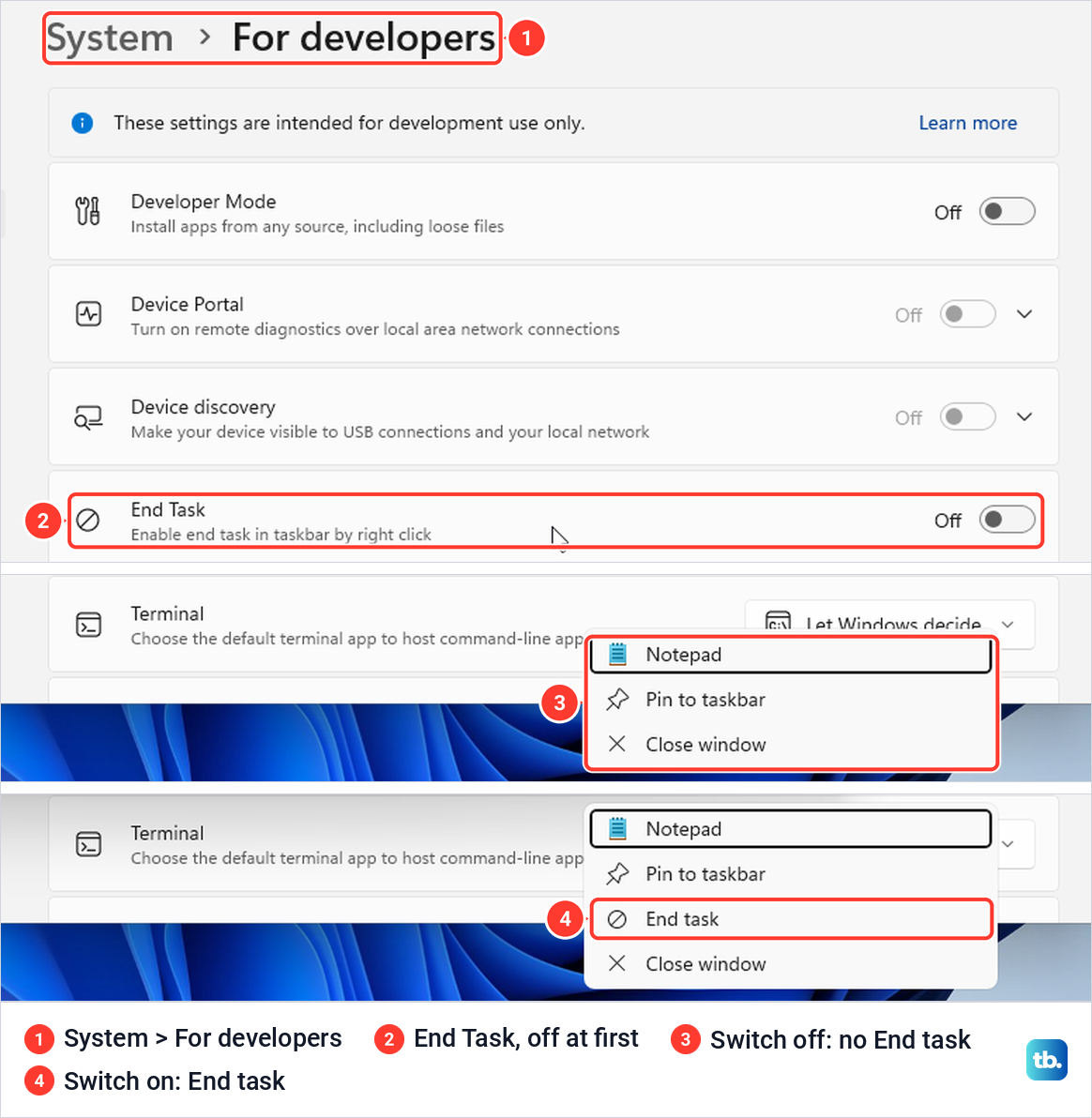
With the switch on, right-click the frozen app's taskbar button and choose End task, just above Close window. It ended our frozen test app at once, with no message. On Notepad it also ended the app without a question, and the two unsaved lines were back when we reopened it.
With two Notepad windows open, the item read End all tasks, next to Close all windows. File Explorer had no End task item even with the switch on, and Microsoft says a PC managed by an organization can have these settings switched off by policy.
When Windows says an app is not responding
A frozen app is one that has stopped handling input. Microsoft's developer documentation says Windows declares a window hung once it has gone 5 seconds without picking up a message, and then lets you only move, minimize or close it. On our frozen test app, the title bar read (Not Responding) about five seconds after we clicked inside it.
The window itself did not fade at first. It only turned pale once Windows showed its message, and it could still be moved with Alt + Space and Move. Task Manager's Processes page left the Status column blank for it every time we looked, while the Details page said Not responding.
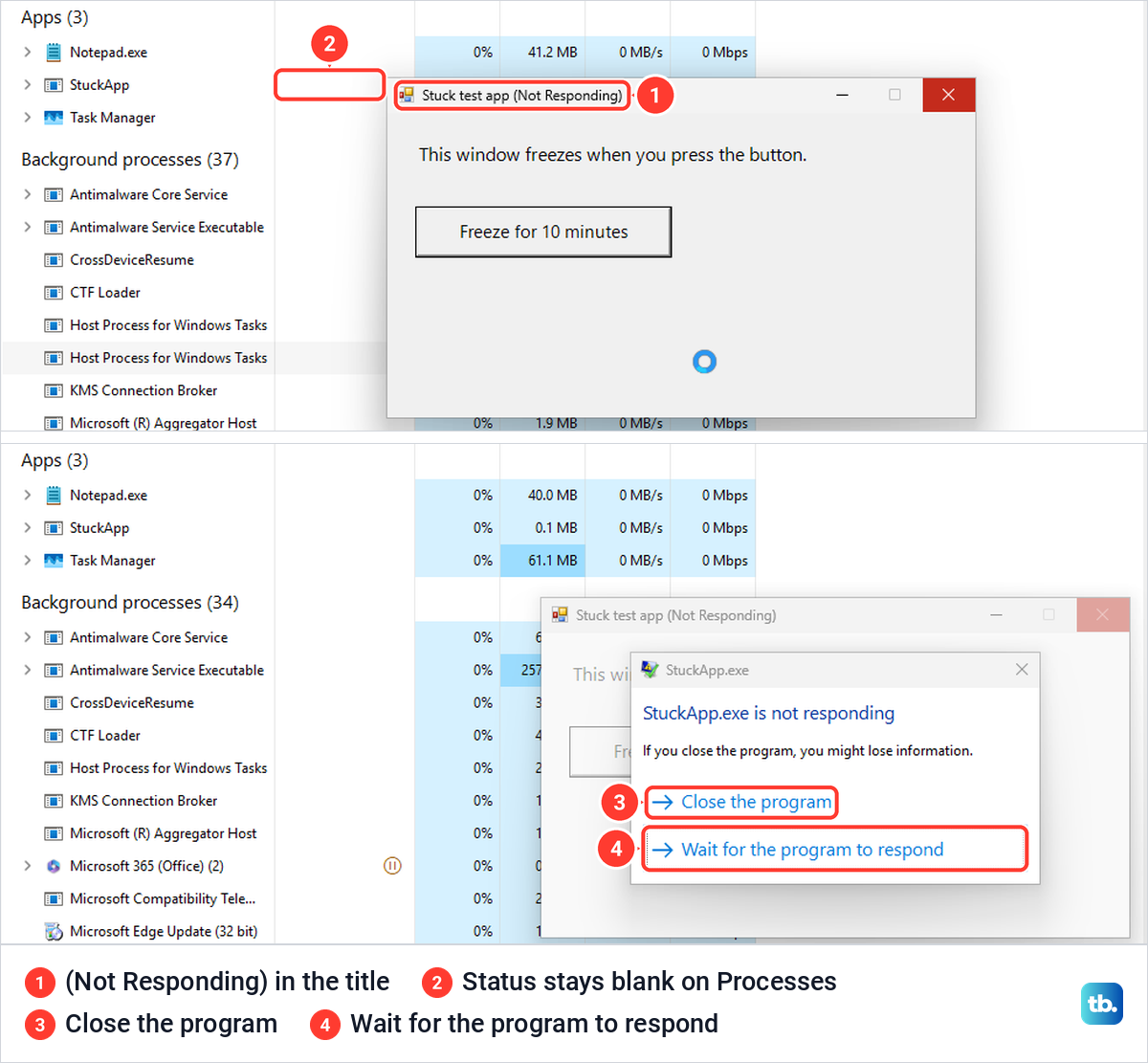
When we pressed Alt + F4 on the frozen app, Windows showed a box named after the app's file. It said the program is not responding and warned "If you close the program, you might lose information." It offers Close the program and Wait for the program to respond, and Wait had the focus, so pressing Enter waits.
Waiting a little is worth it if the app was in the middle of saving or opening a file, since ending it then loses whatever it was doing. Our test app was frozen for good, and Wait left it frozen.
On our PC, Close the program first showed "Hang on while Windows reports the problem to Microsoft" with a progress bar before the app went away. The taskbar's End task ended the same kind of frozen app at once.
What a force quit does to unsaved work
End task, the taskbar's End task, taskkill and Terminate all closed our apps without asking about saving. End task in Task Manager closed Paint with an unsaved stroke and no question, and Paint opened again with a blank canvas. The drawing was gone for good.
Notepad is the big exception. By default it keeps your unsaved tabs between sessions, and on our PC it brought back every unsaved line after Alt + F4, End task, the taskbar's End task, plain taskkill without /f and Terminate. After End task it even kept a line we typed about half a second before ending it.
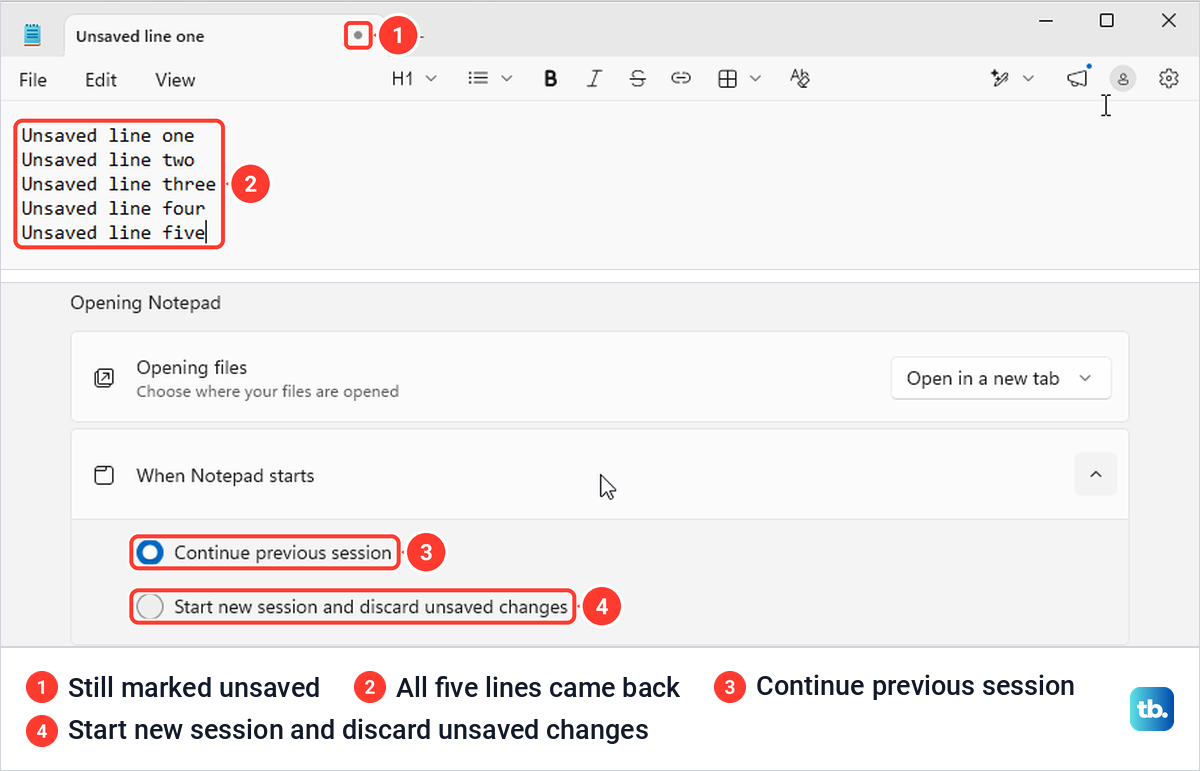
That behavior comes from one setting. In Notepad, select the gear icon to open its settings and look under Opening Notepad for When Notepad starts, where Continue previous session was selected on our PC. With Start new session and discard unsaved changes chosen instead, Alt + F4 asked whether to save, and after End task Notepad came back empty with six lines lost.
A restored tab is still not a saved file. Microsoft says the saved session does not affect your files, so save anything that matters as a proper file once Notepad is back.
If Word or Excel was the app you ended, see whether it can recover the file before you redo the work. Our guides show how to recover an unsaved Word document and how to get back an Excel file you did not save.
Close an app from Settings with Terminate
Settings has a force quit button of its own. Open Settings > Apps > Installed apps, find the app, select the three dots on the right and choose Advanced options. Scroll to Terminate, which reads "Immediately terminate this app and its related processes", and select the Terminate button.
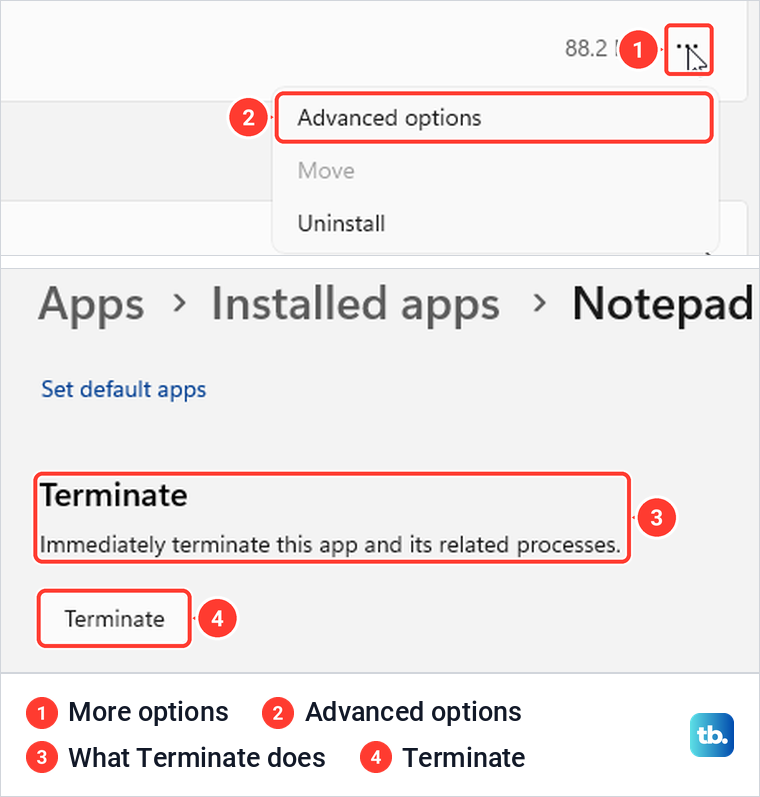
One click closed Notepad with no message, and its unsaved lines were back when we opened it again. Paint had the same button. Microsoft Edge, a classic desktop program, offered only Modify and Uninstall in its menu, and Microsoft says some apps have no Advanced options at all.
Force quit from Command Prompt with taskkill
Command Prompt is the fallback when Task Manager will not open or will not end an app. Open the Run box with Windows + R, type cmd and press Enter. On our PC that opened Command Prompt inside Windows Terminal, and there are other ways to open Command Prompt if the Run box is blocked.
Run tasklist first to see every running process. Find your app's file name in the first column.
tasklistThen end the app with taskkill and the /f switch. This line ends Notepad.
taskkill /f /im notepad.exeReplace notepad.exe with the name tasklist shows for your app. Microsoft's documentation describes /f as forcefully ending processes, /t as also ending any child processes the app started, and /pid as ending a process by its ID number instead of its name.
Do not leave out /f. When we ran taskkill /im on our frozen test app without it, Command Prompt printed "SUCCESS: Sent termination signal to the process", yet the app kept running. With /f added, Command Prompt reported that the process has been terminated, and the app was gone.
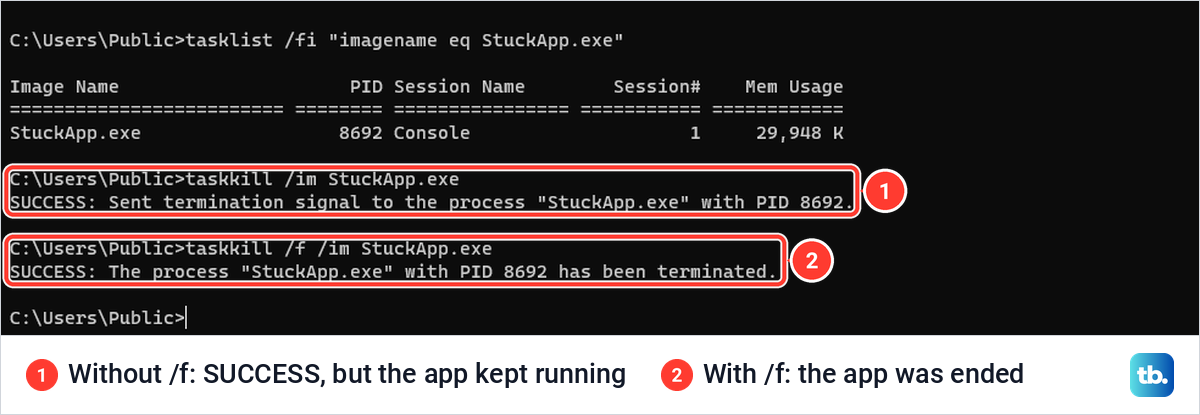
Without /f, taskkill only asks the app to close. On a working Notepad with two windows open, each run closed one window quietly, so it took two runs to close Notepad, and its unsaved lines were still there afterwards. You do not need an administrator Command Prompt for your own apps, since ours was an ordinary one and /f still ended the frozen app.
PowerShell can do the same job. Open Windows Terminal with a Windows PowerShell tab, run Get-Process to find the app's name, then run Stop-Process with that name, as below. It ended our frozen test app with no confirmation and no administrator rights, and Microsoft says Run as administrator is needed only to stop a process that another user owns.
Stop-Process -Name notepadClose every frozen app at once
If several apps hang together, one command ends every app Windows marks as not responding. Check what it will hit first with this tasklist line, typing the quotes as plain straight quotes.
tasklist /fi "status eq not responding"Then run taskkill with the same filter. It ends everything on that list that it is allowed to end.
taskkill /f /fi "status eq not responding"The quotes matter. When we pasted the command with curly quotes, taskkill stopped with "ERROR: Invalid argument/option - 'eq'". The same error appeared with no quotes at all, and with straight quotes it ended both frozen copies of our test app while Notepad and Paint kept running.
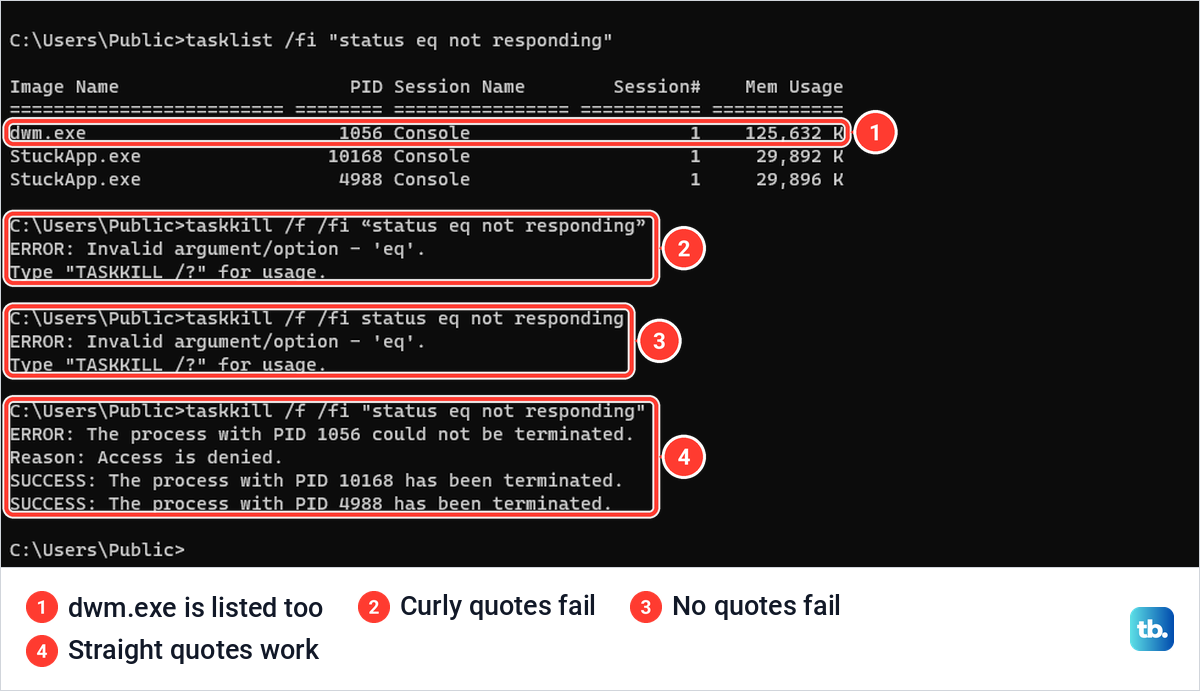
The list held one surprise. Along with the frozen apps, tasklist named dwm.exe, the Desktop Window Manager that Microsoft says draws the stand-in copy of a hung window, and taskkill tried to end it too before Windows refused with "Access is denied". Run the command from an ordinary Command Prompt, as we did, and leave dwm.exe alone if you end processes one at a time.
When a frozen full-screen window hides Task Manager
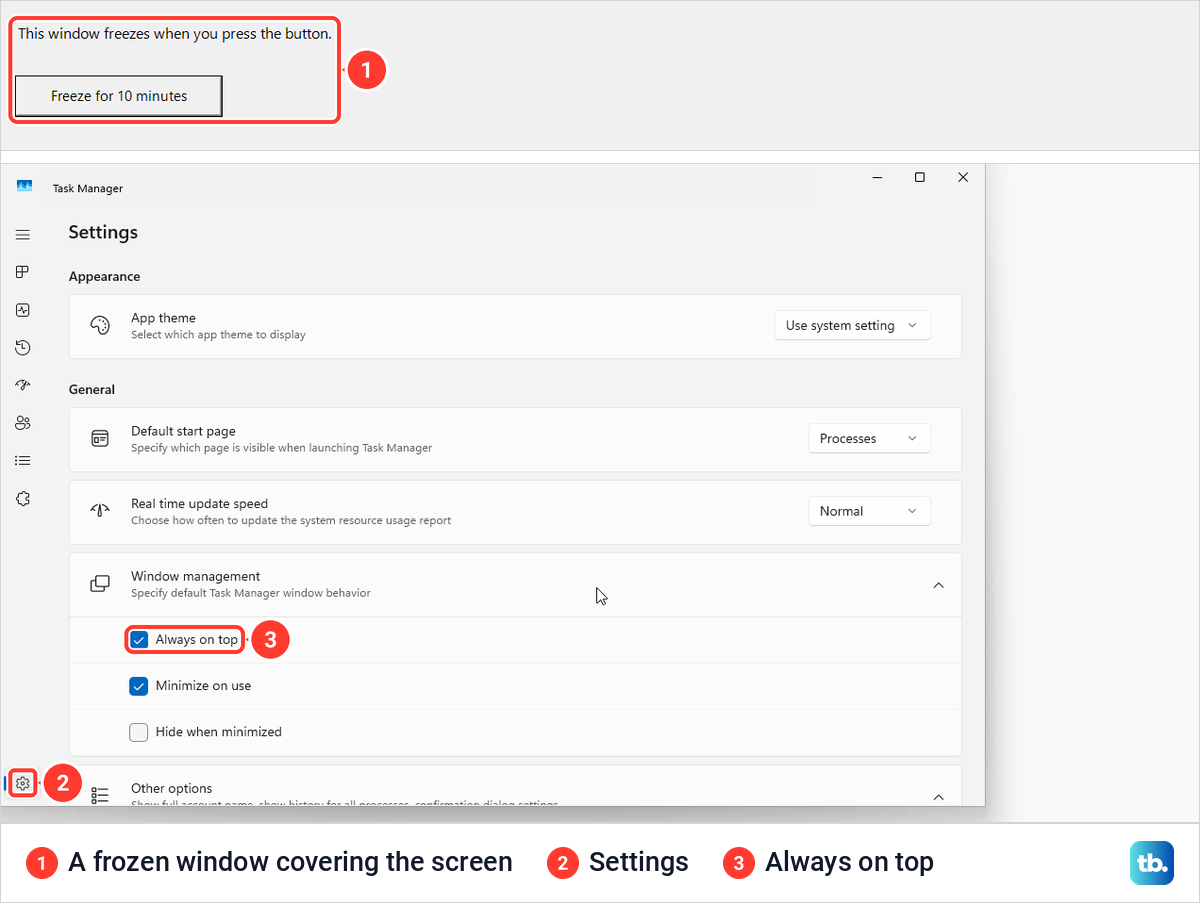
A frozen window that fills the whole screen can hide Task Manager. We froze a window covering the entire screen and pressed Ctrl + Shift + Esc. Task Manager stayed hidden behind it, and only Windows' not responding box came up.
The fix that worked is a Task Manager setting, and it is best turned on before you need it. Open Task Manager, select Settings at the bottom left, and under Window management tick Always on top, which was off on our PC. After that, Ctrl + Shift + Esc brought Task Manager up above the frozen full-screen window, ready for End task.
A second desktop can help too, with one catch. Press Windows + Ctrl + D to create a new desktop, then press Ctrl + Shift + Esc there. That showed Task Manager on the new desktop only when it was not already running, and when it was, the shortcut jumped straight back to the first desktop with Task Manager still hidden.
When Task Manager will not end the app
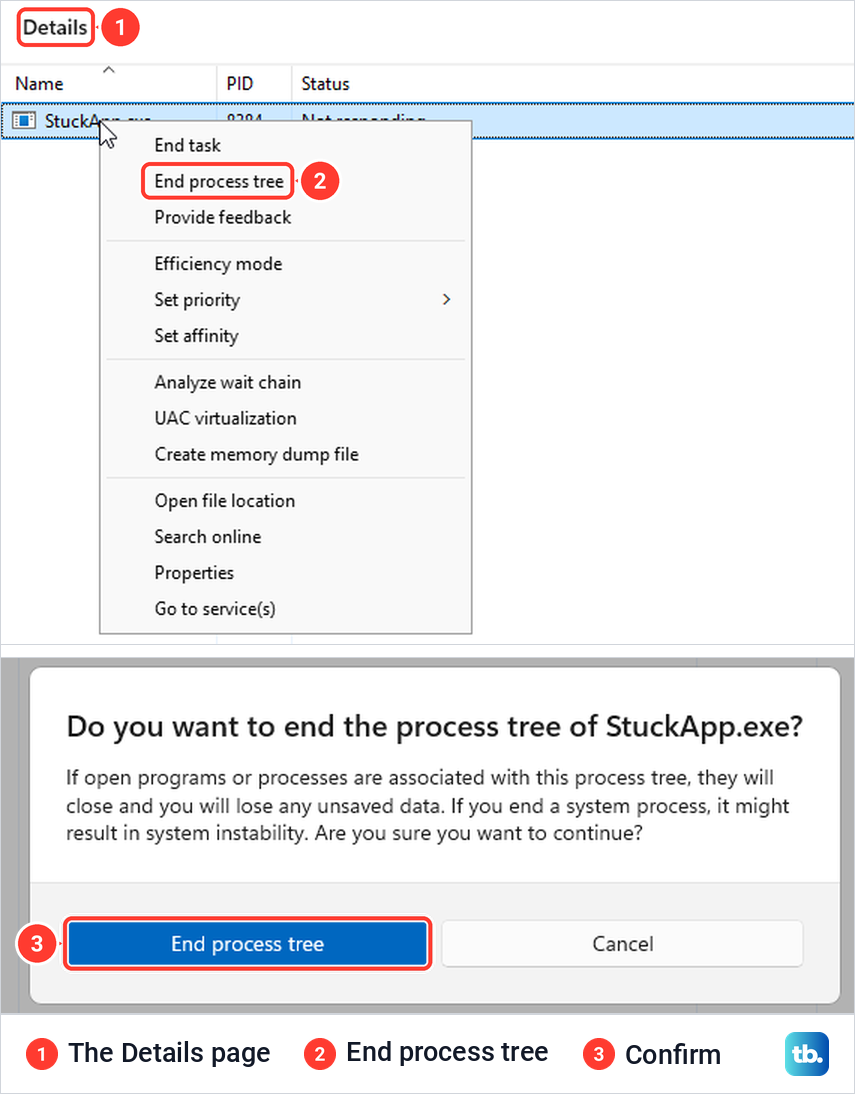
If End task does not end an app, the Details page has a stronger option. Right-click the app on the Processes page and choose Go to details, which opened the Details page with the app's file selected on our PC. Details showed our frozen app's status as Not responding, which the Processes page never did.
Right-click the file there and choose End process tree. Windows warns that open programs tied to that process will close and you will lose any unsaved data, then asks you to confirm with a second End process tree button. On our PC that ended the frozen app.
The command line version is taskkill with both /f and /t, which Microsoft says also ends the child processes an app started. If you see "Access is denied", Microsoft says stopping a process that another user owns needs an administrator, and Windows refused our command the same way on one of its own processes, so leave Windows' own processes alone.
If one app freezes again and again, the app itself is the likely problem. Update it, or uninstall the program and install a fresh copy. If many apps hang every day, look at the PC instead, starting with our guide for when Windows 11 keeps freezing.
If the taskbar or the whole PC is frozen
When the taskbar, Start menu or desktop stops responding, restart Windows Explorer instead of the PC. Open Task Manager, type explorer in its search box and select Windows Explorer. The End task button turns into Restart task, and right-clicking offers Restart instead of End task.
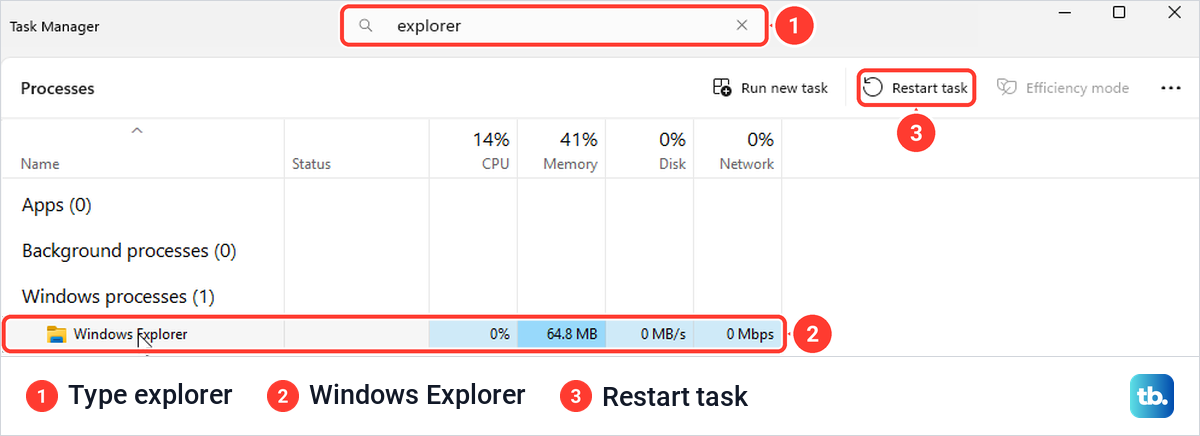
When we chose Restart, the taskbar vanished for a moment and was back within about four seconds. The apps we had open were still running afterwards, their taskbar buttons back in place. If the taskbar keeps failing, follow our fixes for a taskbar not working in Windows 11, or see what to do when Windows Explorer keeps crashing.
A black or blank screen has its own shortcut. Microsoft says Windows + Ctrl + Shift + B resets the graphics driver, and that you should hear a beep or see the screen flicker if it worked. Its blank screen advice also suggests Ctrl + Alt + Delete, then Task Manager and a Windows Explorer restart.
If nothing on screen responds at all, press Ctrl + Alt + Delete and choose Sign out, or restart the PC. Holding the power button until the PC turns off is the last resort. Our guide shows how to restart a computer that is not responding and lose as little as possible.
How we tested this guide
We tested this on Windows 11, version 25H2, closing an app we froze on purpose with Task Manager and PowerShell.
Frequently Asked Questions
What is the shortcut to force quit on Windows?
Press Ctrl + Shift + Esc to open Task Manager, select the frozen app and choose End task. Alt + F4 is the gentler shortcut, which asks the active app to close and lets it offer to save first.
Do I lose unsaved work when I force quit an app?
Usually, yes. End task, taskkill and Terminate closed apps on our PC without asking about saving, and Paint lost its drawing. Notepad brought its unsaved text back by default, because it keeps your session between launches.
Is Alt + F4 the same as force quit?
No. Alt + F4 asks the active app to close, so a working app such as Paint can ask you to save first, and a frozen app may not close, as on our PC, where Windows showed its not responding box instead. With no window selected, it opens the Shut Down Windows box instead.
How do I force quit without Task Manager?
On Windows 11, turn on End Task in Settings, then right-click the app on the taskbar and choose End task. You can also run taskkill /f /im with the app's file name in Command Prompt, or use Terminate under the app's Advanced options in Settings.
Why is End task missing when I right-click the taskbar?
The item stays hidden until you turn on End Task in Settings, which searching Settings for end task finds. Microsoft places the switch under System > Advanced on Windows 11, version 25H2, while on our PC it was still under System > For developers. A work or school PC can block the setting, and File Explorer never showed the item on our PC.
How do I close a frozen full-screen app?
Turn on Always on top in Task Manager's settings. With it ticked, Ctrl + Shift + Esc brought Task Manager above a frozen full-screen window on our PC. A new desktop made with Windows + Ctrl + D also worked for us, but only when Task Manager was not already open.
How do I close all programs that are not responding at once?
Run taskkill /f /fi "status eq not responding" in Command Prompt, typing straight quotes. On our PC it ended every frozen app and left working apps open, although it also tried to end dwm.exe and was refused.