Ctrl+C does nothing, or Windows+E refuses to open File Explorer. The right fix depends on whether shortcuts fail in one app, on particular keys, or everywhere. Start with a quick comparison, then follow the checks that match your symptoms.
Find out which shortcuts are failing
Start here whether one shortcut has stopped working or several have gone quiet. Some combinations, including Ctrl+Shift+V, work differently across apps.
Click inside the app you want to use. For Ctrl+C, select the text or item you want to copy before testing.
Try the same shortcut in another app that supports it. If it works there, focus on the original app using the app-specific checks below.
Press Windows+E to open File Explorer. Comparing this with an app shortcut helps establish whether the failure extends beyond one program.

Give Windows a fresh start
A restart is the first check for shortcuts that have stopped responding across apps. Save your open work. Right-click Start.
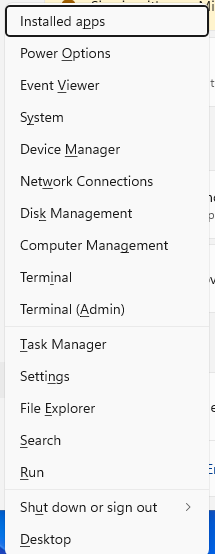
Select Shut down or sign out > Restart. Test the affected shortcut after Windows starts again.
Check the keyboard connection and keys
Inspect the keys for dirt or obstructions, especially Ctrl, Alt, Shift, and the Windows key. For a wireless keyboard, charge it or fit fresh batteries.
For a wired USB keyboard, unplug it. After a brief wait, reconnect it directly to the PC instead of through a USB hub. Try another USB port if the problem continues. Inspect the keyboard cable for damage.
For a keyboard with a USB wireless receiver, disconnect the receiver. Reconnect the receiver after about 10 seconds.
For a Bluetooth keyboard on Windows 11, open Settings > Bluetooth & devices. Switch Bluetooth off. Switch Bluetooth back on. Turn Airplane mode off if it is enabled.
If Bluetooth still fails to connect, select Start > Settings > System > Troubleshoot > Other troubleshooters > Bluetooth > Run. Follow the Get Help troubleshooting prompts.
Tip: Test an external keyboard on another PC; if it fails there too, pursue a hardware check for repair or replacement.
Adjust how Windows handles key combinations
If Windows ignores short or repeated keypresses, check Filter keys. On Windows 11, open Start > Settings > Accessibility > Keyboard. Turn Filter keys off if those inputs are being missed.
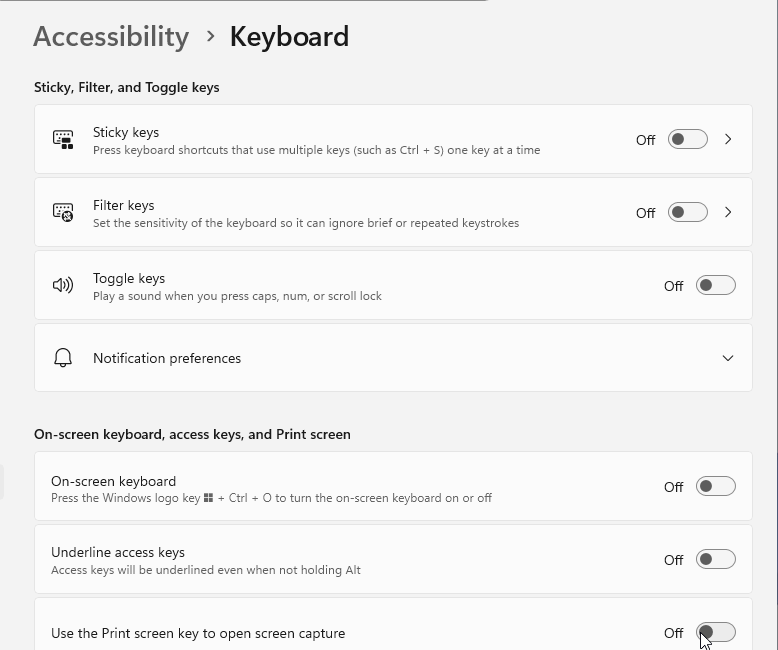
Check Sticky keys on the same page. Turn it off if it was enabled unintentionally, or keep it on if you need to enter a shortcut one key at a time.
If the numeric keypad moves the pointer, open Settings > Accessibility > Mouse. Turn Mouse keys off to restore numeric-keypad input.
If these settings do not help, enable On-Screen Keyboard under Settings > Accessibility > Keyboard. Use your mouse to select the modifier and other keys. This gives you an alternative input method while you investigate the physical keys.
Unlock Windows-key and function-key shortcuts
Check keyboard modes when Windows-key shortcuts fail or the top row performs hardware actions instead of F1 through F12 commands. Lock controls differ between models, so use the instructions for your keyboard.
On a compatible Logitech G keyboard, press the dedicated Game Mode button to turn that mode off. It blocks the Windows and Context Menu keys; G HUB also supports blocking additional keys.
On a supported ASUS gaming notebook, open Armoury Crate > System Configuration. Turn off Disable Win Key if it is enabled.
On a Surface keyboard or Type Cover, press Fn so its light is on; the top row then acts as F1 through F12, and pressing Fn again turns that off. On other Microsoft keyboards, holding Fn while pressing a top-row key gives the alternate command printed on top of the key, such as Undo or Redo, rather than F1 through F12.
On Microsoft models with F Lock, toggle it so its light is on for standard F1 through F12 behavior.
On a Dell Inspiron 15 5501, press Fn+Esc to switch between multimedia-first and function-key-first behavior. Use your model's manual for other Dell keyboards.
For Logitech POP Icon Keys, press Fn+Esc to switch function-row behavior. If POP Icon Keys has detected the wrong operating system, hold Fn+P for three seconds to select Windows/Android mode.
Correct the layout and shortcut remapping
A changed keyboard layout affects shortcuts involving punctuation or AltGr. Press Windows+Space to select your intended layout.
On Windows 11, manage layouts through Settings > Time & language > Language & region > your language's More options > Language options > Keyboards. Select Add a keyboard for the layout you need. To delete an unwanted layout, open its menu and select Remove.
If you use PowerToys, close it and retest the original shortcut to check for an unwanted remap. Alternatively, disable Keyboard Manager in PowerToys Settings before retesting.
If you want to use a PowerToys remap, keep PowerToys running with Keyboard Manager enabled. Disable and re-enable Keyboard Manager if the remap stops responding. If it fails only in an app running as administrator, run PowerToys as administrator too.
Focus on the app when shortcuts work elsewhere
For an affected Microsoft Store app, open Microsoft Store. Select Check for Updates. Install the available app updates. Reopen the affected app.
Test its shortcut. If the problem remains and the app offers repair controls, open Start > Settings > Apps > Installed apps > the app's More menu > Advanced options on Windows 11.
Select Repair. If repair is unavailable or unsuccessful, select Reset only if you accept losing app data and settings.
For a Chrome-only problem, open More > Extensions > Manage extensions. Turn off a suspected extension. Retest the shortcut to check whether that extension was interfering.
Tip: Check the web app's own shortcut settings too, since shortcuts disabled inside the app need to be enabled there.
Update or restore the keyboard driver
Driver troubleshooting targets device problems left unresolved by connection and settings checks. On Windows 11, open Start > Settings > Windows Update > Advanced options > Optional updates.
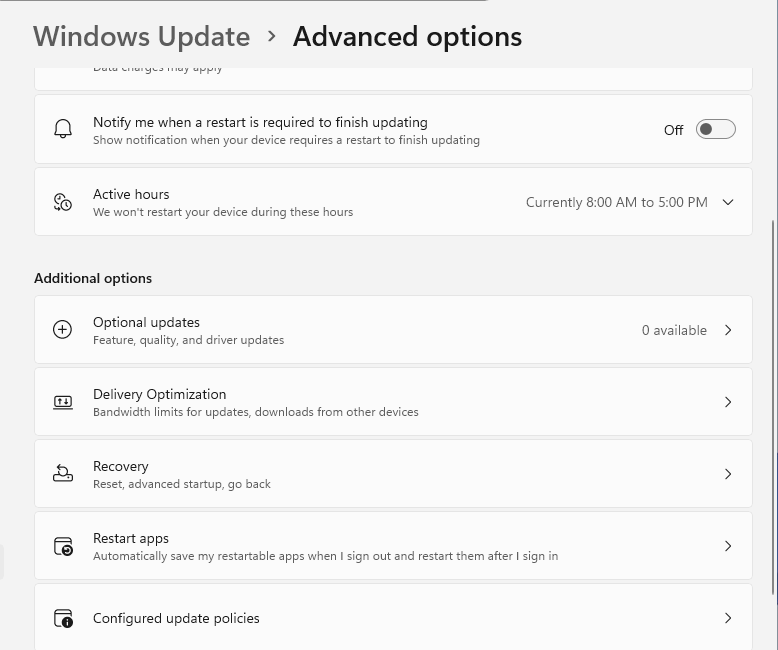
Select applicable keyboard, Bluetooth, or manufacturer driver updates. Click Download and install. Restart the PC after installation.
If the failure began immediately after a driver update, right-click Start. Open Device Manager. Open the affected keyboard's Properties under Keyboards.
Select Driver > Roll Back Driver. This requires administrator access and a retained previous driver; skip rollback if the control is unavailable.
Select the reason for rolling back. Confirm with Yes. Restart if prompted.
Repair Windows files after targeted fixes fail
Use system-file repair when you suspect Windows corruption after the keyboard and app checks fail. Install current Windows updates. Restart the PC before beginning.
Search for Command Prompt. Select Run as administrator. Approve the prompt with Yes.
Run DISM.exe /Online /Cleanup-image /Restorehealth and wait for it to finish successfully. Run sfc /scannow next and wait for completion.
Frequently Asked Questions
Why does Windows+V fail even though Ctrl+C works?
Clipboard history needs to be enabled separately. Press Windows+V and select Turn on if prompted. This enables history; it does not repair copying with Ctrl+C.
Why do shortcuts work on the desktop but not in Gmail?
Gmail has its own shortcut setting. Open Settings > See all settings. Under Keyboard shortcuts, select Keyboard shortcuts on, then select Save changes. Shortcut support also varies by language and keyboard.
What if shortcuts are blocked on a work or school PC?
Organization policies support restricting Windows-key shortcuts and other key combinations. Ask your administrator to check the restrictions on your managed PC.
Can I use a PowerToys remap on the Windows password screen?
No. PowerToys Keyboard Manager remaps do not operate on password screens. Windows+L and Ctrl+Alt+Delete also cannot be remapped.