Hidden folders disappear from normal view when Windows, macOS, Android, ChromeOS, or Linux marks them as hidden. You can show hidden folders from the file manager on each device, in most cases without installing anything.
Start with the device in front of you, reveal the folder, then turn the setting back off if you want a cleaner everyday file view. For system-level folders, use the extra Windows and Samsung steps only long enough to find what you need.
Show hidden folders in Windows File Explorer
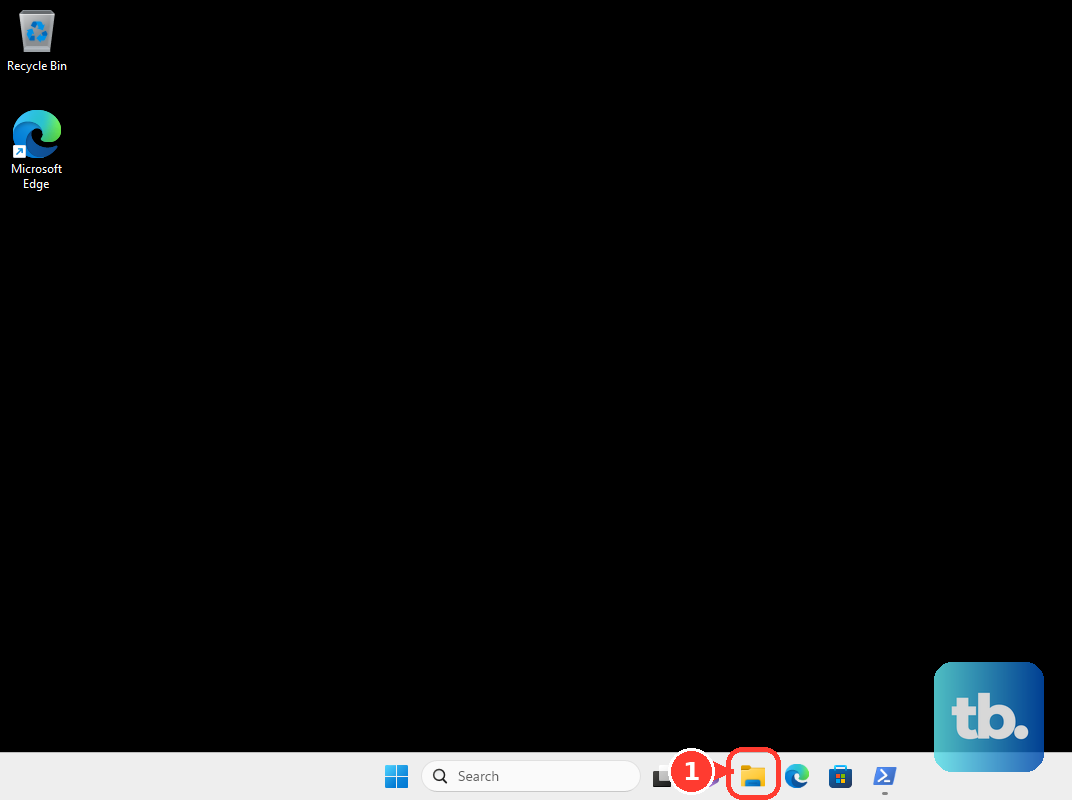
Open File Explorer from the taskbar and go to the folder you want to check. Select View, choose Show, then turn on Hidden items.
Windows displays hidden files and folders in that location right away. Use View > Show > Hidden items again when you want to hide them from normal view.
Skip old Windows 10 ribbon paths. Microsoft ended Windows 10 support on October 14, 2025, so use the Windows 11 command bar path above or the current File Explorer Options method instead.
Open File Explorer Options instead
Open File Explorer, select See more (the three dots on the command bar), then choose Options. Open the View tab and look under Advanced settings.
Choose Show hidden files, folders, and drives, then select OK. This uses the classic options dialog instead of the command bar toggle.
If this method fails, right-click Start, open Settings, go to System > Advanced > File Explorer, and turn Show hidden and system files on. That page is called Advanced on Windows 11 version 25H2 and later. On earlier Windows 11 releases the same toggles sit under System > For developers.
Fix Windows folders that still stay hidden
The most common cause is that the item is a protected operating system file, not a regular hidden folder.
Open a Windows path that leads to File Explorer Options, then open the View tab and look under Advanced settings. Turn on Show hidden files, folders, and drives.
Clear Hide protected operating system files (Recommended) and confirm the warning. Turn that setting back on when you are finished, because Microsoft labels it as recommended for normal use.
To make a folder stop being hidden, right-click it in File Explorer, choose Properties, open the General tab, clear Hidden, and select OK.
Reveal hidden folders on a Mac
Use Finder when you only need to see hidden folders briefly:
- 1.Open Finder.
- 2.Go to the folder where the hidden item should be.
- 3.Press Command + Shift + Period.
- 4.Check the files and folders that appear in the window.
- 5.Press Command + Shift + Period again to hide them.
Find hidden folders on Android and Samsung phones
Files by Google ships on Pixel phones and many other Android devices, but not all of them. If it is on your phone, open it, open Menu, choose Settings, and turn on Show hidden files. Return to your folder view and check the location again. If it is not there, use the file manager your phone maker installed, such as Samsung My Files below, or get Files by Google from the Play Store.
On a Samsung Galaxy phone or tablet, open My Files, tap More options, choose Settings, and turn on Show hidden system files.
Samsung Gallery handles hidden albums separately. Open Gallery, go to Albums, tap More options, choose Hide albums, and turn off the switch next to any album you want to show.
When photos are missing because a folder contains .nomedia, turn on Show hidden system files in My Files, go back to the image folder, touch and hold .nomedia, and choose Delete.
Make hidden folders visible on a Chromebook
Open the Files app.
Go to the folder where the hidden folder should be stored.
Open the three-dot menu in the top-right corner and choose Show hidden files.
For Android app folders on a Chromebook with Google Play support, open the same three-dot menu and choose Show all Play folders.
Use Show all Play folders with Show hidden files for Android app folders, while some app locations remain blocked by ChromeOS and Android storage rules.
Turn the hidden-files setting off from the same menu when you are done.
Unhide Linux folders that start with a period
The most common cause on Linux is the folder name itself: files and folders that begin with a period are treated as hidden.
In GNOME Files, open the folder, open the menu button in the sidebar of the window, and choose Show Hidden Files. Press Ctrl + H to toggle hidden files on and off from the keyboard.
GNOME shows hidden files only until the file manager is closed by default. To unhide a dot-prefixed item, turn on Show Hidden Files, rename the item, and remove the period from the start of its name.
In KDE Dolphin, open View and choose Show Hidden Files. You can also press Alt + Period, or use Ctrl + H as the alternate shortcut.
Handle school or work devices
This applies when the computer is managed by an employer, school, or organization. On managed Windows PCs, an administrator can control Explorer folder options, including whether hidden files and protected operating system files are shown.
Try the normal Windows steps first. If the setting changes back, is disabled, or still does not reveal the folders you need, contact the device administrator instead of changing policy tools yourself.
Frequently Asked Questions
Why can't I see AppData on Windows?
AppData is commonly hidden from the normal File Explorer view. Turn on Hidden items in File Explorer, or open File Explorer Options and choose Show hidden files, folders, and drives.
Is it safe to show hidden folders?
Showing regular hidden folders is fine for browsing. Protected operating system files need more care, so turn Hide protected operating system files (Recommended) back on after you finish.
How do I hide the folders again?
Use the same toggle you used to show them. In Windows 11, go to View > Show > Hidden items again. On Mac, press Command + Shift + Period again.
How do I permanently unhide a folder?
On Windows, right-click the folder, open Properties, clear Hidden on the General tab, and select OK. On GNOME Linux, rename a dot-prefixed folder so it no longer starts with a period.