Norton removal usually comes down to two jobs: uninstalling the app from the device and cleaning up the account or renewal tied to it. Start with the path for your device, restart when Norton asks, then handle licenses and billing separately so the software does not come back as a subscription surprise.
1. Remove Norton 360 from Windows
Close Norton 360 if it is open. Press Windows + R, type appwiz.cpl, then press Enter. In the installed programs list, click Norton 360. Click Remove or Uninstall.
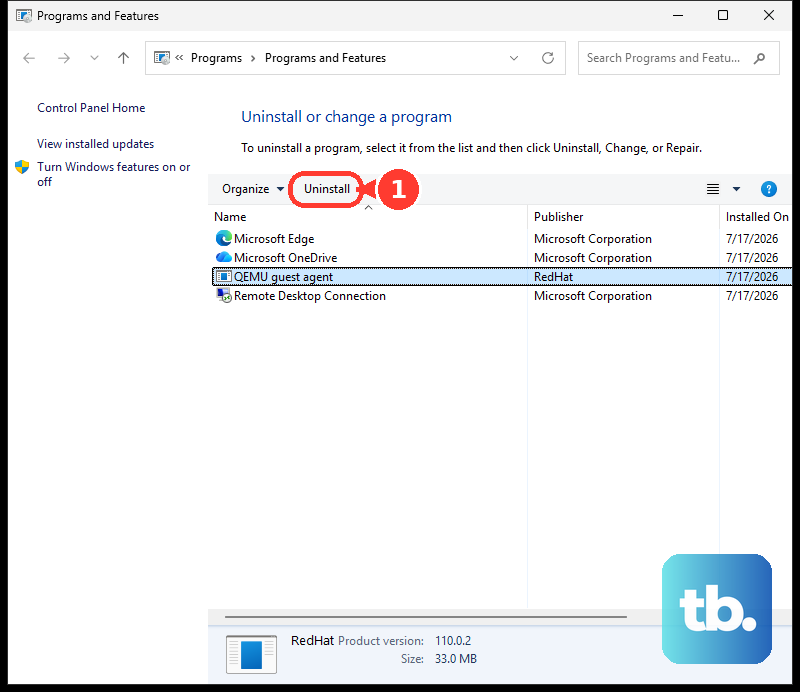
Next, click Yes, then click Next. When removal finishes, close open programs and restart the computer. Tip: If Norton appears in Windows Settings, use Start > Settings > Apps > Installed apps > More > Uninstall.
2. Run Norton 360 Remover when Windows uninstall fails
Open the Norton support page for the Norton 360 Remover tool. Click the download option for Norton 360 Remover. If you need to open your browser downloads, press Ctrl + J. Double-click Norton_360_remover.
Click Remove. After that, click Uninstall. Click Restart Now.
3. Reinstall Norton cleanly instead of only removing it
Download the Norton 360 Remover tool. Press Ctrl + J, then double-click Norton_360_remover. Click Reinstall, then click Uninstall. Click Restart Now.
After the restart, click Install Norton 360, or the app name shown for your subscription. Click Sign in. Tip: If the Norton 360 Remover tool shows an error, click Reboot to restart Windows in Safe Mode, then run Remove or Reinstall again.
4. Uninstall Norton on a Mac
Close Norton. Then use Go > Applications > Norton Uninstaller. Click Continue, enter your Mac administrator password, and click Install Helper. Wait for the uninstaller to finish.
Enter the administrator password again. Then click OK and Finish. Norton also shows a Continue option for a survey after removal.
5. Delete Norton from iPhone iPad or Android
On Android, tap and hold the Norton 360 app icon on the Home screen. Move it to Uninstall at the top, then tap Ok in the confirmation alert. On iPhone or iPad, tap and hold the Norton 360 app icon on the Home Screen until it jiggles. Tap the Remove icon in the upper-left corner of the app icon.
Then tap Delete App. Tap Delete to confirm, then tap Done. Tip: On Android, Google Play also removes Norton through Google Play Store > Profile icon > Manage apps & devices > Manage > Norton > Uninstall.
6. Free a Norton license from your account
What this fixes: it deactivates Norton services on an unused device, but it does not uninstall the app from that device. Sign in to your Norton account. Hover over My Account, then click My Subscriptions. Find your plan and click Manage Devices.
Choose the unused device. Click the bin icon. Finally, click Remove.
7. Stop Norton from renewing after removal
Sign in to your Norton account. Open the My Subscriptions tab, then find the subscription you want to stop. Click Cancel Subscription Renewal or Manage Renewal. Under Plan Renewal, click Unsubscribe.
Select a reason and click Next. Click No thanks, cancel my subscription. Click Next. Tip: Uninstalling Norton does not cancel a subscription bought through an app store, so cancel app-store-billed plans in the Apple App Store, Google Play Store, or Microsoft Store subscription settings.
8. Remove other Norton apps and extensions
For Norton VPN on Windows, press Windows + R. Type appwiz.cpl, then press Enter. Click Norton VPN. Then click Uninstall/Change and follow the on-screen instructions.
For Norton VPN on Mac, open Finder > Applications. Right-click Norton VPN. Then click Move to Trash or Move to Bin. For Norton Private Browser on Windows, press Windows + R.
Type appwiz.cpl, then press Enter. Select Norton Private Browser. Click Remove or Uninstall. Then click Uninstall in the Norton Private Browser window.
For Norton Password Manager in Chrome, open the three-dot menu. Click Extensions > Manage Extensions. Find Norton Password Manager. Then click Remove and Remove again.
For Norton Password Manager in Edge, open the three-dot menu. Click Extensions > Manage extensions. Locate Norton Password Manager. Then click Remove.
For Norton Password Manager in Firefox, open the menu button. Click Extensions and themes > Extensions. Find Norton Password Manager, then open its three-dot menu. Then click Remove and Remove again.
9. Know which removal tool your Norton version uses
Check your version first with Help > About or Settings > About in the app.
For Norton version 24.xx, the latest Windows device security app, Norton points to the Norton 360 Remover tool, so use that when the standard Windows uninstall fails.
For Norton version 22.xx, or when a Norton support page sends you there for a specific problem, use the Norton Remove and Reinstall tool and its Advanced Options > Remove Only path instead.
Frequently Asked Questions
Does removing a device from my Norton account uninstall Norton?
No. Norton says device removal deactivates services on that device, but it does not uninstall the local app.
Does uninstalling Norton cancel my subscription?
No. Cancel renewal in your Norton account, or use the Apple App Store, Google Play Store, or Microsoft Store subscription settings if that is where you bought it.
Can I turn Norton off without uninstalling it?
Yes. On Windows, right-click the Norton product icon in the notification area and use Disable Auto-Protect or Disable Firewall. On Mac, open Norton and turn off Smart Firewall for a selected duration.
What should I do if the Norton 360 Remover tool fails?
Click Reboot in the tool to restart Windows in Safe Mode, then run Remove or Reinstall again.