

To fix your MacBook time not updating, connect to the internet and turn on Set time and date automatically in System Settings > General > Date & Time. Check the time zone separately because clock synchronization and location-based time zone selection use different settings. If those settings are correct, restart your MacBook or set the time manually while you troubleshoot the connection.
The short version
- Automatic time: Connect to the internet and enable Set time and date automatically.
- Time zone: Enable automatic time zone selection and allow its location permissions.
- Network check: Try another trusted connection if the clock still will not synchronize.
- Manual fallback: Set the date, time, and time zone yourself when automatic settings remain incorrect.
| Fix | When to use it |
|---|---|
| Connect to Wi-Fi | Your MacBook has no internet access |
| Enable automatic date and time | The system date or time is incorrect |
| Correct the time server | Automatic time remains incorrect |
| Enable automatic time zone selection | Local time or daylight saving adjustment is wrong |
| Allow location permissions | Automatic time zone detection cannot use your location |
| Select a city manually | Location detection chooses the wrong zone |
| Set date and time manually | You need to correct values while automatic settings fail |
| Restart normally | The clock remains wrong after correcting settings |
| Use the physical power button | The interface is unresponsive |
| Install macOS updates | The problem persists after a restart |
| Try another trusted Wi-Fi network | Synchronization fails on your usual connection |
| Try Personal Hotspot | You have a supported iPhone or cellular iPad plan |
| Try Ethernet | You have a compatible adapter and wired connection |
| Renew the DHCP lease | A DHCP connection has connectivity problems |
| Disconnect the VPN temporarily | The VPN may interfere with time-server access |
| Disable interfering filtering features | Security or content-filtering software may block traffic |
| Uninstall an identified interfering app | You have traced the problem to that app |
| Adjust clock appearance on macOS 26 or 27 | The menu bar date is missing or seconds are hidden |
| Adjust clock appearance on macOS 15 | You need the Sequoia clock controls |
| Change the hour format | You want a different 12-hour or 24-hour display |
| Correct a widget's city | Only a City or World Clock widget is wrong |
| Use safe mode on Apple silicon | You suspect software loaded at startup |
| Use safe mode on Intel | You need the Intel startup procedure |
| Remove problematic login items | Startup software appears responsible |
| Reset NVRAM on Intel | A stored time zone setting malfunctions |
Enable automatic date and time
Click Wi-Fi in the menu bar and choose your network. Enter its password or accept its terms when requested. Your MacBook needs internet access to synchronize with a network time server.
Open the Apple menu > System Settings > General > Date & Time, then make sure Set time and date automatically is turned on.
If the date or time remains incorrect, check the server in the same panel. With automatic time enabled, click Set for the network time server and enter time.apple.com. On macOS Tahoe 26 and Golden Gate 27, click Done to confirm the server. On an organization-managed MacBook, your administrator may require a different reachable server.
These paths apply to macOS Golden Gate 27, Tahoe 26, and Sequoia 15. Use System Settings on these versions rather than looking for the older System Preferences controls.
Correct the time zone and location permissions
If your local time or daylight saving adjustment is wrong, check the time zone. Open System Settings > General > Date & Time and turn on Set time zone automatically using your current location. You also need to allow location access.
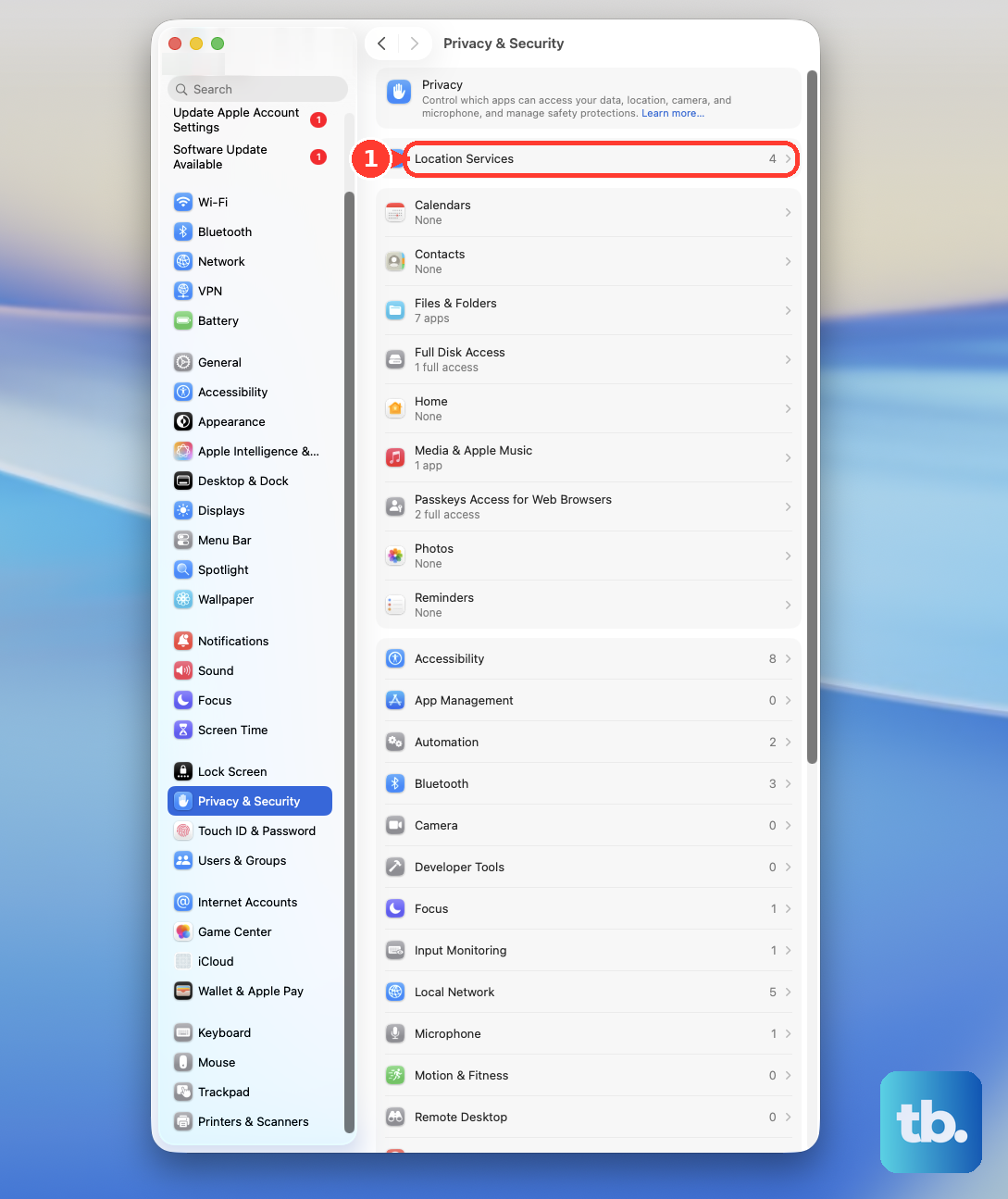
Go to System Settings > Privacy & Security > Location Services and turn on Location Services. Scroll to System Services, click Details, and enable the permissions for time zone and system customization. Return to Date & Time to check the selected zone.
If location detection keeps choosing the wrong zone, turn off Set time zone automatically using your current location. Enter a city in Closest city, then press Return. You can keep automatic date and time enabled while choosing your time zone manually.
Set the date and time manually
Apple recommends manual settings when automatic settings continue to produce incorrect values. Open System Settings > General > Date & Time and turn off Set time and date automatically. Click Set beside the date and time, enter the correct values, then click Set again.
Check the year along with the month, day, and time before saving. Correct the time zone separately using Closest city if automatic location detection is also wrong. Turn automatic date and time back on when you are ready to retry network synchronization.
Restart your MacBook and install updates
After correcting synchronization and location settings, choose the Apple menu > Restart, then click Restart in the confirmation dialog. Once your MacBook starts again, check its date, time, and time zone.
If the interface is unresponsive, you can restart a frozen MacBook with its physical power button. Hold it until the Mac shuts down, then press it to start again; on a MacBook with Touch ID, that is the power button. A forced shutdown can lose unsaved changes, so use it only when normal restarting is unavailable.
Back up your Mac before installing an available macOS update. Open System Settings > General > Software Update, then use the offered update, upgrade, or restart button to install a compatible update. Updating can address software problems, but it does not guarantee a clock synchronization fix.
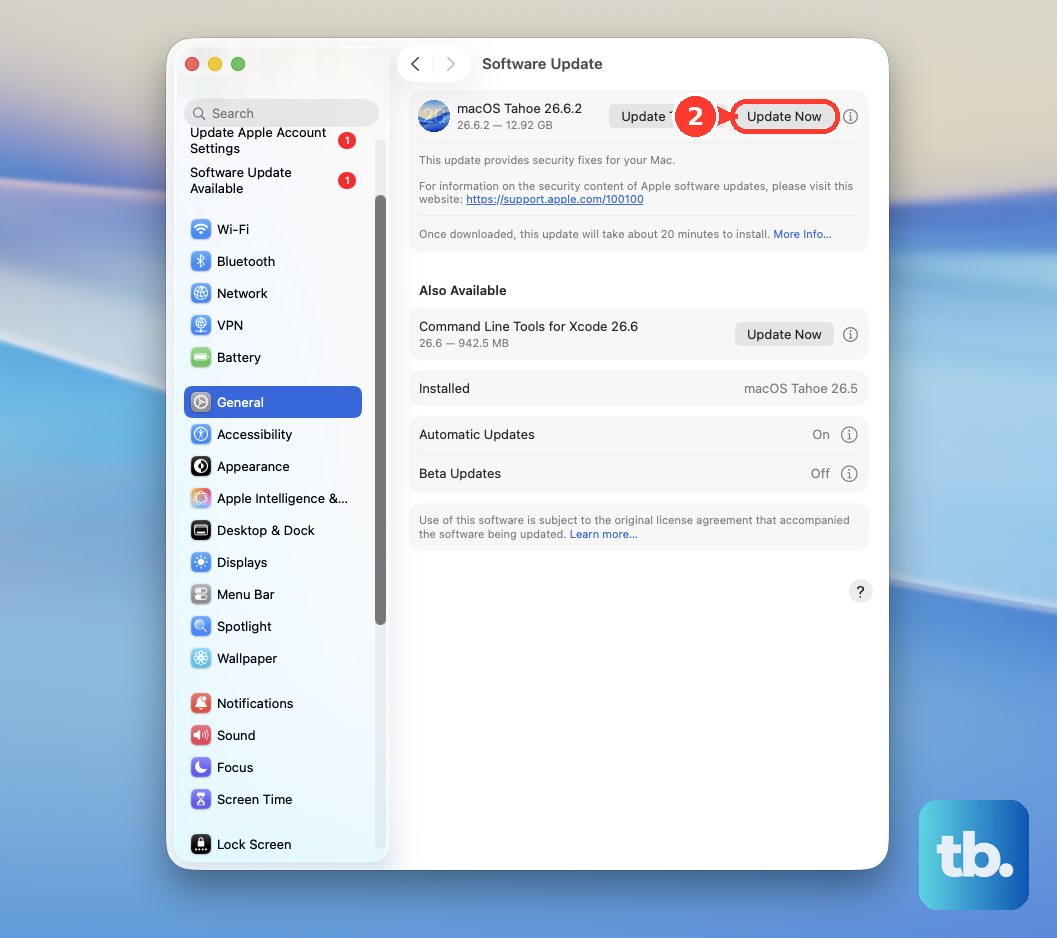
If no update appears, click Check for Updates or press Command + R to refresh the panel. You can also close and reopen Software Update. Continue with the connection checks if the clock remains wrong after restarting or updating.
Try another internet connection
Click Wi-Fi in the menu bar, choose another trusted network, and complete its password or sign-in requirements. Return to Date & Time and retry automatic time. If synchronization works on the alternate connection, focus further troubleshooting on your original network.
You can also try an iPhone or cellular iPad hotspot if its carrier plan supports Personal Hotspot. On that device, open Settings > Personal Hotspot and turn on Allow Others to Join; the alternative path is Settings > Cellular > Personal Hotspot. On your MacBook, click Wi-Fi, choose the device's name, and enter the hotspot password.
For a wired connection, connect an Ethernet cable from your router or modem to a compatible USB-C or Thunderbolt Ethernet adapter attached to your MacBook. Once your MacBook is online, retry automatic date and time.
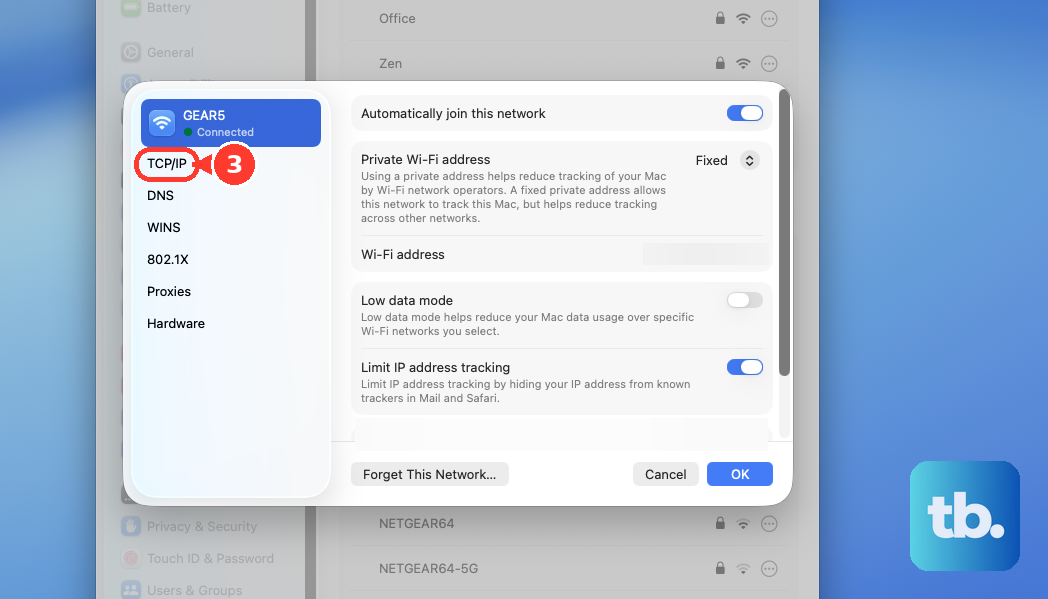
If connectivity is failing on a network using DHCP, open System Settings > Network, select the affected service, and click Details. Choose TCP/IP > Renew DHCP Lease, then click OK. Renewing the lease addresses connectivity, so retry automatic time after internet access returns.
Check VPN and network filtering apps
A VPN can interfere with time-server access, though using one does not necessarily cause synchronization problems. Open System Settings > VPN, temporarily turn off the connected service, and retry automatic time. For a VPN controlled through its own app, disconnect within that app. Ask your administrator to handle an organization-required connection.
Check any firewall, antivirus, parental-control, or content-blocking apps that interact with your network connection. Find the relevant app in Finder > Applications, open it, and temporarily turn off its network-interacting features. Restart after changing those settings, then check the clock again; the available controls depend on the app.
If you identify an app that causes the problem, quit it before removing it. If necessary, force quit the frozen app before continuing. Use the vendor's uninstaller or built-in removal feature when available, especially for VPN or security software, because it can remove associated extensions and login items.
For an app without an uninstaller or built-in removal feature, you can uninstall an app from your Mac through Finder. Choose Go > Applications, select the app, and choose File > Move to Trash, authenticating when requested. Use Finder > Empty Trash to permanently remove it.
Fix a clock that only looks incorrect
If your system time is correct but the menu bar date is missing or seconds are hidden, adjust the clock's appearance. On macOS Tahoe 26 and Golden Gate 27, open System Settings > Menu Bar > Menu Bar Controls > Clock Options. Set Show date to Always, or choose a digital Style and enable Display the time with seconds to see second-by-second movement.
On macOS Sequoia 15, open System Settings > Control Center > Menu Bar Only > Clock Options. Set Show date to Always or enable Display the time with seconds as needed. These controls change the display rather than synchronize the clock.
For a different 12-hour or 24-hour display, open System Settings > General > Date & Time. Change 24-hour time to your preferred setting; this changes the format rather than the underlying time.
If only a City or World Clock widget shows the wrong time, hold Control and click the widget on your desktop or in Notification Center. Choose Edit “Clock”, click its city name, select the intended location, and click Done. Choose another city in the same time zone if yours is absent.
Isolate a persistent clock problem
Use safe mode to check for interference from software loaded at startup. On an Apple silicon MacBook, choose the Apple menu > Shut Down, then hold the power button until Loading startup options appears. Select your startup volume, hold Shift, and click Continue in Safe Mode. Check the date and time, then restart normally.
On an Intel MacBook, turn it on or restart it and immediately hold Shift until the login window appears. Log in, completing a second login if requested, and check for Safe Boot. Check the date and time in safe mode, then restart normally to leave it.
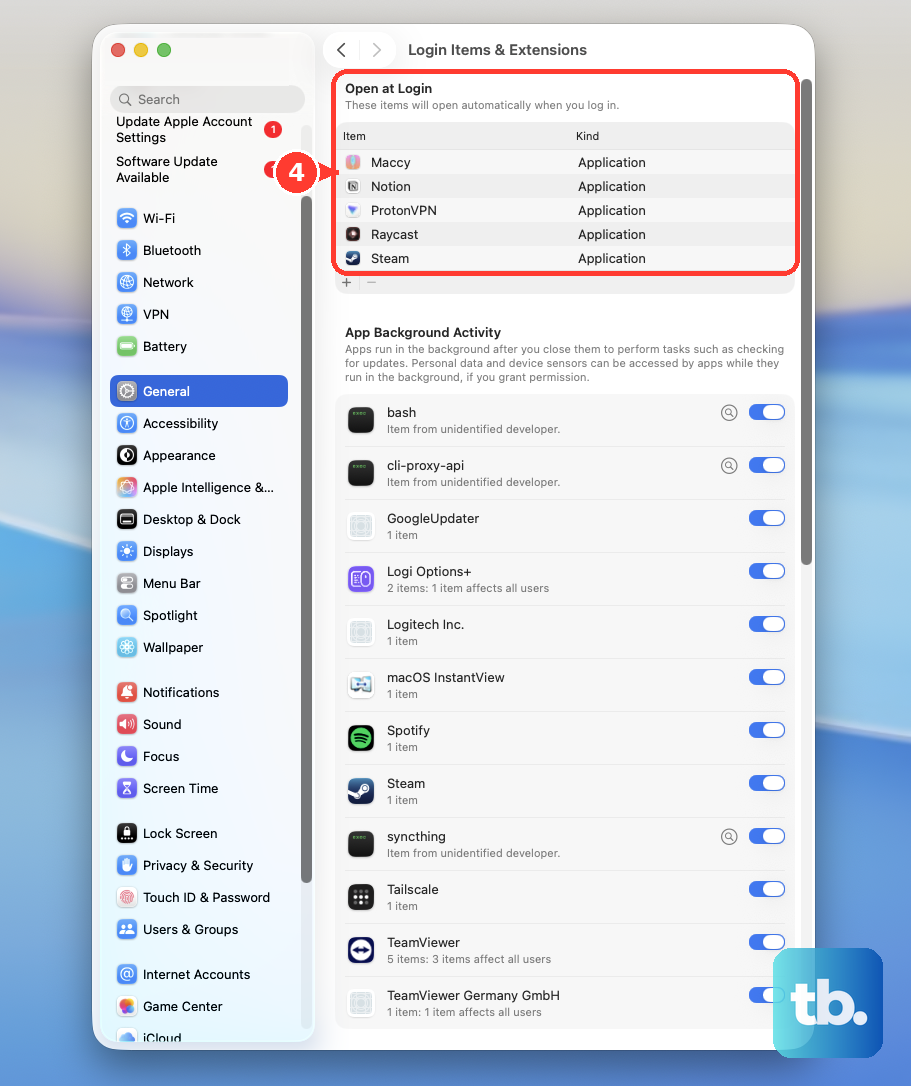
If startup software appears responsible, open System Settings > General > Login Items & Extensions. Record the Open at Login list, select its items, click Remove, and restart. If the problem disappears, add the items back individually and restart after each to identify the cause.
On an Intel MacBook, you can reset NVRAM if a stored time zone setting malfunctions. Shut down, turn it on, and immediately hold Option + Command + P + R together for approximately 20 seconds, then release them. Recheck any reset settings after startup. Apple says this keyboard reset does not apply to Apple silicon Macs.
Frequently Asked Questions
Why can websites load while my MacBook still cannot update its time?
Your network can allow browsing while blocking time synchronization traffic. Ask your network administrator to permit NTP over UDP port 123 to time.apple.com and time-macos.apple.com. On a home router, use its manufacturer's configuration webpage or app to check filtering; the controls vary by router.
Why are Calendar events wrong when my MacBook clock is correct?
You may need to correct Calendar's separate time zone settings. Open Calendar > Settings > Advanced, enable Turn on time zone support, and choose the intended zone from the menu to the left of the search field, using Other if needed. For one incorrect event, double-click it, click its date, and change Time Zone to the correct zone or Other. Choose Floating only if the event should retain its displayed time across zones.
Does a dimmed menu bar clock mean it has stopped updating?
A dimmed clock can represent Focus status on macOS Tahoe 26 and Golden Gate 27. Open System Settings > Menu Bar, select Focus, and choose Always Show or Show When Active. Showing the Focus indicator prevents its status from being represented by a dimmed clock.
Should you reset the SMC to fix the clock?
You should not treat an SMC reset as a general date-and-time repair. Apple uses it for conditional troubleshooting on Intel MacBooks with abnormal power, charging, or lid behavior. On Apple silicon, use an ordinary restart or shutdown and startup while connected to power instead.
What should you do if the clock problem returns with other hardware symptoms?
Use Apple Diagnostics to investigate hardware, beginning with a shutdown and disconnecting unnecessary peripherals while leaving power connected. On Apple silicon, hold the power button until Options appears, then hold Command + D until restart. On Intel, start while holding D, or try Option + D if necessary. Follow the diagnostic instructions, select a diagnostic if prompted, and retain any reference code for service.
Is reinstalling macOS a reasonable last step?
You can reinstall macOS for persistent software problems, but Apple does not promise that it fixes clock synchronization. Back up first; on Apple silicon, shut down, hold the power button to reach startup options, then choose Options > Continue, or on Intel, start while holding Command + R. In Recovery, select the install or reinstall macOS option, click Continue, and follow the instructions. A normal reinstall can preserve apps and personal data, so do not erase the disk merely to reinstall.