Malware often shows up as pop-ups, strange browser behavior, repeated security alerts, or apps you do not remember installing. Start with the tools already built into Windows, macOS, ChromeOS, and your browser, then use a second-opinion scanner when the symptoms keep coming back. Here is the current path to check your computer without relying on outdated cleanup buttons.
1. Start with a quick Windows malware scan
This finds the obvious threats first. One thing to check before you start: these Microsoft Defender steps assume Microsoft Defender Antivirus is the scanner running the show. Microsoft says Defender automatically turns itself off when you install a compatible non-Microsoft antivirus program, so if you have Norton, McAfee, or similar installed, use that provider's own scan controls instead.
Open Start.
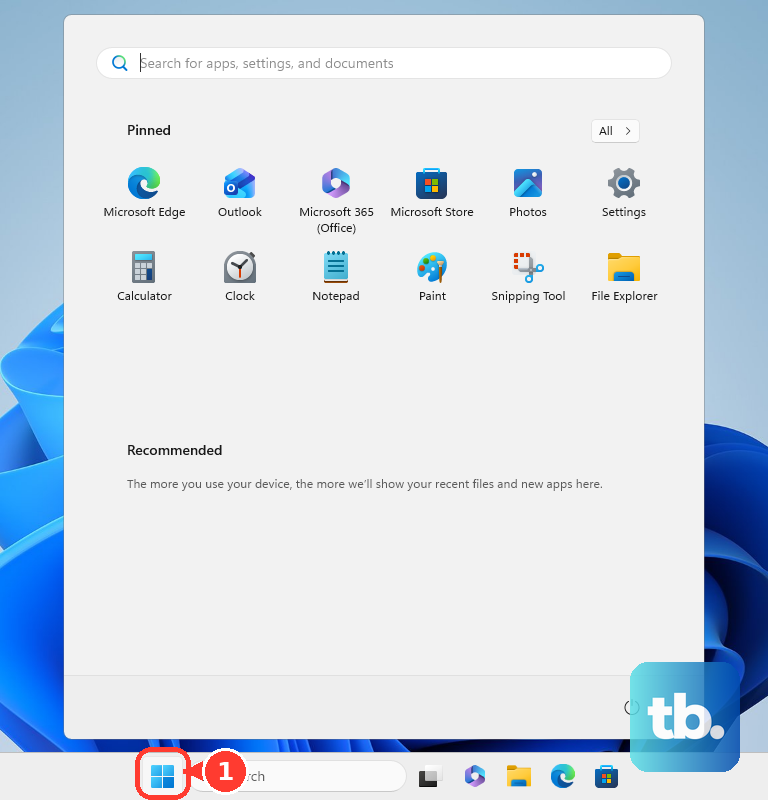
Go to Settings > Privacy & security > Windows Security on Windows 11, or Settings > Update & Security > Windows Security on Windows 10.
Select Virus & threat protection.
Choose Quick scan.
After the scan finishes, follow the action Windows Security recommends for anything it finds.
2. Dig deeper with a full Windows scan
A quick scan is the right first pass, but recurring pop-ups, repeated alerts, or a computer that still behaves strangely need a deeper check. Open Windows Security > Virus & threat protection > Scan options > Full scan > Scan now. A full scan takes longer because it checks more of the computer, so run it when you can leave the PC alone for a while.
3. Inspect one suspicious file or folder
Open File Explorer.
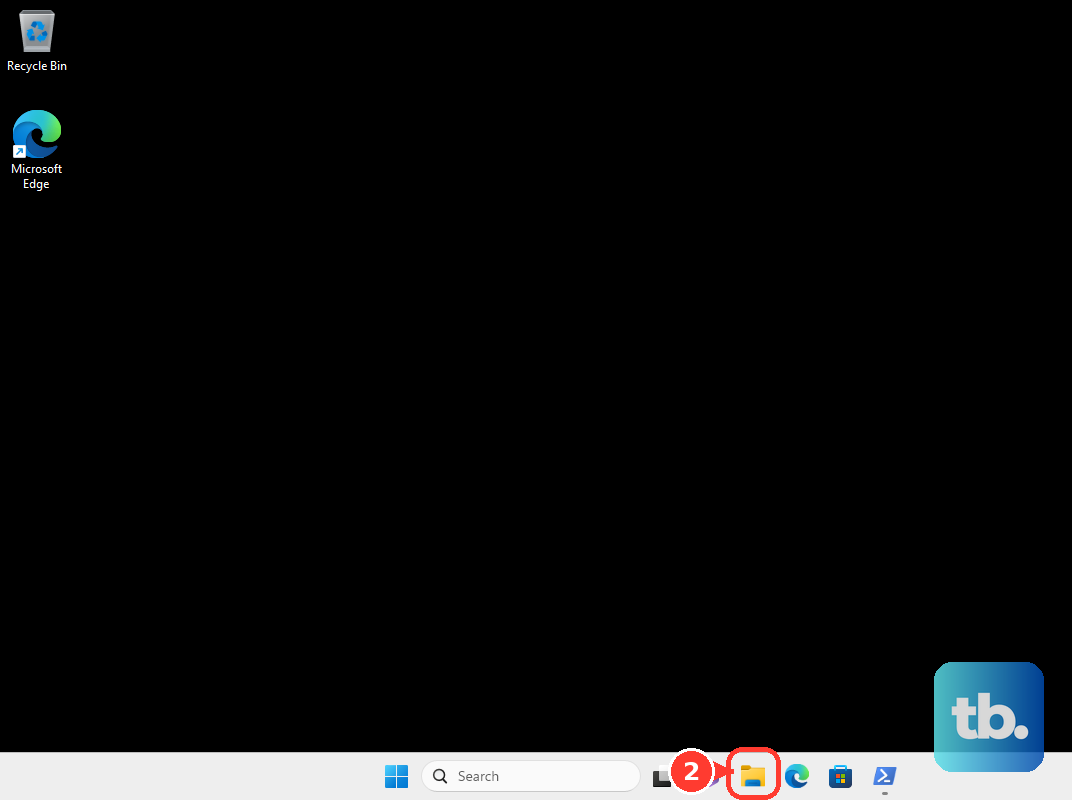
Find the file or folder you want to check.
Right-click it.
On Windows 11, choose Show more options.
Select Scan with Microsoft Defender.
Use this before opening an unexpected download, attachment, installer, or folder from a drive you do not trust.
4. Restart into Microsoft Defender Offline
Some malware hides while Windows is running, which is where Microsoft Defender Offline earns its place. Save your work first, then open Windows Security > Virus & threat protection > Scan options > Microsoft Defender Antivirus (offline scan) > Scan now. Your PC restarts, runs the scan outside the normal Windows session, and then shows results in Windows Security > Protection history.
5. Update Windows security definitions
This fixes missed detections caused by stale malware definitions.
Open Windows Security.
Select Virus & threat protection.
Choose Protection updates.
Select Check for updates.
Run your quick, full, custom, or offline scan after the update finishes.
6. Check a Mac without a manual scan button
Current macOS uses built-in protections instead of a general manual XProtect scan button. Keep macOS and background security updates enabled, because XProtect automatically detects, blocks, and can remediate known malware as Apple updates its signatures. To tighten app-source checks, open Apple menu > System Settings > Privacy & Security > Security > Allow applications from, then choose App Store or App Store and Known Developers.
7. Remove suspicious apps and extensions
This clears common adware and browser hijack symptoms.
On a Mac, quit the suspicious app, open Finder > Applications, use the app's Uninstall or Uninstaller when it has one, or move the app to Trash, then choose Finder > Empty Trash.
In Safari, open Safari > Settings > Extensions, deselect an extension to turn it off, or select it and choose Uninstall.
In Chrome, open More > Extensions > Manage extensions, choose Remove, then confirm.
In Microsoft Edge, open Extensions > Manage extensions, turn off the extension with its toggle, or choose Remove from Microsoft Edge > Remove.
In Firefox, open the menu button > Add-ons and themes > Extensions, use the blue toggle to disable an extension, or choose the three-dot menu > Remove.
8. Reset the browser after a hijack
Browser resets help when your homepage, search engine, pinned tabs, extensions, cookies, or site data keep changing after you remove an extension.
In Chrome, open More > Settings > Reset settings > Restore settings to their original defaults > Reset settings.
In Firefox, open the menu button > Help > More troubleshooting information > Refresh Firefox > Refresh Firefox > Finish.
Do not use old Chrome Clean up computer instructions, because Google removed user-requested Chrome Cleanup Tool scans from current Chrome.
9. Bring in a second opinion or reset ChromeOS
For a Windows second opinion, download Microsoft Safety Scanner from Microsoft's official page, open it, choose the scan type, start the scan, and review the on-screen results.
For detailed Microsoft Safety Scanner detections, check %SYSTEMROOT%\debug\msert.log.
Delete msert.exe when you are done, because Microsoft Safety Scanner is a manual tool and expires 10 days after download.
For Windows or Mac, install Malwarebytes from the official Malwarebytes website or Help Center, open the app, click Scan, review the Threat Scan summary, and choose Quarantine for detections.
For Windows adware, use the Malwarebytes Help Center AdwCleaner page, download the latest AdwCleaner, open adwcleaner_x.x.x.exe, approve User Account Control with Yes, then click I AGREE.
On a Chromebook, select the time at the bottom right, open Settings > System preferences, then under Reset choose Safety reset > Done.
For a work or school computer, contact your IT administrator after a scan alert because managed devices can report results through company security tools.
Frequently Asked Questions
What is the fastest way to check for malware on Windows?
Run Windows Security Quick scan from Settings > Privacy & security > Windows Security > Virus & threat protection > Quick scan on Windows 11, or Settings > Update & Security > Windows Security > Virus & threat protection > Quick scan on Windows 10. Use Protection updates > Check for updates before a deeper scan.
Does Mac have a manual malware scan button?
No. Current macOS does not provide a general manual XProtect scan UI. Keep macOS and background security updates enabled, then remove suspicious apps or extensions manually.
Is Microsoft Safety Scanner a replacement for antivirus?
No. Microsoft Safety Scanner is an on-demand scanner, not a real-time antivirus replacement, and it expires 10 days after download.
Should I use Chrome Clean up computer to scan for malware?
No. Google removed user-requested Chrome Cleanup Tool scans from current Chrome. Use Chrome extension removal, Reset settings, Safety Check, and your operating system malware scanner instead.