McAfee can leave behind more than the main antivirus app.
You may also need to remove WebAdvisor, browser extensions, and the device or subscription link in your McAfee account.
Start with the built-in remover for your device, then use McAfee's official Windows cleanup tool only when the normal uninstall fails.
1. Remove McAfee from the Windows Start menu
This fixes the main McAfee Windows app when you want the fastest uninstall path.
Select Start, then All apps.
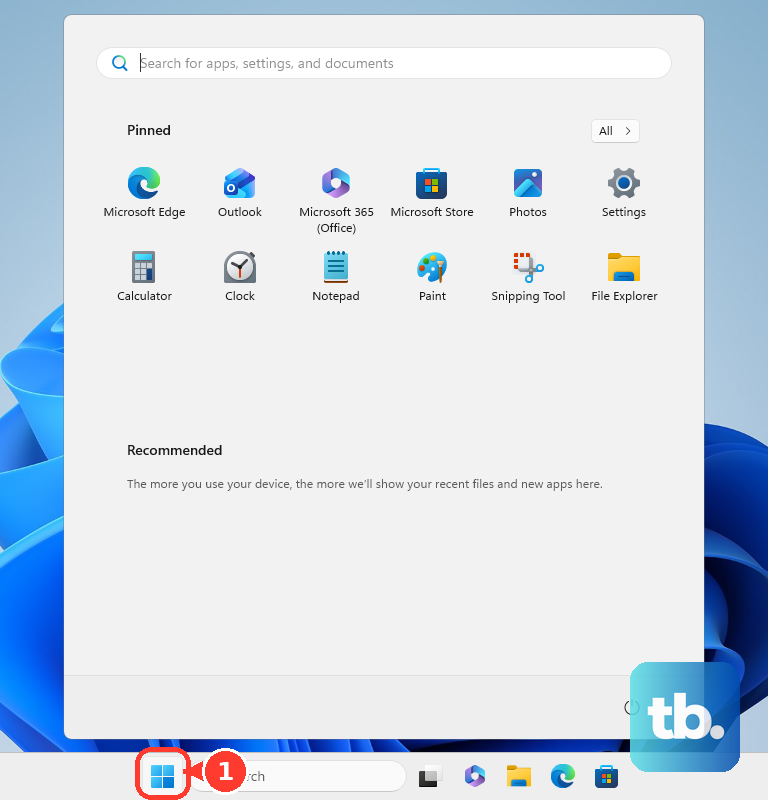
Find the McAfee app.
Press and hold or right-click the app, then select Uninstall.
Follow the McAfee uninstaller prompts and restart if prompted.
2. Use Windows Settings for the main app
Windows Settings is Microsoft's primary app-removal screen on current Windows PCs.
Open Start > Settings > Apps > Installed apps, find the McAfee app you want to remove, then select More > Uninstall.
Follow the McAfee uninstaller prompts and restart if prompted.
3. Open Control Panel when Settings cannot finish
In taskbar search, enter Control Panel and select it from the results.
Select Programs > Programs and Features.
Press and hold or right-click the McAfee program you want to remove.
Select Uninstall or Uninstall/Change, then follow the directions on the screen.
Use this path when the McAfee desktop app does not come off cleanly from Settings.
4. Clear McAfee from a Mac
On a Mac, use McAfee's own uninstaller first because Apple says an included uninstaller is the best way to delete an app and its related login items or extensions.
In Finder, open Go > Applications > McAfee Uninstaller, double-click the uninstaller, select Continue, enter your macOS administrator name and password if prompted, and follow the onscreen instructions.
If an app has no uninstaller, the general Mac fallback is File > Move to Trash, then Finder > Empty Trash.
5. Run MCPR after a failed Windows uninstall
Select Start > Power > Restart.
After Windows restarts, open Start > Settings > Apps > Installed apps, select the McAfee app, and choose Uninstall again.
Follow any Windows troubleshooting steps shown in an error message or notification.
Open McAfee's Windows removal article and select Download the MCPR tool.
Double-click MCPR.exe.
If Windows shows a security warning, select Yes, Continue, or Run.
Follow the MCPR prompts to remove McAfee remnants, then restart if prompted.
MCPR does not remove McAfee PC Optimizer, so remove PC Optimizer through standard Windows app removal instead.
6. Sweep out McAfee WebAdvisor
This fixes the browser protection piece that can remain after the main McAfee app is removed.
For the Windows WebAdvisor app, select Start, type Apps & features, press Enter, choose WebAdvisor by McAfee, select Uninstall, and follow the prompts.
In Chrome, open More > Extensions > Manage extensions, select Remove next to McAfee WebAdvisor, then confirm with Remove.
In Microsoft Edge, select Extensions.
If you do not see it, open Settings and more > Extensions.
Choose More actions next to McAfee WebAdvisor, then select Remove from Microsoft Edge > Remove.
In Firefox, open Menu > Add-ons and themes > Extensions, select the ellipsis for McAfee WebAdvisor, then choose Remove.
In Safari, open Safari > Settings > Extensions, select McAfee WebAdvisor, then click Uninstall.
To disable it instead, deselect its checkbox.
7. Take McAfee off a Chromebook
On ChromeOS, open Launcher > McAfee app > Uninstall by selecting the Launcher, right-clicking the McAfee app, and confirming with Uninstall.
Some McAfee apps show Remove from Chrome first, followed by the same Uninstall confirmation.
This applies to ChromeOS 102.0.5005 and higher where McAfee Security or a subscription app is installed.
8. Finish account and device cleanup
This fixes renewals and device slots after the local software is gone.
Go to myaccount.mcafee.com and sign in with your email and password, social login, or a one-time passcode.
Open Subscriptions and turn off auto-renewal for the subscription you do not want renewed.
Open My Account or Downloads & devices, select the computer you no longer use, and deactivate or release that license.
For a work, school, or administrator-managed computer or browser, contact the device administrator if local uninstall controls are blocked.
Frequently Asked Questions
Does uninstalling McAfee cancel my subscription?
No. McAfee states that uninstalling or not using the software does not cancel the subscription. Sign in to myaccount.mcafee.com, open Subscriptions, and turn off auto-renewal separately.
Why is McAfee WebAdvisor still showing after I removed McAfee?
WebAdvisor can remain as a Windows app or browser extension after other McAfee software is removed. Remove it separately through Windows app settings or your browser's extension manager.
Should I manually delete McAfee folders, services, drivers, or registry keys?
No. Use standard Windows uninstall first, then McAfee's MCPR tool when normal removal fails or leaves remnants.
Can I uninstall McAfee from a work or school computer?
A managed computer or browser can block local uninstall controls. Contact the device administrator to remove McAfee from the managed device or browser policy.