Safari keeps showing “A problem repeatedly occurred,” and the webpage won’t open. Start with a reload and a restart, then use these iOS 26 steps to check your connection, clear saved website data, and test Safari’s settings.
Give the webpage a fresh start
Pull down from the top of the affected webpage to refresh it. Alternatively, tap Reload beside the search field.
If the error returns, open More > All Tabs in Safari. With the Bottom or Top layout, use Tabs instead.
Tap Close on the affected tab, then open the website again. This tests whether the failure persists in a fresh tab.
Restart Safari and your iPhone
If Safari is unresponsive, swipe up from the bottom of the screen and pause to open the app switcher. On an iPhone with a Home button, double-click that button instead.
Swipe Safari’s preview upward to close it. Then reopen Safari and try the affected website again.
If the problem continues, hold either volume button and the side button until the power-off slider appears. On an iPhone SE of the second or third generation, hold just the side button.
Drag the power-off slider, then wait 30 seconds. Hold the side button until the Apple logo appears.
Reserve force-closing for an unresponsive app; routinely closing every app is unnecessary.
If other websites struggle too, test your connection
A connection problem is the first thing to check when several websites won’t load. Open the affected address using cellular data, then test a website you know works on that same connection.
If cellular data is unavailable, connect to another Wi-Fi network. Repeat the website tests there.
If the failure happens only on your home network, restart your modem and router using their manufacturer’s instructions. Reconnect your iPhone to that network, then retry the affected page in Safari. If trouble remains limited to that network, contact your internet provider or network administrator.
For an iPhone using a VPN, security app, or content filter, temporarily turn off its features in that app. Contact the vendor for instructions if its controls are unclear. On a work or school iPhone, ask your administrator to review required VPN settings, filtering, and Safari restrictions before changing them. Retry the page after disabling the features.
If network-related failures persist after those checks, open Settings > General > Transfer or Reset iPhone > Reset > Reset Network Settings. This removes saved networks and nonmanaged VPN settings.
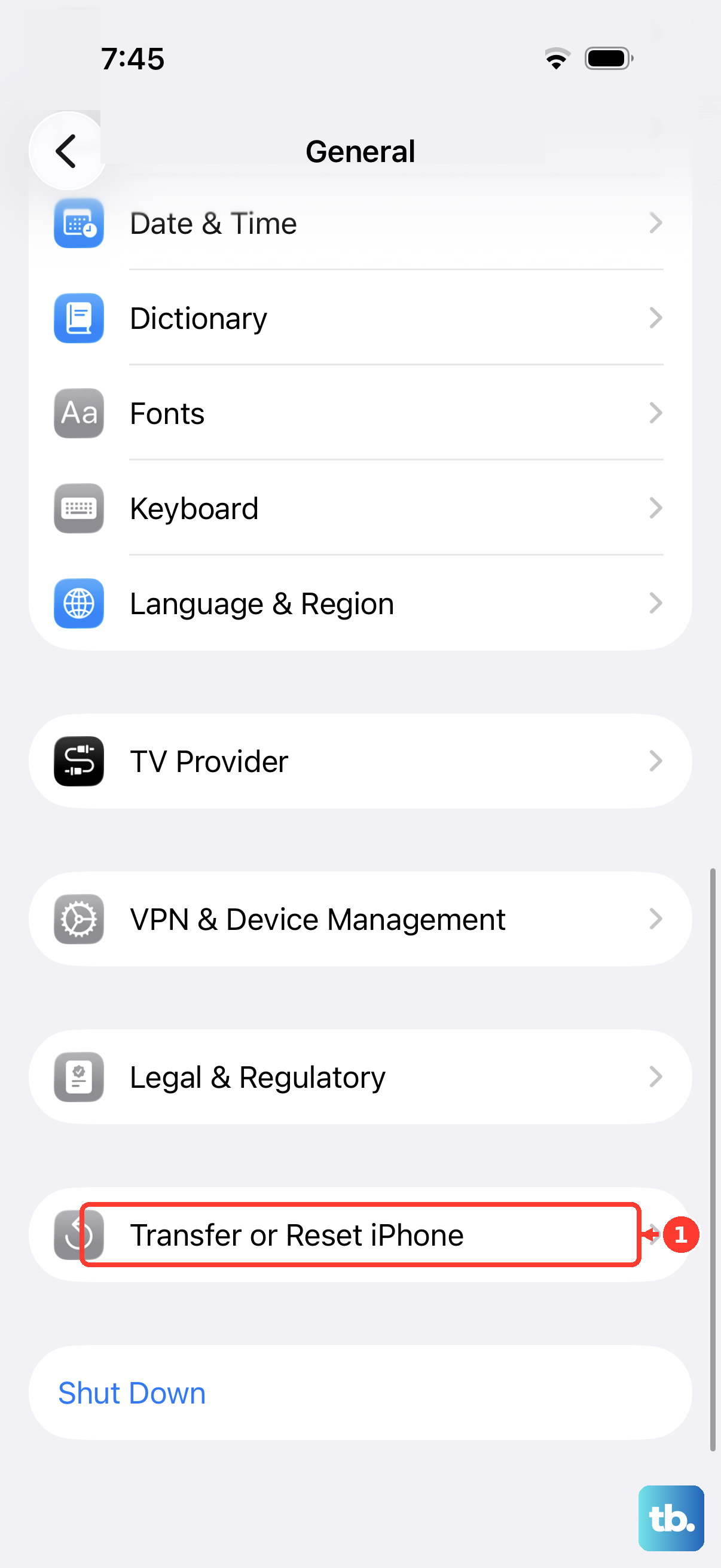
Reconnect to Wi-Fi afterward.
Clear Safari’s saved website data
This clears saved cookies and cache so you can test the page without its stored session. To keep your browsing history, open Settings > Apps > Safari > Advanced > Website Data.
Tap Remove All Website Data. This removes saved website login and session data. Confirm with Remove Now, then retry the affected website in Safari.
To clear browsing history as well, open Settings > Apps > Safari > Clear History and Website Data instead. This also clears cookies and cache while retaining AutoFill information. Select the timeframe you want to clear, then tap Clear History.
Check extensions and website compatibility
Start with an extension test on the affected website: open Page Menu > Manage Extensions. Turn off the relevant extension, then retry the page.
For a broader test, open Settings > Apps > Safari > Extensions and select an extension. Turn off Allow Extension and check its profile permissions if you use profiles. Retry the website, then re-enable extensions individually and test after each to identify a conflict.
For pages that still won’t load, open Settings > Apps > Safari > Advanced and turn on JavaScript if it is off. Retry the website. If Block All Cookies is enabled in that same menu, turn it off and retry to test cookie-dependent functionality.
If you use iCloud+ Private Relay, select Page Menu > More > Show IP Address on the affected website, then retry it. This temporarily exposes your IP address to the site until you leave the website or close its tab. Treat these changes as compatibility tests, not confirmed repairs for repeated crashes.
Update iOS, then narrow down a stubborn failure
Safari updates arrive with iOS. Back up your iPhone before installing the latest compatible update offered to your model.
Connect your iPhone to power and Wi-Fi. Open Settings > General > Software Update.
If an update is offered, tap Download and Install. Follow the onscreen prompts to complete the update.
If your iPhone is nearly full or other apps are slow too, open Settings > General > iPhone Storage. Apple recommends keeping at least 1 GB available to avoid slowdowns.
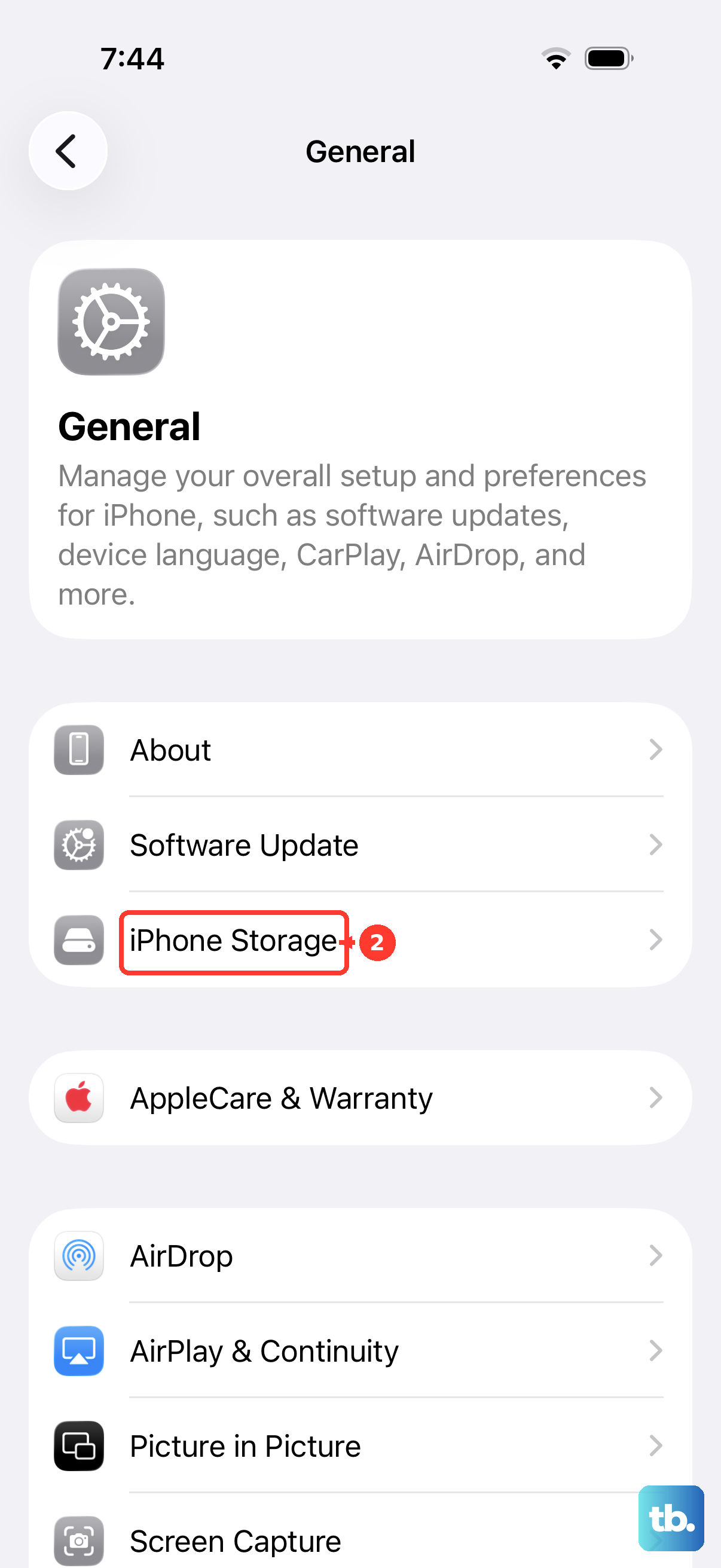
Follow the storage recommendations or select an unneeded app to offload or delete. Free storage and the memory a webpage uses are different issues; freeing space addresses low-storage slowdowns.
If updating does not help, try the affected address in another installed browser as a temporary workaround. If one website continues to fail, contact its developer or support team with the URL, your iPhone model, iOS version, exact error wording, and whether another network or browser reproduces it.
Frequently Asked Questions
Can I use Reader to get through an affected article?
If the page loads far enough and supports Reader, open Page Menu > Show Reader. This is a reading workaround, not a Safari repair. Choose Page Menu > Hide Reader to return.
Does Private Browsing help identify the problem?
Use it to compare how the website behaves. In Safari, choose More > New Private Tab, then enter the affected address. If the failure happens only in Private Browsing, try More > New Tab. Private Browsing changes storage and privacy behavior, so the comparison tests compatibility rather than repairing Safari.
Should I delete and reinstall Safari?
Apple permits Safari deletion and redownload on eligible iPhones in the European Union or Japan; it is not a worldwide troubleshooting option. First install another browser and make it the default through Settings > Apps > Default Apps > Browser App. Deleting Safari removes local browsing history and website data. Eligible users can redownload it from the App Store.
What if my iPhone is frozen and cannot restart normally?
On an iOS 26-compatible iPhone, quickly press and release volume up. Quickly press and release volume down. Hold the side button until the Apple logo appears, then release it.