Safari won't load a website, and hitting reload hasn't helped. The next step is to find out whether the trouble follows the website, your connection, or Safari itself. Start with these quick checks, then follow the fixes that match your iPhone, iPad, or Mac.
Start with the address and a reload
Check the address in Safari’s search field for typing mistakes. On iPhone, enter the correct website address. Then tap Reload on iPhone, or pull down from the top of the webpage to refresh it.
On Mac, choose View > Reload Page or press Command-R. If the page still fails, open a different website to check whether the problem affects one address or everything you visit.
Test the connection when other websites fail
Try a known website using another Wi-Fi network or cellular data. This helps separate a connection failure from a Safari problem.
On Mac, test the failing address in another browser. Try that address on another device connected to the same network.
To connect an iPhone or iPad to Wi-Fi, open Settings > Wi-Fi. Turn on Wi-Fi if it is off. Select your network. Enter its password or accept its terms when requested.
On hotel, airport, or café Wi-Fi, wait for the network’s login screen. If it does not appear, tap the network’s More Info > Join Network. Complete the login or accept the terms.
If Safari fails only on cellular, turn on Settings > Cellular > Cellular Data on iPhone. In the app list, tap Show All if needed. Enable Safari.
On a Wi-Fi + Cellular iPad with active service, turn on Settings > Cellular Data > Cellular Data. Enable Safari in its app list.
When multiple devices cannot get online, check your modem and router’s power and cable connections. Unplug their power for a couple of minutes. Reconnect power and wait for startup.
If every device still fails, contact your internet provider. If the failure is limited to Safari, continue with the restart and update steps below.
Restart and bring Safari up to date
These steps address an unresponsive browser and install available Safari updates. If Safari stops responding on iPhone, open the app switcher by swiping up from the Home Screen’s bottom edge and pausing, or double-clicking the Home button on models that have one.
Swipe Safari’s preview upward to close it. Apple recommends this only when an app is unresponsive. Reopen Safari.
On Mac, quit Safari. If it will not quit, press Option-Command-Esc, select Safari, and click Force Quit. Reopen Safari, holding Shift if a troublesome tab keeps reopening.
To restart an iPhone or iPad, open Settings > General > Shut Down. Drag the power-off slider. Hold the iPhone’s side button or the iPad’s top button to turn it on again. On Mac, choose Apple menu > Restart.
Before updating an iPhone or iPad, back it up. Connect the device to power. Connect it to Wi-Fi through Settings > Wi-Fi. Open Settings > General > Software Update.
Select Download and Install when offered. Safari updates with iOS or iPadOS.
On Mac, open Apple menu > System Settings > General > Software Update. Install the available compatible update using Update, Upgrade, or Restart Now.
Clear data for a stubborn website
Removing website data can sign you out; follow the option for your device and the data you want to clear.
- 1.On Mac, open File > New Private Window and test the website. If it loads, investigate website data and extensions, since Private Browsing changes both.
- 2.To remove that site’s data on Mac, open Safari > Settings > Privacy > Manage Website Data, select the affected site, and click Remove, then Done. Reopen the site.
- 3.On iPhone or iPad, clear cookies and cache while keeping browsing history through Settings > Apps > Safari > Advanced > Website Data > Remove All Website Data > Remove Now. Retry the page.
- 4.To clear browsing history as well on iPhone or iPad, use Settings > Apps > Safari > Clear History and Website Data, choose a timeframe, and tap Clear History. This is an alternative to the previous step.
Check extensions and settings when a page opens but breaks
A page that opens but won't let you log in calls for a different check. Start with extensions and content blockers.
On iPhone, open the affected page’s Page Menu > Manage Extensions. Turn off the relevant extension for that website.
On Mac, open Safari > Settings > Extensions. Deselect extensions to test them. For a confirmed culprit, update its containing app or select the extension and click Uninstall. For a Mac content blocker, set the affected website to Off under Safari > Settings > Websites > Content Blockers.
If page features still fail on iPhone or iPad, turn on Settings > Apps > Safari > Advanced > JavaScript. On Mac, select Enable JavaScript under Safari > Settings > Security.
For login failures or messages requiring cookies on iPhone or iPad, turn off Block All Cookies under Settings > Apps > Safari > Advanced. On Mac, deselect Block all cookies under Safari > Settings > Advanced.
If these changes do not help, restore extensions and blockers that were unrelated to the problem. Next, test the VPN and privacy settings below.
Test VPN and Private Relay compatibility
A VPN, antivirus app, firewall, parental-control app, or network filter can interfere with connections. Open the relevant app and temporarily disable its network features to test Safari. Restore them if the test makes no difference.
If you use iCloud+ Private Relay, try a website-specific exception on iPhone. In iOS 27, open Safari > Page Menu > Privacy & Security > Show IP Address. In iOS 26, open Safari > Page Menu > More > Show IP Address. The exception lasts until you leave the site or close its tab.
On Mac with Private Relay enabled for the network, choose View > Reload and Show IP Address in Safari to test that website. For a site affected by advanced tracking and fingerprinting protection on Mac, choose View > Reload Reducing Privacy Protections. Keep privacy changes targeted to the affected page.
Resolve persistent network failures or report the website
If your iPhone or iPad still has a connection problem after the simpler network fixes, open Settings > General > Transfer or Reset iPhone > Reset, or Settings > General > Transfer or Reset iPad > Reset on iPad. Select Reset Network Settings. This resets saved Wi-Fi passwords and cellular, VPN, and APN settings.
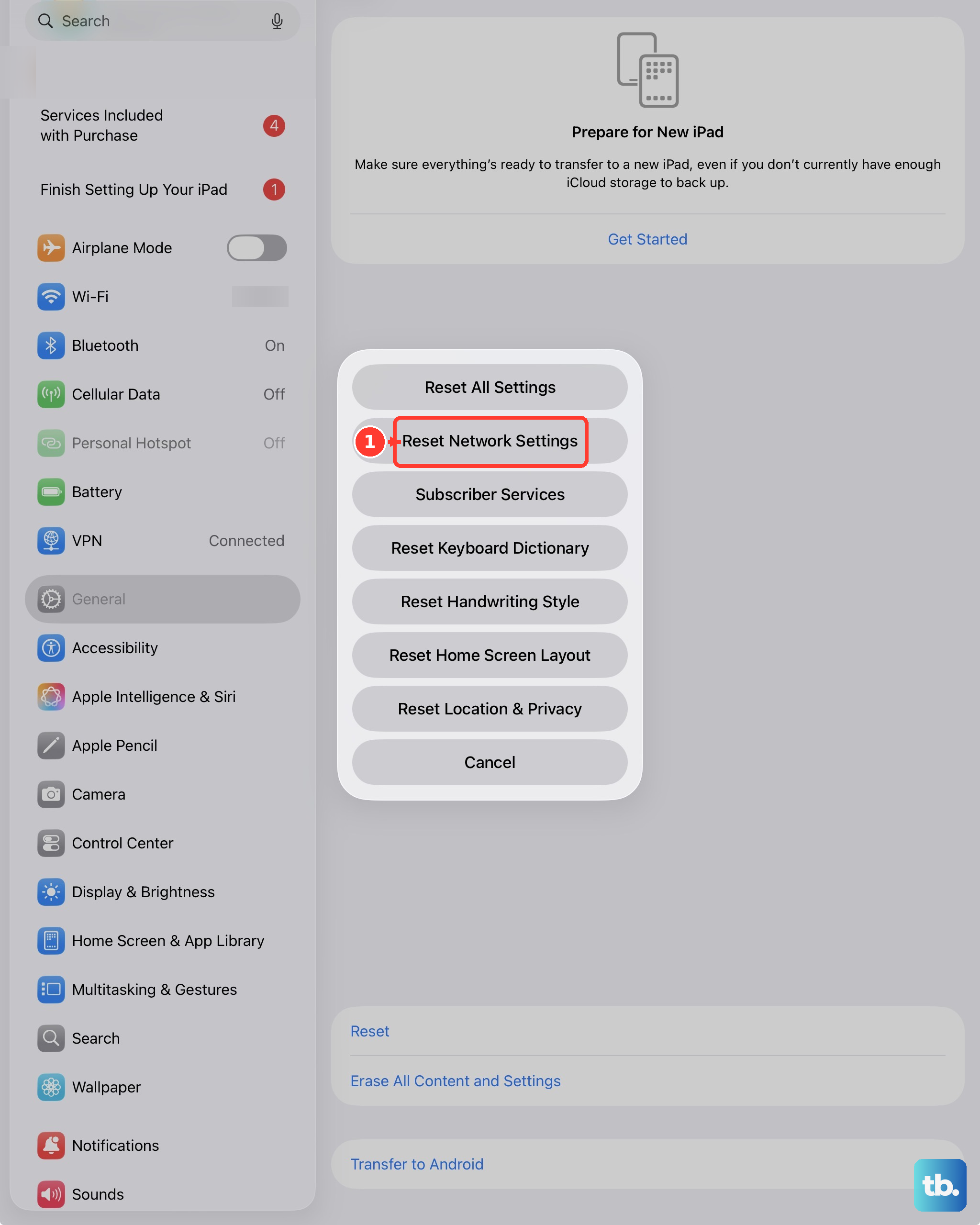
For a work or school device with managed website restrictions, ask your administrator to review access to the affected site. If one website still fails after troubleshooting, contact its owner or developer for help.
On Mac with Safari 26 or later, reload the affected page through View > Reload Page before reporting a compatibility problem. Click Page Menu > Report a Website Issue in Safari’s Smart Search field. Describe the problem. Click Report.
Tip: Include whether the same address works in another browser, on another device, or through a different network.
Frequently Asked Questions
How do I restore webpage items I hid in Safari?
On a Mac with macOS 15 or later, or on iPhone or iPad with iOS 18 through iOS 26 or iPadOS 18 through iPadOS 26, open the affected page and choose Page Menu > Show Hidden Items. Confirm if prompted. In iOS 27 and iPadOS 27, tap the hidden-items button that Safari shows on the page to stop hiding those items.
How do I put a missing Safari icon back on my iPhone Home Screen?
If Safari remains installed, swipe left to App Library. Search for Safari, touch and hold its icon, then select Add to Home Screen.
Should I delete and reinstall Safari?
Apple does not present reinstalling Safari as a standard website-loading fix. Deletion is supported on eligible iPhones and iPads in the EU and eligible iPhones in Japan. It removes local browsing history and website data.
Why does a site fail only in a private window on Mac?
Private Browsing’s storage and privacy behavior can affect website functionality. Close the private window. Choose File > New Window, then retry the site in a regular window.