You want fewer ads built around your personal data, and you have heard your iPhone can shut that down. The catch is that "ad tracking" on iOS is not one switch. It is several, spread across different settings screens, each controlling a different kind of tracking.
Two are easy to confuse. One control stops third-party apps from following you across other companies' apps and websites. A separate control stops Apple itself from using your data to target ads in its own apps.
There are also web tracking and location-based ad controls. Turning off one does nothing to the others.
This guide walks through the main controls, quickest and most common first. Set the right expectation up front: turning off Personalized Ads may not reduce how many ads you see. The ads may simply be less relevant to you.
Stop Apps From Tracking You Across Other Companies
This is the main "ad tracking" switch, App Tracking Transparency. It governs whether third-party apps can track your activity across other companies' apps and websites, which is what gives access to your advertising identifier (IDFA).
- 1.Open the Settings app.
- 2.Tap Privacy & Security.
- 3.Tap Tracking.
- 4.Turn off Allow Apps to Request to Track (the toggle at the top).
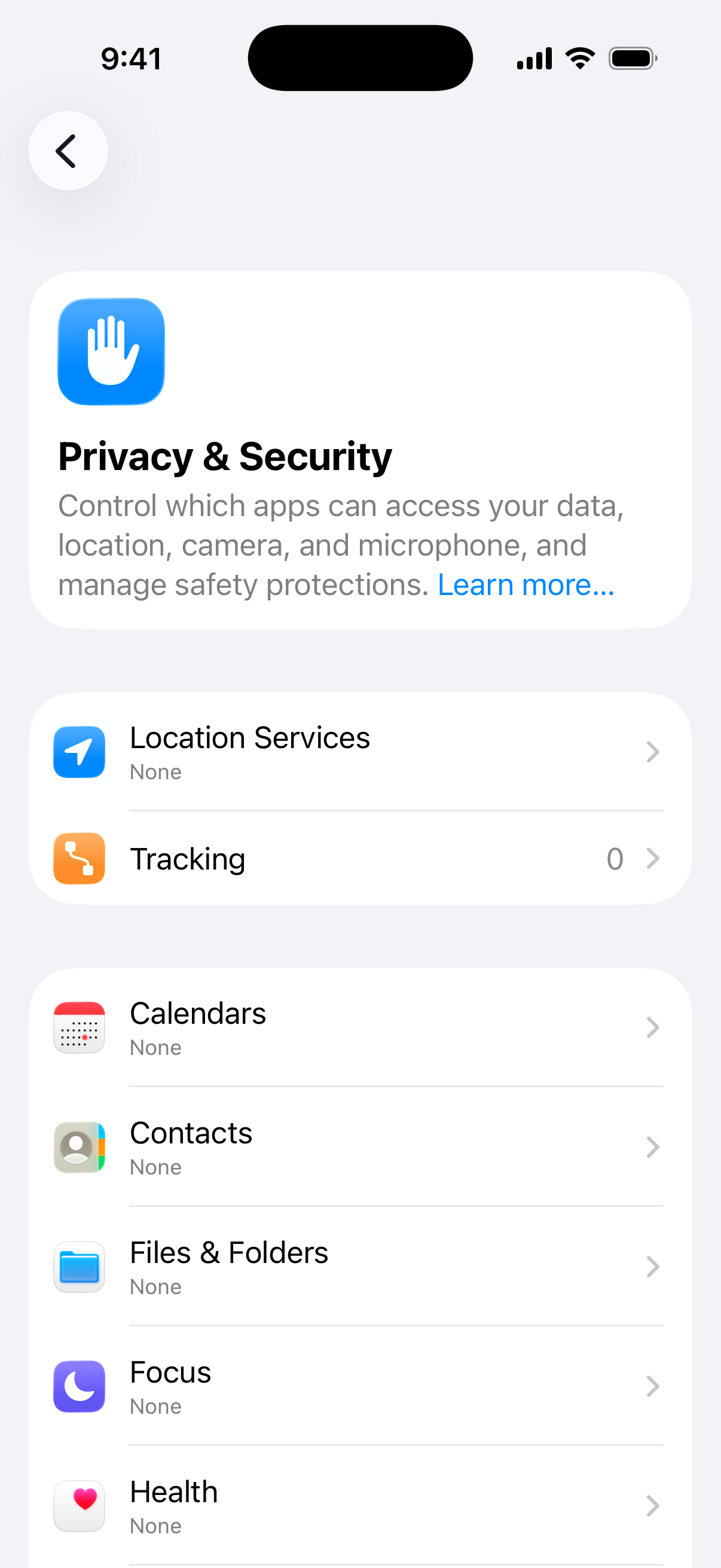
With this off, you stop getting tracking prompts. Every app that requests tracking permission is treated as if you had tapped "Ask App Not to Track," and each such app cannot access the IDFA while the setting is off.
If you had previously allowed some apps to track, switching the master toggle off prompts iOS to ask whether those previously allowed apps should stop too. That lets you revoke earlier permissions in bulk.
On Apple TV the path differs: Settings > General > Privacy & Security > Tracking. This feature requires iOS, iPadOS, or tvOS 14.5 or later; on older versions the Tracking screen does not exist.
Turn Tracking Off for an Individual App
If you would rather block specific apps instead of all of them, you can manage tracking per app.
Go to Settings > Privacy & Security > Tracking.
Below the "Allow Apps to Request to Track" toggle, find the list of apps that have requested permission to track you.
Turn permission on or off for any app in that list.
One thing to expect: this list only populates after apps have actually asked to track you. If "Allow Apps to Request to Track" was always off, apps may never have asked, so the list can be empty.
Turn Off Apple's Own Personalized Ads
This is the separate control most people miss. It stops Apple from using your data to target ads in its own surfaces: the App Store, Apple News, and Stocks.
Open the Settings app.
Tap Privacy & Security.
Tap Apple Advertising.
Turn off Personalized Ads.
With Personalized Ads off, Apple no longer uses your information to deliver targeted ads on its own platform, and Apple does not share personal data with third parties. On older iOS versions this setting lives under Settings > Privacy, since that menu was named "Privacy" before it became "Privacy & Security."
See What Apple Knows About You
While you are on that screen, you can review the profile Apple builds for ad targeting. This is useful for understanding what data is in play.
Go to Settings > Privacy & Security > Apple Advertising.
Tap View Ad Targeting Information.
You will see the segments you are placed in and the data categories Apple may use: account information (name, address, age, gender, registered devices); your downloads, purchases, and subscriptions; the Apple News and Stocks topics and publications you follow; your interactions with Apple's ads; approximate location when Location Services is permitted; and device information such as keyboard language, device type, OS version, time of day, and connection type.
Stop Location-Based Ad Targeting
Apple's advertising platform may use your approximate location for geographically relevant ads when Location Services is on and you allow the App Store, Apple Maps, Apple News, or the Apple TV app to access your location. The reliable way to cut this on current iOS is to remove that location access.
Go to Settings > Privacy & Security > Location Services.
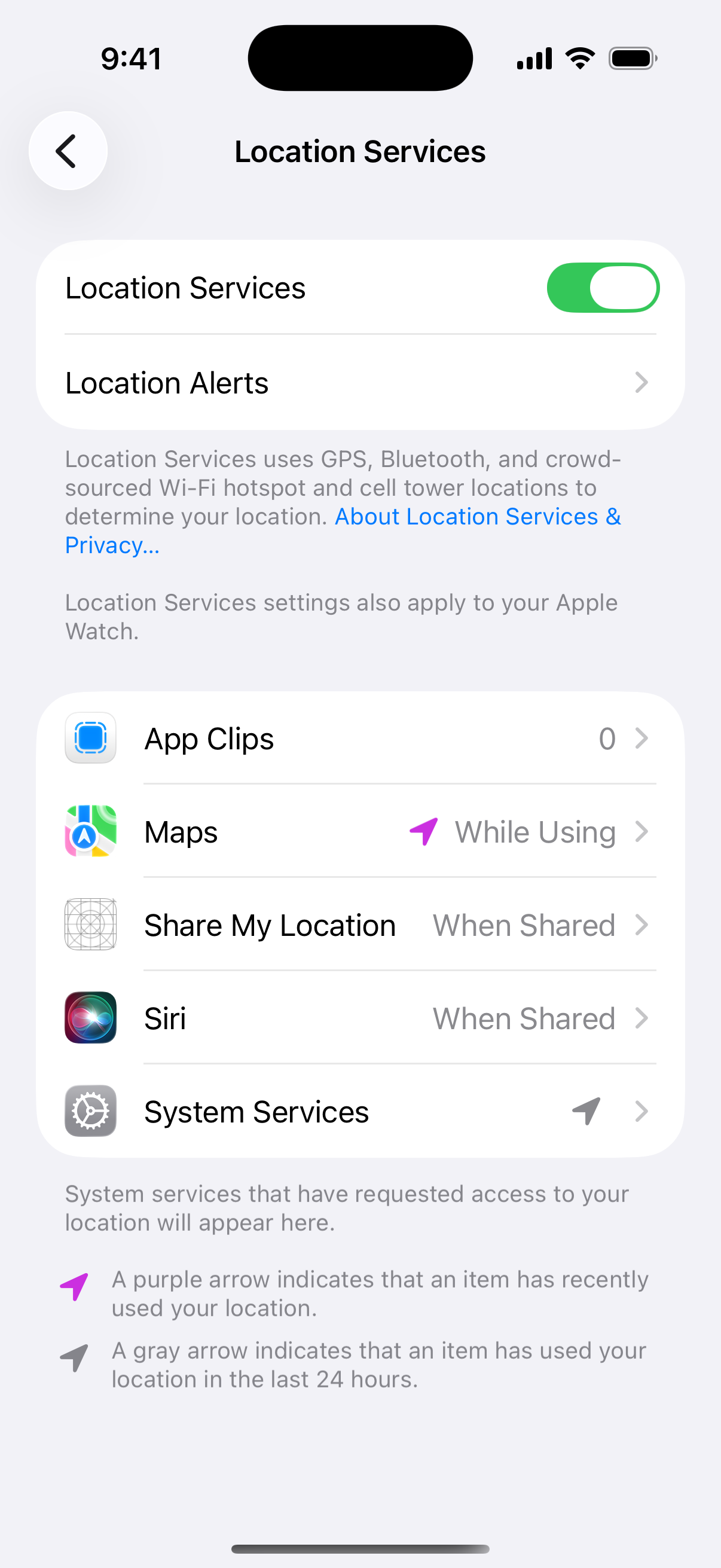
Select an Apple app such as the App Store or News.
Set its location access to Never.
To stop location-based ads in the App Store, Apple Maps, Apple News and the Apple TV app, set their location access to Never. If you want to go further, you can turn Location Services off entirely at the top of that same screen. Some iOS versions also expose location-based system services under System Services at the bottom of the Location Services list, where you can disable any you do not want; the exact items shown there vary by device and iOS version.
Limit Web Ad Tracking in Safari
Apps are only part of it; websites track you too. Safari has built-in defenses you should confirm are on.
Open Settings, tap Apps, then tap Safari (on older iOS this is Settings > Safari directly).
Make sure Prevent Cross-Site Tracking is on. Safari limits third-party cookies and data by default; turning this off would allow cross-site tracking.
Tap Hide IP Address and choose a level: Trackers and Websites, Trackers Only, or Off.
The broadest option, "Trackers and Websites," requires an eligible iCloud+ subscription. Without it, "Trackers Only" still hides your IP from known trackers. With Prevent Cross-Site Tracking on, third-party cookies and website data are deleted unless you visit and interact with that provider as a first-party site.
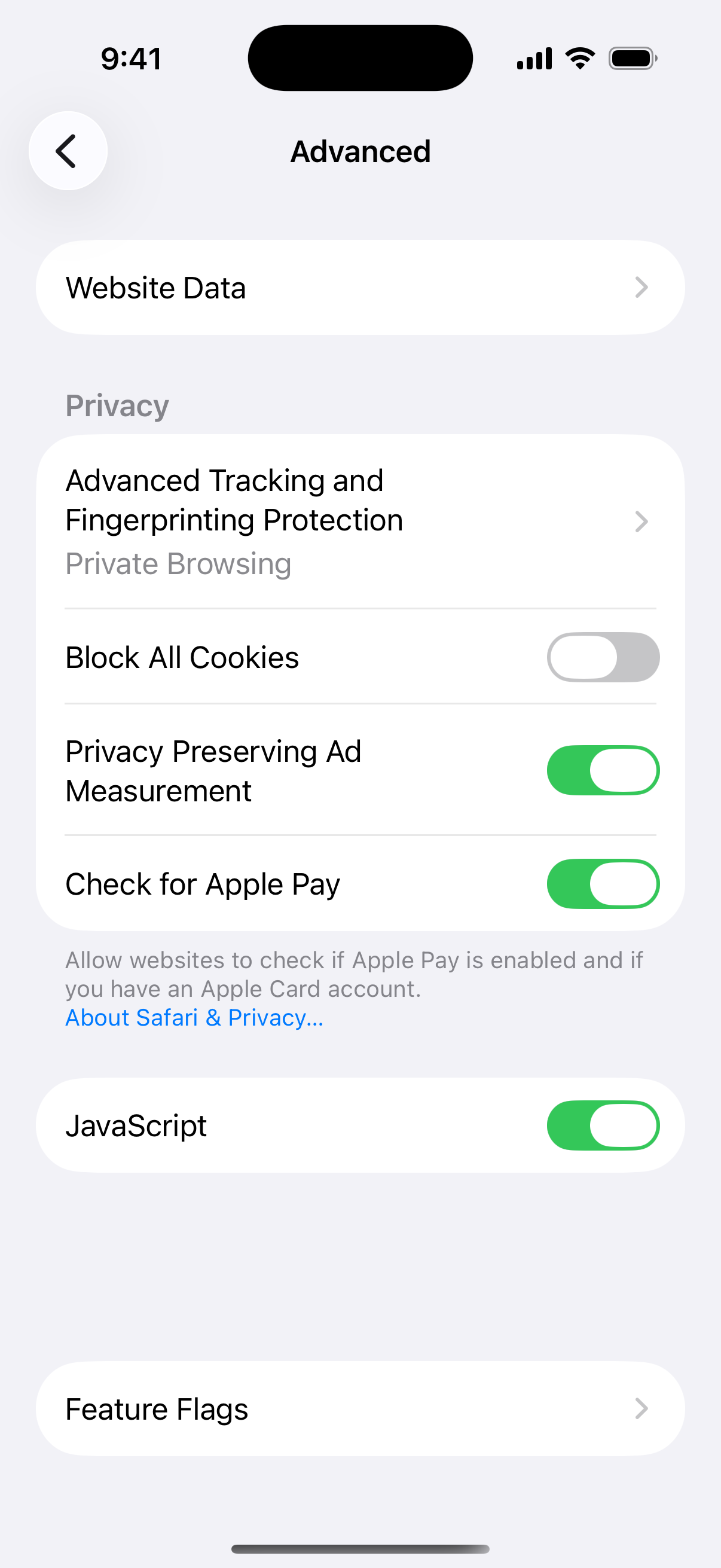
For stricter blocking you can turn on Block All Cookies, but be aware this can break website sign-ins and some functionality, so most people should leave it off.
Hide Your Network Activity With iCloud Private Relay
If you subscribe to iCloud+, you get one more layer that hides your IP address and Safari browsing from trackers and network providers.
When iCloud Private Relay is on, traffic leaving your iPhone is encrypted and routed through two separate internet relays, so websites cannot see your IP address and exact location, and network providers cannot collect your Safari browsing activity. Manage it under Settings > [your name] > iCloud > Private Relay. This is a paid iCloud+ feature, separate from the free Safari "Hide IP Address" option.
Turn Off Personalized Ads on a Mac Too
If you use a Mac with the same Apple Account, mirror the Apple Advertising setting there.
Choose Apple menu > System Settings, then click Privacy & Security (on macOS Monterey or earlier: System Preferences > Security & Privacy > Privacy tab).
Select Apple Advertising.
Deselect Personalized Ads.
Frequently Asked Questions
Will turning all of this off reduce the number of ads I see?
Disabling Personalized Ads may not decrease the number of ads you receive, but the ads may be less relevant to you. These controls limit ad personalization and tracking rather than block ads.
If I stop apps from tracking me, why can a company like Meta still see my activity?
App Tracking Transparency only blocks tracking across different companies. A company can still track you within its own family of apps without asking, because that is first-party data. For example, activity across Facebook, Messenger, Instagram, and WhatsApp is first-party to Meta, so the toggle does not stop it.
Why is the "Allow Apps to Request to Track" toggle greyed out?
It can be unavailable for child accounts or users under 18 by birth year signed in with their Apple Account, for Apple Accounts managed by an educational or business institution, for devices managed with a configuration profile that limits tracking, and for Apple Accounts created in the last three days. If none of those apply, try restarting the phone and signing out of and back into iCloud.
What is the difference between the Tracking switch and the Apple Advertising switch?
"Allow Apps to Request to Track" governs third-party apps tracking you across other companies and controls IDFA access. "Personalized Ads" under Apple Advertising only governs Apple's own ad targeting in the App Store, Apple News, and Stocks. Turning off one does not affect the other, so set both.
I turned off tracking, but an app I previously allowed still seems to track me. Why?
Apps you already granted permission may keep tracking until you revoke it. Turning the master toggle off prompts iOS to ask whether previously allowed apps should stop, and you can also flip each app off individually in the Tracking list.
Can apps be trusted once I deny tracking?
Tracking permission is the developer's responsibility. Apple does not verify a developer's stated reason for requesting tracking, and a developer can later change how they use data you have already shared, so denying tracking up front is the safer default.