

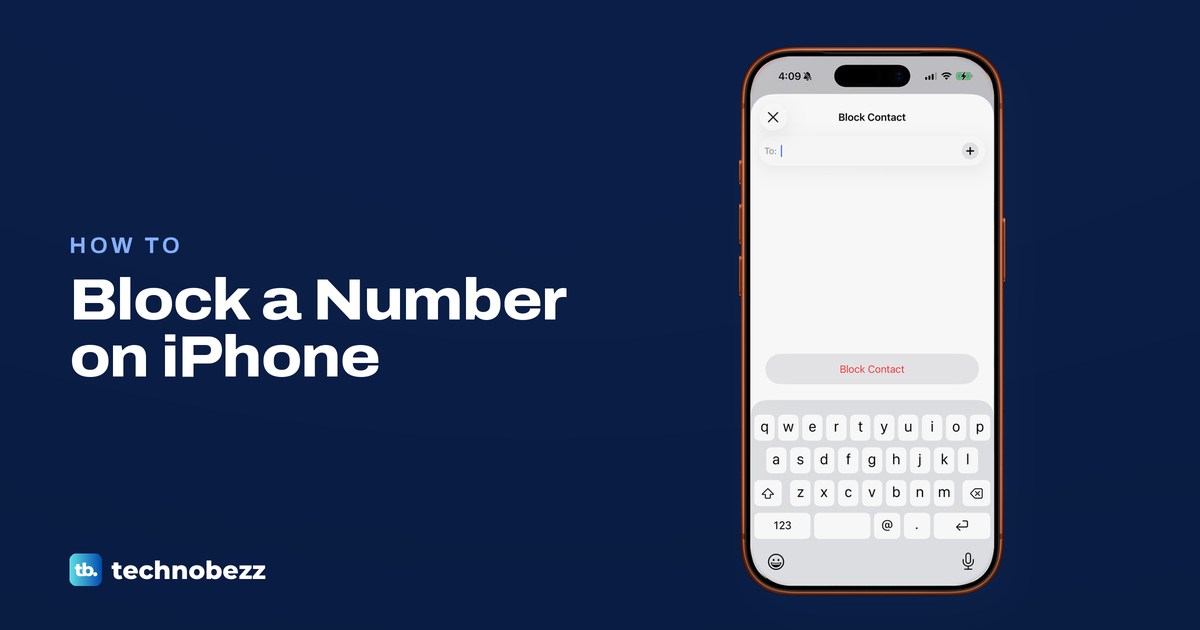
To block contacts on iPhone, open the recent call, the text conversation or the contact card, scroll down and tap Block Caller or Block Contact. To block a number that has never called you, add it to the Blocked Contacts list in Settings with Add Blocked Contact. One block stops calls, messages and FaceTime from that number or contact, and sends email from a blocked address to Trash, on every Apple device signed in to your Apple Account.
Apple's iOS 26 instructions put that list in Settings > Privacy & Security > Blocked Contacts. We opened Blocked Contacts from Settings > Apps > Phone > Blocked Contacts on our iPhone 17 Pro with iOS 26.6. The person you block is not told.
The short version
- Block from where they reached you: a recent call, a message thread, a saved contact, FaceTime or Mail.
- One block covers Phone, Messages, FaceTime and Mail, on every device signed in to your Apple Account.
- Blocked Contacts lists everyone, with numbers you never saved grouped under one Unknown row.
- They are not told, and they can still leave a voicemail you get no alert for.
- Report Spam is not a block. Block the number too if you never want to hear from it again.
Block contacts on iPhone at a glance
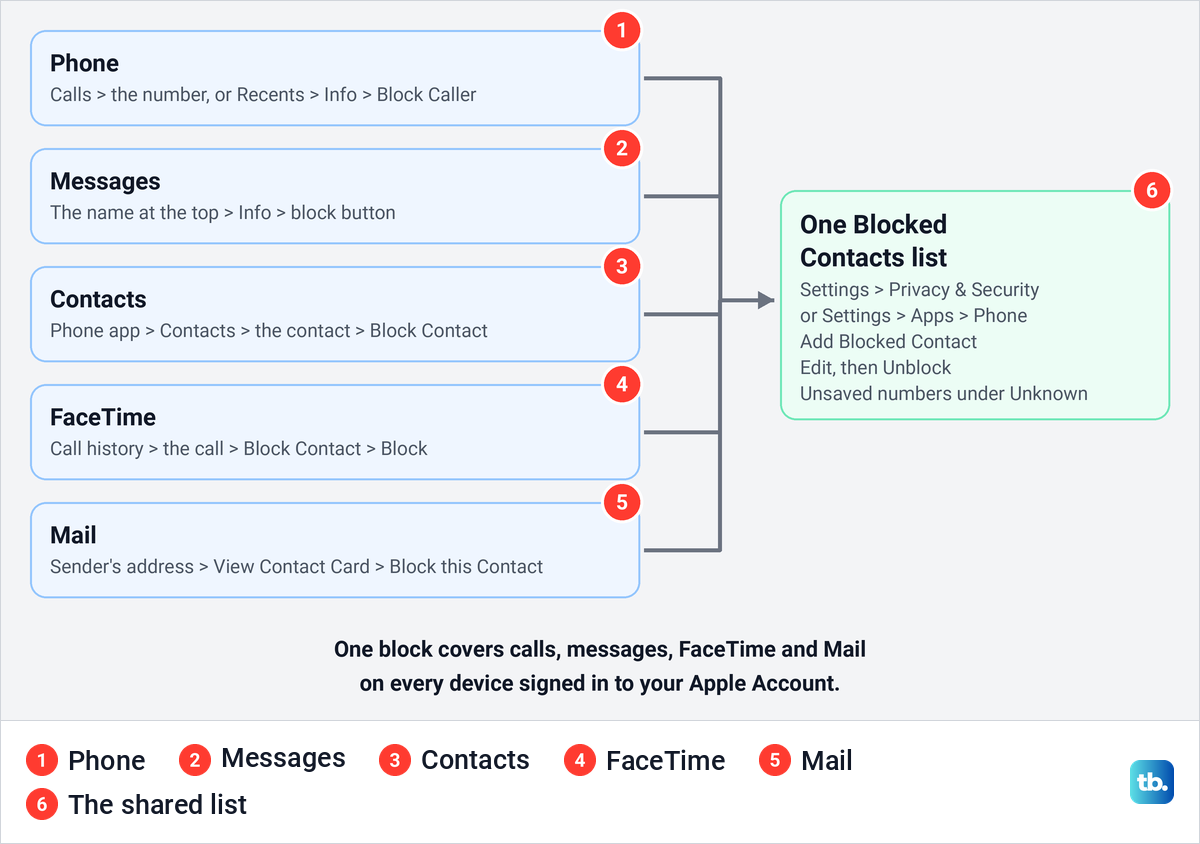
Start wherever the person last reached you. The table follows Apple's iOS 26 steps for each app, and the last two rows use the Blocked Contacts list that we opened on our iPhone.
| Where you start | What to tap | What happens |
|---|---|---|
| A recent call | Phone > Calls > the number (Recents > Info button in Classic) > Block Caller | Calls, messages and FaceTime from that number stop |
| A text conversation | The name at the top > Info > the block button | Their messages are no longer delivered |
| A saved contact | Phone > Contacts > the contact > Block Contact | The person is blocked in Phone, Messages, FaceTime and Mail |
| A FaceTime call | Call history > the call > Block Contact > Block | They are blocked in Phone, Messages and Mail too |
| An email in Mail | The sender's address > View Contact Card > Block this Contact | Their emails go to Trash |
| A number that never called | Blocked Contacts > Add Blocked Contact > Block Contact | It is blocked before it reaches you |
| Undo a block | Blocked Contacts > Edit > delete button > Unblock | They can reach you again |
Whichever app you start in, the person lands on the same Blocked Contacts list. Apple says a block made in Messages also applies in Mail, Phone, FaceTime, Calendar and other apps, and on every Apple device signed in to the same Apple Account.
Block a number from your recent calls
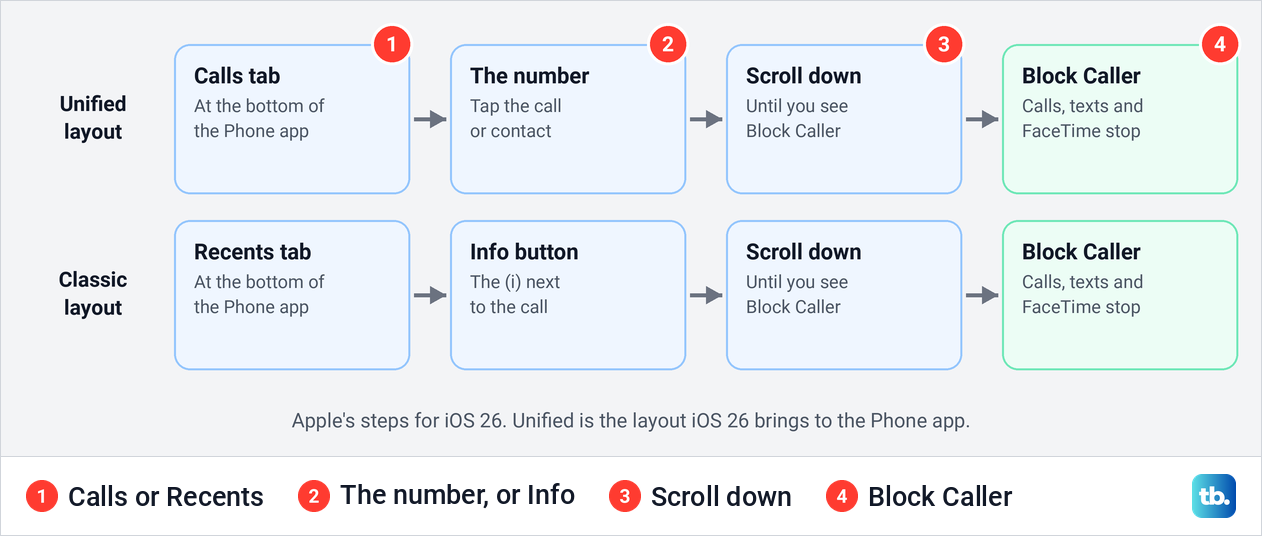
Open the Phone app. Since iOS 26 the app has a Unified layout, where your call list sits on the Calls tab, while in the Classic layout the same list is the Recents tab.
In the Unified layout, Apple's steps are to tap the number or contact you want to block on the Calls tab, then scroll down and tap Block Caller. In the Classic layout, Apple's route goes through the Info button next to the call on the Recents tab, so tap that button rather than the call, then scroll down and tap Block Caller.
This works for numbers you never saved, which is the usual case with a nuisance caller. A block covers only the number you block, so a caller who switches numbers gets through until you block the new one as well.
Block someone from a text message
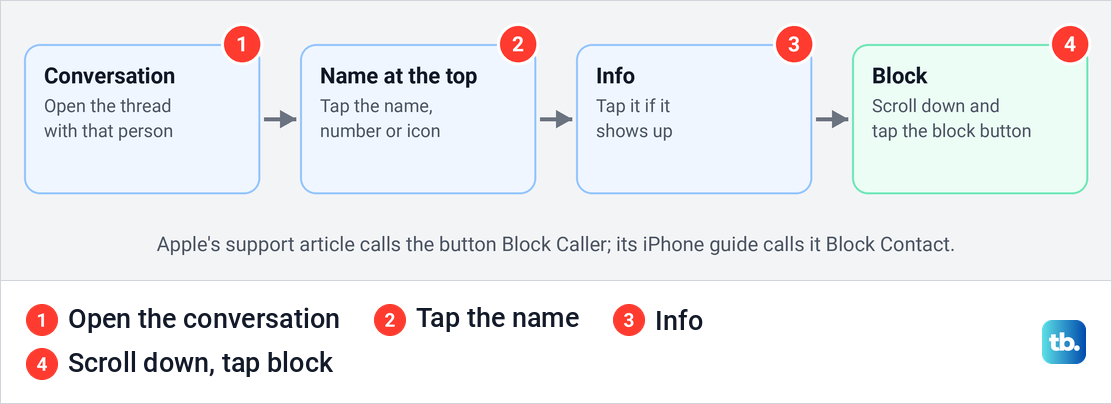
Open Messages and the conversation with the person. Apple's iPhone guide says to tap the person's icon at the top, tap Info, scroll down and tap Block Contact. Apple's support article describes the same route without the Info step and names the button Block Caller, so scroll down and tap whichever block button you see.
Apple says the person is not told, and messages from them are not delivered to you. If you want a conversation out of sight without cutting the person off, you can hide messages on iPhone instead.
Block a saved contact
For someone in your contacts, you do not need a recent call or message. Apple's steps are to open the Phone app, tap Contacts, tap the contact, then tap Block Contact. Apple's tip for someone who starts writing from a new number or email address is to add it to their contact card, which blocks future contact from it as well.
Block a FaceTime caller
Apple gives three moments to block someone in FaceTime. In your FaceTime call history, tap the call, tap Block Contact, then tap Block. During a call, tap the email address or phone number, tap Block Caller, then Block, and while a call is still ringing, tap the left side of the notification, tap Join FaceTime at the top of the screen, then tap Block Caller.
Group FaceTime has its own buttons. While a group call rings or during it, Apple says to tap the people count at the top of the screen, then tap Block All Participants, and during the call you can also choose Block Unknown Participants. After it ends, tap the call in your history, then Block All Participants. Reporting a call as spam is a separate step: touch and hold the call in your history and tap Report Spam.
Block an email sender in Mail
Open an email from the sender in the Mail app. Apple's steps are to tap their email address at the top, tap View Contact Card, then tap Block this Contact. From then on, Apple says, emails from a blocked sender are moved to Trash automatically, and email blocking works across all your Apple devices.
Apple's block works in Apple's own apps only. If you read your email in another app, block a sender in Gmail, Outlook and other mail apps from inside that app. Blocking suits one sender you know, and for a flood of unwanted mail, here is how to stop junk email on iPhone.
Block a number that has never called you
You can block a number before it ever rings. Apple's iOS 26 steps are to open Settings, tap Privacy & Security, tap Blocked Contacts, tap Add Blocked Contact, enter the contact and tap Block Contact. Apple says unknown numbers and email addresses can go on the list this way.
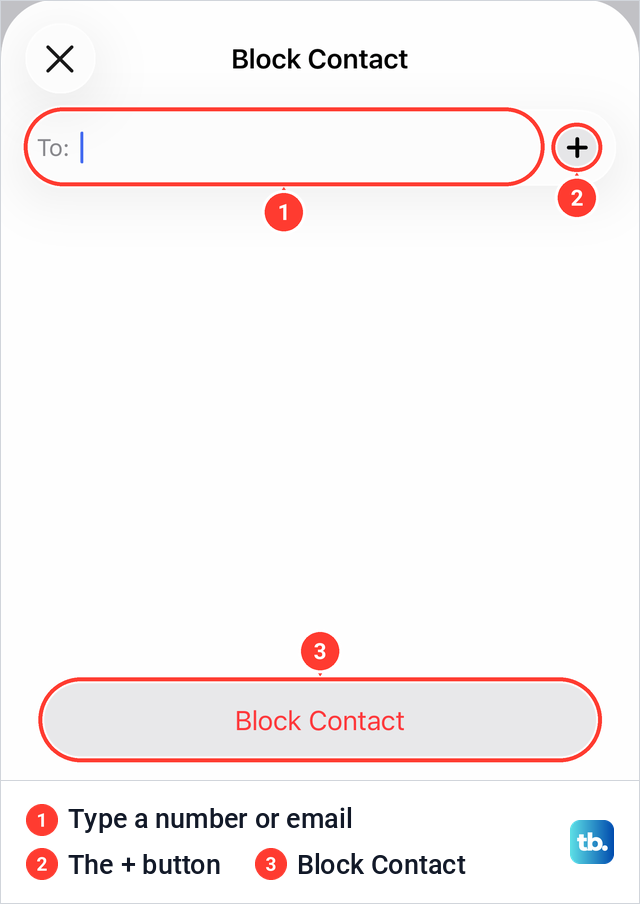
On our iPhone 17 Pro with iOS 26.6, we opened Add Blocked Contact from the list in Phone settings. It brought up a sheet titled Block Contact with a To: field and the keyboard up, with @ and dot keys, so a number or an email address can be typed in. A + button sits at the end of the field, and Apple's guide says you can also select a contact to block here. Apple's steps end on the red Block Contact button.
See everyone you have blocked
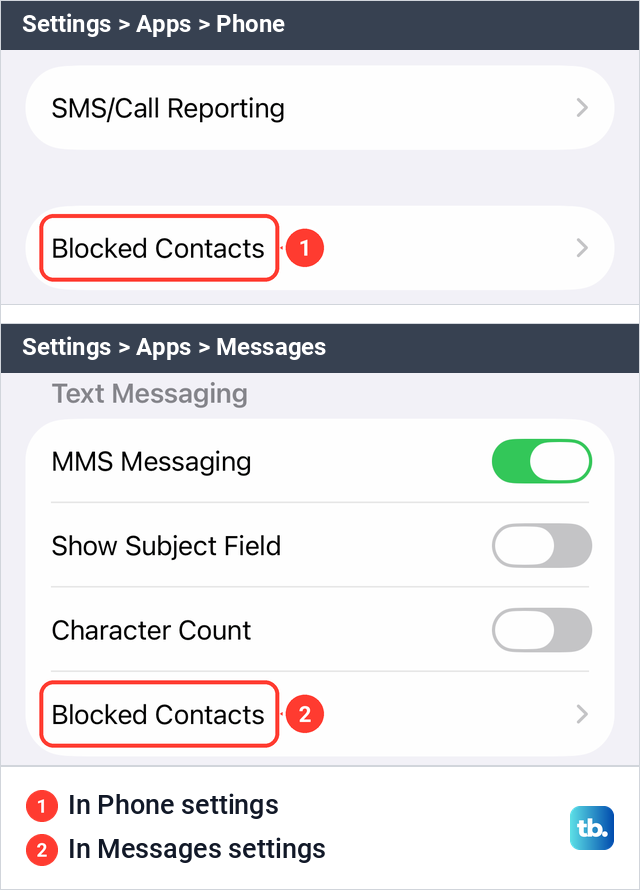
Apple's iOS 26 articles put the full list in Settings > Privacy & Security > Blocked Contacts, a central list that Apple names as one of the iOS 26 changes to blocking. On our iPhone 17 Pro with iOS 26.6, we reached Blocked Contacts from Settings > Apps > Phone, where it is a row of its own below SMS/Call Reporting. Messages settings carry a Blocked Contacts row too, in the Text Messaging group.
The list starts with Add Blocked Contact and has an Edit button at the top right. People saved in your contacts are listed by name, while numbers you never saved are grouped into a single row, which read 14 Unknown on our iPhone. The footer read: "You will not receive phone calls, messages, email, or FaceTime from people on the block list."
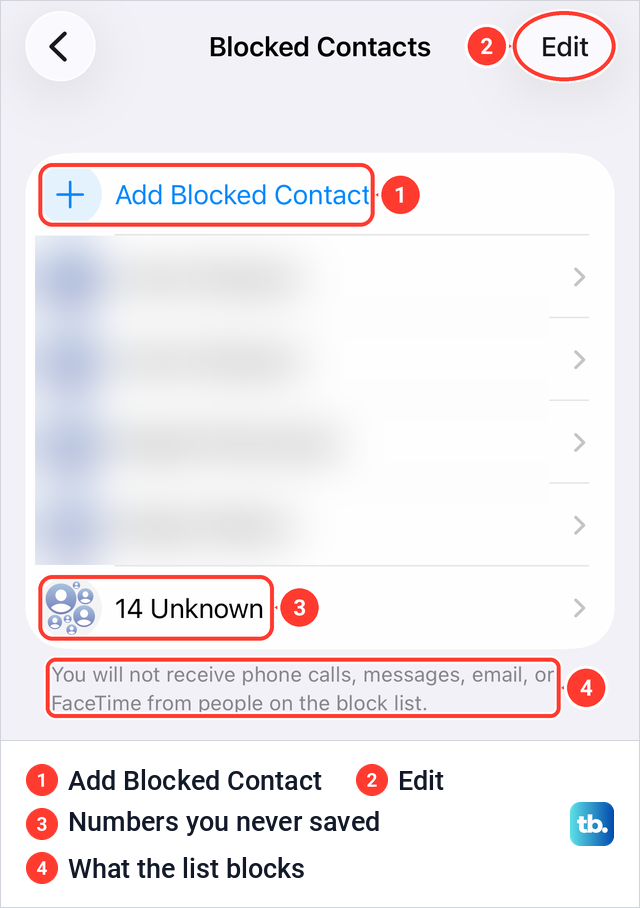
That Unknown row is why a list can look much shorter than the number of people you blocked, since every unsaved number sits behind it. Our separate guide walks through how to find every number you have blocked on an iPhone, step by step.
Unblock a number or contact
Unblocking happens in the same list. Apple's steps are to open Blocked Contacts, tap Edit, tap the delete button next to the contact and tap Unblock. For a number you never saved, tap the row ending in Unknown first, then swipe left on the number and tap Unblock, or tap Edit there.
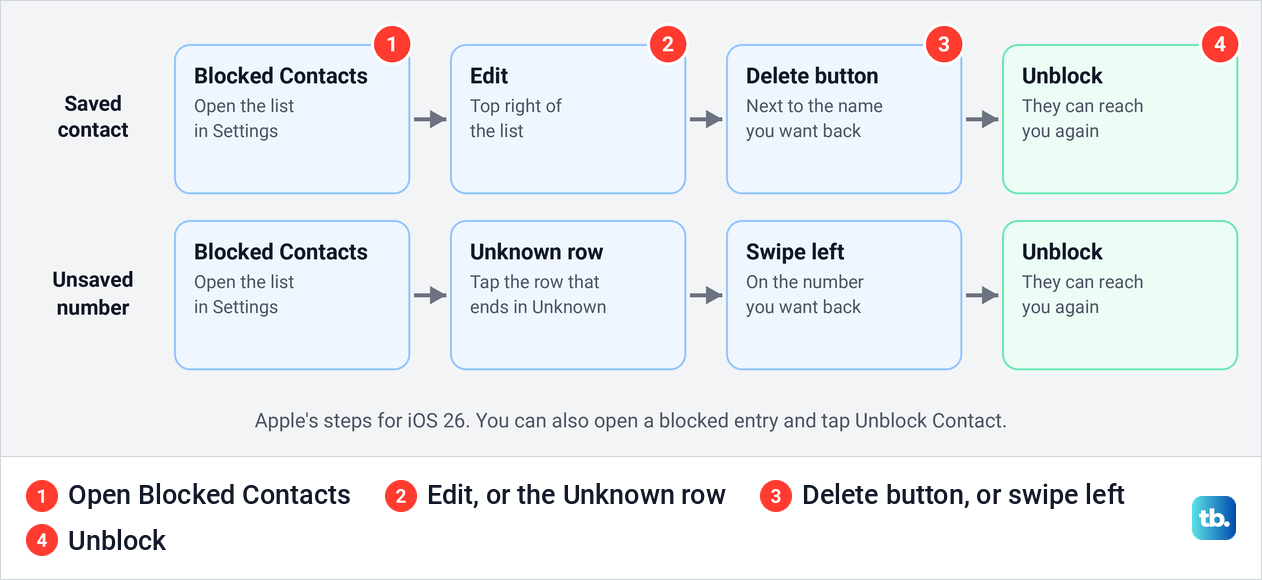
Apple's iPhone guide gives a third way: select a blocked entry, scroll down and tap Unblock Contact. In FaceTime you can also tap the call in your history and tap Unblock Contact. For every other place to undo a block, see how to unblock a number on iPhone.
What happens when you block someone
A block reaches further than calls and texts, and Apple's personal safety guide spells it out. Their calls, messages and FaceTime calls stop, and their emails go to Trash. If you share your location with them in Find My, iOS 26 stops that sharing immediately and does not notify them.
Apple lists two more effects. If the person is your emergency contact, they are removed as one. If you share other things with them, such as Calendar or Notes, Safety Check prompts you to review that sharing.
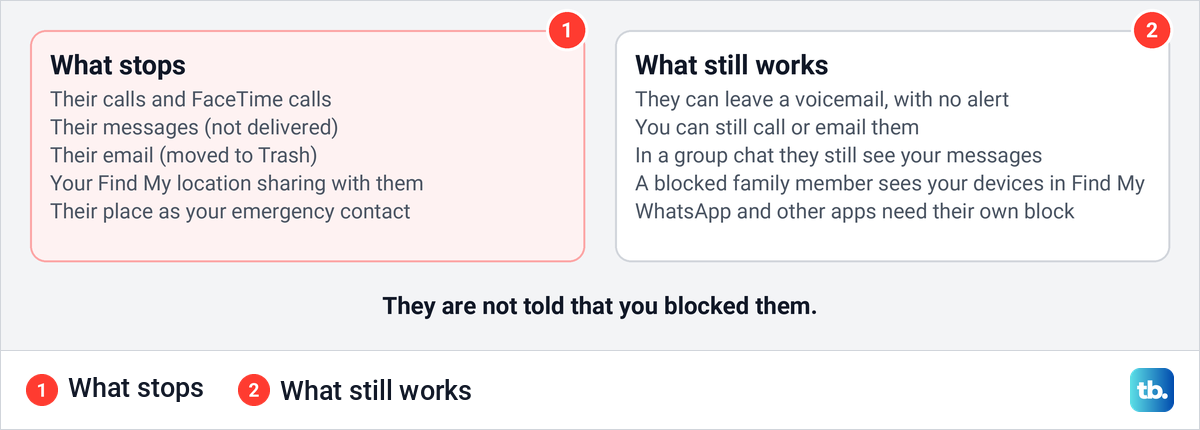
Some things carry on. Apple says you can still call and email a blocked contact, and a blocked contact in your Family Sharing group can still see the location of your devices in Find My. Shared invitations can still arrive from their Apple Account email, so Apple suggests adding that address to their contact card.
Blocks in Apple's apps do not reach WhatsApp, Instagram or other apps, which each need their own block. To share or stop sharing your location with anyone else, see how to share your location on iPhone. If you only want quiet and not a block, you can silence a contact on iPhone and they can still reach you.
Will the person know you blocked them
Apple's answer is short. A blocked number can still leave a voicemail, but you won't get a notification, and the person gets no notice that their call or message was blocked. Apple's Messages guide adds that "A sender can't find out if they're blocked."
Group chats work differently. Apple says you can still be in a group conversation with someone you blocked, and you won't see their messages, but they will see yours. You can't block a group conversation itself, so Apple's advice is to leave it or stop its notifications. If you leave, everyone in the group sees a note in the conversation that you left.
Blocking versus reporting spam and screening unknown callers
Reporting is not blocking. A Report Spam link appears under messages from unknown senders, and Apple is clear about what it does not do: "Reporting spam doesn't prevent the sender from sending messages. To avoid receiving their messages, block the contact."
Screening suits numbers you do not know yet. On our iPhone, Settings > Apps > Phone offered Screen Unknown Callers with Never, Ask Reason for Calling and Silence, and it was set to Never. Silence, in the phone's own words, sends calls from unsaved numbers to voicemail and shows them on the Recents list.
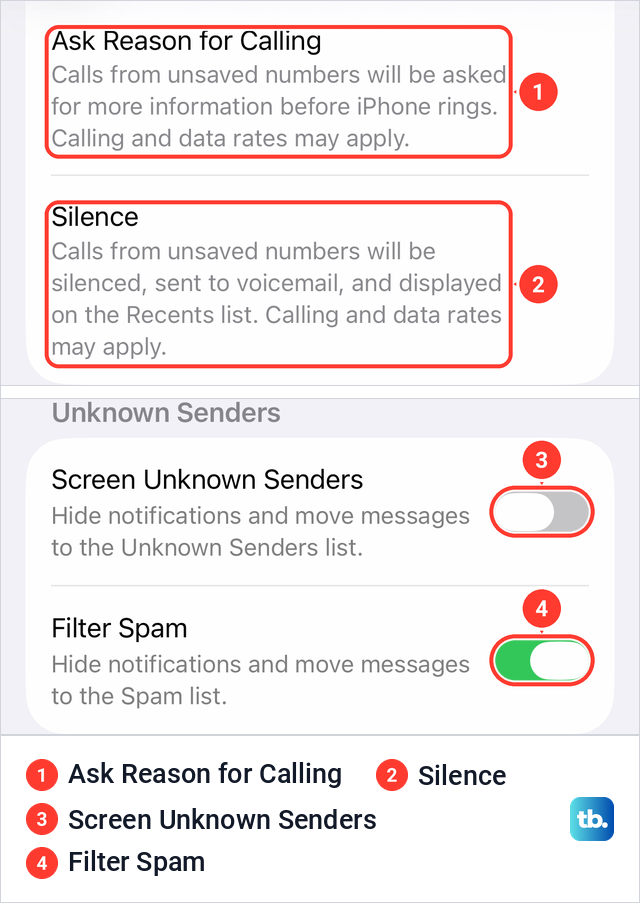
Texts have their own switches. Settings > Apps > Messages shows Screen Unknown Senders, which hides notifications and moves messages to an Unknown Senders list, and Filter Spam. Apple says Screen Unknown Senders is off by default in iOS 26, though it is on after the upgrade if you had Filter Unknown Senders turned on in iOS 18, and spam filtering is on by default. That is how both were set on our iPhone.
For calls from numbers you do not know, the settings that help are in our guide to block spam calls and stop unknown callers. Screening and filters for texts from strangers are covered in how to stop spam text messages on your iPhone, and before you reply to any of them, check for the signs of a scam text message.
Let only your contacts reach you with Screen Time
If you want quiet from everyone except your contacts, Screen Time can do it without blocking anyone. The limits work with your iCloud contacts, so first turn on Contacts in iCloud, which Apple puts under Settings > [your name] > iCloud > See All. Then Apple's steps on your own iPhone are Settings > Screen Time > Communication Limits > During Screen Time, then Contacts Only, and Apple says calls and messages from anyone the limit blocks won't go through.
For a child's iPhone, Apple's current path starts on the parent's iPhone: Settings > Family, the child's name, Allowed Contacts, During Screen Time, then Contacts Only, Contacts & Groups with at Least One Contact, or Everyone. That needs you to set up Family Sharing on iPhone first.
When blocking does not work or the option is missing
Still getting texts from someone you blocked? They may be writing from another number or email address, so add it to their contact card or to the list. If someone looks blocked though you never blocked them, Apple suggests checking whether they share a phone number or email address with someone you did block.
If you cannot see Block Caller on a recent call, check where you tapped. In the Classic layout Apple's route goes through the Info button next to the call, and in both layouts Apple says to scroll down to reach it.
If you cannot find Blocked Contacts in Privacy & Security, try Settings > Apps > Phone > Blocked Contacts, which is where we opened the list on our iPhone and the path Apple's iOS 26 call guide uses. If neither is there, check which iOS your iPhone runs in Settings > General > About, and look at the iOS Version row. Our guide shows how to check which iOS version your iPhone runs.
Apple's steps for iOS 18 and earlier differ. In Phone, FaceTime and Messages the button is Block this Caller (Block this Contact in Mail), and the list is managed from the Phone, FaceTime, Messages or Mail settings, where unblocking in one app unblocks in all four. If your iPhone can run a newer iOS, update your iPhone to the latest iOS to get the Blocked Contacts list described here. Apple's iOS 27 guide gives the same blocking steps.
How we tested this guide
We tested this on an iPhone 17 Pro with iOS 26.6, going through the Blocked Contacts list and the Add Blocked Contact sheet in Phone settings.
Frequently Asked Questions
Will someone know if I block them on iPhone?
No. Apple says the contact won't get a notification that a call or message was blocked. Its Messages guide adds that "A sender can't find out if they're blocked."
What happens when a blocked number calls me?
You are not alerted. Apple says a blocked number can still leave a voicemail, but you won't get a notification about it, and the caller isn't told the call was blocked.
Where are blocked contacts on iPhone in iOS 26?
Apple puts the list in Settings > Privacy & Security > Blocked Contacts. On our iPhone 17 Pro with iOS 26.6, we opened it from Settings > Apps > Phone > Blocked Contacts, where unsaved numbers are grouped under a row ending in Unknown.
Can a blocked contact still text me?
Not from the number or address you blocked, because Apple says their messages are not delivered. A message from a different number or email address gets through until you add it to their contact card or block it too.
Does blocking someone on iPhone block them on my iPad and Mac?
Yes. Apple says a block applies on all Apple devices signed in to the same Apple Account, and on a Mac with macOS 26 the list is in System Settings > Privacy & Security > Blocked Contacts. It does not block them in WhatsApp, Instagram or other apps, which have their own block buttons.
Can I block a group chat on iPhone?
No. Apple says you can't block a group conversation, so leave it or turn off its notifications. If someone you blocked is in a group with you, you won't see their messages there, but they will see yours.