Your phone keeps buzzing with texts you never signed up for: fake delivery notices, "wrong number" hellos, prize offers, and links you would never tap. The senders are not in your Contacts, yet the notifications keep coming.
The good news is that iPhone has more built-in defenses than most people realize, and they have grown stronger in iOS 26. This guide walks through every verified method, ordered quickest and most effective first, so you can silence unknown senders, route suspected spam out of sight, report the worst offenders, and block the persistent ones.
One thing to know before you start: spam often arrives because your number was exposed in a breach, sold by a data broker, entered on a web form, or simply hit by spammers texting random number blocks. You cannot always trace it, but you can stop reacting to it. The single most important habit is below.
Never Reply or Tap Links (Including "STOP")
Before changing any setting, change one behavior. The U.S. Federal Trade Commission advises that you do not click links in a spam or scam text and do not reply to an unknown sender, not even "STOP."
Replying or tapping can confirm your number is live and expose you to phishing. There is also a practical reason on iPhone: once you reply to a sender, you can no longer report that message, and iOS stops filtering messages from any sender you have replied to three or more times.
Turn On Filter Spam (Often Already On)
In iOS 26, Filter Spam is on by default, automatically moving suspected spam into a dedicated Spam folder. It is worth confirming it is active.
- 1.Open the Messages app.
- 2.Tap the Filters button.
- 3.Tap Manage Filtering, then make sure Filter Spam is on.
- 4.Alternatively, go to Settings > Apps > Messages, then scroll down and turn Filter Spam on or off.
To review what got filtered, open Messages, tap Filters, tap Spam, then tap a message.
You cannot reply to a message or tap links inside it while it sits in the Spam folder.
If a legitimate message was caught by mistake, tap it, tap Not Spam, then choose Move to Inbox, or Move to Inbox and Report Not Spam so future messages from that sender are not filtered.
Screen Unknown Senders Into a Separate Folder
This is the highest-impact setting for most people. It moves every text from someone not in your Contacts into a separate Unknown Senders folder and silences their notifications.
In iOS 26 this is called Screen Unknown Senders, and it is off by default (though it turns on automatically after upgrade if you previously had Filter Unknown Senders enabled in iOS 18).
Open the Messages app.
Tap the Filters button.
Tap Manage Filtering (this opens Settings > Apps > Messages).
Scroll to Unknown Senders and turn on Screen Unknown Senders.
You can also reach it directly at Settings > Apps > Messages > Unknown Senders > Screen Unknown Senders.
To view those messages later, open Messages, tap Filters, then tap Unknown Senders.
Be aware of the tradeoff: with screening on, you get no notifications for unknown-sender texts, including legitimate ones, so you will need to check the Unknown Senders folder periodically.
If a real sender lands there, open the conversation and tap Mark as Known to move them into your main inbox.
Note that simply replying does not mark a sender as Known; you must tap Mark as Known explicitly.
On iOS 18 or Earlier, Use Filter Unknown Senders
If you have not upgraded, the same screening feature exists under a different name and a different path.
Go to Settings > Messages.
Scroll to the Message Filtering section.
Turn on Filter Unknown Senders.
Access the filtered texts through the Unknown Senders list in your conversation list.
As with iOS 26, you will not receive notifications for these messages.
The setting was renamed Screen Unknown Senders in iOS 26, and the toggles moved from Settings > Messages to the Settings > Apps > Messages layer.
Sort Unknown Texts Into Transactions and Promotions
For finer control, iOS 26 can sort unknown-sender SMS, MMS, and RCS into category folders so promotional blasts do not mix with things like receipts or codes.
Open Messages and tap the Filters button.
Tap Manage Filtering.
Tap Text Message Filter, then turn on Text Message Filter and any third-party message filtering extensions you have installed.
Once enabled, Transactions and Promotions appear as additional categories.
The full iOS 26 filter menu then shows Messages, Unknown Senders, Transactions, Promotions, Spam, and Recently Deleted.
Choose What Can Still Notify You
Screening is useful, but you probably still want verification codes to come through. iOS 26 lets you pick which categories of filtered messages may notify you.
Go to Settings > Apps > Messages > Unknown Senders > Allow Notifications.
Toggle the types you want: Time Sensitive, Personal, Transactions, or Promotions.
Notifications are on by default for Time Sensitive messages such as verification codes, alerts, and urgent requests; these show a notification and stay in your conversation list for eight hours.
The ability to adjust these settings is available in most countries.
Report Spam to Apple and Your Carrier
Reporting feeds sender and content information to Apple, and for green-bubble SMS, MMS, and RCS messages, to your carrier and its affiliates as well.
The Report option only appears for senders not in your Contacts, and only before you reply.
If you have not opened it: swipe left on the message, tap the trash icon, then tap Delete and Report Spam (older iOS wording: Delete and Report Junk).
If you have opened it: tap the Report Spam link at the bottom of the conversation, then tap Delete and Report Spam.
Important: reporting is not the same as blocking.
It sends information to Apple and your carrier but does not stop the sender from texting you again.
To stop delivery, block them separately (next section).
Block the Sender to Stop Delivery
Blocking is what actually halts messages from a specific number. It is silent: the blocked person is not told, and they can still leave a voicemail (you just get no notification).
Open the conversation in Messages.
Tap the name or number at the top.
Scroll down and tap Block this Caller, then confirm.
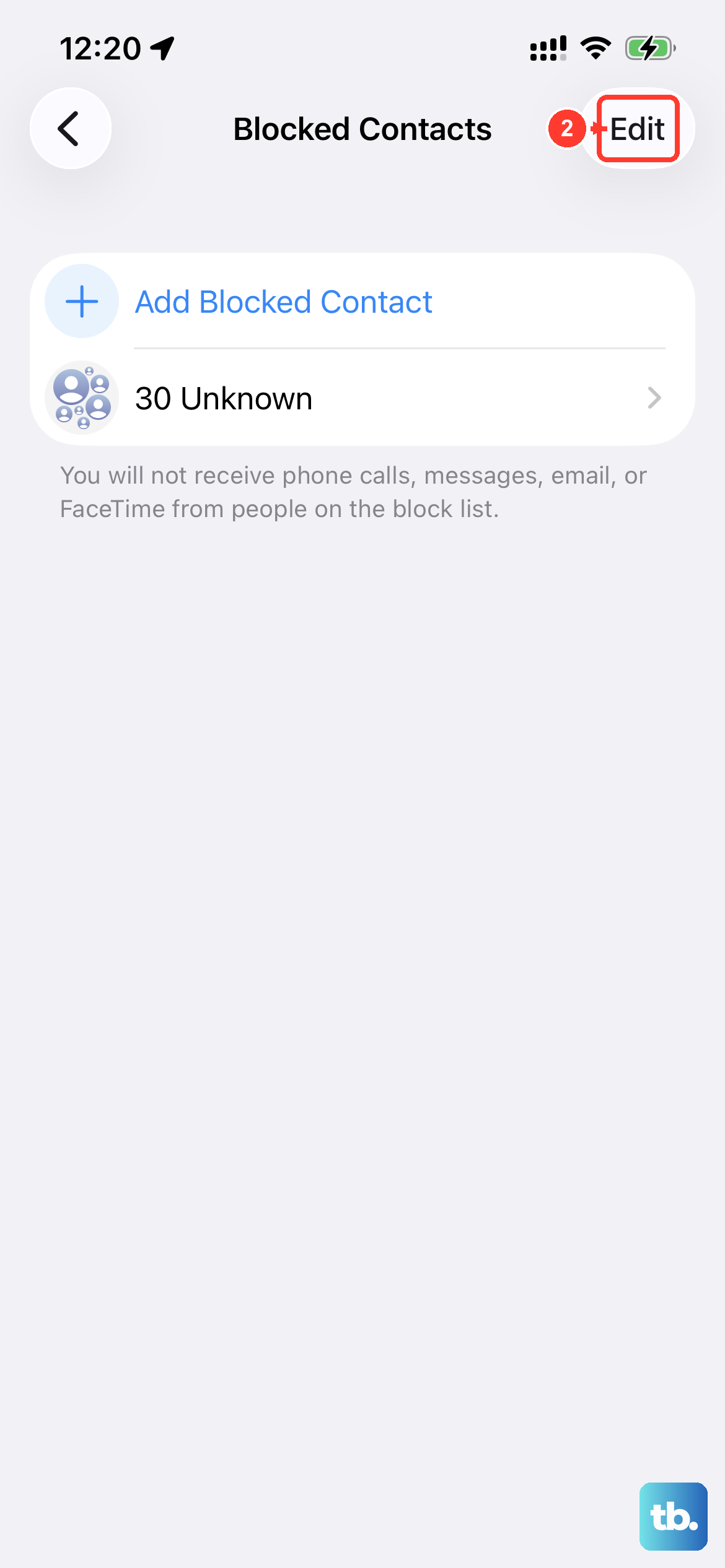
To manage or undo blocks, go to Settings > Messages > Blocked Contacts, or Settings > Phone > Blocked Contacts, or Settings > Privacy & Security > Blocked Contacts, where you can Add New or Edit to unblock.
Forward Spam to 7726 (SPAM)
Forwarding the text to the short code 7726 helps your wireless carrier detect and block similar messages across its network.
This works on iPhone with all major U.S. carriers and 700+ carriers internationally, and it is free without counting against your messaging plan on major U.S. carriers.
Open the spam message in Messages.
Touch and hold the message bubble, then tap More.
Tap the forward (curved arrow) button at the bottom right.
In the To field, type 7726 (which spells SPAM), then tap the send arrow.
Your carrier usually replies with an automated confirmation.
Some carriers then text back asking you to reply with the spammer's phone number, so reply to complete the report.
Report Scam Texts to the FTC
For scam and phishing texts (fake banks, delivery services, the IRS, or "wrong number" lures), you can also file with the U.S. Federal Trade Commission.
Go to ReportFraud.ftc.gov.
Choose the category your spam text fits, or pick Something Else if none applies.
Paste the spam message into the Comments field.
Do not click any links in the text before or during reporting.
The FTC recommends pairing this with the two steps above: forwarding to 7726 and using your messaging app's built-in report option.
Frequently Asked Questions
Does reporting spam also block the sender?
No. Tapping Report Spam sends information to Apple, and to your carrier for SMS, MMS, and RCS, but it does not stop the sender from texting you again. You must block the sender separately to stop delivery.
Why did I stop seeing notifications for some texts?
With Screen Unknown Senders (or Filter Unknown Senders on older iOS) turned on, you get no notifications for any unknown-sender text, including legitimate ones. Open the Unknown Senders folder in Messages to find them, and tap Mark as Known to move a real sender to your main inbox.
I replied to a spam text. Why can't I report it now?
You cannot report a message once you have replied to it, and the Report Spam link only appears for senders not in your Contacts. On top of that, message filtering stops applying to any sender you have replied to three or more times. The fix is to block that sender.
A real message ended up in the Spam folder. How do I rescue it?
Open Messages, tap Filters, tap Spam, then tap the message. Tap Not Spam and choose Move to Inbox, or Move to Inbox and Report Not Spam. Future messages from that sender will no longer be filtered as spam. Note you cannot reply or tap links while a message is still in the Spam folder.
The setting names look different from another guide. Why?
iOS 26 renamed Filter Unknown Senders to Screen Unknown Senders and moved the filtering toggles from Settings > Messages to Settings > Apps > Messages. Screen Unknown Senders is off by default in iOS 26, but it turns on automatically after upgrade if you had Filter Unknown Senders enabled in iOS 18.
Can spammers tell I blocked them?
No. Blocking is silent. The blocked person is not notified, their messages are not delivered, and they can still leave a voicemail (you simply will not get an alert for it).