
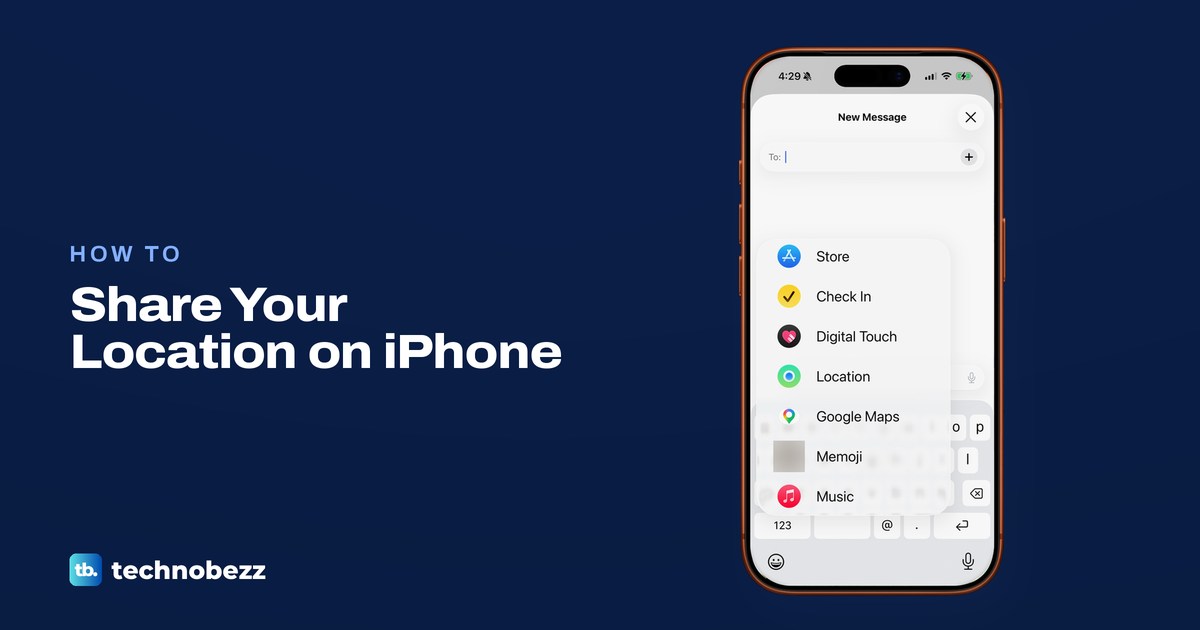
To share your location on iPhone, open Find My, tap People, tap the + button and choose Share My Location, then enter a name and pick how long: an hour, until the end of the day, or indefinitely. In a chat, tap + in Messages, tap Location, then Share. Both send your Live Location, which moves as you move until the time runs out or you stop it.
Apple splits location sharing into three kinds. You can share where you are once, as a pin that does not move, share it on the way somewhere with Share ETA in Maps or Check In in Messages, or share your ongoing Live Location from Find My or Messages. Apple says your location is shared the same way whichever app you start from, and the people you share with can find you in Find My, Maps, Contacts and Messages.
Live Location needs an iPhone with iOS 15 or later on both ends, so a friend with an Android phone needs another route, covered below. We went through Location Services, the Messages + menu and the Find My iPhone page on our iPhone 17 Pro with iOS 26.6, and the Maps sharing menus on iOS 26.5.
The short version
- Ongoing: in Find My tap People, then +, then Share My Location, and pick the person and how long.
- In a chat: in Messages tap +, Location, then Share. Use Map Pin for a spot that does not move.
- On the way: in Maps tap Go, then the route card, then Share ETA.
- To stop: in Find My tap the person, then Stop Sharing My Location. It stops in every app.
- Android friend: Apple's Live Location needs an iPhone, so use Google Maps location sharing.
Which way to share your location
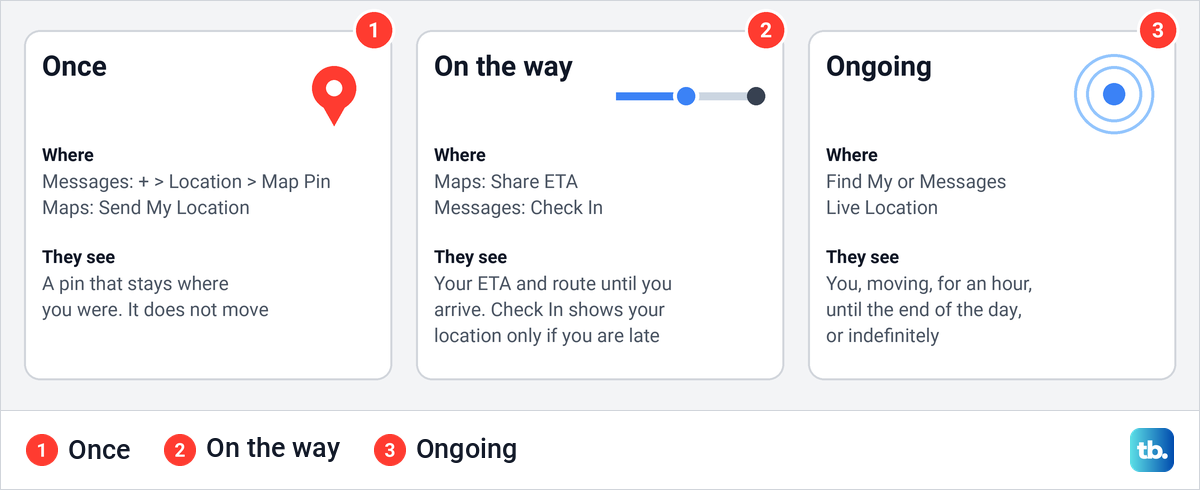
Pick the row that matches what the other person needs. Each row has its own section below.
| What you want | Where | What to tap | What the other person gets |
|---|---|---|---|
| Show where you are right now, once | Messages or Maps | Messages: + > Location > Map Pin > Send Pin > send arrow. Maps: touch and hold the Maps icon > Send My Location | A pin that stays put |
| Let someone follow you for a while or for good | Find My | People > + > Share My Location > a name > Send > how long | Your Live Location for an hour, until the end of the day or indefinitely |
| The same, inside a chat | Messages | + > Location > Share > how long > send arrow | Your Live Location, updating in the conversation |
| Tell someone when you will arrive | Maps | Go > route card > Share ETA | Your ETA, route and Live Location until you arrive |
| Let someone know you got there safely | Messages | Check In | An alert when you arrive. Your location only if you are late and do not respond |
| Share with your family | Settings | Family > Location Sharing | Your location in Find My and Messages |
| Share with an Android phone | Google Maps | Profile > Location sharing > New share | Your real-time location in Google Maps |
Turn on Share My Location first
Find My has to be allowed to share before you can add anyone. Apple's steps are to open Find My, tap Me at the bottom of the screen and turn on Share My Location. The device that shares your location appears next to Sharing From, and if it is not this iPhone, tap Use This iPhone as My Location. The same settings are in Settings > [your name] > Find My.
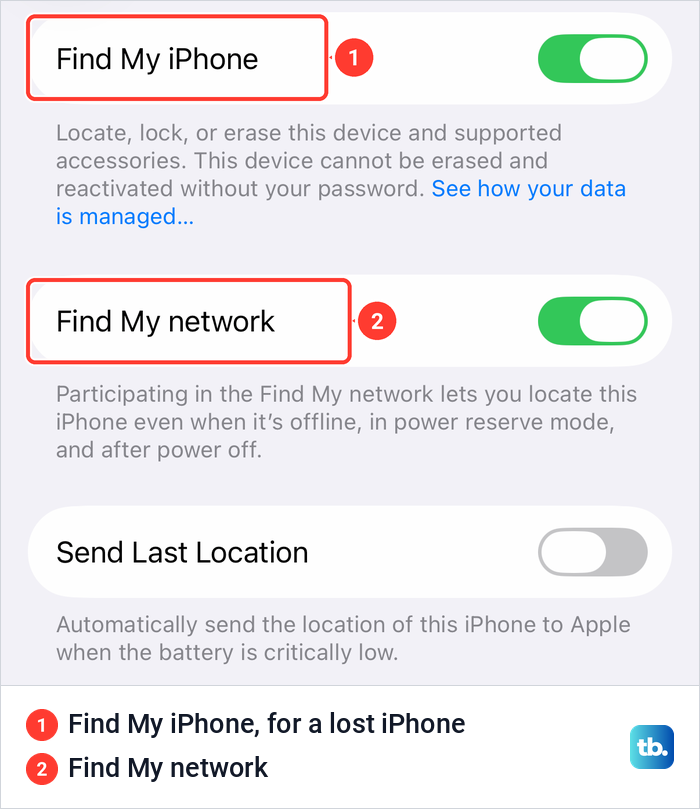
Share My Location is not the Find My iPhone switch. On our iPhone 17 Pro with iOS 26.6, Find My iPhone sits on its own page under Settings, your name, Find My, next to Find My network and Send Last Location, and it is there to locate a lost iPhone. So you can stop sharing with people and leave Find My iPhone on. Turning it off is a separate job, covered in our guide on how to turn off Find My iPhone.
Your location comes from one device at a time. Apple says a cellular Apple Watch on your wrist takes over when you are out of range of your iPhone, and our guide explains whether you can switch your Find My location to a Mac.
With no cellular or Wi-Fi signal, Apple says an iPhone 14 or later can send its location via satellite in Find My, as long as Share My Location is on and you already share with that friend. Tap Send My Location below My Location via Satellite in the Me tab, once every 15 minutes at most. Apple says it needs an active SIM and is not available in every country or region.
Share your location with a friend in Find My
Once sharing is on, adding a person takes a few taps. Apple's steps for iOS 26 are to tap People at the bottom of the screen, tap the + button and choose Share My Location. Type a name in the With field, or tap the add contact button and pick someone, then tap Send and choose how long.
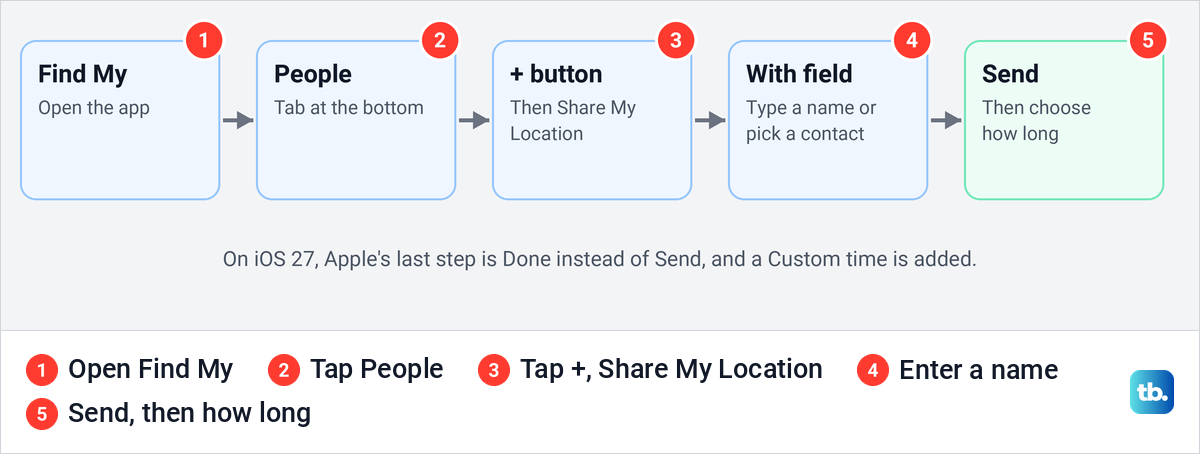
On iOS 27, Apple's steps change in two places. The last button is Done instead of Send, and the time choices add Custom, covered in the next section. If you are in a Family Sharing group, Apple says your family members are already listed under People.
When someone asks to see your location, tap People, tap Share below their name and choose how long, or tap Cancel to say no. To see a friend in return, tap their name and tap Ask To Follow Location, and Apple says you see them once they accept. To stop new requests altogether, turn off Allow Friend Requests in the Me tab.
Choose how long to share your location
Find My and Messages offer the same three choices: an hour, until the end of the day, or indefinitely. Apple says Indefinitely lasts until you stop sharing yourself. The other two have their end built in, so there is nothing to switch off later.
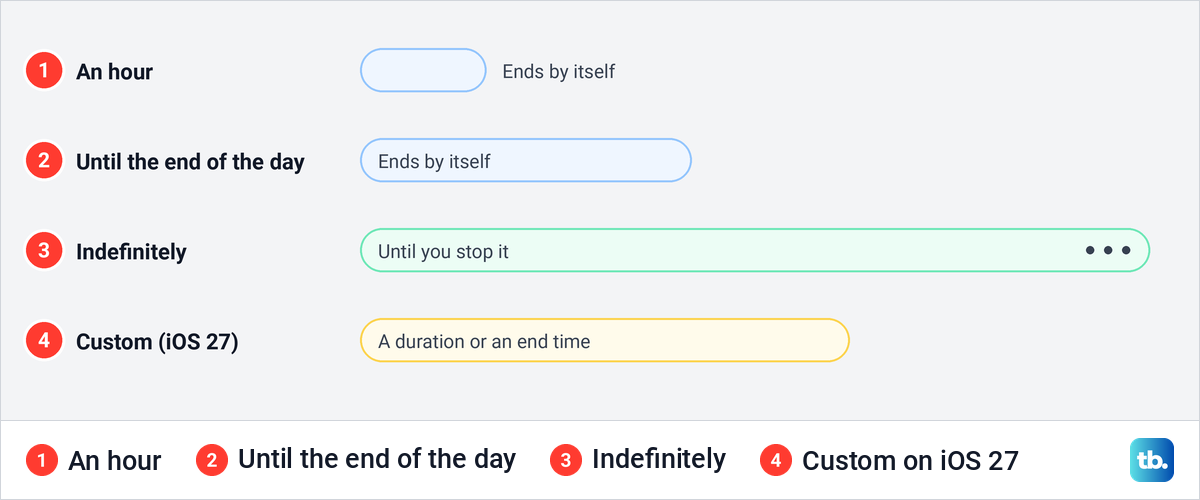
iOS 27 adds a fourth choice in Find My. Apple's tip is to choose Custom and set a duration or an end time, which suits a long hike or a weekend away. Custom is not in Apple's iOS 26 guide, so check which iPhones get iOS 27 before you look for it.
Share your Live Location in Messages
Messages is quickest when you are already talking to someone. In the conversation, tap the + button next to the text field, tap Location, then tap Share. Choose how long, then tap the send arrow, or tap the remove button on the location if you change your mind.
On our iPhone 17 Pro with iOS 26.6, Location was not near the top of the + menu. We scrolled the list to reach it, below Store, Check In and Digital Touch.
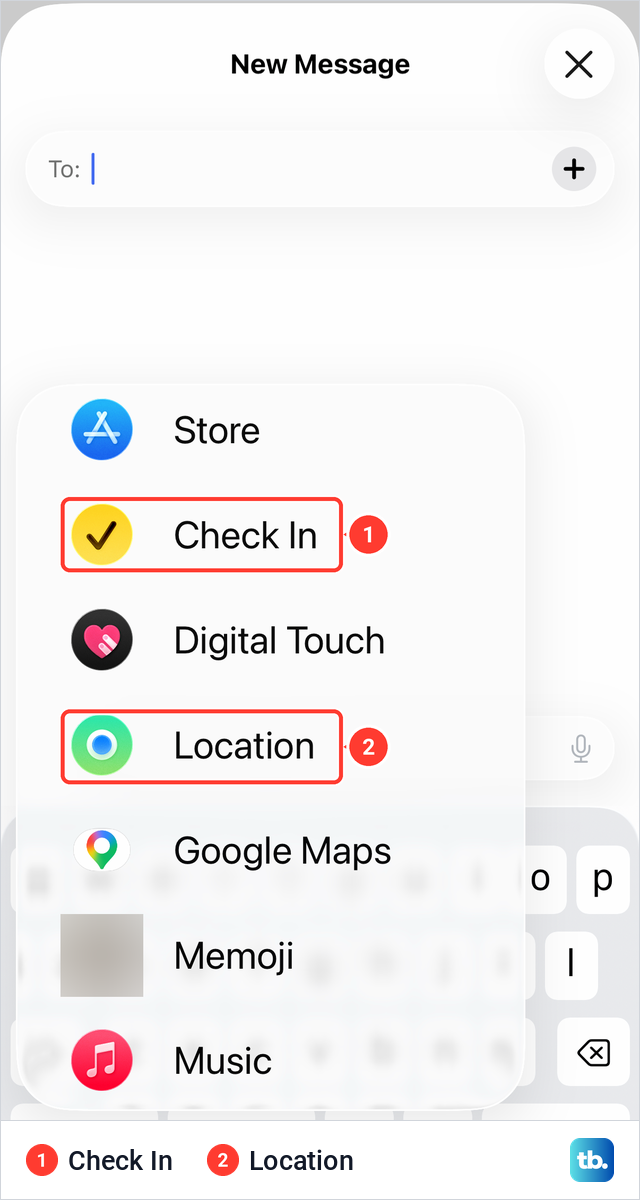
Apple says the location then updates in real time right in the conversation, so it is a Live Location, not a snapshot. In a group chat everyone in the group sees you, and if people join later, you can share again so they see you too. Messages uses Find My to do this, so the person also finds you there.
Apple gives two shortcuts. When someone asks where you are, tap Current Location above the keyboard. You can also tap the person's name at the top of the conversation and tap Share My Location, or Request Location to ask for theirs.
Send a pin that does not move
Sometimes the other person only needs to know where to meet you. In Messages, tap +, then Location, then the Map Pin button in the top left of the map, drag the map until the pin is in the right place, tap Send Pin, then tap the send arrow. Apple says pinned locations do not update as you move, so the person sees only that spot.
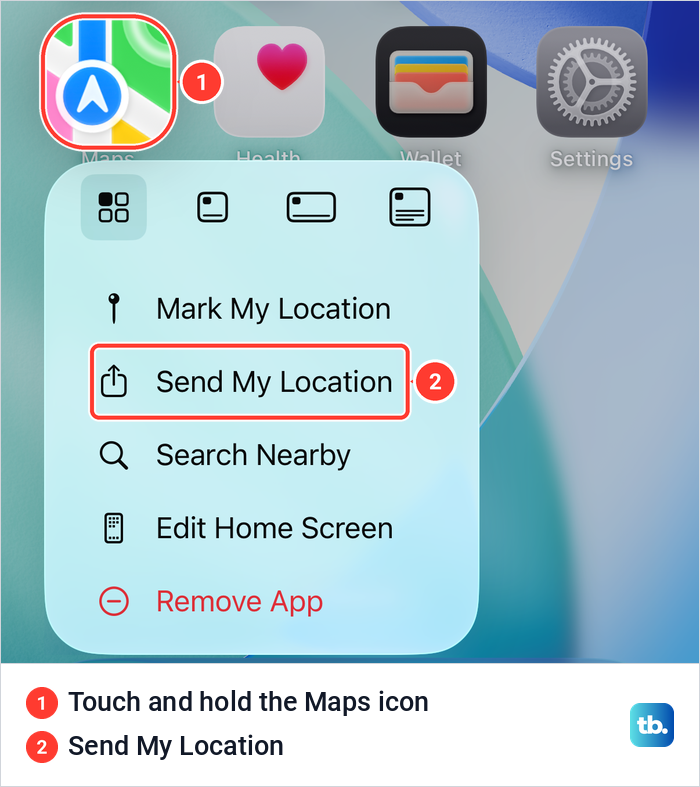
Maps can do it without opening the app. On iOS 26.5, when we touched and held the Maps icon on the Home Screen, the menu offered Mark My Location, Send My Location, Search Nearby, Edit Home Screen and Remove App. Send My Location is the item Apple names for sharing your current location this way.
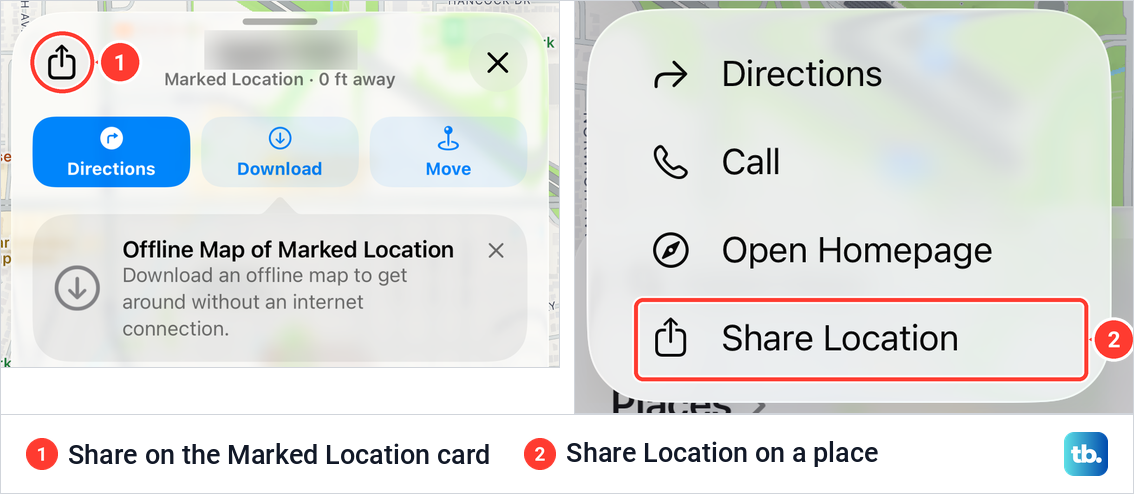
Mark My Location opened Maps with a pin on the spot and a card for that place, labelled Marked Location, with a Share button at its top left. When we touched and held a named place on the map instead, a menu offered Directions, Call, Open Homepage and Share Location. Tapping Share on the card and choosing Copy put a short maps.apple link on the clipboard, ready to paste into a message.
To send a spot that is not where you are standing, drop a pin on iPhone in Maps and share its card the same way. Apple also says to send a pinned location in an SMS conversation. Live Location needs an iPhone on both ends.
Share your ETA in Apple Maps
Share ETA is for a trip. Search for the place you are going, tap Go, tap the route card at the bottom of the screen, then tap Share ETA and choose one or more suggested contacts, or tap Open Contacts. You can also ask Siri to "Share my ETA." Apple says it works with driving, cycling and walking directions.
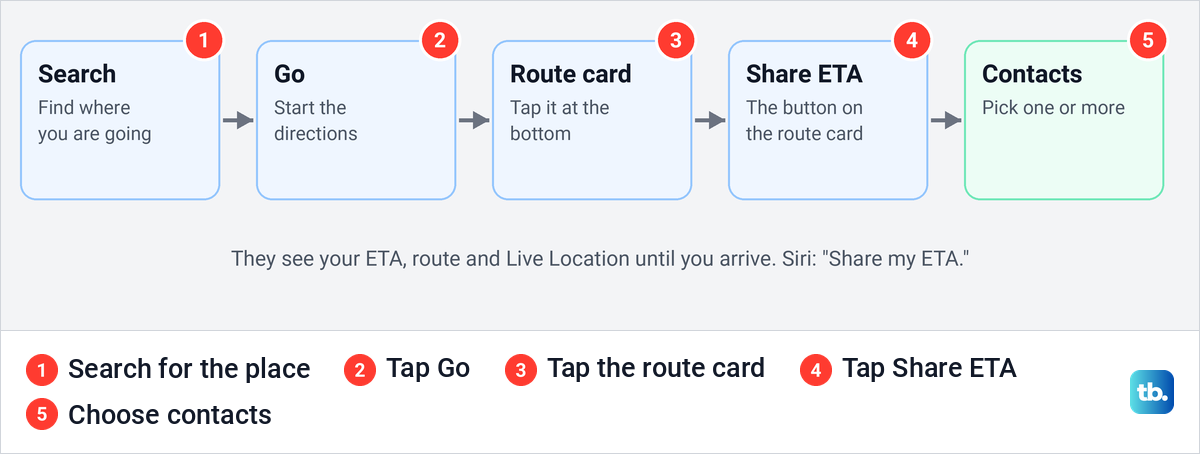
Apple says the people you choose see your Live Location and the stops along your route, and your ETA updates by itself after major delays. People with iOS 13.1 or later get a Maps notification, while other phones get a text message.
If Share ETA is missing from the route card, Apple says to turn it on in Settings > Apps > Maps. To stop partway, open the route card, tap Sharing with at the bottom and tap Stop Sharing ETA below each name.
Maps can also send your ETA automatically every time you head to a pinned place. Apple's steps are to open Places, tap Pinned, tap the info button next to the place and tap Add Person. On iOS 26.5, Places sat on the Maps search card, and the Places screen listed Pinned first.
Apple's safety guide adds a catch. Stopping the ETA during one trip does not remove the person, so sharing starts again the next time you navigate to that place, and they have already been told you are on the way. Remove them from the pinned place to end it for good.
Use Check In instead of sharing all the time
Check In is for "text me when you get home." Apple says it does not share your location unless there is an unexpected delay and you do not respond, and both of you need iOS 17 or later. In a conversation, tap +, then Check In, then tap Edit, choose when you arrive or after a timer, and tap the send arrow.
Apple's steps go through the apps button and More, but on our iPhone 17 Pro with iOS 26.6 Check In was listed right in the + menu, as the picture in the Messages section shows. When you arrive, Apple says Check In completes by itself and notifies your friend that your iPhone has arrived. You can tap Details on the Check In message to Add Time, or tap Cancel Check In if plans change.
What gets shared if you are late depends on Settings > Apps > Messages > Check In Data. Apple says Limited shares your current location plus the network signal and battery details of your iPhone and Apple Watch. Full adds the route you have traveled and the last time you unlocked your iPhone or removed your Apple Watch.
Share your location with your family
In a Family Sharing group, location sharing is set up once for everyone. Apple says the organizer turns it on, the organizer's location is then shared with the whole group automatically, and each other member chooses whether to share. If you have no group yet, set up Family Sharing on iPhone first.
Apple's steps are to open Settings > Family > Location Sharing and choose the family members under Share Your Location With. Turn on Automatically Share Location if people who join the family later should see you too. Family members see your location in Find My and in Messages.
Apple notes that children and teens with Screen Time turned on may not be able to change their own location sharing settings. Family members also appear in your People list in Find My, but sharing only starts when you share with each other. Even without your location, Apple says family members can still help you with a lost device.
Share your location with an Android phone
Apple's Live Location will not reach an Android phone, because it needs an iPhone with iOS 15 or later on both ends. For a quick spot, send a pin in your text conversation, as Apple suggests for SMS chats. Share ETA in Maps also works for a trip, because Apple says people on other phones get your ETA as a text message. For a location that moves, use Google Maps, which runs on both phones.
Google says to sign in to Google Maps with your Google Account first. Its steps in the Google Maps app on iPhone are then to tap your profile picture or initial, then Location sharing, then New share. Choose how long, tap the person you want to share with and tap Share. Google says the person must have a Gmail account, and a link you send instead shows your real-time location for up to 24 hours.
Google also offers Until you turn this off as a time choice, and says the people you share with can see your name, photo, recent location and battery level. If you would rather Google kept no Timeline while you share, you can turn off your Google Timeline history, because Google says Location Sharing works even when Timeline is turned off.
To end a Google Maps share, tap your profile picture, then Location sharing, then the person. Google's last step is to tap Stop.
Stop or pause sharing your location
To stop with one person, open Find My, tap People, tap their name, then tap Stop Sharing My Location and confirm with Stop Sharing Location. Apple says this stops sharing with them in every app, not only Find My.
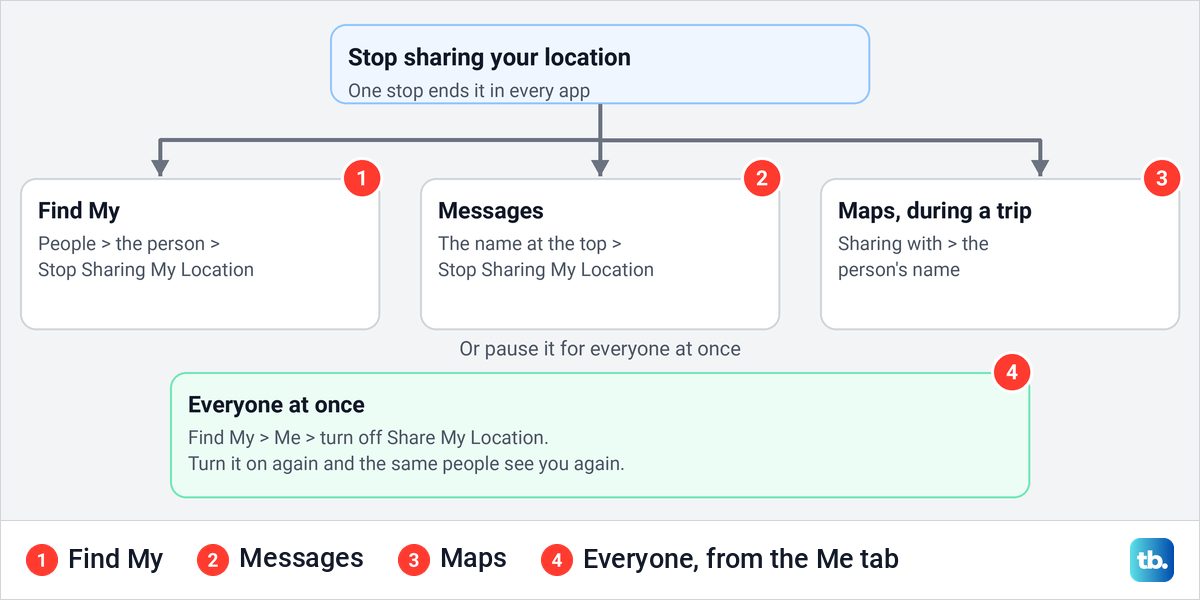
In Messages, tap the person's name at the top of the conversation and tap Stop Sharing My Location, which Apple's support article calls Stop Sharing. In Maps, tap Sharing with at the bottom of the screen during a trip and tap the person's name.
To stop with everyone at once, turn off Share My Location in the Me tab of Find My. Apple says the people you shared with see you again when you turn it back on. On iOS 27, Apple adds a pause for one person: tap them in People, tap the More button and tap Hide Location, and Apple says sharing automatically resumes the next day.
Will they know? Apple's support article says the person you stop sharing with won't be notified. Its safety guide says they may notice that you have stopped, and that on earlier versions of iOS they may get a message in Messages. An Apple checklist for iOS 15 and earlier adds that if you start sharing again, they get a notification.
Deleting Find My does not stop anything. Apple says people can still see your location, so reinstall Find My and stop sharing there, and its safety guide suggests turning off Location Services first.
If your personal safety is at risk, Apple points to Safety Check in Settings > Privacy & Security > Safety Check. Its Emergency Reset immediately stops sharing all information with all people and apps, not only your location, while Manage Sharing & Access lets you review one person or app at a time.
Sharing with people and apps using your location are separate things. If you want no app to know where you are, our guide shows how to turn off location on iPhone for every app or just one.
When people cannot see your location
If a friend sees No location found below your name, Apple says your iPhone cannot be located right now. Start with the basics and turn on Location Services on iPhone, because Find My cannot share without it. Then check in the Me tab that the right device is shown next to Sharing From.
Apple's note for this problem says to check Settings > Privacy & Security > Location Services > Find My. Neither screen we saw had a row called Find My there. On our iPhone 17 Pro with iOS 26.6, Share My Location was its own row above the app list, and on iOS 26.5 we also saw it inside the app list, reading When Shared. If your list does show Find My, Apple's note says to open it and choose an option.
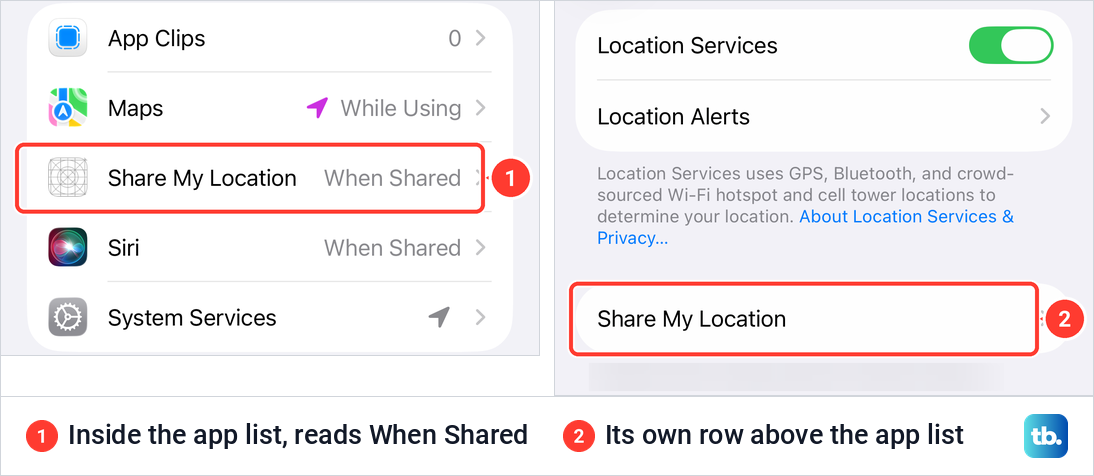
On our iPhone, the line under that row named the iPhone being used for location sharing, which is a quick way to confirm which device is sharing. Neither screen showed an on and off switch next to Share My Location. The switch Apple documents is in Find My under Me, so turning sharing on or off starts there.
Maps has its own location permission. Apple says to make sure Maps is set to While Using the App or Widgets under Settings > Privacy & Security > Location Services > Maps. When we set Maps to Never on iOS 26.5, Maps showed a banner reading "Location Services is Off" even though the main switch was still on. A touch and hold still dropped a pin, but its card lost the distance line and Directions showed no travel time.
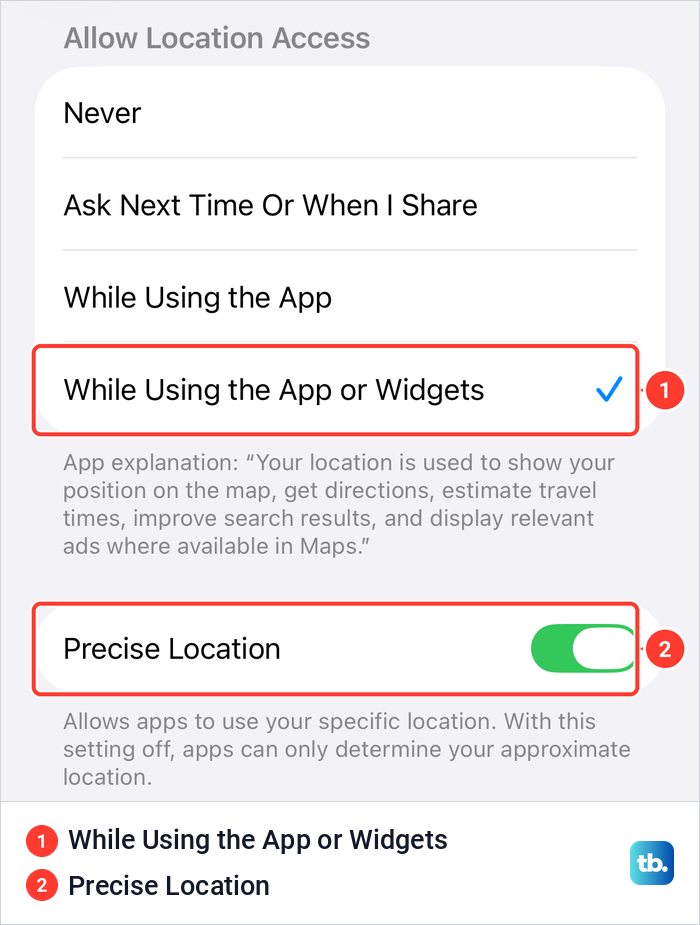
Precise Location matters too. If your list shows Find My, Apple says to turn Precise Location on there to see how far away your friends are, and the Settings page itself says that with it off, apps can only work out your approximate location. If the map still shows the wrong place, Apple's advice is to close Maps and open it again, then restart your iPhone.
Some sharing options need iOS 17 or later, and Apple says that if you don't see an option, update your iPhone's software. Live Location itself needs iOS 15 or later on both iPhones, so the other person may need to update as well.
How we tested this guide
We tested this on iOS 26.5, using Mark My Location in Maps with its Share button and setting Maps location access to Never and back.
Frequently Asked Questions
How do I share my location indefinitely on iPhone?
In Find My, tap People, then +, then Share My Location, enter the person and choose the indefinite option. In Messages, tap +, Location, Share, then Indefinitely. Apple says it lasts until you stop sharing yourself.
Does someone get notified when I stop sharing my location?
Apple's support article says no. Its safety guide says they may notice, and on earlier versions of iOS may get a message in Messages. On iOS 15 or earlier, Apple says turning sharing back on sends them a notification.
Can I share my location from an iPhone with an Android phone?
Not with Apple's Live Location, which needs an iPhone on both ends. Send a pin in your text conversation, or use Google Maps location sharing with a Gmail account or a link that lasts up to 24 hours.
Why does it say No location found?
Apple says that person's phone cannot be located right now. On their iPhone, Location Services must be on and the right device must be set as My Location in Find My.
Can I share my location for just two hours?
On iOS 27, yes. Choose Custom in Find My and set a duration or an end time. On iOS 26 the choices are an hour, until the end of the day, or indefinitely.
How do I pause location sharing without stopping it?
Apple's iOS 27 guide describes Hide Location: tap the person in Find My, tap More and tap Hide Location, and Apple says sharing resumes the next day. On iOS 26, turning off Share My Location in the Me tab pauses it for everyone until you turn it back on.
Does deleting Find My stop sharing my location?
No. Apple says people can still see your location. Turn off Location Services first, then reinstall Find My and stop sharing there.