
To add audio to PowerPoint, select the slide, go to Insert > Audio > Audio on My PC, pick the sound file and select Insert. If the Insert tab has no Audio button, open Media first, because that is where PowerPoint for Microsoft 365 kept it on our PC. A speaker icon lands on the slide, and the Playback tab sets when it plays.
The same menu has Record Audio for a short voice clip, and the Record tab narrates a whole deck. To add music to PowerPoint that keeps going from slide to slide, select the icon and choose Play in Background. However you insert audio in PowerPoint, use music you have the right to use, ideally as an M4A file encoded with AAC, which is the format Microsoft recommends, or as an MP3 or WAV file.
The short version
- Add a saved file: select a slide, then Insert > Audio > Audio on My PC, or press Alt, N, O, P.
- Record your voice: Insert > Audio > Record Audio puts a short clip on one slide when Windows can reach a microphone.
- Choose when it plays: Playback > Start offers In Click Sequence, Automatically and When Clicked On.
- Music across slides: Play in Background starts the track by itself and carries it on, and the Animation Pane can stop it after a set number of slides.
- In a browser: PowerPoint for the web inserts MP3, WAV, M4A, AAC or OGA files up to 16 MB from Insert > Audio.
Choose the right way to add audio
Three different jobs all get called adding audio, and they live in different places. A saved file and a short recorded clip both become a speaker icon on one slide. Narration recorded from the Record tab attaches your voice and the slide timings to every slide you record, which suits a deck that has to run without you.
| Method | Where to find it | What it does | Where it works |
|---|---|---|---|
| Audio on My PC | Insert > Audio, or Insert > Media > Audio | Puts a saved sound file on the selected slide | Windows, and on a Mac it is called Audio from File |
| Alt, N, O, P | Key tips, with the slide selected | Opens the Insert Audio box without the mouse | PowerPoint for Windows |
| Record Audio | Insert > Audio | Records a short clip onto one slide | With a working microphone, not the web |
| Play in Background | Playback tab, with the icon selected | Starts the clip automatically and plays it across slides | Windows, Mac and the web |
| Stop playing After | Animations > Animation Pane, then the clip | Ends the music after the number of slides you choose | Windows and Mac |
| Insert > Audio in a browser | PowerPoint for the web | Uploads an MP3, WAV, M4A, AAC or OGA file up to 16 MB | The web |
| From Beginning or From Current Slide | Record tab | Records narration and timings for the slides you present | Windows and Mac, not the web |
Background music is a saved file with one extra setting, Play in Background, so you add it with Audio on My PC like any other clip. On our PC the Audio menu offered only Audio on My PC and Record Audio, with no box for a web address, so a song has to be saved as a file before it can go in. If the sound belongs to an online video, embed a YouTube video in PowerPoint instead.
Add an audio file to a PowerPoint slide
Select the slide in the thumbnail list on the left, then open the Insert tab. Microsoft's steps say Insert > Audio, but on our PC the Insert tab showed no Audio button at all. Audio sat inside a single Media button at the right end of the ribbon, which opens a small panel with Video, Audio and Screen Recording.
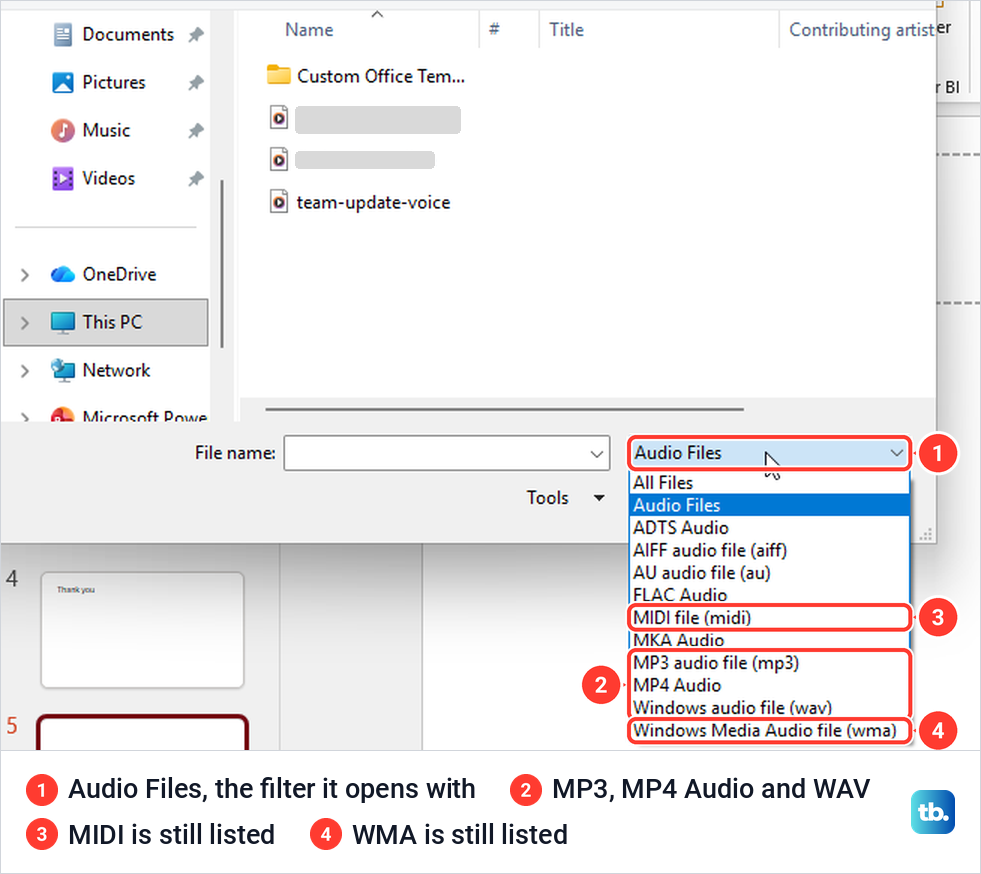
Select Audio, then Audio on My PC. In the Insert Audio box, find the file and select Insert. The box opens with an Audio Files filter, so documents and other files stay hidden while you browse.
If audio commands are unavailable and the title bar shows Compatibility Mode next to the file name, the presentation is in the old .ppt format. Microsoft's fix for unavailable commands in that mode is to save the presentation as a .pptx, after which the command becomes available.
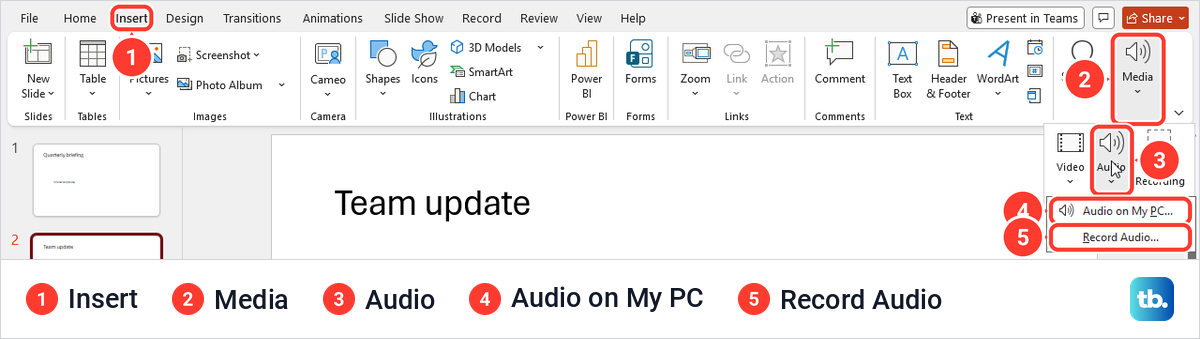
From the keyboard, click an empty part of the slide and press Alt, then N for Insert, O for the Audio menu and P for Audio on My PC. On our PC, O went straight to the Audio menu even though Audio was folded into Media, and R in that menu is Record Audio.
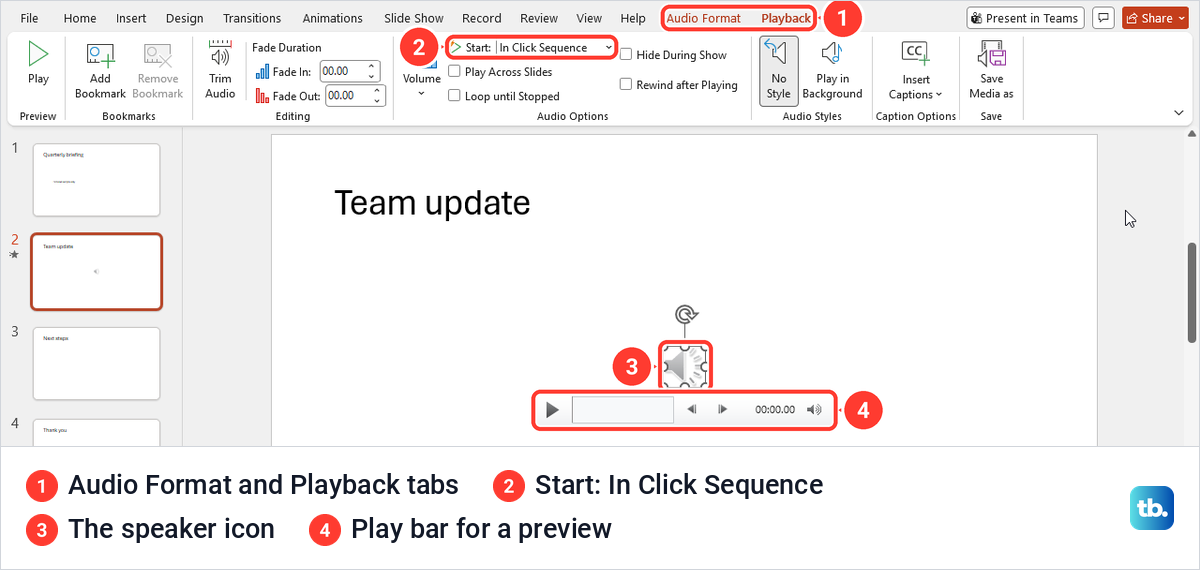
After Insert, a grey speaker icon appeared in the middle of our slide with a play bar under it. Two new tabs, Audio Format and Playback, appeared at the end of the ribbon, and Playback opened by itself with Start set to In Click Sequence. Drag the icon to wherever it should sit, and use the play bar to preview the clip before you present.
Any voice memo or recording saved as an M4A, MP3 or WAV file goes in the same way. If the recording does not exist yet, you can record audio on your PC first and insert the saved file here.
Record a short voice clip on one slide
Record Audio puts a clip straight onto the selected slide, which suits a short spoken note. Microsoft's steps are to select Insert > Audio > Record Audio, type a name for the clip, select Record and speak. Select Stop, then Play to hear it back, and select OK to keep it or Record to try again.
Microsoft says your device must have a microphone enabled. Before using Record Audio, set up a microphone in Windows so PowerPoint has an input to record from. When PowerPoint cannot reach a microphone, Record Audio opens no recorder at all, only a message that the audio recording device is unavailable.
For a clip on every slide, repeat Record Audio on each one. To narrate the whole presentation in one take with the slide timings, use the Record tab instead, which is covered further down.
Choose when the sound starts
Select the speaker icon, open Playback and use the Start list. It has three choices, and the difference between the first and the last is the one that trips people up.
In Click Sequence plays the clip with the next click of the slide show, as one step in the slide's click order. When Clicked On plays it only when someone clicks the icon itself. Automatically starts it as soon as you move to the slide.
In Click Sequence was already set on every clip we inserted in the desktop app. PowerPoint for the web chose When Clicked On instead, so a clip added in the browser waits for a click on its icon unless you change it.
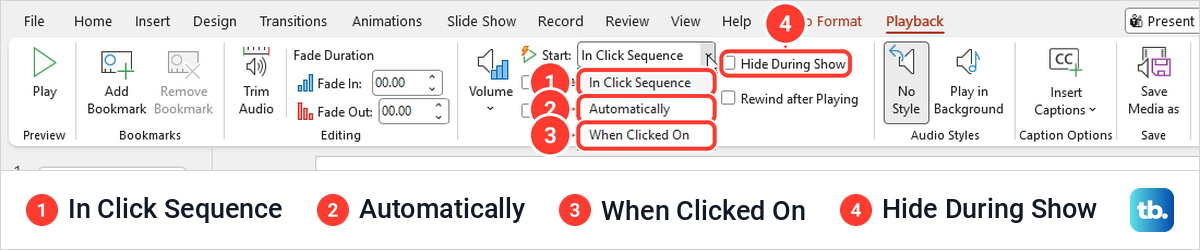
With Automatically, you usually do not want the icon on screen. Tick Hide During Show, which Microsoft says to use only when the clip plays automatically, because nobody will need to click it. When we ticked it, the icon vanished in Slide Show but stayed visible in Normal view, so you can still select it to edit.
Play background music across slides
For one track under the whole presentation, insert the file on the slide where it should start, select the icon and choose Playback > Play in Background. Microsoft describes it as making the audio start automatically during a slide show and play across multiple slides.
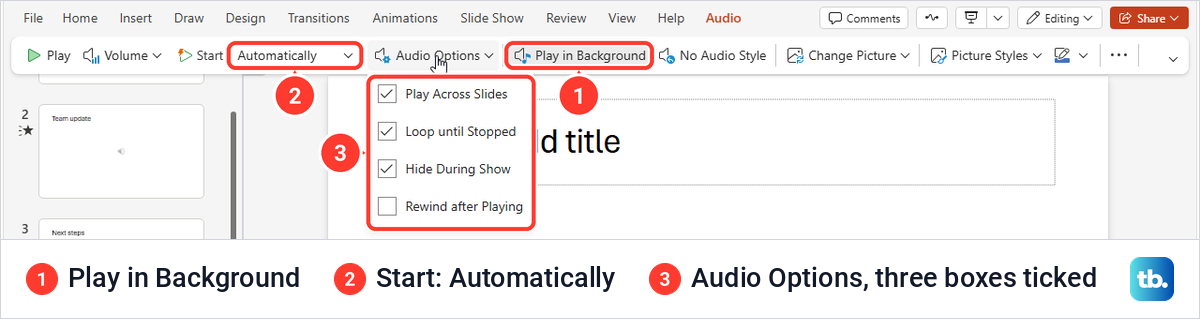
It is really four settings at once. When we selected it, Start changed to Automatically, and Play Across Slides, Loop until Stopped and Hide During Show were all ticked, while Rewind after Playing stayed clear. In Slide Show the icon was gone from the first slide.
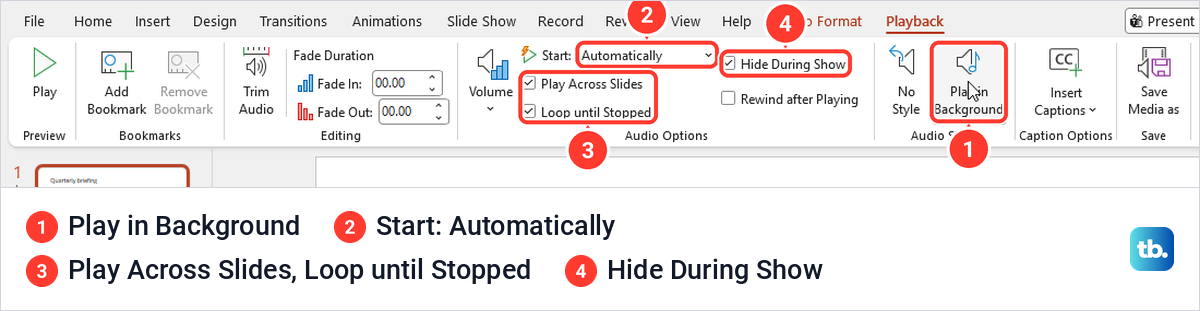
Loop until Stopped repeats the track until it is stopped, so a short song starts over rather than falling silent. Clear that box if the track should play once, and set a stop point if it should end before the last slide.
If the show runs longer than one song, Microsoft suggests adding more songs, and if they are hard to keep in step with the slides, joining them into one file with an audio editor. Each song you add is its own clip with its own Playback settings.
Stop the music after a set number of slides
Play in Background lets the track run to the end of the deck. To end it sooner, open the slide with the clip, select Animations > Animation Pane and double-click the clip in the pane. In the Play Audio box, on the Effect tab, choose After under Stop playing, type the number of slides and select OK.
When we opened that box on a clip set to Play in Background, After was already chosen with 999 slides in it, which is how Play in Background keeps the music going. Microsoft gives 999 as the maximum. We typed 2, and the value was still there when we opened the box again.
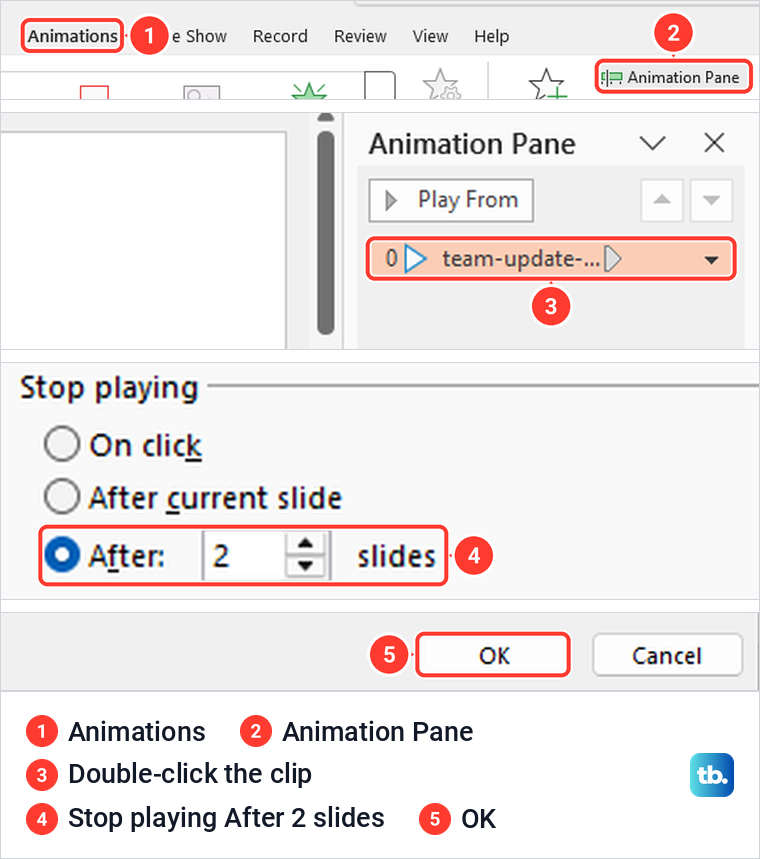
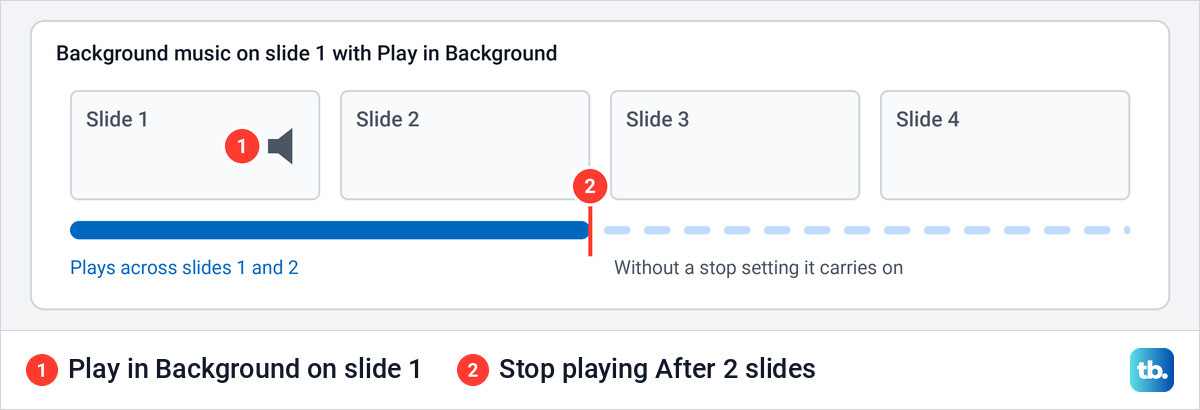
The number is how many slides the music plays over, starting with the slide the clip is on. The same section offers On click and After current slide as the other ways to stop.
Delay, trim and fade the clip
To start a clip a moment after its slide appears, Microsoft's method uses an animation. Select the icon, choose Animations > Add Animation and pick Play under Media. Then open that effect's Timing, set Start to With Previous and type the seconds in Delay.
On our slide, Add Animation added a second Play effect under the one PowerPoint created when the clip was inserted, which was set to On Click, and ran a preview straight away. We opened the new effect in the Animation Pane, went to its Timing tab, set With Previous and a delay of 1 second, and the Animations ribbon then showed With Previous and 01.00.
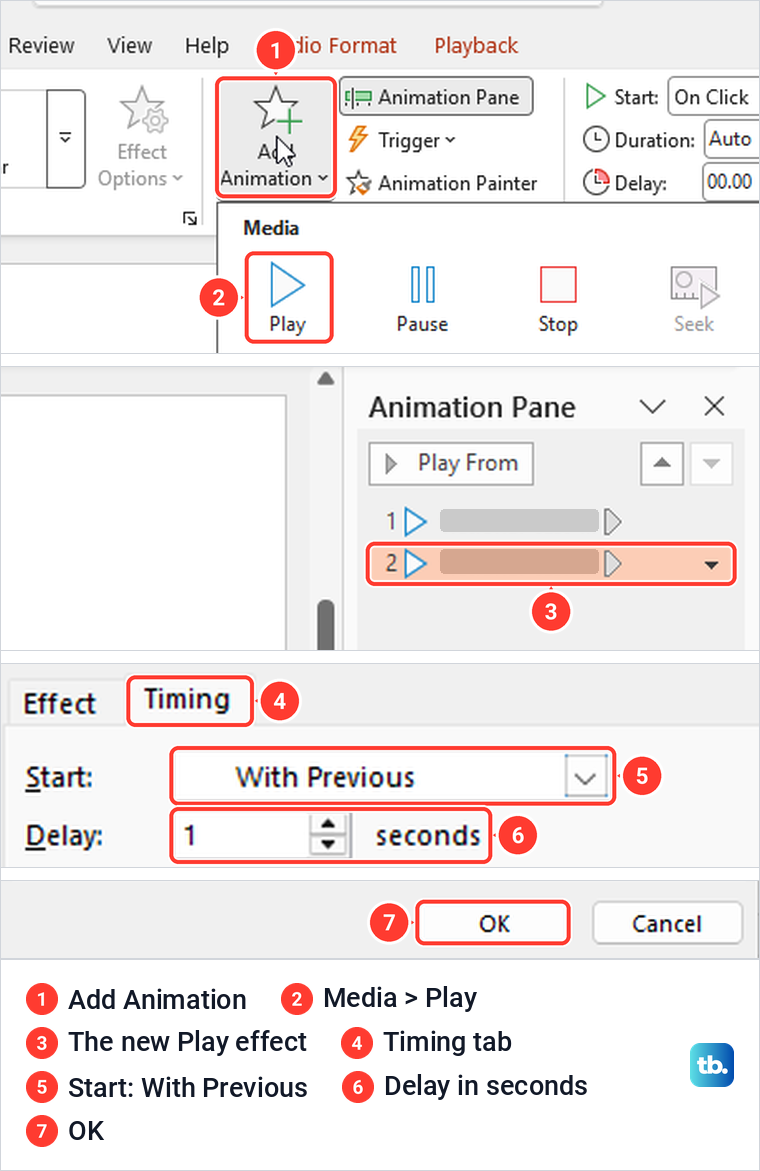
That leaves the clip in the Animation Pane twice, and the original effect above the new one is still set to On Click. Open the arrow beside that original effect and choose Remove, so the delayed effect is first in the pane, as Microsoft's steps require. Then run the slide in Slide Show to check the timing on your own speakers.
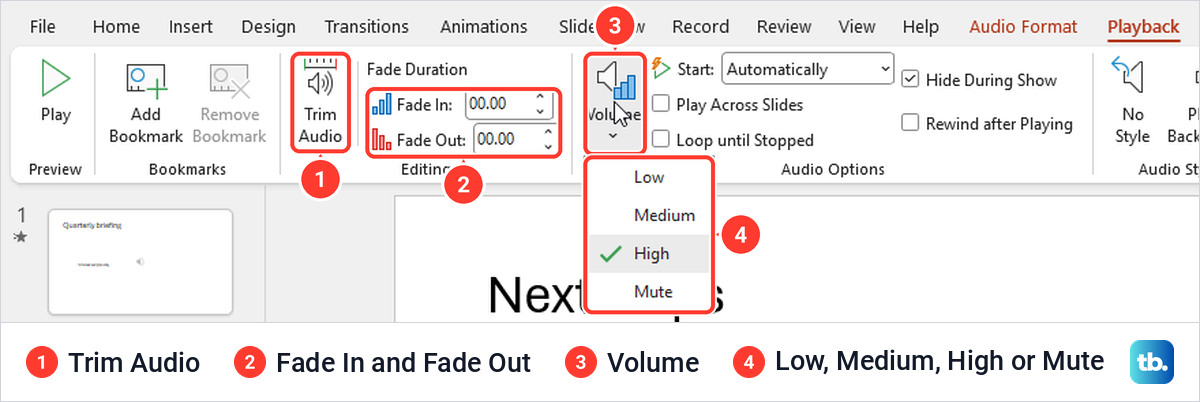
The Playback tab has the rest. Trim Audio opens a window where, in Microsoft's steps, you drag the green and red sliders to cut the start and end. Fade In and Fade Out take a duration in seconds, and Volume offers Low, Medium, High and Mute, with High ticked on our new clip.
Add audio in PowerPoint for the web
PowerPoint for the web can insert a sound file from your PC, even though some older Microsoft pages still say you need the desktop app for that. Open the presentation in your browser, select the slide and open Insert. The Audio button has no label. It is the speaker icon after Video, and pointing at it shows the word Audio.
In Microsoft Edge it opened the browser's Open box, and choosing our WAV file and Open put the icon on the slide with a small browser player under it. The ribbon then showed an Audio tab, not Playback, with Start already set to When Clicked On.
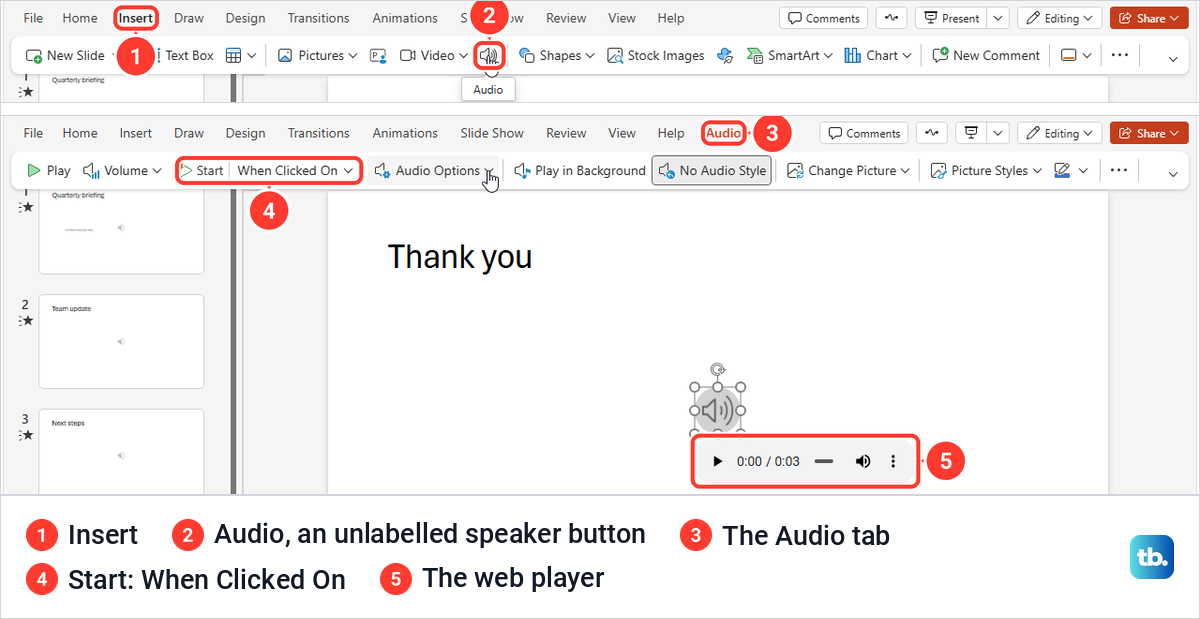
Microsoft lists MP3, WAV, M4A, AAC and OGA as the formats PowerPoint for the web supports, and 16 MB as the largest audio file. From the keyboard, Alt + Windows logo key, then N and O, opened the same Open box on our PC. P in that menu is Pictures, not audio.
Play in Background sits on the Audio tab and did the same as on the desktop. Start switched to Automatically, and Play Across Slides, Loop until Stopped and Hide During Show were ticked under Audio Options, which also holds Rewind after Playing. Microsoft lists only Automatically and When Clicked On as start choices in the web app.
Recording needs the desktop app. The web Audio button went straight to a file box with no recording option, and Microsoft says PowerPoint for the web does not support recording a slide show. Record in the desktop app, save, and open the same file in the browser, where the clips we added on the desktop still showed on their slides.
Add audio in PowerPoint for Mac
On a Mac the command has a different name. Microsoft's steps are to select the slide in Normal view, choose Insert > Audio, and pick Audio from File for a clip saved on your Mac, or Audio Browser, which Microsoft says inserts audio from iTunes. You then set the options on the Audio Format and Playback tabs.
Play in Background is on the Playback tab, as on Windows. To stop the music after a few slides, Microsoft's Mac steps open the Animation Pane, select the clip and use its Media Options section, where Stop playing After takes the number of slides.
Before you share from a Mac, know two limits. Microsoft says Windows Media files (.wmv and .wma) are not supported in PowerPoint for macOS, and that songs bought from the iTunes Store play only on authorized computers, so other people may not hear them.
Narration on a Mac uses Recording Studio. Microsoft's steps open it from the Record button at the top right of the window or from Record > From Beginning or From Current Slide, and pressing Esc or selecting End show leaves it with the narration and timings on your slides.
Record narration for the whole presentation
Narration is a recording of you talking over the slides, with the timings saved as you go. Open the Record tab and select From Beginning or From Current Slide. Microsoft's help also mentions a Record button at the top right of the window, but there was none in ours, and the Record tab had the same two commands.
From Current Slide opened a full-screen recording view with a red record button, camera and microphone buttons, and Edit and Export at either end. If the presentation has speaker notes, Microsoft says they appear at the top like a teleprompter. When PowerPoint cannot find a microphone, the microphone button is crossed out and pointing at it shows No microphone available.
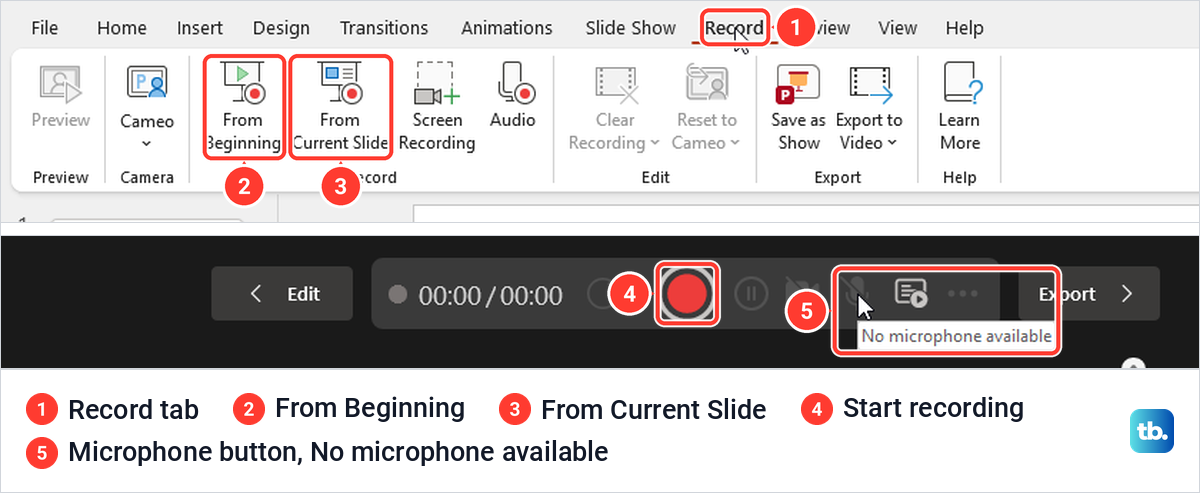
Select the record button, wait for the countdown and speak, using the arrows to move between slides. Microsoft notes that narration does not record during slide transitions, so let a transition finish before you talk. Select Stop when you are done and Play to review, then save the presentation or use Export to turn it into a video.
To present without the recorded voice later, clear Play Narrations on the Slide Show tab, and clear Use Timings to move through the slides by hand. For a moving demonstration instead of your voice, the Record tab also has Screen Recording, or you can record your screen in Windows 11 and insert the video on its slide.
Fix an audio file that will not insert or play
Start with the format. Microsoft recommends .m4a files encoded with AAC for PowerPoint on Windows, and also lists .aac, .mp3 and .wav as supported. It says support for Windows Media Audio (.wma), AIFF and several older formats is limited and deprecated in PowerPoint version 2505 and later, and that MIDI files (.mid and .midi) can no longer be inserted or played.
The file box does not tell you that. On our PC the Insert Audio type list still offered MIDI file (midi) and Windows Media Audio file (wma), next to MP3, MP4 Audio and WAV. A format showing up in that list is no promise that it will play, so convert old MIDI and WMA files to M4A or MP3 first.
Error messages can point the wrong way too. When we forced a plain text file into Insert Audio, PowerPoint said it cannot insert an audio from the selected file and asked us to verify that the necessary codec for this media format is installed. So a codec message can also mean the file is not an audio file at all.
If a clip inserts but will not play when you present, check the clip's settings and format first, then open File > Info, where an Optimize Compatibility button appears if PowerPoint sees media that may not play on another device. If it does not appear, PowerPoint has not flagged a compatibility issue with the media, so keep checking the clip, its volume and the playback device.
If the clip runs but the room hears nothing, select the icon and check that Playback > Volume is not set to Mute. Then find Windows audio settings to confirm the output device and its volume, and if Windows reports that no output device is installed, fix a missing audio device before you troubleshoot the slide.
Fix a microphone that PowerPoint cannot use
If Record Audio shows a message that the audio recording device is unavailable, PowerPoint cannot reach a microphone. The message itself asks you to check that the device is plugged in and working.
Check the hardware first. If a built-in mic fails in every app, use the steps to fix a laptop microphone, and if it records but sounds faint or silent, test your microphone in Windows 11 before recording again.
Then check the permissions in Settings > Privacy & security > Microphone. Microphone access and Let apps access your microphone must be on, and further down the page, below the list of apps, so must Let desktop apps access your microphone. Microsoft notes that desktop apps do not appear in the app list, and PowerPoint for Microsoft 365 is a desktop app, so that last switch is the one it relies on.
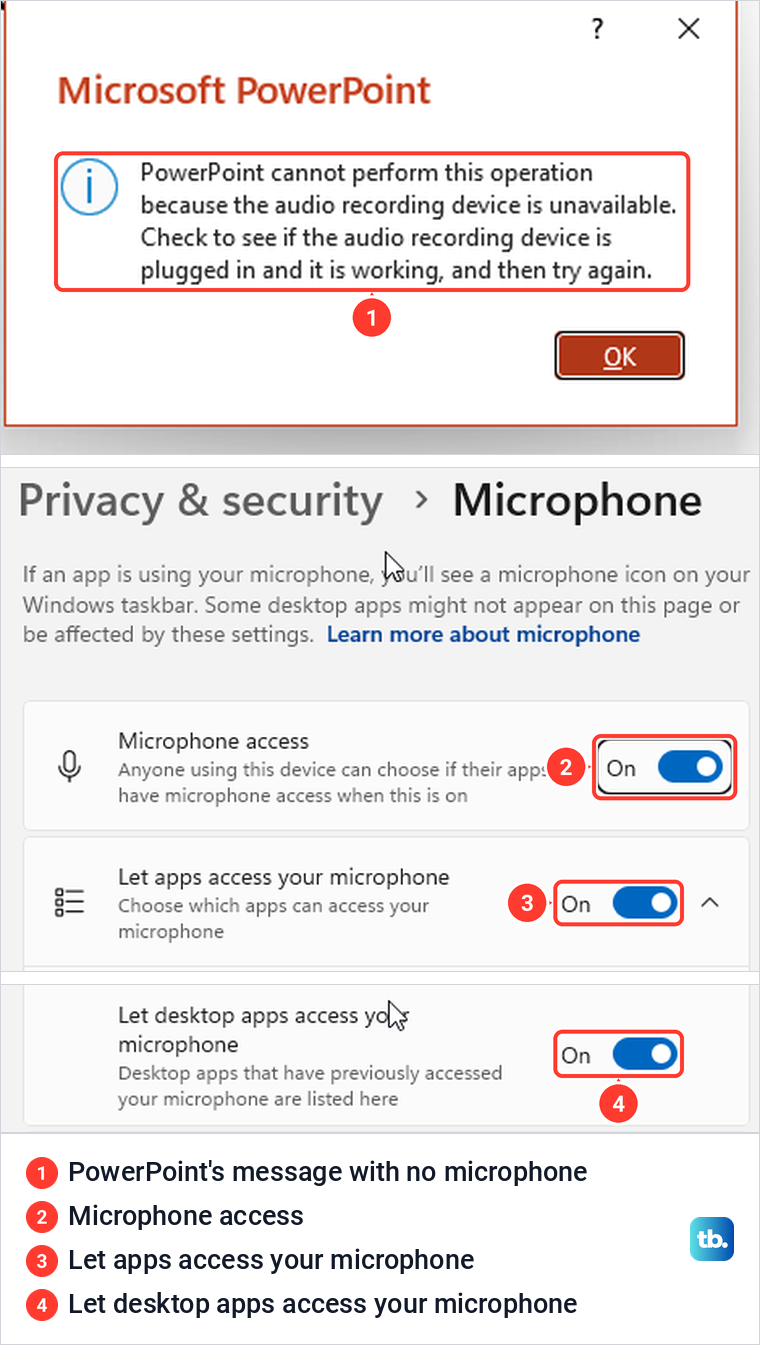
On our PC all three switches sat on the same page, and the desktop-apps switch only came into view after scrolling past the app list. Our guide to change microphone privacy settings covers each of these switches in more detail.
Save the clip on its own and share the deck
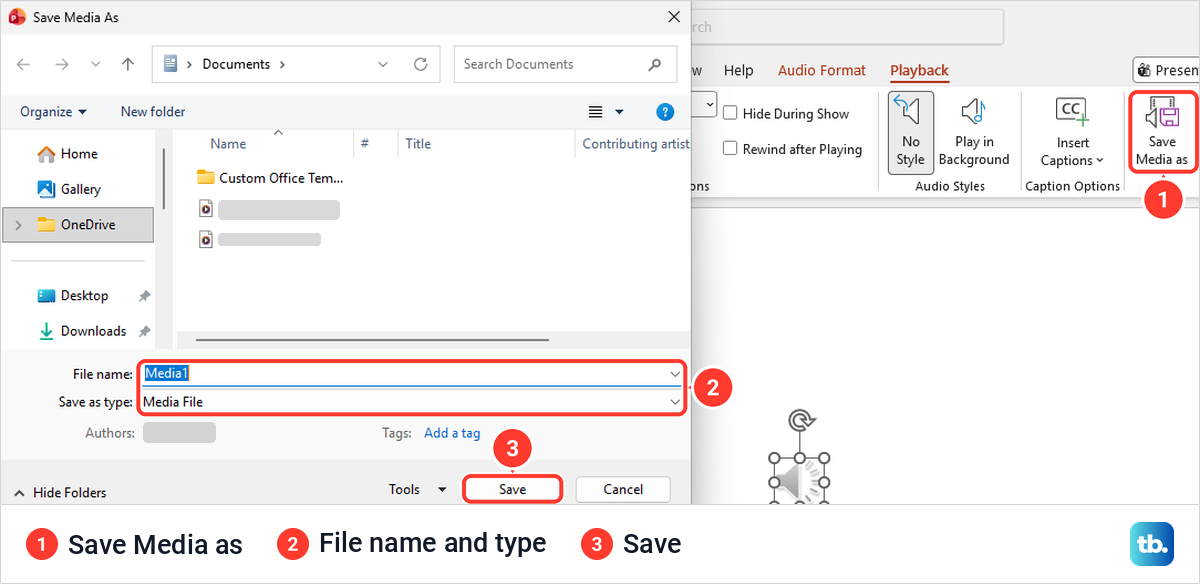
Audio you insert is stored in the presentation file, which is why PowerPoint can hand it back to you. To get a copy out, right-click the speaker icon and choose Save Media as, or select Save Media as at the right end of the Playback tab.
The Save Media As box suggested the name Media1 and the type Media File. We saved our clip as team-update-voice, and File Explorer listed it as a WAV File of the same size as the one we had inserted, so it came back in the format we put in.
Before you share, run the deck once in Slide Show on the PC you will present from, and run Optimize Compatibility if File > Info offers it. To remove a clip, select its icon and press Delete.
How we tested this guide
We tested this in PowerPoint for Microsoft 365 on Windows 11, version 25H2, and PowerPoint for the web in Microsoft Edge, adding a short WAV clip to a four-slide deck.
Frequently Asked Questions
How do I add an MP3 to a PowerPoint slide?
Select the slide, choose Insert > Audio > Audio on My PC, pick the MP3 and select Insert. If there is no Audio button, open Media on the Insert tab first.
How do I make music play through the whole presentation?
Insert the song on the first slide, select its icon and choose Play in Background on the Playback tab. It then starts automatically, plays across slides and loops until it is stopped.
How do I stop the music after two slides?
Open Animations > Animation Pane, double-click the clip, and on the Effect tab set Stop playing to After 2 slides. Play in Background puts 999 in that box, so change it to the number you want.
Can I add audio in PowerPoint for the web?
Yes. Use the unlabelled speaker button on the Insert tab to upload an MP3, WAV, M4A, AAC or OGA file of up to 16 MB, then set it up on the Audio tab. Recording a clip or narration needs the desktop app.
Why will PowerPoint not record my voice?
Record Audio needs a working microphone, and without one PowerPoint shows a message that the audio recording device is unavailable. Check the mic, then make sure Microphone access, Let apps access your microphone and Let desktop apps access your microphone are on in Windows Settings.
Why does the audio not play when someone else opens the file?
Before you send it, use an M4A, MP3 or WAV clip, check that the clip's Volume is not set to Mute, and run Optimize Compatibility from File > Info if PowerPoint offers it. Their own speakers and sound settings still have to work.