Recording on a PC can mean grabbing your screen, your voice, your webcam, a slide deck, or a meeting. Windows already has tools for the common stuff, and the right one depends on what you want to capture.
Start with the built-in option first. If you need editing, meeting controls, system audio, or a full recording setup, move to Clipchamp, PowerPoint, OBS, Audacity, Zoom, Teams, or Google Meet.
1. Start with Snipping Tool for a quick screen recording
Best for a fast Windows 11 screen capture: Snipping Tool records only the selected area you choose.
- 1.Press Windows logo key + Shift + R, or open Snipping Tool.
- 2.Select Record.
- 3.Select New.
- 4.Drag over the part of the screen you want to capture.
- 5.Select Start.
- 6.Select Stop recording when you are finished.
Pick the smallest useful area. The recording is easier to watch, and you avoid showing extra windows by accident.
2. Capture an app or game with Xbox Game Bar
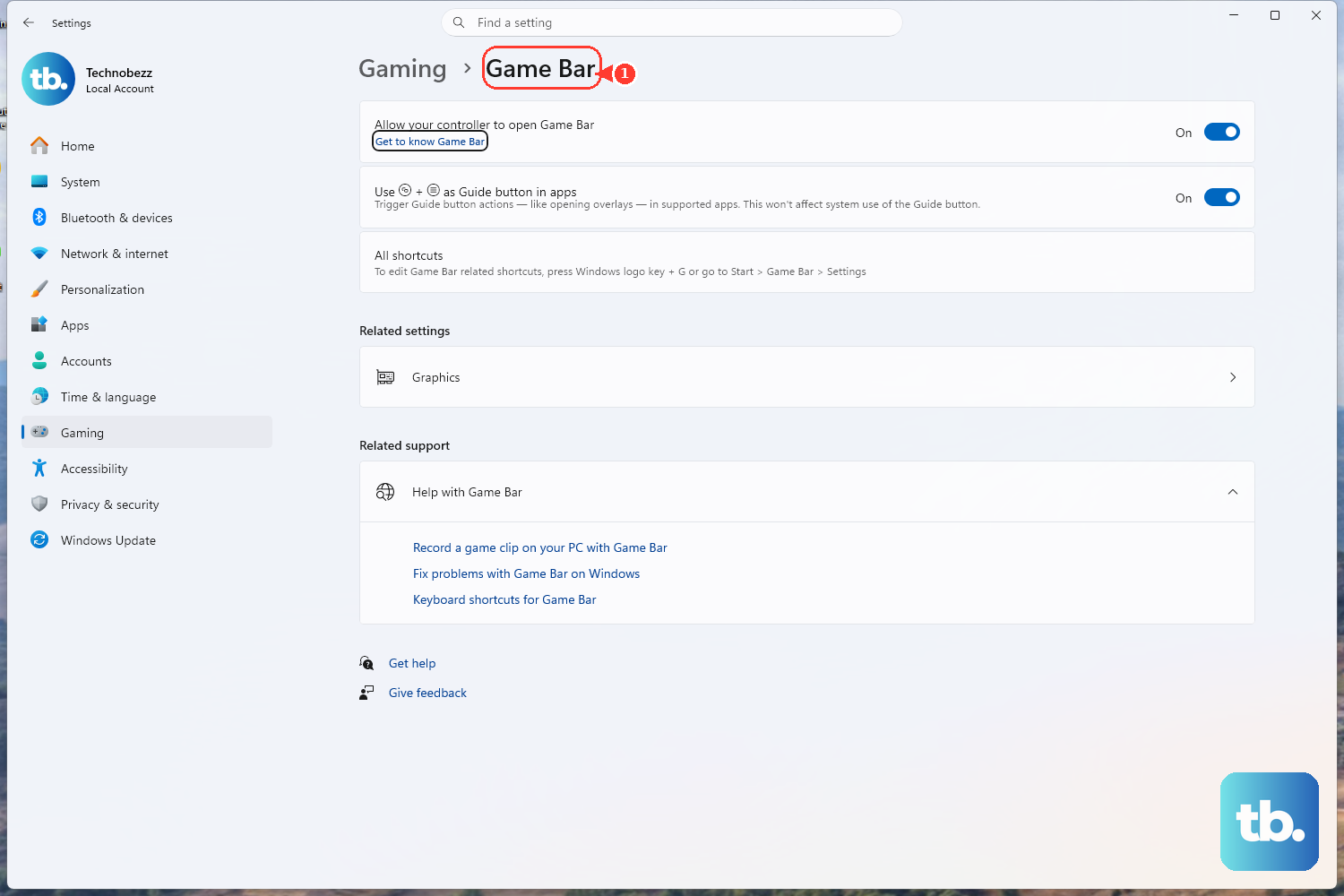
Open the game or app you want to record.
Next, press Windows logo key + Alt + R to start recording.
Then press Windows logo key + Alt + M to toggle the microphone.
When you are done, press Windows logo key + Alt + R again to stop.
Xbox Game Bar is the faster choice when you are recording a game or an app window on Windows 11 or Windows 10. It is not built for every Windows surface, so use Snipping Tool when Game Bar does not fit the job.
Need the controls on screen? Press Windows logo key + G.
3. Record your voice with Sound Recorder or Audacity
For a quick microphone recording, use the Windows Sound Recorder app.
Open Sound Recorder.
Select the Record button.
Speak into your microphone.
Select Stop.
Microsoft says Sound Recorder supports recordings up to three hours per recording file.
Use Audacity when you want a dedicated free audio recorder. Install it from the official Audacity download page, choose the correct recording device, press the red Record button, speak, select Stop, then listen back.
To record computer audio in Audacity, choose Audio Setup > Host > Windows WASAPI, select the output device you listen through as the loopback recording device, then select Record and Stop.
4. Make webcam videos in Camera or Clipchamp
Open Camera.
Make sure the Video button is selected on the right side.
Select Take video.
Select the red Stop button when you are done.
The Camera app handles a simple webcam recording with almost no setup.
On Surface models with a camera button, open Camera, then press and hold the camera button to record video by default.
Use Clipchamp when you want the webcam recording inside an editing project. Open Clipchamp, create or open a project, select record & create, choose camera, allow camera and microphone access when prompted, then record.
YouTube does not record webcam video directly from a computer. Record the video with software on your PC, save it, then upload it to YouTube.
5. Build screen camera and audio clips in Clipchamp
Use Clipchamp when you want screen, camera, screen-and-camera, or audio clips inside one Microsoft editing project.
Screen Open Clipchamp, create or open a project, select record & create, choose screen, pick the microphone source, select the red record button, choose a browser tab, window, or entire screen, then select Share.
Screen and camera Open record & create, choose screen and camera, allow the requested permissions, then record.
Audio Open record & create, choose audio, select Allow, then use the red microphone button.
To include tab or system audio, choose a browser tab, turn on the audio sharing toggle, then select Share. Audio recording only works when you record a browser tab. In the Clipchamp Windows app you can select Microsoft Edge tabs; to record a Chrome tab, open Clipchamp in Chrome and start the recording there.
6. Save presentation recordings in PowerPoint
PowerPoint is the right place to record when the final video or audio belongs in a slide deck.
To record your screen into a slide, open the slide, select Insert, choose Screen Recording, select Select Area, then select Record.
To record a presentation with narration and timings, open the slide where you want to start, select Record, select the round red Record button, wait for the countdown, then present.
To record audio on one slide, select Insert, choose Audio, select Record Audio, type a name, select Record, speak, select Stop, review with Play, then select OK.
A PowerPoint screen recording is embedded in the slide and can be saved separately.
7. Record Teams Zoom and Google Meet sessions
Meeting recording works only when the meeting app and account permissions allow it.
Microsoft Teams meeting In the meeting, select More actions > Record and transcribe > Start recording > Confirm.
To stop, select More actions > Record and transcribe > Stop recording.
Teams chat or channel clip Open a one-on-one chat, group chat, or channel discussion, select Actions and apps, then choose Record a video clip.
For a screen clip, select Screen > Start screen recording, choose the screen or window, then select Share.
The clip records for up to one minute unless you select Stop sharing sooner.
Zoom In the meeting controls, select Record to this Computer.
To change where recordings are saved, open the Zoom desktop app, select your profile picture, then go to Settings > Recording > Local recording storage > Storage location.
Google Meet On a computer, start or join the meeting, select Meeting tools at the bottom right, choose Recording, choose a caption language when needed, then select Start recording and Start.
Use the app’s recording controls instead of a screen recorder when you need the official meeting recording.
Teams work or school recording depends on organizer and admin policy. Teams Free recording requires a qualifying Microsoft 365 Personal, Family, or Premium subscription used with a Teams personal account; participants on a Business or Enterprise plan, or without a Teams personal account, cannot start or stop the recording. Zoom computer recording depends on host or account settings. Google Meet recording requires the host or organization to have recording permission.
8. Fix blocked camera microphone and recorder access
Camera on Windows 11 Go to Start > Settings > Privacy & security > Camera, turn Camera access on, then use Let apps access your camera and the individual app toggles.
Microphone on Windows 11 Go to Start > Settings > Privacy & security > Microphone, turn Microphone access on, turn Let apps access your microphone on, then enable the app toggle. For desktop apps, use Let desktop apps access your microphone.
Windows 10 camera Go to Settings > Privacy > Camera.
Windows 10 microphone Go to Settings > Privacy > Microphone.
Windows 10 note Microsoft ended Windows 10 support on October 14, 2025, so these paths still work but no longer receive security updates; move to Windows 11 for currently supported guidance.
Chrome recorder sites Open More > Settings > Privacy and security > Site settings, then choose Camera or Microphone.
Firefox recorder sites Allow the camera or microphone prompt on the site, or manage it later from Settings > Privacy & Security > Permissions.
When a recorder opens but cannot see your camera or microphone, check Windows privacy settings first.
On a managed work or school PC, admin policy can block Game Bar recording, camera devices, microphone access, Teams recording, Meet recording, or Zoom recording. When the recording control is missing or unavailable, contact your admin.
9. Set up OBS or a graphics recorder for bigger captures
OBS Studio is the broadest free recorder here for screen, video, and audio recording on Windows, macOS, and Linux.
Install OBS Studio from the official OBS download page.
Run the Auto-Configuration Wizard.
Check the Audio Mixer meters for Desktop Audio and Mic/Aux.
If the wrong devices are selected, open Settings > Audio and choose the correct devices.
Add sources such as Display Capture, Window Capture, Video Capture Device, or Audio Input Capture.
Select Start Recording.
Select Stop Recording.
Some graphics utilities record locally too. On supported AMD Radeon systems with AMD Software: Adrenalin Edition Full Install, open AMD Software, search for Record, then select Record & Stream Settings. On supported NVIDIA GeForce systems with the NVIDIA App, press Alt + Z, then choose Record or open Settings > Video capture.
Skip old Intel Graphics Command Center Capture instructions. Intel says screen recording was added to Intel Arc Control and removed from Intel Graphics Command Center.
Frequently Asked Questions
What is the easiest way to record your screen on a PC?
On Windows 11, press Windows logo key + Shift + R to use Snipping Tool for a selected screen area. For a game or app window, press Windows logo key + Alt + R to use Xbox Game Bar.
Can I record audio on a PC without installing anything?
Yes. Open Sound Recorder, select the Record button, speak, then select Stop. Microsoft says each recording file can be up to three hours.
Which PC recorder should I use for system audio?
Use Audacity with Windows WASAPI loopback. In Audacity, open Audio Setup, choose Host, select Windows WASAPI, choose your output device as the loopback recording device, then record.
Why is the Record button missing in Teams Zoom or Google Meet?
Meeting recording is controlled by host, account, organizer, subscription, or organization settings. On work or school devices, admin policy can also block recording controls.
Can YouTube record webcam video directly on a PC?
No. Google says YouTube does not have a desktop webcam recording feature. Record with software on your PC, save the video, then upload it.