Your microphone is plugged in, but nobody can hear you. Your computer and calling app need the right input selected, plus permission to use it. Start with the connection, follow the Windows or Mac setup below, then check the microphone inside your app.
Connect your microphone first
Start with the connection that matches your microphone.
- 1.For a USB microphone, plug it directly into a compatible USB port on your computer.
- 2.For a 3.5 mm microphone, use the microphone input. Use a compatible adapter if your microphone-only plug does not match a combined headset socket. A headphone-only output cannot accept microphone input.
- 3.For a headset with a physical Mute button or switch, turn mute off.
- 4.Select the microphone as your computer’s input using the matching section below.
- 5.Choose the same microphone in your recording or calling app.
Select and test the input in Windows 11
This selects your Windows input and lets you hear a test recording.
Open Start > Settings > System > Sound.
Under Input, select your microphone. Windows supports built-in, headset, webcam, and external microphone inputs.
Click the microphone’s > button to open its settings.
Under Input settings, select Start test.
Speak into the microphone.
Select Stop test when you finish speaking.
Choose Play to hear the recording.
Adjust Input volume if the recording is too quiet or too loud.
Select Start test again to check the new level.
Choose the input on your Mac
On a Mac, you select a built-in, display, headset, or external microphone in the same place. The available inputs and volume controls depend on your hardware.
Open Apple menu > System Settings > Sound > Input.
Select the microphone you want to use.
Adjust the Input volume slider if your device offers it.
Choose the same microphone in your calling or recording app before testing it.
Give your app and website microphone access
Selecting the right input is only part of the setup. Your operating system and browser have separate microphone permissions, so a website needs access in both places.
On Windows 11, open Start > Settings > Privacy & security > Microphone.
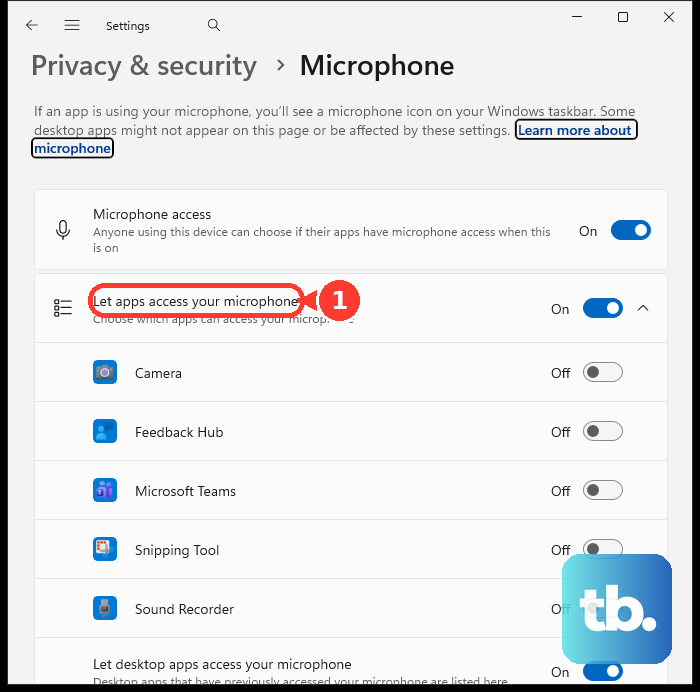
Turn on Microphone access.
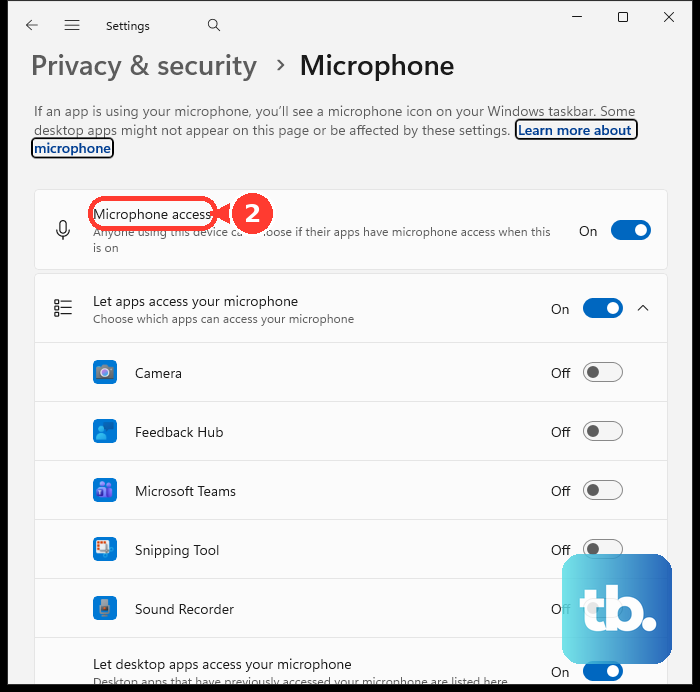
Enable Let apps access your microphone.
Turn on the switch for the app you need.
For desktop applications, enable Let desktop apps access your microphone. Desktop apps do not have individual switches in the Store-app list.
On a Mac, open Apple menu > System Settings > Privacy & Security > Microphone.
Enable access for your calling app, recording app, or browser.
In Chrome, choose Allow while visiting the site or Allow this time when your website requests microphone access.
For an existing Chrome block, open More > Settings > Privacy and security > Site settings > Microphone.
Select the blocked website.
Change its microphone permission to Allow.
In Safari on Mac, open Safari > Settings > Websites > Microphone.
Set the website’s permission to Allow.
Still unheard? Select the microphone inside the app using the options below.
Match the microphone in your app
In Zoom desktop, select your device under profile picture > Settings > Audio > Microphone. The app has its own input selection, separate from your computer’s sound settings.
Click Test microphone to hear how it sounds in Zoom.
In Google Meet on a computer, choose your microphone from the microphone dropdown beneath the preview tile before joining. The meter shows the input level as you speak.
In Audacity, select your microphone or interface under Audio setup > Recording device. For a missing device, Rescan audio devices refreshes the available inputs.
Restore a silent microphone in Windows
These checks address a muted, disabled, or unresponsive input.
Turn off the headset’s physical Mute button or switch if it is engaged.
Check that the microphone is connected, or that your wireless headset is paired.
Open Start > Settings > System > Sound > Advanced > More sound settings > Recording.
Select your microphone.
Open Properties.
Set Device usage to Use this device (enable).
If the microphone remains silent, run input troubleshooting through Settings > System > Sound > Advanced > Troubleshoot common sound problems > Input devices.
Return to Settings > System > Sound > Input.
Click your microphone’s > button.
Under Input settings, select Start test.
Speak into the microphone.
Select Stop test.
Choose Play to check whether your voice is now recorded.
Frequently Asked Questions
How do I connect a Bluetooth microphone or headset?
Put a compatible device in pairing mode. On Windows 11, open Start > Settings > System > Sound > Input > Add device and complete pairing. On Mac, open Apple menu > System Settings > Bluetooth, point to the discoverable device, and click Connect. Then select it under Sound > Input.
How do I allow microphone access on my phone?
On iPhone, open Settings > Privacy & Security > Microphone and enable the app. On Android, open Settings > Apps > [app] > Permissions > Microphone and select Allow only while using the app or Ask every time. Also turn on Microphone access under Settings > Security & privacy > Privacy > Privacy controls on devices with that control. Android menu names vary by manufacturer.
How do I set up an XLR microphone with a Scarlett Solo 4th Gen?
Connect the interface to your computer by USB. Connect the microphone with an XLR-to-XLR cable to Input 2 on the rear. Select the interface as your recording input. Adjust the microphone channel’s gain while speaking, reducing it if the halo turns red. For a microphone that supports and requires phantom power, lower the gain before pressing 48V.
Should I use mono or stereo for one voice microphone in Audacity?
For one voice microphone, select Recording channels > 1 (Mono). Enable Turn on input monitoring only when using headphones.