Windows says no audio device installed when it cannot use a speaker, headset, audio driver, or audio service. Start with the sound output and volume checks, then move into the fixes that make Windows detect the device again. The steps below use current Windows 11 paths and lead with the Get Help troubleshooters Microsoft is moving to as it retires the legacy MSDT troubleshooters.
1. Pick the right output device
Open Start > Settings > System > Sound, then choose the correct device under Output. Turn up the volume and make sure mute is off.
For speakers, headsets, USB audio devices, and docks, check power, cables, ports, physical mute switches, and headphone connections before changing drivers.
2. Launch the Get Help audio troubleshooter
This fixes common Windows audio problems automatically.
- 1.Open the Get Help app.
- 2.Type audio troubleshooter in the Search bar.
- 3.Select Yes when Windows asks for diagnostic consent.
- 4.Let the scan finish.
- 5.Follow every prompt until the troubleshooter finishes the repair steps.
3. Rediscover the device in Device Manager
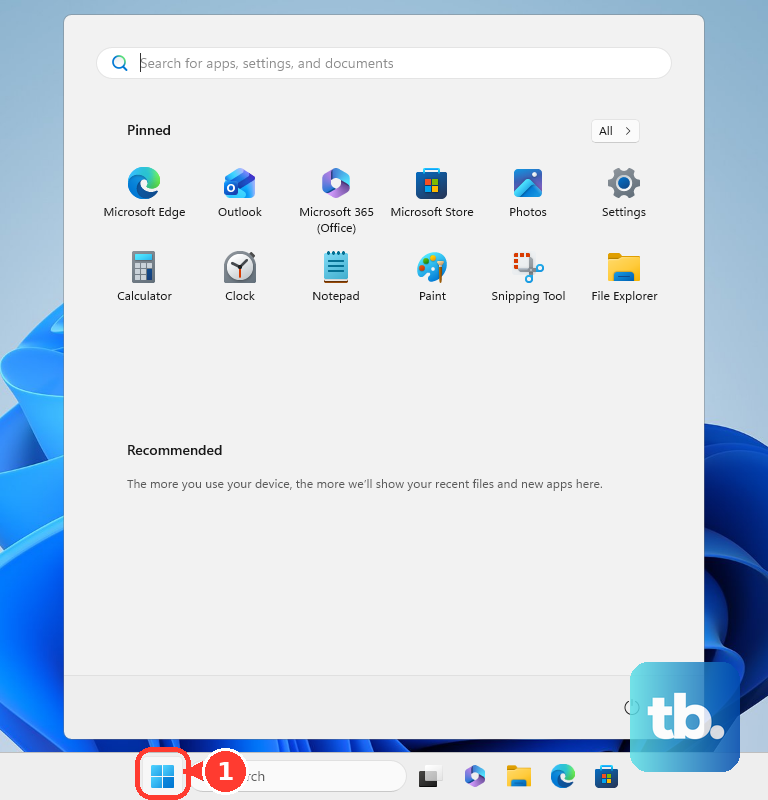
Select Start, type Device Manager, and open Device Manager from the results. Expand Sound, video and game controllers, right-click your audio device, and select Enable device when that option appears.
When the device is missing, use View > Show hidden devices, then select Action > Scan for hardware changes.
4. Install driver updates from Windows Update
Select Start > Settings > Windows Update, then select Check for updates. Install every available update, then restart your PC.
Return to Windows Update > Advanced options and turn on Receive updates for other Microsoft products. Under Additional options, select Optional updates.
Select the listed driver updates, then choose Download and install. After that, right-click Start, select Shutdown or sign out, then select Restart.
5. Repair the audio driver in Device Manager
This fixes a missing, damaged, or outdated audio driver. Select Start, type Device Manager, and open Device Manager.
Expand Sound, video and game controllers. Right-click your audio device and select Update driver, then select Search automatically for drivers.
Follow the on-screen instructions, then restart your PC. When the same error returns, open the same audio device again, select Uninstall device, confirm the uninstall, and restart your PC.
6. Switch to the generic Windows audio driver
Type device manager in the taskbar search box, open Device Manager, and expand Sound, video and game controllers. Right-click the sound card or audio device, then select Update driver > Browse my computer for drivers > Let me pick from a list of available drivers on my computer.
Select the audio device, choose Next, and follow the instructions.
7. Restart the Windows audio services
Type services in the taskbar search box and open Services. Right-click Windows Audio and select Restart.
Next, right-click Windows Audio Endpoint Builder and select Restart. Then right-click Remote Procedure Call (RPC) and select Restart.
8. Fix Bluetooth and USB-C audio routing
This fixes headphones, earbuds, speakers, USB-C adapters, docks, and monitor audio that Windows routes to the wrong place. Click the Sound icon in the taskbar and select the correct Bluetooth device as the output.
For the full settings path, open Start > Settings > System > Sound, then select your Bluetooth device under Output. When Bluetooth stays silent, open Get Help and enter Bluetooth troubleshooter.
To repair the Bluetooth driver, open Device Manager, expand Bluetooth, right-click your Bluetooth adapter, select Update driver, then choose Search automatically for drivers. For an Unsupported USB-C Audio Adapter message, unplug the USB-C analog audio adapter and connect a USB-C digital audio adapter.
For USB-C docks or display audio, connect the device directly to the PC and use a USB-C port that supports the required feature, such as Thunderbolt, DisplayPort Alternate Mode, MHL, or HDMI Alternate Mode.
9. Use recovery after a bad update
Open Windows recovery options when audio worked before a recent update, app, or driver change. Use System Restore when a restore point exists, or use Uninstall an update when the problem started right after a Windows update.
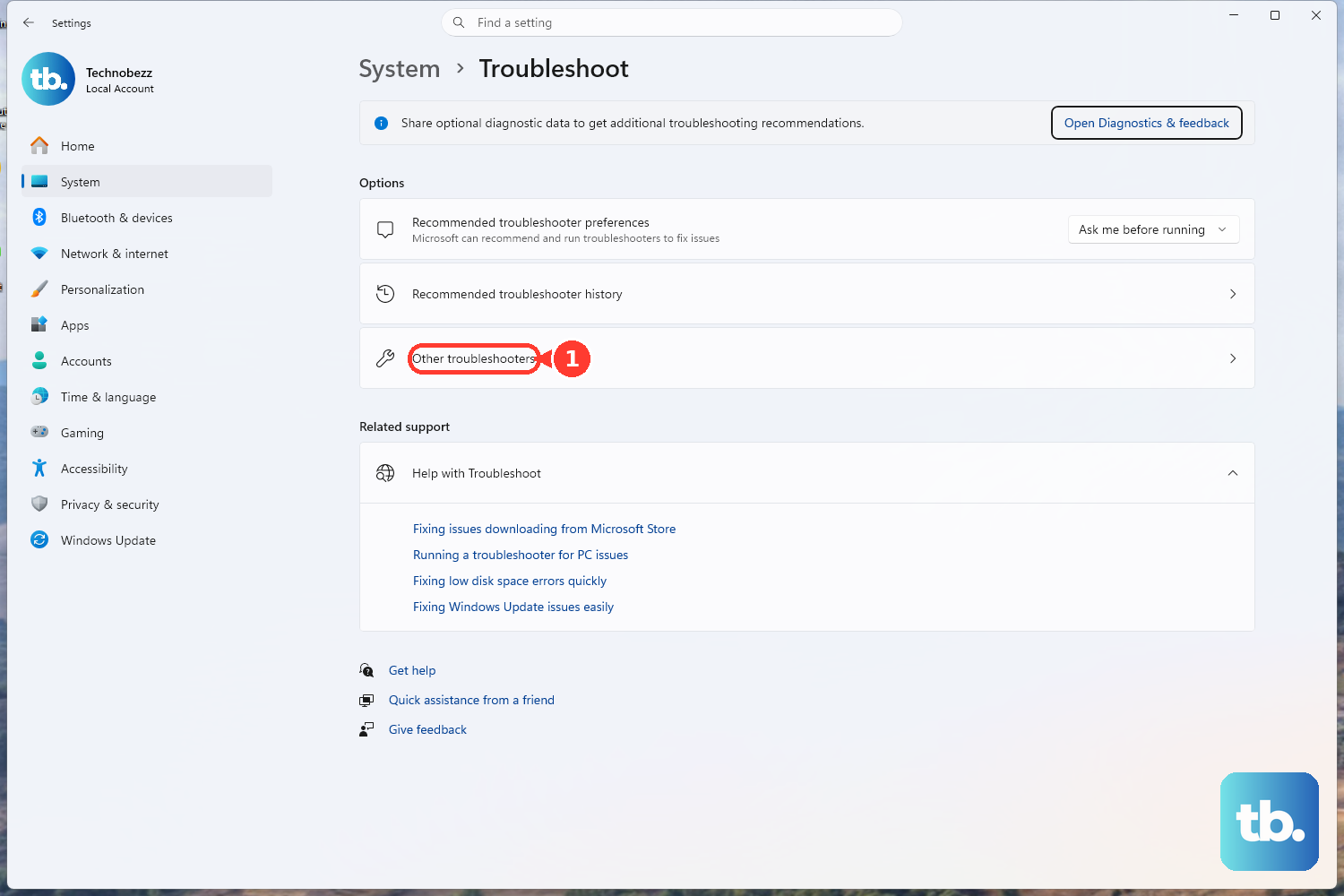
Microsoft is retiring the older MSDT audio troubleshooters, so use the Get Help version instead. Open Get Help and enter audio troubleshooter, or go to Start > Settings > System > Troubleshoot > Other troubleshooters and select the troubleshooter for your issue; Microsoft documents that Settings path as a current way to reach the Get Help troubleshooters.
Frequently Asked Questions
Why does Windows say no audio device installed?
Windows shows that message when it cannot detect a usable audio output device. The cause can be a disabled device, missing driver, failed driver update, stopped audio service, Bluetooth routing problem, USB-C adapter issue, or managed-device policy.
Should I use Windows Update or Device Manager first?
Use Windows Update first for recommended driver updates, then check Optional updates. Use Device Manager when the device is disabled, hidden, needs a manual driver update, or needs to be uninstalled and reinstalled.
What should I check when only one app has no sound?
Go to Start > Settings > System > Sound > Volume mixer. Under Apps, make sure the app is not muted, its volume is turned up, and the correct output device is selected.
Can I fix this with Chrome, Teams, or Zoom settings?
Only when Windows already detects an audio device. Chrome site sound permissions, Teams speaker selection, and Zoom speaker testing fix app-level silence; they do not repair a missing Windows audio endpoint.
Is Windows 10 still covered by these fixes?
Many Microsoft audio steps still list Windows 10, but Windows 10 is out of support as of October 14, 2025. Current consumer guidance should use the Windows 11 paths.