Sound can disappear into the wrong speakers, drop to a whisper in one app, or fail because Windows is blocking the microphone. Windows 11 puts the main controls in Settings, while the taskbar handles quick output and volume changes. Start with the broad sound page, then move through app volume, device defaults, accessibility, microphone, and Bluetooth settings.
1. Open the main Windows audio settings
Select Start.
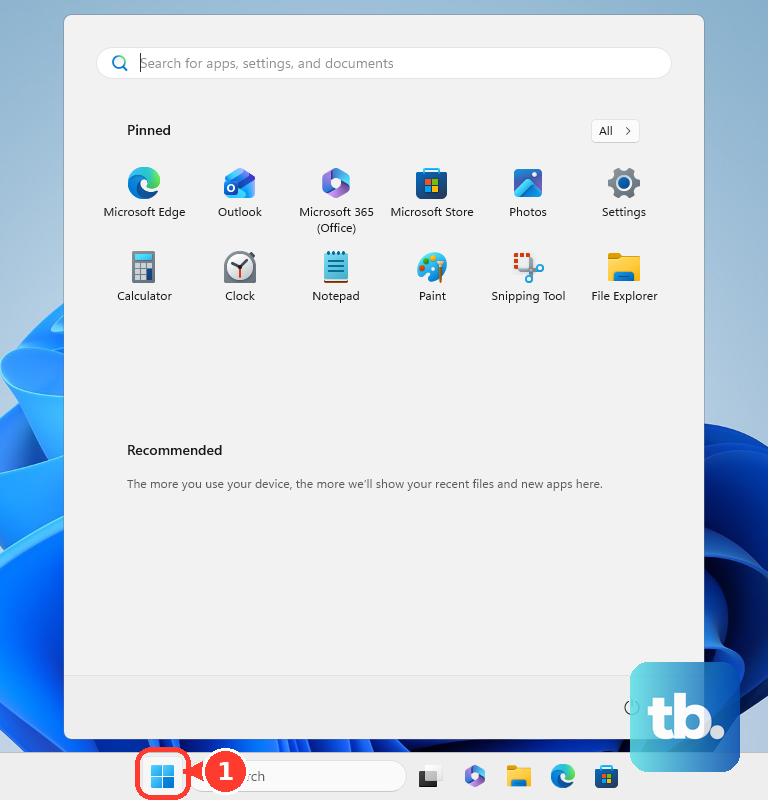
Open Settings.
Select System.
Select Sound.
Under Output, choose the speaker, monitor, headset, or headphones you want to use.
Check Volume and turn it up if it is muted or set too low.
2. Switch speakers or headphones from the taskbar
This fixes sound playing through the wrong output device.
Select the Speakers icon on the taskbar.
Select the arrow to the right of the speaker volume slider.
Choose the speaker, headphones, or other output device you want.
For the keyboard route, press Windows + Ctrl + V to open the sound output page in Quick Settings.
3. Change volume for one app
Open Start > Settings > System > Sound > Volume mixer.
Adjust the System volume slider.
Under Apps, turn up the affected app.
Make sure the app is not muted.
For the taskbar route, right-click the Volume icon and select Open Volume mixer.
Use this when system sounds work but one browser, game, or meeting app is silent.
4. Set a default device and adjust sound effects
This fixes a detected device that is not the preferred output or has unwanted processing applied.
Open Start > Settings > System > Sound.
Select More sound settings.
On the Playback tab, right-click the device you want and select Set as default.
To enable a disabled playback or recording device, select the device, open Properties, then set Device usage to Use this device.
To turn off enhancements, return to Sound, select the output device, open Advanced settings, and set Audio enhancements to Off.
To change spatial sound, select the playback device under Output devices, open Device Properties, choose Spatial sound, select Windows Sonic for Headphones, then select Apply.
5. Make audio easier to hear
For hearing and notification options, open Start > Settings > Accessibility > Audio.
Turn on Mono audio to combine left and right channels.
Or choose how Windows should Flash my screen during audio notifications.
You can also open Quick Settings > Accessibility from the taskbar and use the Mono audio toggle there.
For captions, use Quick Settings > Accessibility > Live captions.
Another option is to press Windows + Ctrl + L.
You can also open Settings > Accessibility > Captions and turn on Live captions.
6. Manage microphone access and voice settings
This fixes apps that cannot hear you because Windows privacy settings block the microphone.
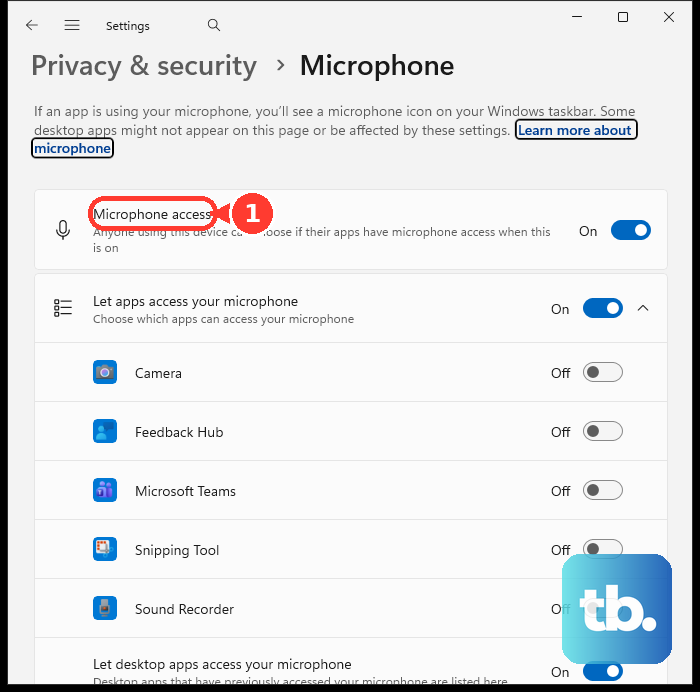
Open Start > Settings > Privacy & security > Microphone.
Turn on Microphone access.
Turn on Let apps access your microphone.
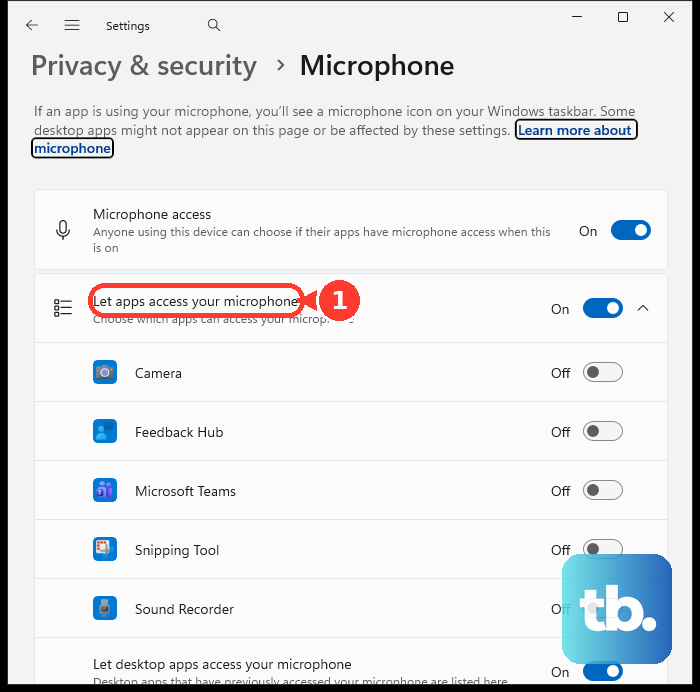
Choose which individual apps can use the microphone.
For desktop apps, turn on Let desktop apps access your microphone.
To set up the microphone for speech, open Start > Settings > Time & language > Speech, then select Get started under Microphone.
For voice control, open Start > Settings > Accessibility > Speech and turn on Voice access, which replaced Windows Speech Recognition on Windows 11 version 22H2 and later.
For voice activation, open Start > Settings > Privacy & security > Voice activation, then turn app access on or off.
7. Check Bluetooth audio and one-sided sound
To pair a Bluetooth audio device, open Start > Settings > Bluetooth & devices > Devices > Add device, then follow the on-screen instructions.
To turn Bluetooth on or off quickly, select the Network, Sound, or Battery icon near the clock, then use the Bluetooth tile.
To make Bluetooth the active output, select the Sound icon on the taskbar and choose the correct Bluetooth device, or open Start > Settings > System > Sound > Output.
When Bluetooth audio plays in one channel, open Start > Settings > System > Sound, select the Bluetooth device under Output, then set the left and right channel levels the same under Output settings > Volume.
For stereo format, use Output settings > Format and choose a 2-channel format such as 2 channels, 16bit, 48000Hz DVD Quality.
On Windows 11 devices with Bluetooth LE Audio support, open Start > Settings > Bluetooth & devices > Devices > Device settings and turn on Use LE Audio when available.
8. Know when older Windows guides no longer apply
Older Windows 10 tutorials often point to paths such as Start > Settings > Privacy > Microphone, Start > Settings > Ease of Access > Audio, or Control Panel > Hardware and Sound > Sound.
For current Windows 11 instructions, use Start > Settings > System > Sound and Start > Settings > Privacy & security > Microphone instead.
Microsoft documents Microsoft.AudioDevicesAndSoundThemes as deprecated, so do not use it as the starting point for current sound settings.
On a work or school PC, organization policies can manage microphone app privacy or Edge audio capture, which can make some controls unavailable.
Frequently Asked Questions
How do I open sound output quickly in Windows 11?
Press Windows + Ctrl + V to open the sound output page in Quick Settings. You can also select the Speakers icon on the taskbar and use the arrow beside the volume slider.
Where do I change audio settings for only one app?
Open Start > Settings > System > Sound > Volume mixer. Under Apps, turn up the affected app and make sure it is not muted.
Why is my microphone blocked in Windows 11?
Open Start > Settings > Privacy & security > Microphone. Turn on Microphone access, Let apps access your microphone, and Let desktop apps access your microphone when the app needs desktop access.
How do I fix Bluetooth audio playing in only one ear?
Open Start > Settings > System > Sound, select the Bluetooth device under Output, then set the Left and Right channel levels to the same value under Output settings > Volume.