

To add slide numbers in PowerPoint, open the Insert tab, select Slide Number, tick Slide number on the Slide tab and choose Apply to All. Every slide then shows its number where the theme puts it, which was the bottom right corner in our Office Theme deck. To keep the first slide clean, also tick Don't show on title slide before you apply.
You can insert slide numbers in PowerPoint for the web too, through Insert, the Footer button and Slide Number. Hiding the title slide's number does not shift the others, so on our PC slide 2 still read 2. The page numbers in PowerPoint's Notes and Handouts tab are a separate setting for printed notes and handouts, not for the slides.
The short version
- Every slide: Insert > Slide Number, tick Slide number, clear Don't show on title slide, then Apply to All.
- Blank title slide: also tick Don't show on title slide. Slide 2 still shows 2.
- One slide: select it and choose Apply instead of Apply to All.
- Another first number: Design > Slide Size > Custom Slide Size > Number slides from.
- Web app: Insert > Footer > Slide Number, and Ctrl + click thumbnails to number only some.
Choose the slide numbering result you want
Most results start from the same Header and Footer box, while the starting number and the number's position live elsewhere. The table shows where each one is, desktop PowerPoint first and then the web app.
| What you want | Where to go | What changes |
|---|---|---|
| Number every slide | Insert > Slide Number, tick Slide number, clear Don't show on title slide, Apply to All | Each slide shows its own number in the theme's spot |
| Keep the title slide blank | The same box, plus Don't show on title slide | Only the title slide loses its number, and slide 2 still reads 2 |
| Number one slide | Select the slide, Insert > Header & Footer, tick Slide number, Apply | Only the selected slide changes, and numbers on other slides stay |
| Start at another number | Design > Slide Size > Custom Slide Size > Number slides from | The first slide shows that number and the rest count on from it, thumbnails included |
| Move or restyle every number | View > Slide Master, the top master, the <#> placeholder | The number moves on your slides, but check any slide you numbered on its own |
| Remove the numbers | Insert > Slide Number, clear Slide number, Apply to All | The automatic numbers go from every slide |
| Number some slides in the web app (Ctrl + click) | Insert > Footer > Slide Number, with the thumbnails selected first | The selected slides are numbered at once |
| Show Slide 2 of 12 | A text box on the slide master with the number field and a typed total | The total stays as typed until you change it |
Add slide numbers to every slide in desktop PowerPoint
Open the deck in Normal view and click any slide thumbnail. On the Insert tab, look in the Text group for Slide Number. On our screen it had no label: it was the middle of three small icons beside WordArt, and pointing at it showed the tooltip Insert Slide Number.
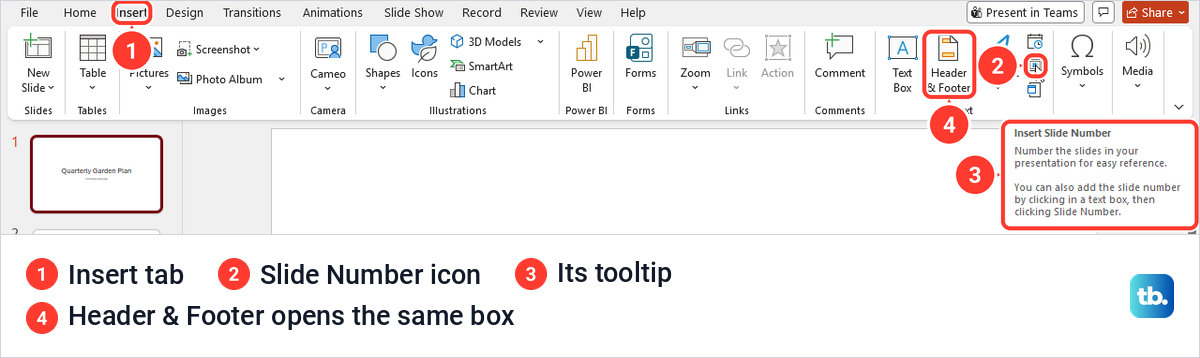
The Header & Footer button next to it opens exactly the same Header and Footer box, so if you cannot spot the small Slide Number icon, use the labelled Header & Footer button instead. The box has two tabs, Slide and Notes and Handouts, and on-screen numbers only need the Slide tab.
Tick Slide number, make sure Don't show on title slide is clear if the title slide should be numbered too, and choose Apply to All. On our four-slide deck each slide got a small grey number in its bottom right corner, 1 to 4. Microsoft says the theme decides that standard location, so another theme may put the number somewhere else.
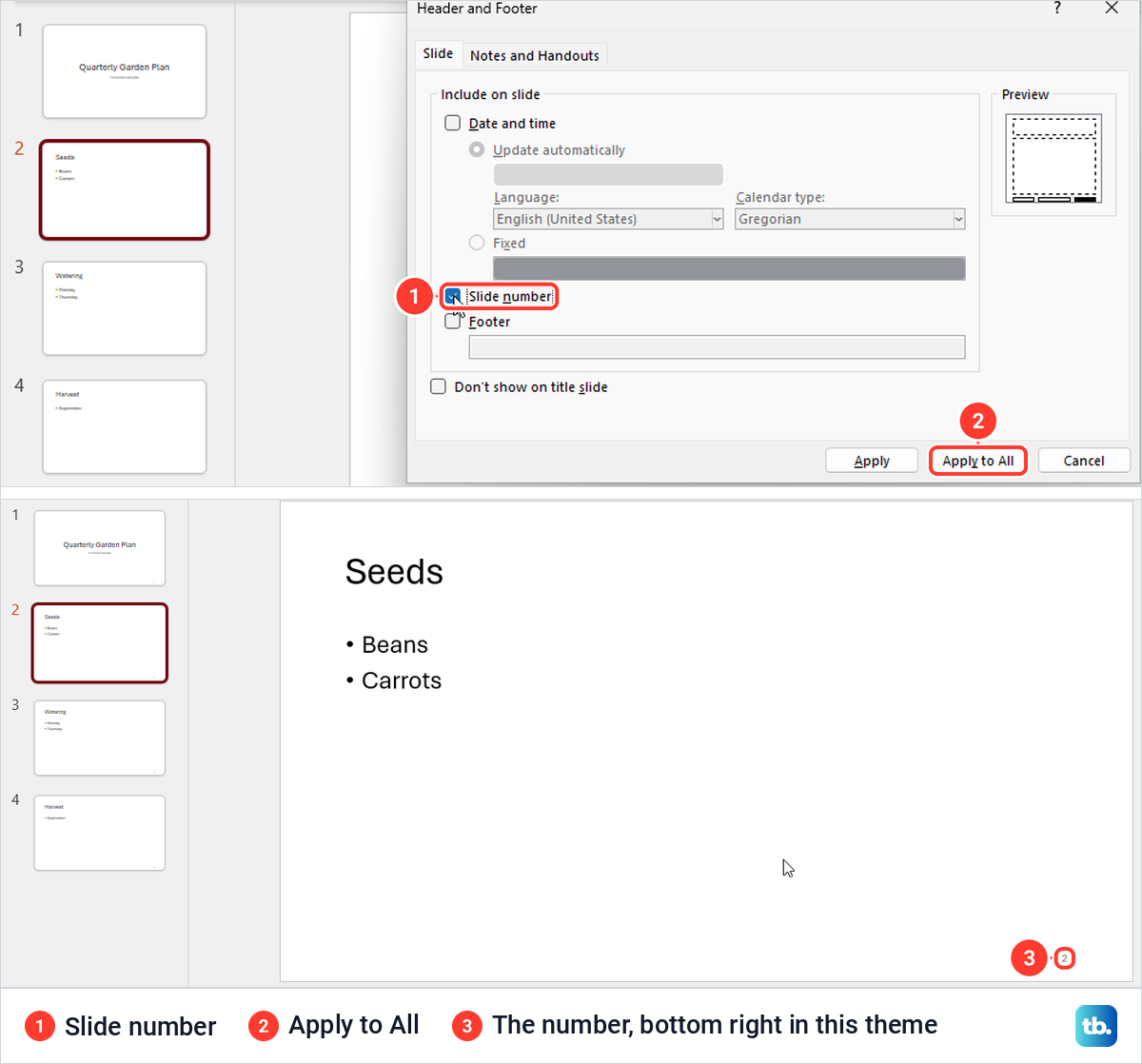
The box opens with the settings of the slide you have selected, not of the whole deck. On a slide without a number, Slide number looked clear even while other slides were numbered, so a cleared box does not mean the deck has no numbers.
Watch where your text cursor is before you click the button. With the cursor in a slide's title, Slide Number typed a number straight into the title, turning Seeds into Seeds2, instead of opening the box. Its tooltip says this is on purpose, so click a thumbnail or an empty part of the slide first.
Leave the title slide without a number
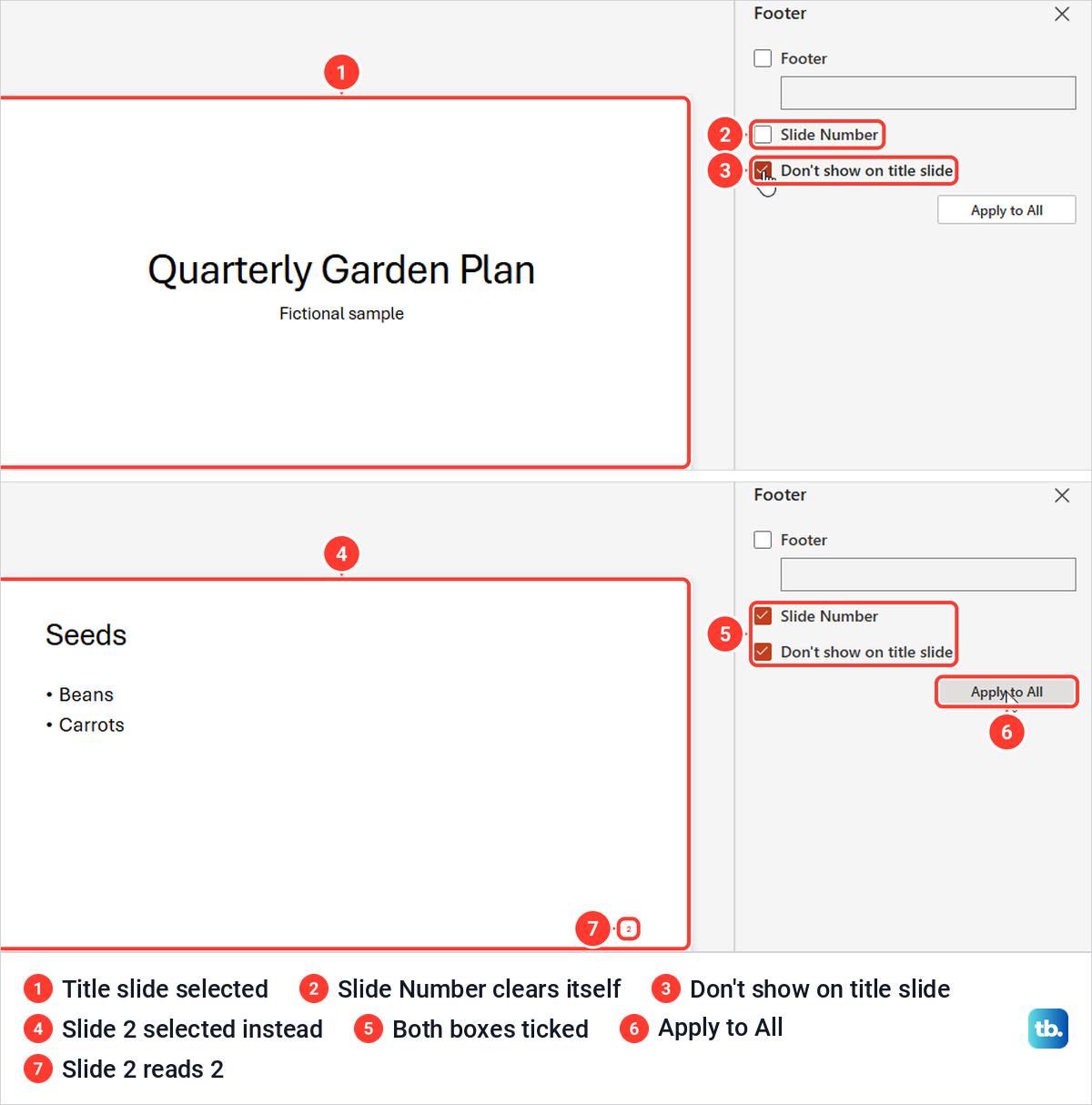
Open Insert > Slide Number again, tick both Slide number and Don't show on title slide, and choose Apply to All. On our deck the title slide lost its number and every other slide kept one.
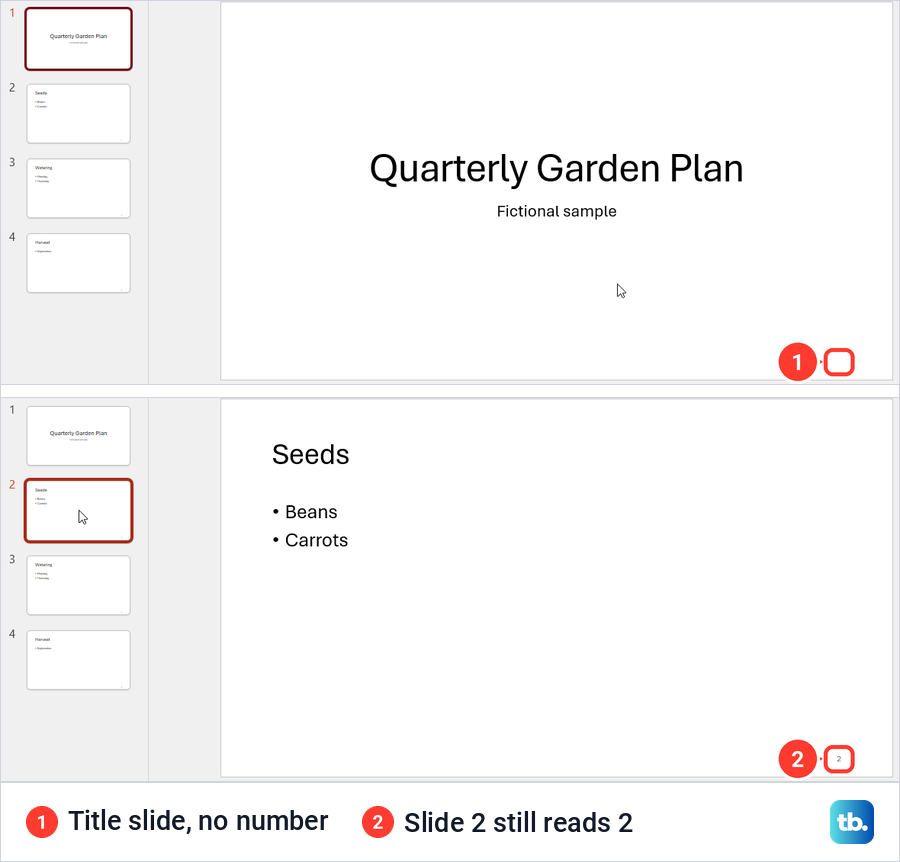
Note what did not change. Slide 2 still showed 2, not 1, because hiding a number does not renumber the slides after it. Microsoft's help calls this the way to number all slides but the first slide, which is true, but the count still starts on the hidden title slide.
If you want the slide after the title to read 1, change the starting number as well. Number slides from sets the number on the first slide and each slide after it counts up by one, as our test with 5 showed. Microsoft's support community suggests entering 0 there and keeping Don't show on title slide ticked, so the title slide counts as a hidden 0 and slide 2 shows 1.
Number only one slide or a few slides
Select the slide in the thumbnail pane, open Insert > Header & Footer, tick Slide number and choose Apply, not Apply to All. We did this on slide 3 of a deck with no numbers, and only slide 3 showed its number while slides 2 and 4 stayed blank.
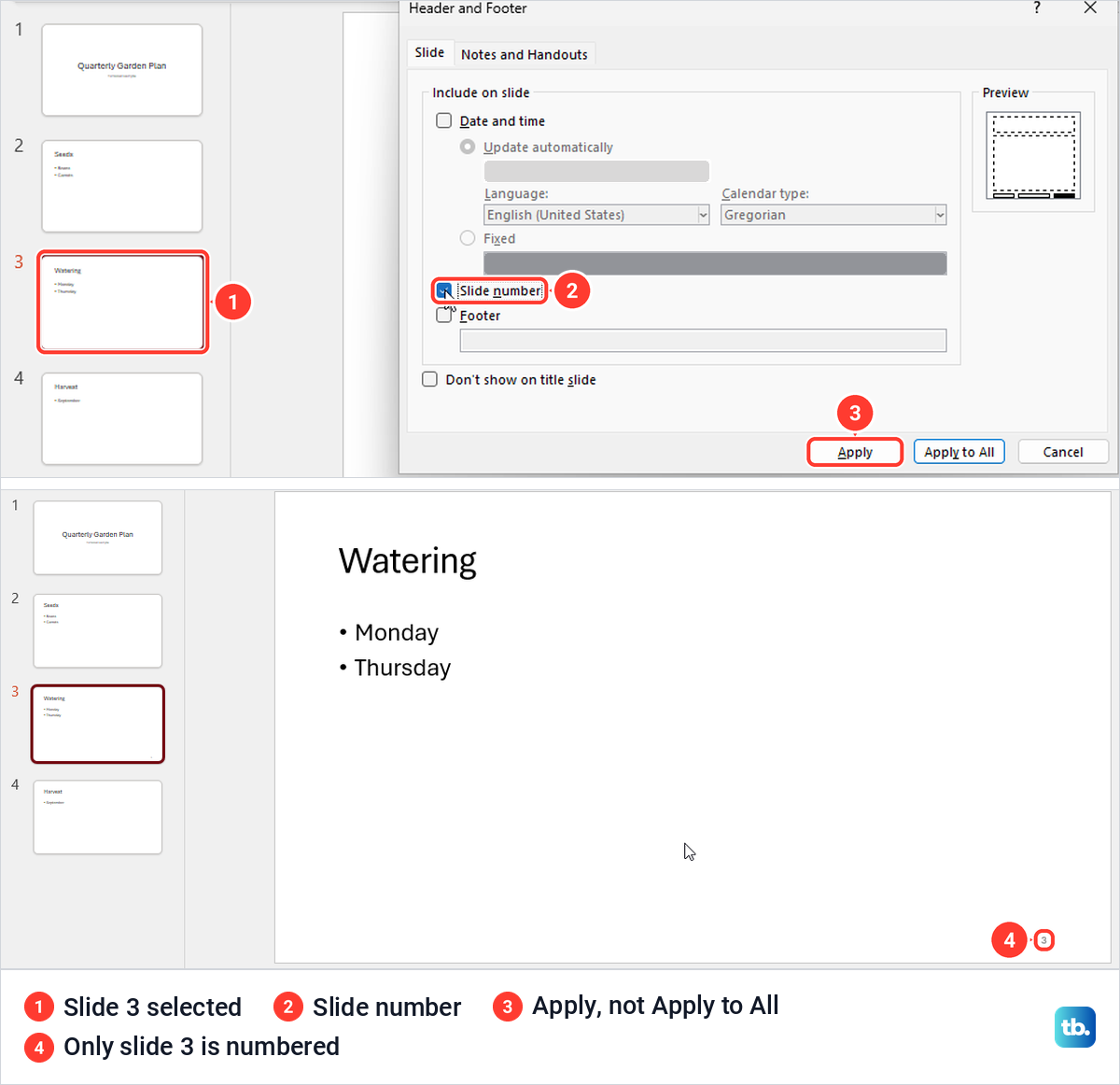
Apply changes only the selected slide, so numbers already on other slides stay where they are. If the deck is already numbered and only a few slides should keep a number, clear Slide number with Apply to All first. Then, as Microsoft's steps describe, select each slide you want numbered, tick Slide number and choose Apply. The number shown is still the slide's place in the deck, so a lone number on the third slide reads 3.
Start slide numbers at a different number
Open the Design tab, select Slide Size and choose Custom Slide Size. In the Slide Size box, type the first number in Number slides from and select OK. On a new deck that box read 1.
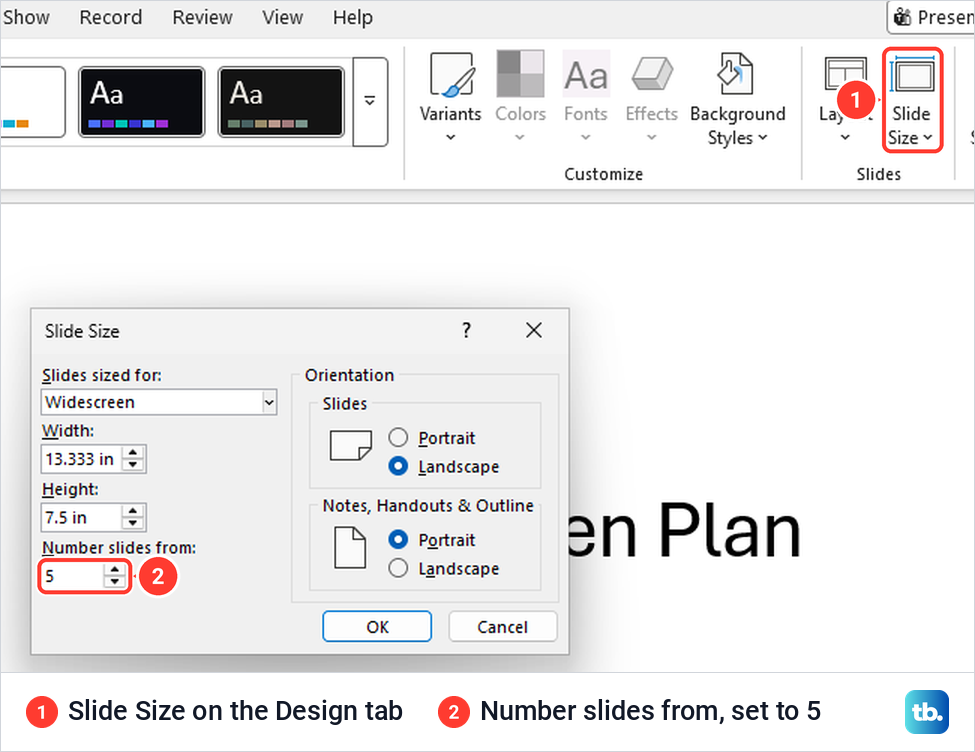
We entered 5, and the first slide then showed 5 and the second 6. PowerPoint renumbered the thumbnails and the status bar as well, which read Slide 6 of 5 .. 8 on the second slide. That suits a deck that carries on from another one.
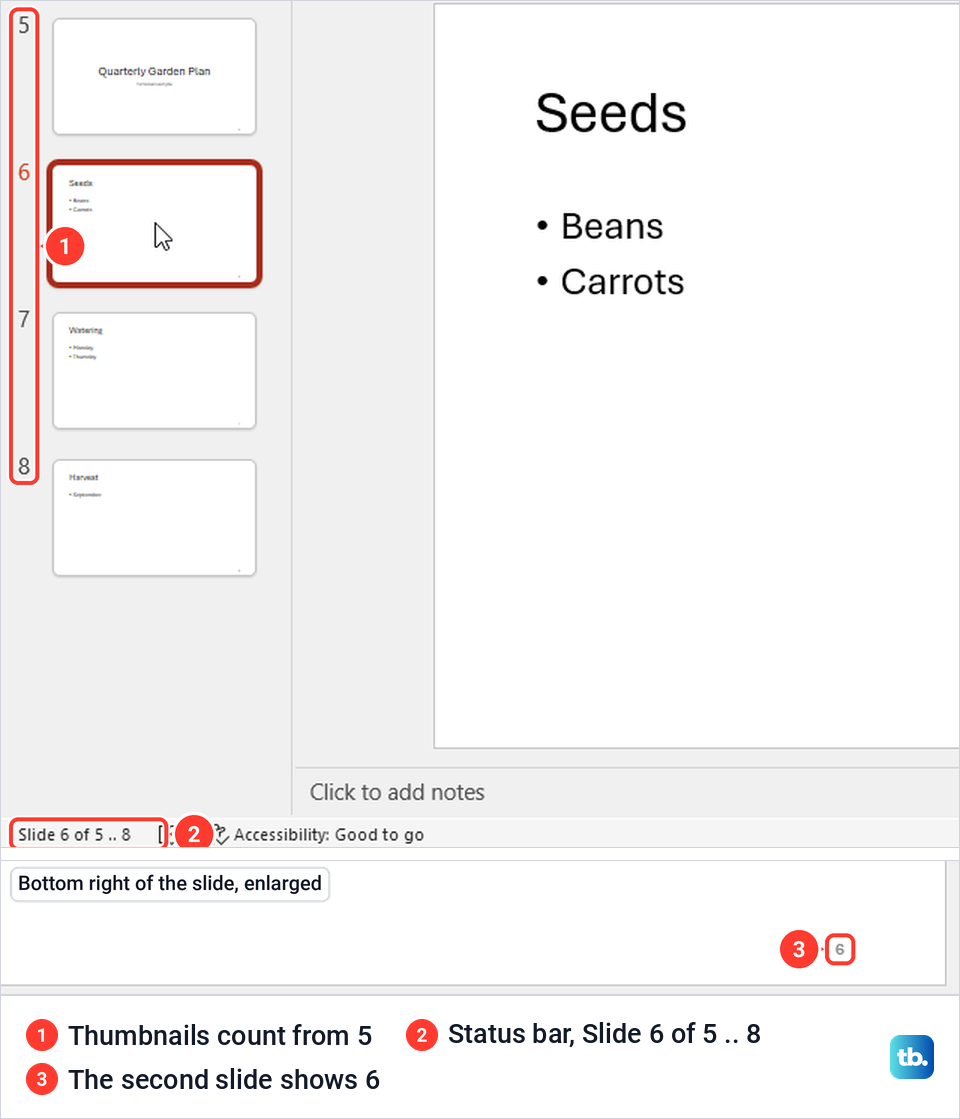
The box sets one starting point for the whole presentation, so it cannot restart the count at a later section. Every slide after the first counts on from it, and setting the box back to 1 returns the deck to normal numbering.
Move or restyle slide numbers with Slide Master
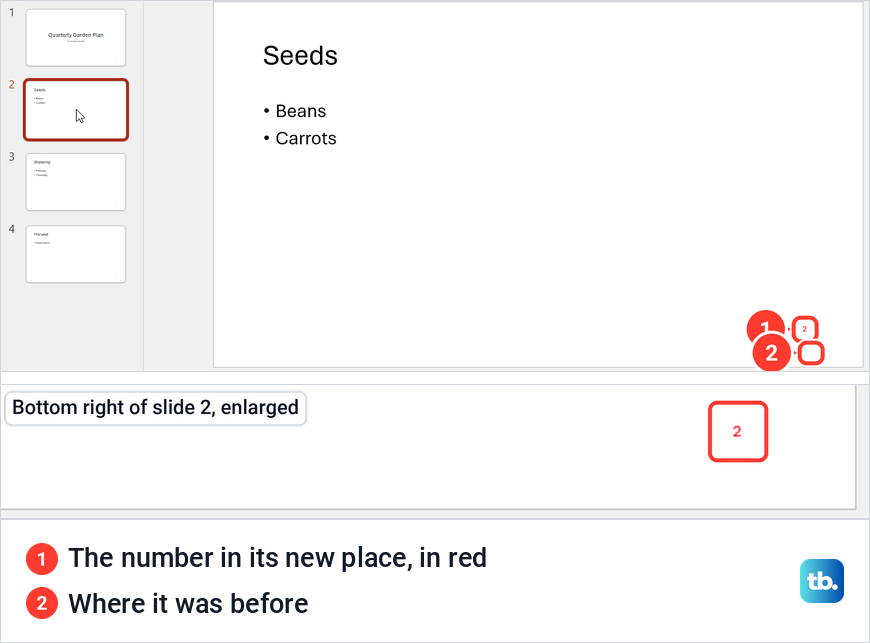
Open View > Slide Master and select the large thumbnail at the very top of the pane, the slide master, rather than one of the layouts under it. Its number placeholder sits in the bottom right corner and shows <#>, the field PowerPoint replaces with each slide's number.
Drag the placeholder by its border to where the number should go, then select Close Master View. We moved ours a little higher and the number moved on our content slides. To restyle it, select the placeholder and use the font controls on the Home tab, as Microsoft describes.
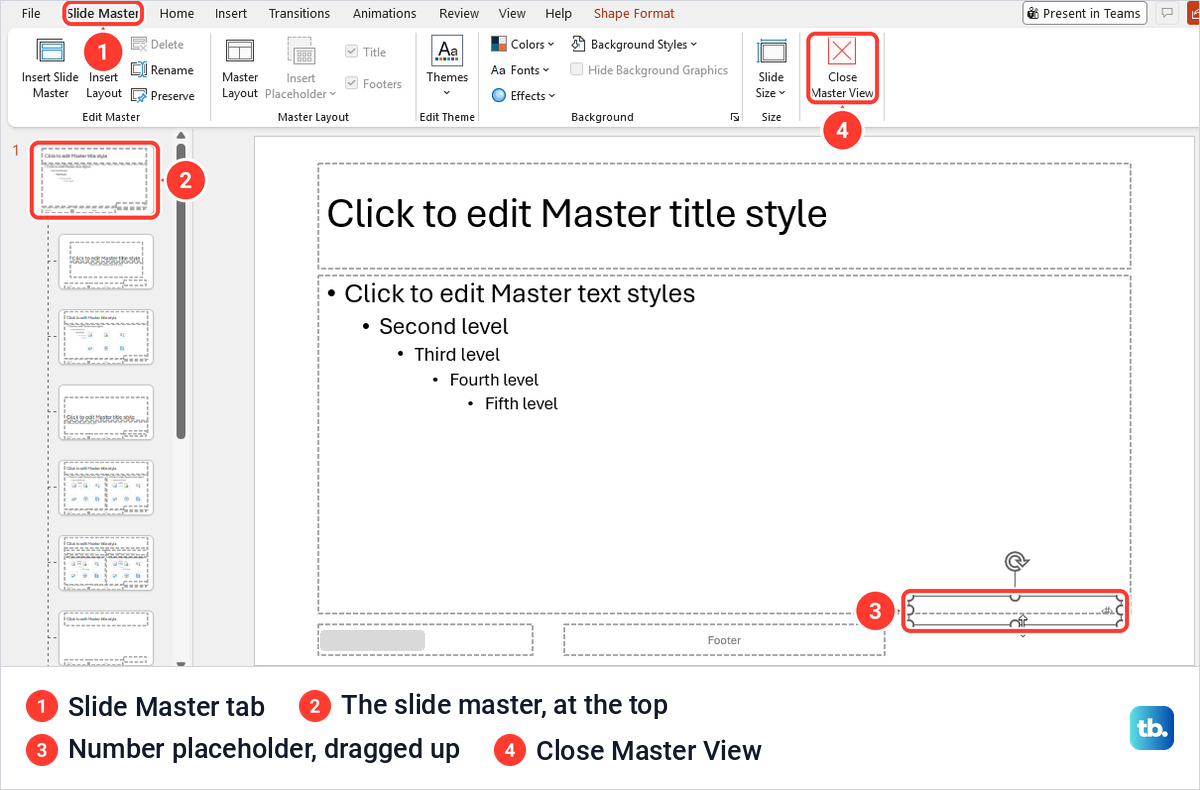
Check each slide afterwards. When we coloured the master's number red, slide 2 turned red, but slide 3, which we had numbered on its own with Apply earlier, kept its grey number in the new position. Microsoft notes that a layout or a single slide can carry its own footer formatting, so a slide that differs may need fixing on its layout or on the slide itself.
If a number is ordinary text in a text box rather than the <#> placeholder, Slide Master will not change it, and our guide to remove a text box in PowerPoint shows how to select its border and delete it. Microsoft also says each theme has its own standard spot for the number, so switching to another theme on the Design tab can move it again.
Why slide numbers do not appear and how to fix it
Start with the slide itself. Select it, open Insert > Slide Number and look at the Slide tab, which shows that slide's own settings. Tick Slide number if it is clear, and on the first slide, clear Don't show on title slide if you want a number there.
Next, check the layout. In View > Slide Master the slide's layout is selected for you, and Microsoft's troubleshooting steps point to the Footers box in the Master Layout group. On our deck, clearing it removed the date, footer and number placeholders from the layout, and ticking it brought them back.
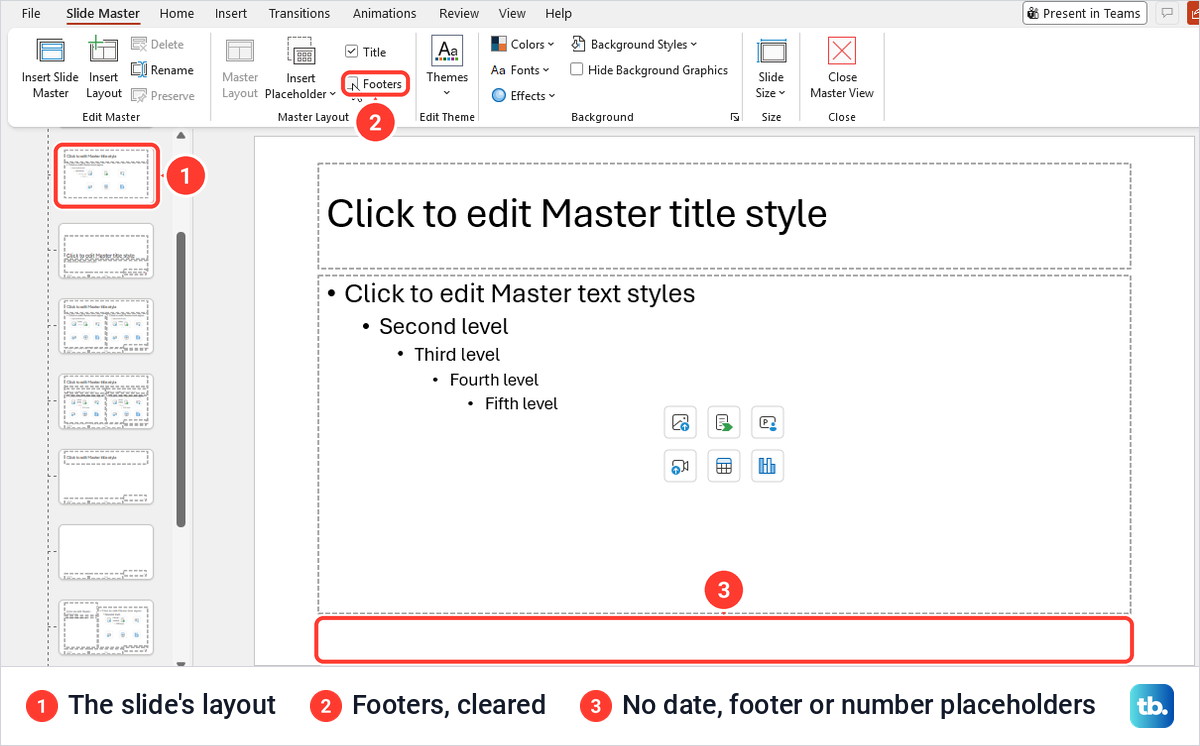
One result runs against common advice. With Footers cleared on the layout, our slide 2, which was already numbered, still showed its number after we closed Master View. So clearing Footers is not a way to remove numbers, and the Slide number box is the control to use for that.
If PowerPoint will not let you tick Footers, Microsoft says footers are turned off on the parent slide master. Select the master at the top of the thumbnail pane, choose Master Layout, turn on Date, Slide number and Footer and select OK, then tick Footers on each layout that needs it.
One last cause is easy to miss. A picture, a video or the speaker icon of an audio clip placed over the corner hides the number under it, so keep that spot free when you embed a YouTube video in PowerPoint or add audio to PowerPoint. When you ask someone else to look at a slide that differs, take a screenshot on Windows with that slide selected and its Header and Footer box open, since the box shows that slide's own settings.
Add slide numbers in PowerPoint for the web
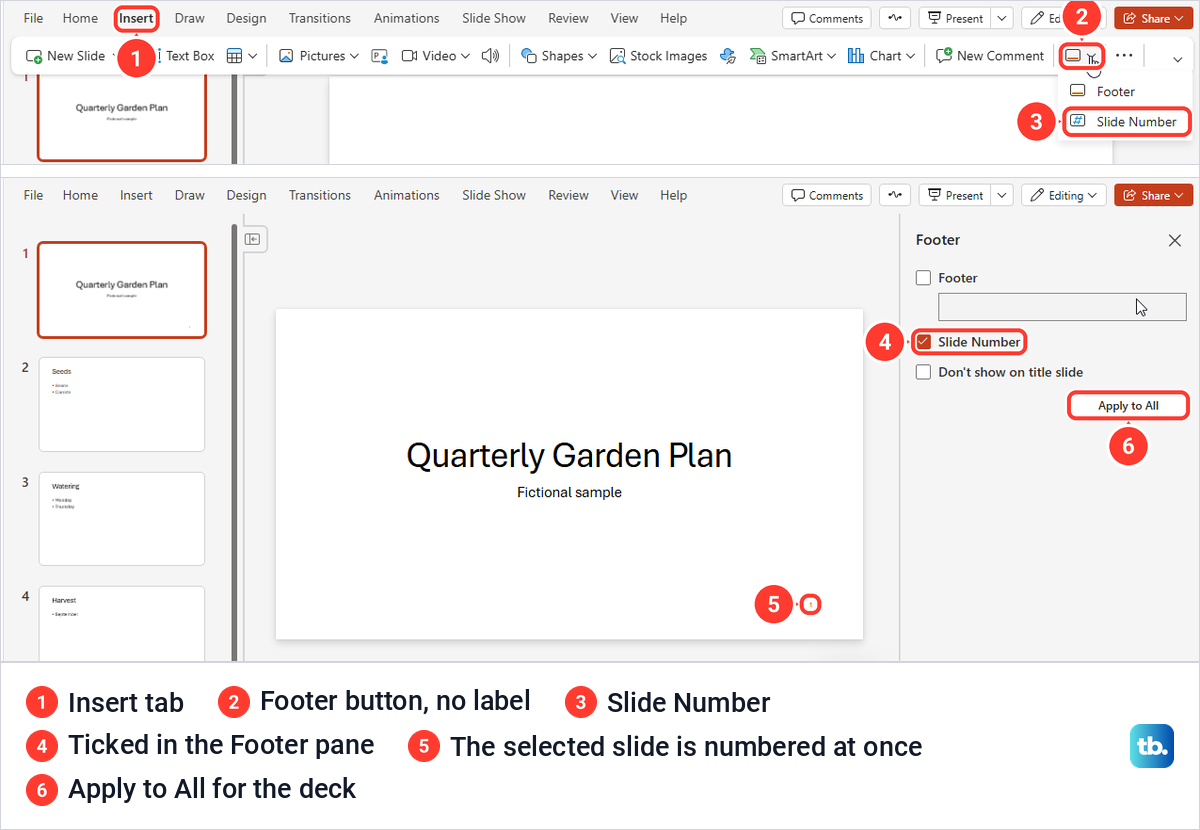
Open the deck in PowerPoint for the web, select a slide and go to the Insert tab. Microsoft calls the next control the Footer button, and on our screen it was an unlabelled icon with a small arrow near the right end of the ribbon. Its menu held Footer and Slide Number.
Choosing Slide Number opened a Footer pane on the right with Footer, Slide Number and Don't show on title slide, and it numbered the selected slide at once, before we pressed anything else. To number the whole deck, keep Slide Number ticked, select Apply to All and close the pane.
Pick a content slide before you deal with the title slide. The pane mirrors the slide you have selected, and when we ticked Don't show on title slide with the title slide selected, Slide Number cleared itself. Apply to All then left every slide without a number.
Starting from slide 2 instead, with both Slide Number and Don't show on title slide ticked, Apply to All left slide 1 blank and numbered slide 2 as 2. So in the web app, select the second slide first and then tick both boxes.
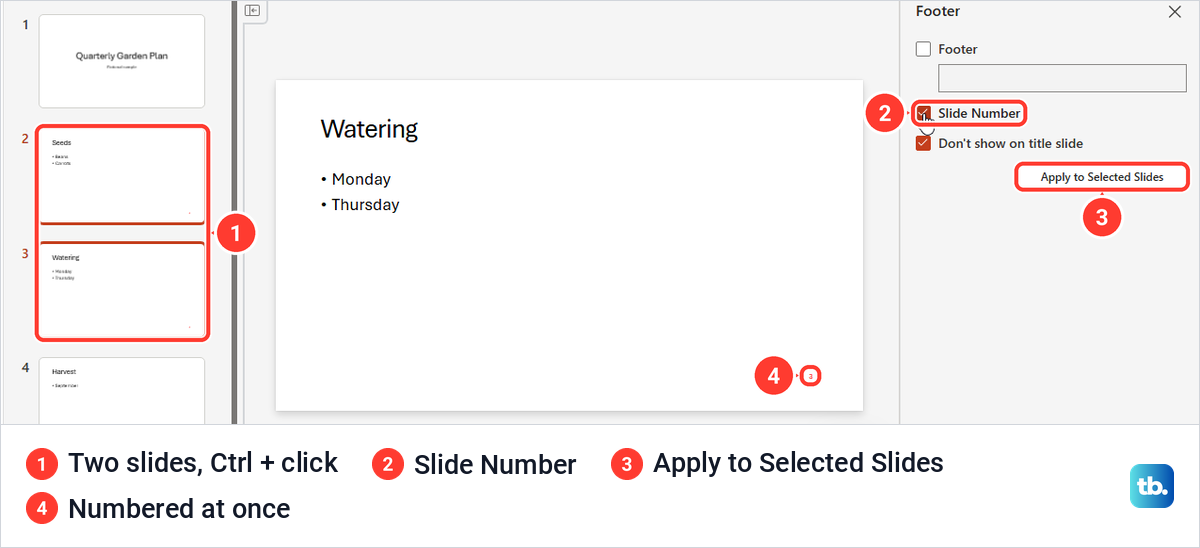
To number a few slides only, click the first thumbnail and hold Ctrl while you click the others. With two slides selected, the pane's button changed to Apply to Selected Slides, and ticking Slide Number numbered those two straight away while slide 4 stayed blank. With one slide selected the button reads Apply to All, and Microsoft warns that it then applies to every slide.
Add slide numbers in PowerPoint for Mac
In PowerPoint for Mac, Microsoft's steps are Insert > Header & Footer, then the Slide tab, the Slide number box and Apply to All. Microsoft's Mac instructions also say to enter the starting slide number in that box, under Insert > Slide Number.
Microsoft's Mac help adds that hidden slides are included in the slide count. Hiding a slide therefore leaves a gap in the numbers, and Microsoft says the only way around it is to number each visible slide by hand in its own text box.
Show the slide number and the total on every slide
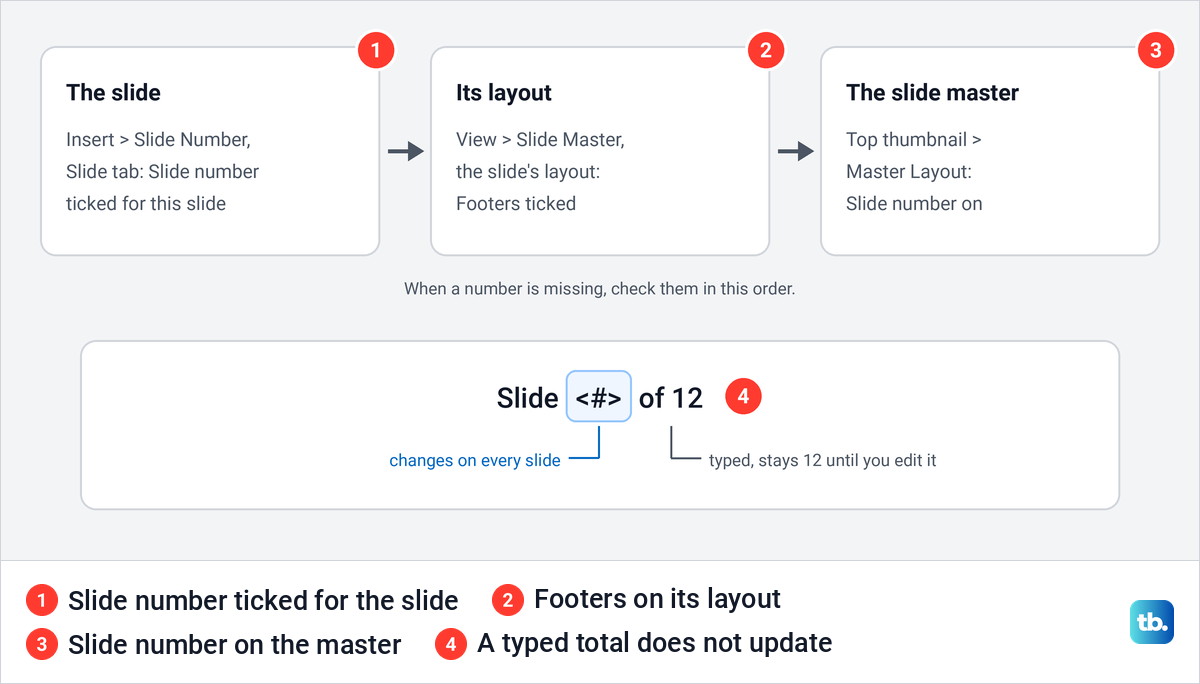
Microsoft says PowerPoint can number slides automatically but can't show a count such as slide 2 of 12 on each slide, so you type the total yourself. If the deck already has automatic numbers from the steps above, clear Slide number with Apply to All first, so each slide shows only the new box.
Microsoft's method starts with noting how many slides you have, then opening View > Slide Master, selecting the top master and drawing a box with Insert > Text Box. With the cursor still in the box, select Slide Number on the Insert tab to add the <#> field, type Slide before it and of 12 after it, using your own total, then return to Normal view.
The <#> part changes on every slide, but the typed total stays as it is, so change it on the master whenever you add or delete slides. Microsoft also notes that numbers added this way cannot be edited on single slides and do not appear in the Header and Footer box, so clearing Slide number there will not remove them.
Remove slide numbers or number printed pages
To remove the automatic numbers, open Insert > Slide Number, clear Slide number and choose Apply to All. On our deck that took the numbers off slides 2 and 3 at once, including the one we had moved and coloured red on the master.
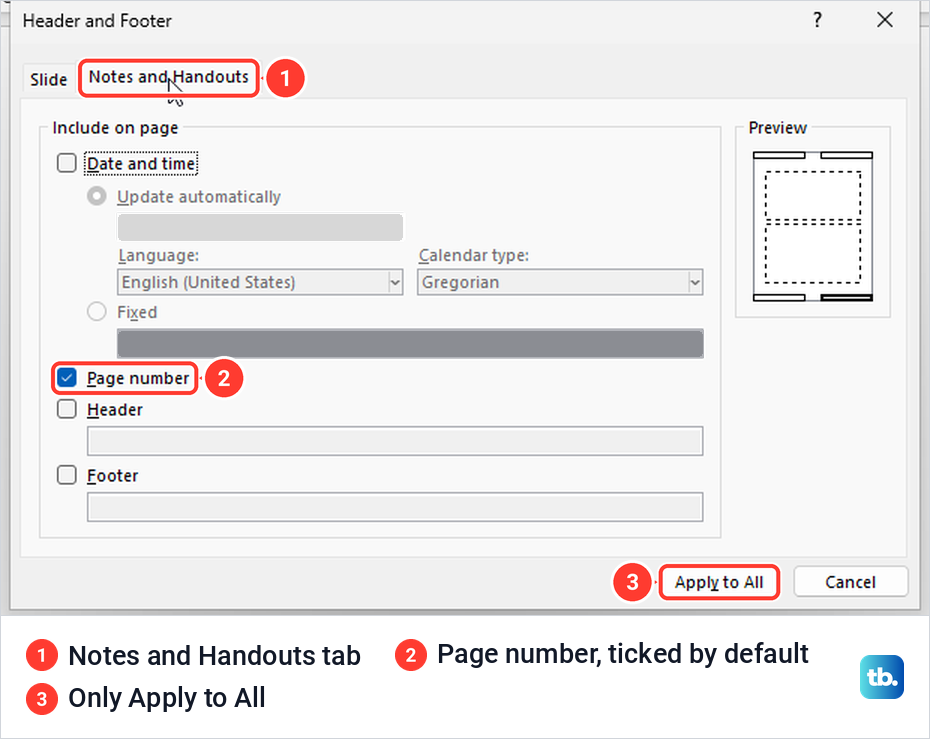
Printed pages are a separate job. The Notes and Handouts tab of the same box has its own Page number setting, which was ticked by default on our deck, and it numbers printed notes pages and handouts rather than the slides. That tab also has only an Apply to All button, with no Apply.
Our guide to add speaker notes in PowerPoint shows how to print notes pages, where those page numbers appear. For a written report that goes with the deck, the steps to add page numbers in Word cover numbering it. If you convert PowerPoint to Google Slides afterwards, check the numbers in the converted copy.
How we tested this guide
We tested this in PowerPoint for Microsoft 365 on Windows 11, version 25H2, and in PowerPoint for the web in Microsoft Edge, numbering a four-slide practice deck.
Frequently Asked Questions
How do I add slide numbers to all slides in PowerPoint?
Open Insert > Slide Number, tick Slide number on the Slide tab, clear Don't show on title slide and choose Apply to All. Each slide then shows its number in the place the theme sets, which was the bottom right corner on our deck.
How do I keep the number off the title slide?
Tick Don't show on title slide in the same box before you choose Apply to All. Only the title slide loses its number, and the next slide still shows 2.
Can the second slide show the number 1?
Hiding the title number alone will not do it, because slide 2 keeps reading 2. Microsoft's support community suggests setting Design > Slide Size > Custom Slide Size > Number slides from to 0 and keeping Don't show on title slide ticked, so the title slide's 0 stays hidden.
Why are my slide numbers missing?
Check the Slide tab for that slide first, because the box shows each slide's own setting. Then check the Footers box on the slide's layout in Slide Master view and, if it will not tick, Master Layout on the slide master above it.
Can PowerPoint show Slide 2 of 12 automatically?
No. Microsoft says PowerPoint can number slides automatically but cannot show the total on each slide, so you type the total next to the number field on the slide master and update it when the slide count changes.
How do I number only some slides in PowerPoint for the web?
Click one thumbnail and Ctrl + click the others, then open Insert > Footer > Slide Number. With two or more slides selected the pane offers Apply to Selected Slides, and on our deck ticking Slide Number numbered the selected slides straight away.
Do hidden slides count toward the slide numbers in PowerPoint for Mac?
Microsoft's PowerPoint for Mac help says they do: hidden slides are included in the slide count. On a Mac, its only way to skip them is to number each visible slide by hand in a text box.