
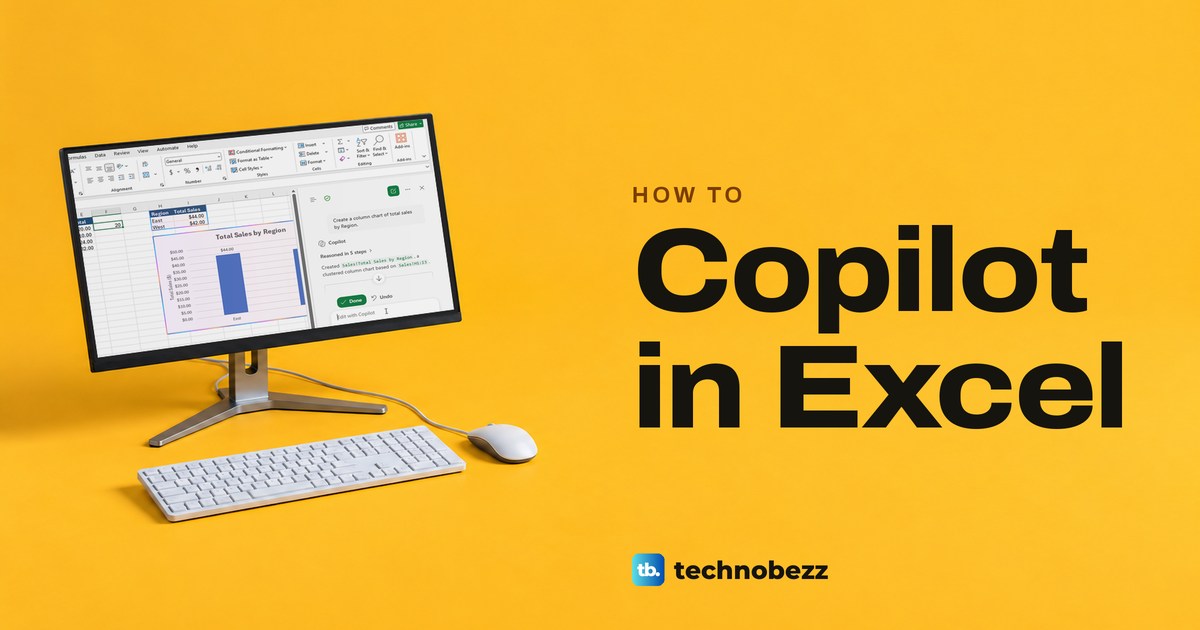
To use Copilot in Excel, open a workbook saved in OneDrive or SharePoint, select the Copilot button in the lower-right corner of the sheet, choose a mode and type a request that names your columns. Chat only answers without touching the sheet, Plan lists the steps first, and Allow editing changes the workbook as soon as you send the request.
That last part matters more than any prompt. Each edit we asked for was already in the sheet before Copilot showed Done and Undo, so check the cells it wrote every time.
The short version
- Save the workbook in OneDrive or SharePoint as an .xlsx, .xlsb or .xlsm file, with one header row and no merged cells.
- Select the Copilot button at the lower right of the sheet, or press Alt + C and then Enter.
- Pick Chat only to ask, Plan to see the steps first, or Allow editing to change the sheet. Ctrl + Shift + M switches mode.
- Name the columns in your request, then check the formula bar, the totals and any chart Copilot made.
- Select Undo in the pane if an edit is wrong. The old =COPILOT() cell function no longer works.
What you can ask Copilot to do in Excel
Copilot answers questions about your data, writes formula columns, builds charts and PivotTables, and highlights, sorts or filters rows, and Microsoft says the results stay editable. These are the requests we ran on a made-up sales sheet with Region, Item, Units and Unit price columns, plus one formula, =C2*D2, that we had typed into F2 ourselves. Our two questions in the table ran in Allow editing and changed nothing, but Chat only is the safer mode for questions.
| What you want | Mode and request we used | What to check |
|---|---|---|
| Look up one value | Chat only: "What are the Units for East Pens?" | The answer, 10, matches C2 and the sheet does not change |
| See the steps before any change | Plan: "Plan a chart of total sales by region." | Five steps and a Proceed button, with the sheet untouched |
| Add a calculated column | Allow editing: "Add a Total column that multiplies Units by Unit price for each row." | E2 holds =C2*D2 and the totals read 20, 10, 24 and 32 |
| Understand a formula | Allow editing: "Explain the formula in F2." | Copilot quotes the =C2*D2 we typed in F2 and explains 10 Units times $2 |
| Compare groups | Allow editing: "Which region has the higher total sales in this table? Show the calculation." | East $44 and West $42, with each sum written out |
| Make a chart | Allow editing: "Create a column chart of total sales by Region." | A summary table and a chart with East $44 and West $42 |
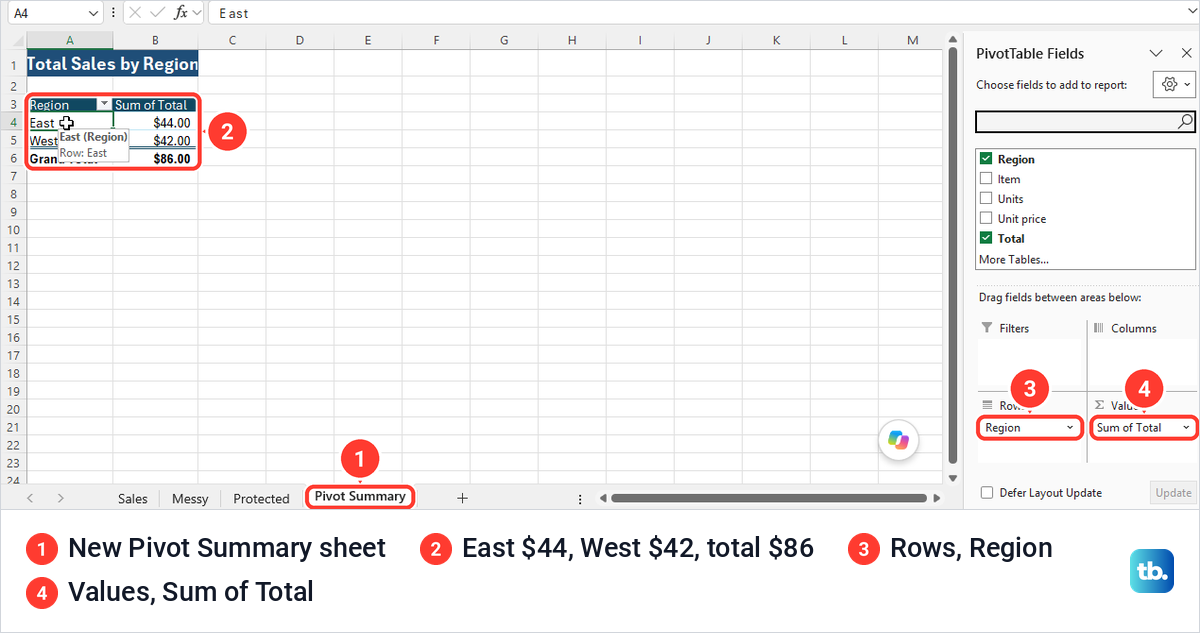
| Make a PivotTable | Allow editing: "Create a PivotTable with sum of Total by Region." | A new sheet with a grand total of $86 |
| Highlight or filter rows | Allow editing: "Highlight the lowest value in Units." or "Filter to show only East rows." | C4 shaded, or 2 of 4 records found in the status bar |
Microsoft says Copilot works with Excel tables of up to 2 million cells. It adds that highlighting, sorting and filtering have no such limit.
Prepare a workbook Copilot can use
Microsoft says Copilot in Excel works with workbooks stored in OneDrive or SharePoint, in the .xlsx, .xlsb and .xlsm formats, and not with files saved as Strict Open XML. AutoSave is no longer required, since Microsoft added support for cloud workbooks with AutoSave off in July 2026, but saving to OneDrive with AutoSave on is still the simplest start.
We used File > Save As, picked our OneDrive folder and kept the Excel Workbook (*.xlsx) type. AutoSave switched to On by itself, and the file name card at the top of the window showed the OneDrive location. If you do not have a cloud folder yet, set up OneDrive on Windows first and save the workbook there.
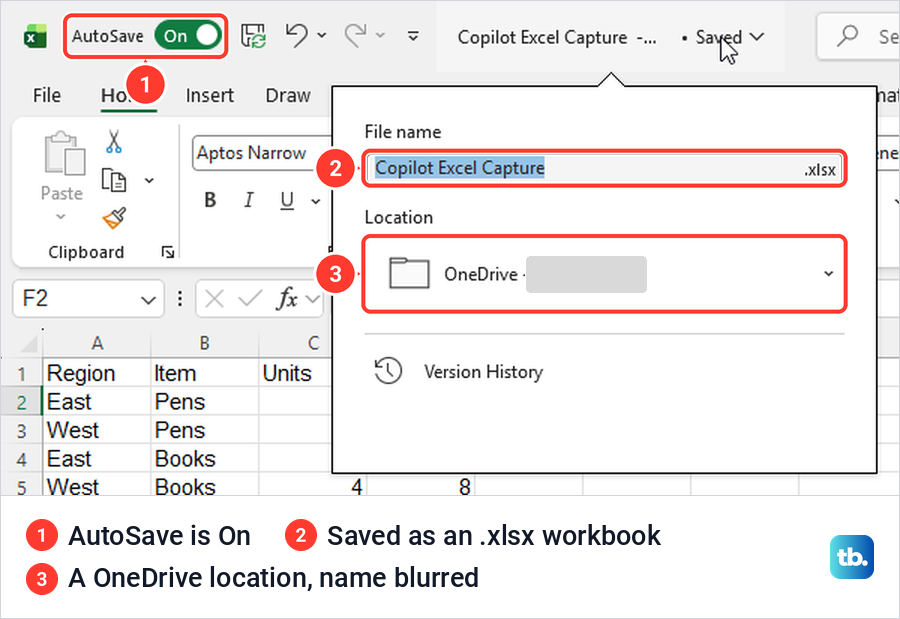
The shape of the data matters as much as where it lives. Microsoft says Copilot works best with a table or range that has a single header row, one kind of thing in each column and no merged cells, and that naming the columns you want analyzed gives more accurate results. If your headings sit in merged cells, merge and unmerge cells to get back to one heading per column before you ask.
Check that your plan includes Copilot
Copilot in Excel is not part of every Microsoft 365 plan. Microsoft lists four routes: a Microsoft 365 Personal or Family subscription with an AI credits plan, a Microsoft 365 Premium subscription, a commercial Microsoft Copilot subscription, or a Copilot Chat-eligible Microsoft 365 or Office 365 business or enterprise subscription. It adds that availability may vary with your license and, for work accounts, with how your organization has set things up.
Microsoft says to check your license in your Microsoft 365 account settings, and that Copilot can show an in-product label such as M365 Copilot (Premium) or M365 Copilot (Basic). Our File > Account page showed no Copilot label even though Copilot worked, so opening the pane and sending a short question is a useful quick check as well.
Open Copilot in Excel
Look at the lower-right corner of the grid for a round button with the Copilot logo. On our PC the first click did not open the pane but showed three suggestions, Add data insights, Improve formatting and Add a formula. A second click on the button opened the Copilot pane on the right, headed Let's edit your workbook.
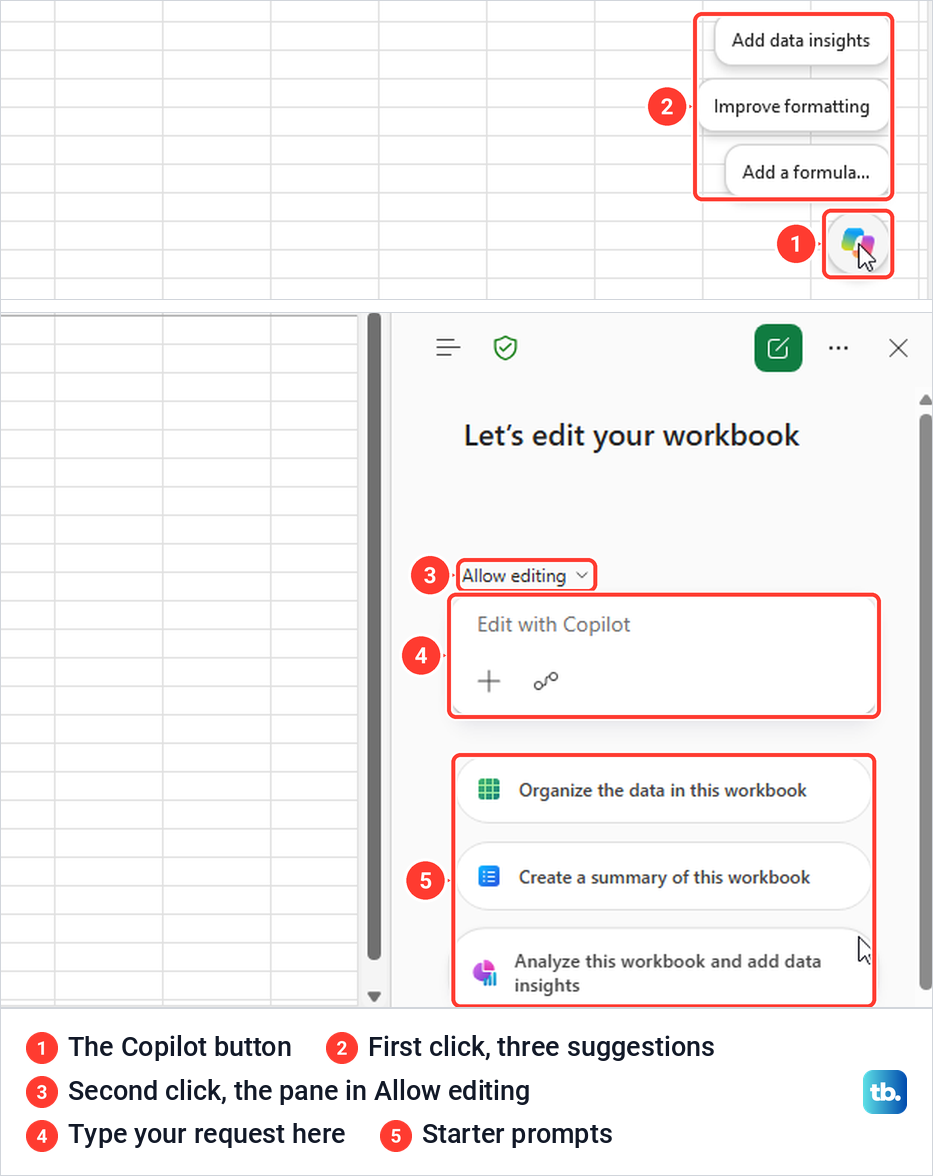
The pane opened in Allow editing, which Microsoft says is the default, with a box labelled Edit with Copilot and three starter prompts under it. Microsoft says a single click opens Copilot, so if your first click only shows the suggestions, click the button again.
Open it from the keyboard
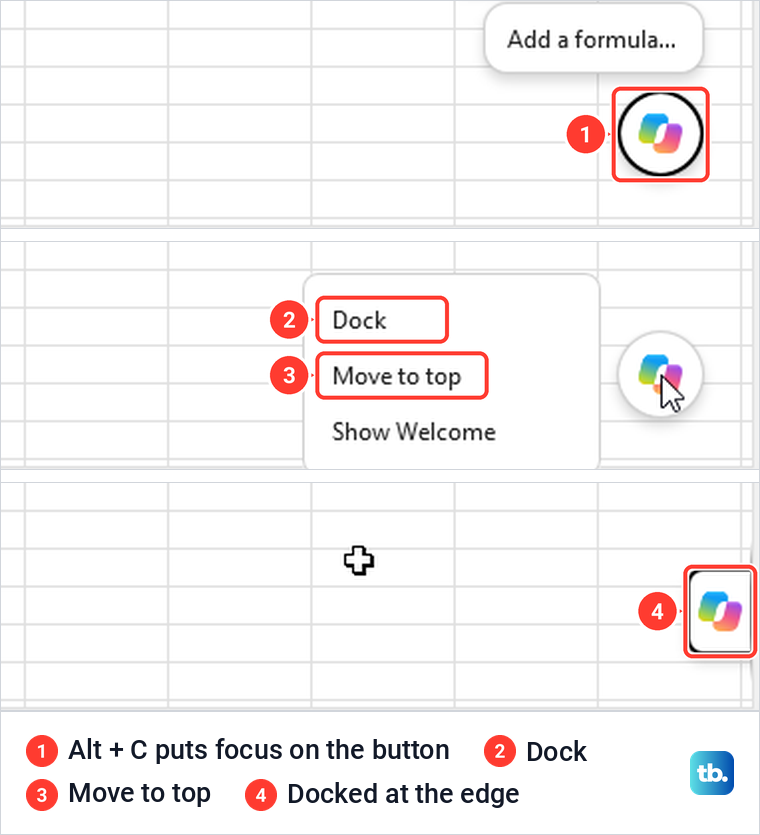
Press Alt + C to put the focus on the Copilot button, then press Enter. On our PC Alt + C drew a focus ring around the button and showed the suggestions, and Enter opened the pane with the cursor already in the prompt box. Microsoft gives the same shortcut for Excel for the web.
Move the button out of the way
Right-click the button to change where it sits. Our desktop menu offered Dock, Move to top and Show Welcome, and Dock tucked the button into a small tab on the right edge of the sheet, whose own menu offered Undock. Microsoft also describes a Move to ribbon choice for Windows, but on our PC that item appeared only in Excel for the web.
Choose Chat only, Plan or Allow editing
The mode sits just above the prompt box. Select it, or press Ctrl + Shift + M, to choose between Allow editing, Plan and Chat only, each with a one-line description of what Copilot will do.
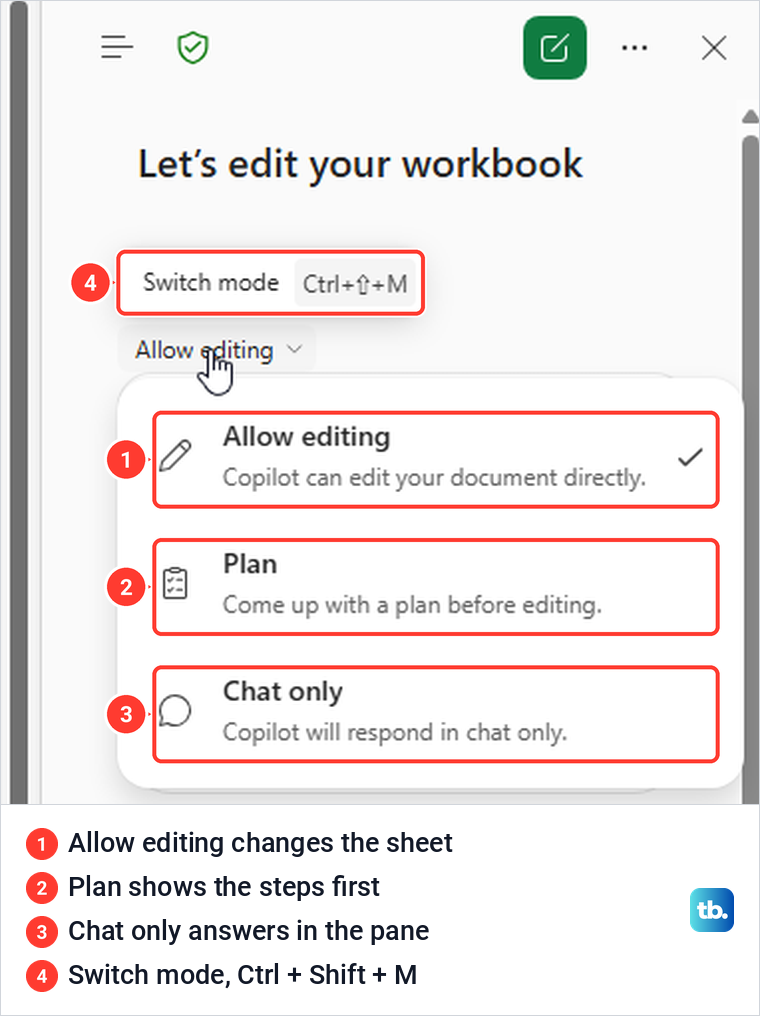
Once a conversation starts, the label above the prompt box shortens to Edit, Plan or Chat, so a pane that says Edit is still in Allow editing. Pick Chat only for questions about data you do not want touched, Plan for a bigger job you want to read through first, and Allow editing when you are ready for Copilot to change cells.
Ask a question in Chat only
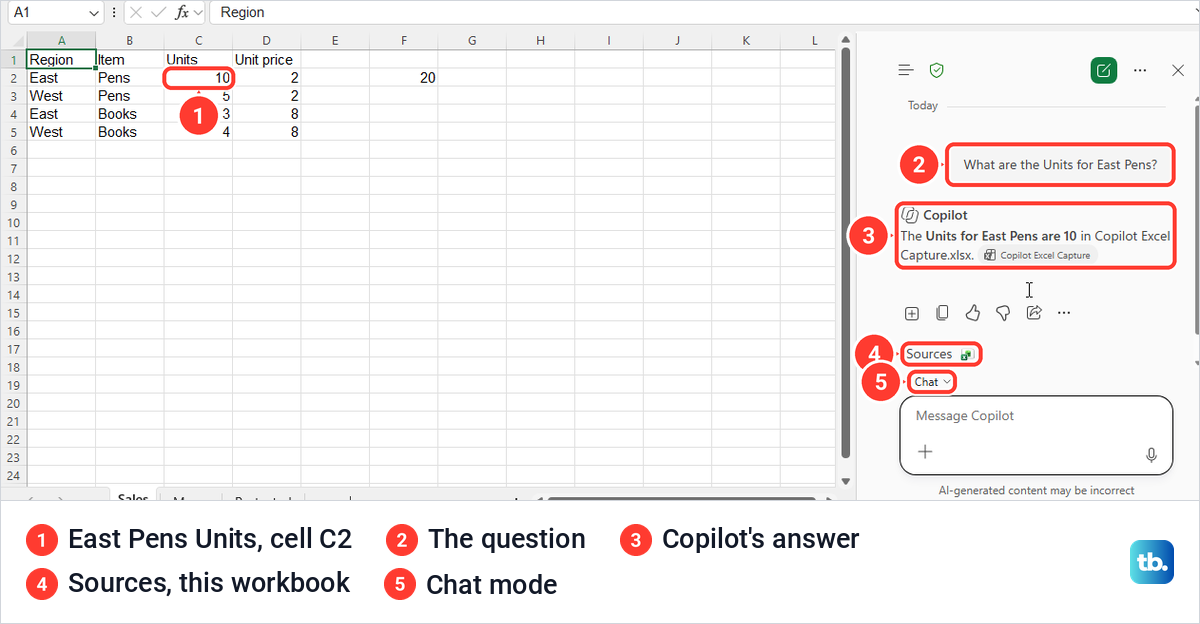
We switched to Chat only and asked "What are the Units for East Pens?" Copilot answered that the Units for East Pens are 10, added a small label naming the workbook and a Sources line, and left the sheet exactly as it was. Cell C2 holds 10, so the answer matched.
Review the steps in Plan
In Plan we asked "Plan a chart of total sales by region." Copilot replied with five numbered steps, from reviewing Sales!A1:D5 to formatting the chart with currency labels, and ended by asking us to review the steps and make any changes before proceeding. A green Proceed button sat under the plan, and the sheet stayed unchanged while the plan waited.
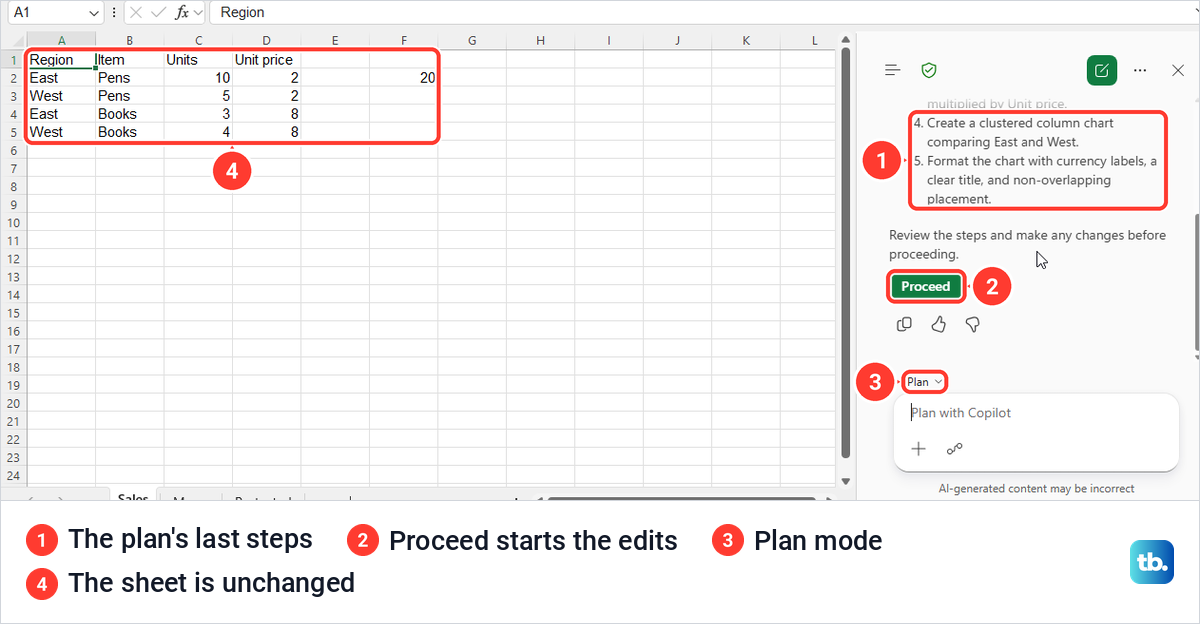
Plan is the closest thing Copilot has to a preview. Check that the steps use the right columns and range, and reword your request before you select Proceed if something is off.
Ask Copilot to add a formula column
With the mode back on Allow editing, we typed "Add a Total column that multiplies Units by Unit price for each row." Copilot wrote the heading Total in E1 and $20.00, $10.00, $24.00 and $32.00 in E2:E5, formatted as currency. The pane said it had added the Total column in Sales!E1:E5 for all four rows, and only then showed Done and Undo.
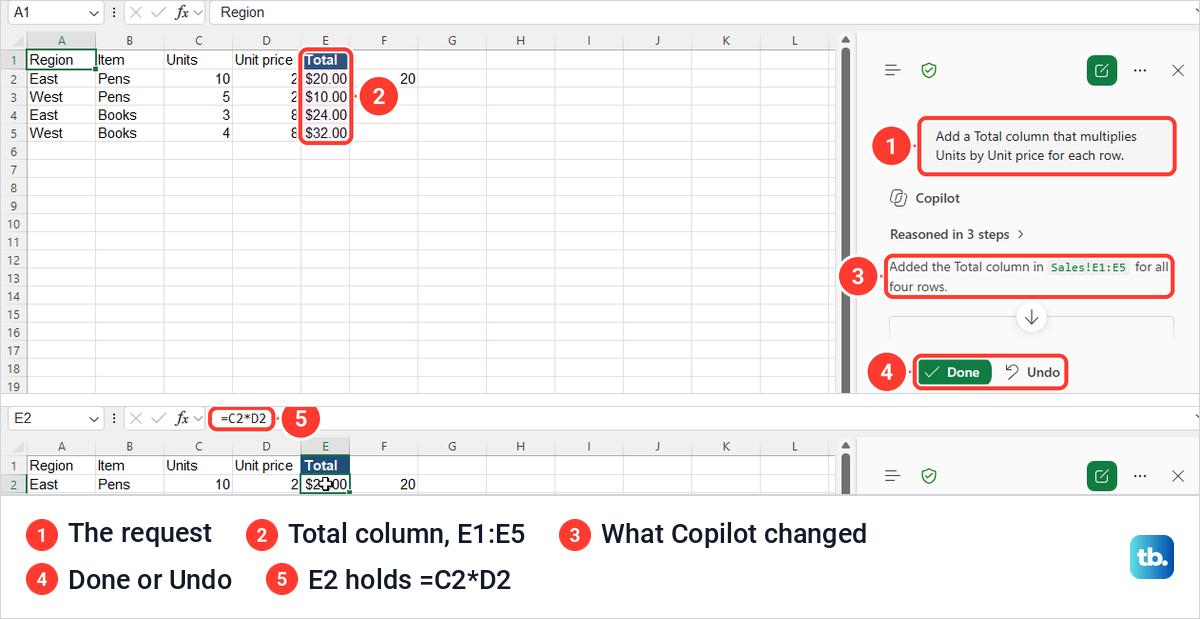
Click the first new cell and read the formula bar before you trust the column. Ours showed =C2*D2 in E2, a live formula rather than typed numbers, and 10 times 2 is the 20 it displays. If you would rather write the same formula yourself, our guide shows how to multiply in Excel one row or a whole column at a time.
Done is not an approval step. When we selected it, the pane posted Done as a chat message and Copilot sent back a short acknowledgement, because the edit had already happened. Undo is the button that matters if the result is wrong.
Ask Copilot to explain a formula or compare groups
Copilot can also read formulas that are already in the sheet. Our sheet had =C2*D2 in F2, a formula we typed ourselves before opening Copilot, so we selected F2 and asked "Explain the formula in F2." Copilot quoted the formula back and said it multiplies 10 Units from Sales!C2 by the $2 unit price in Sales!D2, resulting in $20. On your own sheet, name any cell that holds a formula, such as E2 from the Total column above.
Next we asked "Which region has the higher total sales in this table? Show the calculation." The answer said East has the higher total, $44 against West's $42, and wrote out each sum underneath. Both match the Total column, since 20 plus 24 is 44 and 10 plus 32 is 42.
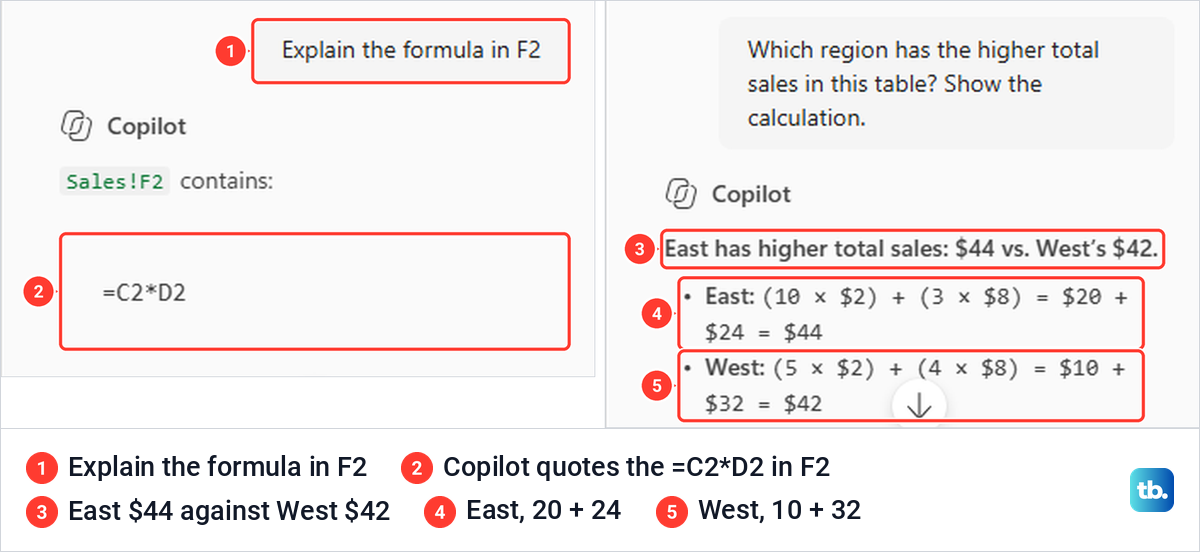
Asking Copilot to show the calculation is worth the extra words. It turns an answer you would have to take on trust into sums you can check against the sheet in seconds, and on a longer list you can sum a column in Excel yourself to compare.
Create a chart or PivotTable with Copilot
Our chart request, "Create a column chart of total sales by Region.", produced two things rather than one. Copilot first built a small summary table beside the data, with Region and Total Sales headings, East at $44.00 and West at $42.00, worked out with SUMPRODUCT formulas. It then drew a clustered column chart titled Total Sales by Region from that summary.
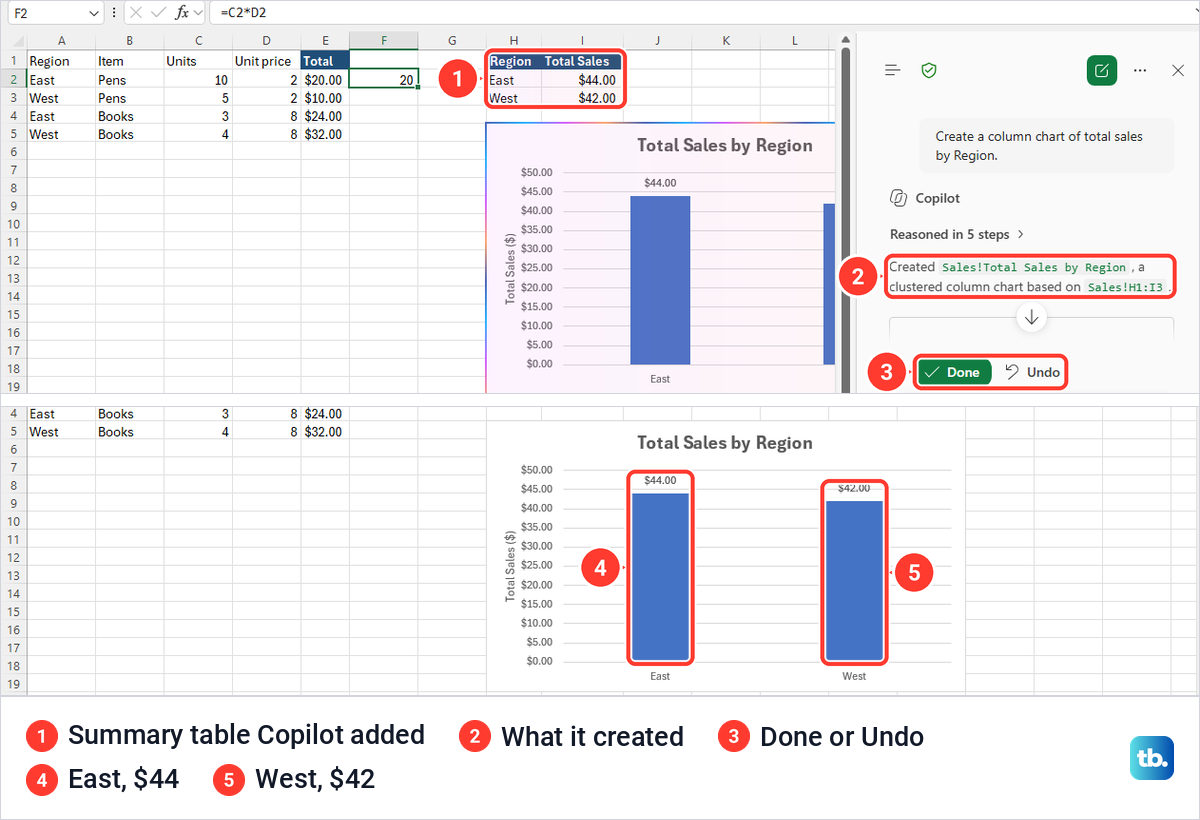
Check the bars against numbers you trust, not only against the chart's own labels. Ours matched the Total column, East at 20 plus 24 and West at 10 plus 32. If you want a different chart type or layout, the chart is an ordinary Excel chart, and you can make a graph in Excel from the same summary cells.
For a PivotTable we asked "Create a PivotTable with sum of Total by Region." Copilot added a new sheet called Pivot Summary with a normal PivotTable, Region in Rows and Sum of Total in Values, showing East $44.00, West $42.00 and a Grand Total of $86.00. The PivotTable Fields list opened with Region and Total ticked, so you can change it like any PivotTable or create a PivotTable yourself from the same range to compare.
Highlight and filter rows with Copilot
"Highlight the lowest value in Units." shaded cell C4, which holds 3, the smallest of the four. Copilot said it used conditional formatting that updates automatically if values change, so the shading follows whichever row becomes the lowest.
"Filter to show only East rows." added filter buttons to the headings, left rows 2 and 4 on screen, and the status bar read 2 of 4 records found. One side effect is easy to miss. A filter hides whole worksheet rows, so the West line of the summary table Copilot had placed beside the data disappeared too, and the chart showed only East while the filter was on.
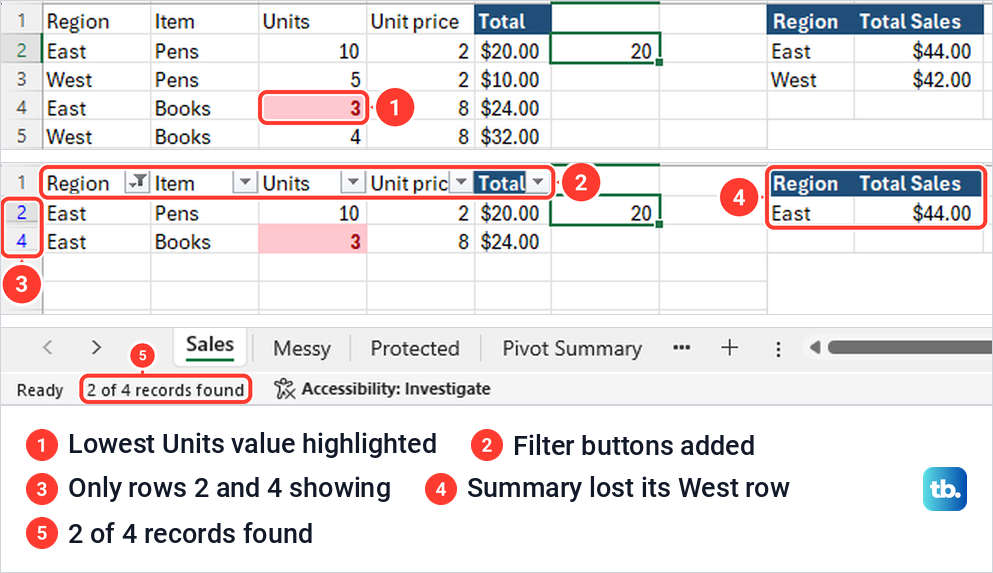
To bring everything back, open the Data tab and select Clear in the Sort & Filter group. On our sheet that restored all four rows and the West summary line, the chart showed both bars again, and the filter buttons stayed on the headings. If rows stay hidden after clearing, fix Excel filters that do not work before you trust any total on that sheet.
When you plan to filter, ask for summaries on a new sheet rather than beside the data. A summary on its own sheet, like the Pivot Summary sheet above, keeps all its rows when the data sheet is filtered.
Check and undo what Copilot changed
Microsoft says Copilot's content can be inaccurate and asks you to review, edit and verify anything it creates before you rely on it. Ask in a way that leaves something to check, such as a formula, a written-out sum or a cell reference, and look for the right columns, every row included and totals that add up.
Each edit lands in the workbook straight away, and Microsoft notes that once changes are saved, anyone with access to the file sees them, including people coauthoring with you. Select Undo in the pane right after a bad edit, or go back to a prior version. Before a wide change, make a copy of the Excel file so the original is easy to compare.
If a generated formula shows an error or an old result, fix Excel formulas that do not calculate before you use the column in a report. A formula Copilot writes is an ordinary Excel formula, so the same checks apply.
Use Copilot in Excel for the web
Excel for the web has the same Copilot pane. We opened the same workbook in Excel for the web in Microsoft Edge, and there a single click on the lower-right button, labelled Copilot (Preview) when we pointed at it, opened the pane in Allow editing with no suggestion step first.
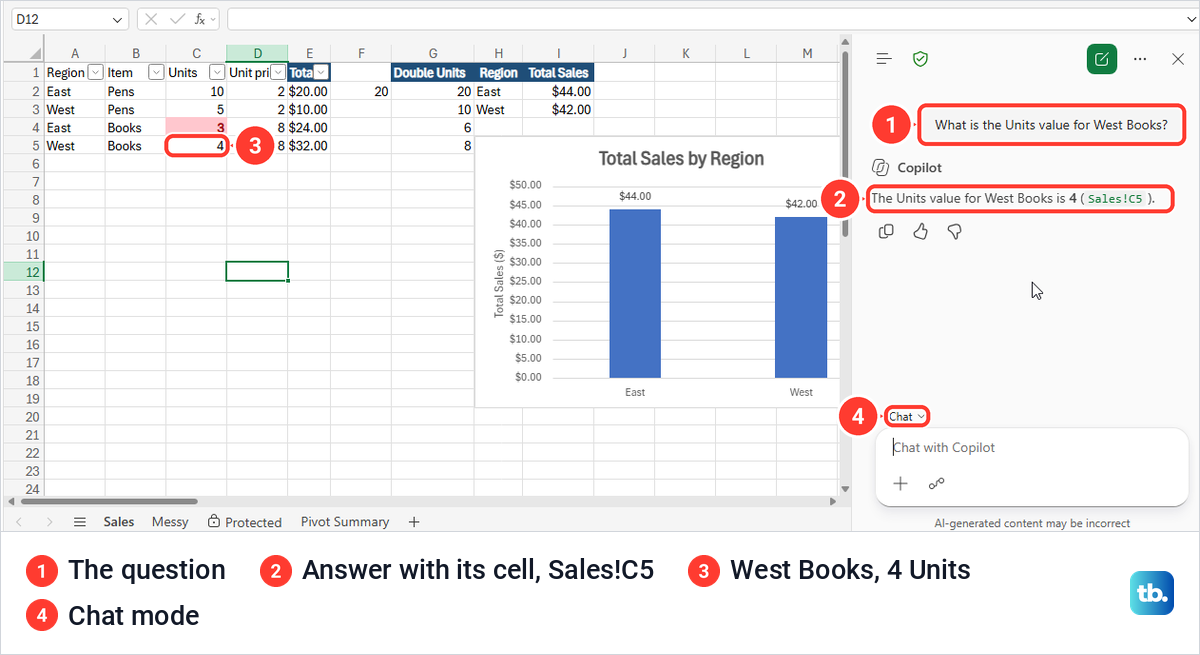
The mode menu listed the same three choices and the same Ctrl + Shift + M shortcut. We asked in Chat only "What is the Units value for West Books?" and got 4, with the cell reference Sales!C5, which matches the sheet.
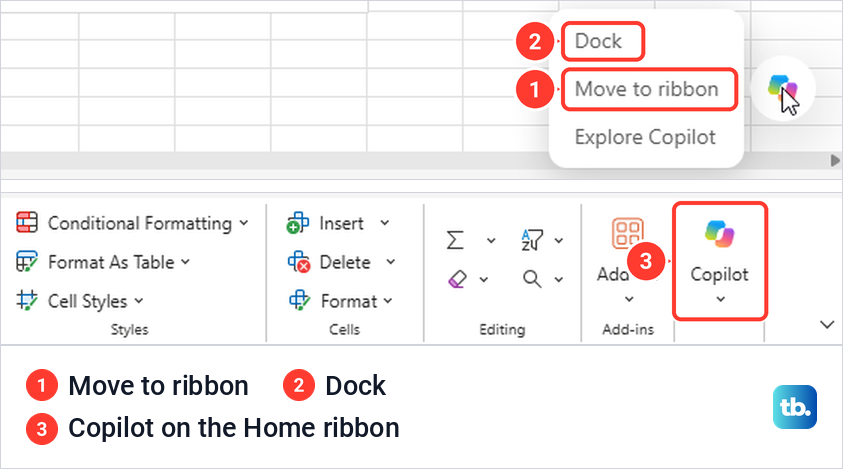
Moving the button works differently in the browser. The right-click menu offered Dock, Move to ribbon and Explore Copilot, and Move to ribbon put a Copilot button at the right end of the Home tab. Microsoft says the web keeps that choice only for your current working session.
One setting did not match Microsoft's pages. Microsoft describes formula suggestion switches under File > Options > Copilot, and Copilot Settings on the web, but neither our desktop Options nor the web menu had a Copilot entry, and typing = in a cell showed no suggestion. The pane is the route to rely on.
Copilot in Excel on a Mac, iPad and phone
Microsoft lists edit, chat and plan modes for Excel for Mac, like Windows and the web, and its shortcut to reach the Copilot button on a Mac is Cmd + Control + I. Excel on iPad has chat and plan, Excel on iPhone and Android have chat, and Microsoft says edit mode is rolling out to iPad and iPhone.
Fix a missing Copilot button or a blocked edit
The table pairs each common problem with the fix to try first. Most rows come from Microsoft's own troubleshooting pages, the last one comes from our own test, and the paragraphs under it cover what happened on our PC.
| Problem | What to do |
|---|---|
| No Copilot button | Update Office, then select File > Account > Update License and restart every Microsoft 365 app, as Microsoft advises |
| No button on a work PC | Microsoft says Semi-Annual Enterprise Channel does not offer Copilot, so ask your admin about Current Channel or Monthly Enterprise Channel, and in the meantime Microsoft says the web apps work without a channel change |
| Still no button after both | Microsoft points to File > Account > Account Privacy > Manage Settings, where Experiences that analyze your content and All connected experiences must be on |
| Copilot answers but will not edit | Choose Allow editing, and set Formulas > Calculation Options to Automatic, the only setting Microsoft supports for edits |
| Copilot cannot use the file | Keep it in OneDrive or SharePoint and save it in a modern format such as Excel Workbook (.xlsx), since Microsoft says Strict Open XML files do not work |
| No Copilot in Excel for the web | Refresh the page first, and if Copilot is still missing, enable third-party cookies in the browser and try again, since Microsoft says blocked cookies can stop Copilot from checking your license |
| You've reached your limit for today | Chat only still answered for us, so ask questions there and leave the edit for later |
The privacy check looked different on our PC. Our Manage Settings window showed only Turn on optional connected experiences, ticked, and the note Some privacy settings are managed by your organization, with neither of the two settings Microsoft names. If your window shows that note, your organization controls these settings, and Microsoft says to check with your IT admin.
Calculation mode was the other surprise. Microsoft says Copilot editing is only supported with Calculation Options set to Automatic, yet with Manual ticked our request for a new formula column still went through with no warning, and the workbook stayed on Manual afterwards. Set it back to Automatic anyway, since that is the setting Microsoft supports.
A protected sheet did not stop Copilot either. On a sheet protected with Review > Protect Sheet and no password, our request to sort by Units from smallest to largest put the rows in the order 3, 4, 5 and 10, and Copilot said worksheet protection was restored. Do not rely on that, and if anything looks unprotected afterwards, lock cells and protect the sheet again yourself.
The daily limit is a different problem from a missing license. After about 14 requests in one morning, an Allow editing request got only You've reached your limit for today, with no upgrade link, while the same request in Chat only still returned a correct summary of sales by item.
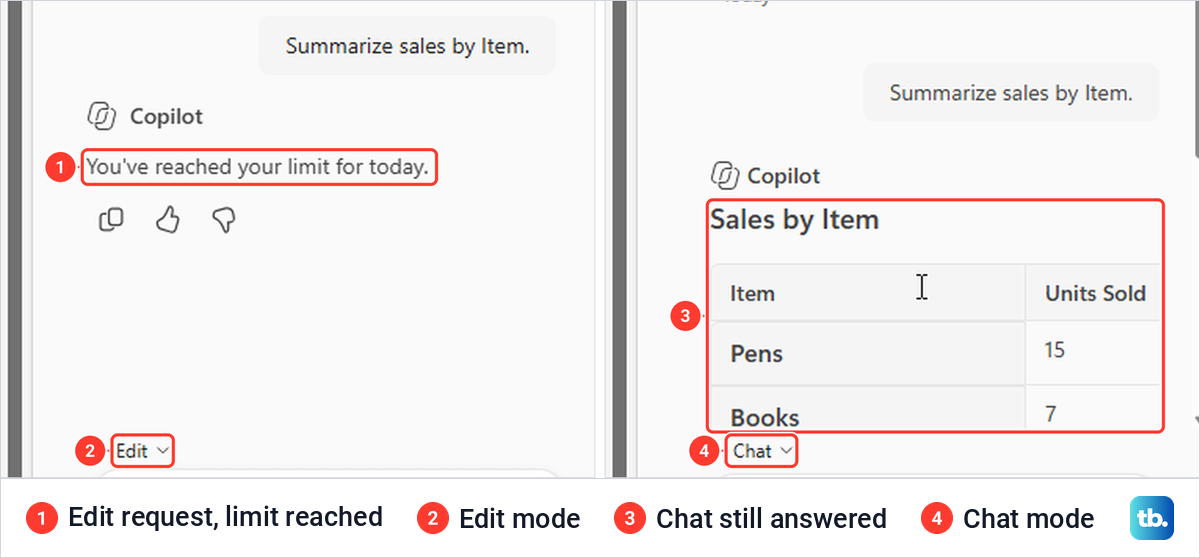
That Chat only answer came from a deliberately messy copy of the sheet, where Region spread across a merged A1:B1 and the Item heading was gone. Copilot still listed Pens at 15 units and Books at 7, and said Books brought in the most revenue at $56. A tidy header row is still the safer setup, as Microsoft advises, because a messier sheet leaves Copilot more to guess.
If Copilot is missing in Word and PowerPoint as well, check your account, license and organization settings rather than the workbook, and our guide on how to use Microsoft 365 Copilot across apps covers that side. When the assistant also fails in the browser and the Windows app, fix Copilot when it stops working walks through the wider checks.
The COPILOT function no longer works
Some older guides teach a =COPILOT() formula typed into a cell. Microsoft says that function was a preview and stopped being available on September 14, 2026, and that results it had already calculated stay in old workbooks as cached values only until the cell recalculates, when it shows a #NAME? error. Type the same kind of request in the Copilot pane instead.
How we tested this guide
We tested this in Excel for Microsoft 365 on Windows 11, version 25H2, and Excel for the web in Microsoft Edge, running these requests on a made-up sales sheet.
Frequently Asked Questions
Where is the Copilot button in Excel?
It sits in the lower-right corner of the sheet as a round button with the Copilot logo. On our PC the first click showed three suggestions and the second opened the pane, and Alt + C then Enter did the same from the keyboard.
Do I need a Copilot license to use it in Excel?
You need a plan that includes it, but not always a separate add-on. Microsoft lists Personal or Family with an AI credits plan, Microsoft 365 Premium, a commercial Microsoft Copilot subscription and eligible business or enterprise plans.
Can I ask questions without changing the workbook?
Yes. Choose Chat only from the mode menu and Copilot answers in the pane, and our question about East Pens returned 10 while the sheet stayed the same.
Does Copilot in Excel require a table?
No. Our requests worked on a plain range with one header row, and Microsoft says a table or range works best with a single header row and no merged cells. On an untidy sheet, unmerge the heading cells and give each column one heading first, then use Home > Format as Table if you want a table.
Why is Copilot missing from Excel?
Check the lower-right corner first, then update Office, select File > Account > Update License and restart the apps. At work, the update channel and privacy settings your organization controls can also hide it.
Why can Copilot not edit my workbook?
Check that the mode is Allow editing, the file is an .xlsx, .xlsb or .xlsm workbook in OneDrive or SharePoint (not Strict Open XML), and Calculation Options is on Automatic. A message that you have reached your limit for today means the edit has to wait.
Can I still use the =COPILOT() formula?
No. Microsoft says the preview function stopped working on September 14, 2026, and old results stay as cached values only until the cell recalculates, when it returns a #NAME? error. Type the same request in the Copilot pane instead.