
To use Copilot in Word, open a document, select the round Copilot button in the lower-right corner of the window, and type what you want in the pane that opens. Leave the pane on Allow editing to let Copilot draft or rewrite text on the page, or switch to Chat only to ask about the document without changing it.
In our tests, Copilot put the draft, the rewrite and the table on the page before it offered Done and Undo. Microsoft says Copilot in Word needs an eligible Microsoft 365 subscription or Copilot license, and some features also depend on your organization's settings.
The short version
- Select the round Copilot button at the lower right of the document, or press Alt + C to reach it.
- Keep Allow editing to let Copilot change the page, or pick Chat only for answers and summaries.
- On a blank document, type your request in the draft bar above the page and select the arrow.
- To rewrite, select the text and type the change in the pane; to make a table, select it, press Alt + I and type Visualize as a table.
- In our tests the changes landed on the page at once, with Done and Undo under the text.
What Copilot can do in a Word document
Copilot in Word drafts new text, rewrites text you select, turns text into a table, and answers questions about the open document, summaries included. We ran each of these on a made-up picnic plan, and the table shows where each job starts and what to check before you keep the result.
| What you want | Where to start | What to check |
|---|---|---|
| Write a first draft | The draft bar above a new blank page, or Alt + I on that page | Every name, date and place Copilot wrote |
| Rewrite one sentence or paragraph | Select it, then type the change in the pane in Allow editing, or press Alt + I and type it in the box | The Original and Revised wording in the pane |
| Turn a line or list into a table | Select it, press Alt + I and type Visualize as a table | The headings and every row against your text |
| Ask about the document | The pane in Chat only | The source chip under each answer |
| Summarize the document | Chat only, with a request such as Summarize this document in three bullets | Each bullet against the document |
| Use another file as a source | Type / in your request and pick the file | That the right file appears in your request |
| Edit in a browser | The corner button in Word for the web | Any fact Copilot added that you never wrote |
Two limits are worth knowing before you start. Microsoft says Copilot can draft or update content in the current document but can't create a separate new Word file for you, and that Word's own Word Count is the tool to use when you need an exact count.
Check that your account includes Copilot in Word
Microsoft says you need an eligible Microsoft 365 subscription and/or Microsoft 365 Copilot license to use Copilot in Word. It adds that some create and edit features are rolling out gradually and may depend on your license, your organization's settings, the app version and whether you use Word for Windows, Mac, the web or iPad.
For a work or school account, Microsoft points to the bottom of the Microsoft 365 home page, where a label of Copilot Chat (Basic), M365 Copilot (Basic) or M365 Copilot (Premium) appears under your name. Its page says Copilot Chat (Basic) has no access to Copilot in Word, M365 Copilot (Basic) has standard access in the apps, and M365 Copilot (Premium) is the add-on license with priority access.
With a personal Microsoft account, Microsoft says Copilot comes with a qualifying Microsoft 365 subscription such as Personal, Family or Premium, and only the subscription owner can use Copilot in the desktop apps. To see which subscription you have, it points to your Microsoft account dashboard, or on Windows 11 to Start and then your account.
Do not look for that label inside Word. Our File > Account page listed the Microsoft 365 product and an Update License button but no Copilot label at all, yet Copilot drafted, rewrote and answered questions in the same copy of Word. If you are still sorting out which account and plan you have, our guide to using Microsoft 365 Copilot across its apps covers that side.
Open Copilot in Word
Look at the lower-right corner of the document window for a round button with the Copilot logo, which is where it sits by default. On our PC there was no Copilot button on the Home tab, and a new blank document also showed a bar above the page that read Describe what you'd like to draft with Copilot.
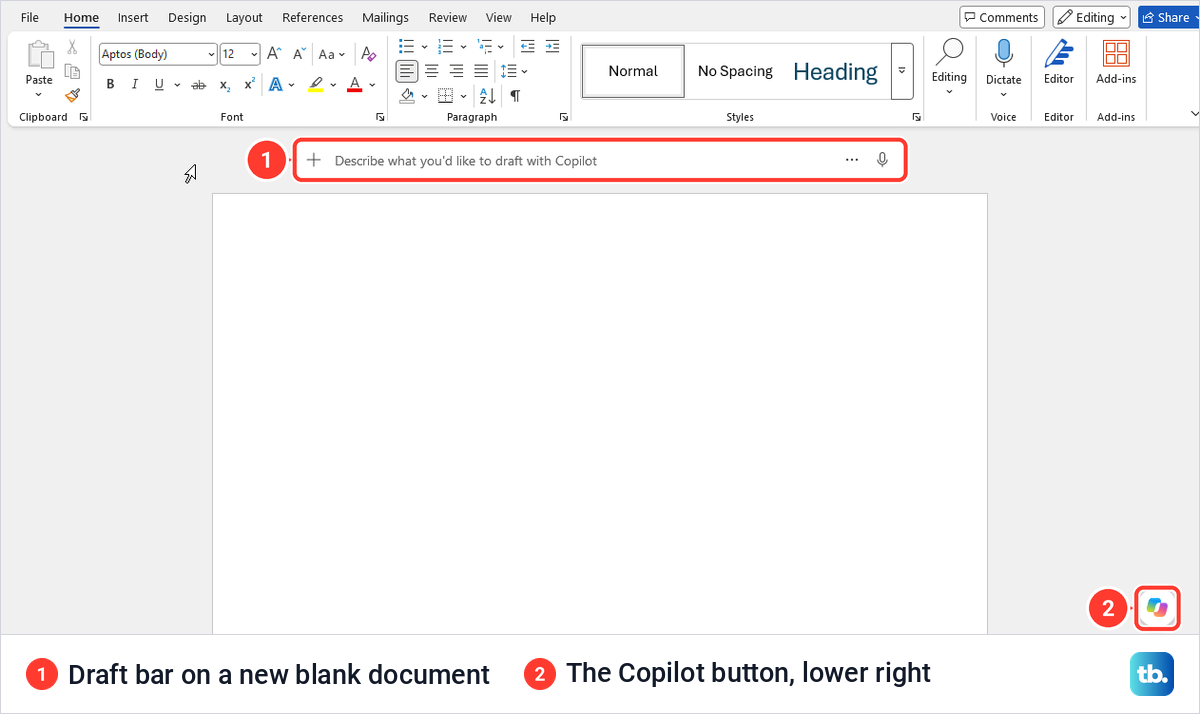
Point at the round button and it shows three suggestions, such as Make this document more concise. Select it to open the Copilot pane on the right, as Microsoft describes.
Microsoft gives Alt + C as the shortcut that puts focus on the button, and on our PC it drew a focus ring around the button and showed the same suggestions without opening the pane. If Alt + C does nothing, Microsoft says F6 moves focus to the button on every platform, and the up arrow then moves between its suggestions.
Right-click the button to move it. Our menu offered Dock, Move to top and Show Welcome. Microsoft also describes a Move to ribbon choice that puts Copilot back on the ribbon, but our desktop menu did not list it, so use whichever choices your menu shows.
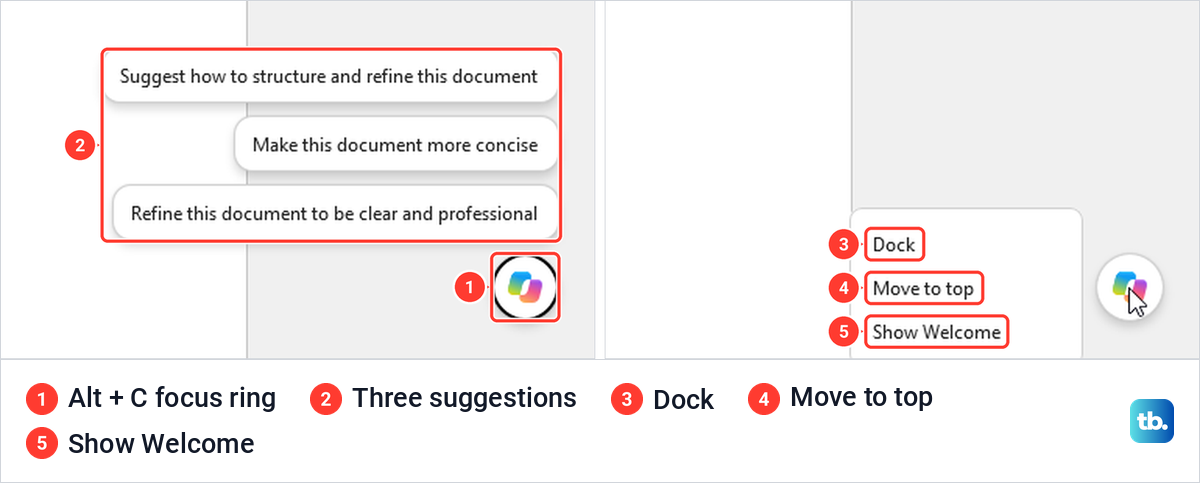
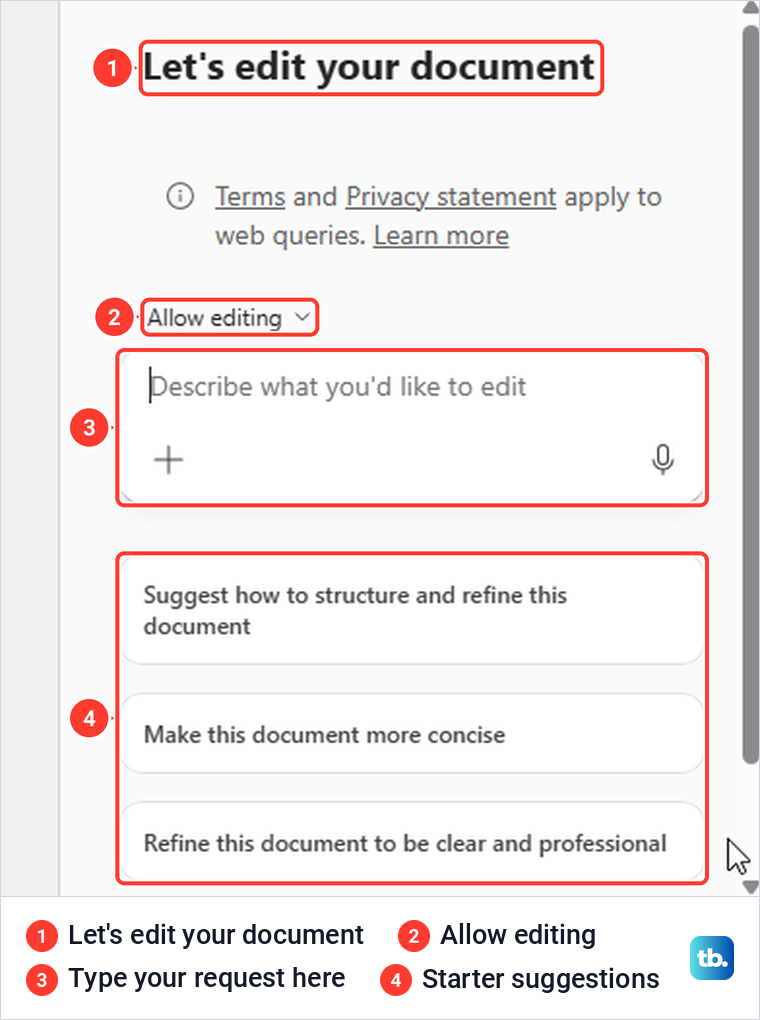
Docking turns the button into a thin tab at the right edge of the window, which keeps it clear of your text. Our button ended up docked, and selecting that tab still opened the pane, headed Let's edit your document, with a box labelled Describe what you'd like to edit and three starter suggestions under it. Microsoft says to select the docked icon or drag it back onto the page to bring Copilot back, and that docking lasts for your working session.
Choose Allow editing or Chat only
The mode sits just above the prompt box, and our pane opened on Allow editing. Select it to switch, and the menu explains both choices: Allow editing says Copilot can edit your document directly, and Chat only says Copilot will respond in chat only.
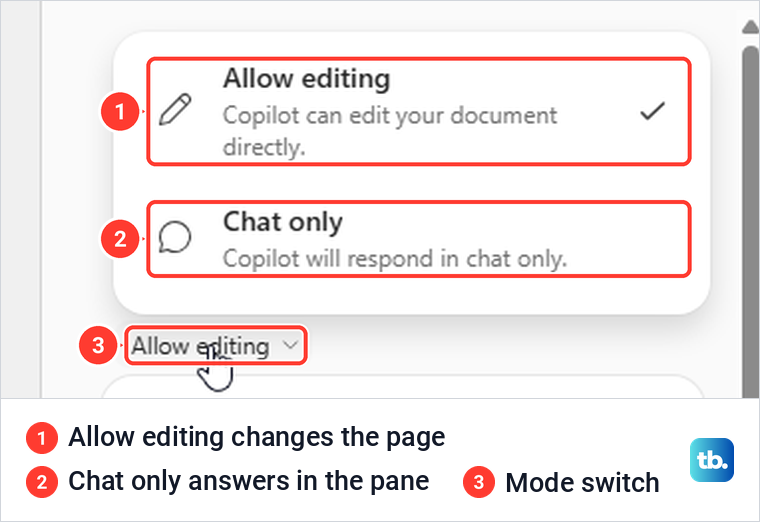
Once a conversation starts, the label shortens to Edit or Chat. Use Chat only for questions and summaries you do not want written into the file, and Allow editing when you are ready for Copilot to change the page.
Draft a new document with Copilot
Open a new blank document and click the draft bar above the page, or press Alt + I, which on our PC moved the cursor straight into that bar. Describe what you want, including the facts it must use, and select the blue arrow at the right end of the bar to send it.
We typed "Write a two-sentence invitation to the fictional Harborview picnic at Cedar Park on Friday, June 12, noon to 2 p.m. Mention the community room rain backup." The two sentences appeared on the page, the Copilot pane opened beside them, and a bar under the text offered Done and Undo.
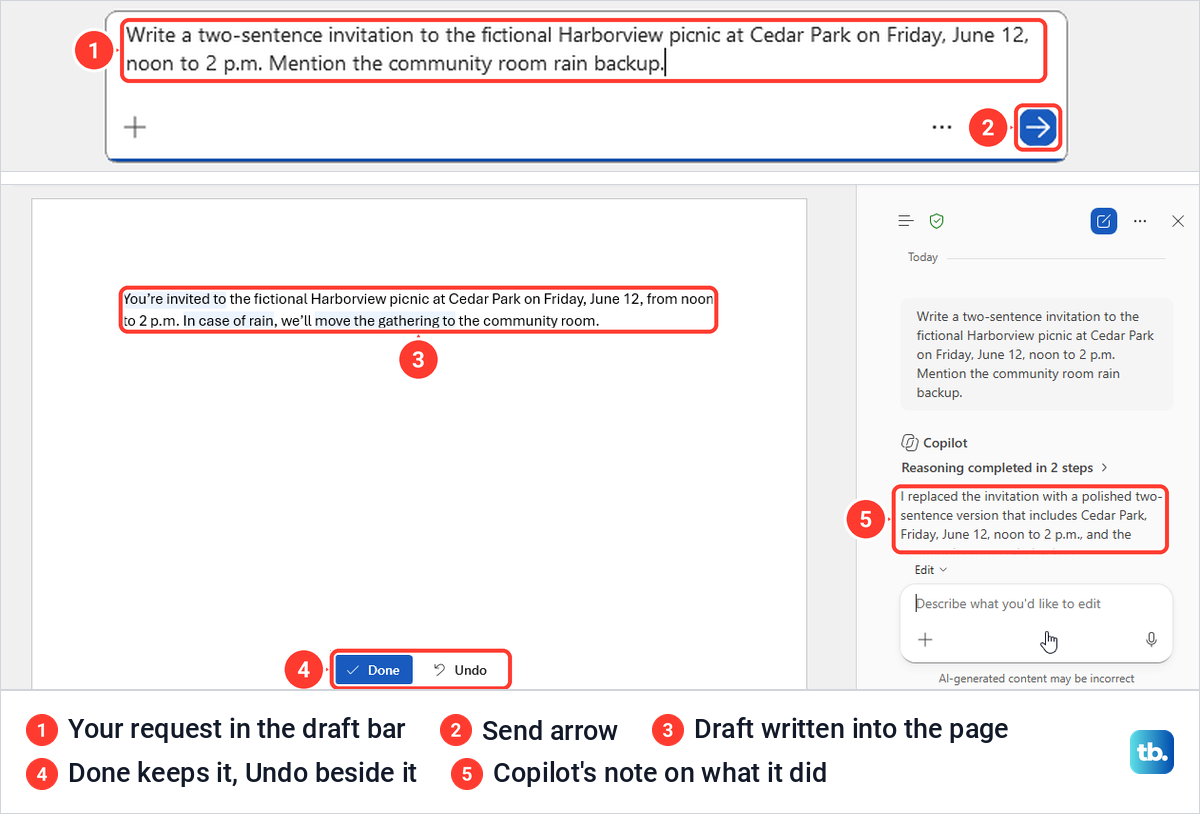
Copilot took our words literally. The invitation began You're invited to the fictional Harborview picnic, because fictional was in our request, so leave out any word you would not want in the finished text. Everything else matched the request, from the park and the date to the community room, and the text stayed when we selected Done.
Microsoft's own drafting steps describe a Generate button and choices to keep, discard or regenerate the draft, and its screen reader page describes a Draft with Copilot dialog. Our Word showed only the arrow, Done and Undo, so follow the labels on your screen. If Word itself is new to you, start with the basic Word editing and saving steps and come back to Copilot afterwards.
Rewrite a sentence or paragraph
Select the text you want changed first, so Copilot knows which part to touch. With a sentence selected, our mini toolbar had no Copilot button, but pressing Alt + I opened a box under the selection labelled Describe the edit you'd like to make, with Auto rewrite, Make shorter and Structure and refine below it.
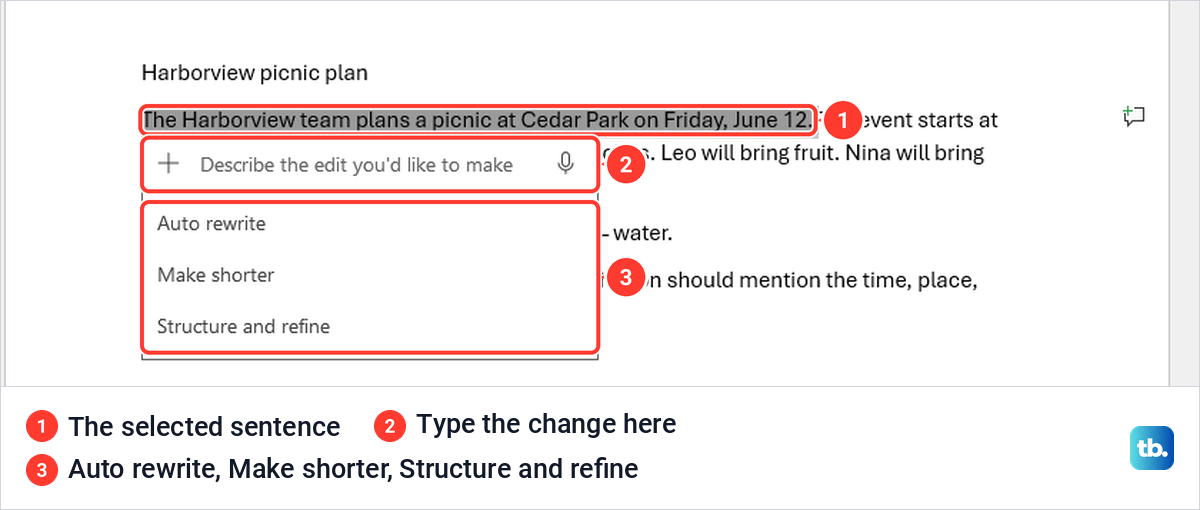
Type the change in the Copilot pane in Allow editing while the text is still selected, or in that box. We asked the pane to "Rewrite this sentence." Copilot changed only the selected sentence on the page, listed the Original and Revised wording in the pane, and showed Done and Undo again, while the rest of the paragraph stayed as it was.
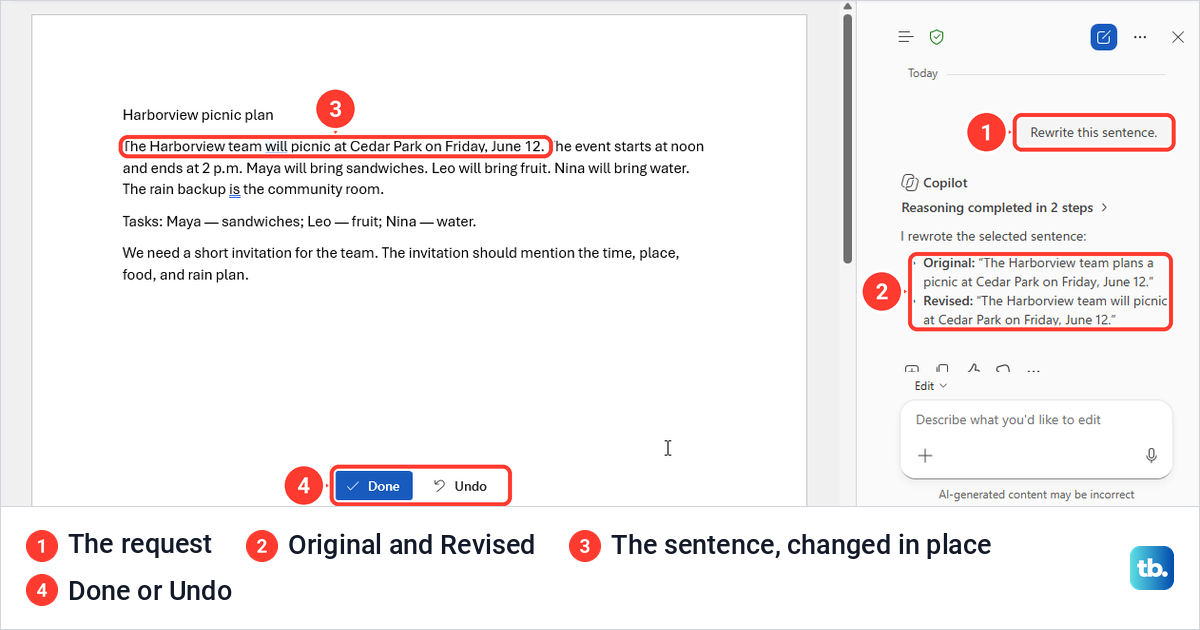
A vague request gets a small change. Our sentence went from The Harborview team plans a picnic to The Harborview team will picnic, which is barely different, so say what you want, such as shorter, friendlier, more formal or written for a named reader. Microsoft's own example is Make this section sound concise and professional for an executive audience.
Microsoft's rewrite steps name Replace, Insert below and Regenerate buttons instead of Done and Undo, so expect either set. Before a broad rewrite of a shared draft, make a copy of the Word document, and afterwards you can compare two Word documents to see each word Copilot changed.
Turn text into a table with Copilot
Copilot can turn a line or a list into a Word table. Select the text, press Alt + I and type the request in the box. Our box offered no table option among its three suggestions, so we typed Visualize as a table, the name Microsoft gives that option, and sent it.
Copilot replaced our Tasks line, which paired each person with an item, with a two-column table headed Person and Item, listing Maya and Sandwiches, Leo and Fruit, and Nina and Water. The Tasks label itself was gone, the names were bold and the table had a colored heading row. Done and Undo appeared again, and Done kept the table.
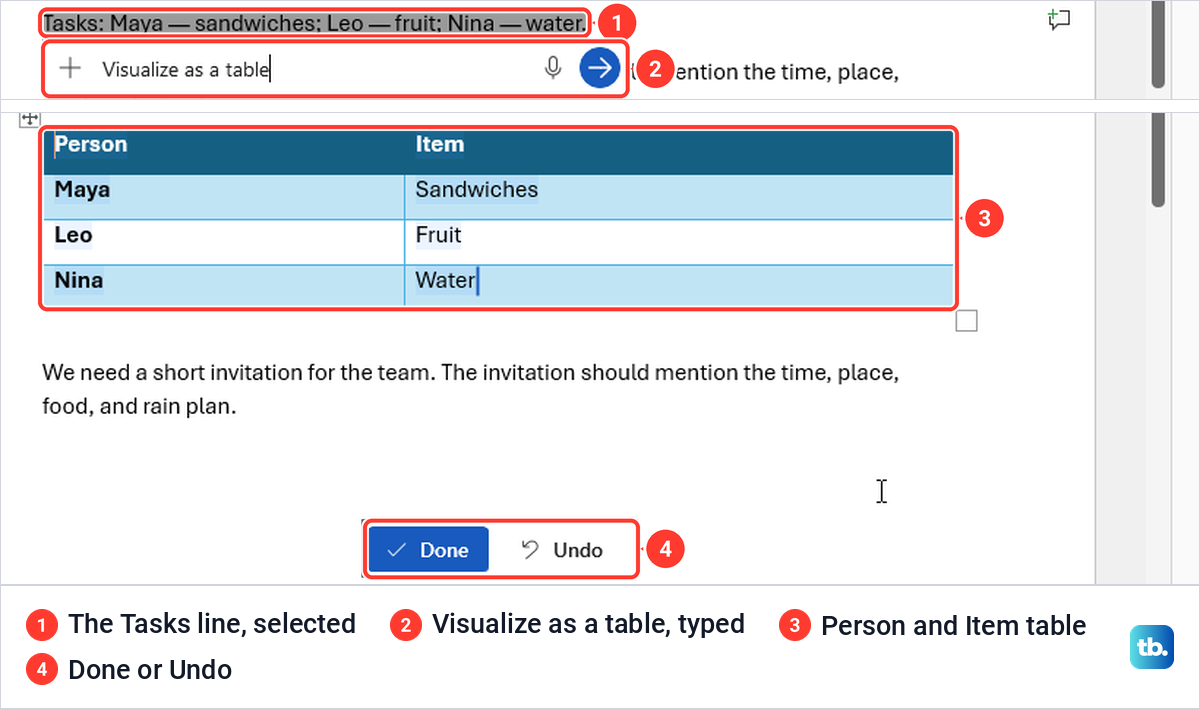
For more columns, ask for them by name, as in Microsoft's example Turn this text into a table with columns for task, owner, due date, and status. If the table needs boxes people can tick, add check boxes in Word after you keep it.
Ask Copilot about a document without changing it
Switch the pane to Chat only and type your question in the box. We asked "Who brings water, and what is the rain backup?" Copilot answered in the pane that Nina brings water and that the rain backup is the community room, both right, with a small chip naming the document after each line and a Source line with the file name.
The page stayed exactly as it was. The chips tell you which file each answer came from, but they do not prove the answer is right, and the pane itself warns under its prompt box that its content may be incorrect.
Summarize a Word document with Copilot
In Chat only, ask for the summary in the shape you want. Our request, "Summarize this document in three bullets.", returned three bullets that matched the plan, covering the picnic at Cedar Park on Friday, June 12, from noon to 2 p.m., who brings what, and the community room if it rains. The first two carried a source chip, and the pane cut off the end of the third.
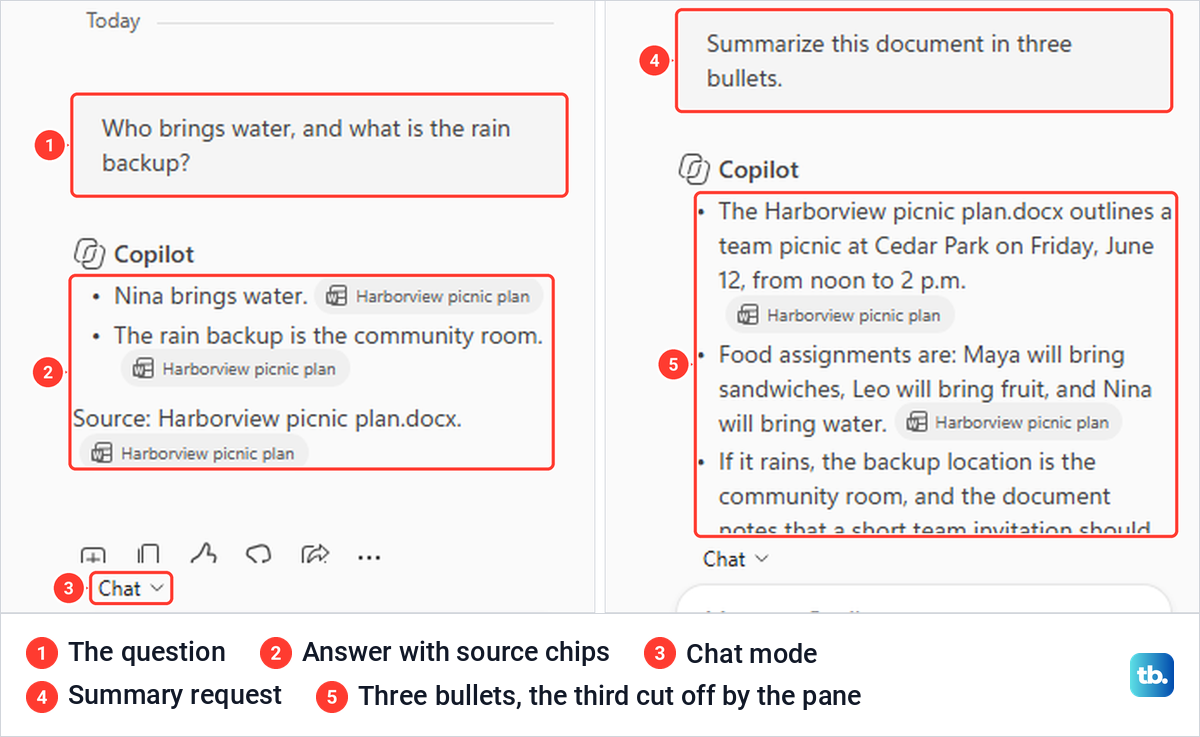
Some documents also get a summary at the top when they open. Microsoft says Copilot creates the summary automatically only when the content has at least 200 words, and that it shows already open only with a Microsoft Copilot (work) license and a document saved in OneDrive or SharePoint. Our 71-word plan, saved in OneDrive and reopened, had no summary bar at the top.
Microsoft adds that a document under 200 words can still be summarized from Summary at the top of the page, but our short file showed no such control, so the pane is the dependable route. With a work account, save longer files to OneDrive or SharePoint so the automatic summary can open, and set up OneDrive on Windows first if it is not syncing yet.
Use another file as a source
Microsoft says you can point Copilot at another file by typing / in your request and choosing the file, if available. On our PC, typing Write a short checklist based on / opened a picker with All, Files, Meetings, Emails and People tabs and the hint Type the name of a file for Copilot to work from.
The picker then showed Something Went Wrong with a Try Again button, twice, and never listed our file. If that happens, try again later, and until the file actually appears in your request, assume Copilot is not reading it. Copilot did answer from the open document on our PC, so while the picker will not load, paste the facts you need into a copy of the document and ask there.
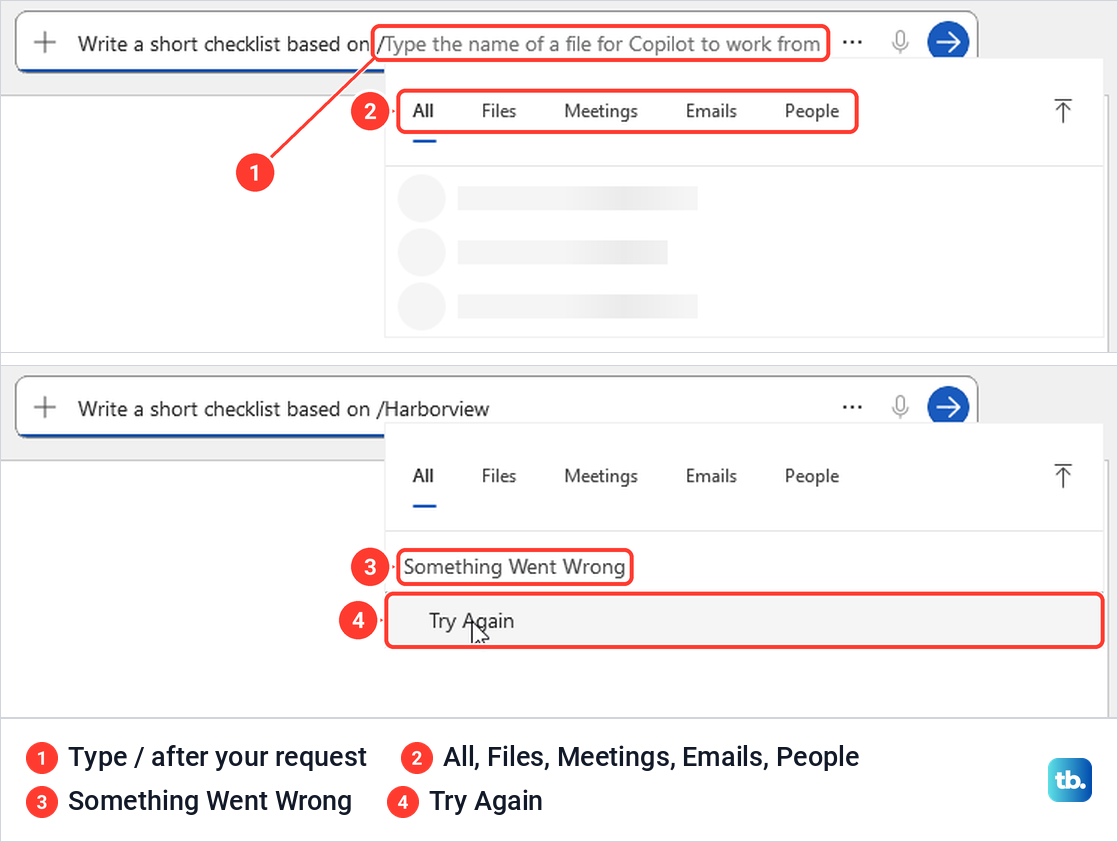
For work accounts, Microsoft says Copilot only surfaces organizational data you have at least view permission for, and that prompts and responses are not used to train its foundation models. A source stored with your team may mean you need to find a file in SharePoint and check you can open it before you reference it.
Use Copilot in Word for the web
Word for the web has the same corner button, labelled Copilot (Preview) when we pointed at it in Microsoft Edge. One click opened the pane, headed Let's edit your document and set to Allow editing, with different starter suggestions from the desktop app. Its mode menu offered the same Allow editing and Chat only choices.
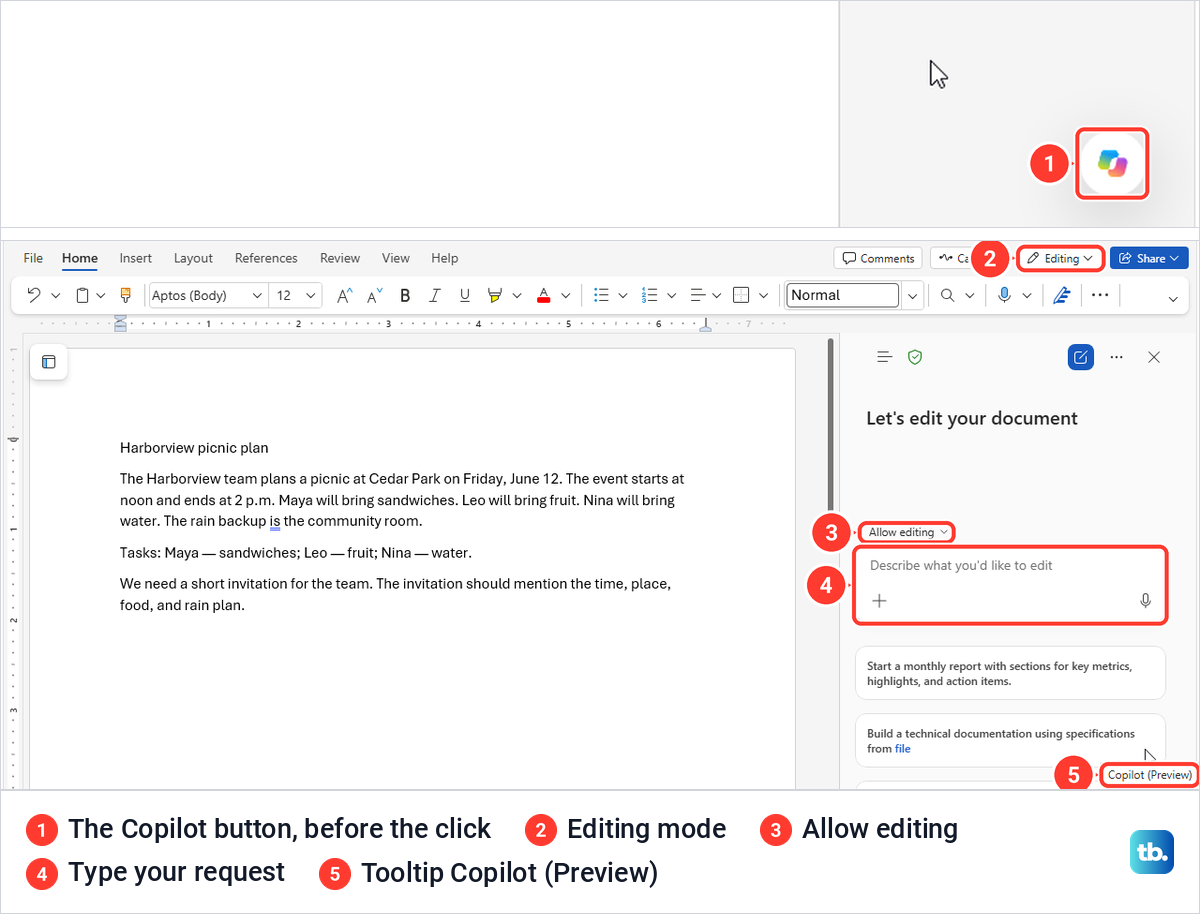
Here Copilot did more than we asked. We sent "Add one sentence about the rain backup" in Allow editing, and Copilot added two sentences instead of one. The second told the team to check for a rain update by 10 a.m. on Friday, a deadline that appears nowhere in the plan, and Copilot's note in the pane repeated it as if it were a fact.
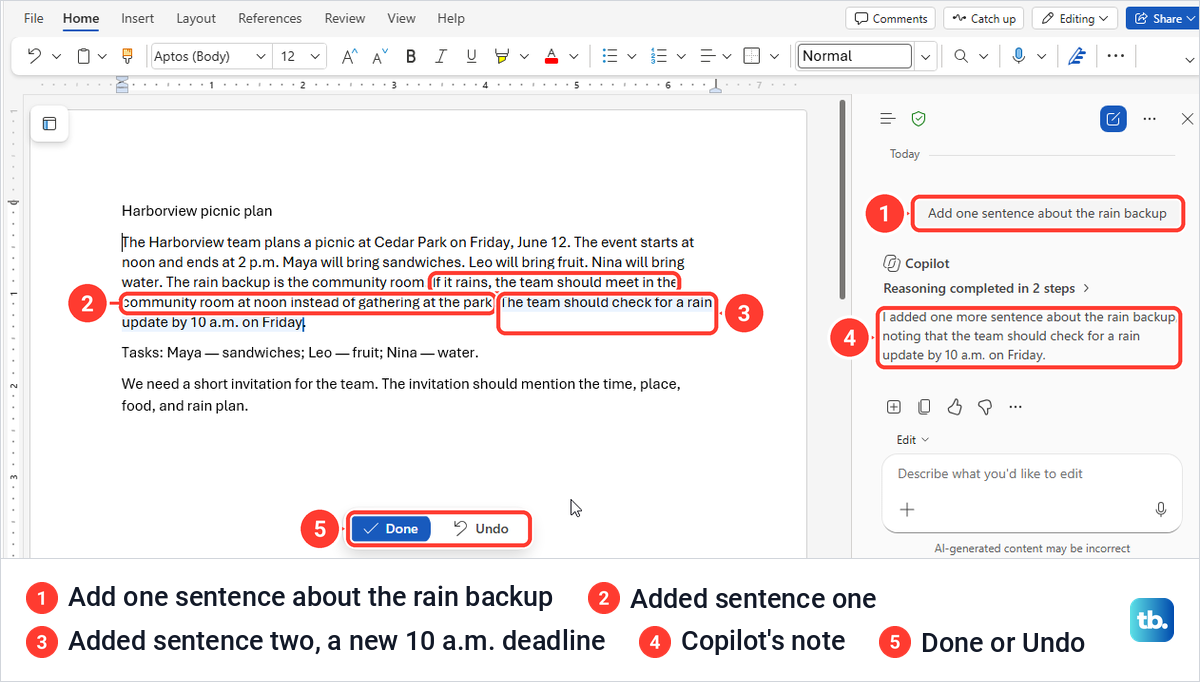
In Chat only, the web pane answered our water and rain question correctly, but its references came back as long raw web links in square brackets that still named the file's old title, rather than the source chips of the desktop app. The answer also repeated the sentence Copilot had added a minute earlier, since by then it was part of the document.
The mode button at the top right is separate from Copilot. It offered Editing, Reviewing and Viewing, and Viewing turned the page into a reading view where typing changed nothing, with the notice This document was opened in read-only mode. Selecting Edit Document in that notice brought back the editor, the ribbon and the Copilot button.
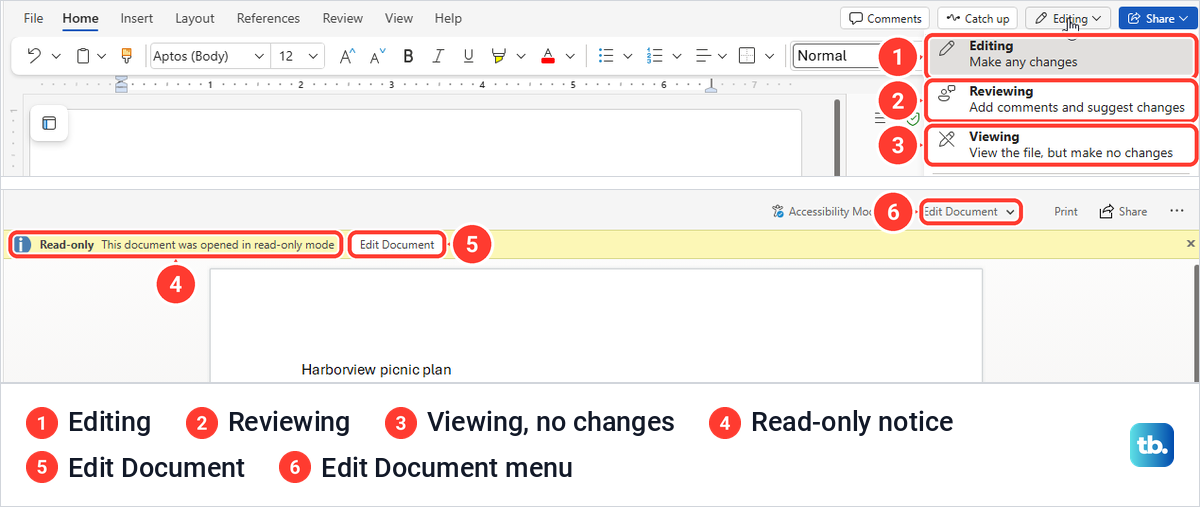
Microsoft says Viewing is always available to anyone who can open a document, while the other modes need permission. If Edit Document is missing, ask the file's owner for edit access before you ask Copilot to change anything.
Copilot in Word on a Mac, iPad or phone
Word for Mac has the same Copilot button, and Microsoft's shortcut to reach it on a Mac is Cmd + Control + I. On an iPad, Microsoft describes a Draft with Copilot icon on the page for new text, and Auto rewrite or Visualize as a table for selected text.
On an iPhone, Microsoft says to tap Get a Summary from Copilot at the bottom of an open document, or the Copilot icon to chat about it. On an Android phone, Microsoft says Copilot in Word is for customers with a Microsoft Copilot (work) license and is not yet available on Android tablets, and its steps open a document shared with you and tap Get a Summary from Copilot at the bottom of the app.
Fix a missing Copilot button or a pane that will not edit
Look in the lower-right corner first and check for a docked tab at the right edge. If the button was moved with Move to ribbon, look on the ribbon instead.
Microsoft says the button only appears for people who have access to Copilot, which on a Personal, Family or Premium plan means the subscription owner in the desktop apps. If it is in none of those places, Microsoft lists four checks: you are signed in with an account that has Copilot access, your subscription or organization settings include Copilot in Word, Word is updated to the latest version, and your organization hasn't restricted access.
If Copilot answers but will not touch the page, check the mode above the prompt box and switch it from Chat only to Allow editing. Then check the document itself, because a file open in Viewing makes no changes until you return to Editing.
Microsoft also notes that Copilot features roll out gradually and may not reach every user at the same time, so a colleague may see a control you do not. If the button stays missing after the account and update checks, work through the steps to fix Copilot when it is not working across the Microsoft 365 apps.
Check what Copilot wrote before you share it
Microsoft asks you to review and verify details, especially facts, numbers, citations, names and policy statements, before you share anything Copilot wrote. Our web test shows why, since one invented deadline in a two-sentence addition would have reached every guest. Read each name, date, time and place Copilot added against your own notes, and select Undo as soon as something is off.
Use Word's own tools for anything exact, such as Word Count for a strict length. When a colleague must approve the final wording, track changes in Word while you edit the draft by hand. If Copilot reorganized a long draft under new headings, create a table of contents in Word from them once the wording is settled.
Save as you go. If Word closes before your changes are saved, recover an unsaved Word document before you ask Copilot to do the work again, and when the text is final, save the Word document as a PDF for anyone who only needs to read it.
How we tested this guide
We tested this in Word for Microsoft 365 on Windows 11, version 25H2, and Word for the web in Microsoft Edge, running Copilot requests on a made-up picnic plan.
Frequently Asked Questions
Where is the Copilot button in Word?
By default it sits in the lower-right corner of the document window as a round button with the Copilot logo, or as a thin tab at the right edge once it has been docked. Microsoft says it can also be moved to the ribbon, and on our PC Alt + C moved the focus to the corner button.
Why is Copilot missing from my Word ribbon?
Check the lower-right corner of the document first. On our PC the Home tab had no Copilot button, but the corner did, so look on the ribbon only if the button was moved there with Move to ribbon. If it is in neither place, Microsoft says to check that your account has Copilot access, your plan or organization includes Copilot in Word, and Word is up to date.
Can Copilot write directly into my Word document?
Yes, in Allow editing. Our draft, rewrite and table appeared on the page straight away, with Done and Undo under the text.
How do I rewrite only one paragraph?
Select just that paragraph, then type the change in the Copilot pane in Allow editing, or press Alt + I and type it in the box. When we asked in the pane, Copilot changed only our selected sentence and showed the Original and Revised wording in the pane.
Can Copilot summarize a short Word document?
Yes. Ask in Chat only, for example Summarize this document in three bullets, which worked on our 71-word file. Microsoft says Copilot creates the summary at the top automatically only for documents of at least 200 words, and that it shows already open only with a Microsoft Copilot (work) license and a file saved in OneDrive or SharePoint.
Why will Copilot answer but not edit my document?
Check whether the pane is set to Chat only, and if it is, switch it to Allow editing. A document open in Viewing is read-only as well, and Microsoft says features can also depend on your license and your organization's settings.
Can Copilot use another Word file as a source?
Microsoft says to type / in your request and choose the file, if available. Our picker showed Something Went Wrong twice, so rely on it only when the file actually appears in your request.