

When Copilot keeps showing up, the fix depends on where it appears: the Windows app, Start or the taskbar, a keyboard shortcut, Edge, or Microsoft 365. Start by removing the Windows app, then turn off the separate Copilot controls that remain. These steps follow Microsoft's current app-based controls for Windows.
Remove the Copilot app from Settings
The most common cause is the Microsoft Copilot app being installed on Windows, so the cleanest delete path starts in Settings.
On Windows 11, open Settings. Select Apps. Open Installed apps.
Search for Copilot. Select the … (More options) menu next to Copilot. Choose Uninstall.
On Windows 10, open Settings. Select Apps. Search for Copilot.
Select Uninstall. To reinstall it later, use Microsoft's official Microsoft Store page for Microsoft Copilot.
Uninstall Copilot from Start
Select Start.
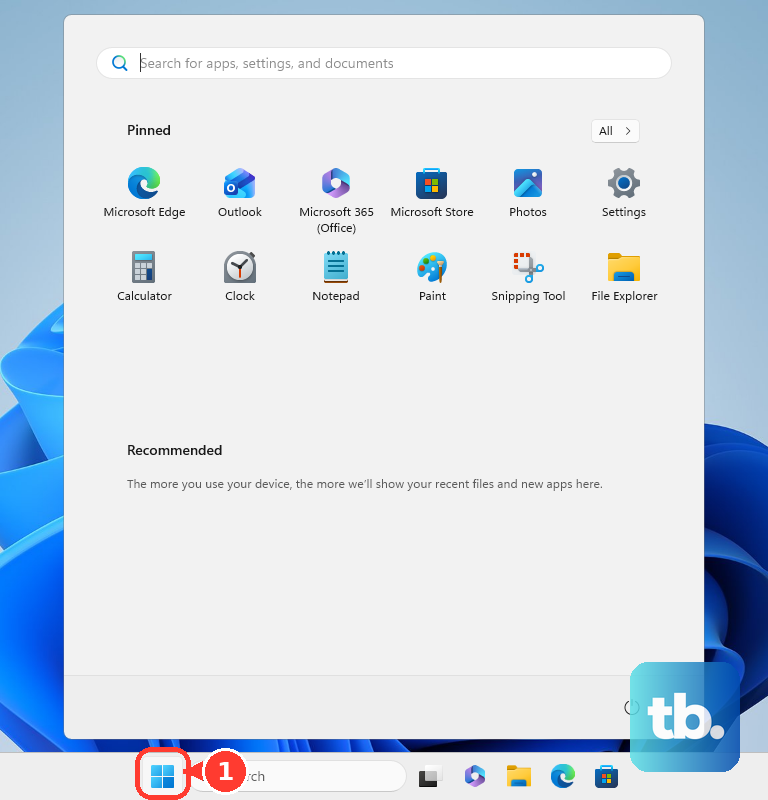
Open All apps. Find Copilot in the app list. Right-click Copilot, or press and hold it.
Select Uninstall. Use Settings when Start does not show Uninstall.
Hide Copilot from Start and the taskbar
Unpinning is the lightest fix when Copilot is only a shortcut. Right-click the Copilot icon on the taskbar, then select Unpin from taskbar.
To clean up Start, open Start, right-click Copilot, then select Unpin from Start.
These actions remove shortcuts only. They do not uninstall or disable Copilot, so use Settings > Apps > Installed apps when you want the app removed.
Change what the Copilot key opens
Windows 11 splits this into two settings: one for the physical key, one for the shortcut. To change what the physical Copilot key opens, go to Settings > Bluetooth & devices > Keyboard > Shortcuts and hotkeys > Customize Copilot key on keyboard. To change what Windows key + C opens, go to Settings > Personalization > Text input > Customize Copilot key on keyboard. The exact location still varies by Windows build and device.
Choose another available target such as Search, Custom, or another mapped app. Microsoft says the options vary by device, OEM, firmware, and keyboard design.
Inside Copilot, open Account > Settings > Copilot Keyboard Shortcuts to configure supported shortcut keys.
On dedicated-key devices that expose a keyboard page setting, open Settings > Bluetooth & devices > Keyboard, then remap the Copilot key to Right Ctrl or the Context menu key.
For supported Surface keyboards, turn Fn on to make the key open a contextual menu. On supported Surface devices, open the Surface app, select the keyboard or Surface Laptop, then choose Customize keyboard.
If this method fails, uninstall Copilot from Settings > Apps > Installed apps, then remove the remaining shortcut from Start or the taskbar.
Disable Hey Copilot
This fixes wake-word activation without uninstalling the app. Open Copilot. Select Account. Open Settings.
Find Listen for ‘Hey, Copilot’ to start a conversation. Turn the toggle Off.
Limit file and screen access
Use these controls when you want Copilot installed without reading local or synced OneDrive files, observing an active Vision session, or receiving selected content from Click to Do. Click to Do applies to Copilot+ PCs and eligible Cloud PCs running Windows 11; Microsoft says it cannot be removed and can be disabled.
In Copilot, open Account > Settings > File Search and File Read. Turn File Search and File Read Off.
During an active Copilot Vision session on Windows, click Stop in the floating toolbar. For Copilot Vision in Edge, click the X in the toolbar at the bottom of the Copilot window, close the Copilot side pane, or exit Edge.
On a Copilot+ PC or eligible Cloud PC, open Settings > Privacy & security > Click to Do. Set Click to Do to Off.
Reduce Copilot in Microsoft Edge
Edge has its own Copilot controls, so deleting the Windows app does not handle every browser feature. Open Edge, select ... Settings and more > Settings > Privacy, search, and services > Privacy, then switch Context Clues Off.
Browse with Copilot is still rolling out to Microsoft 365 Premium subscribers in the US, with more markets to follow, so the setting only appears once the feature reaches your account. Where you have it, open Settings > Copilot and AI > Browse with Copilot, select Manage what URLs can or cannot be, then add sites to the block list.
To make Copilot ask before working on any site, open Settings > Copilot and AI, then set Copilot permissions to Strict.
Copilot Journeys is not on by default. When it was enabled earlier, turn it off at Settings > Copilot and AI > Copilot in Edge > Journeys.
If this method fails, keep Context Clues off and use Strict or blocked URLs for Browse with Copilot; these Edge controls limit privacy and site permissions instead of uninstalling Copilot from Windows.
Switch off Copilot in Microsoft 365 apps
These switches are for personal Microsoft accounts, such as an outlook.com address. On a work or school account, Copilot in Microsoft 365 is controlled by your organization's admin, not by you.
Word, Excel, PowerPoint, and OneNote for Windows have a per-app Copilot checkbox on supported versions. Open the app, go to File > Options > Copilot, clear Enable Copilot, select OK, then close and restart the app.
In new Outlook for Windows, open Settings > Copilot, then switch Turn on Copilot Off.
For a broader Microsoft 365 change, open a Microsoft 365 app and go to File > Account > Account Privacy > Manage Settings. Under Connected experiences, clear Turn on experiences that analyze your content, select OK, then close and restart the app.
That broader setting also turns off suggested replies, text predictions, PowerPoint Designer, and automatic alt text.
Delete history or cancel Copilot Pro
Sign in to the Microsoft privacy dashboard with the personal Microsoft account you used for Copilot. Go to Privacy > Empower your productivity > Copilot > Your Copilot app activity history > Copilot apps. Select Delete all activity history. Confirm with Clear.
For Copilot in Microsoft 365 apps with a personal account, choose Copilot in Microsoft 365 apps under Your Copilot app activity history. Select Delete all activity history. Confirm with Clear.
To cancel Copilot Pro bought through Microsoft, open Services & subscriptions for that Microsoft account. Find Copilot Pro subscription. Select Manage.
Choose Cancel. Follow the page instructions.
If you bought Copilot Pro through the Apple App Store or Google Play, Microsoft cannot cancel it from Services & subscriptions. Contact that store's customer support to cancel or request a refund.
History deletion and subscription cancellation do not remove the Windows app, so uninstall Copilot separately when you want it gone from the PC.
Frequently Asked Questions
Does unpinning Copilot delete it from Windows?
No. Unpinning only removes the taskbar or Start shortcut. To delete the Windows app, uninstall Copilot from Settings or Start.
Which Microsoft 365 apps support the Copilot off switch?
The checkbox shows up when you are signed in with a personal Microsoft account, and it applies to Word version 2412 and later, Excel version 2501 and later, PowerPoint version 2501 and later, and OneNote version 2502 and later.
How do I delete Copilot history for a work or school account?
Sign in to the My Account portal, then open My Account > Data and Privacy > Data options > Copilot activity history. Select Delete, check Microsoft 365 Copilot, then select Delete again.
Does canceling Copilot Pro remove Copilot from Windows?
No. Canceling Copilot Pro stops the paid subscription. Remove the Windows app separately from Settings or Start.