

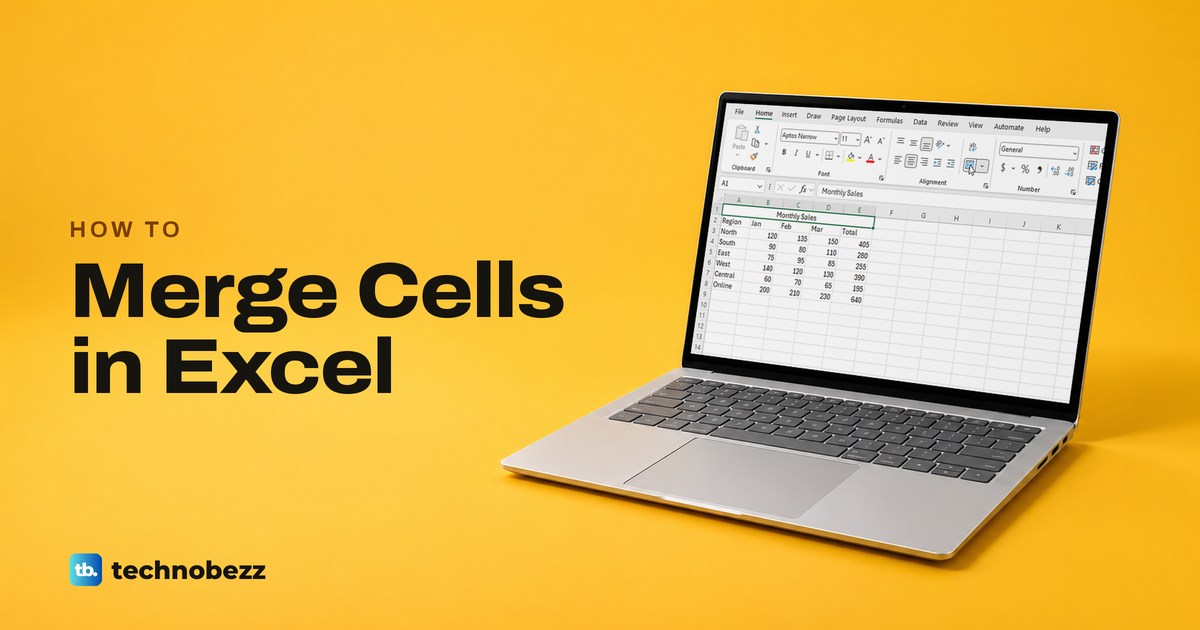
To merge cells in Excel, select the cells you want to join, go to the Home tab and select Merge & Center in the Alignment group. The cells become one cell, and the text from the top-left cell is centered across it. To merge without centering, select the arrow next to the button and choose Merge Cells, or Merge Across to merge each row on its own.
A merged cell holds only one value. If more than one of the cells has something in it, Excel warns you, and if you go ahead it deletes everything except the upper-left value. To keep it all, join the text into one cell first, or use Center Across Selection, which looks like a merge but leaves every cell intact.
We merged, unmerged and deliberately broke merged cells in Excel for Microsoft 365 on Windows 11, version 25H2. We also checked when the warning appears, what pasting onto a merged cell does, and whether a protected sheet allows a merge.
The short version
- Merge and center: select the cells, then Home > Merge & Center, or press Alt, H, M, C one after another.
- Merge without centering: select the arrow next to Merge & Center, then Merge Cells, or Merge Across for one merged cell per row.
- Your data: only the upper-left value survives. Join the text into that cell first if you need the rest.
- Looks merged, is not: press Ctrl + 1, open Alignment and set Horizontal to Center Across Selection.
- Undo it: press Ctrl + Z straight away. Unmerge Cells splits the cell later, but deleted values stay deleted.
Merge cells with Merge & Center
Put the text you want to keep in the top-left cell of the block first, such as a title in A1 above a table. Then select the block by dragging across it, or click the first cell and hold Shift while you click the last. Each block you merge must be a rectangle of touching cells.
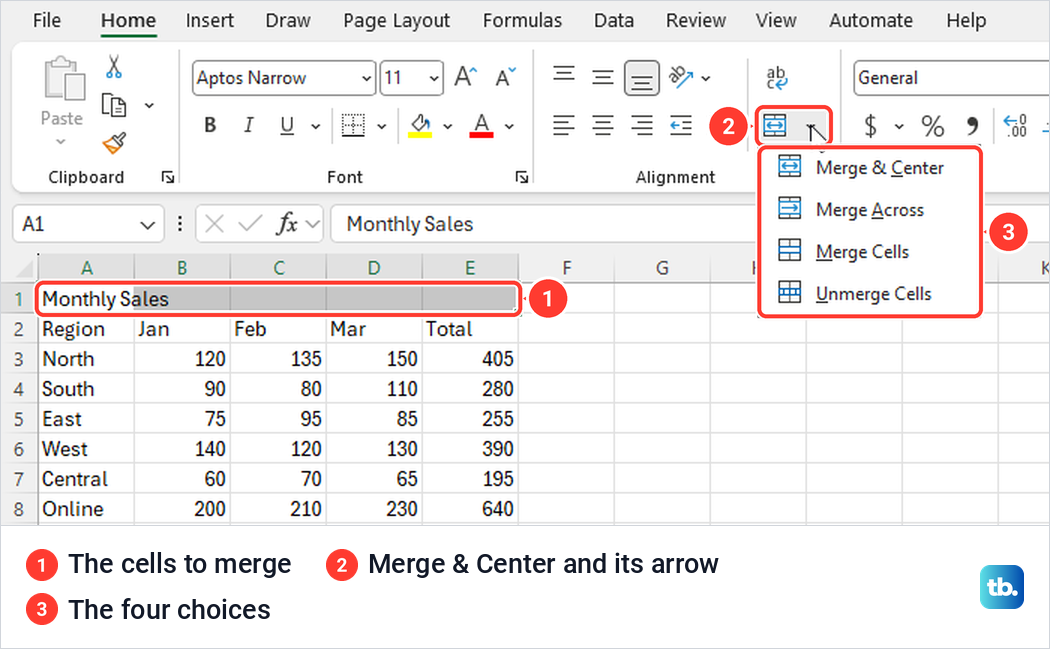
On the Home tab, select Merge & Center in the Alignment group. In a narrow Excel window the button shrinks to an icon with an arrow beside it and no label. Hover over it and the tooltip names it Merge & Center and says it will combine and center the contents of the selected cells in a new larger cell.
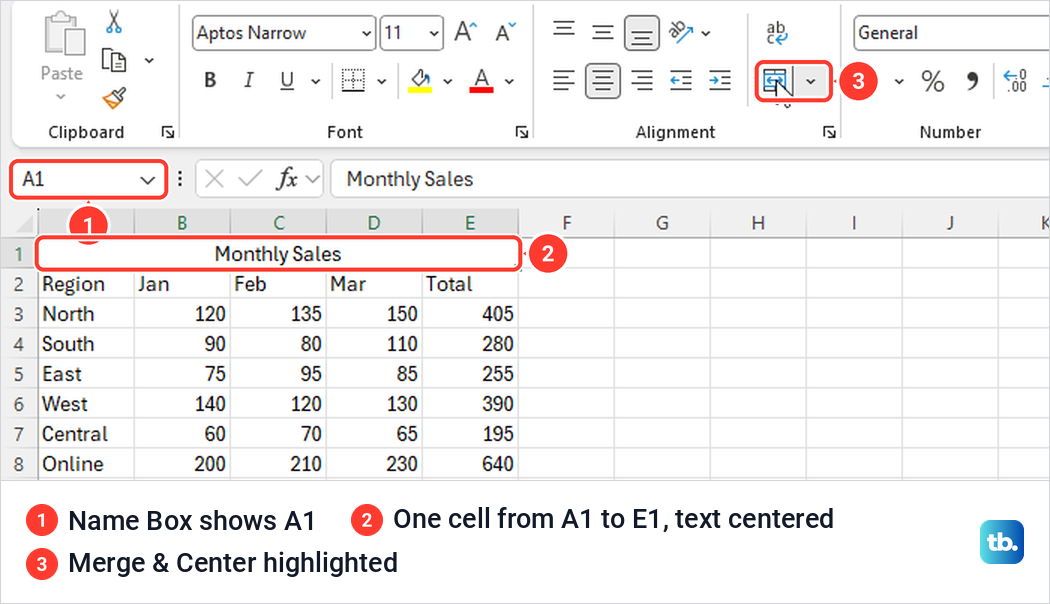
When we merged A1:E1 above a small sales table, the title Monthly Sales moved to the middle of the five columns and Excel asked nothing, because B1 to E1 were empty. The Name Box then read A1, since a merged cell takes the address of its top-left cell. While the merged cell is selected, the Merge & Center button stays highlighted, which is a quick way to tell a merged cell from a normal one.
The text sits at the bottom of the merged cell, because Bottom is Excel's vertical alignment by default. If the merged cell is taller than one row, use the vertical alignment buttons in the top row of the Alignment group to move it. No empty row above your data for a title? Insert a row above your data first, then merge across it.
Merge Across or Merge Cells instead
The arrow next to Merge & Center opens four choices in this order: Merge & Center, Merge Across, Merge Cells and Unmerge Cells. They differ in two ways, how many merged cells you end up with and where the text sits afterwards. Center Across Selection lives elsewhere but belongs in the same comparison.
| Option | What it does | Where the text ends up | Use it for |
|---|---|---|---|
| Merge & Center (Alt, H, M, C) | Joins the whole selection into one cell | Centered across the new cell | A title over a table |
| Merge Across (Alt, H, M, A) | Joins the cells in each selected row, one merged cell per row | Where it was, which is left for text by default | Labels on several rows at once |
| Merge Cells (Alt, H, M, M) | Joins the whole selection, rows and columns, into one cell | Keeps its alignment | A block you do not want centered |
| Unmerge Cells (Alt, H, M, U) | Splits a merged cell back into single cells | In the top-left cell, with the others empty | Undoing a merge later |
| Center Across Selection (Ctrl + 1, Alignment tab) | Merges nothing and centers the left cell's text across the selected cells | Centered across the selection | Titles over data you will sort, filter or paste into |
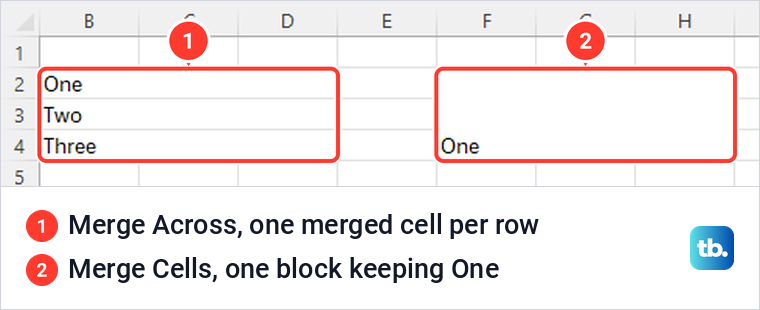
Merge Across is the easiest one to misread. When we selected B2:D4, three rows holding One, Two and Three, and chose Merge Across, Excel made three merged cells, one per row, and each kept its own label. Merge Cells on an identical block made a single cell and kept only One, after a warning.
Merge Across only works across. On a single column of three cells it did nothing on our PC, with no message at all. To merge cells vertically, select them in the column and use Merge & Center or Merge Cells. Merge & Center on that column kept the top value and showed it centered at the bottom of the tall cell.
Merge Cells is the plain version of Merge & Center. It joins the block but leaves the text aligned as it was, so our Monthly Sales title stayed at the left edge of A1:E1. The drawing below puts all four results side by side, starting from the same two labels.
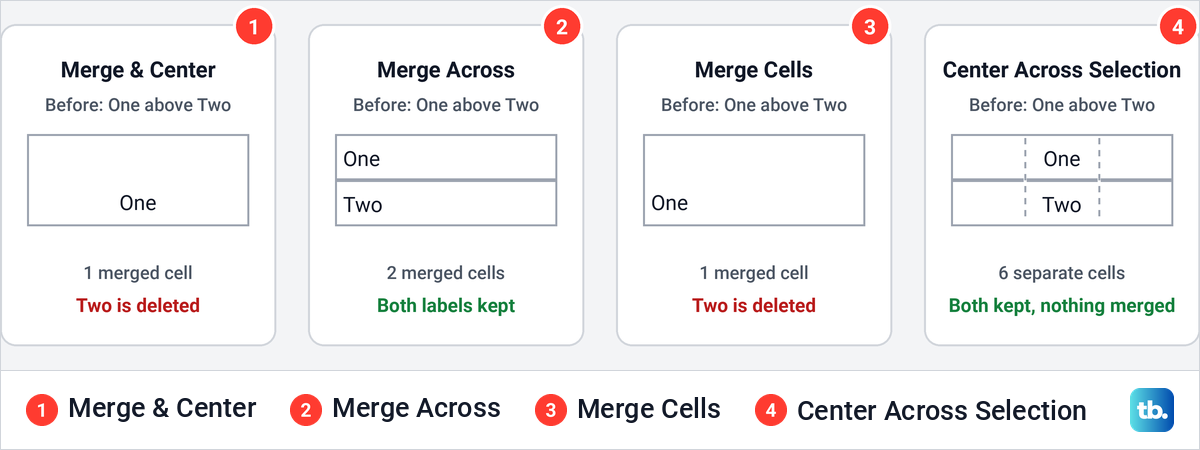
What happens to the data in the other cells
When more than one of the selected cells has something in it, Excel stops and shows a box titled Microsoft Excel with the message "Merging cells only keeps the upper-left value and discards other values." OK merges and deletes the rest. Cancel left all three of our cells exactly as they were, so read the box before you press Enter.
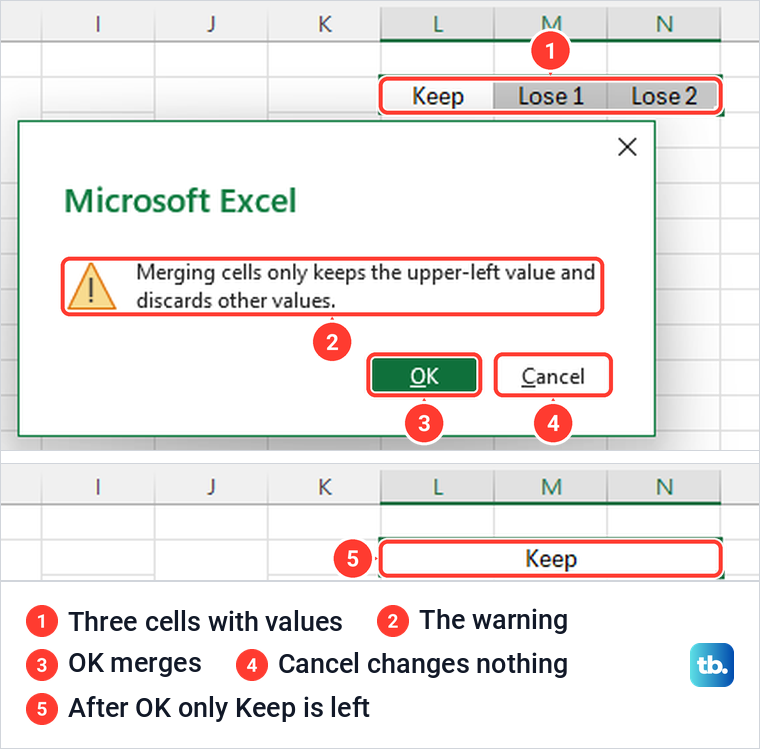
The message leaves out one case. When the top-left cell was empty and only one other cell held a value, Excel merged straight away with no warning and kept that value, centered. So the accurate rule is that Excel keeps the upper-left value, or the only value if just one cell has something. In right-to-left sheets, Microsoft says the upper-right cell is the one kept.
The deleted values are gone, not hidden. We merged three cells holding 10, 20 and 30, and a formula pointing at the middle one, =Q2, returned 0. A total of all three, =SUM(P2:R2), dropped from 60 to 10.
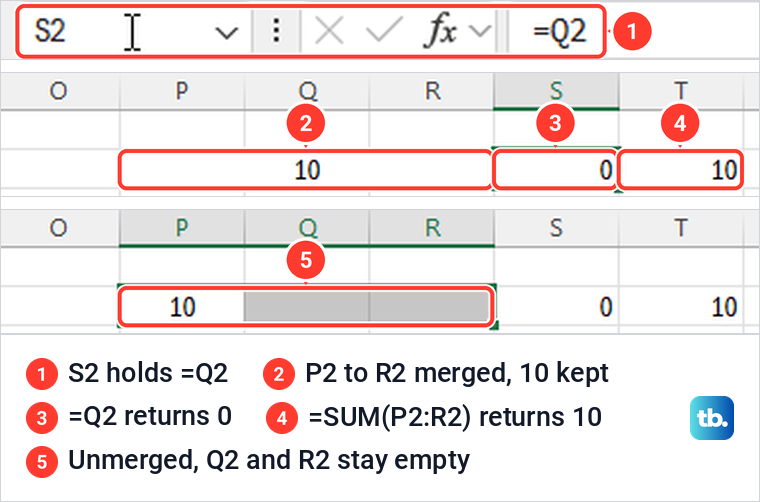
Undo is the quickest way back. Ctrl + Z straight after the merge restored 20 and 30, and it still worked right after we saved the workbook with Excel open. Unmerge Cells is not the same thing: it split the block again but left 10 in the first cell and the other two empty. Before you merge a large area you did not build yourself, make a copy of the workbook so a hasty OK costs nothing.
Merge cells without losing data
If every value matters, join the text into one cell before you merge. In a spare cell, type =TEXTJOIN(" ",TRUE,A2:C2) to join A2 to C2 with a space between the values, skipping any empty cells. The shorter =A2&" "&B2 does the same for two cells. Both joined our sample names as expected.
Next, copy the formula cell, select the top-left cell of the block and press Ctrl + Alt + V. In Paste Special, choose Values and select OK, so the cell holds plain text rather than a formula that would break once its source cells are emptied. Then merge as usual and accept the warning, because the other cells' text is already in the top-left one.
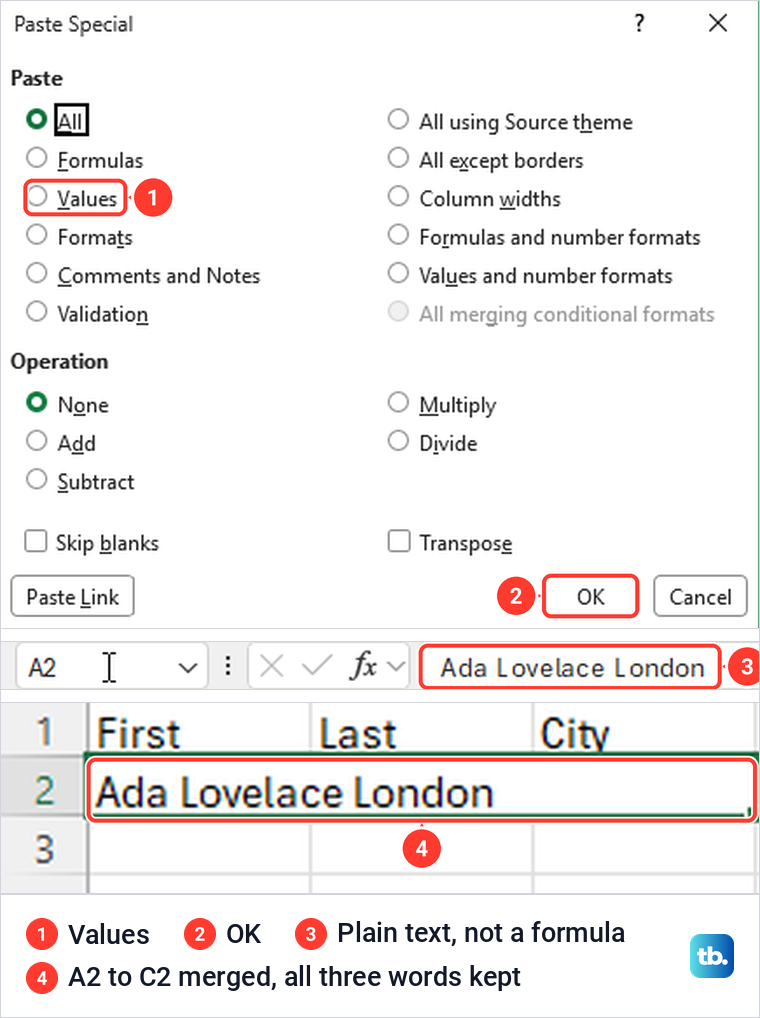
Our merged A2:C2 kept the full Ada Lovelace London, and the formula bar showed it as ordinary text. Clear the spare formula cell once you are done. Microsoft says TEXTJOIN needs Microsoft 365 or Office 2019 and later, on Windows or Mac.
If you only wanted the names in one cell, you can stop before merging, because the joined text is already there. To combine two columns into one for a whole list, fill the formula down instead of merging anything.
Center a title without merging cells
Center Across Selection makes a title look merged while every cell stays separate, so sorting, pasting and selecting columns keep working. It is not on the ribbon. Put the title in the left cell, select it with the empty cells to its right, and press Ctrl + 1 to open Format Cells.
On the Alignment tab, open the Horizontal list, choose Center Across Selection and select OK. Format Cells reopens on whichever tab you used last, so check that Alignment is the one showing. The same tab holds the Merge cells box, which merges without centering, just like Merge Cells on the ribbon.
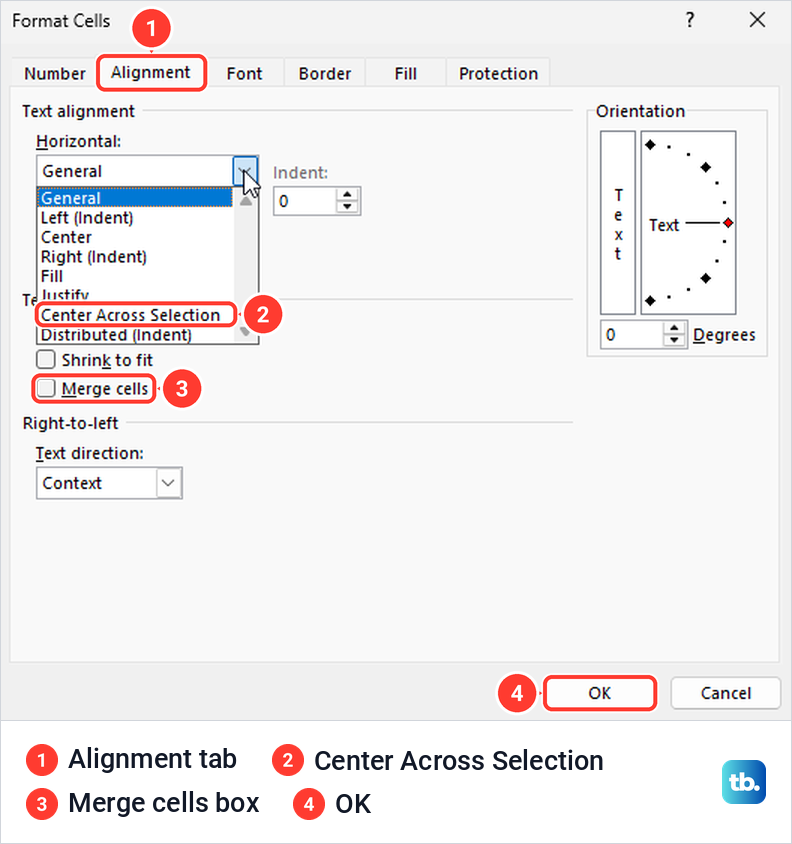
The result looks exactly like Merge & Center. Click C1 in the middle of the title and the Name Box shows C1 with an empty formula bar, because the title still lives in A1 and C1 is an ordinary cell. With the title set this way, we sorted the table below it by total and pasted into C1, and Excel raised no message either time.
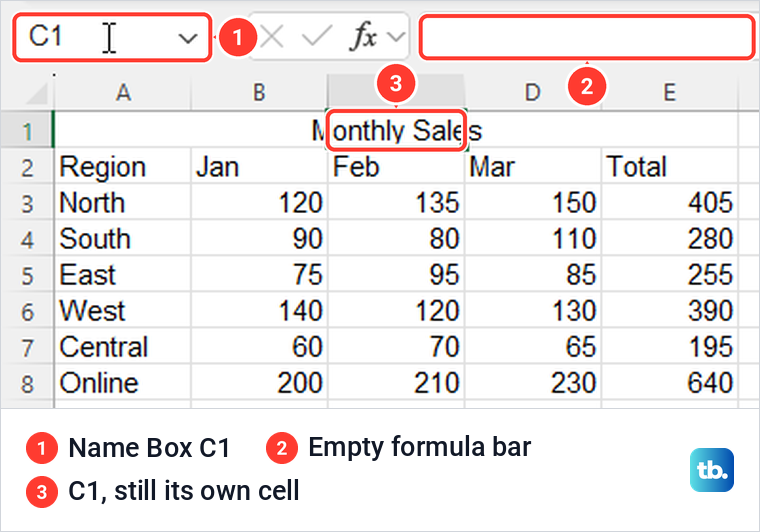
It has three quirks, and we hit all of them. Typing in C1, or pasting a normal cell over it, ends the span there, and our title re-centered over A1:B1 alone. The text must sit in the left cell, since a title moved to C1 centered only over C1:E1. The span also runs on through neighboring cells with the same setting, so giving F1:H1 Center Across Selection spread our title across A1:H1.
It only works across a row. The Vertical list offers Top, Center, Bottom, Justify and Distributed, with no across option, so a label running down a column still needs a real merge. If a header is just too long for its cell, rather than meant to span several columns, start a new line inside the cell instead, and to keep the title on screen while you scroll, freeze the title rows.
Merge cells with the keyboard
Excel has no single shortcut for merging, but the ribbon's Key Tips do the job. Select the cells, then press Alt, H, M one after another rather than together. The merge menu opens with a letter beside each choice: C for Merge & Center, A for Merge Across, M for Merge Cells and U for Unmerge Cells.
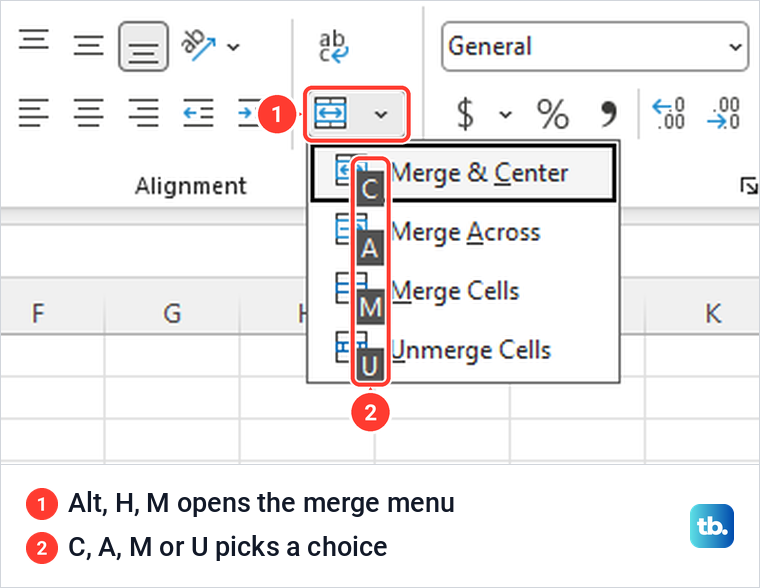
So Alt, H, M, C merges and centers in four taps. To repeat a merge on another block, select it and press F4 or Ctrl + Y, and both repeated our last Merge & Center. You can also select several separate blocks, holding Ctrl between them, and merge them in one go, and each block becomes its own merged cell.
The Key Tips work alongside the other Excel keyboard shortcuts worth learning if you format sheets often. Ctrl + 1 is the one to remember here, because it reaches both the Merge cells box and Center Across Selection.
Merge cells in Excel for the web
In Excel for the web the command is on the Home tab too. Select the first cell, hold Shift and select the last, then select Home > Merge & Center. Microsoft's web instructions add a warning: make sure only one of the cells in the range has data.
To keep the text off center, Microsoft says to select the merged cell afterwards and choose left or right alignment. To undo a merge straight away, press Ctrl + Z. Later on, select the merged cell and use Merge & Center again, and Microsoft says the data moves to the left cell when the cells split.
To check whether a cell is merged in the browser, Microsoft's tip is to select it and look at the Alignment group, where Merge & Center shows as highlighted for a merged cell. Microsoft also says merged cells made in the desktop app display in the browser much as they do in Excel. If Merge & Center is dimmed, Microsoft says to check that you are not editing a cell and that the cells are not inside a table.
Center Across Selection is another matter. A Microsoft support moderator answered on Microsoft's own Q&A forum that the option isn't currently available in the browser version. The moderator suggested center alignment with Merge Across instead.
Merge cells in Excel for Mac
On a Mac, select two or more adjacent cells, then on the Home tab select Merge & Center. To merge without centering, select the arrow next to Merge & Center and choose Merge Across or Merge Cells. To reverse a merge, select the merged cell and choose Unmerge Cells from the same menu.
Microsoft's Mac warning is the same as on Windows: keep the data you want in the upper-left cell, because the data in the other cells will be deleted. Center Across Selection is there too. Right-click the cells, select Format Cells, open the Alignment tab and pick it from the Horizontal pop-up menu.
Why Merge & Center is grayed out
A gray merge button has four usual causes, each with a quick fix. The most common is that you are still typing in a cell. While a cell is in edit mode, with the cursor blinking in it and Enter or Edit at the left of the status bar, most of the Home tab goes gray, merge included. Press Enter to keep what you typed, or Esc to cancel it, then merge.
The second is an Excel table, which cannot hold merged cells. On our table's header row the other alignment buttons worked but the merge button stayed gray. To convert the table to a normal range, select a cell in it, open Table Design and choose Convert to Range, and select Yes when Excel asks whether you want to convert the table to a normal range. After that, the same cells merged normally.
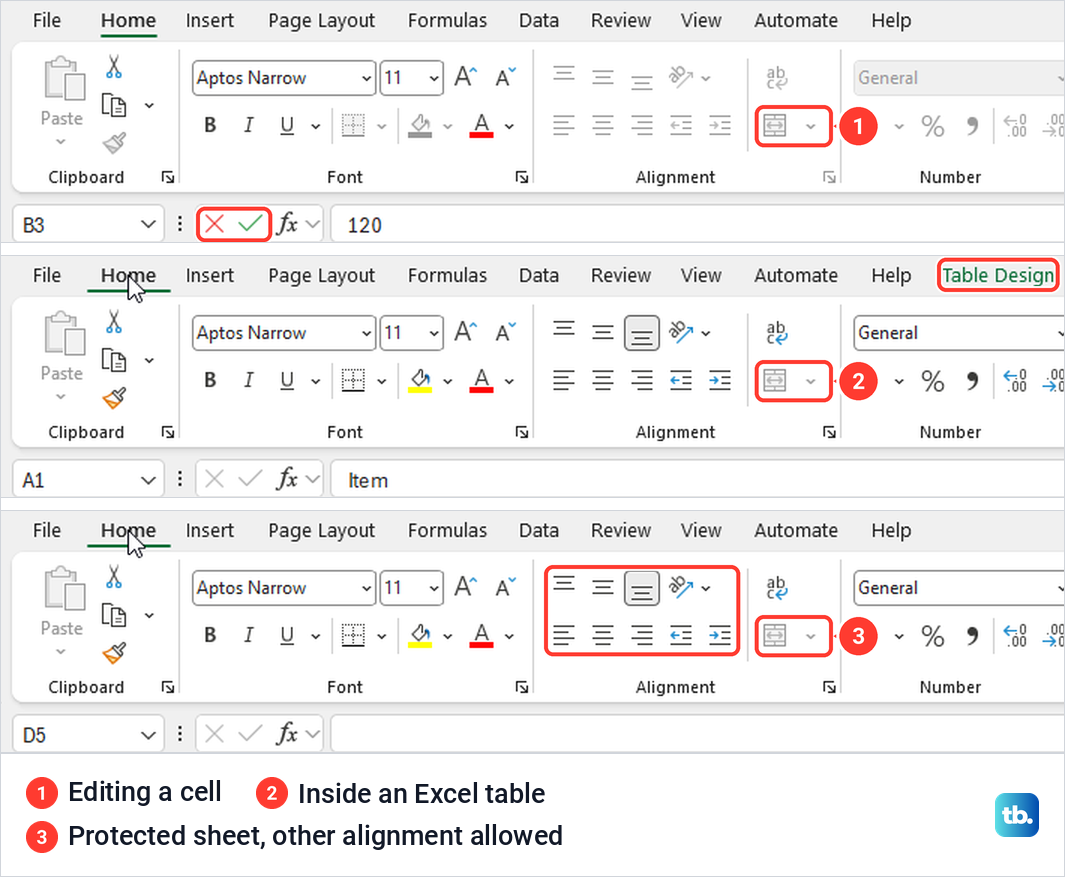
The third is sheet protection. On our protected sheet the button stayed gray even after we allowed Format cells in Protect Sheet, while the other alignment buttons came back to life. So the only fix is to unprotect the worksheet, merge, then protect it again from Review > Protect Sheet.
The fourth is the old shared workbook feature. Microsoft lists merging cells or splitting merged cells among the actions a shared workbook does not allow, and calls shared workbooks an older feature replaced by co-authoring.
To turn it off, Microsoft's steps are Review > Share Workbook, then clear Allow changes by more than one user on the Editing tab and select Yes when asked about the effect on other users. If that check box is not available, Microsoft says to select Unprotect Shared Workbook on the Review tab first. Newer versions of Excel hide the Share Workbook button, and Microsoft's page links to the steps for bringing it back.
Problems merged cells cause later
Sorting is the classic one. With East merged over two rows in a short list, the Sort dialog opened normally, but OK brought up "To do this, all the merged cells need to be the same size." and nothing was sorted. Microsoft's troubleshooting page words that message differently, but the fix is the same.
Unmerge the cells, fill in the empty ones and sort again, which worked for us at once. Microsoft's other fix is to make every merged block in the range the same number of rows and columns.
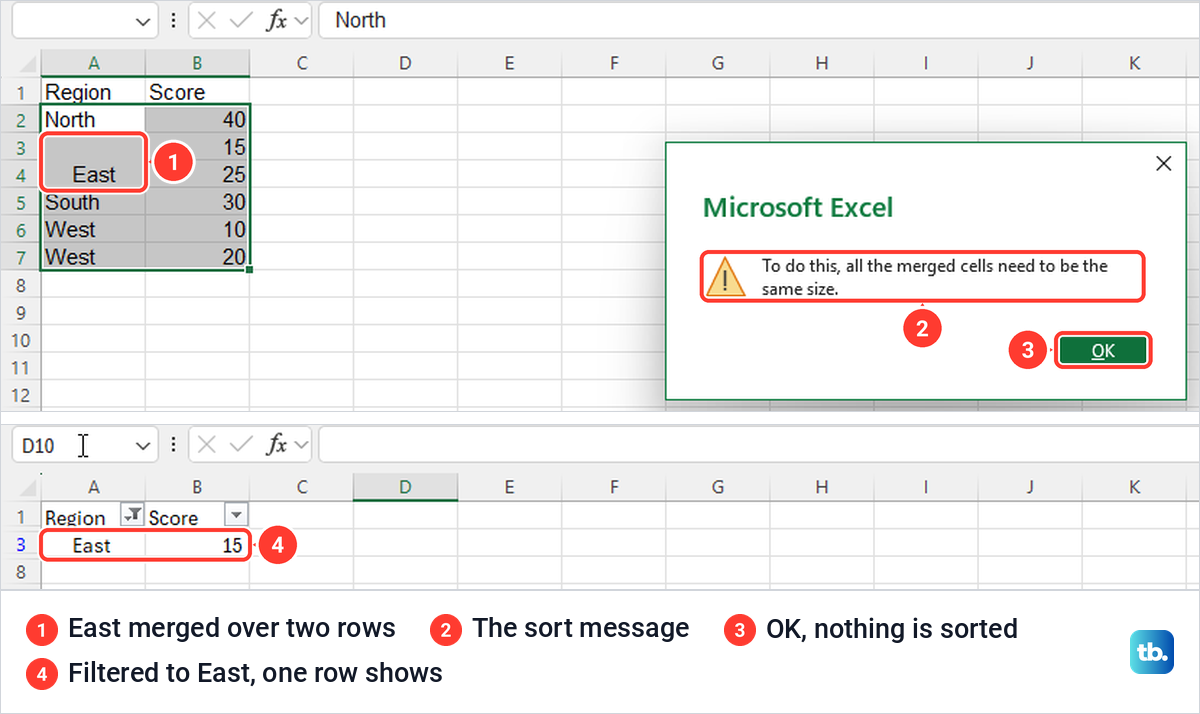
Filtering goes wrong more quietly. Filtering that list to East showed only the first of its two rows, and the status bar read 1 of 6 records found, because the value lives in the top cell of a merge and the cell below is empty. The filter list even offered (Blanks) for that empty cell. If filters are not working for some other reason, see our guide to fixing Excel filters that stop working.
Pasting onto a merged cell is less predictable than it looks. Copying three cells onto a merged block four cells wide gave the message "We can't do that to a merged cell." Copying two cells onto the same block gave no message at all. The two cells fit the block twice, so Excel quietly unmerged it and tiled the copy as p, q, p, q.
A single copied cell pasted in normally and kept the merge, so paste one cell at a time into merged areas, or unmerge first. Selecting a range that cuts through a merged cell also takes in the whole merged cell. If a paste keeps failing for another reason, our guide to cut and paste not working in Excel walks through the rest.
Merged cells also break AutoFit. A row whose merged cell had Wrap Text on stayed one line high after Home > Format > AutoFit Row Height, while a single wrapped cell grew to fit. That makes merged cells one of the usual reasons behind AutoFit row height not working, and behind wrapped text that will not show in full. For a merged cell with wrapped text, set the row height by hand instead.
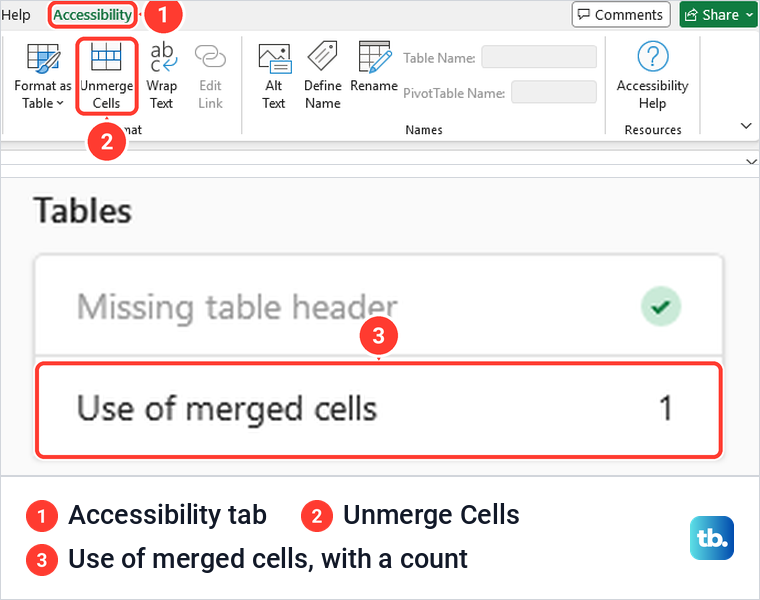
Merged cells are harder for screen reader users too. Microsoft says screen readers keep their place in a table by counting cells, and lose count at a merged cell. Excel's status bar still read Good to go with merged cells on our sheet, but Review > Check Accessibility opened the Accessibility Assistant, which listed Use of merged cells with a count and added an Accessibility tab with an Unmerge Cells button.
Unmerge cells and find every merged cell
To split a merged cell, select it, select the arrow next to Merge & Center and choose Unmerge Cells, or press Alt, H, M, U. The value goes back to the top-left cell and the other cells come back empty. Anything the merge deleted stays deleted.
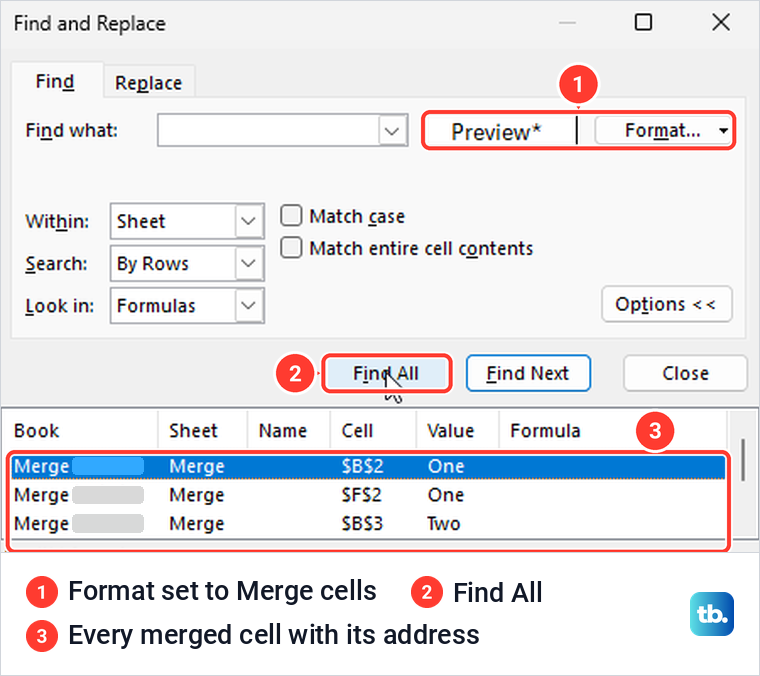
To find every merged cell on a sheet, select Home > Find & Select > Find, then Options and Format. On the Alignment tab of Find Format, tick Merge cells, select OK and then Find All. Excel listed every merged cell on our sheet with its address and value, and Microsoft says selecting an entry selects that merged cell.
Our guide to unmerge cells in Excel covers the other cases, including a whole sheet at once. To split one cell's text into several cells instead, Microsoft points to Data > Text to Columns.
How we tested this guide
We tested this in Excel for Microsoft 365 on Windows 11, version 25H2, using the merge menu and Center Across Selection in Format Cells.
Frequently Asked Questions
How do I merge cells in Excel without losing data?
Join the text first with =A2&" "&B2 or TEXTJOIN in a spare cell, paste the result as a value into the top-left cell, then merge. Or use Center Across Selection, which centers a title across cells without merging them.
What is the keyboard shortcut to merge cells in Excel?
Press Alt, H, M, then C, one key after another, for Merge & Center. Use A instead of C for Merge Across, M for Merge Cells and U for Unmerge Cells.
Why is Merge & Center grayed out in Excel?
You are still editing a cell, the cells are inside an Excel table, the sheet is protected, or the workbook uses the old shared workbook feature. Press Enter to finish the entry, convert the table to a range, unprotect the sheet, or turn off the shared workbook feature, then try again.
How do I merge cells vertically in Excel?
Select the cells in the column and use Merge & Center or Merge Cells. Merge Across only joins cells within each row, so on a single column it does nothing.
Why does Excel say all the merged cells need to be the same size when I sort?
The range you are sorting mixes merged and single cells, or merged blocks of different sizes. Unmerge the range and fill in the empty cells, or use Center Across Selection for headings so there is nothing merged to sort around.
Can you merge cells in Excel for the web?
Yes. Select the cells and choose Home > Merge & Center, and press Ctrl + Z to undo it straight away. A Microsoft support moderator has said Center Across Selection isn't available in the browser version.
How do I merge cells in an Excel table?
You cannot merge cells inside a table. Select a cell in it, choose Table Design > Convert to Range, select Yes, and then merge.