

To lock cells in Excel, select the cells people should still be able to change, press Ctrl + 1, open the Protection tab and clear Locked. Then select Review > Protect Sheet and OK. Every other cell is now locked, because every cell in Excel starts with the Locked format and that format only works once the sheet is protected.
The password in the Protect Sheet dialog is optional. Without one, anyone can switch protection off again, and with one, you must not lose it, because Microsoft cannot recover it.
The Windows screens here come from Excel for Microsoft 365 on Windows 11, where we locked a small budget sheet several ways. Two results go against common advice. Ticking Hidden alone does not stop anyone typing over a formula, and ticking Sort does not let people sort a list that holds locked cells.
The short version
- Locked does nothing alone: every cell starts Locked, but only a protected sheet enforces it.
- Keep input cells open: select them, press Ctrl + 1, clear Locked on the Protection tab, then select Review > Protect Sheet.
- Excel for the web: open Review > Manage Protection, add Unlocked ranges, then switch on Protect sheet.
- Passwords: optional and case-sensitive, and Microsoft cannot recover a lost one.
- Not a safe: protection stops edits, not reading. Use Encrypt with Password to keep a file private.
How locking cells works in Excel
Locking in Excel has two switches. The first is the Locked format, a box on the Protection tab of Format Cells that every cell has ticked by default. The second is protection on the sheet, which you turn on with Review > Protect Sheet. Only a cell with both switches on refuses typing.
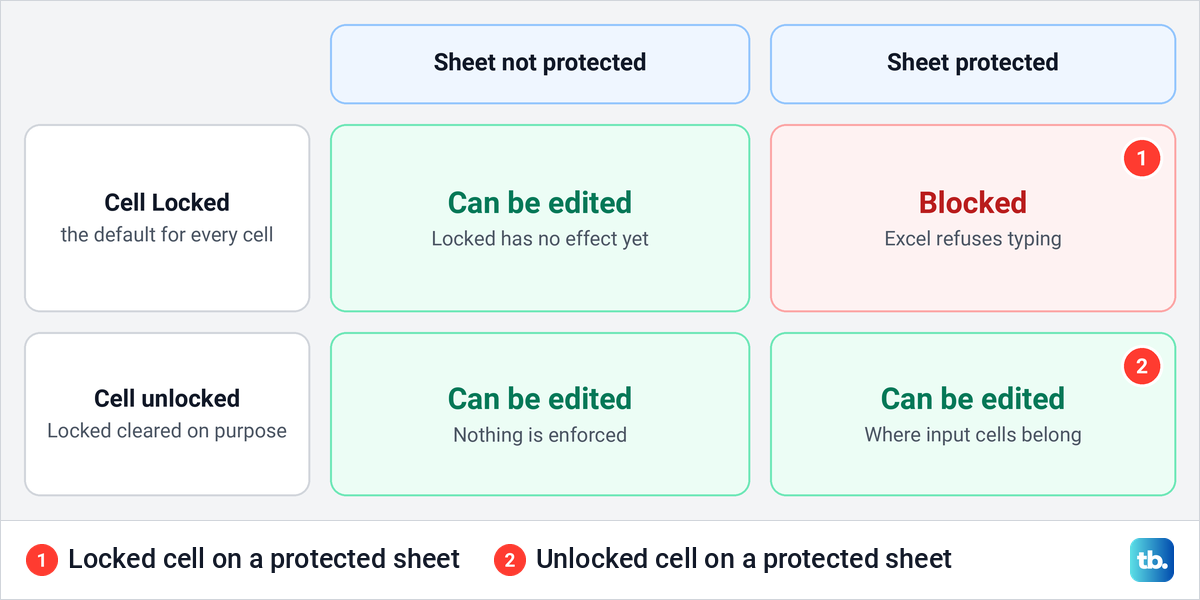
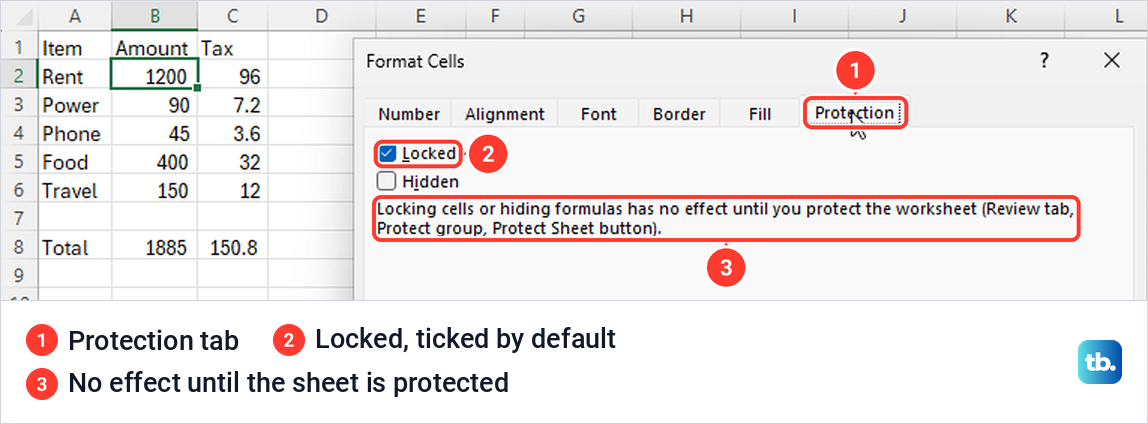
That is why ticking Locked seems to do nothing. When we opened Format Cells for a cell on a new sheet, Locked was already ticked, and Excel's own note under the box says locking cells or hiding formulas has no effect until you protect the worksheet. On the unprotected sheet, that cell still took a new number.
So the real job is usually to clear Locked on the few cells people should fill in, then protect the sheet. Microsoft describes worksheet protection as a two-step process in that order. The table shows where each part lives in Excel on Windows and in Excel for the web.
| What you want | Excel on Windows | Excel for the web |
|---|---|---|
| Mark cells as locked or unlocked | Select the cells, press Ctrl + 1, then Protection > Locked | Review > Manage Protection > Unlocked ranges |
| Turn the lock on | Review > Protect Sheet > OK | Manage Protection > switch on Protect sheet |
| Give one area its own password | Review > Allow Edit Ranges > New > Range password | Unlocked ranges > Range password |
| Stop others switching protection off | A password in the Protect Sheet dialog | Manage Protection > Sheet protection password |
| Keep formulas out of sight | Protection > Hidden, then protect the sheet | Set Hidden in Excel for Windows, and the web keeps it |
| Edit a locked cell yourself for a moment | Review > Unprotect Sheet, then protect it again | Review > Pause Protection, then Resume Protection |
Lock only some cells and keep the rest editable
Most sheets that need locking work like forms, with a few cells people fill in and labels and formulas that must stay put. The quickest way is to leave everything Locked, as it already is, and clear Locked only on the input cells.
Select the cells people may change, holding Ctrl as you click to add cells that are not next to each other. Press Ctrl + 1, select the Protection tab, clear Locked and select OK.
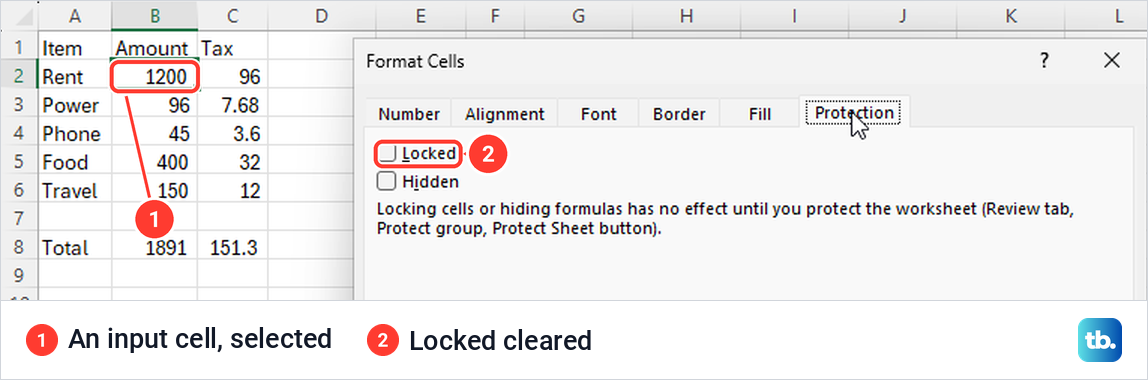
Check which tab is in front before you click. On our PC, Ctrl + 1 and right-click > Format Cells reopened the dialog on whichever tab was used last, and none of the routes went straight to Protection. Ctrl + 1 is still one of the Excel keyboard shortcuts worth learning, because it opens Format Cells from any cell.
Now open the Review tab and select Protect Sheet, or press Alt, R, P, S one after another. Leave the defaults, add a password if you want one, and select OK.
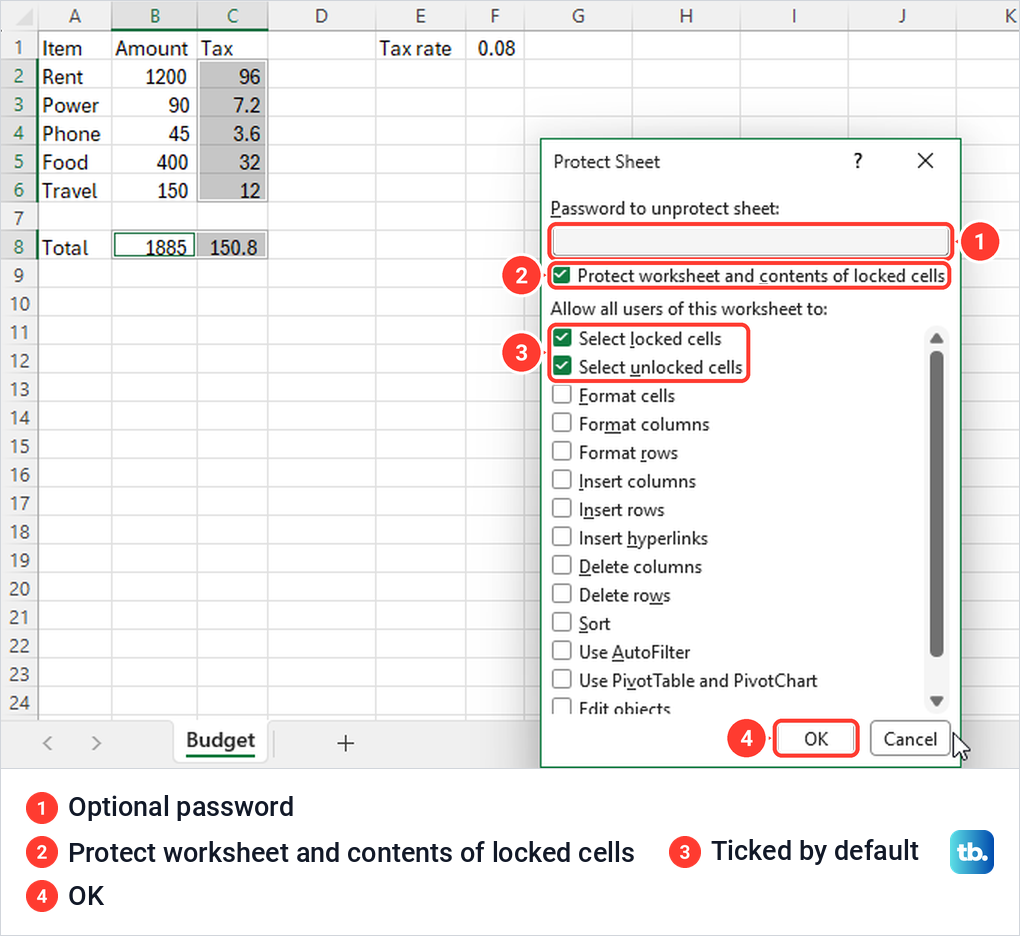
By default only Select locked cells and Select unlocked cells are ticked, so people can click anywhere but change only the cells you unlocked. When we typed into a locked cell, Excel showed a message starting with The cell or chart you're trying to change is on a protected sheet, with an OK button and nothing else.
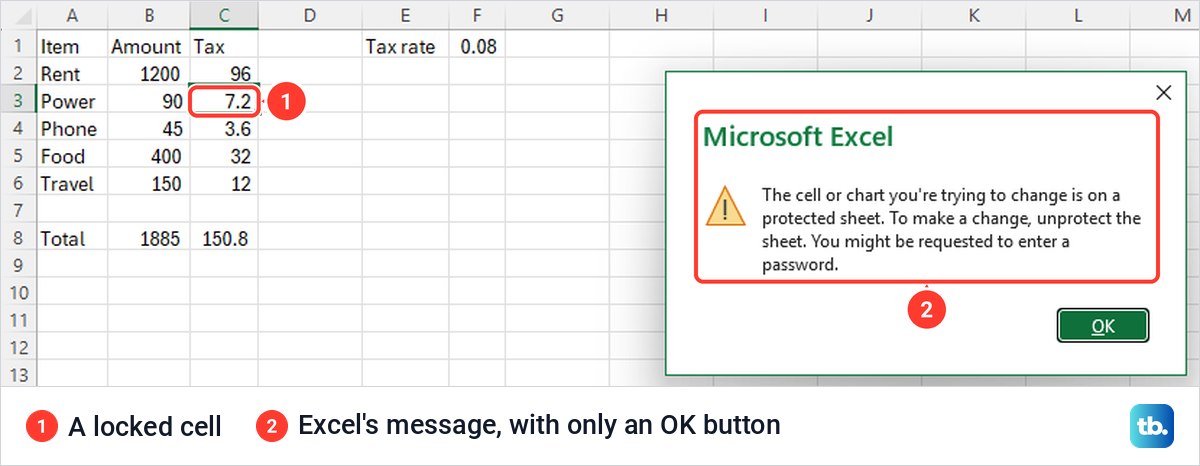
The unlocked amounts took new numbers as before. Pressing Tab on our protected sheet skipped the locked formula cell and moved only through unlocked cells, wrapping to the next row after the last one. Right-clicking a locked cell showed Format Cells greyed out, so nobody can untick Locked.
When only a handful of cells must be locked, work the other way round. Click the Select All corner above row 1, press Ctrl + 1 and clear Locked for the whole sheet, then select just the cells to protect, tick Locked again and protect the sheet. We locked only the formula cells this way, and every other cell stayed open.
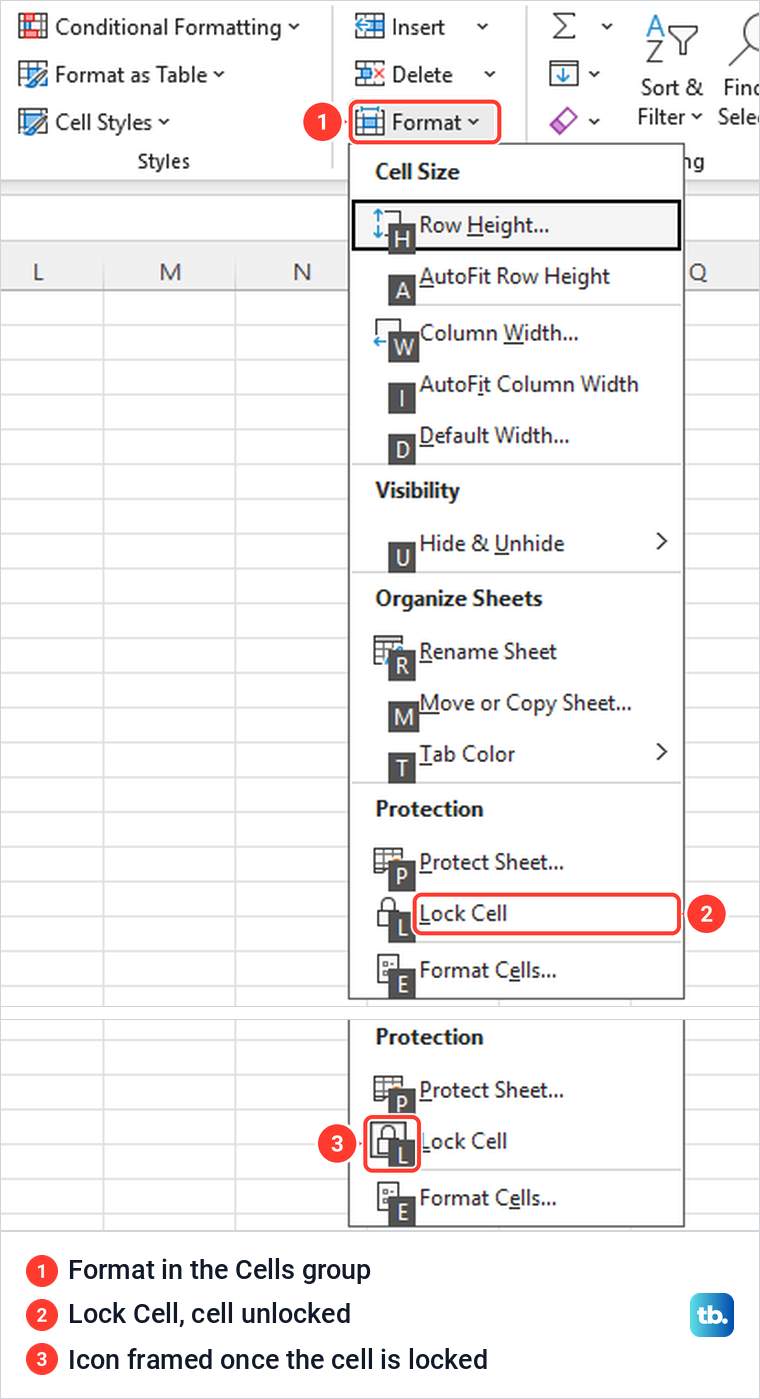
There is also a menu route. Select the cells and choose Home > Format > Lock Cell in the Protection section at the bottom of the menu. On our PC it worked as a switch, locking an unlocked cell on the first click and unlocking it on the second, with a frame round the icon while the cell was locked.
Lock every cell on a sheet
To lock a whole sheet, there is nothing to select. Every cell is already Locked unless someone cleared it, so select Review > Protect Sheet and OK. The right-click menu on the sheet tab lists Protect Sheet as well.
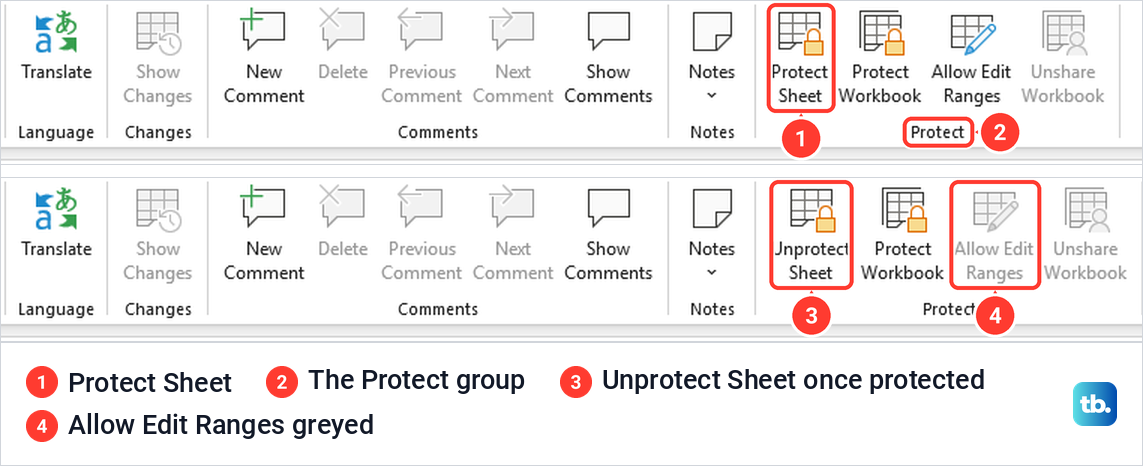
On our PC these commands sit in a ribbon group called Protect on the Review tab, next to Protect Workbook and Allow Edit Ranges. Some of Microsoft's own pages call that group Changes, so look for the buttons rather than the group name.
Once a sheet is protected, the button reads Unprotect Sheet and Allow Edit Ranges turns grey. The sheet tab itself showed no lock icon on the desktop, so the Review tab is the place to check.
Protect Workbook does a different job. While it was on, the sheet tab menu greyed out Insert, Delete, Rename, Move or Copy, Tab Color, Hide and Unhide. Microsoft says it guards the workbook's structure rather than the cells, and you can unprotect a workbook with its password from the same button.
Choose what people can still do on a protected sheet
The Allow all users of this worksheet to list decides what still works after you protect the sheet. Microsoft says clearing Select locked cells stops people even selecting locked cells. Format columns and Format rows cover widths and heights, and hiding counts as formatting too. Leave Format rows clear if you hide rows in Excel and want them to stay hidden, and Format columns clear for hidden columns.
Tick Insert rows if people will need to insert a row in Excel below the last entry, and tick Delete rows as well, or they cannot remove the rows they add. On our PC, with Format columns allowed, a column could be widened while Insert Sheet Rows stayed grey.
Sort is the box that disappoints people. We ticked it and selected Sort A to Z on the Data tab, and Excel refused with the usual protected-sheet message, because the list held locked formula cells. Microsoft says people can't sort ranges that contain locked cells on a protected sheet, whatever this setting says.
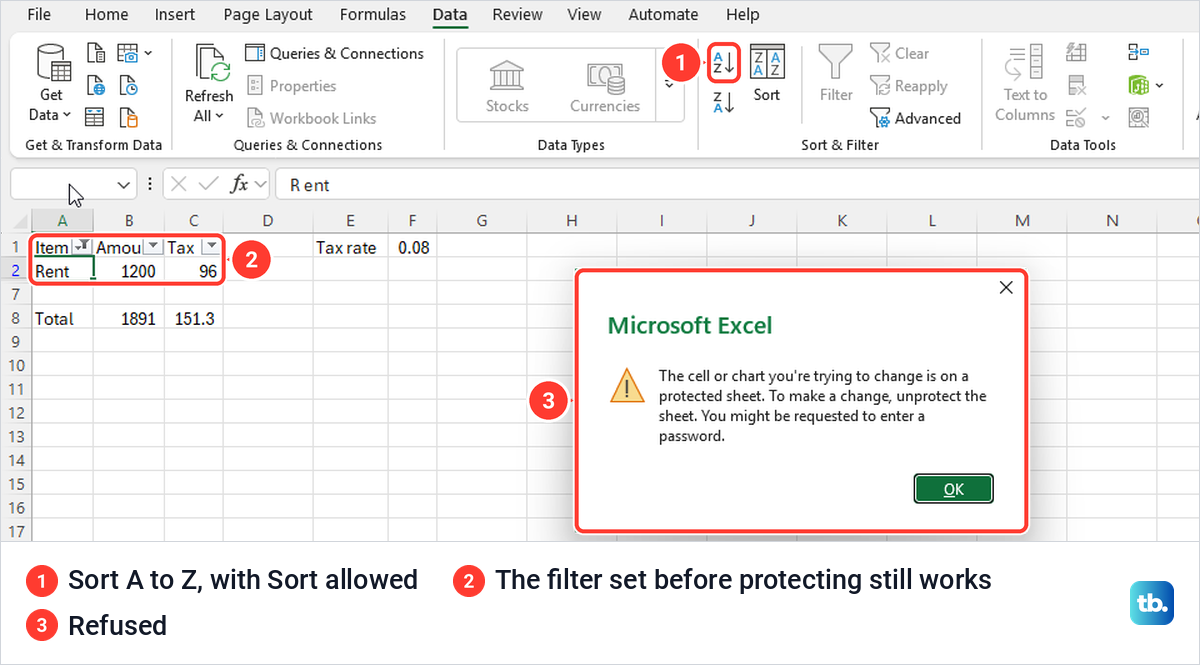
Filtering behaves better, with one catch. The filter we switched on before protecting kept working, but Clear stayed grey and the filter could not be turned off. Microsoft says AutoFilter cannot be applied or removed on a protected sheet, so turn the filter on first, tick Use AutoFilter, then protect.
Data Validation is greyed out on a protected sheet too, so add a drop-down list to the input cells before you protect it. The dialog also remembers your last choices. When we protected the sheet again later, Sort and Use AutoFilter were still ticked, so read the list every time.
Lock only the cells that hold formulas
Budgets and trackers usually need everything open except the formulas. First clear Locked for the whole sheet with the Select All corner and Ctrl + 1. Then select Home > Find & Select > Formulas, which on our sheet selected exactly the seven formula cells and nothing else.
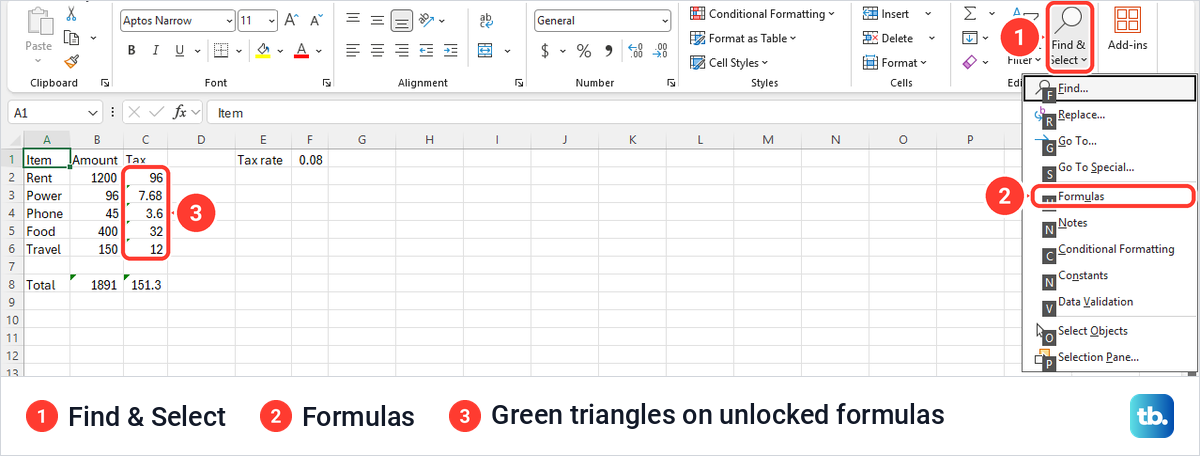
With the formulas selected, press Ctrl + 1, tick Locked, select OK and protect the sheet. A formula cell then refused a new value while the amount next to it took one. Go To Special on the same menu does the same job if you choose Formulas in its list.
Expect small green triangles while formulas are unlocked. The warning menu beside a flagged cell is headed Unprotected Formula and offers Lock Cell, which locked the cell and cleared the triangle. Microsoft says you can switch the rule off under File > Options > Formulas by clearing Unlocked cells containing formulas.
Hide formulas from the formula bar
Locking a formula stops edits, but anyone can still click the cell and read the formula. To hide it as well, select the formula cells, press Ctrl + 1, tick Hidden next to Locked, select OK and protect the sheet.
On our protected sheet, a locked and hidden cell still showed its result, but the formula bar stayed empty. Show Formulas, Ctrl + `, did not reveal them either, and the hidden cells showed nothing at all.
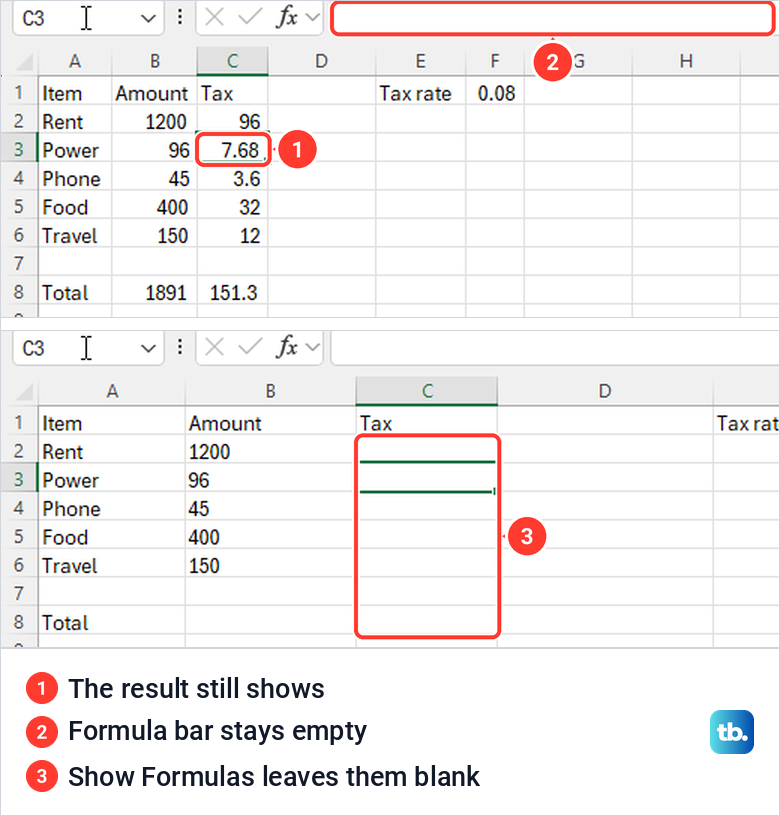
Do not rely on Hidden alone. Microsoft says hiding formulas this way also prevents the cells from being edited, but that only held for cells that were also Locked. We made one cell Hidden but not Locked, and on the protected sheet typing a number replaced its formula with no warning at all.
To show the formulas again, unprotect the sheet. If you do not want them hidden next time, clear Hidden on the Protection tab for those cells.
Let people edit chosen ranges with Allow Edit Ranges
Allow Edit Ranges gives one area of a protected sheet its own password, so people who know it can change those cells while everything else stays locked. Microsoft says the command is only available while the sheet is unprotected, and on our PC it turned grey as soon as protection was on.
Select the cells, then choose Review > Allow Edit Ranges and New. Give the range a Title, check that Refers to cells shows your selection, type a Range password, select OK and confirm it. Finish with Protect Sheet in the same dialog. Use a different password for the sheet, because anyone who knows the sheet password can switch protection off for the whole sheet.
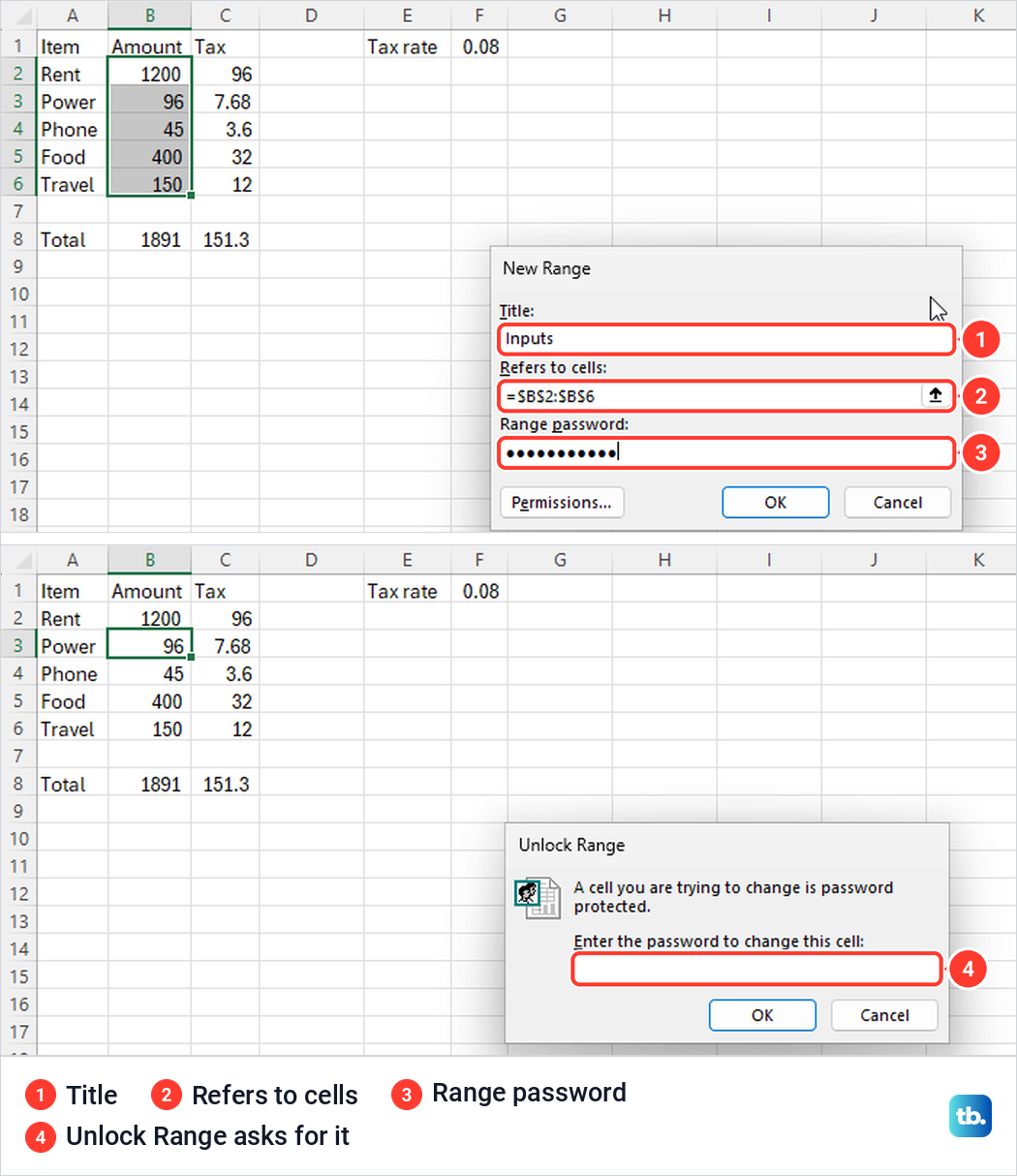
When someone types in the range, Excel opens Unlock Range and asks for the password. After the right password, other cells in our range took edits with no second prompt, while cells outside it gave the normal message. The keystroke that opened the prompt was thrown away, so type the first entry again.
The Permissions button lets named people edit a range without a password, but Microsoft says this needs a Windows PC in a domain, and Excel for Mac cannot use these permissions. For everyone else, range passwords are the way to share out areas.
Use a password without locking yourself out
A password is optional. Microsoft says that without one, any user can unprotect the sheet, and on our PC Unprotect Sheet switched protection off at once when no password had been set. That is enough to stop accidental edits, but set a password when other people should not be able to undo it.
Excel asks for the password twice, and the confirmation box on our PC gave no warning about lost passwords. Passwords are case-sensitive. When we typed ours in lower case, Excel said the password was not correct and to check that the CAPS LOCK key is off.
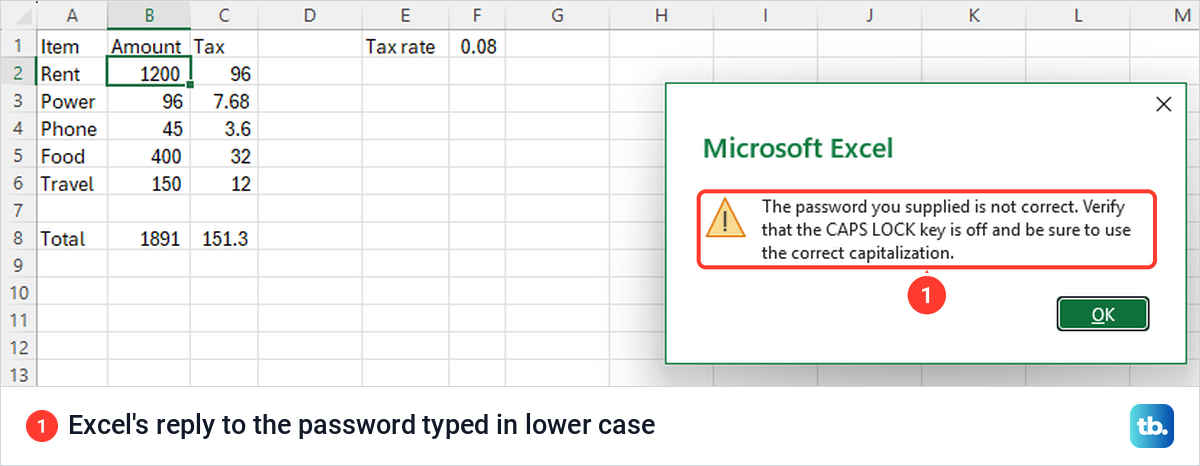
Keep the password somewhere safe. Microsoft says that if you forget it, Microsoft cannot retrieve it, and without it you cannot unprotect the sheet. If you have nowhere safe for logins yet, set up a password manager and store it there.
Microsoft recommends eight or more characters mixing upper and lower case, numbers and symbols. Our tips on strong passwords you can remember make that easier. If the file will also be opened on a Mac, keep it to 15 characters or fewer, the limit Microsoft gives for passwords in Excel for Mac.
Sheet protection is not a lock on the file. Microsoft says worksheet protection isn't intended as a security feature, and anyone who opens the workbook can still read the values. To stop people opening the file at all, choose File > Info > Protect Workbook > Encrypt with Password.
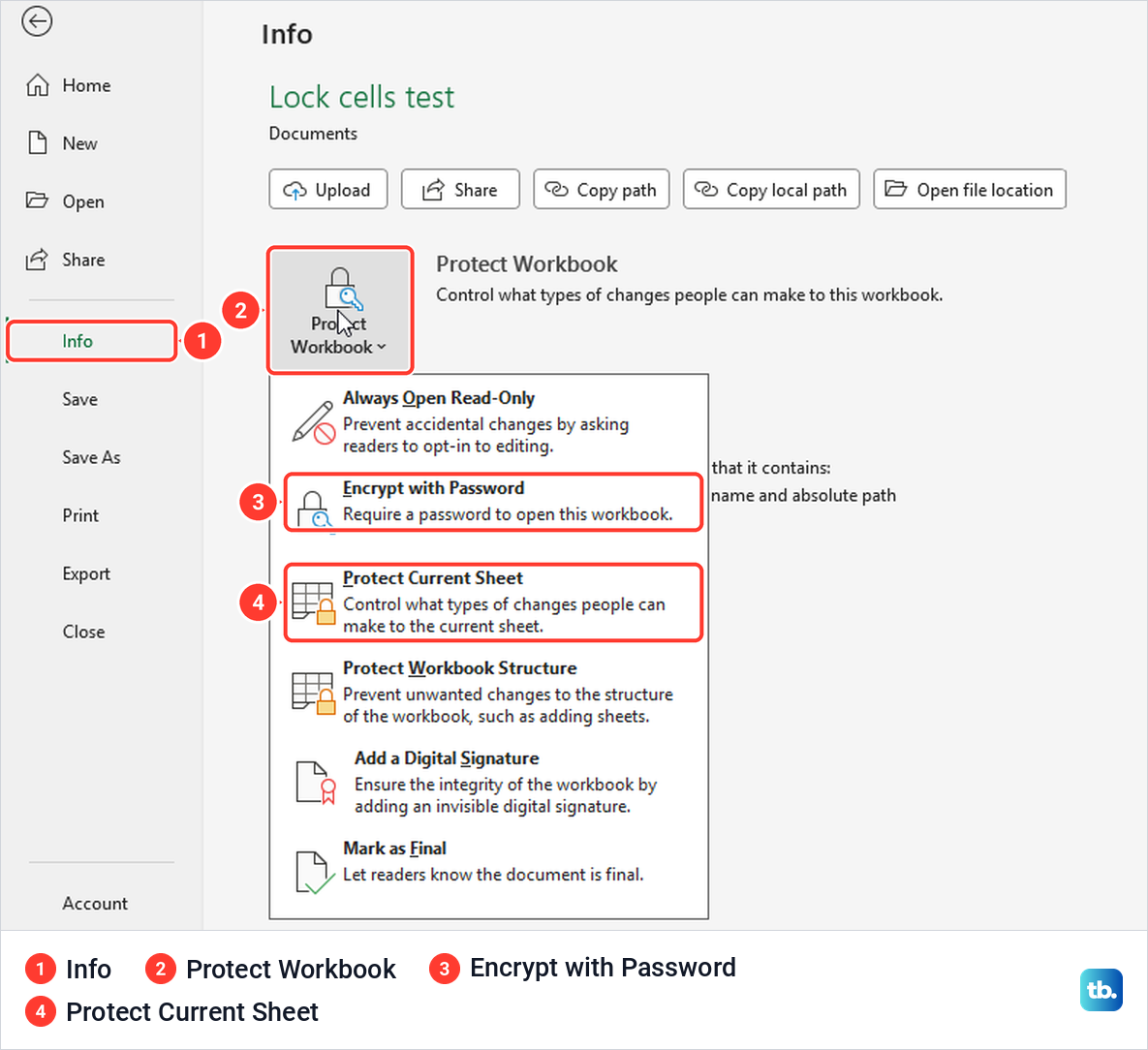
On our PC, Encrypt with Password opened Encrypt Document, whose caution says a lost password cannot be recovered. Microsoft adds that Excel for the web cannot add, change or remove a password to open a file.
Lock cells in Excel for the web
Excel for the web has its own way to lock cells. Microsoft says to select Review > Manage Protection and switch on Protect sheet in the pane that opens, which locks the whole sheet by default. Excel for the web opens files stored online, so save the workbook to OneDrive first if it only lives on your PC.
To keep some cells editable, select Unlocked ranges in the same pane, enter a range name and the cells, and add more ranges if needed. Each range can have its own Range password, and a Sheet protection password stops others changing the protection itself.
Microsoft notes that the pane's Options only apply while Protect sheet is on. Formatting and Hidden settings made in the desktop Format Cells dialog stay protected on the web, but Microsoft says they can only be changed in Excel for Windows.
To edit a locked cell yourself, Microsoft says Review > Pause Protection lifts protection for your session only while everyone else stays protected, and asks for the sheet password if one is set. Select Review > Resume Protection when you are done.
Some pages, including one of Microsoft's own, still say you must open the desktop app to lock cells. Excel for the web has had its own sheet protection since June 2022, though Microsoft says the Format Cells settings described above can't be changed in the browser.
Lock cells in Excel for Mac and iPad
Excel for Mac uses the same two switches. Microsoft's steps are to select the cells, choose Format > Cells or press Cmd + 1, and set Locked on the Protection tab. Then select Review > Protect Sheet, type a password if you want one and retype it under Verify.
The Mac dialog lists its options under Allow users of this sheet to, with a Filter option where Windows says Use AutoFilter. Microsoft says you may need to select Review > Unprotect Sheet before you can change which cells are locked.
On an iPad, Microsoft says sheet protection is under Review > Protection in Excel for iPad version 2.90.930.0 or later. It offers Pause and Resume, Manage Sheet Protection and locked or unlocked ranges, much like the web.
When lock means a formula reference or a frozen row
Some people want to lock a cell reference in a formula, so it keeps pointing at the same cell when the formula is copied. That is done with dollar signs. $F$1 always points to F1, F$1 keeps the row and $F1 keeps the column.
You do not have to type the dollar signs. While typing a formula, put the cursor on the reference and press F4. On our PC, each press cycled =B2*$F$1, =B2*F$1, =B2*$F1 and back to =B2*F1.
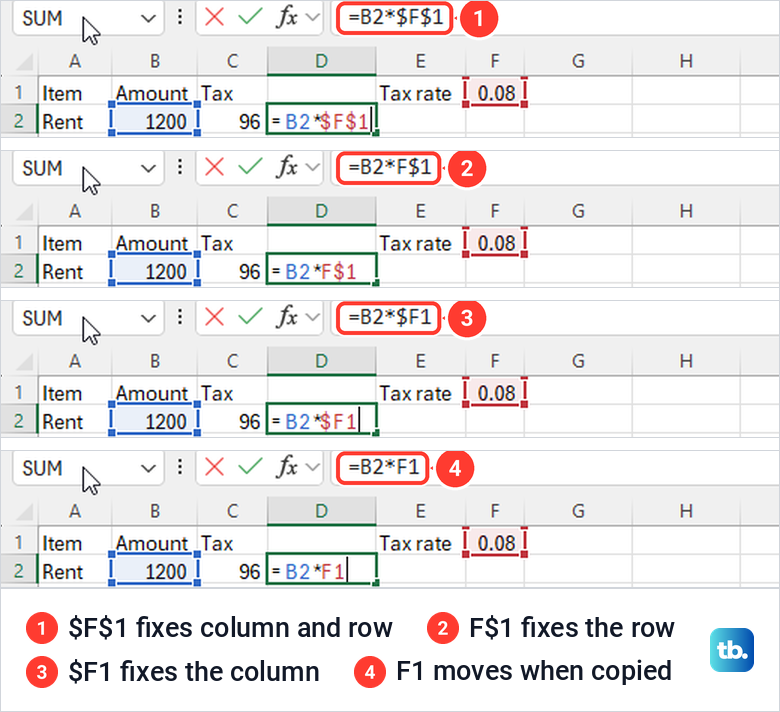
On a Mac, Microsoft lists Cmd + T as well as F4. If pressing F4 changes the volume or brightness on a laptop instead, our guide shows how to turn off the Fn key behaviour.
Others mean keeping the header row on screen while they scroll. That is Freeze Panes on the View tab, which has nothing to do with protection, and our guide shows how to freeze rows and columns step by step.
Why locked cells still change, or unlocked cells will not
If people can still type in cells you locked, the sheet is probably not protected yet. If the Review tab says Protect Sheet, protection is off. The cells may also have been unlocked earlier, or sit inside an Allow Edit Range whose password someone entered.
If a block of cells will not change state, check the Locked box. When we selected a mix of locked and unlocked cells, the box showed a filled square, and the first click ticked it for the whole selection. Click once more to clear it.
If the filter arrows misbehave or the filter cannot be removed, unprotect the sheet first. If they still misbehave, our guide to filters not working in Excel walks through the other causes.
On a protected sheet, the right-click menu on a locked cell left Cut and Copy available but greyed out Paste Special, Insert, Delete and Clear Contents. So if cut and paste stops working in a workbook someone else set up, look for Unprotect Sheet on the Review tab first.
Cells that stay editable on the desktop but are refused in Excel for the web are a known complaint. People who have hit it report that adding the same cells under Unlocked ranges in Manage Protection fixed it.
Unlock cells or turn protection off
To change which cells are locked, turn protection off first, because Format Cells stays greyed on a locked cell while the sheet is protected. Select Review > Unprotect Sheet and type the password if Excel asks. Change the Locked boxes, then select Protect Sheet again.
In Excel for the web, Microsoft says to switch off Protect sheet in the Manage Protection pane. If someone else protected the file and you need in, our guide to unprotect an Excel worksheet covers the password prompt and view-only files.
How we tested this guide
We tested this in Excel for Microsoft 365 on Windows 11, version 25H2, locking cells and protecting a small invented budget sheet.
Frequently Asked Questions
Can I lock cells in Excel without protecting the sheet?
No. The Locked box only takes effect once the sheet is protected. To leave most of the sheet editable, clear Locked on those cells first, then protect it.
Why can I still edit cells I locked?
The sheet is probably not protected yet, or the cells sit in an Allow Edit Range. If the Review tab says Protect Sheet rather than Unprotect Sheet, protection is off.
What is the keyboard shortcut to lock cells in Excel?
There is no single shortcut. Press Ctrl + 1 for Format Cells, where Locked is on the Protection tab, then Alt, R, P, S for Protect Sheet. On a Mac, Microsoft lists Cmd + 1 for Format Cells.
How do I lock cells in Excel Online?
Microsoft says to open Review > Manage Protection, add the cells people may edit under Unlocked ranges, then switch on Protect sheet. Set a Sheet protection password if others should not turn it off.
Why can't anyone sort my protected sheet?
Excel refuses to sort a range that contains locked cells on a protected sheet, even with Sort ticked. A filter keeps working only if you switched it on before protecting the sheet and ticked Use AutoFilter in the Protect Sheet dialog.
What happens if I forget the protection password?
Microsoft cannot retrieve it, and without it you cannot unprotect the sheet. Keep it in a password manager, or keep an unprotected copy of the file somewhere safe.
How do I lock a cell reference in a formula?
Put dollar signs in front of the column and row, such as $F$1. While typing the formula, put the cursor on the reference and press F4 to add them.