Microsoft Teams not opening on Mac usually comes down to a frozen app session, a bad restored window, a damaged cache, or a block from macOS or your network. Start with the quick repairs, then move through the deeper fixes until Teams launches again.
Quit Teams and open it again
Use this when Teams looks open but no usable window appears, or when the Dock icon does nothing. A normal quit clears the current app session without touching your chats, files, or account.
Bring Teams forward, then press Command-Q. You can also use the menu bar and choose Microsoft Teams, then Quit Microsoft Teams.
Open Finder, choose Applications, and launch Microsoft Teams again. If the window returns normally, stop here.
Force quit a frozen Teams session
The most common cause is Teams already running in a frozen state, which makes it look like the app will not open.
Right-click the Microsoft Teams icon in the Dock, hold Option, and select Force Quit. Then open Finder, choose Applications, and start Microsoft Teams.
You can also press Option-Command-Esc, select Microsoft Teams, and click Force Quit. The same tool is available from the Apple menu under Force Quit.
Restart the Mac
A restart is the next clean move after quitting or force quitting fails. Choose the Apple menu, select Restart, and let macOS return to the desktop.
Open Finder, go to Applications, and launch Microsoft Teams. This helps after Teams freezes, sign-in loops, or authentication trouble following a macOS upgrade.
If the whole Mac is too frozen to restart, press and hold the power button for up to 10 seconds until it turns off. On Mac laptops with Touch ID, press and hold Touch ID, then press the power button again and reopen Teams.
Open Teams without restored windows
Try this when Teams bounces in the Dock, opens briefly, or gets stuck loading the same window from the last session. macOS can restore an app's previous windows, and a bad saved state can trap Teams at launch.
Press and hold Shift while opening Microsoft Teams. This makes macOS discard the windows Teams had open the last time it quit.
To prevent the same problem from returning, open the Apple menu, choose System Settings, then go to Desktop & Dock. Scroll down and turn on Close windows when quitting an application, then quit and reopen Teams.
Clear the new Teams cache
Clear the current new Teams cache on macOS like this:
- 1.Quit Teams from the Dock or press Command-Q.
- 2.Open Finder, go to /Applications/Utilities, and open Terminal.
- 3.Run rm -rf ~/Library/Group\ Containers/UBF8T346G9.com.microsoft.teams.
- 4.Run rm -rf ~/Library/Containers/com.microsoft.teams2.
- 5.Restart Microsoft Teams.
Do not use ~/Library/Application Support/Microsoft/Teams for the current new Teams app. Microsoft documents that path for Classic Teams, which stopped working on July 1, 2025. If that folder is still on your Mac, it is a leftover: install the current Teams app or use Teams on the web instead.
Update Teams and macOS
The most common cause here is a version mismatch, especially because Microsoft supports Teams on the newest macOS and the two immediately preceding macOS versions.
If Teams opens far enough to show its controls, select Update, then choose Update and restart Teams when the update prompt appears. If it does not reopen automatically, open the updated Teams app yourself.
To check the app version, open Settings and more, choose Settings, then select About Teams. Look under Version to see whether Teams is current or needs Update now.
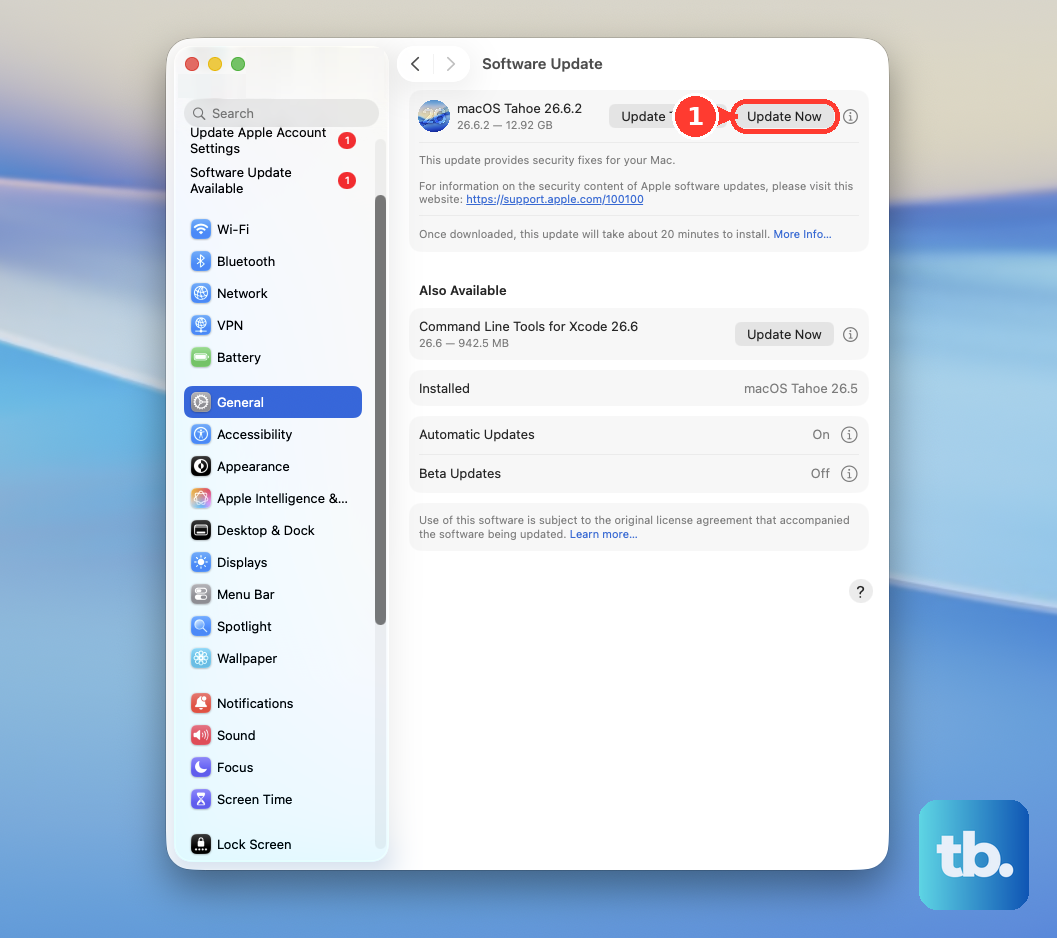
For macOS, choose the Apple menu, open System Settings, go to General, and select Software Update. Click Update, Upgrade, or Restart Now, then enter your administrator password when prompted.
Reinstall Teams from Microsoft
This fixes a damaged Teams app install that still will not open after quitting, restarting, and clearing the cache.
Right-click the Microsoft Teams icon in the Dock, hold Option, and select Force Quit.
Open the Applications folder.
Select Microsoft Teams and move it to the Trash.
Go to Microsoft's official Teams download page.
In the Download Microsoft Teams for Mac section, select Download Teams for Mac.
Open the downloaded .pkg installer and follow the installer prompts.
Open Teams from Finder and Applications.
Fix security or network blocks
When Teams will not open right after installation, macOS may be blocking it through security controls. After trying to open Teams, choose the Apple menu, open System Settings, select Privacy & Security, scroll down, click Open Anyway, then click Open in the warning prompt. Use this only for the official Microsoft Teams app.
Network trouble can also make Teams hang during launch or sign-in. Open a browser and visit any website. If the Mac is not online, connect to Wi-Fi, restart the Mac, check the date and time, update macOS if possible, restart the router, or try a different network.
For Wi-Fi problems, click Wi-Fi in Control Center or the menu bar and check for Wi-Fi Recommendations. For deeper diagnostics, hold Option while clicking Wi-Fi, then choose Open Wireless Diagnostics.
If Teams still will not connect, open System Settings and search for VPN, profile, firewall, and filter. If the setting is not required by your organization, turn it off, change it, or remove it, then restart the Mac and test Teams again.
If this method fails, use Teams on the web while you check account access or wait for your IT admin to fix managed network settings.
Use Teams on the web or check work account access
Use these last checks when the Mac app is still broken or your work or school account is the real blocker:
- 1.Open a supported desktop browser and go to teams.microsoft.com, then sign in with your Microsoft account or Microsoft 365 work or school account.
- 2.Use a current supported browser: Microsoft Edge, Chrome, Firefox, or Safari within the supported version range for Teams on the web.
- 3.If Safari gets stuck in a Teams sign-in loop, open Safari, choose Settings (Preferences on macOS Monterey and earlier), select Privacy, clear Prevent cross-site tracking, close Safari, and try again.
- 4.If Teams opens but cannot connect, select your profile picture, choose Sign out, reopen Teams, and sign in again.
- 5.On a work, school, or managed Mac, ask your IT admin to confirm Teams is enabled for your account and that the device is allowed to install or run Teams.
Frequently Asked Questions
Why does Microsoft Teams bounce in the Dock but never open on Mac?
Teams may already be frozen in the background or trying to restore a bad previous window. Force quit Teams, then open it again while holding Shift.
Should I delete the old Microsoft Teams cache folder on Mac?
That folder belongs to Classic Teams, which stopped working on July 1, 2025, so clearing it will not help the current app. For the current new Teams app on macOS, use the documented Group Containers and Containers cache paths instead.
Can I use Teams without the Mac app?
Yes. Go to teams.microsoft.com in a supported desktop browser and sign in with your Microsoft account or Microsoft 365 work or school account.
What should I do if my work account still cannot open Teams?
Ask your IT admin to confirm that Teams is enabled for your Microsoft 365 account and that your managed Mac is allowed to install and run Teams.