
To clear the Teams cache on Windows 11, right-click the Teams icon on the taskbar and choose Quit Teams, press Windows + R, open %userprofile%\appdata\local\Packages\MSTeams_8wekyb3d8bbwe\LocalCache\Microsoft\MSTeams, delete everything inside that folder and open Teams again. Teams rebuilds the files when it starts. If that is not enough, Reset in Windows Settings wipes all of the app's data, including your sign-in details.
Teams for the web keeps its cache in the browser instead, so you clear it there, and a Mac has its own folders. One warning before you start: Microsoft calls clearing the cache a targeted step for a small number of problems, not a general first step. It does not fix missing chats or wrong unread counts, as the last sections explain.
The short version
- New Teams on Windows: quit Teams, press Windows + R, open the MSTeams cache path and delete everything inside the folder, not the folder itself.
- Full reset: Settings > Apps > Installed apps > Microsoft Teams > Advanced options > Reset, which also deletes your preferences and sign-in details.
- Teams in Edge: press Ctrl + Shift + Delete and leave only Cached images and files ticked, because cookies are ticked by default.
- Teams site data: search Edge's cookie list for the address in your Teams tab, which was teams.cloud.microsoft on our PC.
- Mac and classic Teams: each keeps its cache in its own folder, so use the steps for the Teams you have.
Which Teams cache you need to clear
Where the cache lives depends on which Teams you use. The current Teams app on Windows, classic Teams, the Mac app and Teams for the web all keep it in different places, and a path meant for one does nothing for another.
| Where you use Teams | What to do | What it clears |
|---|---|---|
| New Teams on Windows | Quit Teams, press Windows + R, open the MSTeams path and delete what is inside | The cache folder only, which Teams rebuilds when it starts |
| New Teams on Windows, full reset | Settings > Apps > Installed apps > Microsoft Teams > Advanced options > Reset | All of the app's data on the PC, including preferences and sign-in details |
| Classic Teams on Windows | Quit Teams, press Windows + R, open %appdata%\Microsoft\Teams and delete what is inside | The classic app's cache, nothing in the new Teams |
| New Teams on a Mac | Quit Teams, run Microsoft's two Terminal commands | Both new Teams folders in your Library |
| Classic Teams on a Mac | Quit Teams, run Microsoft's one Terminal command | The classic Teams folder in Application Support |
| Teams for the web in Edge | Press Ctrl + Shift + Delete and tick only Cached images and files | Cached files for every site in the time range you pick |
| Teams for the web, Teams data only | Delete the entries for the address in your Teams tab (teams.cloud.microsoft on our PC) in Edge's cookie list | The data Edge keeps for the Teams site, which can include its sign-in |
Not sure which Windows app you have? Open Settings > Apps > Installed apps and type Microsoft Teams. On our PC the new Teams was listed as plain Microsoft Teams, with Microsoft as the publisher, even though Microsoft's own steps call it New Microsoft Teams. If you are still unsure, try the new Teams path first, and if Run cannot find it, try the classic path.
Clear the new Teams cache folder on Windows
This is the lighter of the two Windows methods. It empties one cache folder, while Reset clears all of the app's data on the PC. Microsoft lists both for the new Teams, and we suggest the folder first because it touches less.
Quit Teams completely
Microsoft's steps start by quitting Teams, which is not the same as closing its window. Right-click the Teams icon on the taskbar and choose Quit Teams. Microsoft's instructions call the item Quit, but on our PC it read Quit Teams, and the same menu has a separate Close window item further down.
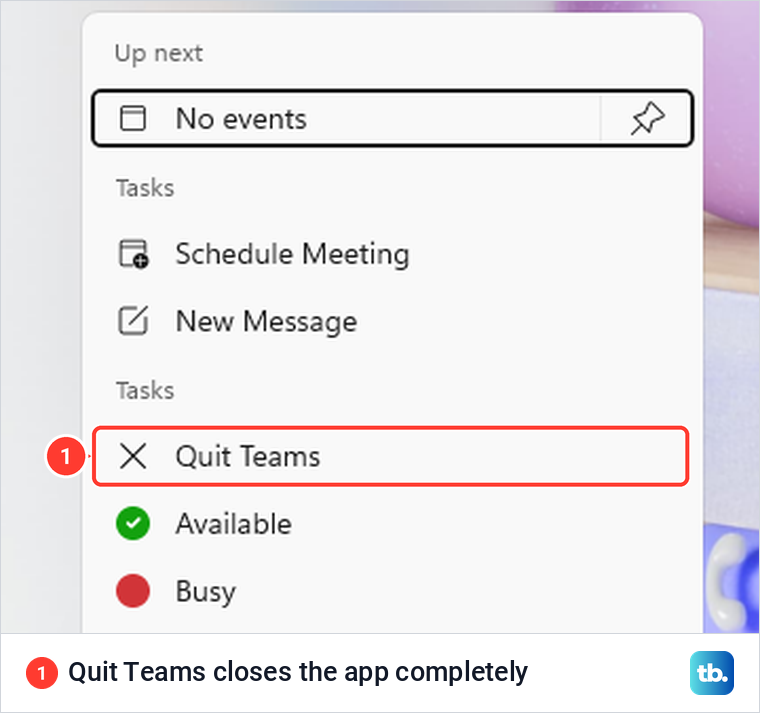
Choosing Quit Teams closed the app on our PC with no prompt, and its icon left the taskbar. If Teams has no taskbar icon, open Task Manager in Windows and check that Microsoft Teams is not still running before you delete anything.
Open the cache folder with Run
Press Windows + R to open the Run box. Paste this path into the Open box exactly as written. Then select OK:
%userprofile%\appdata\local\Packages\MSTeams_8wekyb3d8bbwe\LocalCache\Microsoft\MSTeamsThe path starts in your own user folder, so it works for whoever is signed in to Windows. AppData is a hidden folder by default, which is why the Run box is quicker than clicking through File Explorer, though you can also show hidden files in Windows and browse there yourself.
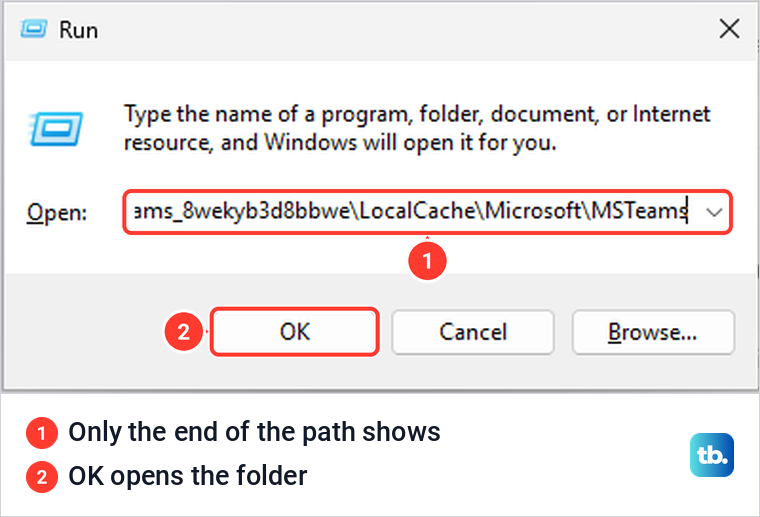
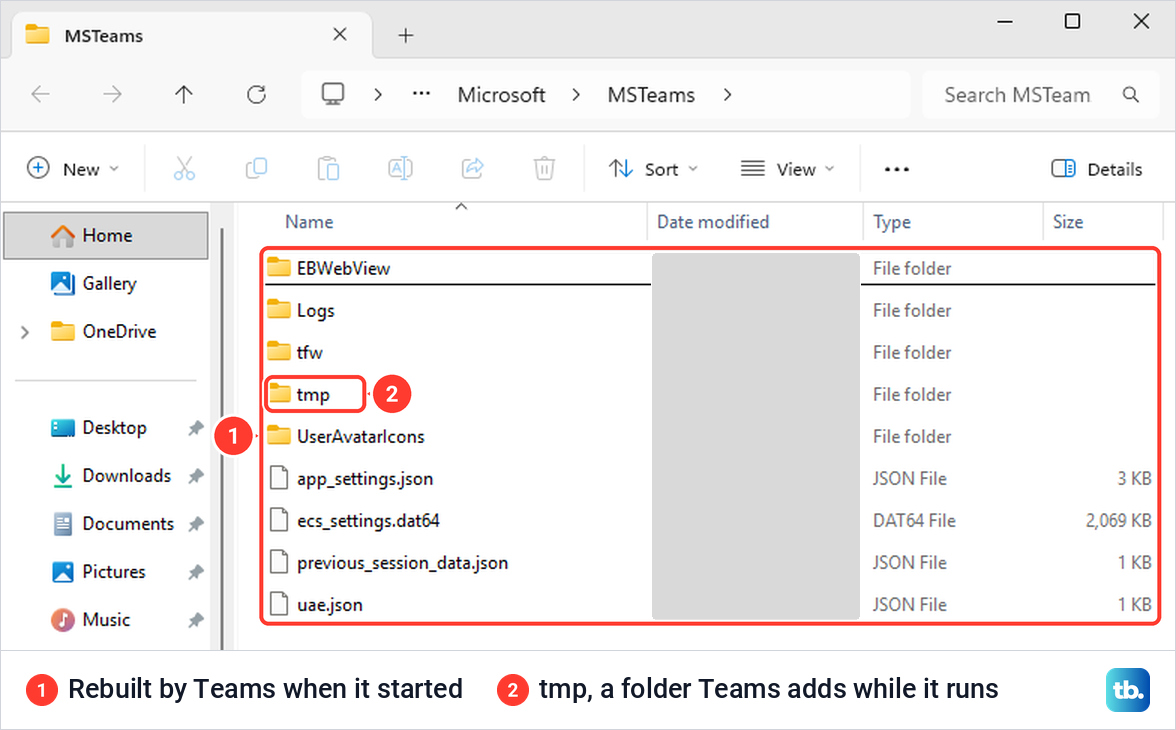
On our PC, OK opened File Explorer on a folder named MSTeams. It held four folders, EBWebView, Logs, tfw and UserAvatarIcons, and four files, including app_settings.json. If Run says it cannot find the path, check it for typos first. On our PC the MSTeams folder only appeared after Teams had been opened once in that Windows account.
Delete everything inside the folder
Click an empty part of the file list, press Ctrl + A to select everything, then press Delete. Delete the contents only. Leave the MSTeams folder itself and the MSTeams_8wekyb3d8bbwe folder above it in place, because Microsoft's step is to delete all files and folders in the directory, not the directory.
Windows asked nothing on our PC. The eight items disappeared, File Explorer read This folder is empty, and nothing complained about a file in use because Teams had been quit first.
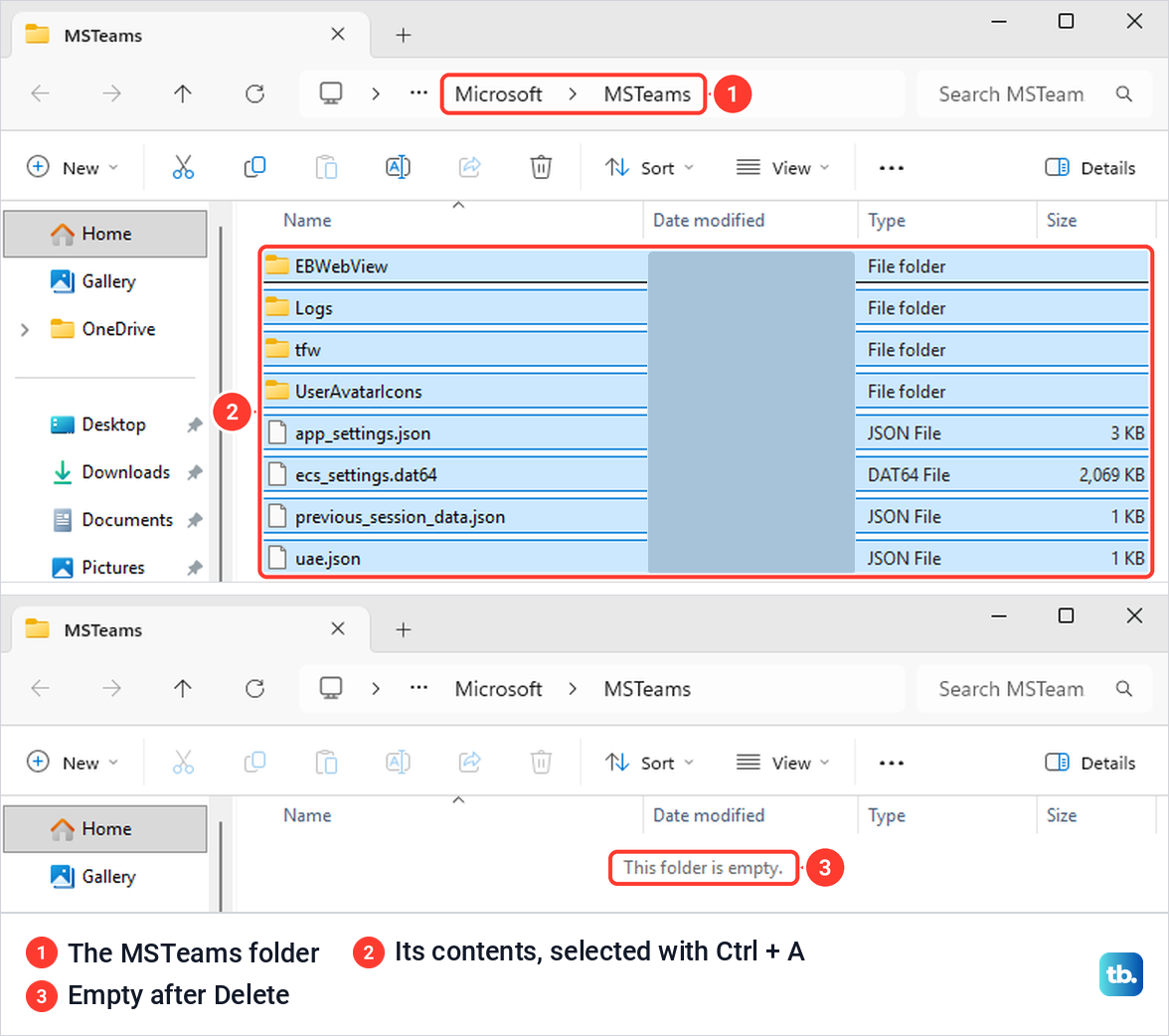
By default Windows sends deleted files to the Recycle Bin, and that is where our eight items went. The disk space only comes back once you empty it, one of the steps in our guide to free up disk space on Windows 11.
Open Teams again
Open Teams from the Start menu. Microsoft warns that this first start can take longer than usual because Teams has to rebuild its cache files. Ours opened on its usual first screen within a few seconds.
When we refreshed File Explorer, the MSTeams folder already held nine items again. Teams had rebuilt the four folders and four files and added a tmp folder, which it creates while it runs and removes when you quit.
Reset Teams in Windows Settings
Reset goes further than the cache folder. It deletes all of the Teams app's data on the PC, and Windows says exactly what that means before anything happens. Use it when clearing the folder did not help, or when you would rather not dig through hidden folders.
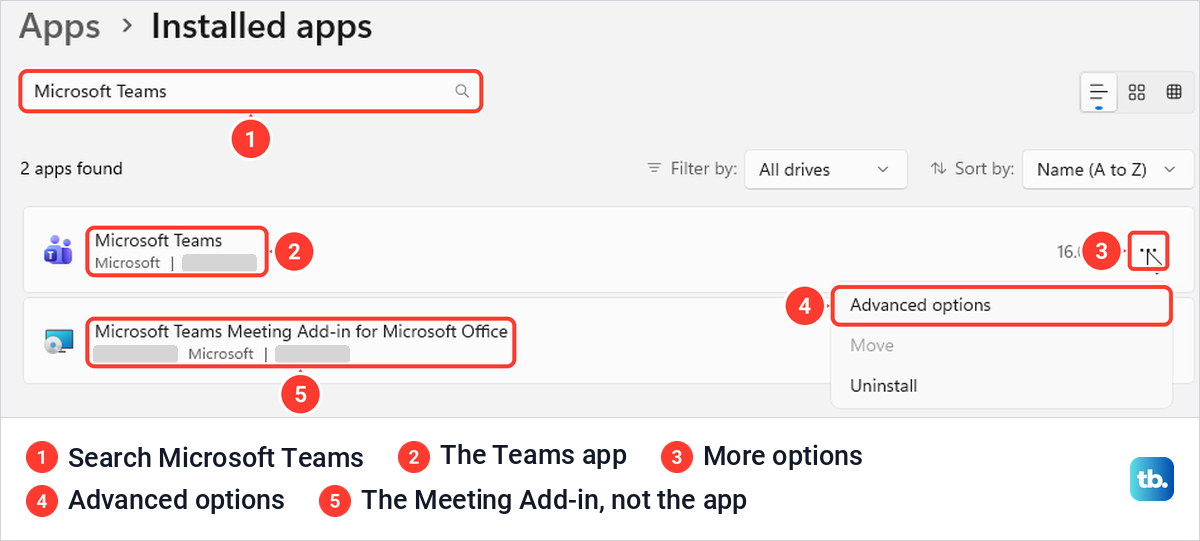
Open Settings, go to Apps > Installed apps and type Microsoft Teams in the search box. On our PC a second result appeared once Teams had been opened, Microsoft Teams Meeting Add-in for Microsoft Office. That is an add-in for Microsoft Office, not the Teams app, so work on the plain Microsoft Teams row.
Select the three-dot More options button at the right of the Microsoft Teams row and choose Advanced options. The same menu also offered Move, greyed out, and Uninstall. Microsoft's Windows help notes that some apps have no Advanced options, and if yours does not, use the folder method above.
Scroll down to the Reset section. It has two buttons. Repair says the app's data won't be affected, and Microsoft's Windows help suggests Repair first, then Reset if Repair is missing or does not fix the problem. Repair keeps the cache, so it is a fix to try, not a way to clear it.
Select Reset. Windows first opens a box with this warning: "This will permanently delete the app's data on this device, including your preferences and sign-in details." Microsoft's Teams help adds that the app data includes any personalization settings you configured.
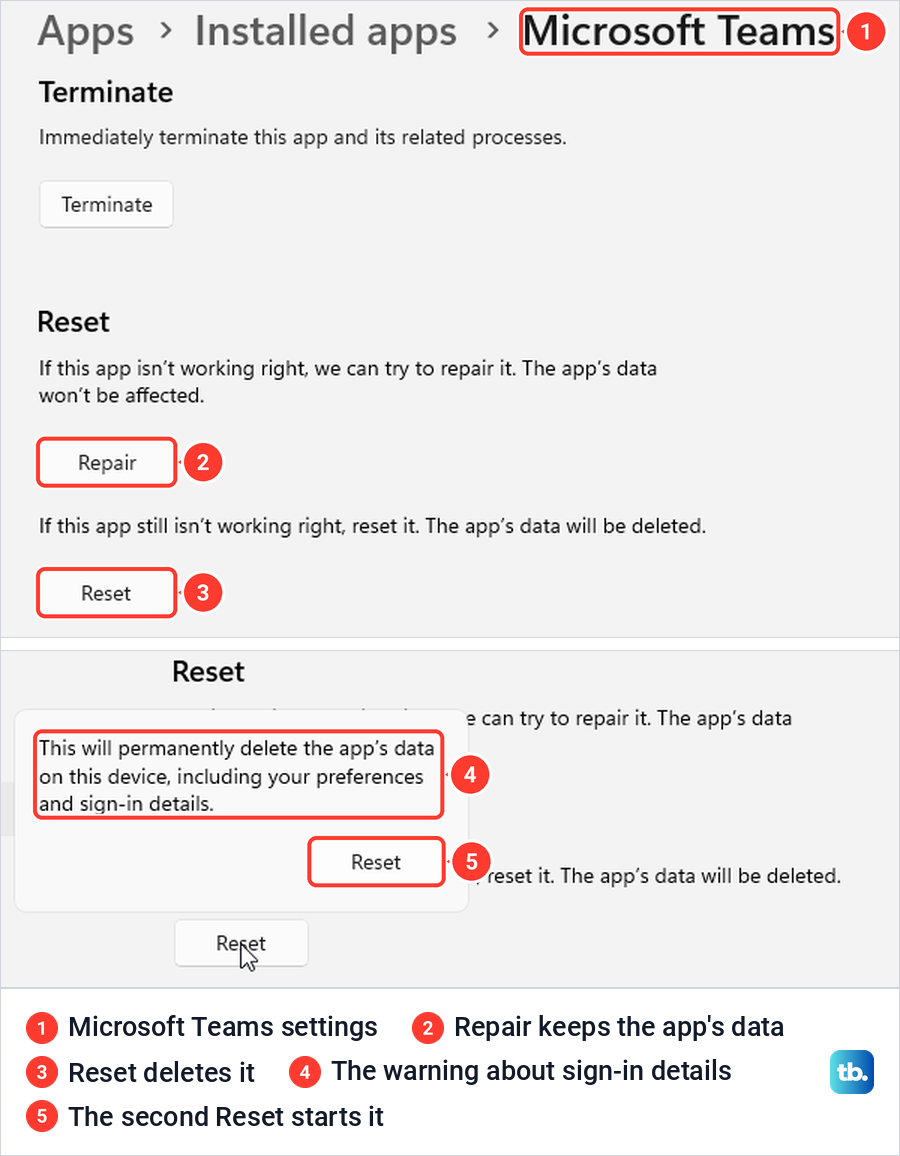
If you go ahead, have your work or school sign-in ready and expect to set your Teams preferences again. Then select the second Reset button in the box. The box has no Cancel button, so only press the second Reset when you are sure.
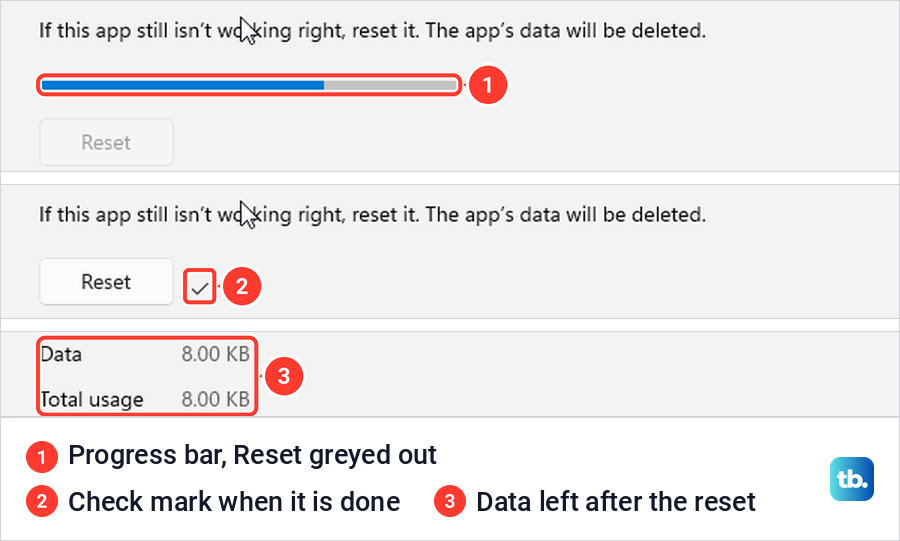
On our PC a progress bar ran under the Reset line, the button greyed out and the open Teams window closed by itself. After about ten seconds a small check mark appeared next to the Reset button, with no other message. The Data figure under Specifications at the top of the same page had dropped from megabytes to a few kilobytes.
Then open Teams again from Start. Ours came back on its usual first screen within a few seconds, with its window at a different size and position, because the saved window placement had been wiped too. Teams had also started itself in the background right after the reset, with no window and no taskbar icon, and rebuilt its cache folder before we opened it.
Clear the classic Teams cache
Classic Teams, the older Teams client, keeps its cache in a different folder, %appdata%\Microsoft\Teams. Microsoft's steps are the same as for the new app. Quit Teams, press Windows + R, open that path, delete all files and folders inside it and restart Teams.
That folder only exists where classic Teams is installed. On our Windows 11 PC, which had only the new Teams, Run answered that Windows cannot find the folder and asked us to make sure we typed the name correctly. Even one of Microsoft's own Teams help pages still gives this path without saying it is for classic Teams. If Windows cannot find that folder, check which Teams app is installed, because the new app uses the MSTeams path above.
Clear the Teams cache in Edge for Teams on the web
Teams for the web stores its files in your browser, so clearing its cache means clearing browser data. When we opened teams.microsoft.com in Microsoft Edge, it moved us to teams.cloud.microsoft and showed a bar saying Teams has a new URL. Keep that address in mind for the next section.
Press Ctrl + Shift + Delete in Edge, or open the three-dot Settings and more menu and choose Delete browsing data. Edge opened a Settings tab with a box titled Delete browsing data. Microsoft's help and the button on that settings page still call it Choose what to clear, and both open the same box.
Look at the ticks before you clear anything. By default Browsing history, Download history, Cookies and other site data and Cached images and files were all ticked on our PC, with the time range set to Last hour. Microsoft's Edge help says deleting cookies signs you out of most sites, so untick everything except Cached images and files.
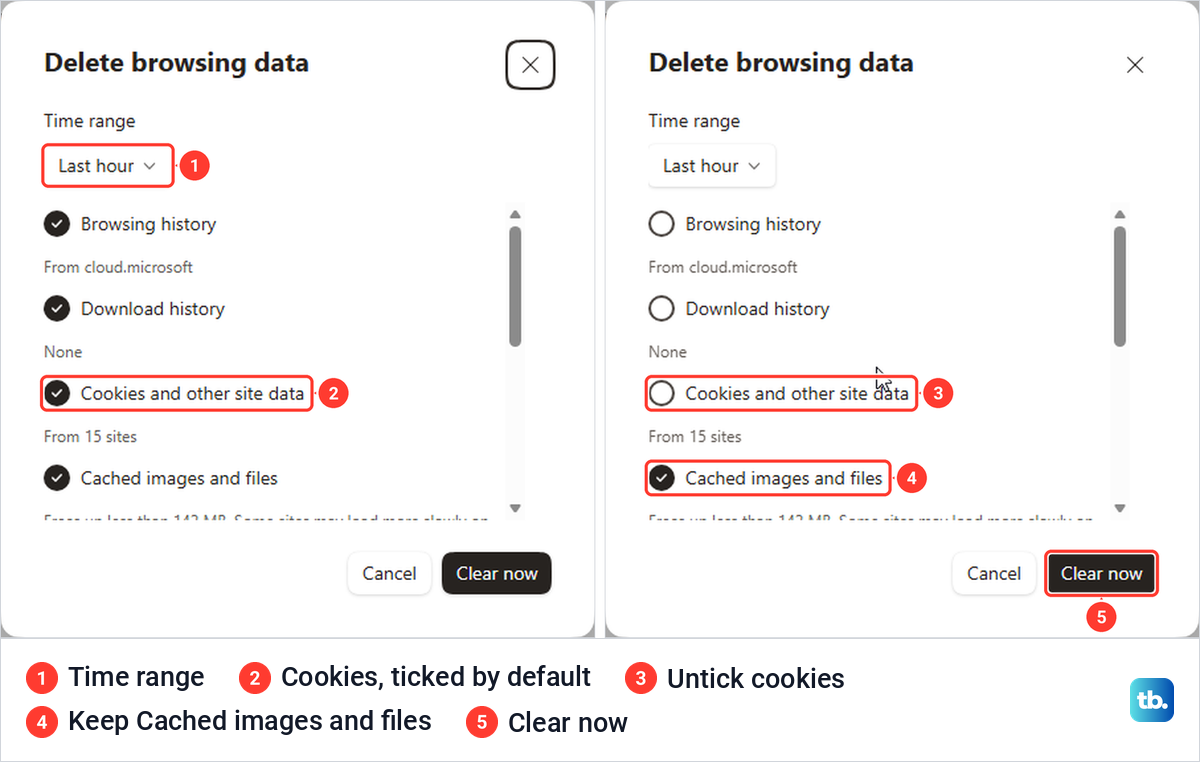
Open Time range and pick how far back to go. Edge offered Last hour, Last 24 hours, Last 7 days, Last 4 weeks and All time. Whatever you choose applies to every site you visited in that period, not just Teams, and some sites may load more slowly on your next visit, as the box itself warns.
Select Clear now. The box closed with no confirmation message. When we went back to the Teams tab and pressed F5, Teams reloaded on the same chat, still signed in.
For the rest of Edge's privacy controls, see how to clear cache and cookies in Microsoft Edge. If you use Teams in another browser, our guide to clear browser cache on any browser covers where the same box sits in each one.
Remove only the Teams site data in Edge
Clearing cached files for every site is broad. Edge can also remove the data it keeps for one site, and the usual instructions still name the older Teams address.
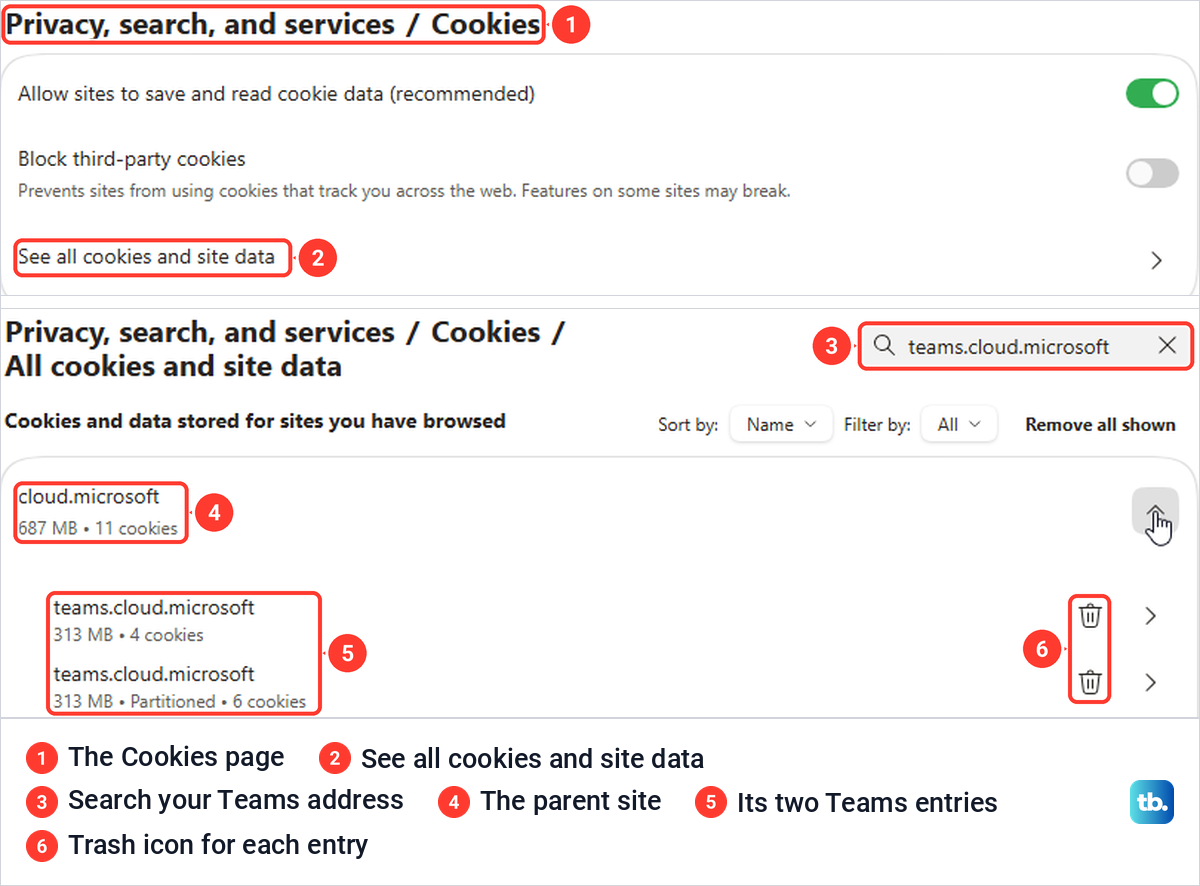
Open Edge Settings, go to Privacy, search, and services > Cookies and select See all cookies and site data. One of Microsoft's Teams help pages still names an older route, Cookies and site permissions, but in our Edge the controls sat under Privacy, search, and services.
The common advice is to search for teams.microsoft.com and delete it, so we tried that first. The search showed the parent site microsoft.com, its arrow listed two teams.microsoft.com entries with a trash icon each, and one click on a trash icon removed both with no confirmation.
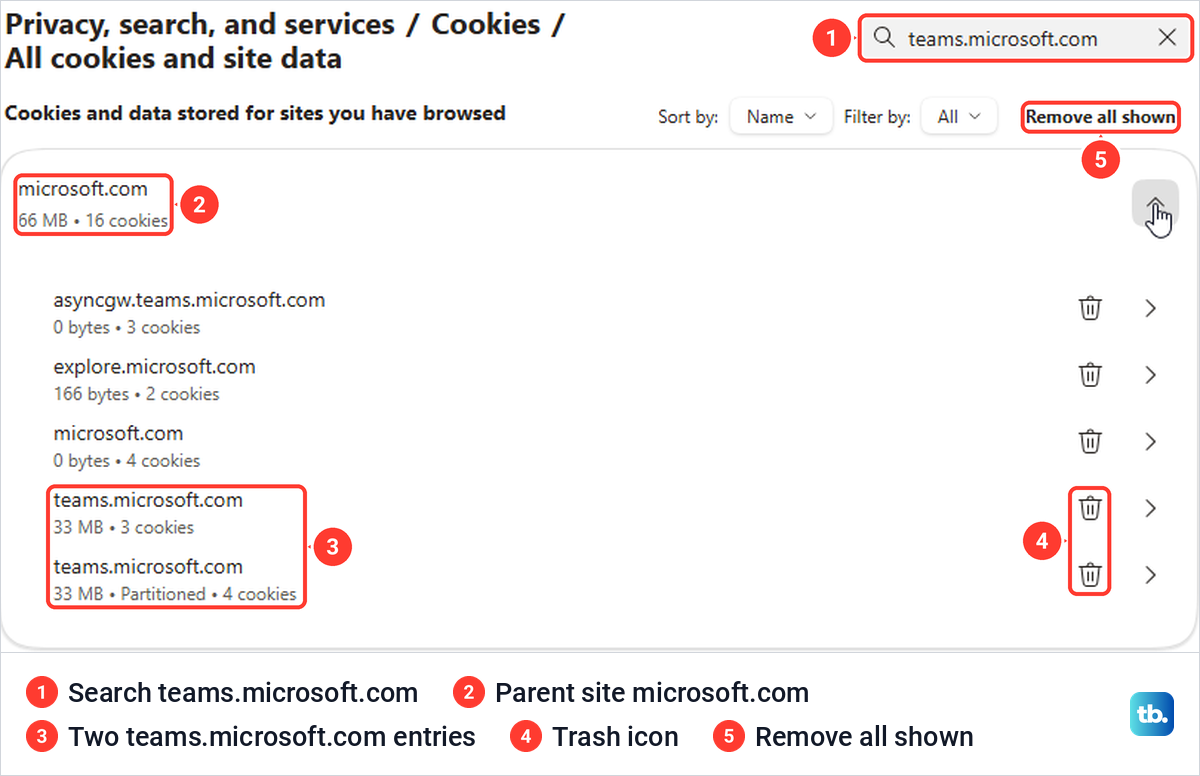
Deleting those entries did not sign Teams for the web out on our PC: after a refresh it was still signed in and unchanged. Our Teams tab was at teams.cloud.microsoft, and searching for that address found a parent site named cloud.microsoft with two teams.cloud.microsoft entries holding hundreds of megabytes.
So check the address in your own Teams tab, search for that host, and select the trash icon next to one of its entries. When we did this for the two teams.microsoft.com entries, one click removed both with no confirmation, so check the list afterwards and delete any entry that is left.
Removing them deletes the cookies Edge keeps for Teams, so be ready to sign in to Teams again. Leave the parent cloud.microsoft row and the Remove all shown button alone, because on our PC that row also held a SharePoint entry.
Clear the Teams cache on a Mac
On a Mac, Microsoft gives Terminal commands, and the new and classic Teams use different folders. First quit Teams by right-clicking its icon in the Dock and choosing Quit, or by pressing Command + Q. Then open Finder, go to the Applications > Utilities folder and double-click Terminal.
For the new Teams, Microsoft lists two commands. Type or paste each one exactly. Press Return after each:
rm -rf ~/Library/Group\ Containers/UBF8T346G9.com.microsoft.teamsrm -rf ~/Library/Containers/com.microsoft.teams2The folder name Group Containers has a space in it, so keep the backslash before that space, the same way Microsoft writes Application\ Support in its classic command. Without it, Terminal treats the path as separate arguments and could delete the wrong folder. The rm command deletes without asking and cannot be undone, so copy the commands exactly, then restart Teams.
Classic Teams on a Mac uses one folder in Application Support instead. Microsoft's command for it is below, followed by Return and a restart of Teams.
rm -r ~/Library/Application\ Support/Microsoft/TeamsRun only the commands for the Teams you have. If the Mac app still will not open afterwards, the guide to fix Teams not opening on a Mac covers that separate problem.
What clearing the cache removes and what it keeps
Every method above works on files stored on your own computer or in your browser. For work and school accounts, Microsoft says chats, channel messages and the structure of teams and channels are stored in a chat service in its cloud. Files shared in a chat are stored in the sharer's OneDrive for work or school, and channel files in the team's SharePoint site.
None of that lives in the cache folders, so clearing them does not delete a conversation or a shared file. If removing a conversation is what you want, follow the steps to delete chats and messages in Microsoft Teams instead.
What does change is what Teams keeps on the PC. The cache folder we emptied included a Logs folder, and Reset deletes the app's data, including preferences and sign-in details, by Windows' own warning. In Edge, removing the Teams site data can end your Teams sign-in in that browser.
When clearing the cache will not help
Microsoft is blunt about this. It does not recommend clearing the cache for problems with chats or channels, such as missing messages, chat history that will not load, a missing team or channel, or wrong notifications and unread counts. In its words, clearing the cache doesn't fix these issues but deletes the diagnostic logs that are needed to find the cause.
If your problem is a specific device or feature, these guides cover it directly. For silent alerts, work through how to fix Microsoft Teams notification sounds. If callers cannot hear you, follow our steps to fix a Teams microphone that is not working.
If the Share button fails during a meeting, use the steps to fix Teams screen sharing. For a camera that works in other apps but not in Teams, see fix a camera that is not working in Teams.
If Teams still misbehaves after a cache clear or a reset, make sure it is current. Our guide to update the Microsoft Teams app covers that step.
How we tested this guide
We tested this in Microsoft Teams on Windows 11, version 25H2, and in Teams for the web in Microsoft Edge, clearing each one's cache and opening Teams again.
Frequently Asked Questions
How do I clear the cache in the new Teams on Windows 11?
Quit Teams from its taskbar icon, press Windows + R, open %userprofile%\appdata\local\Packages\MSTeams_8wekyb3d8bbwe\LocalCache\Microsoft\MSTeams and delete everything inside that folder. For a deeper clean, use Settings > Apps > Installed apps > Microsoft Teams > Advanced options > Reset, which also removes your sign-in details.
Why can't Windows find the %appdata%\Microsoft\Teams folder?
That folder belongs to classic Teams. On our PC with only the new Teams, Run reported that Windows cannot find it, so use the MSTeams package path instead.
Will clearing the Teams cache delete my chats or files?
No. For work and school accounts, Microsoft stores chats in its cloud chat service and shared files in OneDrive or SharePoint, not in the cache folder. Reset does delete your Teams preferences and sign-in details on that PC.
Should I delete the MSTeams folder or only what is inside it?
Only what is inside it. Microsoft's step is to delete all files and folders in the directory, and on our PC Teams rebuilt the contents in the same folder when it started.
Can I clear Teams for the web without signing out of other sites?
Yes. In Edge's Delete browsing data box, untick Cookies and other site data, which is ticked by default, and keep only Cached images and files. Teams stayed signed in after we did this and refreshed the tab.
Does Teams have its own Clear cache button?
Not in Microsoft's desktop instructions, which use Windows Settings, the cache folder or Terminal on a Mac. The Clear app data options Microsoft documents are in Teams for personal use on iOS and Android.
Will clearing the cache fix missing messages or wrong unread counts?
Microsoft says no. It advises against clearing the cache for those problems because it deletes the diagnostic logs support needs to find the cause.