
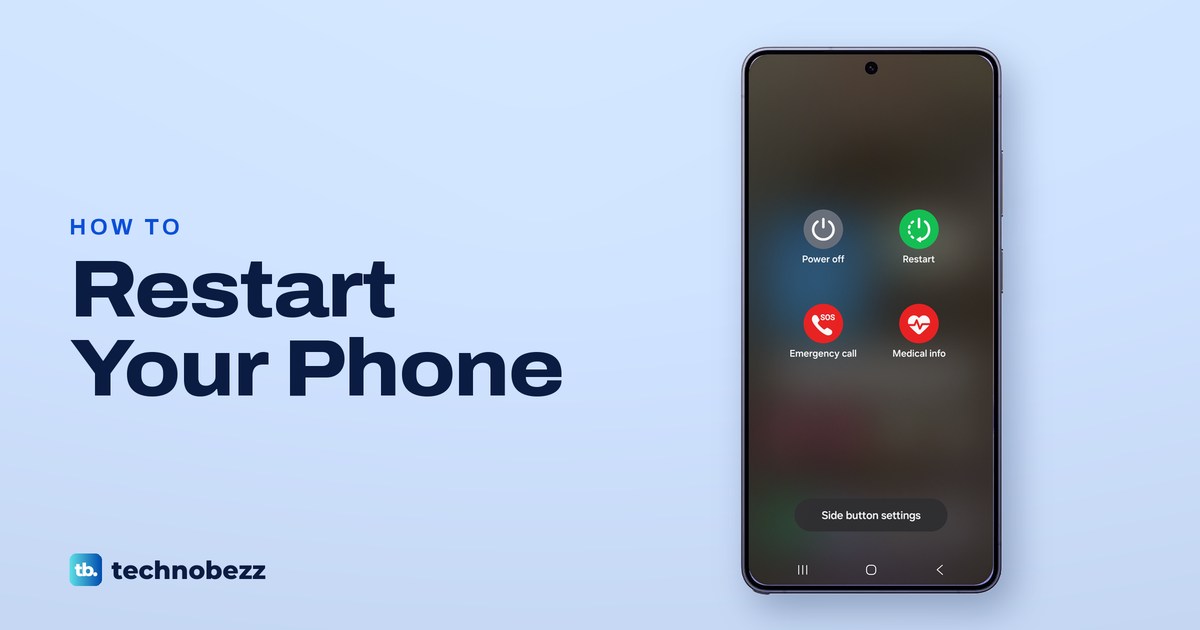
To restart an Android phone, open the power menu and tap Restart. On a Samsung Galaxy, press and hold the Side button and the Volume down button together for a few seconds, tap Restart, then tap Restart again. On a Pixel 6 or later, hold Power and Volume up for a few seconds and tap Restart. A Galaxy with a working screen can also be switched off from the Quick panel and turned back on with the Side button.
Holding the Side or Power button on its own usually does something else. Samsung says a long press opens Bixby or Gemini by default, and Google says it calls Google Assistant on a Pixel 6 or later, which is why so many phones seem to refuse to switch off. If the phone is frozen, a Galaxy needs the same two buttons held until the Samsung logo appears, and a Pixel needs the Power button alone held until the G logo appears.
On One UI 7, Samsung moved the Quick panel to a swipe from the top right corner, replacing the two-finger swipe that many guides, and some of Samsung's own pages, still give. Our Galaxy S25 Ultra screens below show it. For Motorola, Xiaomi, OPPO and other Android phones, the frozen phone section below links our force restart steps for each brand.
The short version
- Samsung Galaxy: hold Side + Volume down for a few seconds, tap Restart, then tap Restart again.
- Galaxy Quick panel: on One UI 7 or later, swipe down from the top right corner (two fingers on older versions), tap the Power icon next to Settings and power off, then hold Side to turn it back on.
- Pixel 6 or later: hold Power + Volume up for a few seconds, then tap Restart.
- Frozen phone: on a Galaxy keep holding Side + Volume down until the Samsung logo appears; on a Pixel hold Power alone until the G logo appears.
- Side button opens Bixby or Gemini: change its long press under Settings > Advanced features > Side button.
- iPhone with Face ID: hold Side + either volume button, drag the slider, then hold Side until the Apple logo.
Ways to restart your phone at a glance
| Press or tap | Phone | What happens next |
|---|---|---|
| Side + Volume down, hold a few seconds | Samsung Galaxy | The power menu opens. Tap Restart, then Restart again |
| Swipe down from the top right, tap the Power icon | Samsung Galaxy with One UI 7 or later | Tap Power off twice, then hold Side to turn the phone back on |
| Side + Volume down, keep holding | Frozen Samsung Galaxy | The screen goes black, then the Samsung logo appears |
| Power + Volume up, hold a few seconds | Pixel 6 or later | The power menu opens. Tap Restart |
| Power, hold about 30 seconds | Pixel 5a or earlier | The phone restarts |
| Power, hold up to 60 seconds | Frozen Pixel | Let go when the G logo appears |
| Side + Volume up or Volume down | iPhone with Face ID | Drag the slider, then hold Side until the Apple logo |
The Samsung rows follow Samsung's instructions, the Pixel rows follow Google's and the iPhone row follows Apple's. Hold times differ from page to page even within one maker, so for a frozen phone the reliable signal is the logo, not a number of seconds.
Restart a Samsung Galaxy from the power menu
Samsung's steps are short. Press and hold the Side button and the Volume down button at the same time, and after a few seconds the power menu appears. Tap Restart, then tap Restart again to confirm, and the phone restarts by itself.
On our Galaxy S25 Ultra with One UI 7, the menu showed four round buttons: Power off, Restart, Emergency call and Medical info. Restart was the green one at the top right, and a Side button settings button sat at the bottom of the screen.
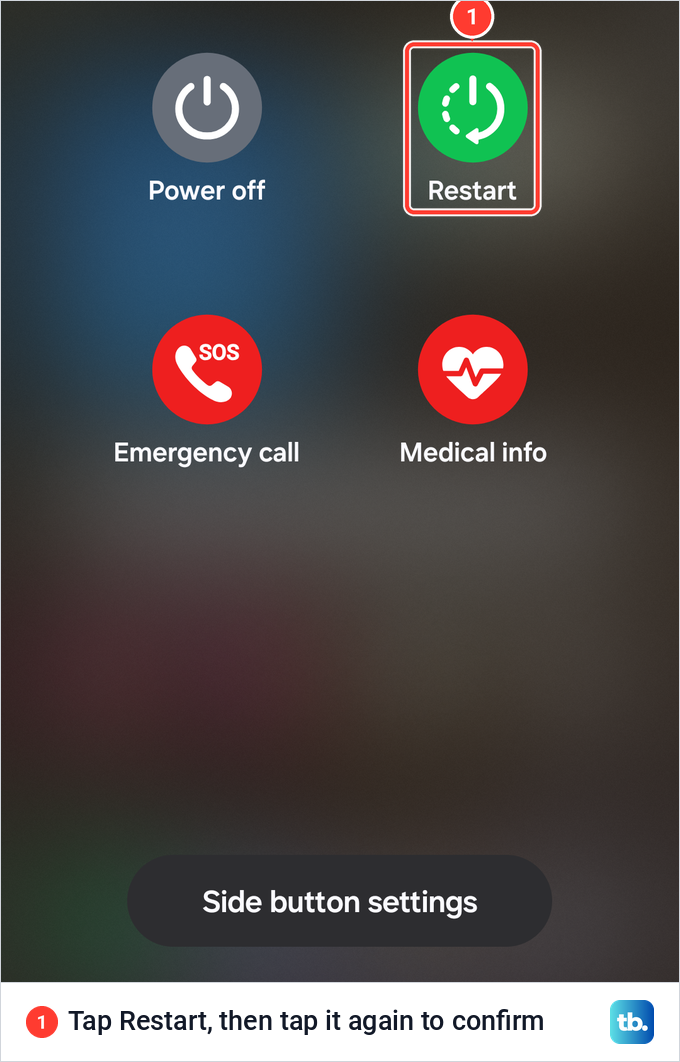
Press both buttons at the same moment. Samsung says that if they are not pressed at the same time, the volume bar or the power menu may appear instead, and that you should take off a case that stops you pressing both properly. On a Galaxy with a separate Power button, Samsung says to press and hold Power until the menu appears.
Samsung says restarting clears minor issues that pop up from time to time. If only one app is stuck, you may not need a restart at all, so first try to fix an app that isn't responding.
Press, hold or keep holding the Side and Volume down buttons
On a Galaxy the same two buttons do three jobs, and only the length of the press tells them apart. Samsung lists a short press of Side and Volume down as Take a screenshot, and a long press as Power off or Emergency SOS. Its troubleshooting page adds that if the power menu does not appear, you should keep holding both buttons to force the phone to reboot.
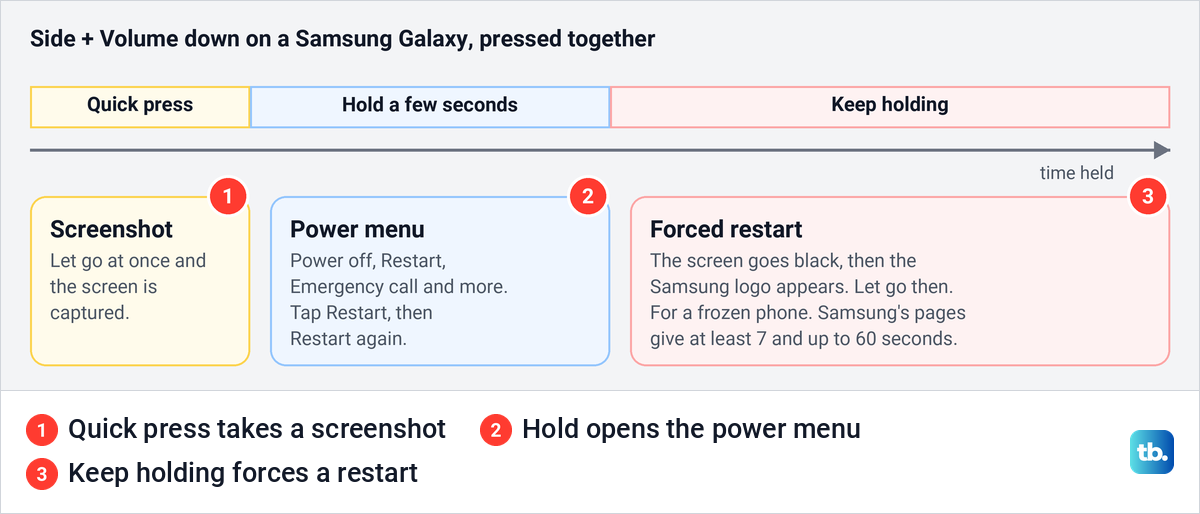
Let go too quickly and your Galaxy takes a screenshot instead, so a stray screenshot in your gallery means the hold was too short. Hold for a few seconds and wait for the menu. Only keep holding past that point when the phone is frozen, which is the job Samsung gives the forced restart.
Power off and on from the Galaxy Quick panel
With a working screen you can switch the phone off without the button combination. Samsung's Quick panel page says that from One UI 7, which arrived with the Galaxy S25, notifications and quick settings are separate panels. Swipe down from the top right of the screen for the Quick panel, or from the top left for notifications.
Our Galaxy S25 Ultra showed Samsung's own tip about it, with two small drawings labelled Notifications and Quick settings. Its text read: Swipe down from the top right corner of the screen to open the quick settings panel. Swipe down from anywhere else on the top of the screen to open the notification panel.
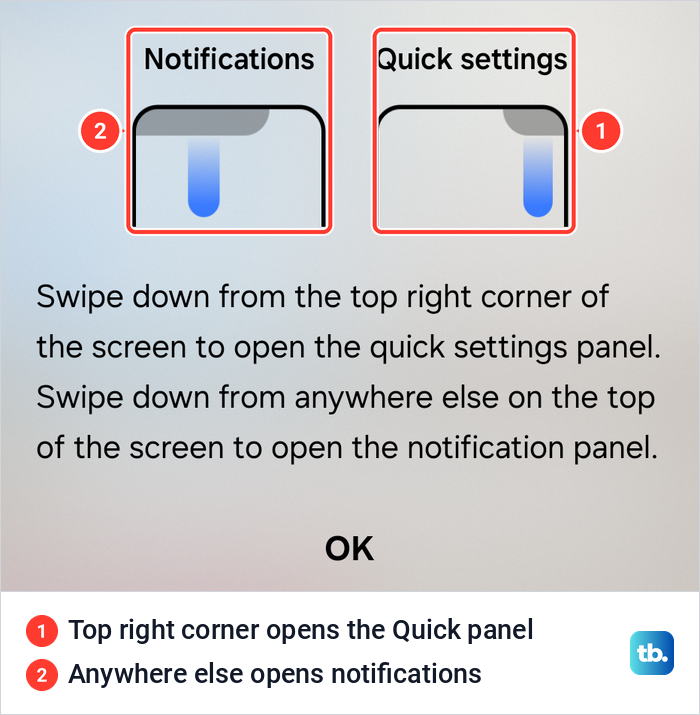
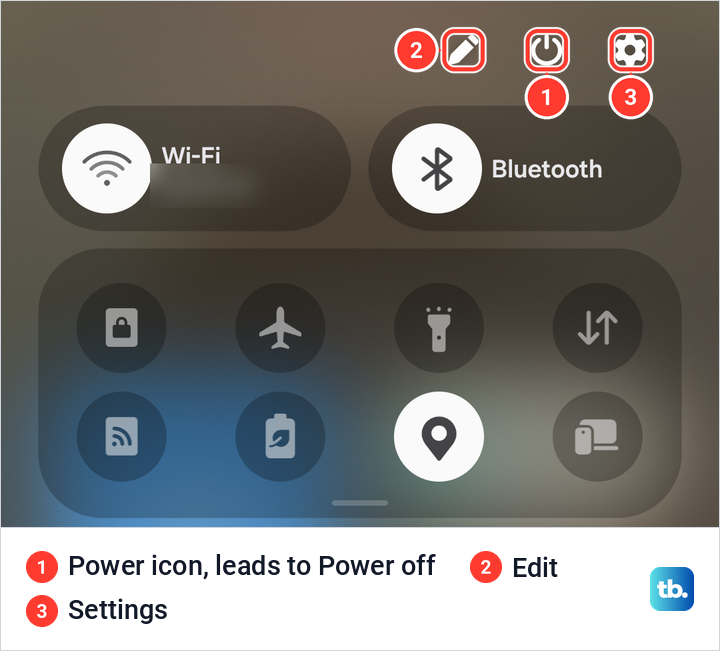
Many power-off instructions, including some of Samsung's own pages, still tell you to swipe down with two fingers. Samsung's Quick panel page says that gesture is for Galaxy phones on One UI 6.1.1 or earlier. To put quick settings and notifications back in one view, open the Quick panel, tap the Edit icon (the pencil), tap Panel settings and select Together.
At the top right of our Quick panel were three icons: Edit, shaped like a pencil, then the Power icon, then Settings, shaped like a gear. Samsung's power pages say to tap the Power icon next to Settings, then tap Power off and tap it again to confirm. Samsung's restart page counts that as a restart: power the phone off, then press and hold the Side button to turn it back on.
Make the Side button open the power menu
Holding the Side button alone does not open the power menu by default, and Samsung's own pages disagree about what it does instead. Its US page says a press and hold activates Bixby and its Canada page says the button brings up Bixby by default, while its Latin America page says a long press now launches Gemini, or Google Assistant where Gemini is not available. Either way, you can change it.
Open Settings, tap Advanced features, then tap Side button. On our Galaxy S25 Ultra with One UI 7, Side button sat between S Pen and Multi window in that list.
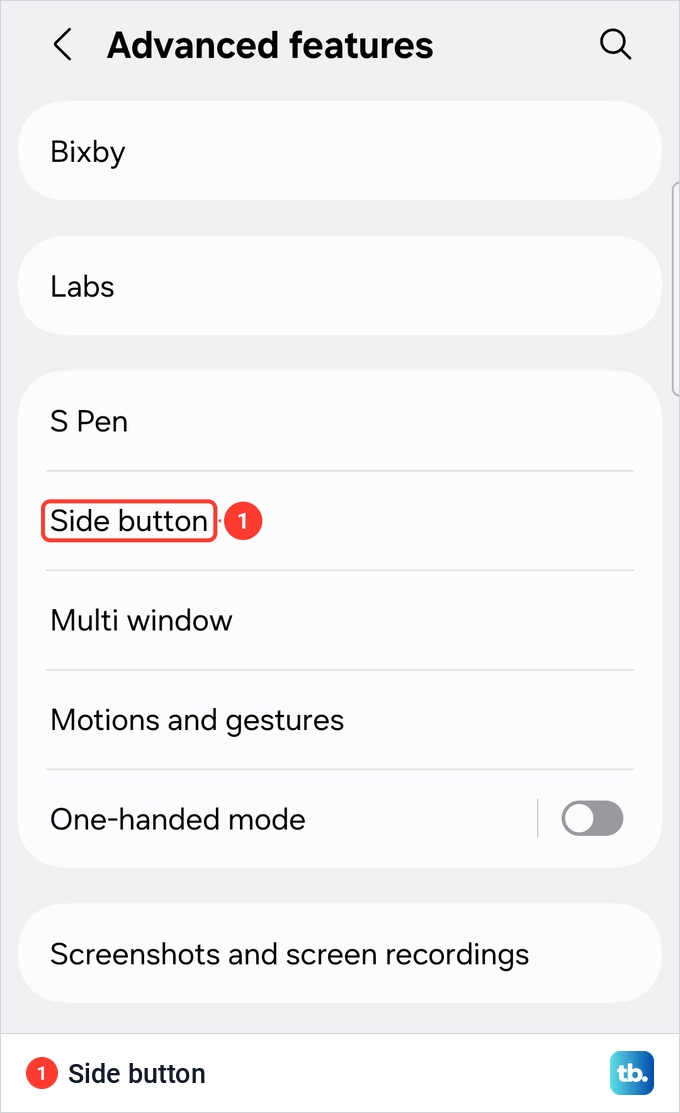
Samsung says the options vary by model. If you see Long press, tap it and select Power off menu, and if your screen shows Press and hold instead, select Power off menu under that heading. The other choices are Digital assistant and Bixby. After the change, Samsung says a long press of the Side button opens the power menu, so you no longer need Volume down.
Restart a Google Pixel
Google's steps depend on the model. On a Pixel 6 or later, including the Fold, press and hold the Power button and the Volume up button for a few seconds, then tap Restart. On a Pixel 5a or earlier, press and hold the Power button for about 30 seconds, or until the phone restarts.
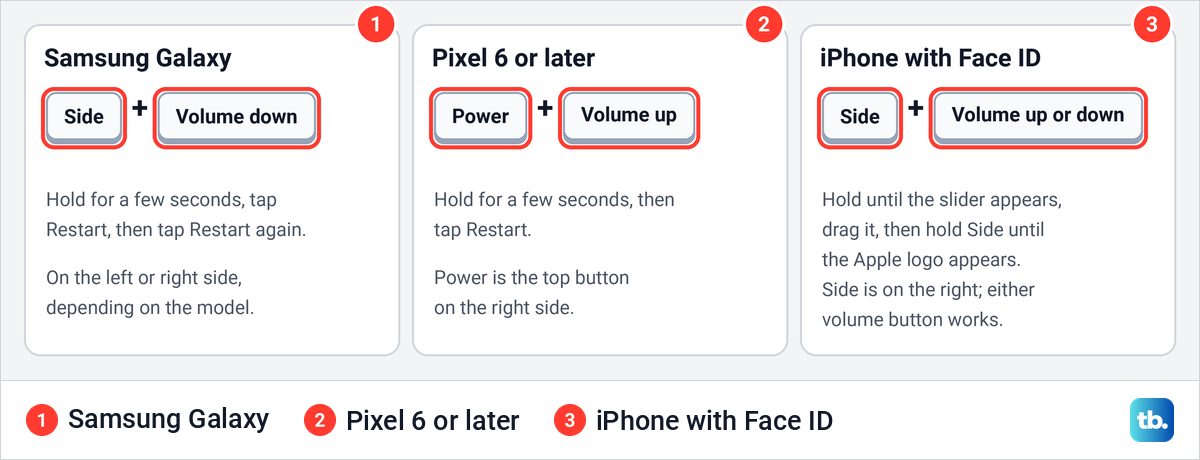
Hold, do not tap. Google's gestures page says pressing Power and Volume up turns on vibrate or mute to stop the phone ringing, while its restart steps ask you to hold the same pair for a few seconds. Google also says that on a Pixel 6 or later, pressing and holding Power on its own calls Google Assistant.
To make the Power button open the power menu instead, go to Settings > System > Gestures > Press and hold the power button and select Power menu. A Pixel uses Volume up for the menu, the opposite of a Galaxy, which matters if you switch between the two.
On a switched-off Pixel 6 or later, the Galaxy habit backfires: Google's Fastboot page says holding Volume down and Power opens the Fastboot mode screen. Google says you change its menu options with the volume buttons and select one with Power, so stay away from Recovery Mode, the route Google uses for a factory reset. To get out, use Google's forced restart: hold the Power button until the phone restarts and the G logo appears.
Force restart a frozen Samsung or Pixel
A frozen Galaxy uses the same two buttons, held for longer. Samsung says to press and hold Volume down and the Side button together until the phone turns off and back on. The screen turns black, then the Samsung logo appears, and that is the moment to let go.
Samsung's pages give different numbers for how long that takes: at least 7 seconds on one, about 10 seconds on another and up to 60 seconds on a third. Keep holding until the logo appears rather than counting. Samsung also says that, done correctly, a forced restart will not erase any information from the phone.
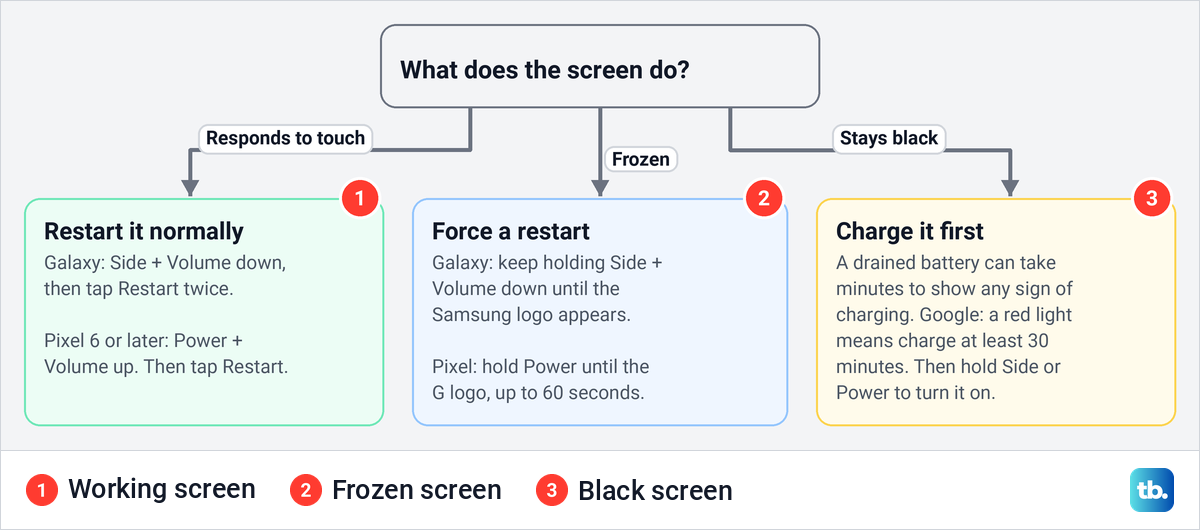
On a Pixel, Google says to press and hold the Power button for up to 60 seconds and let go once the phone begins to reboot and the G logo appears. Google's page for a frozen Pixel says about 30 seconds, so again the logo is the signal, not the clock.
A Galaxy with a removable battery has one more option. Samsung says to remove the back cover, take the battery out for 30 seconds, put it back and turn the phone on. For Motorola, Xiaomi, OPPO and other phones, see our force restart steps for other Android brands.
If you land on Maintenance Boot Mode or Recovery
Sometimes a forced restart stops at a menu instead of the lock screen. Samsung says that if your phone enters Maintenance Boot Mode, use Volume up or Volume down to move the cursor to Normal Boot, then select it with the Power or Bixby button.
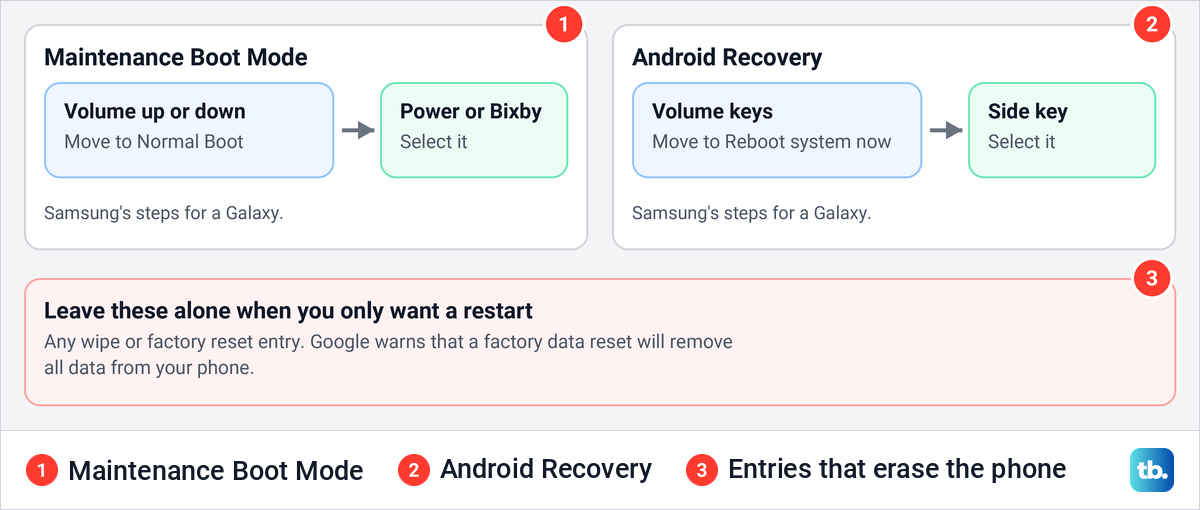
On some devices you reach Android Recovery instead. Samsung's steps are to use the volume keys to move to Reboot system now and press the Side key to select it. Leave every wipe and factory reset entry alone, because Google warns that a factory data reset will remove all data from your phone. If the screen shows the words No command, our guide to the No command screen explains how to get past it.
Restart with Bixby or the Assistant menu
A broken Side button does not have to stop you: Samsung documents two routes that restart the phone without it. If Bixby Voice is set up, say Hi, Bixby, restart my phone. Samsung's Canada page says Bixby asks for confirmation, and once it has it, the phone restarts.
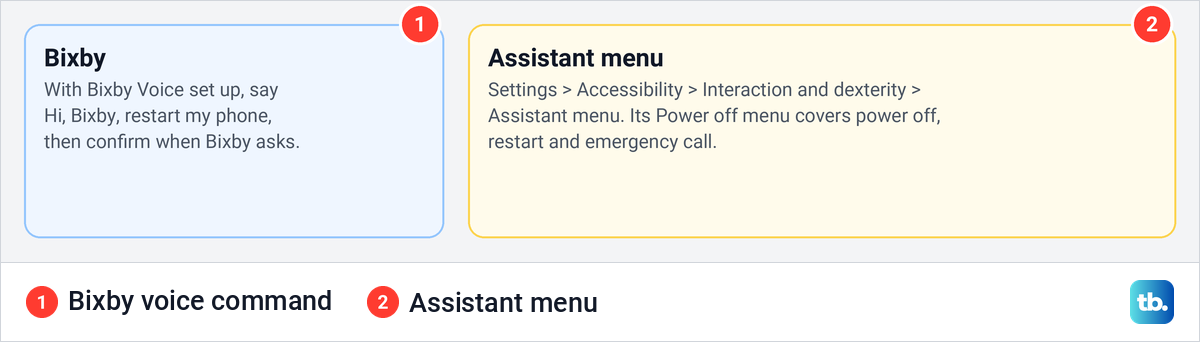
The Assistant menu is an accessibility feature that lets you reach the hardware buttons by tapping the screen. Samsung says it is designed for people with motor control or other physical impairments, and its items include a Power off menu described as Power off, restart and emergency call. Turn it on under Settings > Accessibility > Interaction and dexterity > Assistant menu.
Let your Galaxy restart on its own
A Galaxy can schedule its own restarts. Open Settings, tap Device care, then Auto optimization and Auto restart. Turn on Restart when needed to let the phone pick the moment, or use Restart on schedule to choose the days and time yourself.
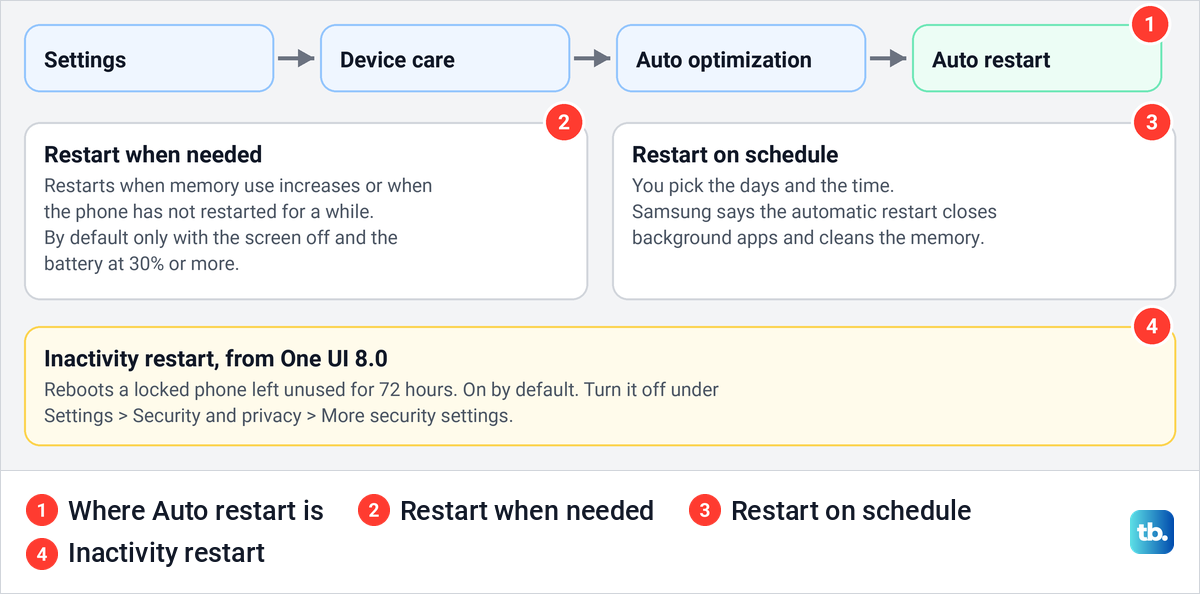
Samsung says Restart when needed restarts the phone when memory use increases or when it has not been restarted for a while, and that the automatic restart closes background apps and cleans the phone's memory. By default it only runs when the screen is off and the battery is at 30% or more. That makes it a low-effort answer to a phone that feels slow or laggy after days without a reboot.
If your Galaxy restarts when you did not ask it to, check these settings first. Samsung says One UI 8.0 added Inactivity restart, which reboots a locked phone that has not been used for 72 hours as a security measure and is on by default. You can turn it off under Settings > Security and privacy > More security settings.
Samsung adds that a system restart can still happen with both Auto restart switches off, depending on the phone's condition. Emergency security updates may also restart the phone even with automatic downloads turned off, depending on your country or region.
Restart an iPhone
Apple's steps for restarting an iPhone are a power off followed by a power on. On an iPhone with Face ID, press and hold the side button and either volume button until the power-off slider appears, drag the slider and wait 30 seconds. Then press and hold the side button, on the right of the phone, until you see the Apple logo.
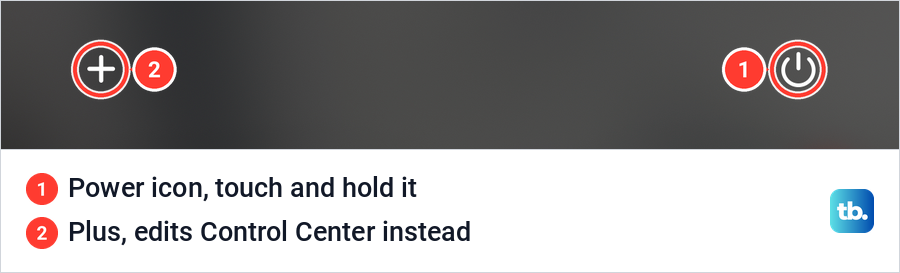
On an iPhone with a Home button, Apple says to press and hold the side button until the slider appears. Without the buttons, open Control Center and touch and hold the power icon in the top right corner, or go to Settings > General, scroll down and tap Shut Down.
On our iPhone 17 Pro with iOS 26.6, Control Center showed the power icon at the top right and a plus button at the top left. The plus button opens Control Center's editing view, so hold the icon on the right.
If the slider never appears, you need to force restart an iPhone that has frozen. Apple's sequence is a quick press of volume up, a quick press of volume down, then holding the side button until the Apple logo appears.
What happens after a restart
Nothing is erased. A restart only turns the phone off and on again, though Samsung notes that unsaved data is lost when a phone restarts, so save your work in open apps first. A restart is not a reset either: Google warns that a factory data reset removes all data from your phone, so never pick a reset option just to restart.
Expect to type your PIN. Samsung says a phone secured with a biometric feature such as a fingerprint needs its backup password or PIN after rebooting, and Google says the same for the Pixel Tablet even with a fingerprint set up. Make sure you know it before you restart, and if you forgot the PIN on your Android phone, sort that out first.
Samsung adds that after an automatic restart you must unlock your phone before messages and notifications show normally. If one app still misbehaves once you are back in, you can clear the cache for that app next.
If your phone will not restart or turn back on
A phone that stays dark may simply be flat. Samsung says a fully drained battery can take several minutes to show any sign of charging, and to keep charging even if nothing appears on the screen. Google says a red light means the battery is fully discharged, and to charge the phone for at least 30 minutes before restarting.
Then turn it on. Samsung says to press and hold the Side button until you feel a vibration and the Samsung logo appears, and Google says to hold the Power button of a Pixel 6 or later until you feel a buzz, which can take up to 7 seconds. If nothing happens, try the forced restart described above.
If the screen stays black after half an hour on the charger, work through our fixes for a phone that will not turn on after charging. No charging sign at all can mean the phone is not charging even when plugged in, which has its own fixes. And if a restart does not cure the problem that sent you here, our fixes for common Android phone problems are the next stop.
How we tested this guide
We used our Galaxy S25 Ultra with One UI 7 and our iPhone 17 Pro with iOS 26.6. On the Galaxy we opened the power menu, the Quick panel and Samsung's swipe tip, and Settings > Advanced features. On the iPhone we opened Control Center.
The button combinations, hold times, forced restarts, recovery menus, Bixby, the Assistant menu and Auto restart follow Samsung's instructions. The Pixel steps follow Google's, and the iPhone steps follow Apple's. Samsung notes that menu options and settings vary by device model and software version, so labels on your phone can differ slightly.
Frequently Asked Questions
Does restarting my phone delete anything?
No. A restart turns the phone off and on again, and Samsung says even a forced restart, done correctly, will not erase any information. Only work you had not saved in an open app can be lost.
Why does holding the power button open Bixby or Gemini instead of turning my phone off?
That is the default on current Galaxy phones, and Google says a Pixel 6 or later calls Google Assistant the same way. Hold Side and Volume down on a Galaxy, or Power and Volume up on a Pixel, or change the long press to the power menu in Settings.
How do I restart a Samsung phone if the power button is broken?
Ask Bixby, if Bixby Voice is set up, or turn on the Assistant menu, whose Power off menu covers power off, restart and emergency call. The Quick panel's Power icon can switch the phone off, but Samsung's way to turn it back on is the Side button.
How long should I hold the buttons to force restart?
Until the logo appears. Samsung's pages give anything from at least 7 seconds up to 60, and Google says up to 60 seconds for a Pixel.
Why does my phone ask for my PIN after a restart?
Samsung says a phone secured with a biometric feature needs its backup PIN or password after rebooting. Google says the same for the Pixel Tablet, even with a fingerprint set up.
Why did my Samsung phone restart by itself?
Samsung names Auto restart, Inactivity restart and emergency security updates as possible causes. Inactivity restart reboots a phone left locked for 72 hours on One UI 8.0 and later, so check Settings > Device care > Auto optimization > Auto restart and the security settings first.
Is restarting the same as resetting?
No. A restart turns the phone off and on with your data intact. Google warns that a factory data reset removes all data from your phone, so never use a reset option to restart.