Your iPhone can sit on Update Requested after it asks Apple for an iOS update but never moves cleanly into downloading and installing it. The usual causes are Wi-Fi, power, storage, a saved update file, beta settings, or a profile that blocks Apple’s update servers. Start with the fastest fixes, then move to a computer update only when the over-the-air path keeps failing.
Restart the update from Settings
This fixes the basic case where the update has not fully started because the iPhone needs power, Wi-Fi, or a clean retry. Back up your iPhone, then plug your iPhone into power and connect the iPhone to Wi-Fi. Open Settings, then go to General > Software Update.
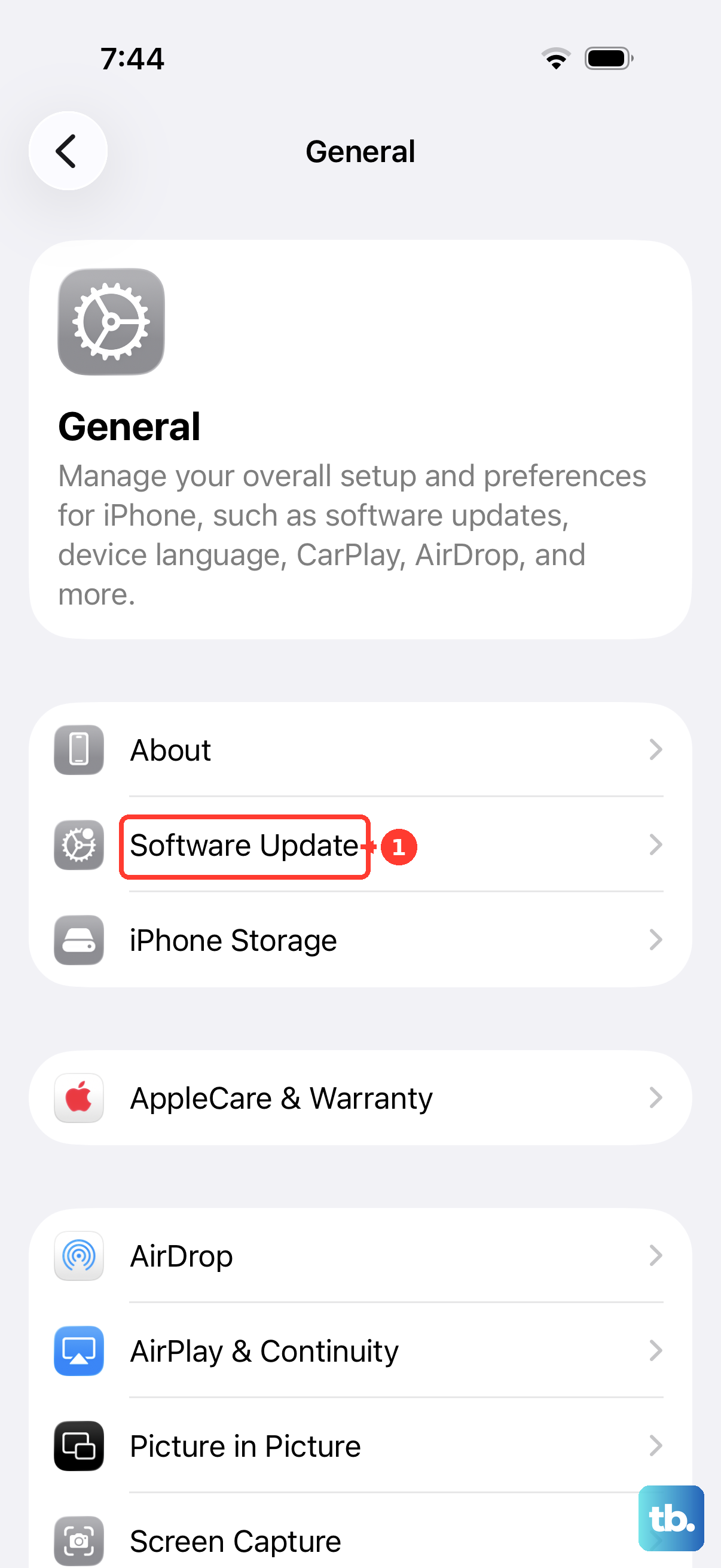
Tap Download and Install when an update appears. Follow the onscreen instructions until the update starts installing.
Repair Wi-Fi before trying again
Open Settings > Wi-Fi.
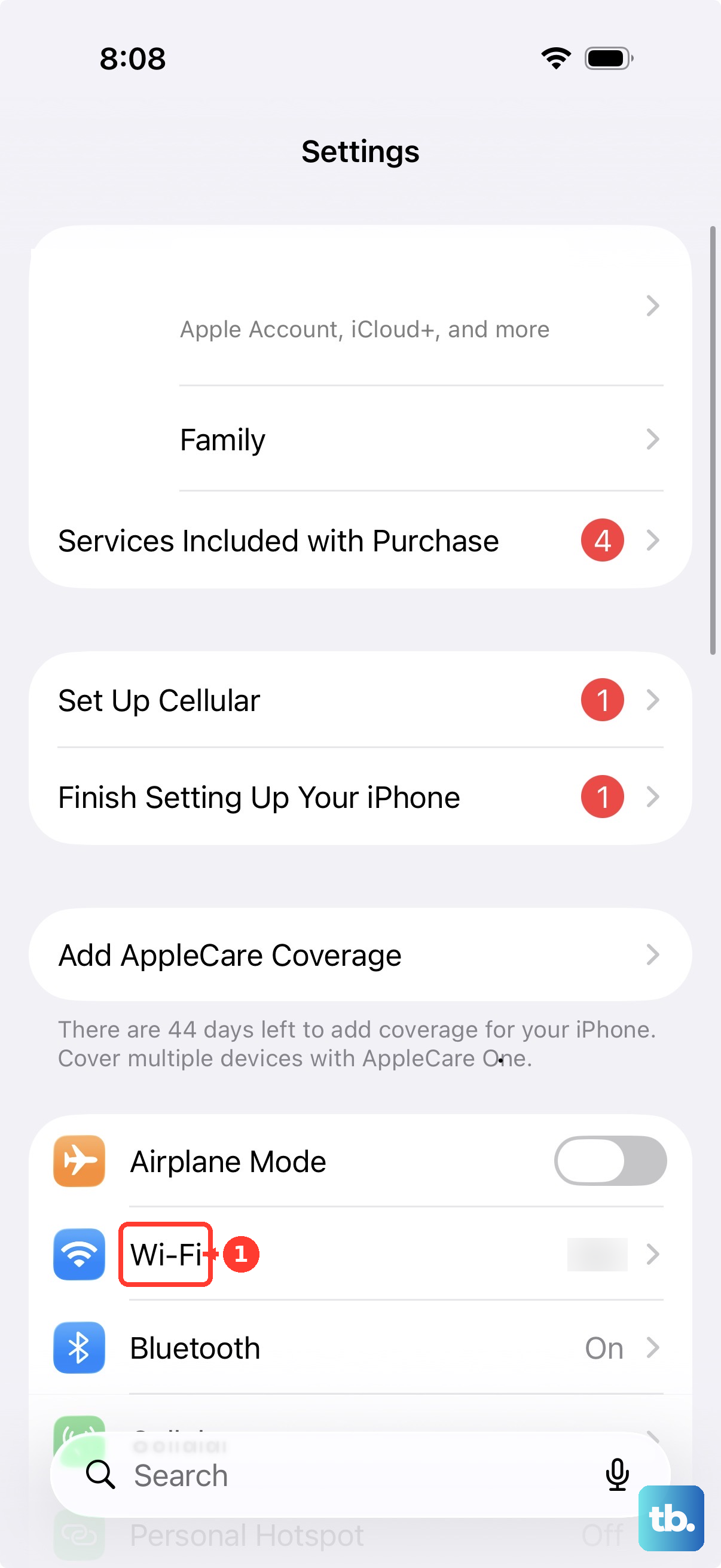
Turn on Wi-Fi, then tap your network name. Enter the Wi-Fi password or accept the network terms if prompted. Confirm that the blue checkmark appears next to the network and that the Wi-Fi icon appears in the status area. Pause other downloads while the iOS update runs.
Try a faster Wi-Fi network if Update Requested hangs on the same connection. If an update-server or internet error returns, try the same network again, then switch to another Wi-Fi network. A stable Wi-Fi connection gives the update request the best chance to turn into a download.
Restart the iPhone when the screen stalls
A normal restart can clear a stalled update screen without deleting anything. Use the button method for your model, then return to Settings > General > Software Update.
On iPhone X, iPhone 11, iPhone 12, iPhone 13, or later, press and hold either volume button and the side button until the power-off slider appears. Drag the slider, wait 30 seconds, then press and hold the side button until the Apple logo appears.
On iPhone 6, iPhone 7, iPhone 8, or iPhone SE 2nd or 3rd generation, press and hold the side button until the power-off slider appears. Drag the slider, wait 30 seconds, then press and hold the side button again.
On iPhone SE 1st generation, iPhone 5, or earlier, press and hold the top button until the slider appears. Drag it, wait 30 seconds, then press and hold the top button again.
If the iPhone is frozen or unresponsive, force restart it using the button sequence for your model, then try Settings > General > Software Update again.
Make enough room for the update
The most common storage-related cause is an update that cannot continue because the iPhone does not have enough free space.
When iOS asks to temporarily remove apps, tap Continue. After installation, iOS automatically reinstalls those apps.
Open Settings > General > iPhone Storage.
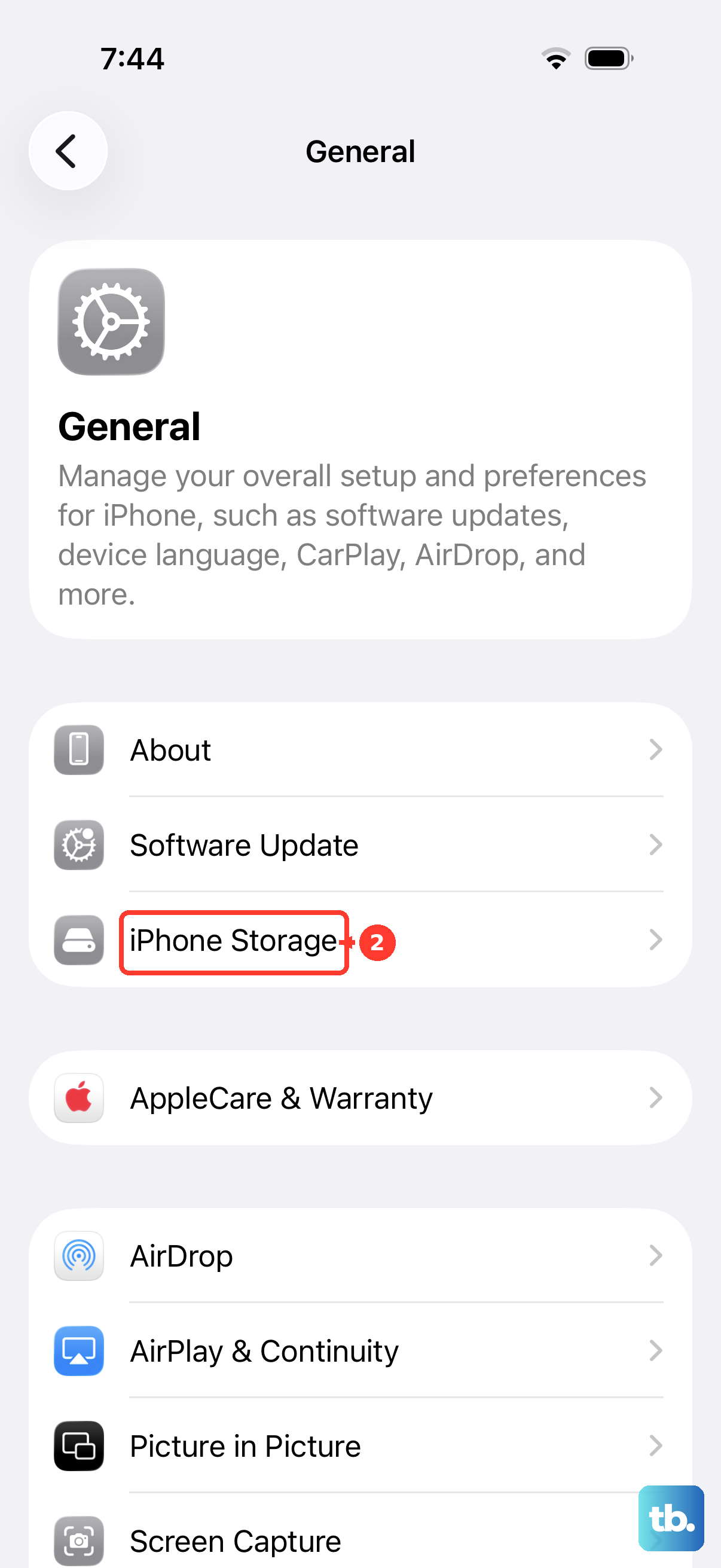
Tap Enable next to Offload Unused Apps. For the App Store offload setting, open Settings > Apps > App Store. Turn on Offload Unused Apps.
To remove an app yourself, touch and hold the app on the Home Screen. Tap Remove App, then tap Delete App. In App Library, touch and hold the app, tap Delete App, then tap Delete.
Delete the stuck update file
If the update package is already stored on the iPhone, remove it and download the latest update again.
- 1.Open Settings > General > iPhone Storage.
- 2.Find the iOS update in the list of apps.
- 3.Tap the update, then tap Delete Update.
- 4.Return to Settings > General > Software Update.
- 5.Download the latest update again.
Remove profile or VPN blocks
Use this when a VPN, proxy, configuration profile, or work/school management setup is stopping the iPhone from reaching Apple’s update servers. Personal iPhones can often remove these settings, while managed devices can block removal.
Open Settings > General > VPN & Device Management.
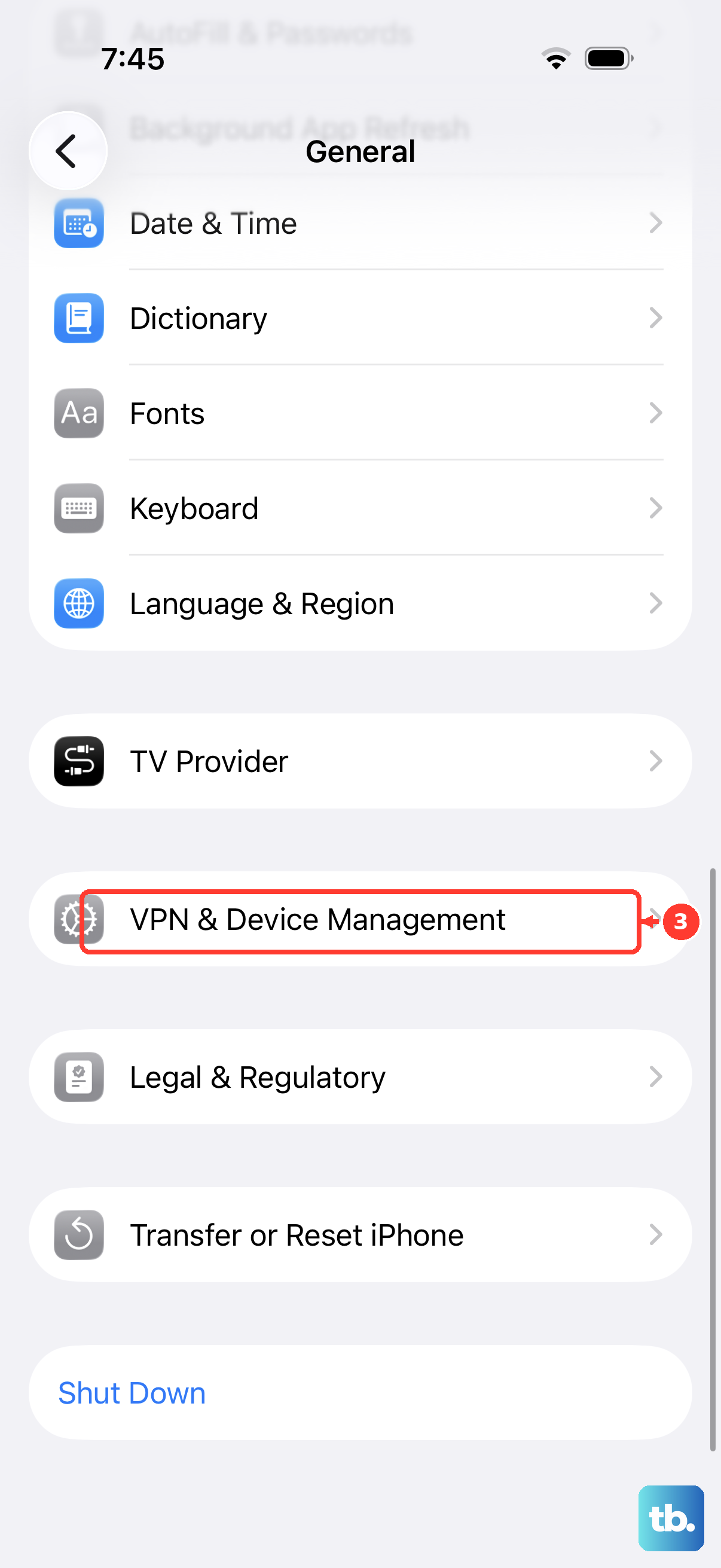
Select the configuration profile, then tap Remove Profile. For installed management, select the management entry. Tap Remove Management when the iPhone allows it.
On a work or school iPhone, contact your organization’s IT admin if the update is missing, deferred, or blocked. Managed devices can show update deadline information in Settings and notifications.
Leave the beta update channel
Open Settings > General > Software Update. Tap Beta Updates, then choose Off. Return to Software Update and check for the regular iOS update again.
On iOS 16.4 or later, Beta Updates is the current control for leaving the beta channel.
Update with a Mac or Windows PC
A computer update bypasses the stalled over-the-air path and uses Apple’s Mac or Windows update tools instead.
- 1.Back up your iPhone before connecting it.
- 2.On a Mac with macOS Catalina or later, connect the iPhone, open Finder, select the device, then click General > Check for Update.
- 3.Click Download and Update, then enter your passcode if asked.
- 4.On Windows, install Apple Devices from the Microsoft Store.
- 5.Open Apple Devices, select the iPhone, choose General, then select Update. Select Check for Update first if no update is shown.
- 6.On a Windows PC that uses iTunes, or a Mac with macOS Mojave or earlier, open iTunes, click the device button, then click Summary > Check for Update > Download and Update.
Use recovery mode after normal updates fail
This fixes deeper update failures when the iPhone cannot update normally, is stuck on the Apple logo, shows Connect to computer, or is not recognized by the computer.
Make sure your Mac is up to date, or on Windows, install the latest Apple Devices app. Connect the iPhone to the computer with USB, then open Finder on Mac or Apple Devices on Windows.
Put the iPhone in recovery mode using the button sequence for your model. When Update and Restore appear on the computer, choose Update first. Choose Restore only if recovery mode cannot update the iPhone, because Restore erases the device.
If recovery mode cannot update or restore the device, or a required button does not work or sticks, contact Apple Support or arrange service.
Frequently Asked Questions
Why does my iPhone say Update Requested?
It means the iPhone has requested the iOS update but has not moved through download and installation. Wi-Fi, storage, a saved update file, beta settings, or device-management settings are the first places to fix.
Can I fix Update Requested without deleting my data?
Yes. Wi-Fi repair, restart, storage cleanup, deleting the downloaded update, leaving the beta channel, and updating from a computer do not require erasing the iPhone. Recovery mode Restore erases the device, so use Update first.
Should I reset network settings for Update Requested?
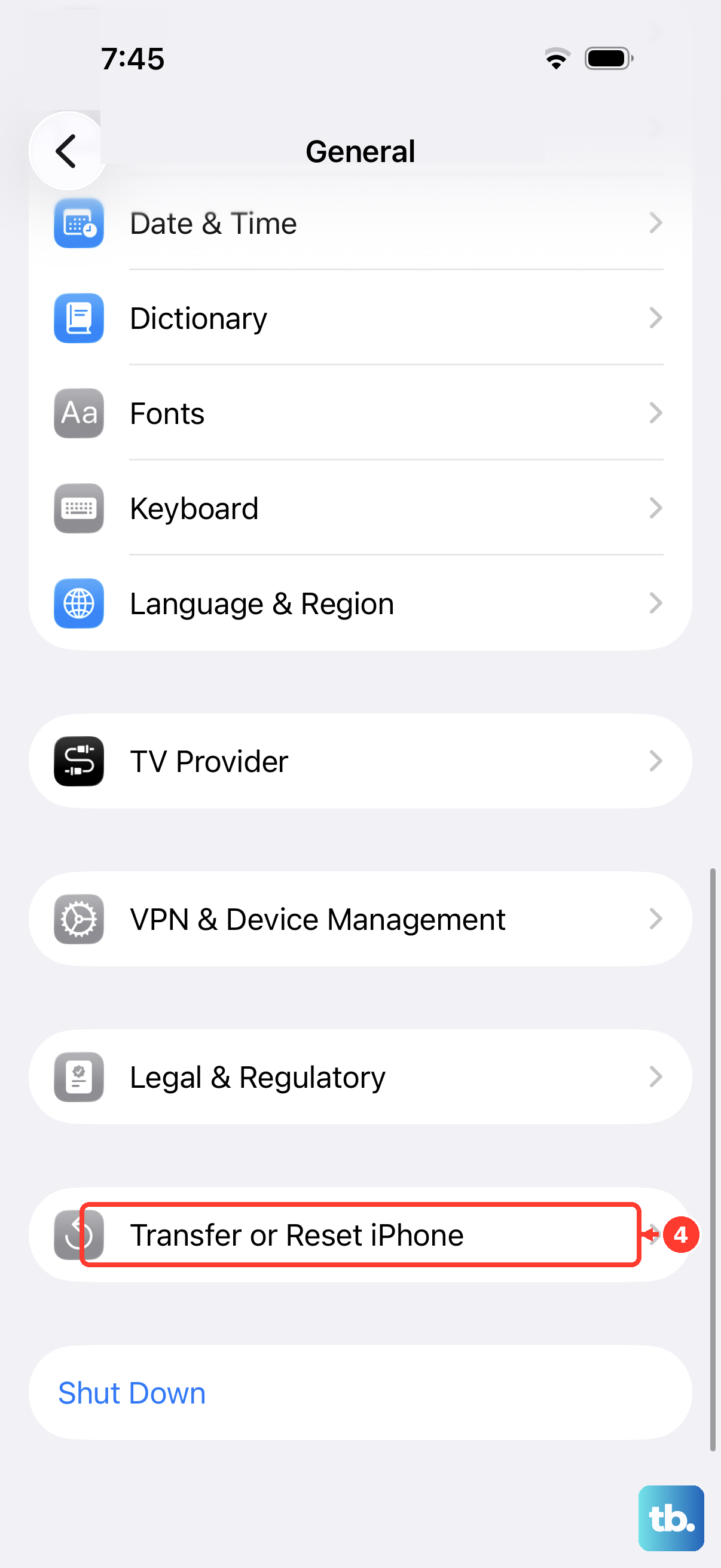
Use it after simpler network fixes fail. Go to Settings > General > Transfer or Reset iPhone > Reset > Reset Network Settings. This removes Wi-Fi networks and passwords, cellular settings, and VPN/APN settings.
Can a work or school iPhone block an iOS update?
Yes. An organization can defer updates, control automatic update behavior, require minimum versions, or set update deadlines on managed devices. Contact IT if the update is missing or blocked.