Apps take over storage, clutter home screens, and sometimes stick around after you stop using them. The uninstall button moves from device to device, but the right path is usually short once you know where to look. Use the sections below in order, starting with phones and computers, then moving to TVs, watches, consoles, and managed devices.
1. Delete apps on iPhone or iPad
From the Home Screen, touch and hold the app when the app icon is visible. Tap Remove App, then tap Delete App. Tap Delete.
For a faster cleanup session, use jiggle mode instead. Touch and hold an app until the apps jiggle, then tap the Remove icon in the upper-left corner. Tap Delete App, tap Delete, and tap Done.
If the app lives in the App Library, open App Library. Tap the Search field, then touch and hold the app icon. Tap Delete App, then tap Delete.
To free storage without deleting app documents and data, open Settings. Tap Apps, tap App Store, and turn on Offload Unused Apps. Offloaded apps keep their documents and data and show a cloud symbol on the Home Screen.
Some built-in Apple apps are removable only in certain countries or regions. For App Store, Safari, Messages, and Phone on iPad, Apple requires an eligible alternative default app first where that rule applies.
2. Remove apps on Android and Samsung Galaxy
The Google Play Store route works across Android devices signed in to Google Play. Open Google Play Store, then tap your Profile icon. Tap Manage apps & devices, tap Manage, select the app, and tap Uninstall.
On Samsung Galaxy phones and tablets, use the device Settings path for downloaded apps: open Settings. Tap Apps, select the app, tap Uninstall, and tap OK.
From the Apps screen, touch and hold the app. Tap Uninstall for downloaded apps or Disable for selected default apps. Preinstalled Android apps such as Chrome on many Android devices use disable instead of uninstall.
Open Settings, then tap Apps. Select the app, then tap Disable. If Google Play Protect flags a harmful app, tap the Play Protect harmful-app notification, then tap Uninstall.
For Android web apps installed through Chrome, open Settings. Tap Apps, tap See all apps, and tap the web app icon. Tap Uninstall.
3. Uninstall programs on Windows
Open Start, then open Settings. Go to Apps, open Installed apps, and find the app. Open More options, select Uninstall, and use Windows Settings first for current Windows 11 app removal.
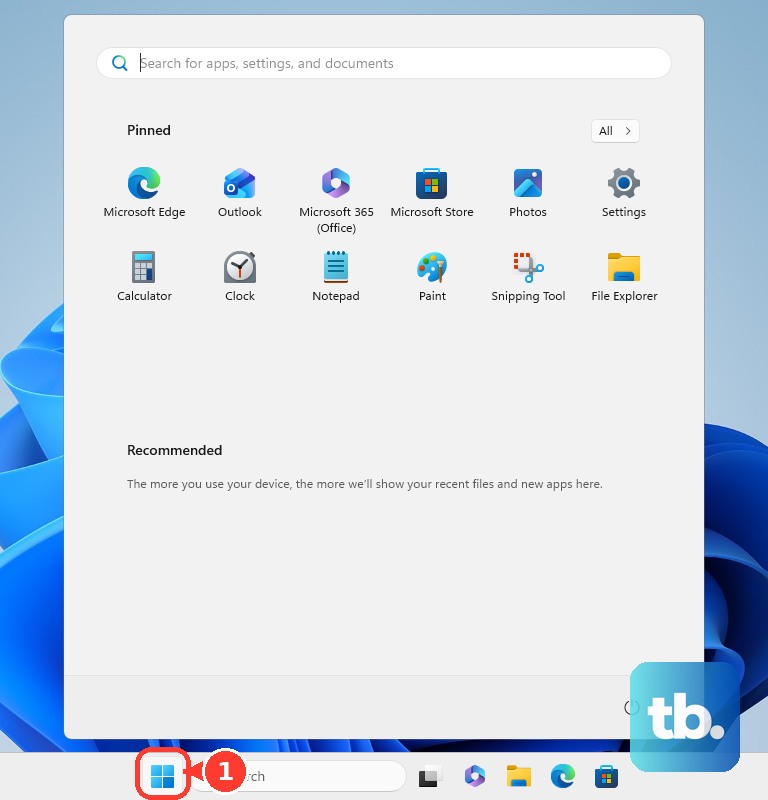
The Start menu gives you a second official route for removable apps and programs. Open Start, open All apps, and find the app. Right-click it or press and hold it, then choose Uninstall. Some built-in Windows apps cannot be uninstalled.
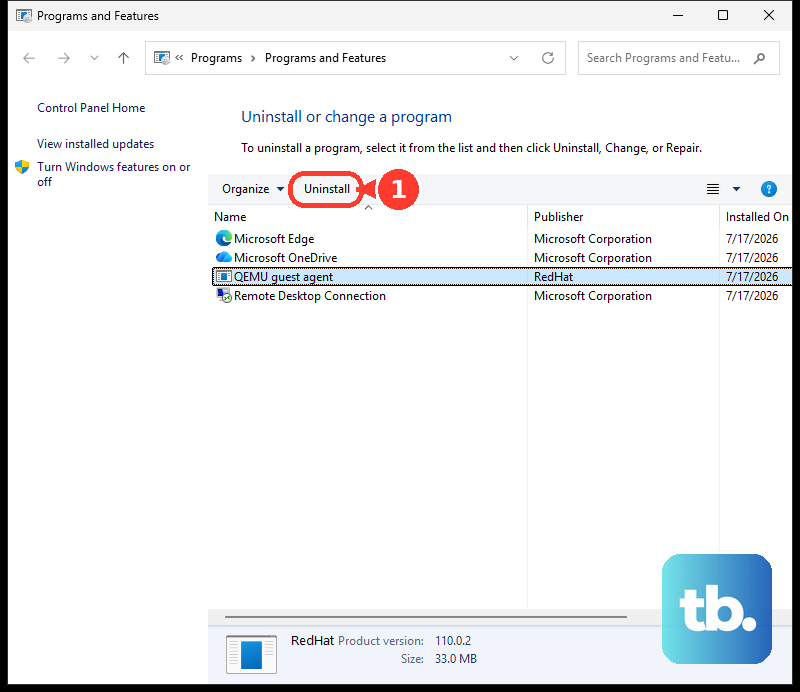
For desktop programs that still register there, use Control Panel. Search for Control Panel, open Control Panel, and select Programs. Open Programs and Features, select the product, and choose Uninstall.
Command-line users get two supported Windows paths. In Terminal or Command Prompt, run winget list, then run winget uninstall with the exact application name. For Windows app packages with .msix or .appx extensions, open PowerShell, identify the package, and run Remove-AppxPackage -Package with the package full name.
4. Clear apps from a Mac
The Apps icon in the Dock handles Mac App Store apps on current macOS: click the Apps icon in the Dock. Click and hold the app until it jiggles, then click the Close button. On macOS versions before Tahoe 26, open Launchpad instead and follow the same jiggle-and-Close steps.
Finder is the place to check apps downloaded from the internet or disc first: open Finder. Go to Applications, open the app folder, and double-click Uninstall [App] or [App] Uninstaller if that file appears. Follow the onscreen instructions from the uninstaller.
If the app has no uninstaller and is not required by macOS, remove it from Finder. Open Finder, go to Applications, and drag the app to Trash. Alternatively, select the app and choose File, then choose Move to Trash.
To finish the removal, open Finder. Choose Empty Trash. Safari web apps added to the Dock use a separate Finder path.
From the Finder menu bar, choose Go. Select Home, open Applications, and drag the web app to Trash. Built-in macOS apps such as Safari and Mail are not removed through the Mac App Store delete flow.
5. Remove Chromebook apps and Chrome extensions
Open Launcher, then right-click the app. Choose Uninstall or Remove from Chrome, then confirm with Uninstall. On a Chromebook, the Launcher is the main app removal surface.
Chrome extensions live inside Chrome. Open Chrome, open More, and choose More tools. Open Extensions, select Remove next to the extension, and confirm with Remove. From the toolbar, right-click the extension button, then choose Remove from Chrome.
6. Free space on TVs streaming devices and Fire tablets
TV platforms put app removal behind the remote or device settings, so match the steps to the device in front of you. Apple TV 4K: On the Home Screen, highlight the app. Press and hold the clickpad or touch surface on the remote. Choose Delete App, then choose Delete to remove the app and data or Offload to keep app data.
Android TV: From the Home screen, open Settings. Choose Apps, select the app under downloaded apps, and choose Uninstall. Select OK. You can also open Play Store, find the app or game, and choose Uninstall.
Samsung Smart TV or projector: Press Home, then open Apps. Go to App Settings, select the app, choose Delete, and choose Delete again. Recommended and default apps are not always deletable.
Fire TV: Open Settings, select Applications, and open Manage Installed Applications. Select the app, choose Uninstall, and confirm. Fire TV Auto Offload automatically offloads infrequently used apps after 60 days when it is enabled and available.
Roku: Press Home on the Roku remote, then move right. Highlight the app, press the Star button, choose Remove app, and confirm. In the Roku mobile app, open Devices, open Apps on Roku, tap and hold the app, choose Remove, and confirm.
Amazon Fire tablet: Tap and hold the app icon. Choose Remove from Device, then tap OK. Preinstalled Fire tablet apps cannot be removed.
7. Delete games and apps on watches and consoles
Apple Watch: Press the Digital Crown, then touch and hold the app. Tap the Delete button, tap Delete App, and press the Digital Crown again. From the paired iPhone, open the Watch app, go to My Watch, find the app under Installed on Apple Watch, and tap it. Turn off Show App on Apple Watch.
For watchOS-only apps, tap Delete app on Apple Watch. Tap Delete. Wear OS: Wake the watch, press the Power button, and open Play Store. Swipe down from the top, tap My Apps, select the app, scroll to the bottom, and tap Uninstall.
Xbox and PS5: Xbox keeps uninstall in the app or game menu. Highlight the game or app, press the Menu button, choose Uninstall, and follow the prompts. On PS5, open Settings, choose Storage, select Console Storage, open Games and Apps, choose the data, and select Delete.
In the PlayStation App, go to Settings. Open PS5 Storage, select the games, and delete them to clear console storage space. Nintendo Switch and Nintendo Switch 2: On Nintendo Switch, open System Settings, choose Data Management, open Software, select the software, and choose the available delete or archive option.
Deleting downloadable software does not delete save data. On Nintendo Switch 2, select the software on the HOME Menu, then press + or -. Open Manage Software, choose Delete Software, and choose Delete.
To delete several Switch 2 titles at once, open System Settings. Choose Data Management, open Quick Delete, and choose the software. Select Delete.
8. Handle work and school managed devices
Managed devices follow organization rules first. On Apple deployments, an organization removes managed apps through its device management service, and unenrolling the device removes managed apps and their data when the deployment is configured that way.
Android work profiles have a user-facing removal path. On Pixel devices running Android 8.0 or later, open Settings, go to Passwords, Passkeys & Accounts, tap Remove work profile, and tap Delete. On other Android devices, the exact path may vary.
If that option is not shown, tap the work account. Choose Remove account, choose Remove account again, and tap OK.
For Windows devices managed through Microsoft Intune, an admin or help desk can use Microsoft Intune admin center. Open Devices, open All devices, select the device, and choose Remove apps and configuration. That action is a temporary troubleshooting step for Intune-delivered apps and configuration profiles: unless an admin starts a restore, Intune automatically reapplies the removed items within 8 to 24 hours to keep the device aligned with its assignment intent.
For permanent removal, the organization must change the app or configuration assignment intent. If a work-managed app has no uninstall button on your device, the organization that manages the device controls that removal.
Frequently Asked Questions
Why can’t I uninstall some apps?
Some apps are built into the operating system, preinstalled by the device maker, or controlled by work or school management. Those apps use Disable, Offload, or administrator removal instead of a normal uninstall button.
Does uninstalling an app delete my data?
The removal option decides that. Apple TV Delete removes the app and data, while Offload keeps app data. iPhone Offload Unused Apps removes the app binary and keeps documents and data. Nintendo says deleting downloadable Switch software does not delete save data.
What is the difference between uninstalling disabling and offloading?
Uninstalling removes the app. Disabling turns off a preinstalled Android or Samsung app that cannot be removed. Offloading frees storage while keeping app data for a later reinstall on supported Apple TV, iPhone, and Fire TV flows.
Can I uninstall apps remotely?
Yes, in supported ecosystems. Google Play can uninstall apps from another Android device signed in with the same Google Account, the Roku mobile app can remove Roku apps, the PlayStation App can delete PS5 games, and Xbox’s mobile app can manage console content.











