You want privacy on public Wi-Fi, access to content while traveling, or simply an encrypted connection between your iPhone and the internet. The good news is that setting up a VPN on your iPhone is fast, and for most people it is genuinely a one-tap job once the app is installed.
There are two routes. The easy route is installing your VPN provider's app from the App Store and tapping one button. The manual route adds a VPN configuration directly in iOS Settings using connection details from your provider, which is useful when you have credentials but no dedicated app.
Either way, you need one thing first: an active VPN subscription or account. App-based setup needs an account created in the app or on the provider's website. Manual setup needs separate connection credentials from the provider's manual-setup portal. This guide walks through every method, quickest first.
Install Your VPN Provider's App From the App Store
This is the recommended method for nearly everyone. The app configures everything technical for you and lets you switch server locations in a single tap.
Open the App Store and tap the Search tab.
Search for your chosen VPN provider (for example, Norton VPN, Surfshark, NordVPN, or Private Internet Access).
Tap the download button (it shows as Get if you have not installed the app before).
Authenticate the download with Face ID, Touch ID, or your device passcode when prompted.
Once installed, tap Open to launch the app.
Sign in with your account credentials, or start a free trial / create an account in-app or on the provider's website.
When prompted, tap Allow to let the app add VPN configurations to your iPhone, then authenticate again with Face ID, Touch ID, or your passcode.
Select your desired server location.
Tap Connect (or the app's activation button) to establish the secure tunnel.
For everyday use after that, just open the app and tap the connect button again. Downloading from the App Store is also the safer route; an App Store VPN app is extremely unlikely to contain malware.
Add a VPN Configuration Manually in Settings
Use this method when your provider gives you connection details but you prefer not to use an app, or your setup requires it. Before you start, gather the exact details from your provider, because they vary by protocol. For IKEv2 you need the server hostname, the Remote ID, and a username/password (or certificate). For L2TP/IPsec you typically need the server address, an account, a password, and a pre-shared key (shared secret).
Only IKEv2, IPSec, and L2TP can be configured natively in iOS Settings. Here is the path:
Open Settings and tap General.
Tap VPN & Device Management, then tap VPN. (On some versions this row appears simply as VPN under General; both lead to the same place.)
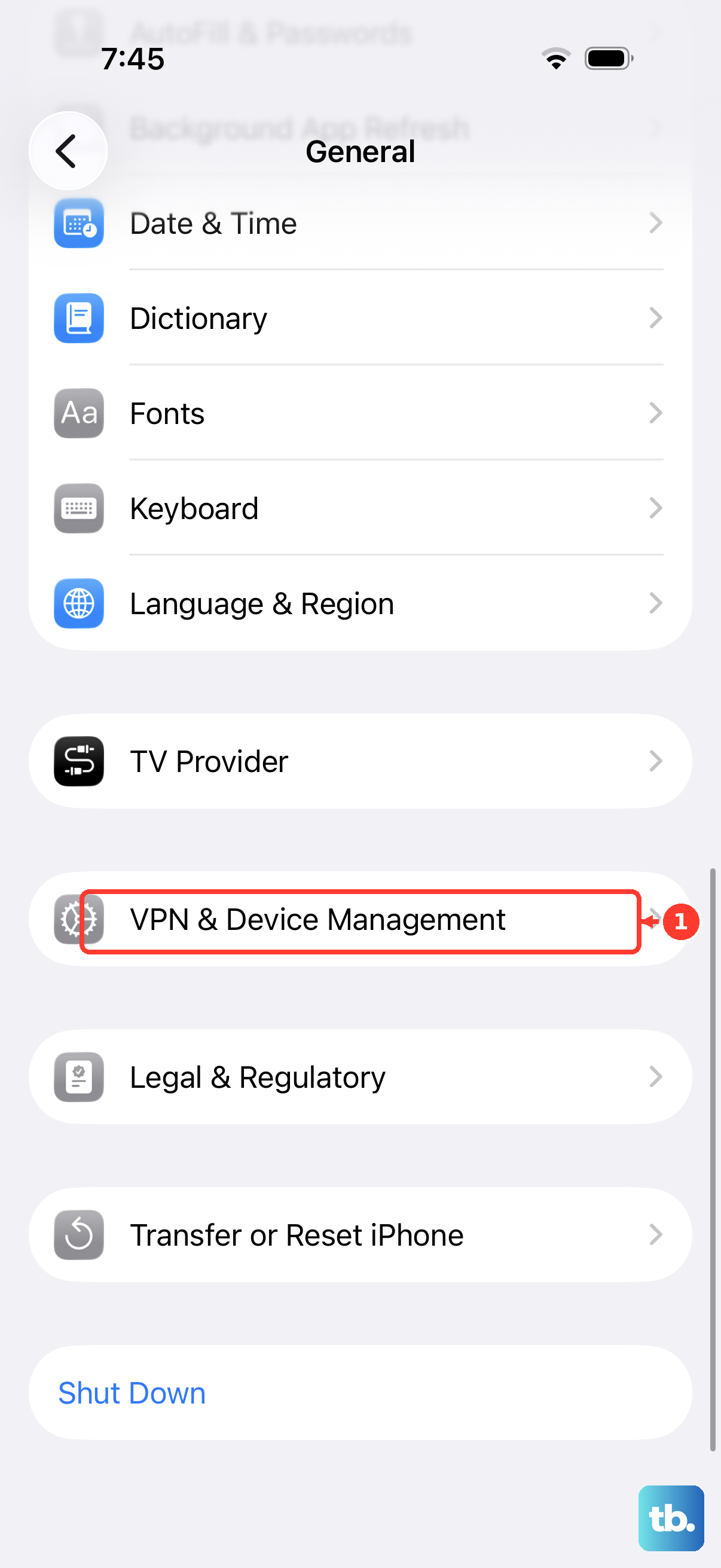
Tap Add VPN Configuration.
Tap the Type field and choose your protocol: IKEv2, IPSec, or L2TP.
Enter the connection details: Description (any name you choose), Server (the hostname from your provider), Remote ID (usually the same hostname as the Server field), and Local ID (often left blank for IKEv2).
Under User Authentication, enter your Username and Password (the manual-setup credentials from your provider).
For L2TP/IPsec, also enter the pre-shared key / shared secret where required.
Leave Proxy set to Off unless your provider specifies otherwise.
Tap Done (or Add Configuration) to save.
One important warning: the manual-setup username and password are often not your normal account login. Many providers' dashboards generate a separate, auto-generated username and password (and sometimes a pre-shared key) for each protocol. If authentication fails, check that you used those manual-config credentials rather than your account email and password.
The other trade-off is convenience: with a manual configuration you must reconfigure the connection each time you switch servers, which is exactly why app-based setups win for frequent location changes.
Turn the VPN On or Off and Switch Configurations
Once a configuration exists, you control it from Settings without reopening the setup screen.
- 1.Go to Settings > General > VPN & Device Management > VPN (or simply Settings > VPN, depending on your version).
- 2.Slide the Status toggle for the configuration on or off.
- 3.If you have more than one configuration, tap the one you want first to make it the active/selected configuration, then toggle Status on.
Confirming the connection is non-obvious on modern iPhones. On iPhone X and later there is no persistent VPN icon in the status bar on the Home Screen. To check status, pull down Control Center, or use a Lock Screen / Home Screen VPN widget if your app provides one.
Set Up OpenVPN or WireGuard (Third-Party App Required)
iOS does not support OpenVPN or WireGuard natively, so they will never appear in the Add VPN Configuration screen. To use either protocol, install the relevant app from the App Store: your provider's own OpenVPN-capable app, or the official WireGuard client.
After installing the app, follow that app's import or sign-in process to load your configuration. The app then registers itself as a VPN configuration on your iPhone, and you connect from within the app exactly as in the App Store method above.
Configure Advanced IKEv2 Options (Managed or Power Users)
For supervised or managed devices, IKEv2 exposes a much fuller set of fields than the consumer screen. These are configured through device management settings and include:
Connection Name, Hostname (IP or FQDN), Local Identifier, and Remote Identifier.
Machine Authentication: none, shared secret, or certificate-based.
Extended Authentication (EAP): certificate (EAP-TLS) or username/password (EAP-MSCHAPv2).
Connection management: Disconnect on Idle, NAT Keepalive (minimum 20 seconds), Dead Peer Detection (none/low/medium/high), and Mobility and Multihoming (MOBIKE).
Advanced security: Perfect Forward Secrecy, certificate revocation checking, and custom encryption/integrity algorithms.
Network config: IPv4/IPv6 tunnel, DNS servers, primary and search domains, Split DNS match domains, MTU (default 1280), service exceptions, and captive portal handling.
Three managed-only features are worth knowing. Always On VPN works only with IKEv2 and requires a supervised device; it cannot be used with OpenVPN, WireGuard, or third-party apps. Per-App VPN requires the app to be installed and managed through a device management (MDM) service, so it does not apply to apps you install normally. VPN On Demand auto-connects using rules in a configuration profile and is intended for certificate-based authentication without user interaction, configured via profiles/MDM rather than the standard Add VPN Configuration screen.
Frequently Asked Questions
Do I need a subscription before I set up a VPN?
Yes. An active VPN account is a prerequisite. App-based setup needs an account created in the app or on the provider's website, and manual setup needs the connection credentials from your provider's manual-setup portal.
Why won't my username and password work for a manual setup?
Because for many services the manual-config credentials are not your normal account login. The provider's dashboard generates a separate, auto-generated username and password (and sometimes a pre-shared key) for each protocol. Use those, not your account email and password.
Which VPN protocols can iOS handle without an app?
Only IKEv2, IPSec, and L2TP can be configured natively in Settings. OpenVPN and WireGuard are not built in and require installing a third-party app from the App Store.
How do I check whether the VPN is actually connected?
On iPhone X and later there is no persistent VPN icon in the status bar on the Home Screen. Pull down Control Center to view VPN status, or add a VPN widget if your app offers one.
Why does the app vs. manual choice matter so much?
Apps configure everything automatically and switch servers in one tap. With a manual configuration you must reconfigure the connection every time you change servers, which makes apps far more convenient for frequent location changes.
What do I need for an L2TP/IPsec manual setup specifically?
You typically need the server address, an account, a password, and a pre-shared key (shared secret). That pre-shared key is required and is not always readily available from the provider, so confirm you have it before you begin.