To fix iPhone volume controls that aren’t working, play audio and try Volume Up or Volume Down, then compare the Control Center slider, remove button obstructions and check sound settings and audio output. The buttons adjust different sounds depending on what your iPhone is doing, so make adjustments while the sound you want to change is playing. If onscreen adjustment works but the buttons do not, use AssistiveTouch while you check for a physical problem.
The short version
- Test during playback: Play audio before pressing Volume Up or Volume Down to adjust media volume.
- Check the buttons: Remove an obstructing case or protective film and clean around the buttons with a soft cloth.
- Check ringtone settings: Enable Change with Buttons in Sounds & Haptics when ringtone adjustment is the problem.
- Check the destination: Select your iPhone as the playback output to rule out audio going to an accessory.
- Use an alternative: Control Center and AssistiveTouch let you adjust volume without working physical buttons.
| Fix | When to use it | Where to start |
|---|---|---|
| Adjust during playback | Buttons change the wrong sound | Play audio, then press Volume Up |
| Remove obstructions | Buttons do not respond or sound is muffled | Inspect the case, buttons and speaker openings |
| Use onscreen or voice controls | Physical buttons are unavailable | Control Center, AssistiveTouch or Siri |
| Restore ringtone and alert adjustment | Calls or notifications stay quiet | Sounds & Haptics and Focus |
| Correct audio routing | Sound plays through the wrong device | Select the intended playback destination |
| Review limits and automatic changes | Volume is capped or changes unexpectedly | Speaker, headphone and AirPods settings |
| Fix the affected app | Other apps adjust volume normally | Playback controls, reopening and app updates |
| Restart and update iOS | Several apps have the same problem | Shut Down, then Software Update |
| Arrange service or restore software | Earlier checks do not resolve the fault | Service for damaged buttons, restore for persistent software trouble |
Test volume while the sound is playing
Start a song or video, then press Volume Up and Volume Down. During media playback, these buttons adjust media volume; when nothing is playing, they normally adjust ringer and alert volume. To change how loudly you hear a caller, press Volume Up or Volume Down during an active call.
Compare the buttons with the slider in Control Center. On a Face ID iPhone, swipe down from the upper-right corner; on an iPhone with a Home button, swipe up from the bottom. Drag the volume slider while audio plays to see whether onscreen adjustment works.
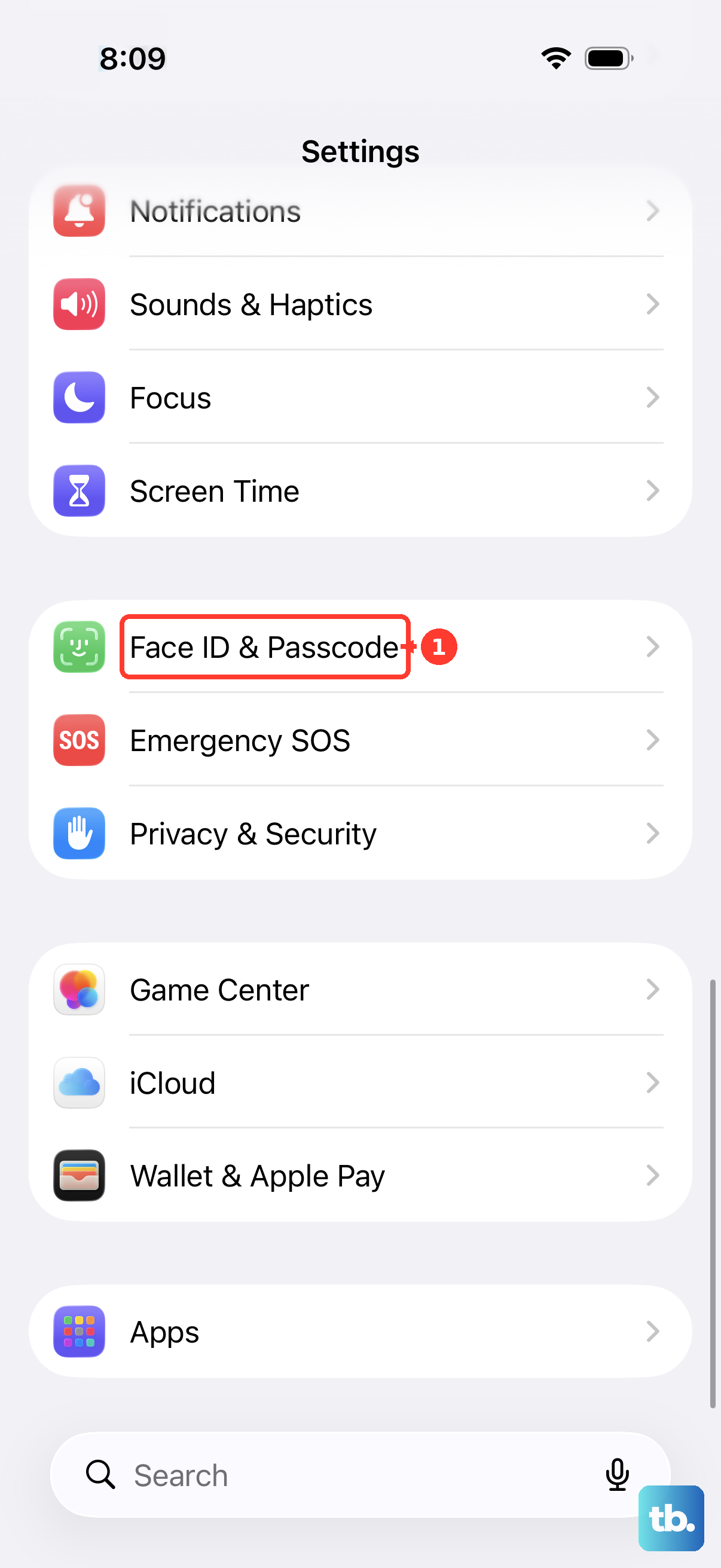
If you cannot open Control Center inside the affected app, open Settings > Control Center and enable Access Within Apps. For access while locked, open Settings > Face ID & Passcode or Touch ID & Passcode, enter your passcode and enable Control Center under Allow Access When Locked. Try opening Control Center again before treating an unavailable slider as a volume failure.
Remove anything obstructing the buttons
Take off any case or protective film that obstructs the volume buttons, then try Volume Up and Volume Down again during playback. Check around each button for debris and clean the surrounding area with a soft cloth. If a button remains damaged, intermittent or unresponsive, arrange a hardware assessment.
When the volume slider moves but the built-in sound stays faint or distorted, inspect the speaker and receiver openings too. Remove cases or films covering those openings, and clean them with a small, clean, dry, soft-bristled brush when needed. Compare the built-in speaker with headphones to narrow down which output has the problem.
Use volume controls without physical buttons
Use Control Center’s volume slider to adjust media volume while the physical buttons are unavailable. You can also activate Siri and say “Turn up the volume” or “Turn down the volume.” Siri must be enabled and available for that option.
For onscreen volume buttons, open Settings > Accessibility > Touch > AssistiveTouch and turn on AssistiveTouch. Tap the floating button, select Device, then tap Volume Up or Volume Down. If these controls change the volume successfully, you can keep using them while the physical-button problem remains unresolved.
Restore ringtone and alert adjustment
Open Settings > Sounds & Haptics and turn on Change with Buttons. When this setting is off, the physical buttons cannot change ringtone and alert volume. You can also drag the volume slider under Ringtone to set ringtone volume directly.
If ringtone volume is set correctly but calls remain silent, turn off Silent mode. On a switch model, move the Ring/Silent switch toward the display so the orange mark is hidden; if your Action button is assigned to Silent mode, press and hold it. On models with that setting, you can also turn off Silent mode in Settings > Sounds & Haptics.
Open Control Center > Focus and tap the active Focus to turn it off when calls or notifications are being silenced. If only one app’s alerts are missing, open Settings > Notifications, select the app and enable Allow Notifications. Under Sounds, enable sound or select an audible tone, depending on the app’s options.
If alerts become quieter when you look at the screen, check Attention Aware Features. On a Face ID iPhone, open Settings > Face ID & Passcode and turn off Attention Aware Features to compare. This affects alert volume, so continue with the playback checks if ordinary media is too quiet.
Send audio to the intended device
Open playback controls in the app, on the Lock Screen or in Control Center, then tap the playback-destination button. Select iPhone to check the built-in speaker, or choose the accessory you want to hear. For AirPlay playback, use the AirPlay control in Control Center’s playback controls to select the destination.
To isolate a Bluetooth problem, open Settings > Bluetooth, turn Bluetooth off and try the iPhone speaker again. The Bluetooth control in Control Center only disconnects accessories temporarily. If the problem affects one accessory, turn Bluetooth back on, tap More Info beside it, select Forget This Device and confirm. Put the accessory in discovery mode, then select its name to pair again.
During a call, expand the call banner, tap Audio and select the intended speaker or accessory. The Mute button controls your microphone and does not change listening volume. Adjust listening volume with Volume Up or Volume Down while the call is active.
For wired headphones, inspect the port, cable, remote and earbuds for damage or debris. Remove a case that obstructs the connection, connect the headphones firmly and clean dirty meshes with a dry, soft brush. Compare another pair to check whether the fault follows the headphones.
Check limits and automatic volume changes
If volume responds but stops getting louder, inspect the built-in speaker limit. On iOS 27, open Settings > Sounds & Haptics > Built-In Speaker > Volume Limit, then increase the limit or disable Limit Maximum Volume. Under Built-In Speaker, you can also turn off Reduce Loud Sounds temporarily to compare.
For headphone audio, open Settings > Sounds & Haptics > Headphone Safety and inspect Reduce Loud Audio. Adjust its threshold to compare, where restrictions permit changes. Apple says your iPhone may also lower volume when you reconnect headphones after an exposure warning; you can adjust the volume again.
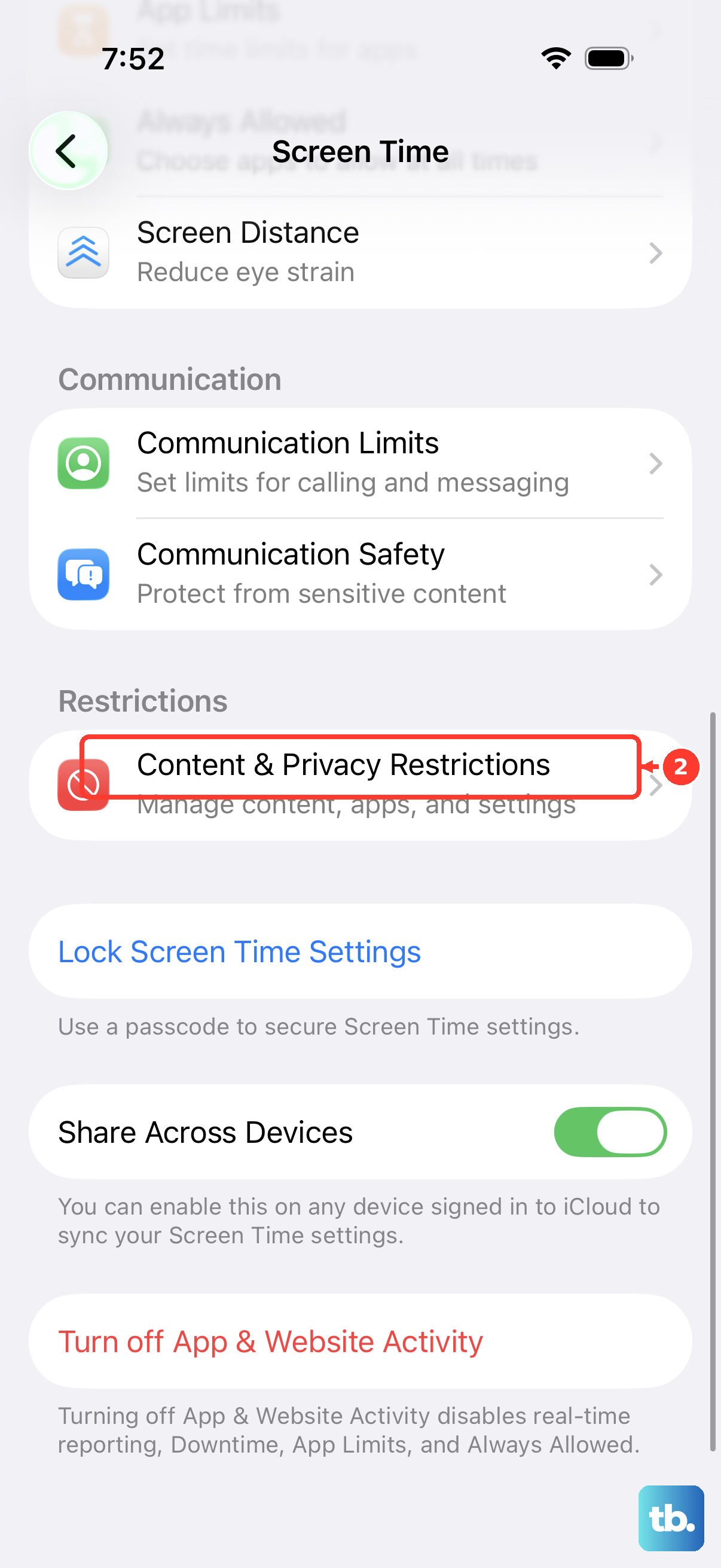
If Screen Time prevents changes, open Settings > Screen Time > Content & Privacy Restrictions. Check Speaker Volume Limit for speaker restrictions or Reduce Loud Sounds for headphone safeguards. If either is set to Don’t Allow, ask the parent or passcode holder to permit changes.
Supported AirPods can adjust volume automatically through Personalized Volume or lower media when you speak through Conversation Awareness. With your AirPods connected and worn, open Settings, select your AirPods name and turn off the relevant feature to compare. Some models place these settings under Audio & Routing.
For uneven sound, open Settings > Accessibility > Audio & Visual and center the Balance slider. Play the same audio again to check whether both sides now sound balanced.
Fix an app that ignores volume changes
Play audio in another app to see whether the failure is limited to one player. In Photos, tap the video to play it, then adjust media volume while it plays. In Music, start a song, tap the MiniPlayer to open Now Playing and drag its volume slider.
Spotify says direct iPhone-button control of a remote Spotify Connect device’s volume is no longer supported. Press Volume Up or Volume Down, then drag Spotify’s bottom-screen slider, or open Now Playing, tap the device icon and adjust the slider in the Connect menu. Choose iPhone from the device menu when you want playback on your phone instead.
If the app still misbehaves, open the app switcher by swiping up from the bottom and pausing on a Face ID model, or double-clicking Home on a model with that button. Find the affected app, swipe its preview upward and reopen it. Next, update the affected iPhone app through App Store > your profile picture > App Updates, then check playback again.
If reopening and updating do not help, delete the affected iPhone app by touching and holding it, then selecting Remove App > Delete App > Delete. Deletion can remove app data; removing only its Home Screen icon does not uninstall it. To reinstall the deleted iPhone app, open App Store > your profile picture > Apps & Purchase History > Your Apps > Not on this iPhone, find it and tap Redownload.
Restart and update your iPhone
When several apps are affected, restart your iPhone before resetting settings. Open Settings > General > Shut Down, drag the power-off slider, then hold Side to turn the phone back on. This shutdown path works without a functioning volume button.
If the entire iPhone is unresponsive and its buttons work, force restart your iPhone. On iOS 27-compatible models, including iPhone SE 2 and 3, quickly press and release Volume Up, quickly press and release Volume Down, then hold Side until the Apple logo appears. This sequence requires functioning volume buttons.
Back up your iPhone, connect it to power and Wi-Fi, then open Settings > General > Software Update. Tap Download and Install and follow the prompts for the compatible update offered to your device. Check volume adjustment again after the update.
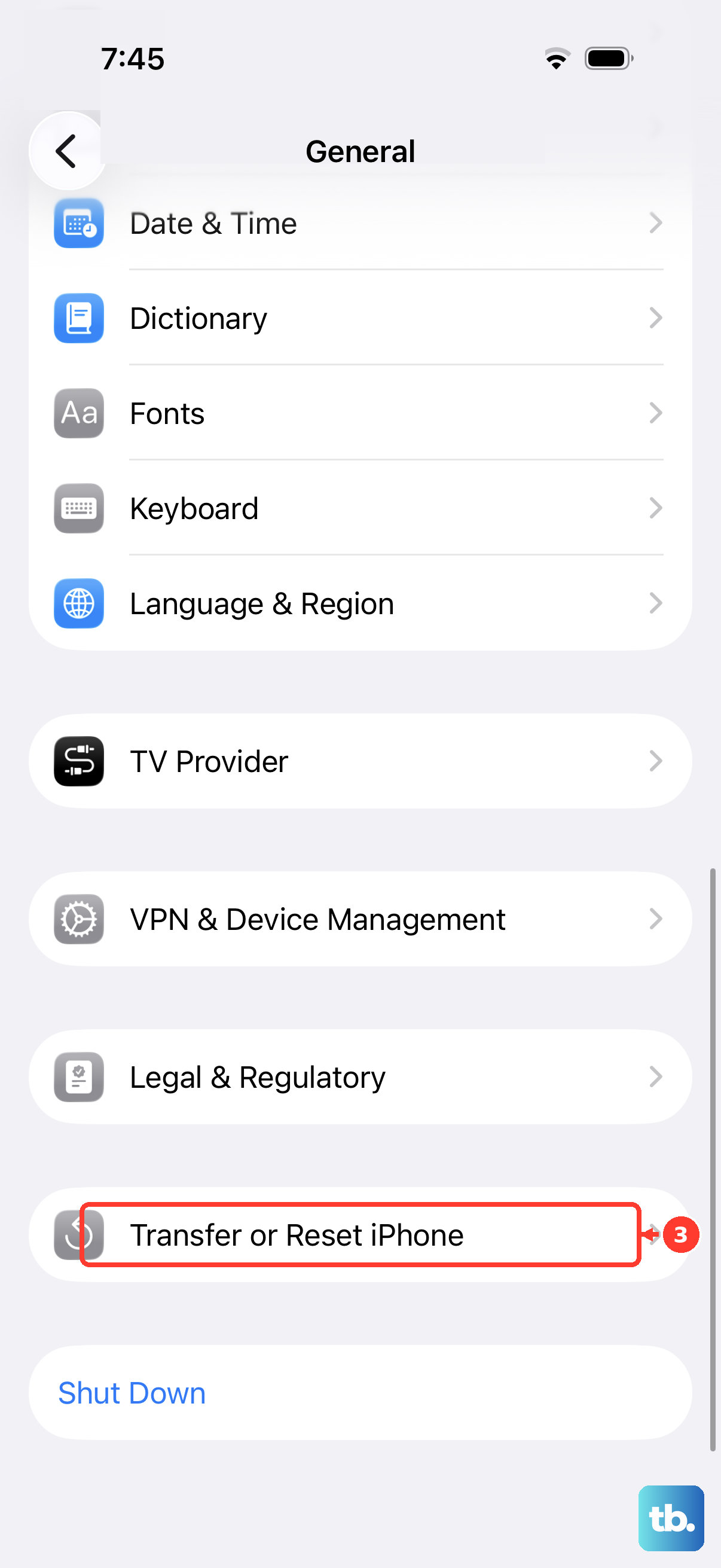
For persistent software trouble, open Settings > General > Transfer or Reset iPhone > Reset > Reset All Settings. Apps and photos remain, but configurations such as Wi-Fi, Bluetooth and Apple Pay require attention afterward. Use this as a later software troubleshooting step; it cannot repair a damaged button.
Choose service or a final software restore
Arrange hardware service if a volume button remains damaged, intermittent or unresponsive after removing obstructions and cleaning around it. Working onscreen controls let you adjust volume while you arrange the repair. Erasing the phone or restoring its software will not repair physical damage.
A computer restore is a last resort for persistent software trouble after the earlier checks. Back up first, then open Settings > your name > Find My and disable Find My iPhone. Connect your iPhone to a computer and open Finder on Mac or Apple Devices on Windows.
To restore your iPhone using a computer, select your iPhone, choose Restore iPhone, then select Restore. This erases your content and reinstalls compatible iOS. A restore is not a guaranteed fix for a volume problem.
Frequently Asked Questions
Why does my alarm stay quiet when music volume is high?
On iOS 27, alarm and timer volume is separate from media volume. Open Settings > Sounds & Haptics > Alarms and Timers, turn off Match Ringtone Volume and adjust the slider; turn it back on to link the volumes again. For a sleep-schedule alarm, open Clock > Alarms, tap Change beside the wake-up alarm and adjust Alarm volume under Alarm Options. Tap Done, then choose Change Next Alarm Only or Change This Schedule for a recurring change.
Why are volume buttons disabled only during Guided Access?
Guided Access can disable Volume Buttons for the session. Triple-click Side or Home, authenticate, select Guided Access if prompted, then open Session Settings, enable Volume Buttons and select Resume, or choose End. Check Touch if sliders are also inaccessible. From iOS 26.1, disabling Volume Buttons also disables Bluetooth-headphone volume controls.
How do I change Siri’s speaking volume?
Press Volume Up or Volume Down while Siri is speaking. With headphones, adjust their volume controls during Siri’s response. In CarPlay, adjust the vehicle’s volume while Siri is speaking or being activated.
Why do the volume buttons take a photo instead of changing volume?
Camera can use the volume buttons for capture. To adjust shutter volume, open Camera in Photo mode, open Control Center and move the volume slider, then return to Camera. Regional restrictions can prevent shutter muting.
Could a shortcut keep changing my volume?
Yes, an automation containing Set Volume can change it. Open Shortcuts > Automation and inspect enabled automations and shortcuts containing that action. Open the offending shortcut’s editor, select Automation and remove its trigger.